STL vs OBJ: Key Differences, Pros & Cons Explained
TL;DR:
- STL is a common choice for 3D printing because its geometry-only structure is widely supported by slicing workflows.
- OBJ is well suited to static rendering and textured assets because it can store UV maps and reference material data.
- STL files are structurally simple and can be compact in binary form, but they do not carry texture maps or material assignments.
- OBJ files provide more visual detail but often require additional MTL and texture files to display correctly.
- The key difference is the data each format can represent: choose a format based on the target printing, rendering, or asset-delivery workflow.
- For color 3D printing, 3MF is often a better alternative, while FBX or glTF/GLB are better for animated 3D assets.
- You can preview and convert 3D models between formats with tools like Tripo AI’s 3D Viewer and conversion tools before exporting.
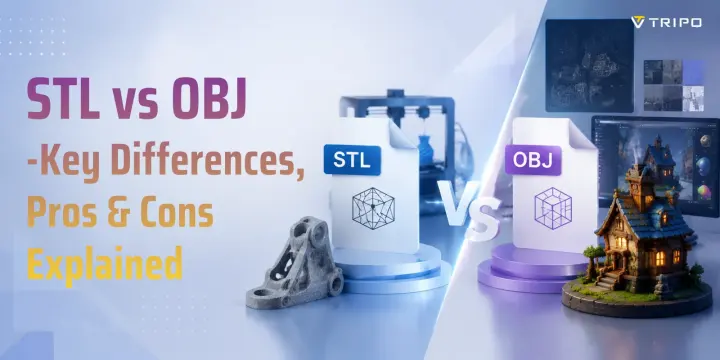
When exporting a 3D model, many creators eventually face the same question: STL or OBJ — which file format should you choose? For many printing workflows, STL is a practical geometry-only export format with broad slicer support. OBJ is often more useful for visualization and static textured assets because it can carry UV coordinates and reference material data. Both formats are decades old but remain among the most widely supported 3D file formats today. In this guide, we will break down the key differences between STL vs OBJ, their advantages and disadvantages, and when to use each format.
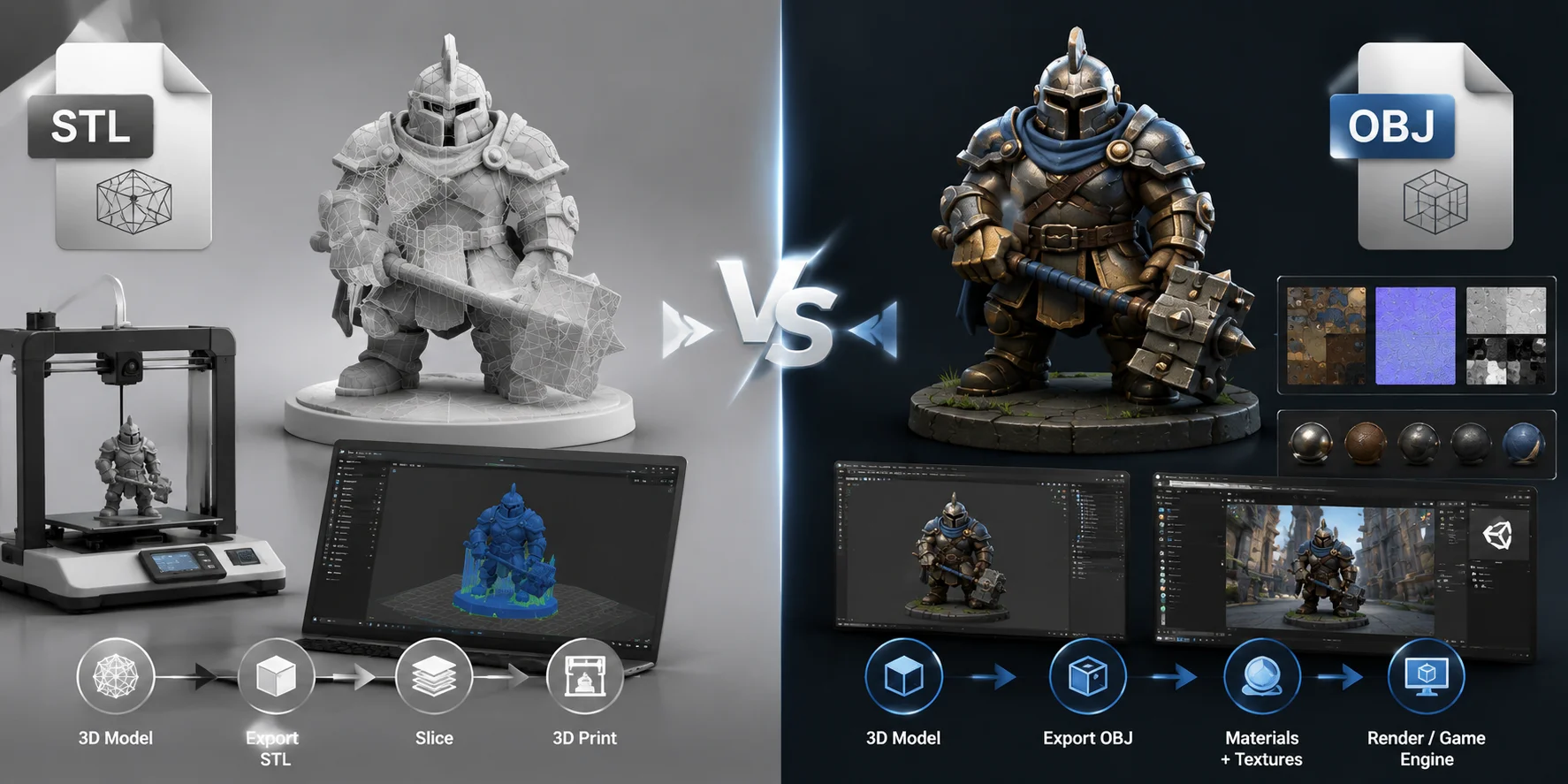
STL vs OBJ — 3D File Format Comparison Overview
What Is an STL File?
STL (Stereolithography) was developed by 3D Systems in 1987 and became one of the foundations of modern 3D printing workflows. An STL file represents the surface of a 3D object using a mesh made of triangles. Each triangle is defined by three vertices and a surface normal, allowing software to understand the shape of the object. (Xometry)
Unlike more advanced formats, STL stores only geometry data. It does not contain information about colors, textures, UV maps, or materials. This simple structure is exactly why STL remains the default format for many 3D printing workflows. Popular slicers such as Cura, PrusaSlicer, and Bambu Studio can open STL files directly without additional plugins.
How STL Works (Geometry & Mesh)
An STL file is essentially a collection of small triangular surfaces. Even a perfectly smooth sphere is represented as many flat triangles connected together. More triangles create a smoother-looking model, but they also increase file size and processing requirements.
STL files come in two main versions: ASCII STL and binary STL. ASCII files store readable text data, while binary STL files use a more compact structure and are preferred for most practical workflows.
The limitation of STL is that it only understands the outer shell of an object. It has no concept of textures, colors, UV mapping, or material assignments. When a slicer imports an STL, it mainly sees a printable surface that can be converted into layers and toolpaths.
STL Triangle Mesh Structure Explained
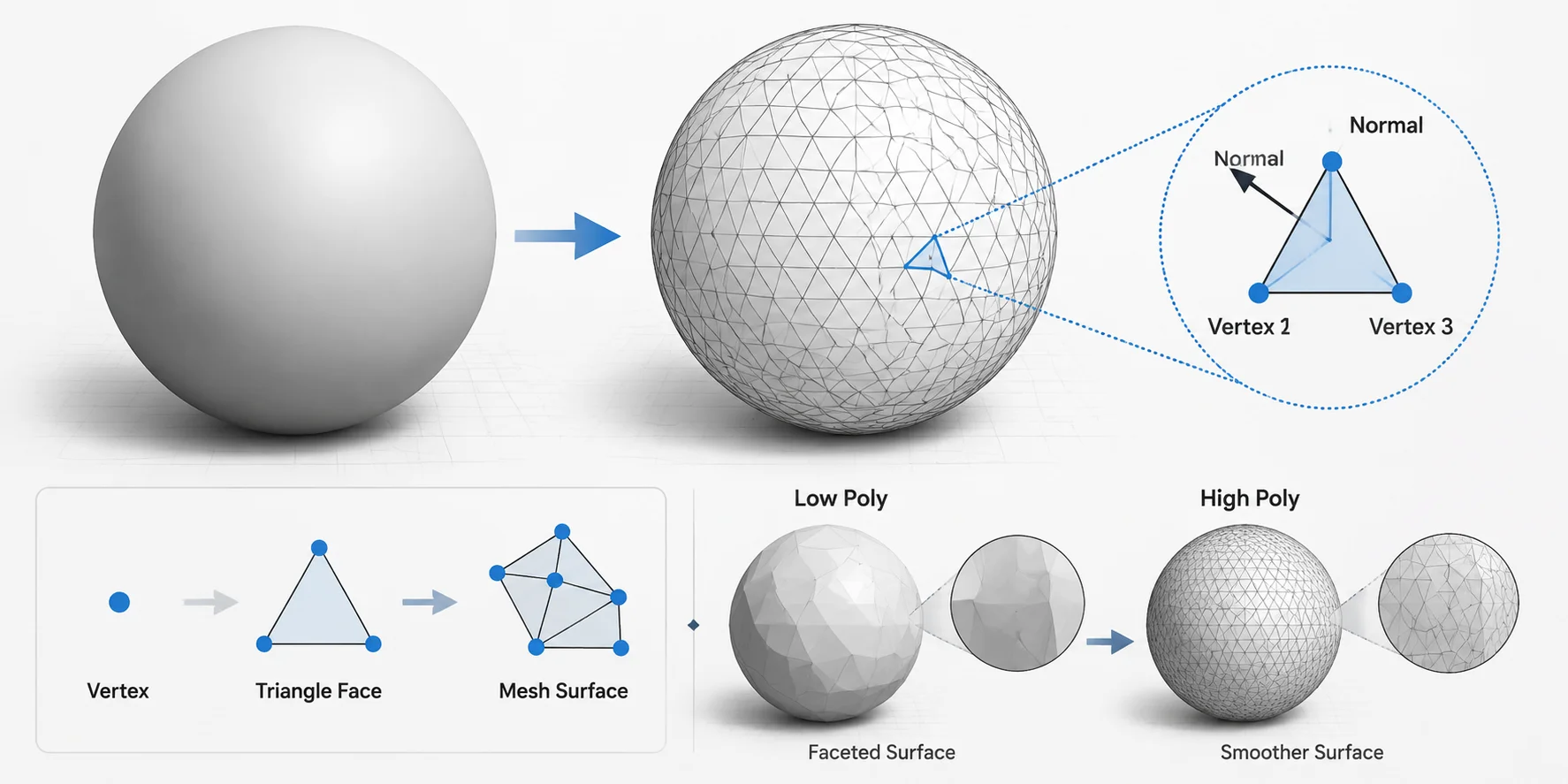
STL Advantages
- Universal compatibility: STL is supported by almost every 3D printer, slicer, and CAD program, making it the safest choice for printing workflows.
- Simple structure: Because STL stores only geometry, files are easy to process, repair, and prepare for printing.
- Mature ecosystem: Decades of use have created extensive support tools for STL repair and optimization.
- Easy print validation: Slicer software can analyze STL meshes and detect common problems such as holes or non-manifold geometry.
- Fast processing: The simple triangle-based structure allows slicers to read and process STL files quickly.
STL Disadvantages
- No color or texture data: STL cannot store surface appearance, materials, or texture maps.
- Limited curved surface quality: Smooth curves may appear faceted unless the mesh resolution is increased.
- Large files for detailed models: High-resolution organic models can create very large STL files.
- No multi-material information: A single STL file describes one geometric object without material assignments.
- No animation support: STL is designed only for static geometry, not rigged or animated assets.
What Is an OBJ File?
OBJ (Wavefront Object) was introduced by Wavefront Technologies in the late 1980s as a format for transferring 3D models between graphics applications. Unlike STL, OBJ stores more than just triangle geometry. It can include vertices, edges, polygon faces, UV texture coordinates, and material references.
OBJ can reference an external .MTL (Material Template Library) file. The MTL file can define material parameters and reference texture images, so an OBJ asset is often delivered alongside its MTL file and texture files. This makes OBJ useful for visualization and static textured assets, although the exact material result can vary by application.
OBJ is widely supported by professional 3D software including Blender, Maya, 3ds Max, and ZBrush. However, because OBJ is usually stored as text data, file sizes can become larger compared with binary formats.
OBJ File Structure: Model + Materials + Textures
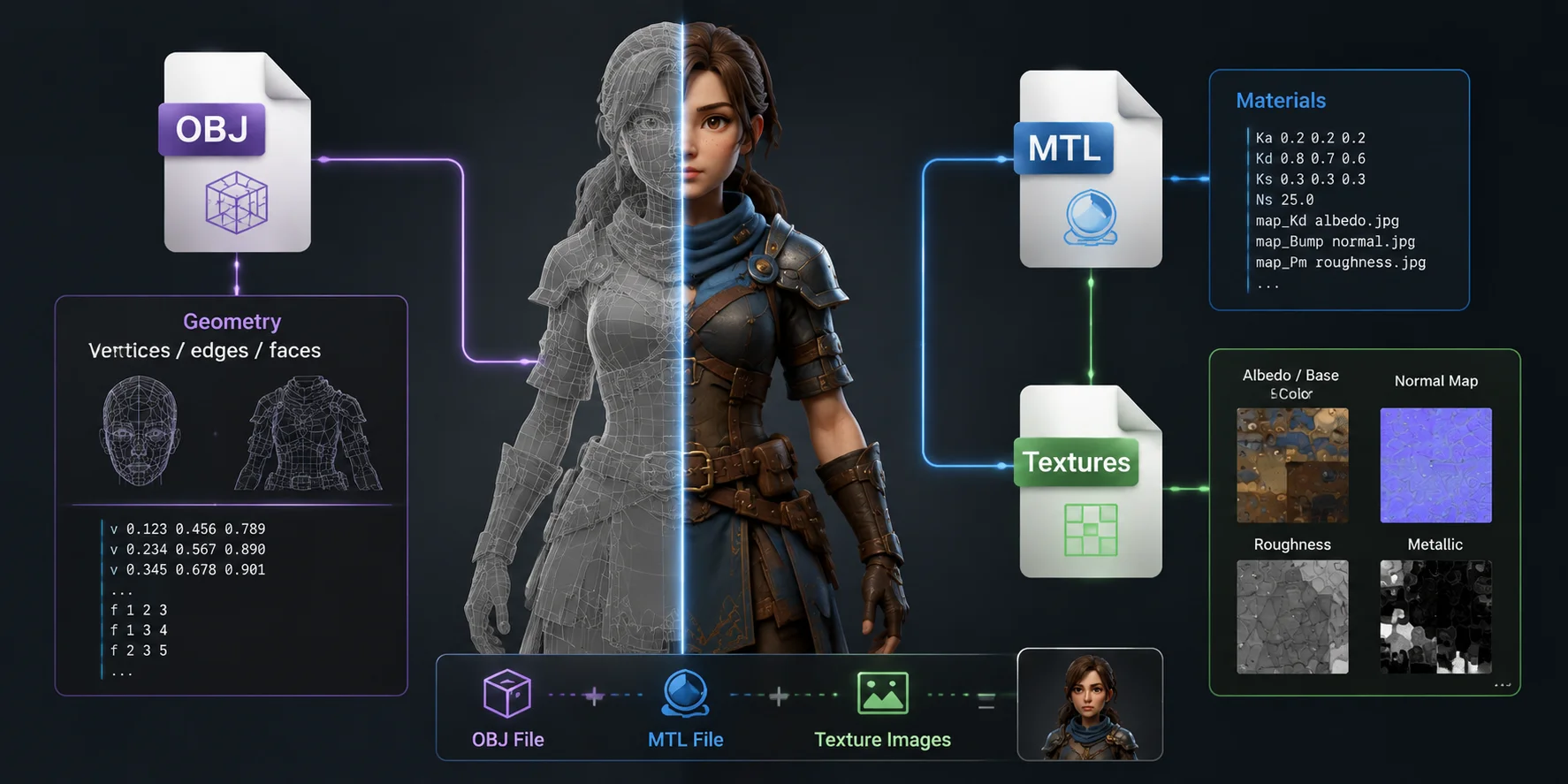
OBJ Advantages
- Texture and material support: OBJ can preserve UV coordinates, colors, and material assignments through OBJ + MTL files.
- Multiple meshes and materials: A single OBJ file can contain different objects with separate material settings.
- Human-readable format: Because OBJ is text-based, users can inspect and edit the file manually.
- Wide software compatibility: Most 3D modeling and rendering applications support OBJ import and export.
- Flexible geometry: OBJ supports different polygon types, making it more suitable for editing compared with STL’s triangle-only structure.
OBJ Disadvantages
- Multiple file dependency: OBJ often requires the matching MTL file and texture images. Missing files can cause materials or textures to disappear.
- Larger file sizes: Text-based storage can create larger files than compact binary formats.
- No animation support: OBJ stores static models and cannot contain rigging or animation data.
- Material inconsistencies: Different software may interpret MTL files differently.
- Less convenient for printing: Many printing workflows still convert OBJ into STL or 3MF before slicing.
STL vs OBJ — Key Differences
The biggest difference in the STL vs OBJ comparison is the data each format can represent. STL is a geometry-focused triangle-mesh format commonly used in 3D-printing workflows. OBJ can store geometry and UV coordinates and can reference material data, making it a common choice for static rendering, visualization, and textured digital assets.
| Feature | STL | OBJ |
|---|---|---|
| Geometry encoding | Triangle mesh | Vertices, edges, and faces (triangles, quads, n-gons) |
| Texture / color | ❌ No texture or color data | ✅ Supports UV maps, colors, and .MTL materials |
| File structure | Single file containing geometry | OBJ file + optional MTL file + texture images |
| File size (same geometry) | Usually smaller (especially binary STL) | Usually larger due to text-based structure |
| 3D printing support | Universal support across slicers and printers | Supported by some slicers but often converted first |
| Animation | ❌ Not supported | ❌ Not supported |
| Human-readable | Only ASCII STL is readable | Yes, plain-text format |
| Best for | 3D printing, prototypes, manufacturing workflows | Rendering, texturing, digital assets, game workflows |
The most practical difference between STL and OBJ is texture and material support. If your model needs colors, surface details, or realistic materials, OBJ is the better choice because it can preserve UV maps and linked texture information. For a model that will go directly into a slicer for 3D printing, STL’s limited structure is actually an advantage — fewer elements mean fewer compatibility issues.
Before exporting, you can preview how your model appears in different formats with Tripo AI’s 3D Viewer to check geometry, details, and overall appearance before choosing the final file type. This helps avoid export issues when moving between 3D printing, rendering, or game development workflows.
Pros & Cons Summary Table
| col1 | STL | OBJ |
|---|---|---|
| ✅ Pros | Universal printing support · Simple structure · Small binary files · Huge ecosystem | Texture support · Materials · Multiple meshes · Wide software compatibility |
| ❌ Cons | No textures · Limited visual data · Triangle-only mesh | Larger files · Requires MTL files · No animation |
The best choice depends on your final workflow.
STL vs OBJ Comparison Infographic
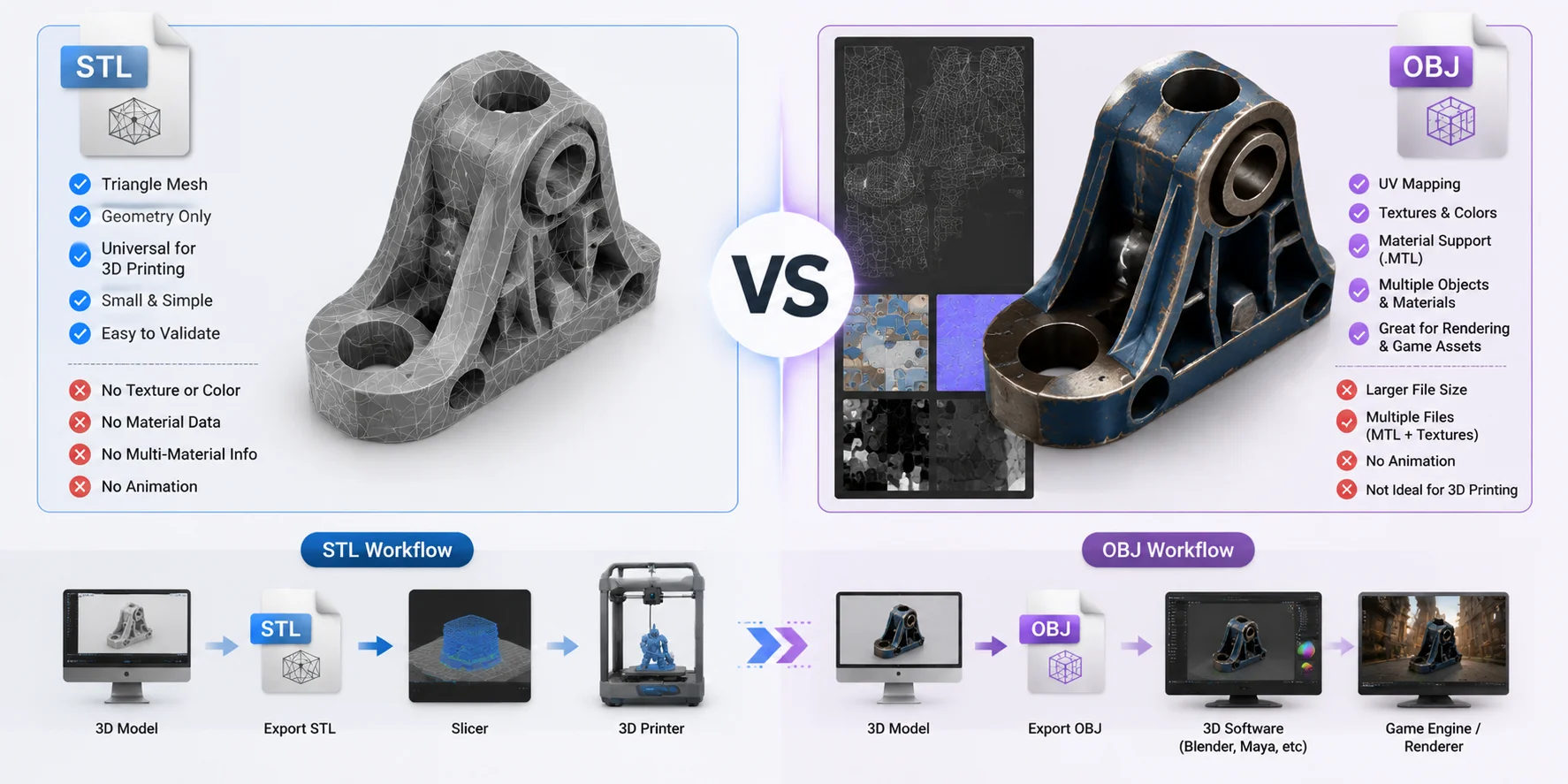
When to Use STL vs OBJ
Choose STL when:
- You are preparing a model for 3D printing.
- Your object is a single solid shape without textures.
- You need maximum compatibility with slicers.
- You want a simple and reliable export format.
STL remains the preferred choice for most printing workflows because nearly every printer ecosystem supports it. Whether you use an FDM printer from Prusa, Bambu, or Creality, STL is usually accepted directly by slicing software.
Choose OBJ when:
- Your model includes textures, colors, or PBR materials.
- You are exporting for Blender, Maya, game engines, or rendering.
- You need multiple objects with different materials.
- You want more flexible mesh editing.
When Neither STL nor OBJ Is Ideal
STL and OBJ cover most common workflows, but some projects require a format with more advanced capabilities. For color 3D printing or multi-material projects, consider 3MF instead — it supports materials, colors, print settings, and metadata while keeping a compact binary structure. For animated characters, rigged assets, or real-time 3D experiences, formats such as FBX or glTF/GLB are usually a better fit because they support animation, skeletons, and modern rendering pipelines.
If you need to move between formats, you can use Tripo AI’s convert tool to create another export for the target workflow. Check the converted file in its destination application, because format conversion can omit data that the target format cannot represent, such as materials, textures, rigging, or animation.
STL vs OBJ Decision Flowchart
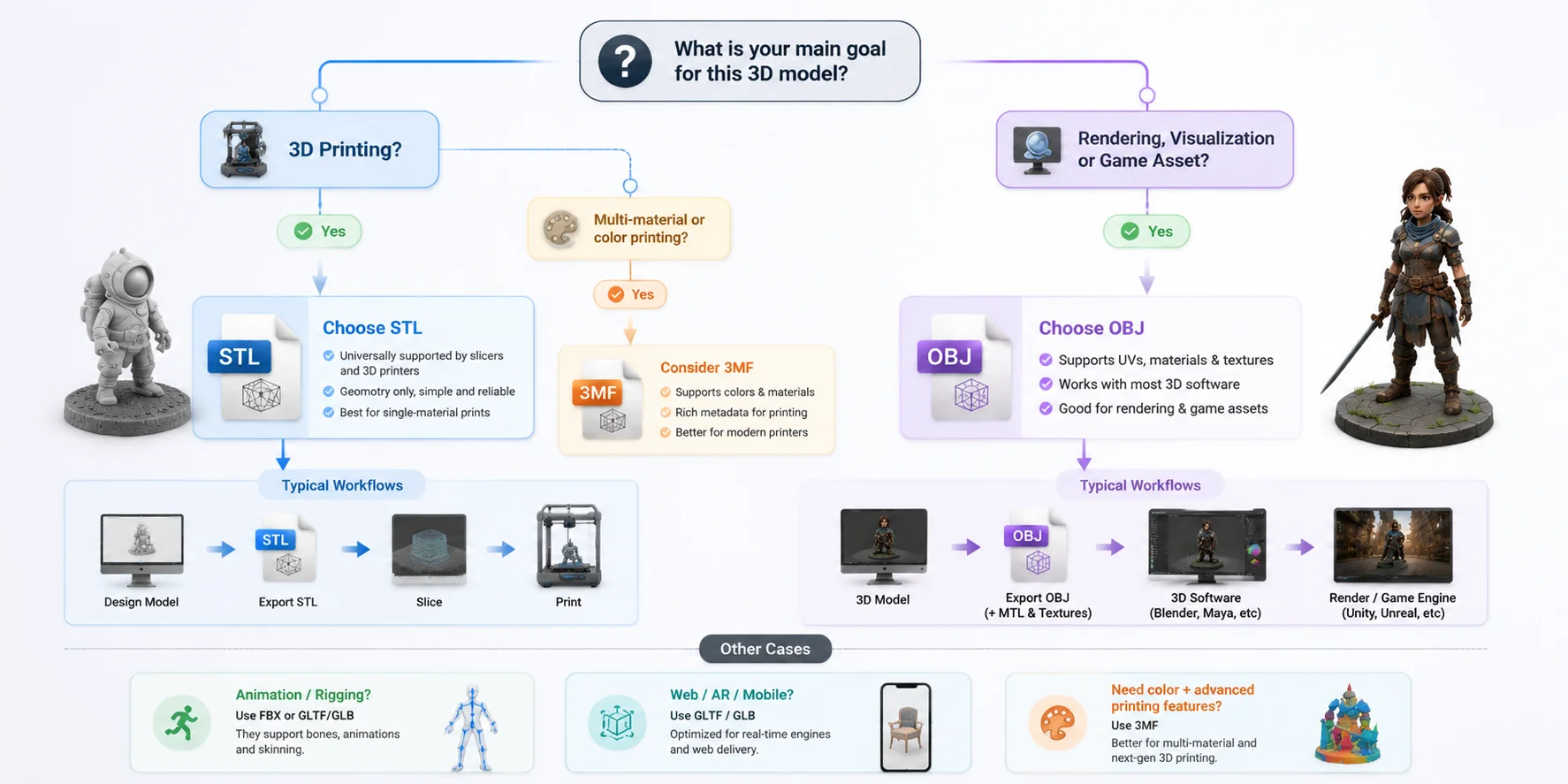
When your final destination is a conventional print workflow, you can convert an OBJ model to STL after choosing the geometry you want to keep.
STL for 3D Printing — A Closer Look
STL became dominant in 3D printing because it solved one simple problem: transferring the surface geometry of a model into printable instructions. The typical workflow is:
Design model → Export STL → Import into slicer → Generate G-code → Print
Most CAD tools, including Fusion 360, SolidWorks, and Tinkercad, offer STL export because it is reliable and widely accepted.
OBJ can also be used in some printing workflows, but much of its additional data, such as textures and materials, may not be needed during slicing. For standard single-material prints, STL remains the simplest path from digital model to physical object.
Frequently Asked Questions
What is the biggest difference between STL and OBJ?
The biggest difference is the type of information they store. STL only contains geometric surface data, while OBJ can include UV coordinates, materials, and texture references. This makes STL better for printing and OBJ better for visualization.
Can you 3D print OBJ files?
Yes, some slicers can import OBJ files directly. However, many printing workflows convert OBJ to STL because STL provides maximum compatibility and focuses only on printable geometry.
What are the disadvantages of using OBJ files?
The main disadvantages are the dependency on additional files, larger file sizes, and inconsistent material handling between different software programs. OBJ also does not support animation.
What will open an OBJ file?
Most major 3D tools open OBJ natively: Blender, Maya, 3ds Max, ZBrush, Cinema 4D, and Meshmixer. Online viewers like Tripo AI's 3D Viewer** **also handle OBJ without any software installation.
Is STL or OBJ better for game assets?
OBJ is generally more useful than STL when a static game asset needs UVs and material references. For production pipelines that need animation or an efficient runtime delivery format, teams often use formats such as FBX or glTF/GLB according to the target engine and pipeline.
How do I convert OBJ to STL?
You can convert OBJ to STL in Blender (File → Export → STL), Meshmixer, or directly online using** **Tripo AI's convert tool. The conversion drops all texture and material data — only geometry transfers.
Conclusion
STL and OBJ are both useful formats, but they solve different problems. STL is the reliable choice for 3D printing because it is simple, universal, and supported everywhere. OBJ is better when your model needs colors, textures, or materials for rendering and digital content creation.
Need to preview and export your model in different formats? Try Tripo AI Studio to generate and manage 3D assets. Want to explore available features and limits? Check Tripo AI Pricing.