How to Export AI 3D Models to Blender (Step-by-Step 2026)
TL;DR
- Use GLB for most Blender imports.
- Choose FBX for rigged or animated models.
- Check the scale, textures, normals, and UVs after importing.
- Reduce excess polygons to improve performance.
- Cleaner AI meshes require less manual cleanup.
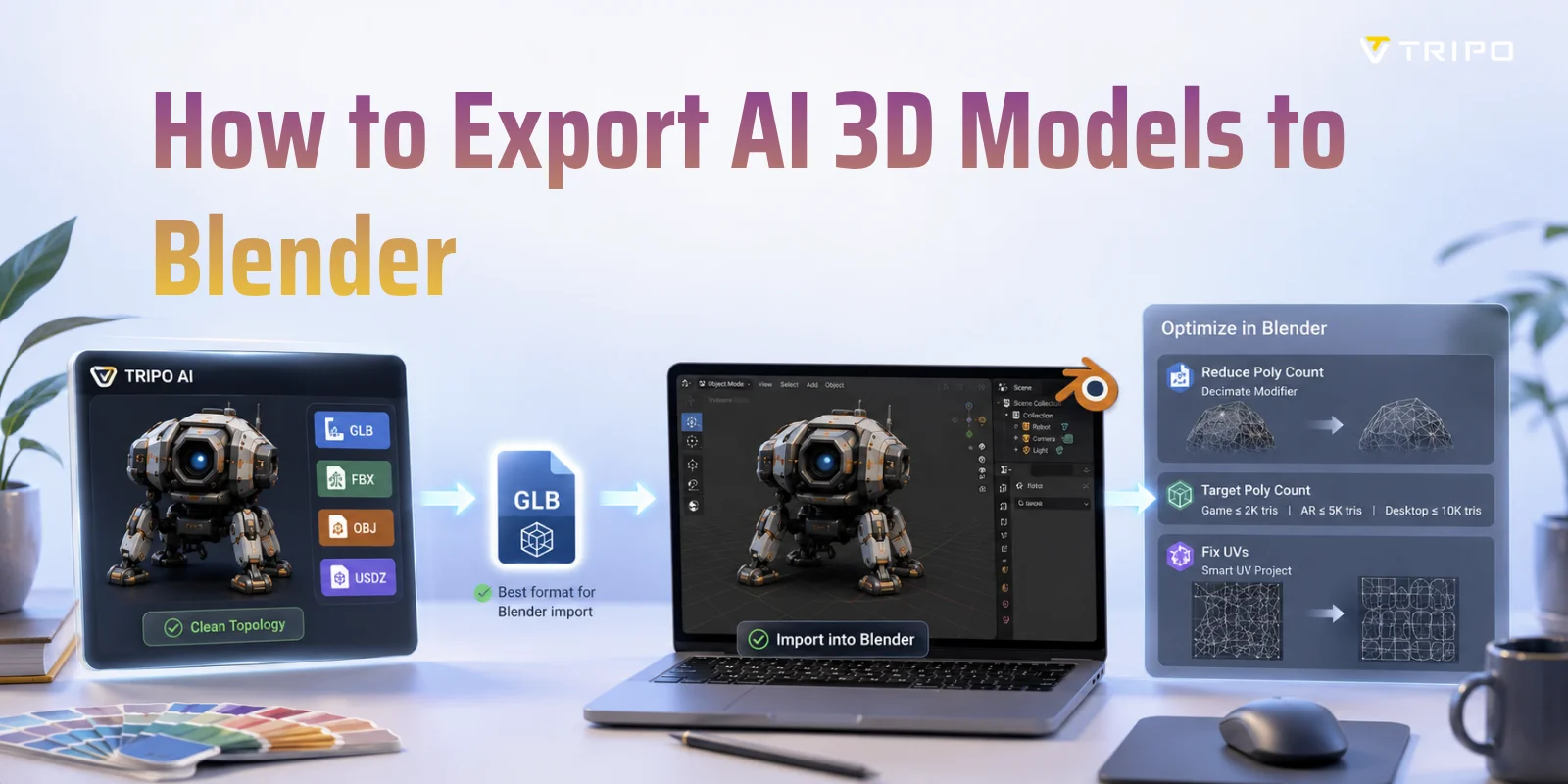
If you want to export an AI-generated 3D model to Blender, the easiest workflow is to download it as GLB (recommended) or FBX, then import it using File → Import in Blender. GLB usually preserves materials, textures, and scene data more reliably than other formats, making it the best choice for most AI-generated assets. In this guide, you'll learn the complete export and import process, how to fix common issues after import, and how to optimize AI-generated meshes for editing, rendering, or game development in Blender.
Which Format Should You Use?
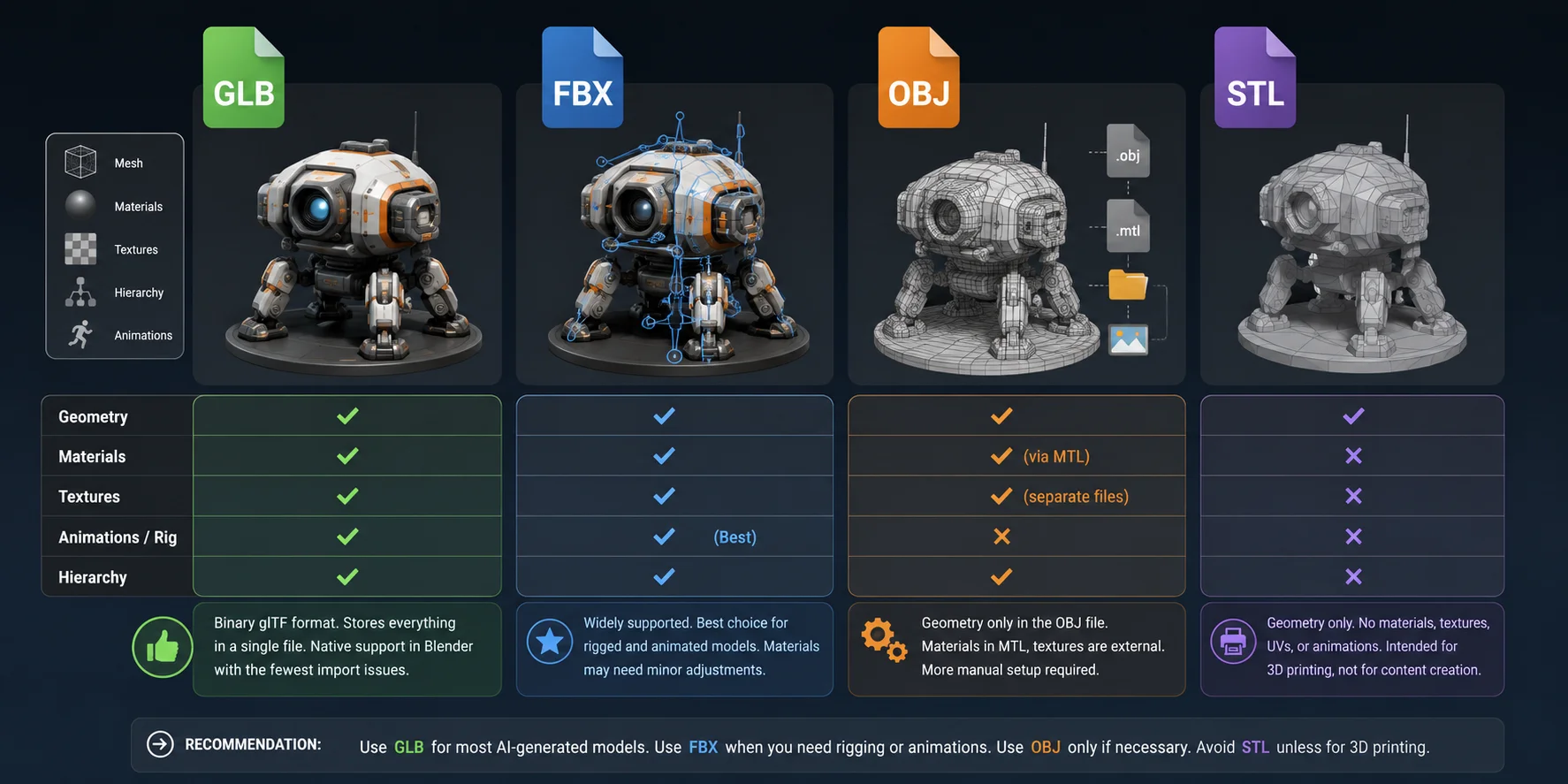
Before importing an AI-generated model into Blender, it's worth choosing the right export format. While Blender supports several common 3D file types, they differ significantly in how well they preserve materials, textures, animations, and scene structure. For most AI-generated assets, GLB provides the smoothest workflow with the fewest compatibility issues.
| Format | Best For | Blender Import Experience | Recommendation |
|---|---|---|---|
| GLB | Static models with textures | ⭐⭐⭐⭐⭐ Textures, materials, and hierarchy preserved in one file | Best default choice |
| FBX | Rigged or animated models | ⭐⭐⭐⭐ Excellent animation support, occasional material adjustments | Best for characters |
| OBJ | Geometry exchange | ⭐⭐⭐ Requires separate MTL and texture files | Use only if needed |
| STL | 3D printing | ⭐⭐ Geometry only, no materials or textures | Not for Blender editing |
GLB: The Best Default for AI 3D Models
GLB is the binary version of glTF and is natively supported by Blender. It stores geometry, materials, textures, UV maps, and scene hierarchy in a single file, reducing the risk of missing textures or broken material links.
Tripo AI supports GLB export for a smooth Blender workflow. Simply download the model, then select File → Import → glTF 2.0 (.glb/.gltf) in Blender—typically with little cleanup required.
FBX: Best for Rigged and Animated Models
If your AI-generated model includes a skeleton, character rig, or animation, FBX is usually the better choice. FBX has long been the standard exchange format for game engines, animation software, and digital content creation tools, and Blender supports FBX import directly.
Although materials sometimes require minor adjustments after import, FBX generally preserves armatures, animation clips, transforms, and object hierarchies much better than other formats. If you plan to edit animations or export the model to Unity or Unreal Engine after working in Blender, FBX is often the safest workflow.
OBJ: Reliable Geometry, More Manual Work
OBJ remains one of the most widely supported 3D formats, but it is also one of the least convenient for modern AI workflows. The OBJ file stores only the mesh geometry, while materials are referenced through a separate MTL file and texture images are stored independently.
This means you must keep the OBJ, MTL, and texture files together in the same folder for Blender to load materials automatically. Even then, texture paths may need to be reassigned manually if files are moved or exported incorrectly. OBJ works well when you only need geometry, but it usually involves more manual setup than GLB or FBX.
What About STL?
STL is designed for 3D printing, not for content creation. It stores only the mesh geometry and contains no information about materials, textures, colors, UV maps, or animations. While Blender can import STL files, they're best suited for preparing models for printing rather than editing textured assets. Unless your goal is to create a printable model, GLB or FBX will provide a much smoother Blender workflow.
Choosing the Right 3D Export Format for Blender
If a static GLB asset needs an OBJ-based editing or interchange workflow, you can convert GLB to OBJ before bringing it into the next step of the Blender pipeline.
How to Export a Tripo AI Model to Blender
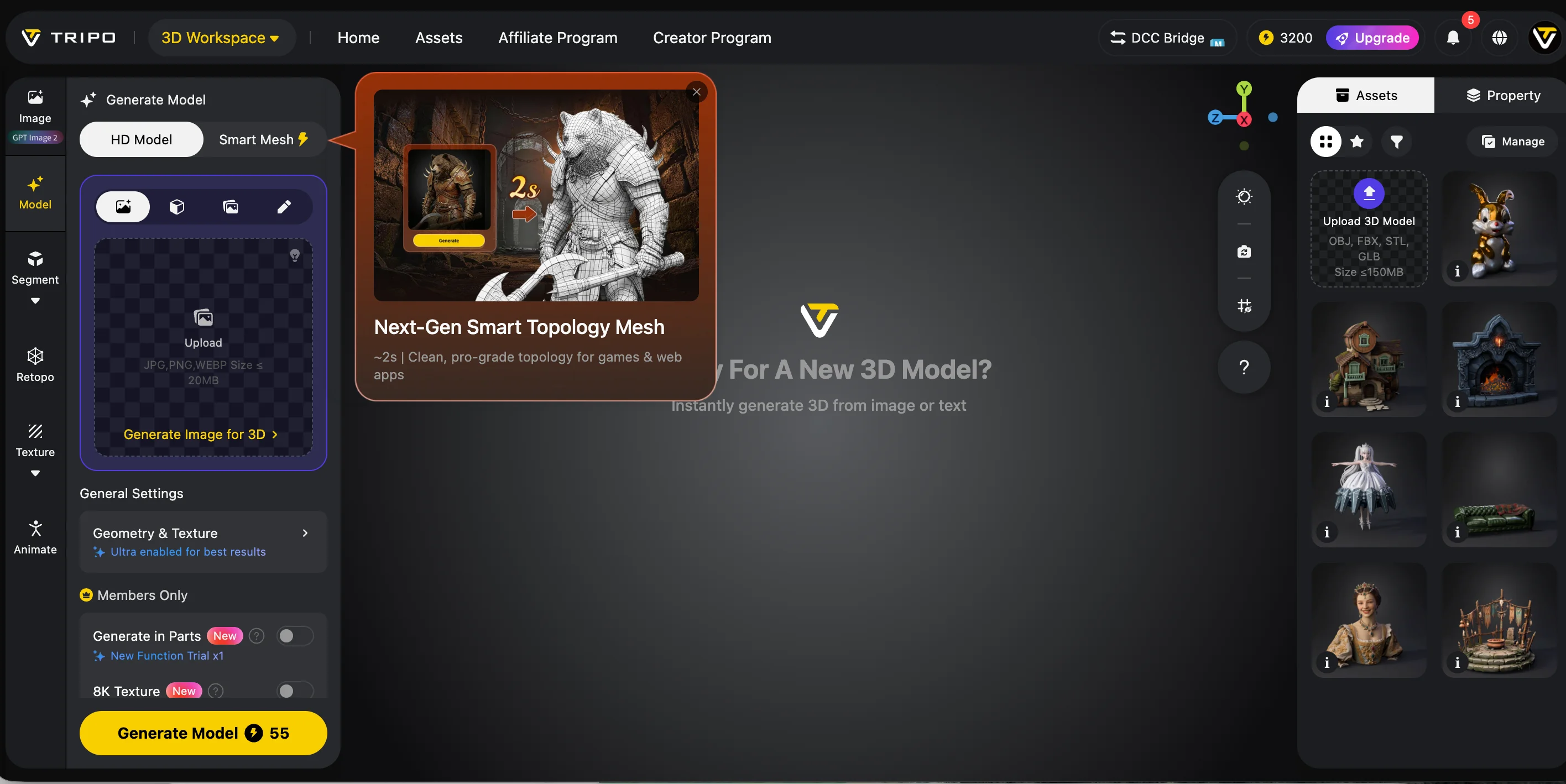
Step 1: Generate or Open Your Model in Tripo
Create a model from a text prompt or reference image, or open an existing model from your Tripo workspace. Before exporting, rotate the model in the preview and check its silhouette, texture placement, and visible geometry.
If the asset is intended for a real-time project, consider using Smart Mesh or another retopology workflow to control polygon density before export. For a detailed render or close-up asset, preserve enough geometry to retain the important surface details.
Step 2: Prepare the Model for Export
Confirm whether the model needs textures, rigging, or animation. These requirements affect which format is most appropriate:
- Choose GLB when you want a compact single-file asset with geometry, materials, and textures.
- Choose FBX when the asset belongs to an established FBX-based rigging or animation pipeline.
- Choose OBJ when you mainly need static geometry and can manage the material and texture files separately.
Do not assume that one format is best for every project. The correct choice depends on the asset data and the rest of the production pipeline.
Step 3: Export and Download the Model
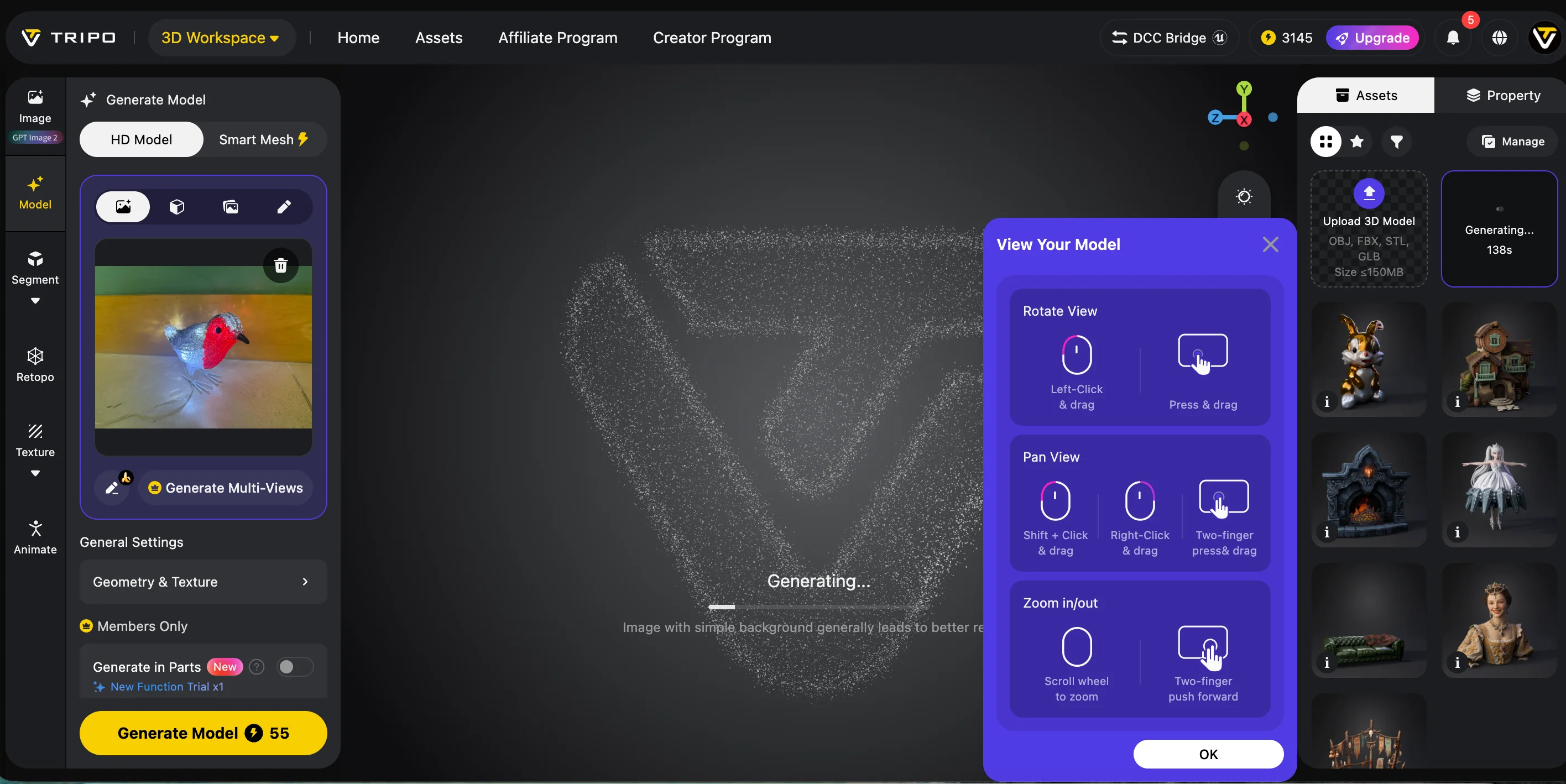
Open the model's export or download options, choose the required format, and start the export. Keep the downloaded file and any accompanying texture files together.
If you choose OBJ, make sure the OBJ, MTL, and texture files remain in the same folder. Moving only the OBJ file can cause missing materials after import.
Step 4: Import the Model into Blender
Open Blender and use the importer that matches the downloaded format:
- GLB or glTF: File → Import → glTF 2.0 (.glb/.gltf)
- FBX: File → Import → FBX (.fbx)
- OBJ: File → Import → Wavefront (.obj)
Select the exported file and complete the import. The model should appear in the active Blender scene.
Step 5: Check the Imported Asset
After import, verify:
- scale and orientation;
- materials and texture connections;
- normals and visible shading;
- polygon count;
- UV layout;
- armature and animation data, when applicable.
If a material or texture is missing, first confirm that all related files were downloaded and kept together. Avoid rebuilding materials until the source files and texture paths have been checked.
Step 6: Save a Blender Working Copy
Save the imported scene as a .blend file before performing destructive cleanup or applying modifiers. This gives you a recoverable working copy if optimization changes the model more than expected.
Common Import Issues and How to Fix Them
Even when a model imports successfully, differences in scale, texture paths, or mesh orientation can affect how it appears in Blender. Here are three common issues and practical ways to fix them.
Issue 1: The Model Appears Too Small or Too Large
If the imported model is much smaller or larger than expected, select it and press S to scale it manually. You can also adjust the Scale or Unit Scale setting in the import dialog before completing the import. Once the size looks correct, press Ctrl + A and select Scale to apply the new dimensions.
Issue 2: Textures Are Missing After Import
Missing textures usually mean that Blender cannot locate the image files referenced by the model. Check whether the texture paths point to valid locations, then use File → External Data → Find Missing Files to reconnect them if necessary. When exporting from Tripo, choose GLB when possible because it can store the model and its textures in a single file. OBJ exports typically rely on separate material and image files, making broken texture paths more likely.
Issue 3: Some Faces Appear Black or Unusually Dark
Black or dark faces may indicate that the mesh normals are pointing in the wrong direction. Select the model, enter Edit Mode, press A to select the entire mesh, and choose Mesh → Normals → Recalculate Outside. You can also press Shift + N to run the same command. Return to Object Mode and check the model under normal lighting to confirm that the shading has been corrected.
Why Start with Tripo AI for Cleaner Blender Imports?
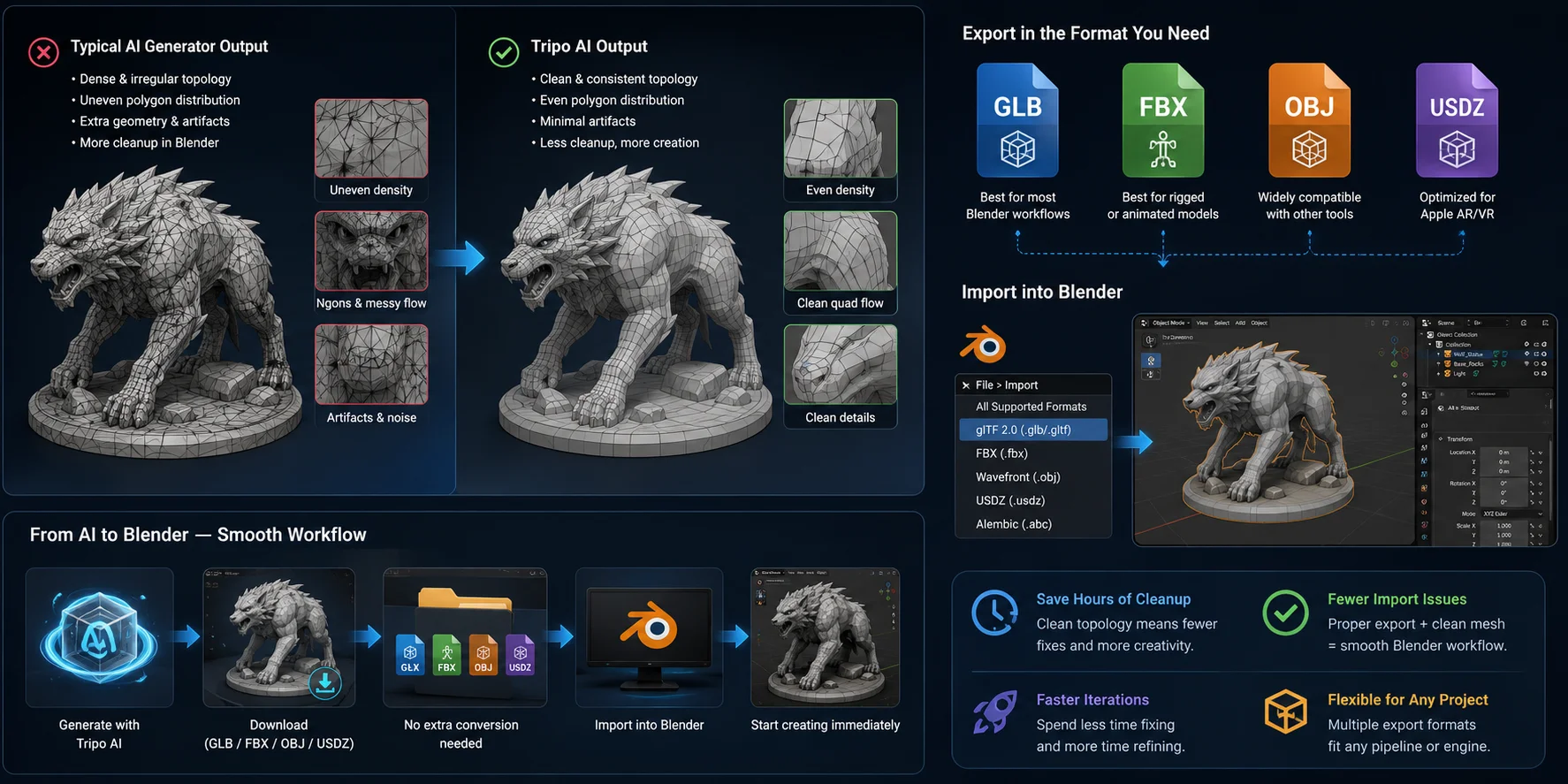
Choosing the right export format is only part of the workflow. The quality of the AI-generated mesh has an even bigger impact on your Blender experience. A clean model imports smoothly and is easier to edit, while a messy mesh can add significant cleanup time before you can start working.
Many AI Models Need Extensive Cleanup
One of the biggest challenges with AI-generated 3D models is inconsistent topology. Some generators create meshes with dense, irregular polygon distribution, stretched triangles, or unnecessary geometry. Although these models may look good in a preview, they often require extra work in Blender before they're suitable for sculpting, UV editing, rigging, or game asset optimization.
Tripo Smart Mesh for Optimized Workflows
Tripo Smart Mesh helps create optimized mesh topology for low-poly assets, real-time applications, and game development workflows. Using Smart Mesh before exporting can make the model easier to edit and prepare in Blender while keeping the polygon count appropriate for performance-focused projects.
Multiple Export Formats for Different Pipelines
Tripo Studio supports GLB, USD, FBX, OBJ, STL, and 3MF exports. For Blender workflows, use GLB to retain textures and materials in one file, FBX for rigged or animated models, or OBJ for static geometry. STL and 3MF are primarily intended for 3D-printing workflows.
Why Clean AI Meshes Matter for Blender
Basic Mesh Optimization After Import
After importing your AI-generated model into Blender, it's a good idea to optimize the mesh before editing, rendering, or exporting it to another application. The amount of optimization depends on whether you're building a game asset, an AR model, or a high-quality render.
Reduce Polygon Count with the Decimate Modifier
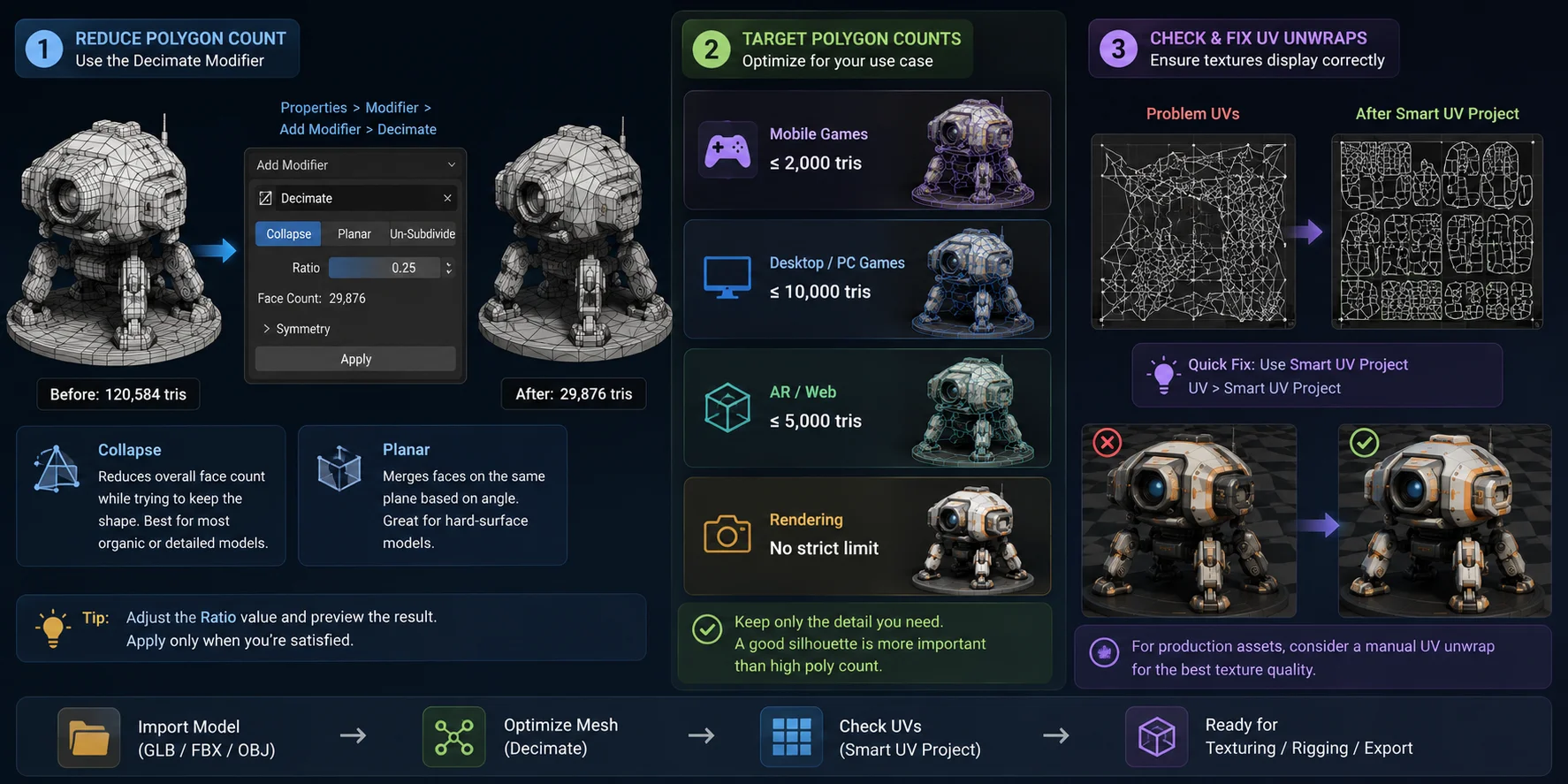
If your model has more polygons than necessary, use Blender's Decimate modifier to simplify it. Go to Properties → Modifiers → Add Modifier → Decimate.
- Collapse mode reduces the overall polygon count while keeping the model's shape as much as possible. It's the best choice for most AI-generated meshes.
- Planar mode merges flat surfaces based on angle, making it useful for hard-surface objects such as furniture or mechanical parts.
Always preview the result before applying the modifier to avoid losing important details.
Choose the Right Poly Count
There isn't a universal polygon budget, but these ranges work well for most projects:
| Use Case | Recommended Triangle Count |
|---|---|
| Mobile games | ≤ 2K tris |
| Desktop/PC games | ≤ 10K tris |
| AR / Web models | ≤ 5K tris |
| Rendering | No strict limit |
If performance matters, reduce the mesh only as much as needed while maintaining the silhouette and important details.
Check and Fix UVs
After optimization, inspect the model's UV layout to ensure textures display correctly. If the imported UVs are missing or heavily distorted, a quick fix is UV → Smart UV Project, which automatically creates a usable UV map for most models.
For production assets, you may want to create a manual UV unwrap later, but Smart UV Project is often sufficient for previews, prototypes, and many AI-generated models.
Basic Mesh Optimization in Blender
Frequently Asked Questions
How do I import an AI file to Blender?
Open Blender → File → Import and choose the importer that matches your file format. For most AI-generated 3D models, GLB is the recommended option because it preserves geometry, materials, and textures in a single file. After importing, check the mesh, materials, and UVs to ensure everything transferred correctly.
Can AI generate 3D models in Blender?
Yes. You can generate a model with Tripo AI, export it as GLB or FBX, and import it into Blender for editing, texturing, animation, or rendering.
How do I export 3D models into Blender?
AI tools do not export into Blender directly—they export compatible file formats. Download your model as GLB (recommended) or FBX, then in Blender select File → Import → glTF 2.0 (.glb/.gltf) or File → Import → FBX. GLB is usually the easiest choice because it keeps textures and materials together.
How to turn an Illustrator file into a 3D model?
Export your Adobe Illustrator (.AI) artwork as an SVG file first. In Blender, choose File → Import → Scalable Vector Graphics (.svg) to import the curves, then convert them to a mesh if needed and use Extrude (or Alt + E in Edit Mode for meshes) to add depth. This workflow works well for logos, icons, and other vector artwork.
Conclusion
For the smoothest Blender workflow, export your AI model as GLB, check the import, and perform basic mesh optimization if needed. Starting with a clean mesh makes editing faster and reduces manual cleanup.
Ready to get started? Generate a clean AI 3D model with Tripo AI, export it as GLB, and import it directly into Blender.