USDZ Product Models: The AR Commerce Workflow (Guide)
TL;DR
- USDZ lets shoppers open a product in AR Quick Look on a supported iPhone or iPad without installing an app.
- Get a source model by downloading one, converting an existing 3D asset, or generating one from an image or text prompt.
- Tripo exports USD; USDZ packaging and Apple-device validation happen in a supported downstream workflow.
- Use approximately 4-8 MB and 200,000 triangles or fewer as starting targets, then test performance on representative devices.
- Embed USDZ for Apple Quick Look and provide a GLB fallback for Android and interactive desktop viewing.
USDZ product models let shoppers open a product on an iPhone or iPad and view it at real scale with AR Quick Look. The workflow is to generate a 3D model, export USD, package it as USDZ, optimize it for mobile, and embed it on the product page.
What Are USDZ Product Models? (And Why Apple Uses Them)
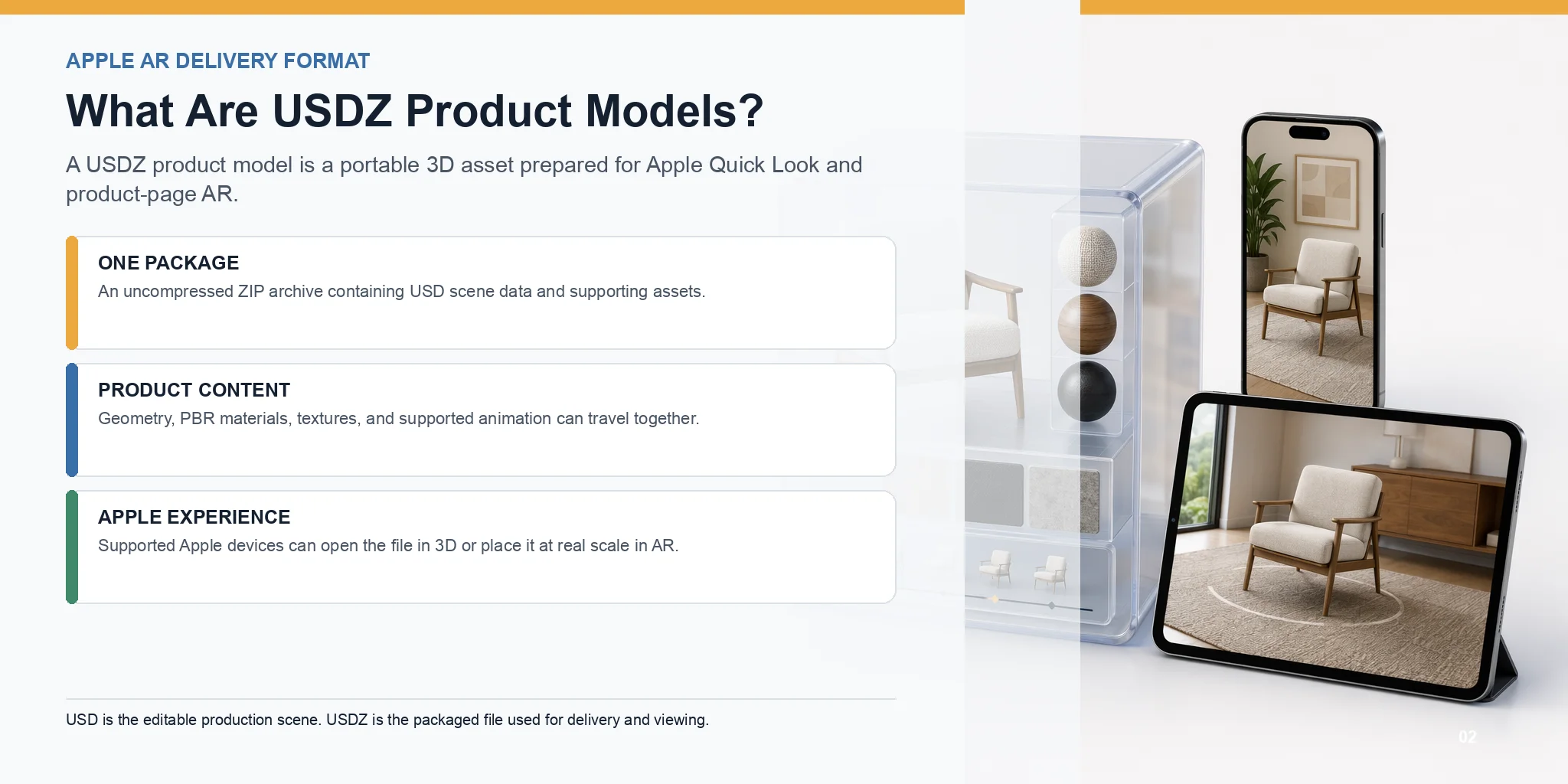
A USDZ product model is a 3D asset packaged in Apple's USDZ format for ecommerce, marketing, and augmented reality. USDZ is based on Pixar's Universal Scene Description framework and was introduced by Apple in collaboration with Pixar to make 3D assets easier to distribute across Apple devices.
A .usdz file is an uncompressed ZIP archive that packages USD scene data and its supporting assets into one portable file. It can include geometry, PBR materials, textures, and animation. The single-file package simplifies delivery, but loading performance still depends on the model's geometry, textures, and total file size.
In the context of product models, USDZ usually refers to realistic 3D representations of physical products used in online stores, advertising, and AR experiences. Retailers use them to let customers rotate products, inspect details, or preview furniture, fashion accessories, electronics, and other items directly in their own environment before purchasing.
The biggest reason USDZ has become Apple's preferred AR format is its native support for AR Quick Look. On supported iPhones and iPads, users can open a USDZ model directly in Safari, Messages, Mail, or other Apple apps and instantly place it in the real world, without downloading a separate app. This direct experience has made USDZ a standard format for AR product previews across Apple's ecosystem.
USDZ vs. USD - What's the Difference?
Although the names are similar, USD and USDZ serve different purposes.
USD is Pixar's flexible scene description format. It is designed for creating, editing, and managing complex 3D scenes during production. Artists can organize large projects, reference external assets, and continuously modify the scene throughout a workflow.
USDZ, by contrast, is a packaged, uncompressed archive built on USD. It gathers the scene and supporting assets into a single .usdz file for distribution and viewing.
- USD = editable production scene.
- USDZ = packaged, portable file for delivery and viewing.
For ecommerce and AR, USDZ is usually the better choice because customers only need one file, and Apple devices can open it instantly through AR Quick Look.
Why USDZ Matters for AR Commerce
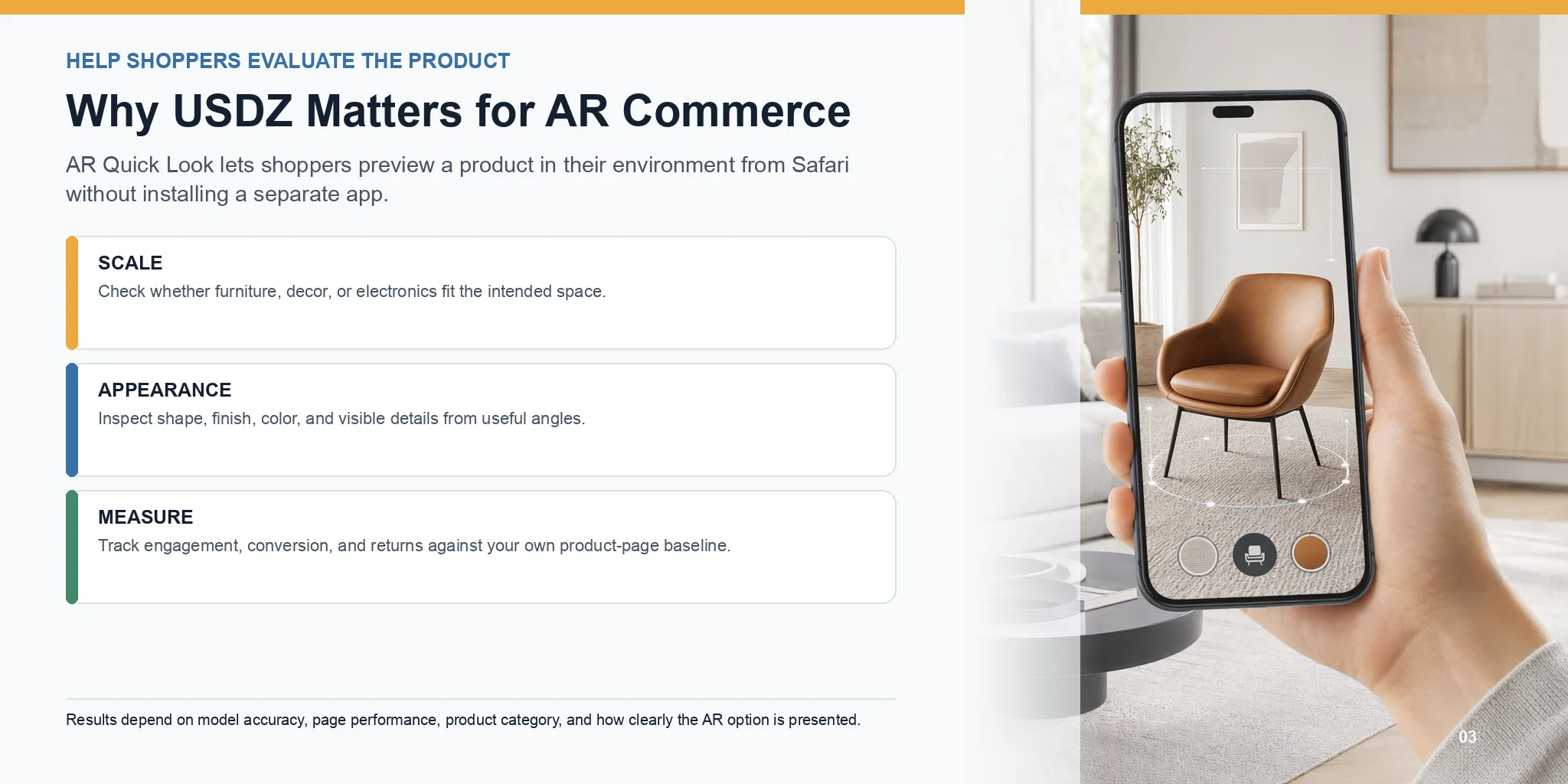
USDZ connects ecommerce product pages with Apple's built-in AR experience. It is especially useful for products such as furniture, decor, accessories, and electronics, where scale, appearance, or spatial fit affects the purchase decision.
On supported Apple devices, shoppers can tap "View in AR" and launch AR Quick Look from Safari without installing a separate app or creating an account.
For brands, 3D and AR previews can help shoppers evaluate scale, appearance, and spatial fit before purchasing. The business impact varies by product category, model accuracy, page performance, and how clearly the AR option is presented, so teams should measure engagement, conversion, and returns against their own product-page baseline.
USDZ also works across the broader Apple ecosystem. A single USDZ model can be viewed on:
- iPhone
- iPad
- Mac
- Apple Vision Pro
This native compatibility allows brands to deliver a consistent AR experience across Apple's devices without maintaining multiple Apple-specific 3D formats.
Where to Get USDZ Product Models - 3 Routes
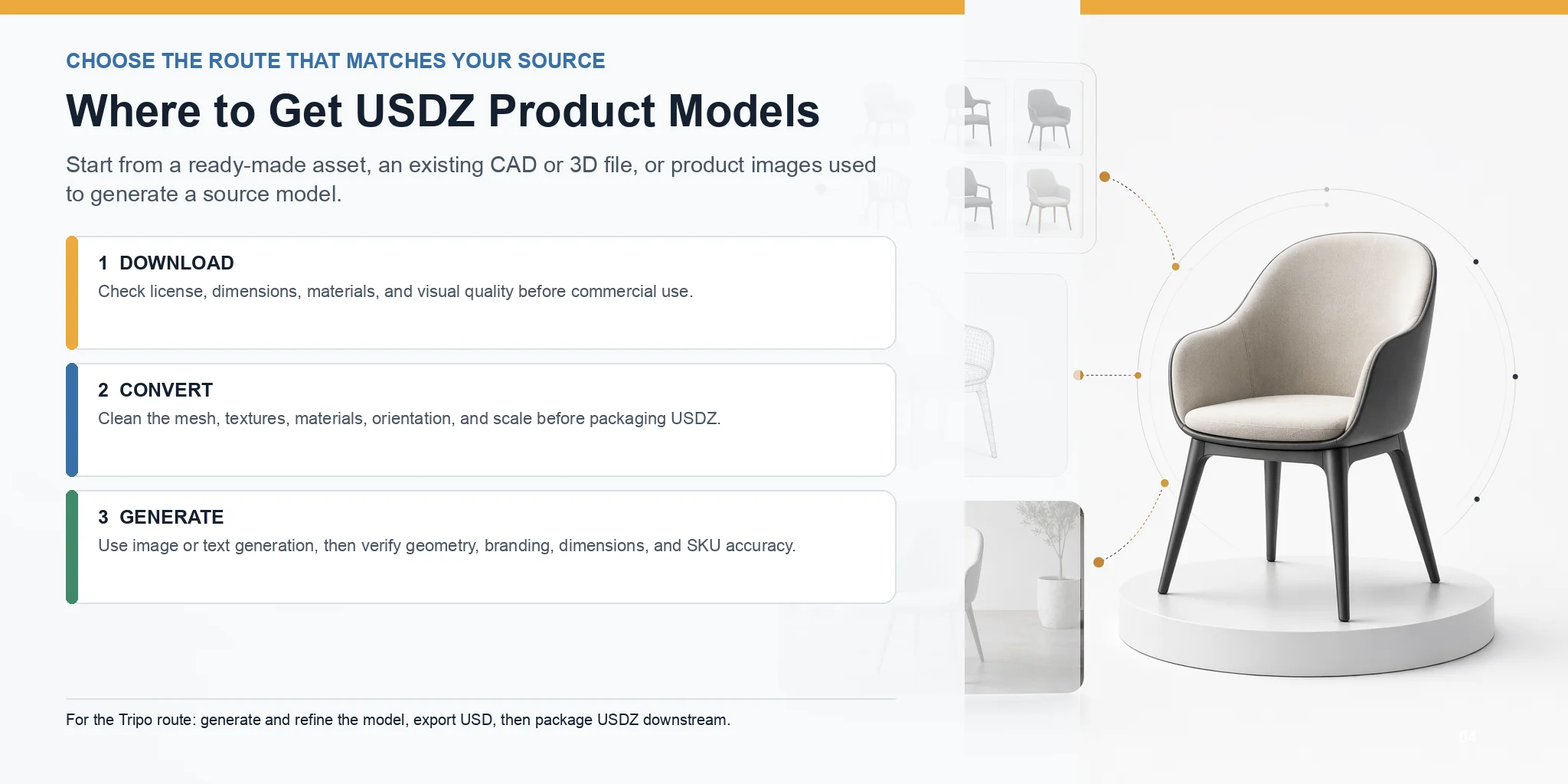
Choose a source route based on what you already have: a ready-made asset, an accurate CAD or 3D model, or product images that can be used to generate a starting model.
Route A - Download Ready-Made Models
Download a model from Apple's Quick Look Gallery or a 3D marketplace when you need a generic object for a prototype or demonstration. Check the license, dimensions, materials, and visual quality before commercial use.
Route B - Convert an Existing 3D Asset
If you already own an OBJ, glTF/GLB, FBX, STEP, or CAD asset, reuse its geometry and convert it for the Apple AR pipeline. Clean the mesh, materials, textures, and scale before creating the USDZ package.
Route C - Generate from a Photo or Text with AI
If you do not have a source model, use Image to 3D for a product photo or Text to 3D for a concept. Check geometry, dimensions, textures, branding, and SKU accuracy before commerce use.
A typical workflow looks like this:
- Upload a product photo (or enter a text description).
- Generate the source 3D model.
- Review and refine the geometry if needed.
- Export USD, then package it as USDZ in a supported downstream tool.
How to Create a USDZ Product Model (Step by Step)
The core workflow is: create a clean model -> apply PBR materials -> export USD -> package USDZ -> preview on an Apple device. Every stage should preserve product scale and the details shoppers need to inspect.
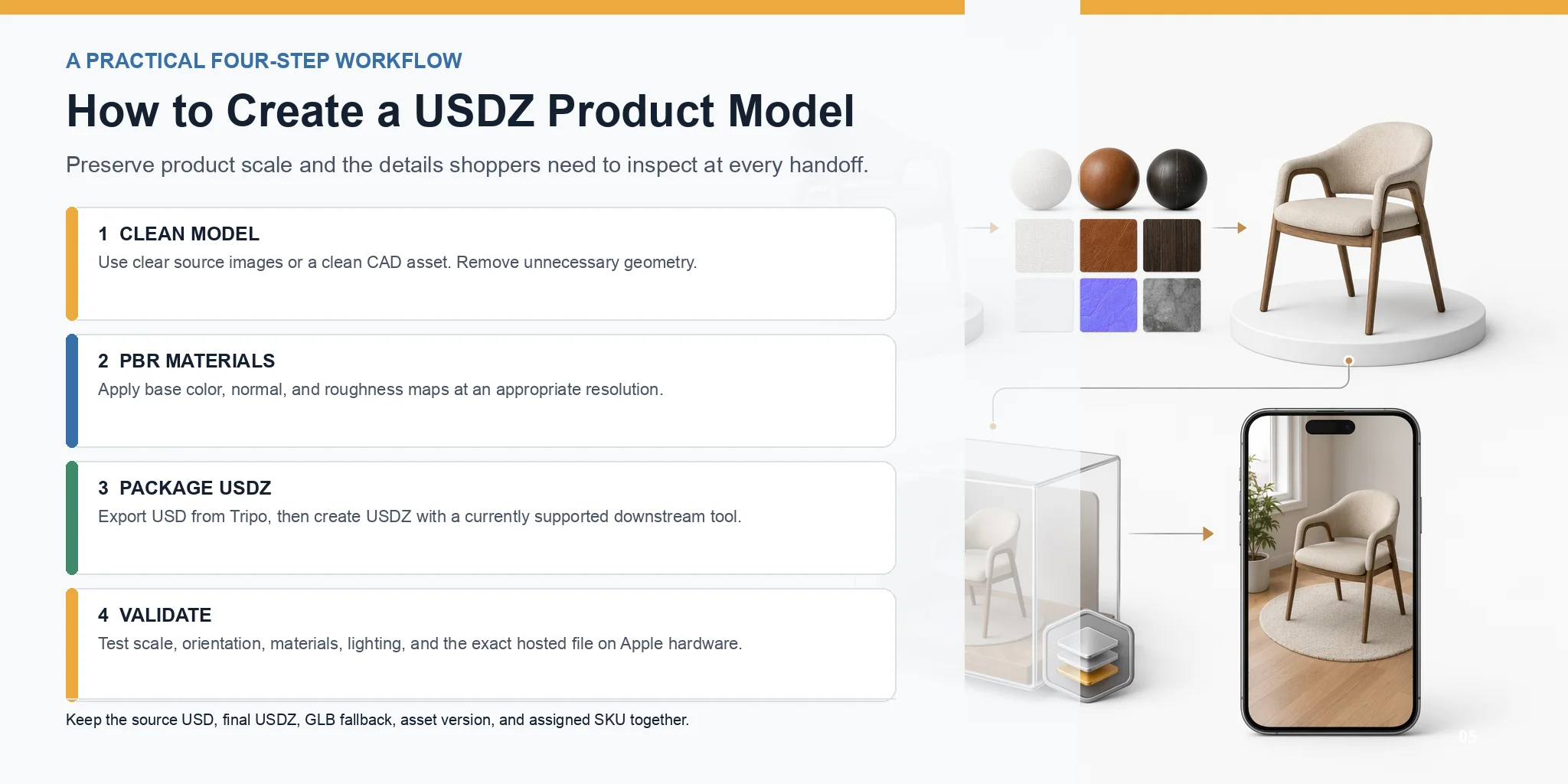
Step 1 - Get a Clean 3D Model
Everything starts with a high-quality 3D model. If you're photographing a real product, use clear, well-lit images with a single subject against a clean background. Multiple viewing angles usually produce a more accurate reconstruction than a single photo.
If you already have a CAD model or another 3D asset, you can reuse that geometry instead. The important part is making sure the mesh is clean, correctly scaled, and free of unnecessary geometry before moving on.
If you do not have a source model, generate one from a product image or text prompt, then review the asset before export:
- Upload a product photo or enter a text prompt.
- Generate the 3D model.
- Review and refine the geometry if needed.
- Export the model as USD.
Step 2 - Texture It (PBR Materials)
Geometry alone isn't enough for a convincing AR experience. Apply Physically Based Rendering (PBR) materials so the product reacts naturally to lighting on Apple devices.
Typical PBR textures include:
- Base Color (Albedo)
- Normal Map (surface detail)
- Roughness Map (surface finish)
Well-made materials make metals look metallic, fabrics appear soft, plastics reflect correctly, and wood grain remain believable in AR. Keep textures clean and at an appropriate resolution to balance visual quality with file size.
Step 3 - Export or Convert to USDZ
Tripo currently exports USD, not USDZ directly. Export the reviewed model as USD, then package or export it as USDZ with a current USDZ-capable tool in your production workflow. Tool availability and export support change over time, so confirm the current documentation for the tool you use and validate the resulting file in AR Quick Look.
The reliable handoff is: generate and refine in Tripo -> export USD -> package or export USDZ in a supported tool -> test on an Apple device.
The USDZ package should keep the scene and required assets together. After export, check materials, scale, orientation, animation, and file size rather than assuming every USD feature will transfer unchanged.
Before handoff, run a packaging check outside the authoring viewport. Open the final .usdz file as the deliverable, confirm that referenced textures are included, and verify that no placeholder materials or missing maps appear. Use a stable filename and serve the file with the correct content type in your web stack. Then test the exact hosted URL, not only a local copy, because redirects, access controls, or an incorrect response header can prevent Quick Look from opening. Record the asset version, source USD, final USDZ, GLB fallback, and assigned SKU together so the files can be regenerated and audited when the product changes.
Important: Tripo exports USD as the source for this workflow. USDZ packaging and Apple-device validation are downstream steps.
Step 4 - Preview on an Apple Device
Before publishing your model, always test it on real Apple hardware.
A simple workflow is:
- AirDrop the USDZ file to an iPhone or iPad.
- Open it with AR Quick Look.
- Check the product's scale, orientation, materials, and lighting.
- Place it on a real surface and verify that it looks natural from multiple viewing angles.
Compare the AR model with the physical SKU before launch. Confirm overall dimensions, color, finish, branding, moving parts, and the position where the object meets the floor or table. Test from several angles and distances, including the close-up views a shopper is likely to use. If the model represents a product variant, verify that the USDZ file is attached to the correct SKU rather than only the correct product family.
Optimize USDZ for Mobile & E-Commerce
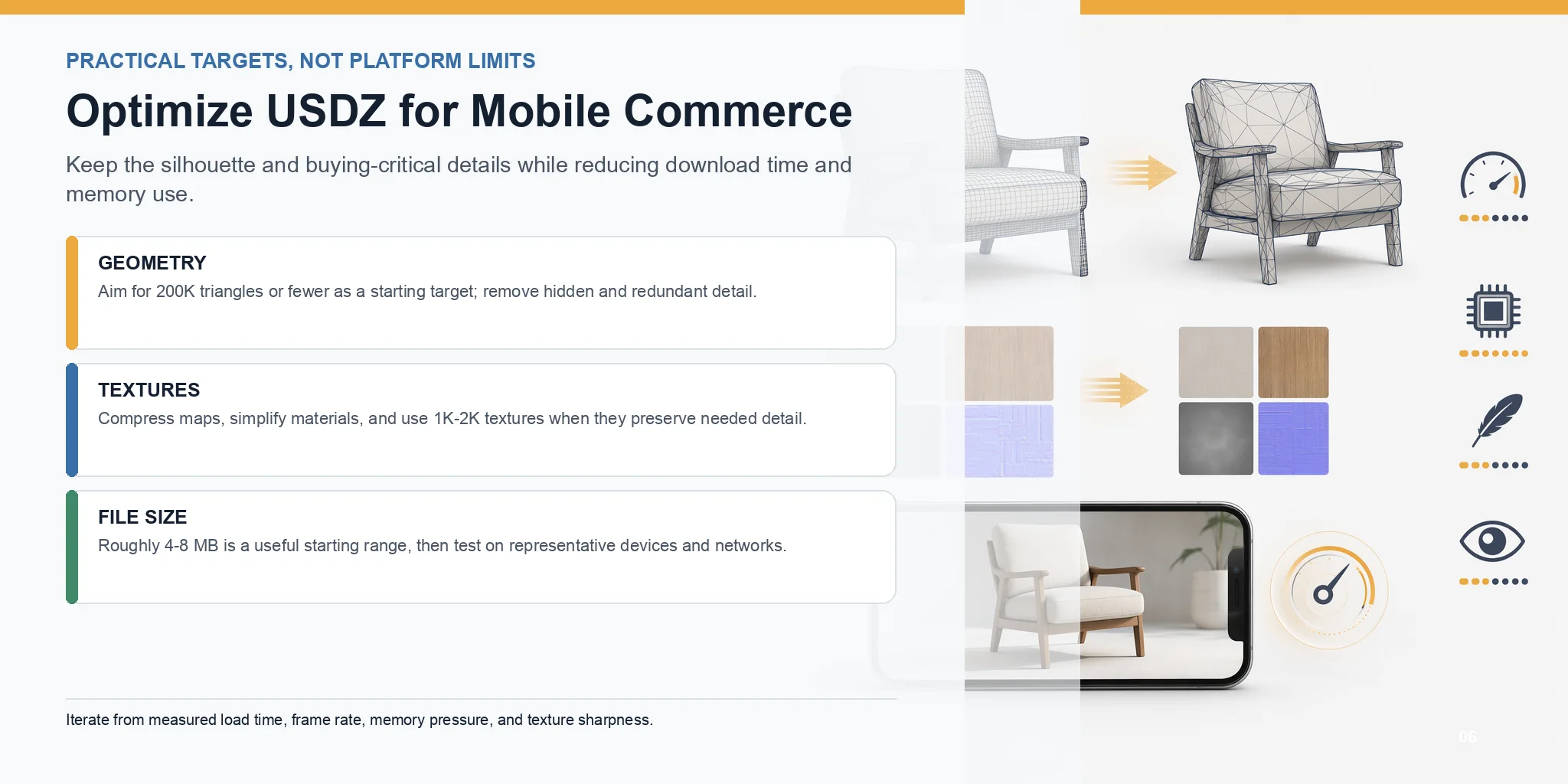
A commerce asset needs to load quickly on mobile while preserving the silhouette, materials, and product details that affect buying decisions.
Reduce Polygon Count
Use the lowest polygon count that preserves the product silhouette and important details. Around 200,000 triangles or fewer is a useful starting target, not a universal limit.
Remove unnecessary detail from flat surfaces and hidden areas, while preserving the silhouette that customers notice most.
Compress Textures & Simplify Materials
Textures often contribute more to file size than geometry. Compress image maps, combine multiple materials where possible, and avoid unnecessarily large texture resolutions. For many products, 1K-2K PBR textures are sufficient for excellent visual quality in AR.
You should also remove invisible internal geometry and unused materials, which only increase file size without improving the customer experience.
Use Real-World Scale
Build and export at real-world scale, then verify the dimensions, orientation, and pivot. Incorrect scale makes an AR preview misleading even when the model looks visually accurate.
Practical Performance Targets for Web Commerce
For web and ecommerce use, lightweight assets perform best. As a practical guideline:
- Polygon count: aim for <=200K triangles
- File size: approximately 4-8 MB after optimization
Treat these numbers as starting targets, not universal platform limits. The right budget depends on product detail, texture count, network conditions, device coverage, and the upload requirements of your commerce platform. Test on representative mobile devices and reduce the asset further if loading or frame rate is poor.
Test the asset on Wi-Fi and a typical mobile connection, and record the time from tapping the poster image to seeing the object. Check memory pressure, frame rate, texture sharpness, and whether the model appears before the shopper loses context. Optimization should be iterative: reduce hidden geometry, resize textures, simplify materials, export again, and compare the visual result with the previous build.
Embed USDZ on Your Website (AR Quick Look)
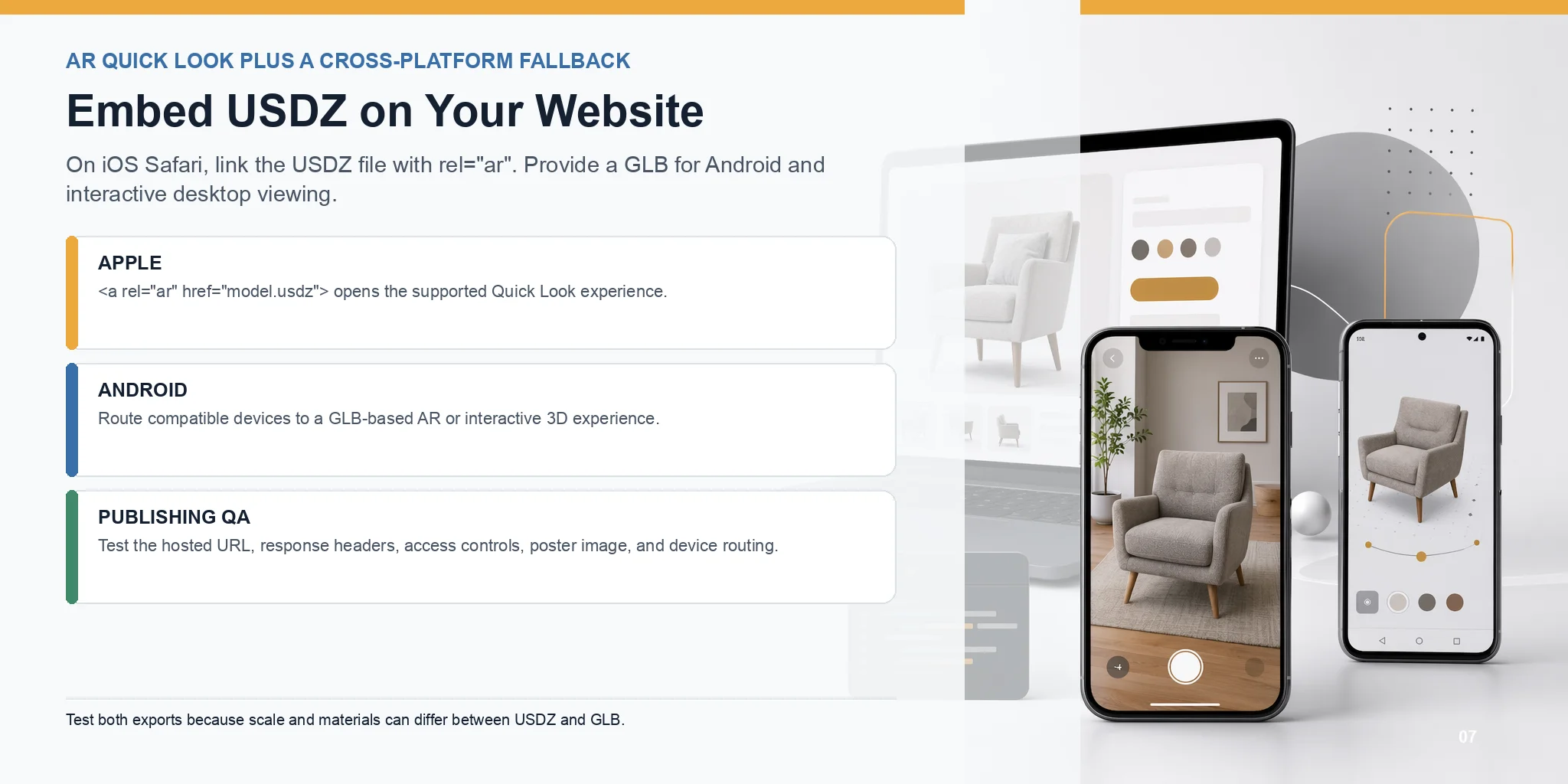
Once you have a USDZ file, embedding it on your website is surprisingly simple. On iOS Safari, Apple supports AR Quick Look, allowing visitors to open a USDZ model directly in augmented reality without installing an app. All you need is a standard HTML link with the rel="ar" attribute pointing to your USDZ file.
Here's the smallest working example:
<a rel="ar" href="model.usdz">
  <img src="poster.jpg" alt="View product in AR">
</a>
When an iPhone or iPad user taps the preview image in Safari, AR Quick Look launches automatically. The product opens at real-world scale, letting customers inspect it in their own environment with no additional downloads or setup.
Use <model-viewer> for Cross-Platform Support
For mixed-device audiences, <model-viewer> can reference a GLB for interactive web viewing and a USDZ file for Apple Quick Look. The browser can then hand off to the supported AR experience.
Android & Non-Apple Fallback (GLB)
Android browsers do not normally open USDZ directly. Provide a GLB fallback for Android Scene Viewer and desktop interaction, and test both exports because materials can render differently.
USDZ vs glTF / GLB - Which Should You Use?
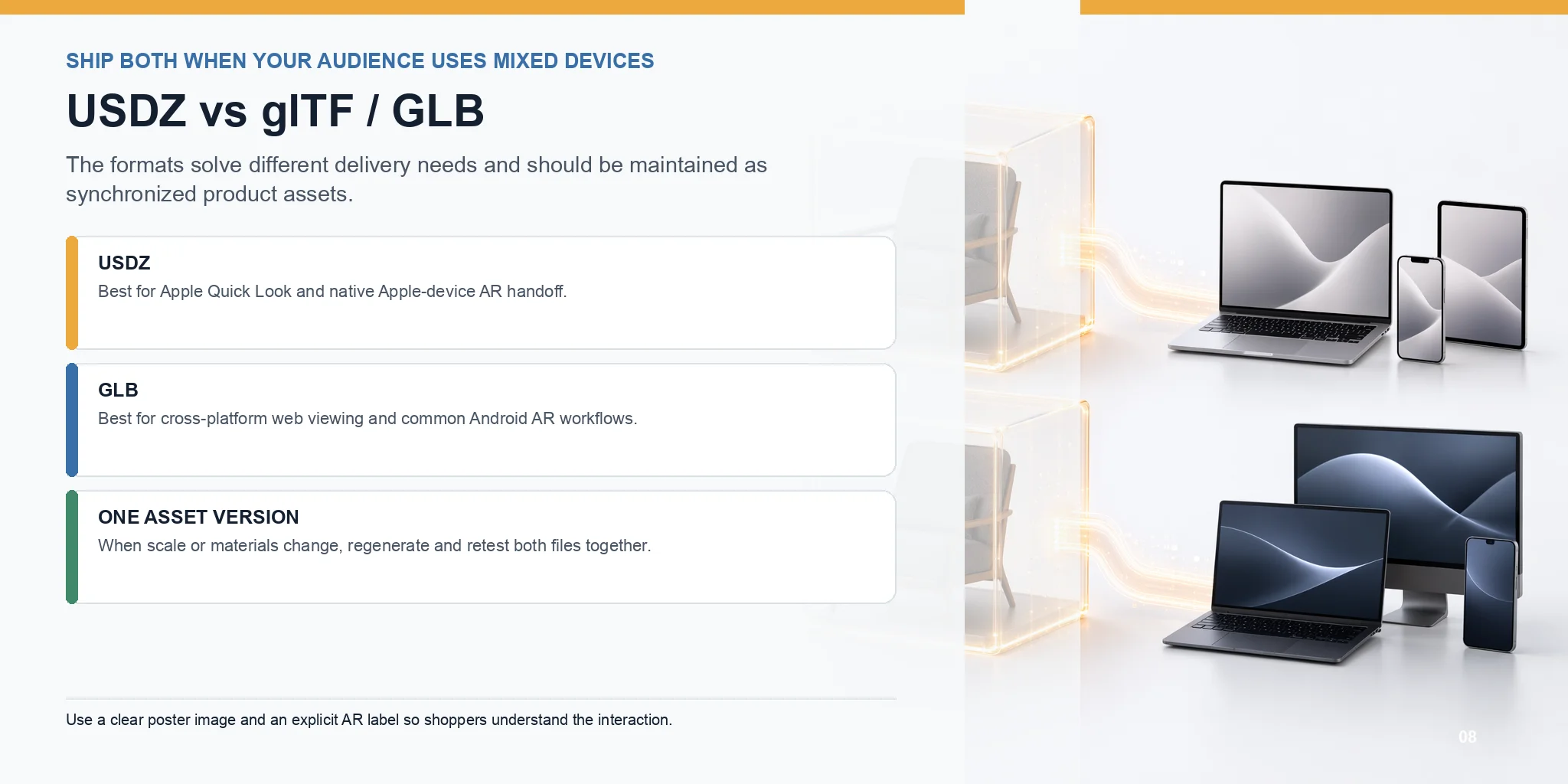
Use USDZ for Apple Quick Look and GLB for cross-platform web viewing and Android AR. Most commerce implementations provide both files and route each device to the appropriate experience.
Keep the two exports under the same asset version so product updates do not drift between platforms. When materials or scale are corrected, regenerate and retest both files. On the product page, use a clear poster image and an explicit AR label so shoppers understand that tapping the media opens an interactive or real-world preview.
| Feature | USDZ | glTF / GLB | Ecommerce Recommendation |
|---|---|---|---|
| Platform Support | Native on iPhone and iPad (Safari); works with AR Quick Look; Apple ecosystem only | Supported by Android, Chrome, Edge, and most modern browsers; industry-standard real-time 3D format | Apple-first audience: USDZ. Mixed devices: provide both. |
| File Characteristics | Optimized for Apple's AR ecosystem; supports PBR materials, animations, and audio; less widely supported outside Apple | Open standard from Khronos; compact binary format (GLB); excellent web and engine compatibility | GLB is the default delivery format for most web viewers. |
| How AR Launches | Tap a link with rel="ar" in Safari; opens directly in AR Quick Look | Opens Google Scene Viewer on supported Android devices; also works in interactive web viewers | Use <model-viewer> to automatically launch the correct AR experience. |
| Browser Experience | Mainly designed for AR viewing; limited interactive viewing in browsers | Interactive 3D viewer with orbit, zoom, and lighting controls | GLB provides a richer desktop shopping experience. |
| Typical Ecommerce Use | "View in Your Room" on iPhone/iPad product pages | Product configurators, 3D viewers, Android AR, desktop previews | Most online stores publish both USDZ and GLB for maximum compatibility. |
Common Pitfalls & Limits
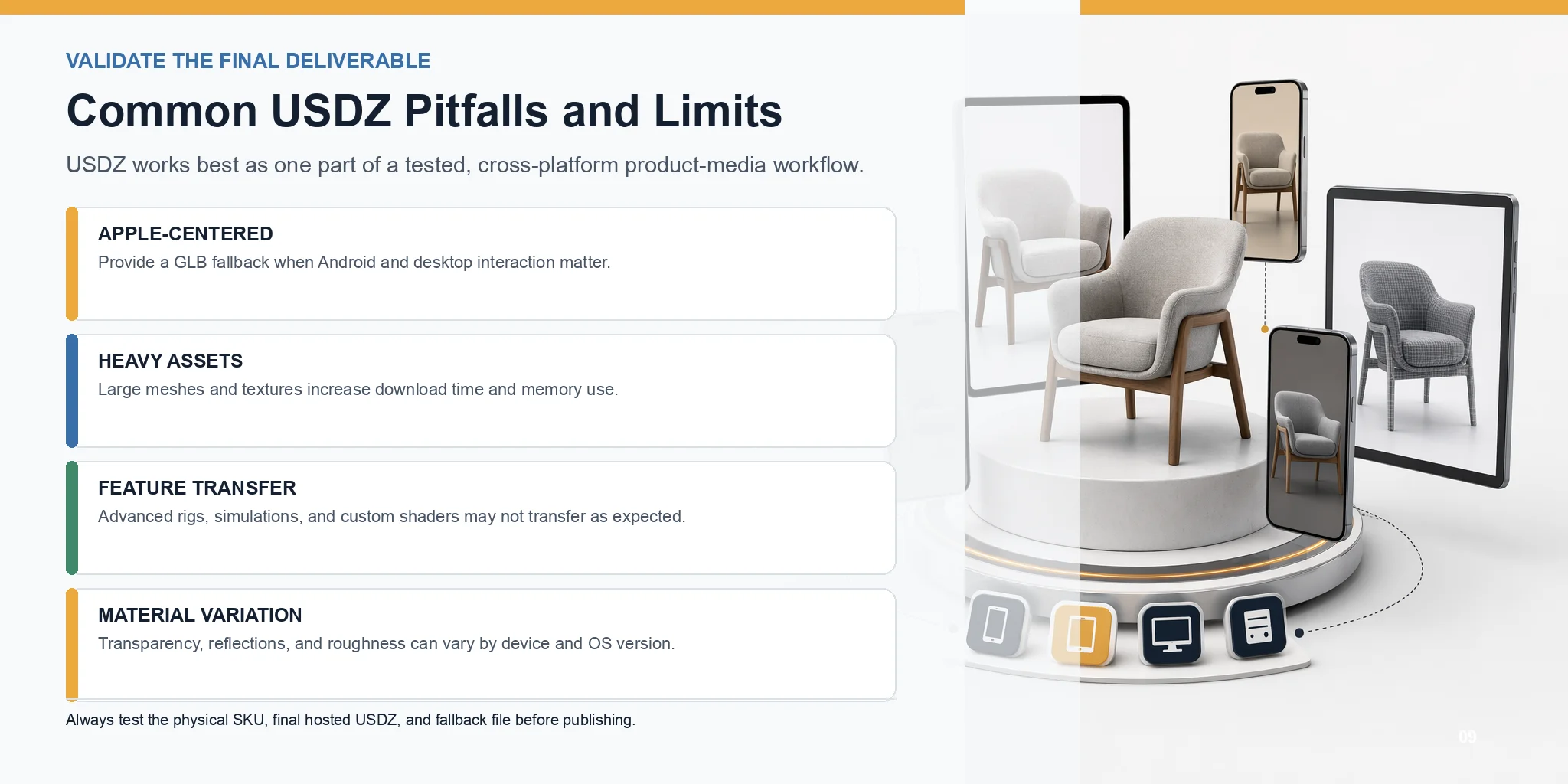
USDZ works best as one deliverable in a tested cross-platform product-media workflow.
Limited Support Outside the Apple Ecosystem
USDZ is centered on Apple's ecosystem. Publish a GLB fallback when Android and interactive desktop viewing matter.
Large Files Can Hurt Performance
Large meshes and textures increase download time and memory use. Optimize geometry and textures, then test on mobile networks and representative devices.
Not Every USD Feature Is Supported
Advanced rigs, simulations, custom shaders, and other production USD features may not transfer as expected. Validate the converted USDZ rather than assuming full feature parity.
Materials May Look Different Across Devices
Materials, transparency, reflections, and roughness can vary by device and operating-system version. Check the final product on real iPhones and iPads before publishing.
Frequently Asked Questions
What does USDZ mean?
USDZ stands for Universal Scene Description Zip. It is an uncompressed ZIP archive based on USD that packages a scene and its supporting assets into one file. Apple Quick Look can display USDZ objects in 3D and AR on supported Apple devices.
What programs can open and create USDZ files?
Apple Quick Look opens USDZ files on supported iPhones, iPads, and Macs, as well as in supported Apple Vision Pro experiences. To create a USDZ file, use a current USD- or USDZ-capable DCC or Apple development tool, then verify the export against that tool's latest documentation. Always test the final file in Quick Look because material and animation support can vary.
What's the difference between USD and USDZ?
USD is a flexible scene-description format that can reference external assets and support production workflows. USDZ is an uncompressed ZIP package that places the USD scene and its supporting assets in one distributable file. That packaging makes USDZ convenient for sharing and Apple Quick Look.
What is an example of an augmented reality product?
A common example of an augmented reality product is a 3D furniture preview, where shoppers can place a virtual sofa or table in their room using a smartphone. Other examples include virtual try-on for glasses, shoes, or makeup, allowing customers to see how products look before buying.
Can I open a USDZ file on Android?
Not directly in the standard Android browser workflow. Publish a GLB version for Android and use a cross-platform viewer such as <model-viewer> to route supported devices to the appropriate AR mode. Test both files because USDZ and GLB exports can render materials differently.
How do I add a USDZ product model to my website without coding?
Use a website builder or commerce platform with a 3D product-media field. Upload the USDZ file for Apple devices and a GLB file for Android and desktop viewing, attach both to the relevant product, and preview the result on real devices before publishing. If the platform does not provide native 3D media, use an integration that supports both formats rather than uploading USDZ as a normal download.
What's the best file size for a USDZ product model?
There is no single best size for every product. A practical starting target is roughly 4-8 MB with a mesh around 200K triangles or fewer, then adjust for the product's required detail and the platform's current upload rules. Measure load time and AR performance on representative mobile devices before publishing.
Conclusion
USDZ turns a product model into an Apple-friendly AR asset that shoppers can view at real scale. Generate and refine the source asset, export USD from Tripo, package it as USDZ in a supported downstream tool, optimize it for mobile, and test it in AR Quick Look before adding it to the product page.
Ready to create the source model? Start in Tripo AI Studio, then complete the USDZ packaging and Apple-device validation in your downstream workflow.