How to Add an OBJ File in Blender (Step-by-Step)
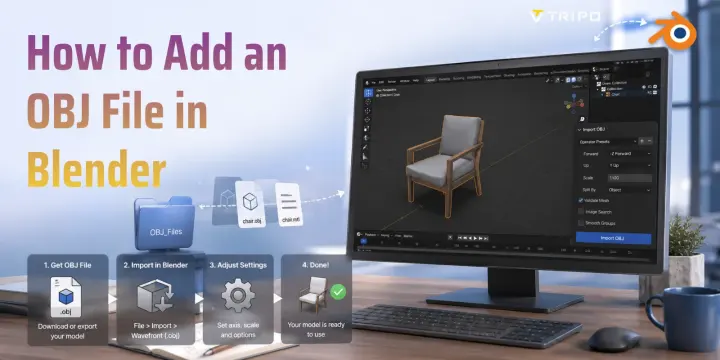
Blender makes importing OBJ files straightforward — the format is one of the most widely supported 3D mesh types. This guide walks you through every step, from the import menu to texture setup and common fixes.
What Is an OBJ File?
An OBJ (Wavefront Object) file is a widely supported 3D model format that stores mesh geometry, while its accompanying .mtl file contains material and texture information. Many AI 3D generation tools, including Tripo AI's AI 3D Model Generator, export models as OBJ, making it a common format for importing assets into Blender.
OBJ Import Workflow
Create and Export an OBJ Model from Tripo
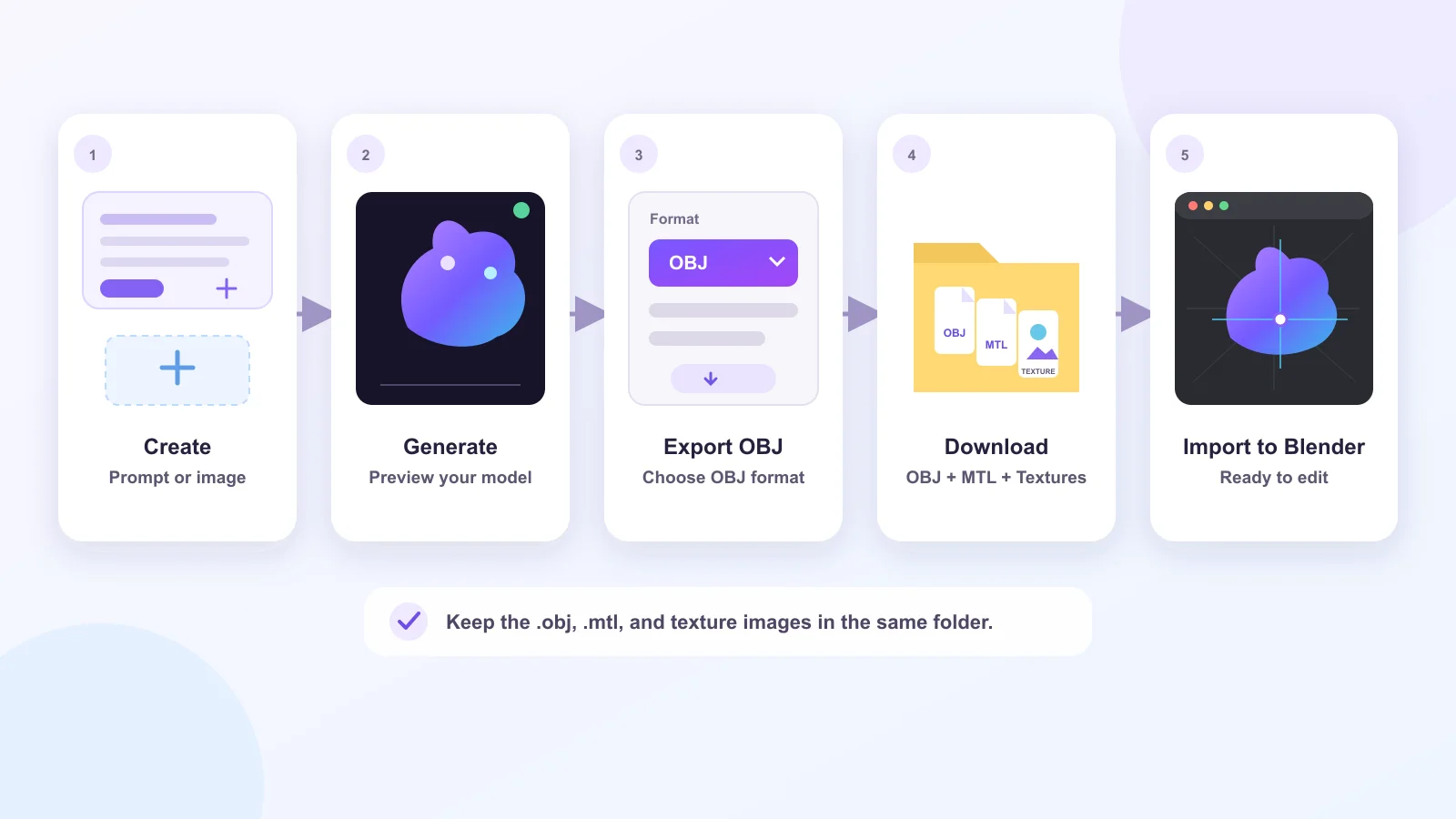
Before importing anything into Blender, you first need an OBJ model. Tripo lets you generate one from a text prompt or reference image, then export it for use in Blender:
- Open Tripo Studio and choose a model-generation workflow. Enter a text prompt or upload a reference image, depending on how you want to create the asset.
- Click Generate 3D Models and wait for the model to finish processing.
- Preview the result and make any needed adjustments. For example, you can refine the geometry, optimize the mesh, or generate textures before export.
- Open the export or download options and select OBJ as the file format. Export availability may depend on the model version and your Tripo plan.
- Download and extract the complete model package. Keep the .obj file, its .mtl file, and all texture images together in the same folder so Blender can find the material references.
Your Tripo model is now ready for Blender. Continue with the steps below to import the .obj file and verify its materials and textures.
From Tripo to Blender: OBJ Workflow
How to Import an OBJ File in Blender
If you're wondering how to add an OBJ file in Blender, the process only takes a few clicks:
- Open Blender, then go to File → Import → Wavefront (.obj).
- In the file browser, navigate to your .obj file, select it, and click Import OBJ.
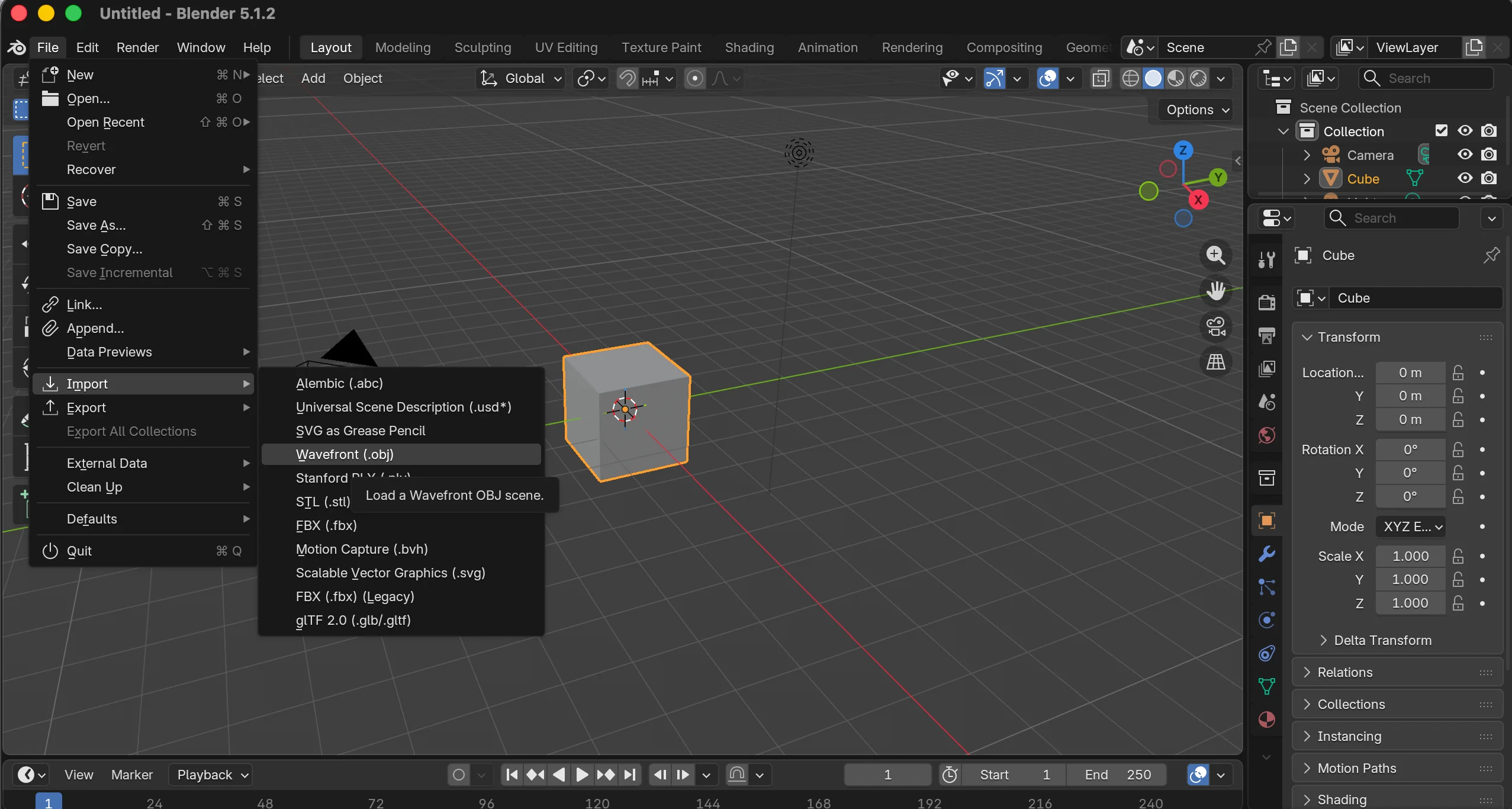
- If your model includes a .mtl file, make sure it is stored in the same folder as the .obj file before importing. Blender will automatically load the material information and linked textures when available.
- Click Import OBJ in the top-right corner of the file browser.
- Once imported, the model will appear at the 3D Cursor position in your scene, ready for editing, texturing, or rendering.
How to Add an OBJ File in Blender (Step-by-Step)
Import Settings & Options
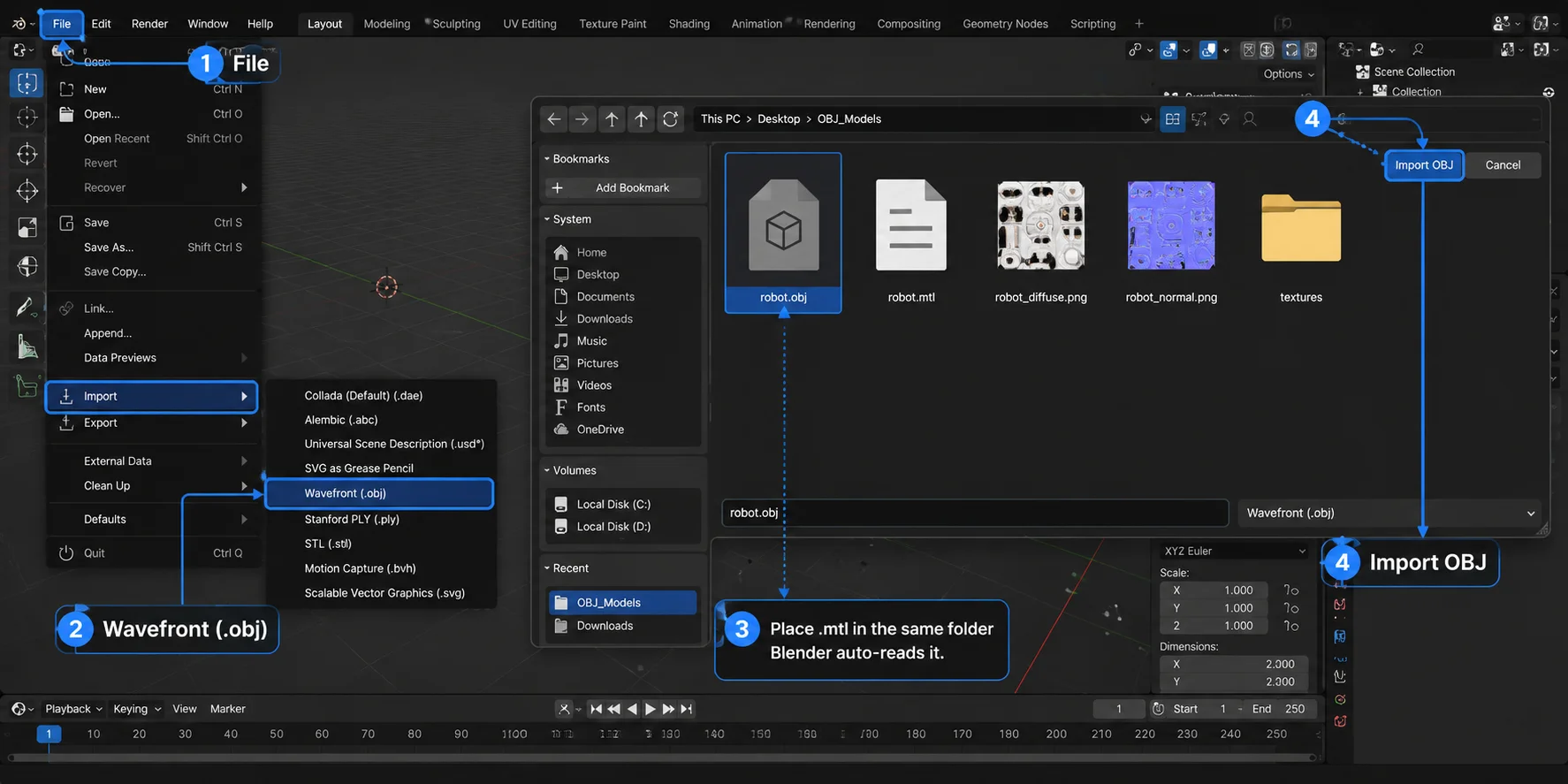
Before clicking Import OBJ, review the options in the side panel. The default settings work for most models, but the following options can help resolve common problems:
- Forward Axis / Up Axis — Adjust these settings if the model imports with the wrong orientation. Different 3D applications use different forward and up axes.
- Scale — Keep this at 1.0 unless the model imports too large or too small. Change the value as needed before importing.
- Split By Object — Imports each OBJ object group as a separate Blender object.
- Split By Group — Imports each OBJ group as a separate Blender object.
- Validate Meshes — Checks the imported mesh for corrupted or invalid data and repairs it when possible. This may make importing slightly slower.
Blender OBJ Import Settings Explained
Texture & MTL Material Handling
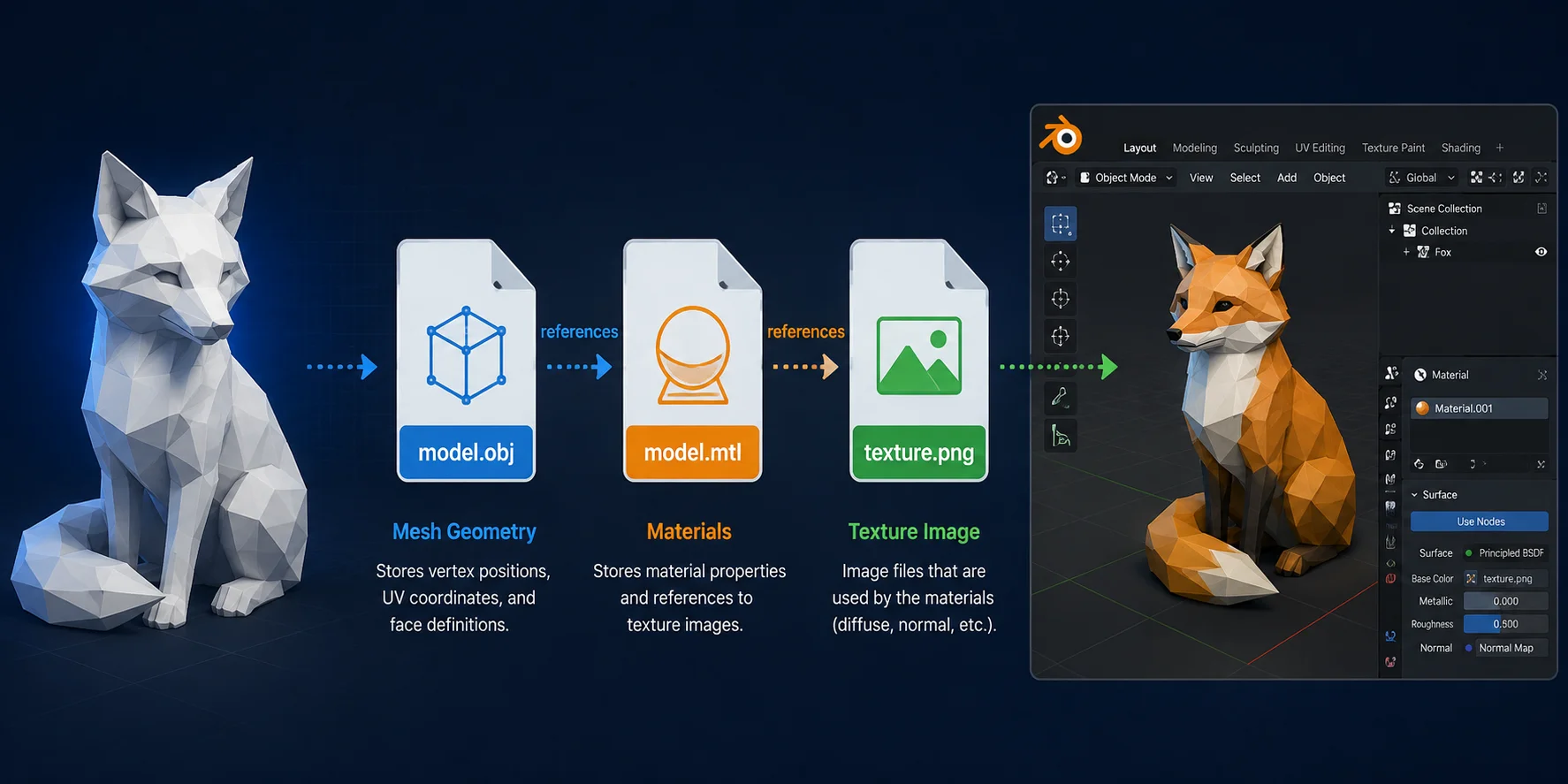
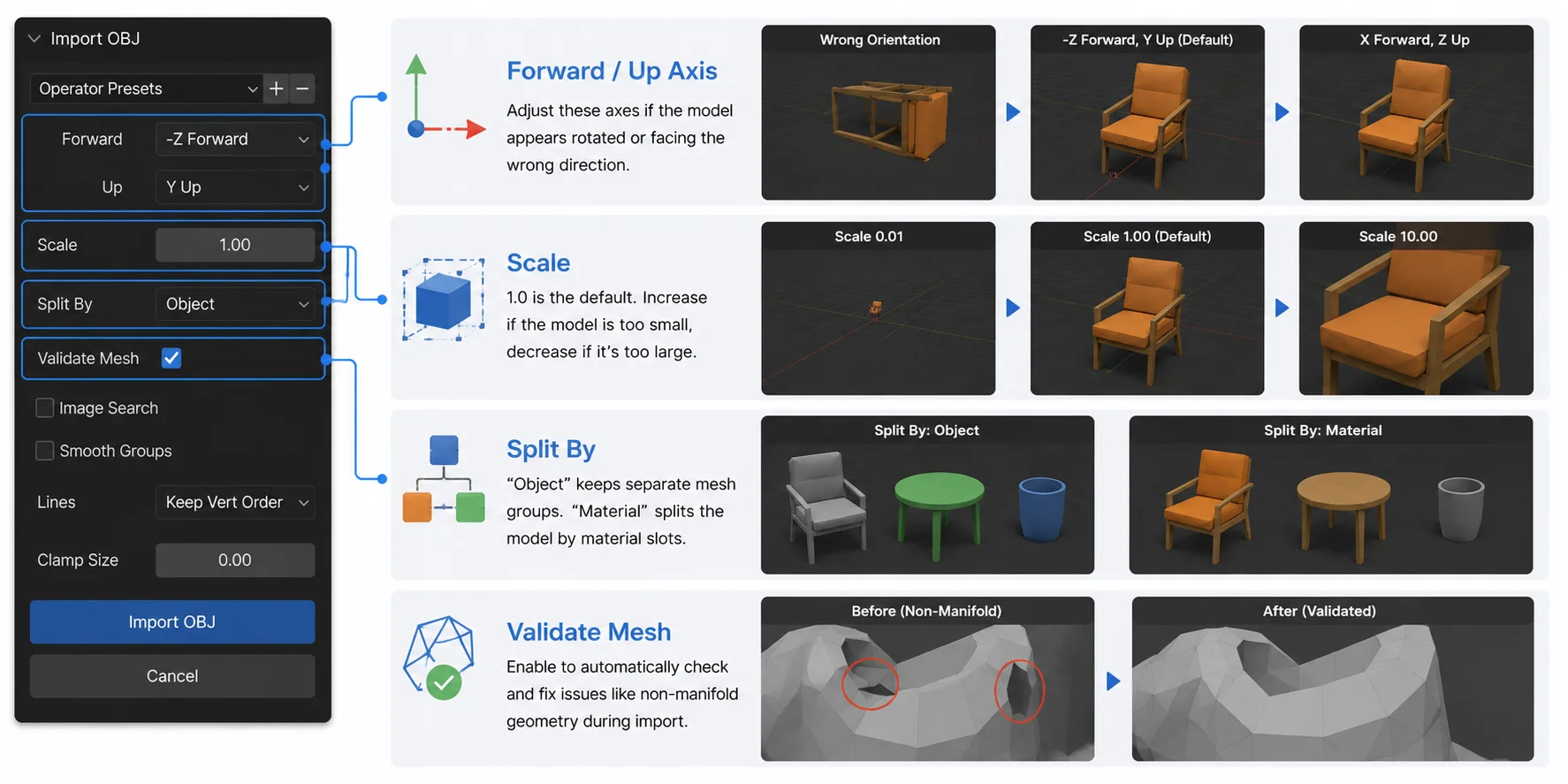
Unlike formats such as GLB that package materials and textures together, OBJ separates geometry from appearance data. The .obj file stores the mesh, while the accompanying .mtl (Material Template Library) file defines materials, colors, and texture references used by Blender.
To avoid missing textures during import:
- Keep the .obj, .mtl, and all texture image files (such as PNG or JPG maps) in the same folder before importing. Blender reads the file paths stored inside the .mtl file, so changing the folder structure can break links.
- After importing, open the Shader Editor and check the material nodes. Make sure each Image Texture node points to the correct texture file and that maps such as Base Color, Normal, or Roughness are connected properly.
- If the model appears pink, gray, or missing textures, Blender cannot locate the referenced images. Go to File → External Data → Find Missing Files, select the folder containing your texture images, and let Blender automatically relink them.
For AI-generated OBJ models, it is also common to re-export as GLB after cleanup. GLB stores mesh, materials, and textures in a single file, making it easier to move assets between Blender, game engines, and web/AR workflows.
OBJ & MTL Texture Linking Workflow in Blender
Troubleshooting: Common Import Issues
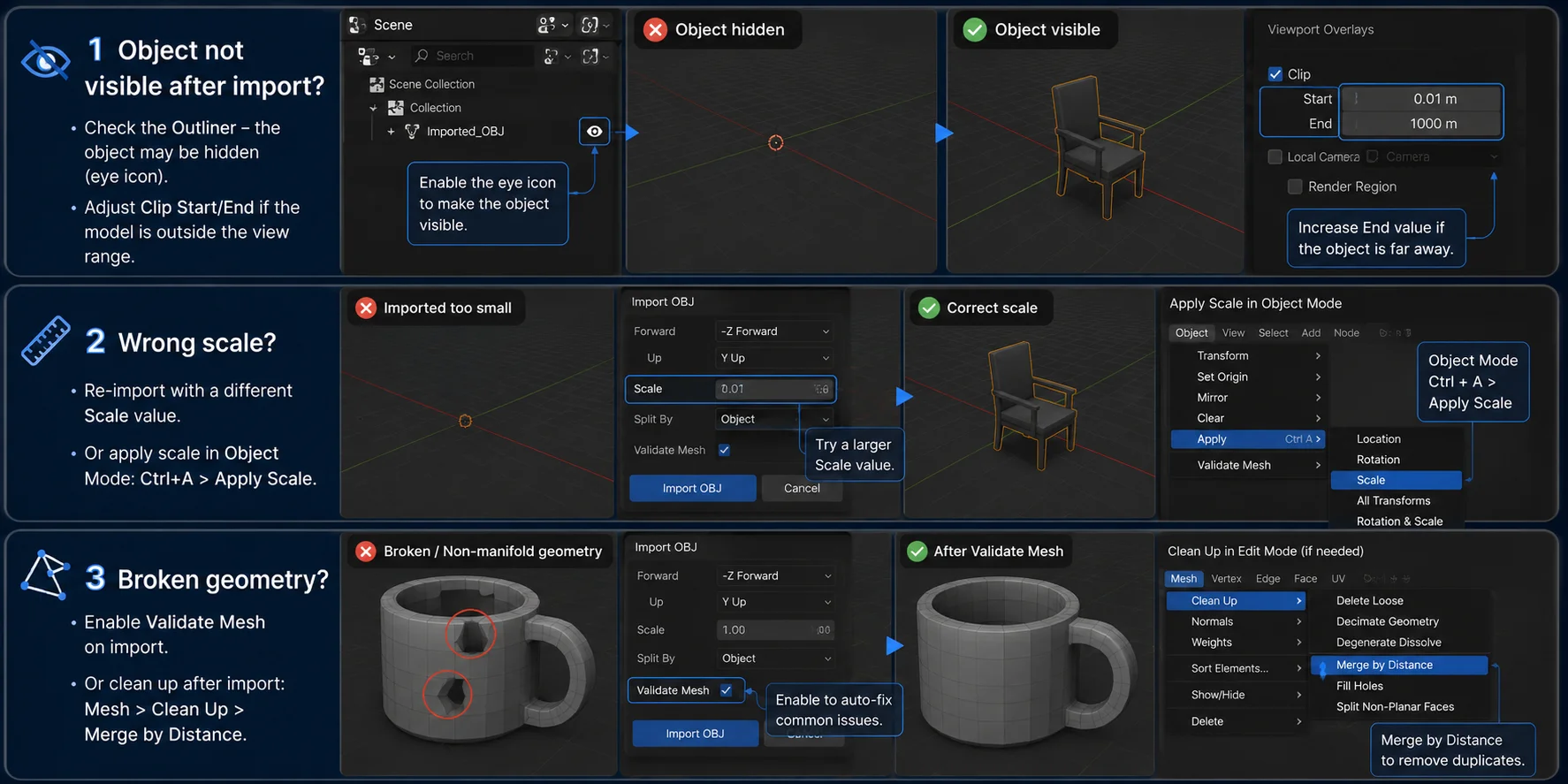
- Object not visible after import? Check the Outliner to make sure the object is not hidden (eye icon). If it still doesn't appear, adjust the viewport's Clip Start and Clip End values, as the model may be outside the current viewing range.
- Wrong scale? Re-import the OBJ with a different Scale value, or press Ctrl + A → Apply Scale in Object Mode to reset the object's scale.
- Broken geometry? Enable Validate Mesh before importing to automatically repair common mesh issues. If problems remain, go to Mesh → Clean Up → Merge by Distance to remove duplicate vertices and clean the model.
Common Blender OBJ Import Problems and Fixes
Frequently Asked Questions
Can OBJ file in Blender?
Yes. Blender natively supports both importing and exporting OBJ files through File → Import/Export → Wavefront (.obj), so no additional plugins are required. OBJ remains one of the most widely supported formats for exchanging 3D meshes between different applications.
How do I import an OBJ model?
Go to File → Import → Wavefront (.obj), browse to your .obj file, and click Import OBJ. For the best results, keep the accompanying .mtl file and any texture images in the same folder so Blender can load the materials automatically.
How to import 3D object file in Blender?
Blender supports many 3D file formats, including OBJ, FBX, glTF, STL, and PLY. To import an OBJ, choose File → Import → Wavefront (.obj), then select your file. Other formats can be imported from the same Import menu.
Why can't I open OBJ files in Blender?
The file may be corrupted, have an incorrect extension, or have been exported with incompatible settings. Try opening the OBJ in another 3D application or a text editor to verify the file, then re-export it from the original software if necessary.
What is an MTL file and do I need it?
An MTL (Material Template Library) file stores material settings and references to texture images used by an OBJ model. You can import the geometry without it, but the model will usually appear without its original materials or textures.
Can I edit an OBJ file after importing it?
Yes. After importing, an OBJ model behaves like any other Blender mesh. Press Tab to enter Edit Mode, where you can modify vertices, edges, faces, UVs, and other mesh properties.
Conclusion
Importing OBJ files into Blender is a quick, reliable process once you know where to look. If you need ready-to-import 3D models, Tripo AI generates high-quality OBJ assets in seconds — try it free on Tripo AI Studio or explore Tripo AI Pricing for your workflow.