How to Use AI 3D Models in Unreal Engine
TL;DR
- Yes, AI-generated 3D models can work in Unreal Engine 5. FBX is usually the best option for characters, rigged assets, and traditional game pipelines; GLB is a useful self-contained alternative.
- Tripo AI Smart Mesh creates optimized, structured low-poly models for real-time props and scalable game workflows.
- The essential workflow is simple: generate → export FBX or GLB → import into Unreal Engine 5 → check materials, scale, collision, and LODs.
- Tripo AI’s Free plan is useful for testing the workflow, while export availability, model versions, credits, and commercial-use rights depend on the current plan. Always check current plan permissions before beginning commercial production.
The demand for 3D content is growing across games, XR, visualization, and interactive products. The global 3D digital asset market was worth about 51.8 billion by 2029, while 3D gaming technology is projected to surpass $187 billion by 2035.
For independent developers and small teams, this creates a production challenge: games need more props, environments, characters, and animations than small art teams can build alone. AI 3D generation helps by turning concepts into assets that can be exported, imported, and refined in Unreal Engine 5.
Can You Use AI-Generated 3D Models in Unreal Engine?
Yes. Unreal Engine does not distinguish between AI-generated and manually created models. It reads the mesh, materials, textures, skeleton, scale, and file structure.
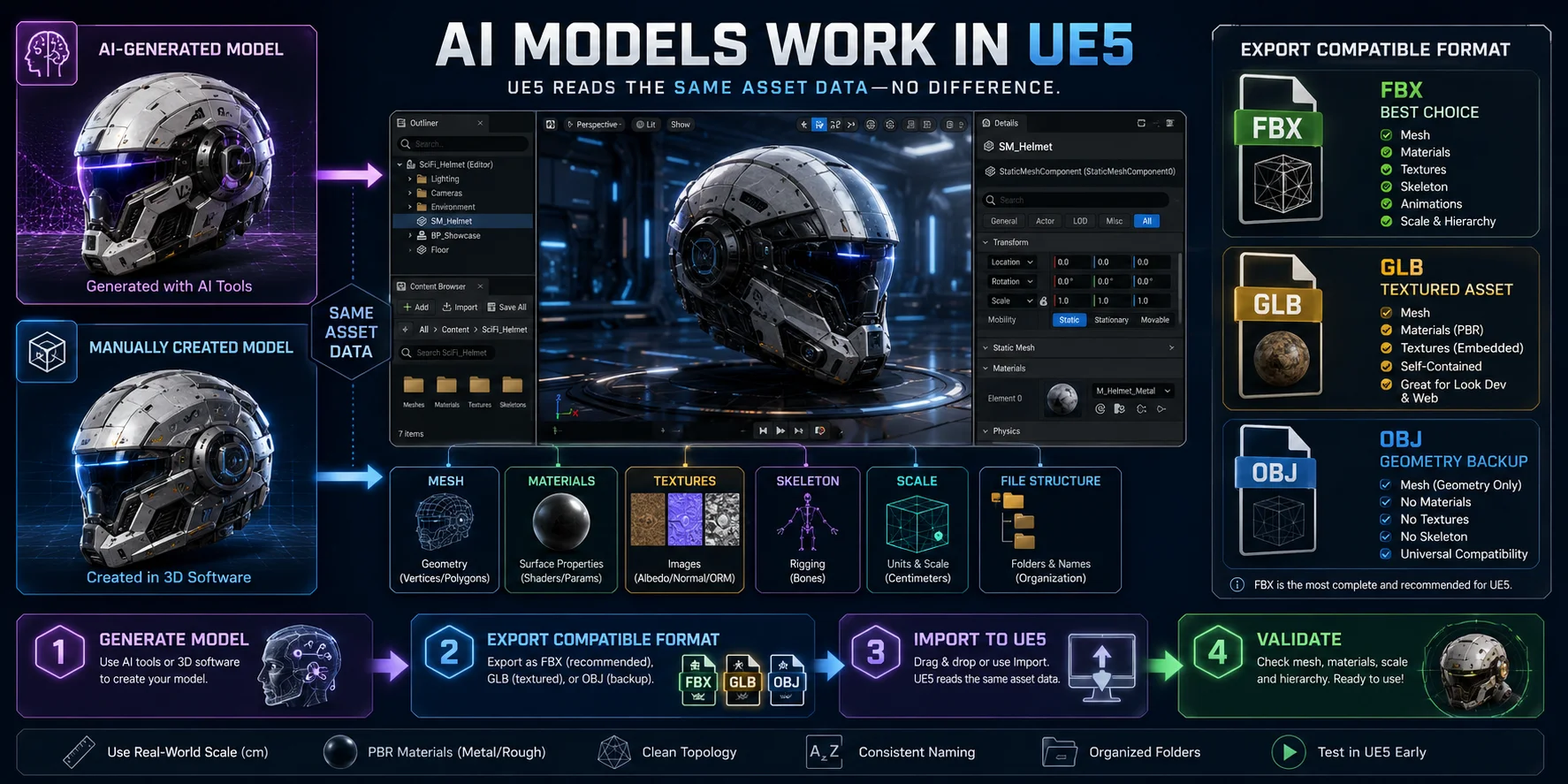
For most UE5 workflows, FBX is the best choice because it supports meshes, materials, skeletal data, and animation workflows. GLB is useful for self-contained textured assets, while OBJ works mainly as a geometry-only backup and does not support rigging.
The practical workflow is simple: generate the model outside UE5, export it in a compatible format, then import and validate it in Unreal Engine.
How AI 3D Generation Works for UE5 Assets
AI 3D generation starts with either text-to-3D or image-to-3D. Text prompts are useful for fast concept exploration, while images—such as sketches, product photos, or character references—give stronger control over silhouette, color, and proportions. Tripo AI supports both workflows.
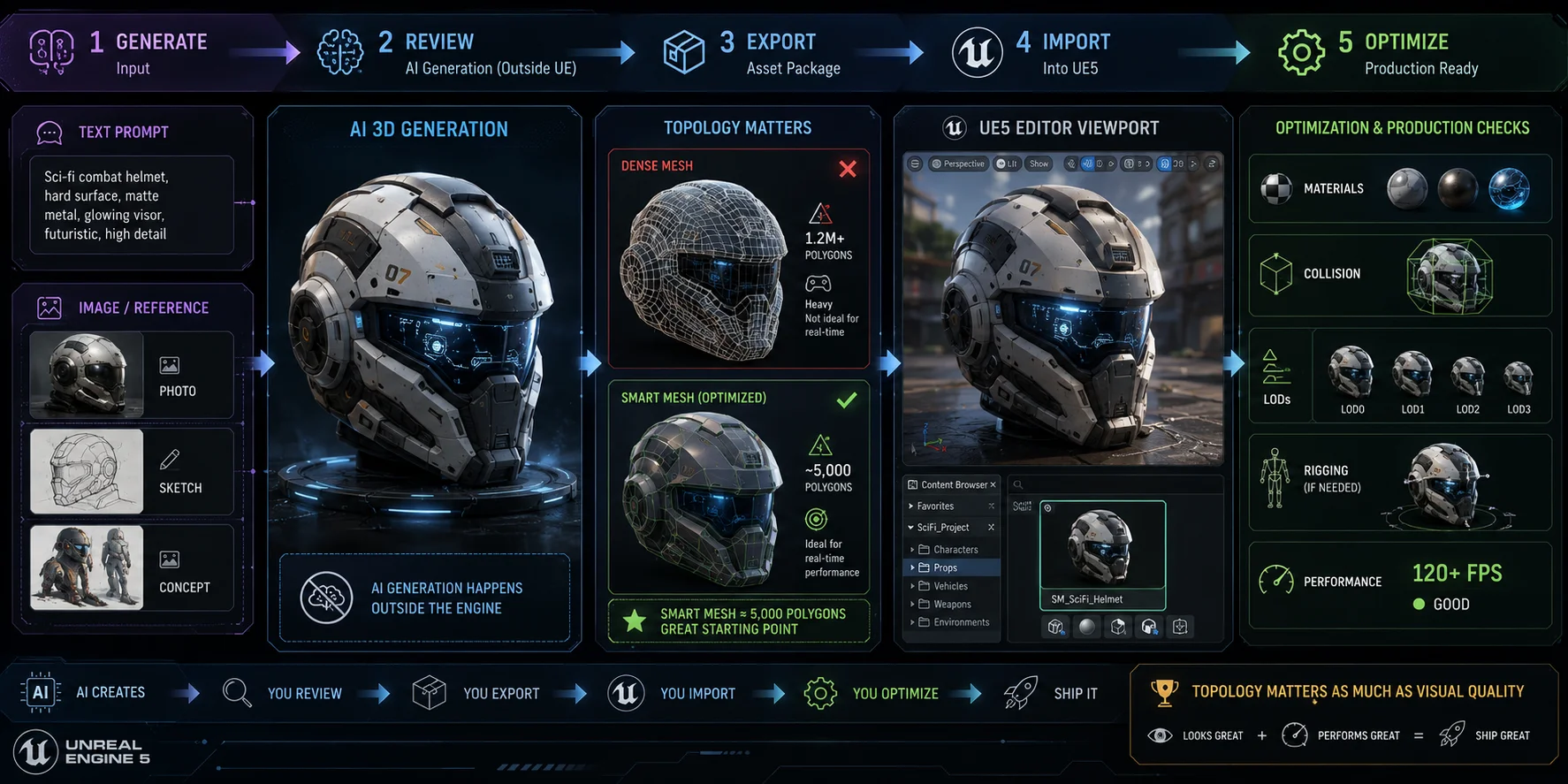
For UE5, topology matters as much as visual quality. A dense mesh may look impressive in a viewer but increase memory use, rendering cost, and rigging complexity. Tripo AI Smart Mesh creates structured, low-poly topology for real-time props and lightweight scene assets. The right polygon budget still depends on the asset type, platform, camera distance, and scene density.
AI generation does not happen directly inside Unreal Engine. The workflow remains:
Generate → review → export → import → optimize
Traditional asset creation can involve hours of blockout, modeling, UV work, texturing, and cleanup. AI can accelerate the initial generation stage, helping teams move from an idea to a usable base asset much faster. However, final production time still depends on mesh cleanup, material setup, rigging, collision, LODs, and performance optimization inside UE5.
Step-by-Step: Generate a 3D Model with Tripo AI
Before you start, make sure you have: a Tripo AI account, an Unreal Engine 5.x project open, and either a text prompt or reference image ready.
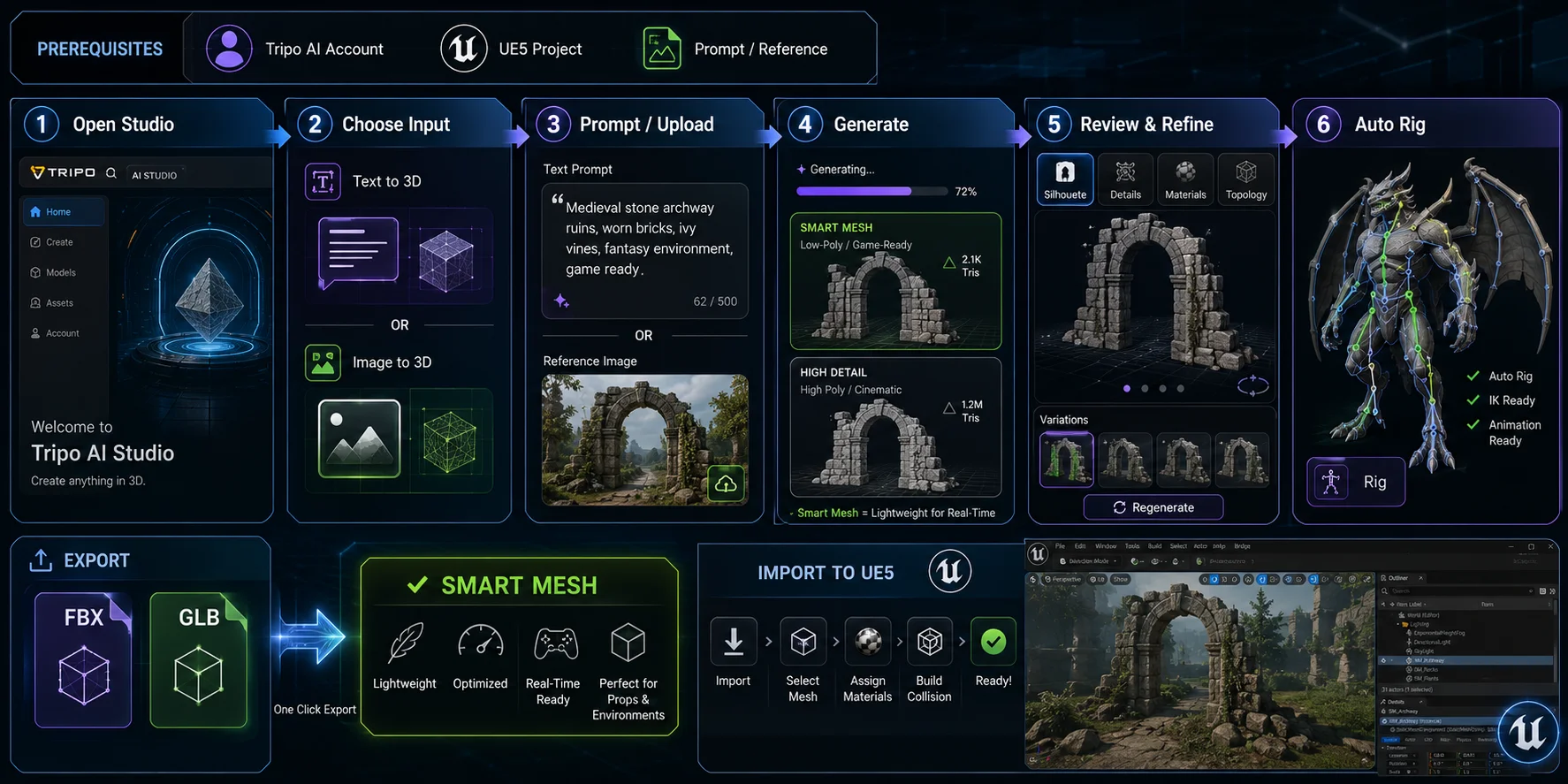
- Open Tripo AI Studio. Go to Tripo AI Studio and sign in. The Free plan provides a way to test generation, although its licensing, version, and export privileges are more limited than paid plans.
- Choose your input method. Select text-to-3D when you want to describe an asset from scratch. Choose Image to 3D when you have concept art, a sketch, a product image, or a reference photo with the silhouette you want.
- Enter a detailed prompt or upload a clean image. For text generation, describe visible structure, material, style, and intended game use. For example: A medieval stone archway, moss-covered sandstone blocks, broken upper corner, low-poly game environment prop, realistic PBR material For image generation, use a clear reference with readable lighting and limited background clutter.
- Generate the model. Click Generate, then wait for the selected generation mode to finish. Smart Mesh is designed for rapid low-poly output, while high-detail modes may take longer because they prioritize denser geometry and visual detail.
- Review and refine the result. Inspect the 3D preview before exporting. Check the silhouette, important details, material quality, and topology. If the model is too complex, too generic, or visually inconsistent, revise the prompt, change the reference image, or generate another variation. Smart Mesh is particularly useful when the target is a lightweight UE5 prop or real-time scene asset.
- Enable Auto Rig when appropriate. For characters or creatures that need animation in UE5, use AI Auto Rigging before export. Auto Rig creates a skeleton and skin weights, and rigged assets can be exported as FBX or GLB for downstream engine workflows. Always test deformations in Unreal Engine before treating an automatically rigged character as production-final.
Exporting for Unreal Engine: Format and Settings
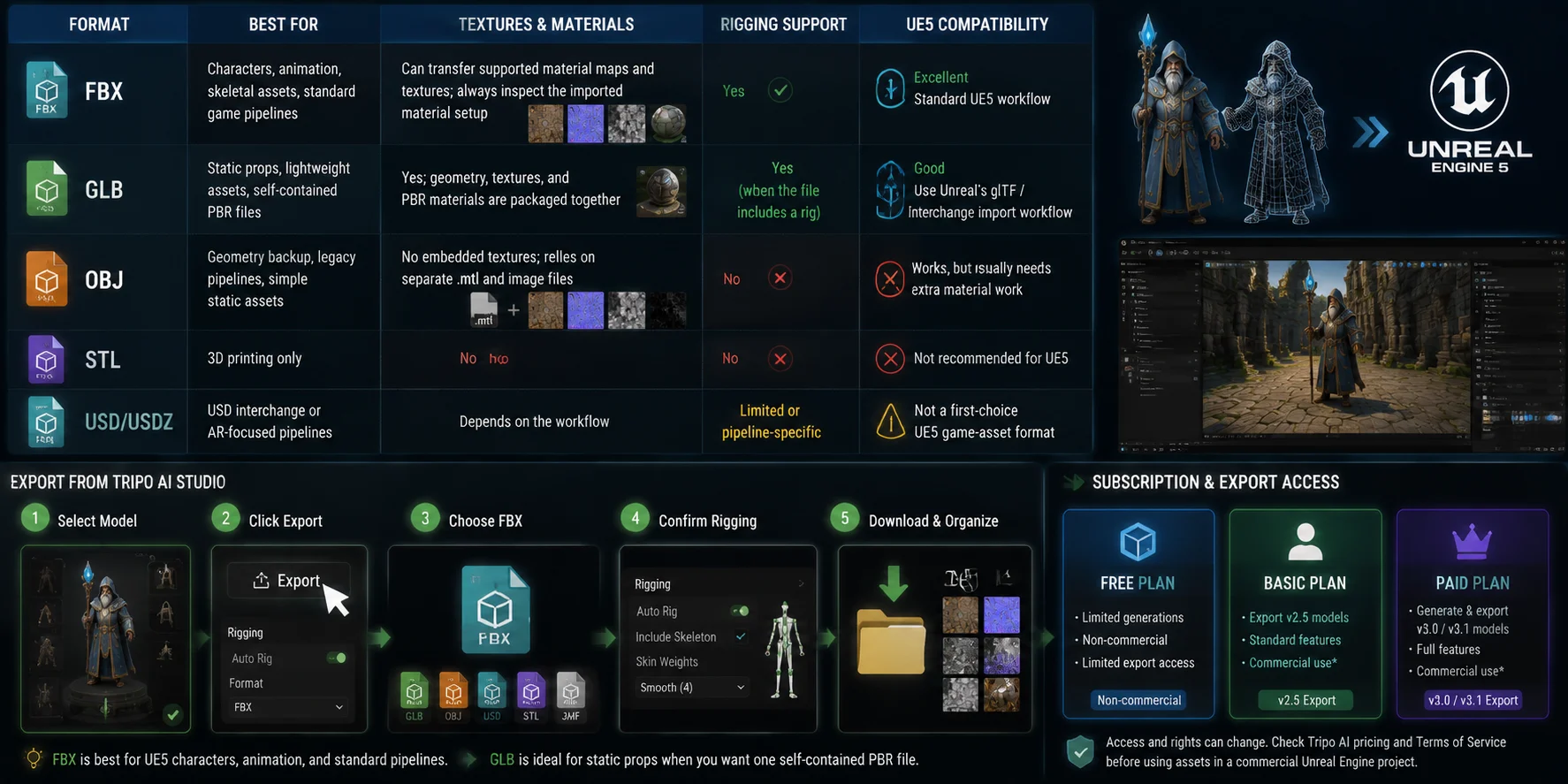
Choosing the right export format avoids most import headaches. Use this table to match your asset type to the best format.
| Format | Best for | Textures and materials | Rigging support | UE5 compatibility |
|---|---|---|---|---|
| FBX | Characters, animation, skeletal assets, standard game pipelines | Can transfer supported material maps and textures; always inspect the imported material setup | Yes | Excellent; standard UE5 workflow |
| GLB | Static props, lightweight assets, self-contained PBR files | Yes; geometry, textures, and PBR materials are packaged together | Yes, when the file includes a rig | Good; use Unreal’s glTF / Interchange import workflow |
| OBJ | Geometry backup, legacy pipelines, simple static assets | No embedded textures; relies on separate .mtl and image files | No | Works, but usually needs extra material work |
| STL | 3D printing only | No | No | Not recommended for UE5 |
| USD / USDZ | USD interchange or AR-focused pipelines | Depends on the workflow | Limited or pipeline-specific | Not a first-choice UE5 game-asset format |
Tripo AI currently lists six core export formats: USD, FBX, OBJ, STL, GLB, and 3MF. FBX is the strongest default for UE5 characters and assets that may need skeletons, animation, hierarchy, or conventional DCC editing. GLB is useful when you want one compact file that includes the asset and its PBR material data.
Use this export process in Tripo AI Studio:
- Select the completed model.
- Click Export.
- Choose FBX for UE5 characters, animated assets, or conventional Unreal game workflows.
- Confirm rigging options if Auto Rig was applied.
- Download the asset and keep its associated texture files organized if they are provided separately.
Subscription and export access
Check export availability, model versions, credits, and commercial-use rights before committing a project to a generation plan. Tripo AI’s current plans can change, so review Tripo AI pricing and the applicable license terms before using assets in a commercial Unreal Engine project.
Importing AI 3D Models into UE5
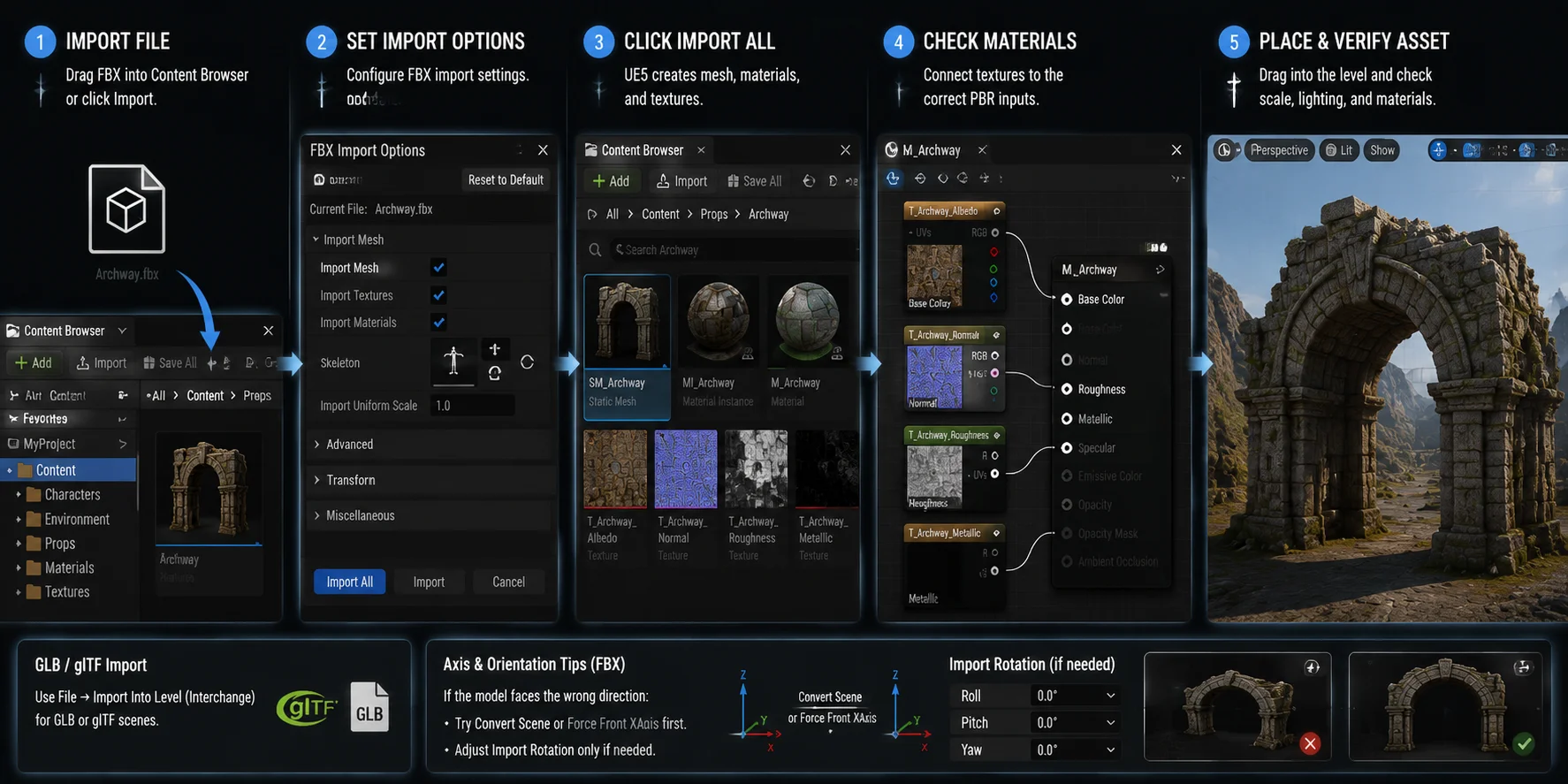
- Import the file. Drag the FBX into the UE5 Content Browser, or click Import. Copying the file into the Content folder alone is not enough.
- Set import options. In the FBX Import dialog, use:Import Mesh: enabledImport Textures: enabledImport Materials: enabledSkeleton: assign one only if the rig matches; otherwise create a new Skeleton assetImport Uniform Scale: 1.0 as a starting point; verify the asset against a known-size UE5 reference and adjust only when needed
- Click Import All. UE5 creates a Static Mesh or Skeletal Mesh, plus compatible materials and textures.
- Check materials. If the model appears grey or white, open its Material asset and connect Base Color, Normal, Roughness, and Metallic maps to the correct PBR inputs.
- Place and verify the asset. Drag the mesh into the Level viewport, then check scale, orientation, textures, and material response under different lighting.
Note on GLB and axis issues: For a single GLB or glTF asset, import it through the Content Browser or drag it into the project; use File → Import Into Level when importing a full scene. Both routes use Unreal’s Interchange workflow. If an FBX imports with the wrong orientation, first try Convert Scene or Force Front XAxis. Adjust Import Rotation only after checking the source file’s axis setup.
Optimizing AI Models for Real-Time Performance
Smart Mesh provides a useful optimization starting point, but a game-ready model does not automatically create a game-ready scene. Even low-poly assets can hurt performance when a level contains too many unique materials, high-resolution textures, draw calls, complex collision meshes, or overly detailed background props.
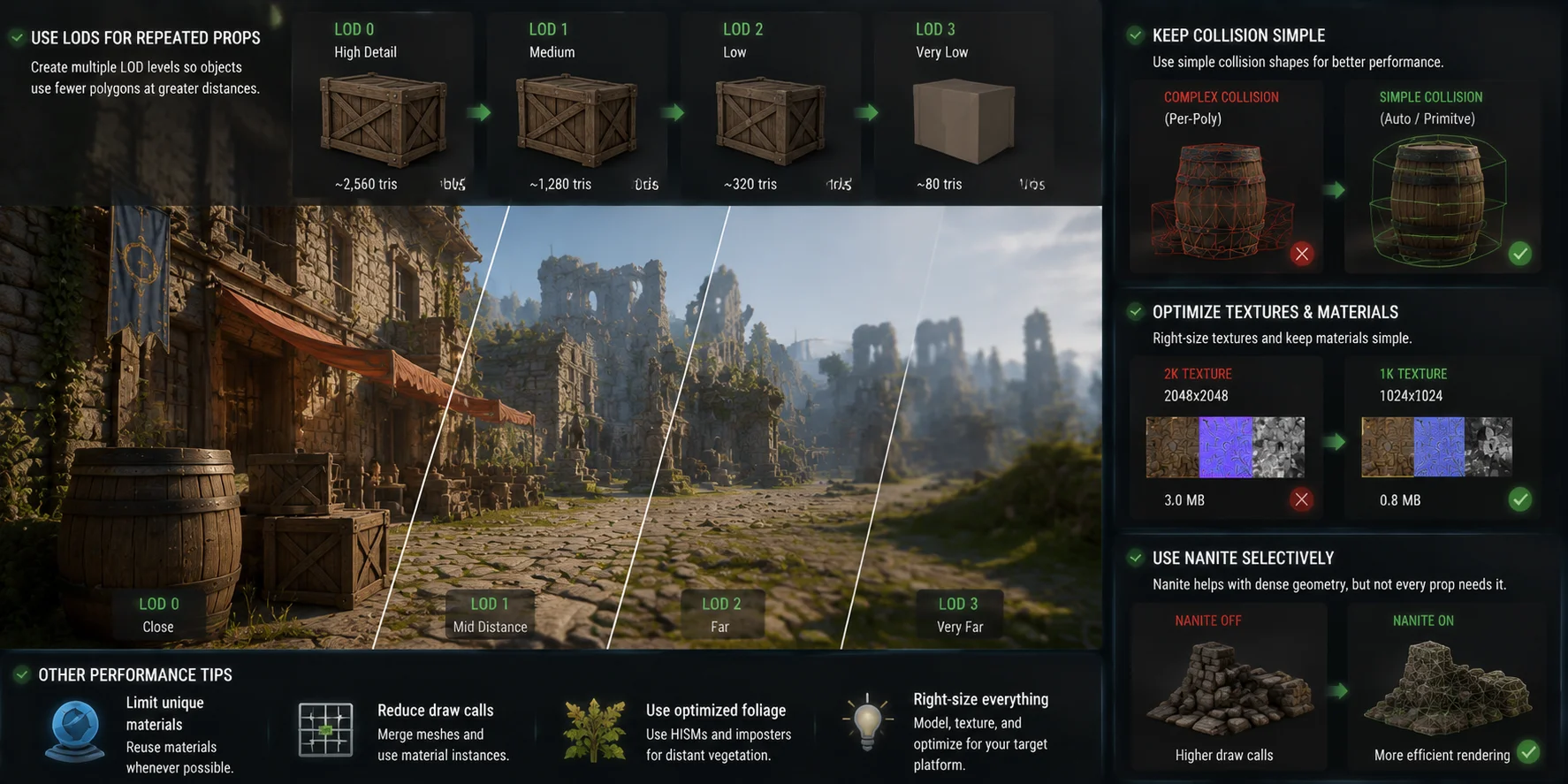
Use LODs for Repeated Props
Level of Detail (LOD) uses simpler geometry as an object moves farther from the camera. In UE5, automatic LOD generation can reduce Static Mesh polygon counts through quadratic mesh simplification. For most AI-generated props, open the Static Mesh asset, review LOD Settings, and create multiple levels instead of rendering the highest-detail mesh at every distance.
As a practical baseline, create four LOD levels for repeated environment assets such as crates, barrels, foliage, ruins, furniture, and distant architecture. Always test LOD transitions at real gameplay camera distances, not only in the mesh editor.
Keep Collision Simple
AI-generated models may contain more visual detail than gameplay collision requires. Enable Auto Generate Collision for standard static props, then inspect the result in the Static Mesh Editor. For performance-sensitive objects, use simple box, sphere, or capsule collision instead of complex per-triangle collision whenever possible.
Optimize Textures and Materials
Generated models may include texture maps that are unnecessarily large for distant props. Reduce 2K textures to 1K or lower when the difference is not visible in gameplay. Keep background material graphs simple, and reserve layered materials, translucency, and expensive shader effects for close-up assets.
Use Nanite Selectively
Nanite can help UE5 render dense static geometry efficiently, but it does not replace good asset optimization. Enable it when higher geometric detail improves visual quality or scene management. Avoid using Nanite automatically for every small, low-poly prop.
Common Issues and Fixes
| Problem | Likely cause | Fix |
|---|---|---|
| Model appears white or grey | Textures did not import, material maps are not linked, or source paths are missing | Reimport with Import Textures and Import Materials enabled. Open the UE material and manually connect Base Color, Normal, Roughness, and Metallic maps where needed. |
| Model is 100× too large or too small | Meter/centimeter mismatch | Confirm the original source unit first. Start with Import Uniform Scale at 1.0, compare the asset with a known-size UE5 reference, and adjust only when the mismatch is confirmed. |
| Model rotates incorrectly | Coordinate-system or forward-axis mismatch | Enable Convert Scene and consider Force Front XAxis. Reimport with an Import Rotation adjustment only after confirming how the source is oriented. |
| GLB does not import | Import route or required Interchange plugins are unavailable | For a single GLB or glTF asset, import it through the Content Browser; use File → Import Into Level for a full scene. Check that the required Interchange plugins are enabled in the project. |
| Rigged model has broken bones | Skeleton mismatch or incompatible retargeting | Create a new skeleton during import, or assign only a matching compatible skeleton. Do not force an AI-generated rig onto the UE Mannequin skeleton unless you have verified the hierarchy and retargeting setup. |
| Export requires a subscription | The selected plan or export feature may have restrictions | Review Tripo AI pricing and the applicable license terms for the selected plan before exporting or using an asset commercially. |
Frequently Asked Questions
Can you use AI in Unreal Engine?
Yes. For 3D assets, generate a model with a tool such as Tripo AI, export it as FBX or GLB, then import it through Unreal Engine’s standard pipeline. UE5 also includes procedural generation and machine-learning features, but those are separate from AI 3D model generation.
Can you do 3D modeling with AI?
Yes. AI 3D tools can generate meshes, PBR textures, and sometimes rigged characters from text prompts or reference images. Tripo AI supports text-to-3D, image-to-3D, Smart Mesh for real-time topology, and Auto Rig, though hero assets and precise mechanical parts may still need manual cleanup.
Which AI model is best for Unreal Engine coding?
This refers to AI coding assistants for C++, Blueprints, and UE5 scripting, rather than AI 3D asset generation. Tools such as GitHub Copilot and Cursor can help with code suggestions and explanations, but all generated code should be reviewed before production use. For UE5 3D assets, Tripo AI provides exportable FBX and GLB models designed for real-time workflows.
Can ChatGPT make a 3D model?
ChatGPT can help write prompts, define asset specifications, and create scripts for 3D software, but it does not output production-ready FBX, GLB, or OBJ files. For actual mesh generation, use a dedicated AI 3D tool such as Tripo AI. Language models help plan the asset, while AI 3D generators create downloadable geometry.
Conclusion
AI 3D models can fit directly into an Unreal Engine workflow when the pipeline is clear: generate the asset with Tripo AI, export FBX for the most reliable UE5 game workflow, import it through the Content Browser, then validate materials, scale, collision, and orientation.
For real-time scenes, optimize beyond generation by adding LODs, simplifying collision, managing texture resolution, and using Nanite only where it delivers a real benefit. AI is making early asset creation more accessible to solo developers and small teams that cannot always dedicate weeks of artist time to every prop or prototype.
Ready to turn a prompt or reference image into a UE5-ready asset? Start in Tripo AI Studio and test the workflow with a single game prop before scaling it across your project.