What Is LOD in Games? Level of Detail Explained for Developers
TL;DR
- LOD (Level of Detail) helps games improve performance by switching between high- and low-detail 3D models based on camera distance. Close objects keep more polygons, while distant objects use simpler versions.
- Games use different LOD systems such as Discrete LOD, HLOD, Nanite, and Billboard LOD. The goal is to reduce rendering costs while keeping the visual quality players notice.
- For AI-generated 3D models, creating optimized LOD versions is important because raw AI meshes are often too complex for real-time use. Clean LOD0–LOD2 models help balance detail and performance.
LOD (Level of Detail) is a technique used in games and real-time 3D graphics to automatically change a model’s complexity based on its distance from the camera. Objects close to the player use high-detail meshes, while distant objects switch to simpler versions with fewer triangles, improving performance without noticeable quality loss.
You may also see LOD refer to Lift-Off Distance in gaming mouse specifications, but that is a completely different concept. This article focuses on Level of Detail in 3D graphics, explaining how LOD works, why it matters, and how it helps games render large environments efficiently while maintaining smooth frame rates.
What Is LOD (Level of Detail) in Games?
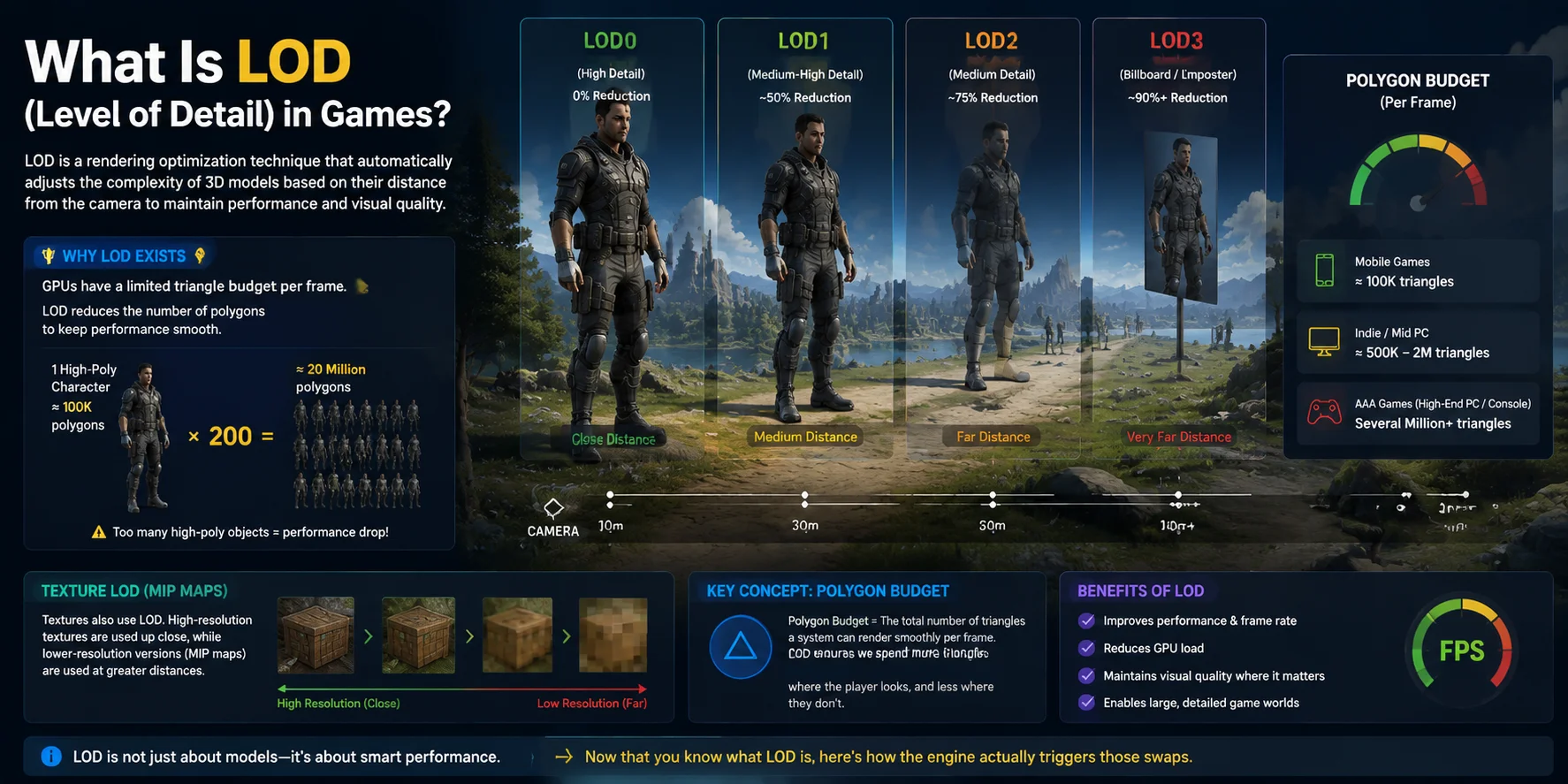
LOD (Level of Detail) is a rendering optimization technique that manages the complexity of 3D models during gameplay. Instead of rendering every object with its maximum polygon count at all times, a game engine automatically selects the appropriate version of a model based on its distance from the camera. A character standing directly in front of the player may use a high-detail mesh, while the same character far away may switch to a much simpler version with fewer triangles.
The main reason LOD exists is that GPUs have a limited triangle budget for every frame. Modern games often contain hundreds or thousands of objects, and rendering all of them at maximum quality would quickly become too expensive. For example, one high-poly character with 100,000 polygons may not be a problem, but 200 NPCs using the same level of detail would create around 20 million polygons that the GPU must process. LOD helps keep this workload manageable while maintaining visual quality where players notice it most.
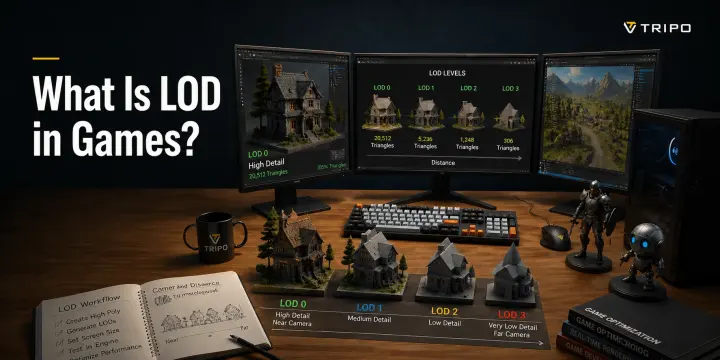
Most games use several LOD levels. LOD0 represents the original high-detail model and is used when the object is closest to the camera. LOD1 usually reduces geometry by around 50%, keeping the overall shape while removing unnecessary details. LOD2 reduces the polygon count further, often by around 75%, for medium distances. LOD3 or billboard LOD may replace the model with a simple card or 2D representation when the object is extremely far away.
A key concept behind LOD is the polygon budget—the total number of triangles a system can render smoothly per frame. Different platforms have different limits. Mobile games may target around 100K triangles per frame, indie PC games may work within hundreds of thousands to a few million triangles, while AAA games can handle several million or more depending on the scene and hardware.
LOD is not only about geometry. Textures also use a similar system called texture LOD through MIP maps. High-resolution textures are displayed when objects are close, while lower-resolution versions are loaded at greater distances to save memory and improve performance.
Now that you know what LOD is, here's how the engine actually triggers those swaps.
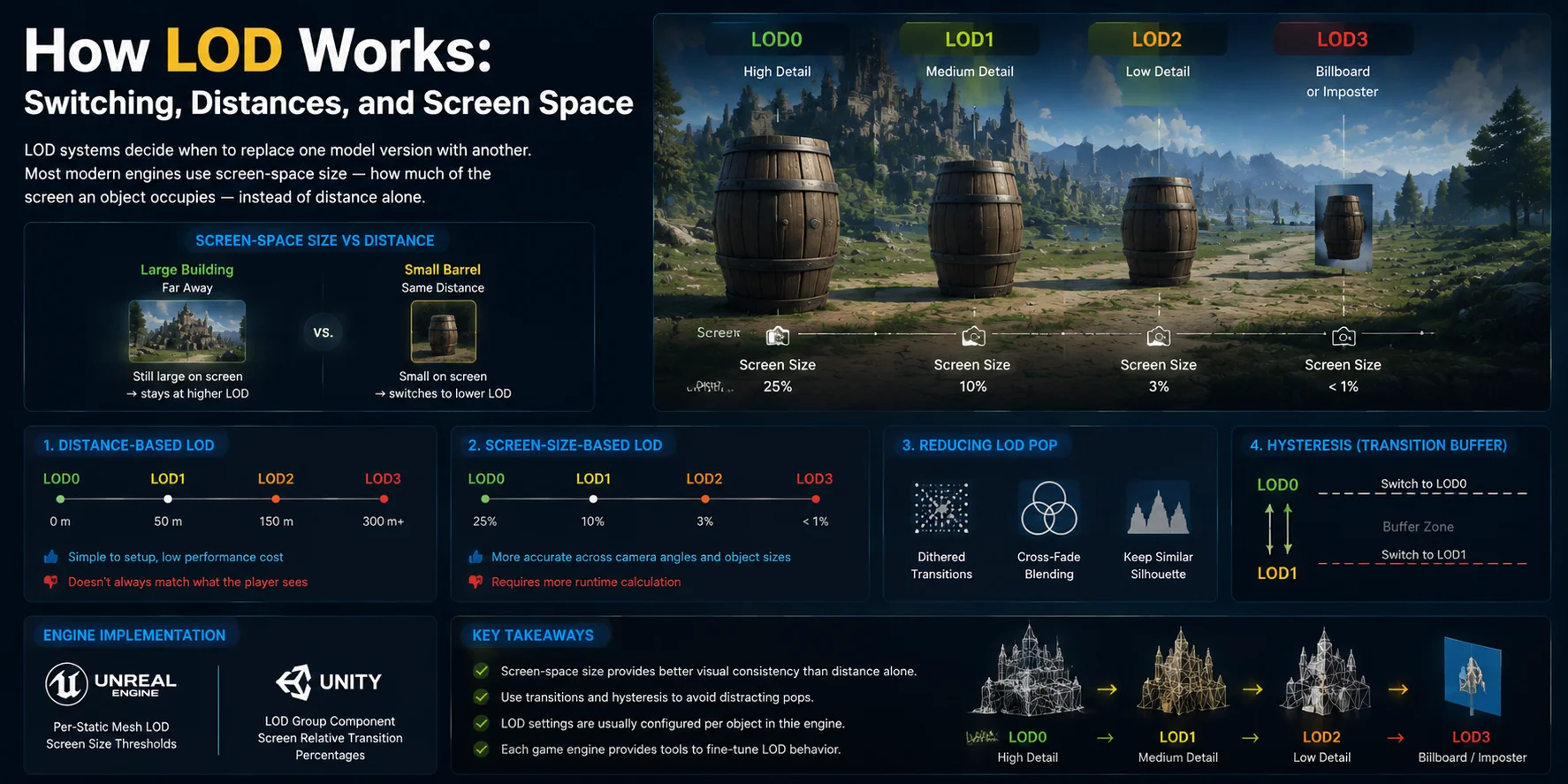
How LOD Works: Switching, Distances, and Screen Space
LOD systems work by deciding when to replace one model version with another. While it may seem logical to switch LOD levels based only on distance, most modern game engines use a more accurate measurement: screen-space size. This means the engine checks how much of the screen an object occupies and switches models when the object becomes too small for players to notice the missing details.
For example, a large building far away may still cover a significant part of the screen, so the engine keeps it at a higher LOD level for longer. A small barrel at the same distance may only occupy a few pixels, allowing the engine to switch it to a lower-detail mesh much earlier. Screen-space percentage is therefore more effective than using a simple distance rule because it considers the actual visual importance of the object.
There are two common approaches for triggering LOD changes. Distance-based LOD uses fixed ranges, such as switching to LOD1 at 50 meters and LOD2 at 150 meters. It is simple to configure and requires less calculation, but it does not always match what the player sees. Screen-size-based LOD uses the percentage of screen coverage instead, providing better results across different camera angles and object sizes, although it requires slightly more runtime calculation.
One challenge with LOD switching is the LOD pop effect. This happens when players suddenly notice a model changing from detailed to simplified, creating a distracting visual jump. Games reduce this problem through techniques such as dithered transitions, cross-fade blending, or carefully creating lower LOD models that maintain a similar silhouette to the original version.
Another important technique is hysteresis. Without it, an object near the LOD switching threshold could rapidly alternate between LOD0 and LOD1 as the camera moves slightly forward and backward. A small transition buffer prevents this constant switching and creates a smoother experience.
LOD settings are usually controlled per object. In Unreal Engine, each Static Mesh can have individual LOD screen-size thresholds that determine when each version appears. In Unity, the LOD Group component allows developers to define screen-relative transition percentages for each LOD level.
Different games use different LOD system architectures — here's how they break down.
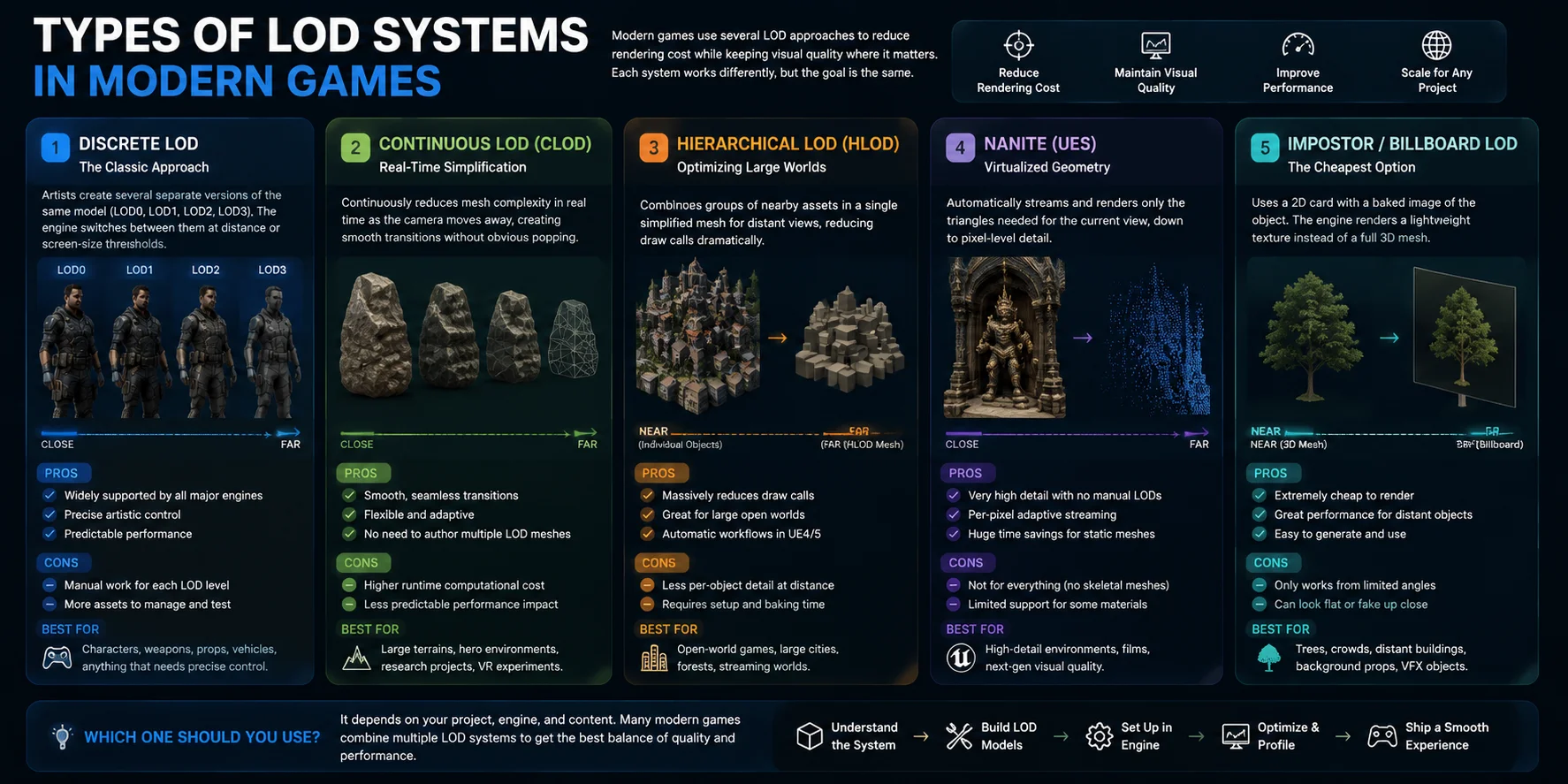
Types of LOD Systems in Modern Games
Modern games use several different LOD approaches depending on the project scale, engine, and performance requirements. While the goal is always the same—reduce rendering cost without sacrificing visible quality—the way each system achieves this can be very different.
Discrete LOD — The Classic Approach
Discrete LOD is the traditional method used in most games. Artists create several separate versions of the same 3D model, such as LOD0, LOD1, LOD2, and LOD3, each with a different polygon count. The engine switches between these versions at specific thresholds based on distance or screen size.
This approach is supported by almost every major game engine and gives artists precise control over how each version looks. However, it requires manual work because every LOD mesh must be created, optimized, and tested individually.
Continuous LOD (CLOD) — Real-Time Simplification
Continuous LOD takes a different approach by dynamically reducing mesh complexity in real time instead of switching between fixed versions. As the camera moves farther away, the system continuously simplifies the geometry, creating smoother transitions without obvious jumps.
The advantage is more flexible and gradual optimization, but the downside is higher computational cost. Because real-time mesh simplification can be expensive, CLOD is less common in modern commercial games compared with traditional discrete LOD systems.
Hierarchical LOD (HLOD) — Optimizing Large Worlds
Hierarchical LOD is designed for large environments such as open-world games. Instead of optimizing individual objects, HLOD combines groups of nearby assets—such as buildings, trees, and props—into a single simplified mesh at long distances.
This reduces the number of draw calls dramatically. For example, hundreds of separate buildings may be replaced by one optimized HLOD mesh when viewed from far away. Unreal Engine 4 and 5 support HLOD workflows, including integration with World Partition for large-scale worlds.
Nanite (Unreal Engine 5) — Virtualized Geometry
Nanite is Unreal Engine 5’s virtualized geometry system that changes how developers handle high-detail meshes. Instead of relying on traditional manually created LOD levels, Nanite automatically streams and renders only the triangles needed for the current view, down to pixel-level detail.
Nanite can replace traditional LOD workflows for many static meshes, but it is not a universal solution. It does not support every asset type, including skeletal meshes and certain masked materials, so traditional optimization techniques are still necessary.
Impostor / Billboard LOD — The Cheapest Option
Impostor LOD uses a simple 2D card or billboard with a baked image of the original 3D object. From a distance, the player sees what appears to be a detailed object, but the engine only renders a lightweight texture instead of a full mesh.
This method is especially useful for trees, distant buildings, crowds, and background objects where geometry is barely visible. It provides major performance savings with minimal visual impact.
Once you understand the system, the next question is: how do you actually build LOD models?
How LOD Models Are Created
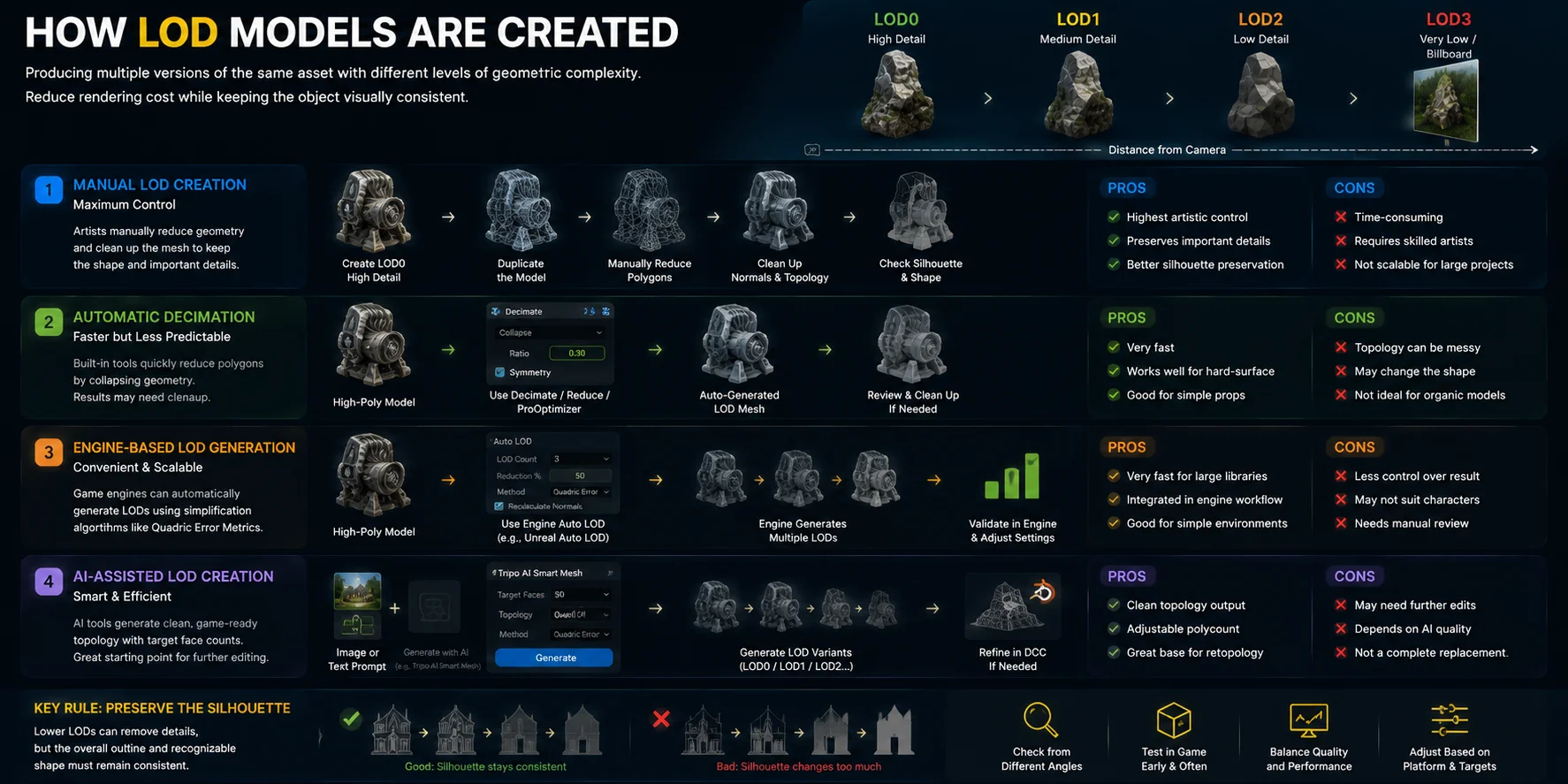
Creating LOD models is the process of producing multiple versions of the same asset with different levels of geometric complexity. The goal is not simply to remove polygons, but to reduce rendering cost while keeping the object visually consistent from the player’s perspective. Developers can create LODs manually, generate them automatically, or use AI-assisted workflows depending on the project requirements.
Manual LOD Creation — Maximum Control
The traditional approach starts by creating a detailed LOD0 model with the highest level of geometry. Artists then duplicate the model and create lower-detail versions by manually reducing polygons using tools in software such as Blender, Maya, or 3ds Max. After reducing the mesh, artists usually clean up the result by removing unnecessary vertices, fixing broken normals, and checking that the topology remains usable.
This method provides the highest level of control because artists can decide exactly which details should disappear at each distance. Small features like screws, seams, or surface decorations can be removed while preserving the important shape. However, manual LOD creation is also the most time-consuming approach, especially for large game projects with hundreds of assets.
Automatic Decimation — Faster but Less Predictable
Many 3D applications include automatic mesh reduction tools. Blender’s Decimate modifier, Maya’s Reduce, and 3ds Max’s ProOptimizer can quickly generate lower-poly versions of a model by collapsing unnecessary geometry.
Automatic decimation is useful for props and hard-surface objects because it can create acceptable results with minimal effort. However, it may produce messy topology, uneven edge flow, or unwanted shape changes on complex organic models such as characters and creatures. Artists often need to review and clean the generated meshes afterward.
Engine-Based LOD Generation
Modern game engines can also create LOD versions automatically. For example, Unreal Engine provides built-in Auto LOD tools for Static Mesh assets. These systems use algorithms such as Quadric Error Metrics to simplify geometry while attempting to preserve the original shape.
Engine-generated LODs are convenient for quickly optimizing large asset libraries. They work especially well for simple objects and environments, but they are usually less reliable for characters or assets requiring precise deformation.
AI-Assisted LOD Creation
AI tools are becoming another option for generating optimized meshes. For example, Tripo AI Smart Mesh can create cleaner, game-oriented topology from a single image or text prompt, with adjustable target face counts. This makes it useful when creating different versions of an asset, such as a detailed LOD0 model and lighter LOD1 or LOD2 variants.
For artists who need further manual editing, AI-generated quad-dominant topology can also provide a cleaner starting point for retopology workflows in Blender and other DCC tools.
The most important rule when creating LOD models is preserving the silhouette. A lower LOD does not need every small detail, but the overall outline and recognizable shape should remain consistent. Interior details can disappear, but the object should still read correctly at every distance.
Before you save your LOD settings, there's one more technical parameter worth understanding: LOD bias.
LOD Bias: What It Is and When to Adjust It
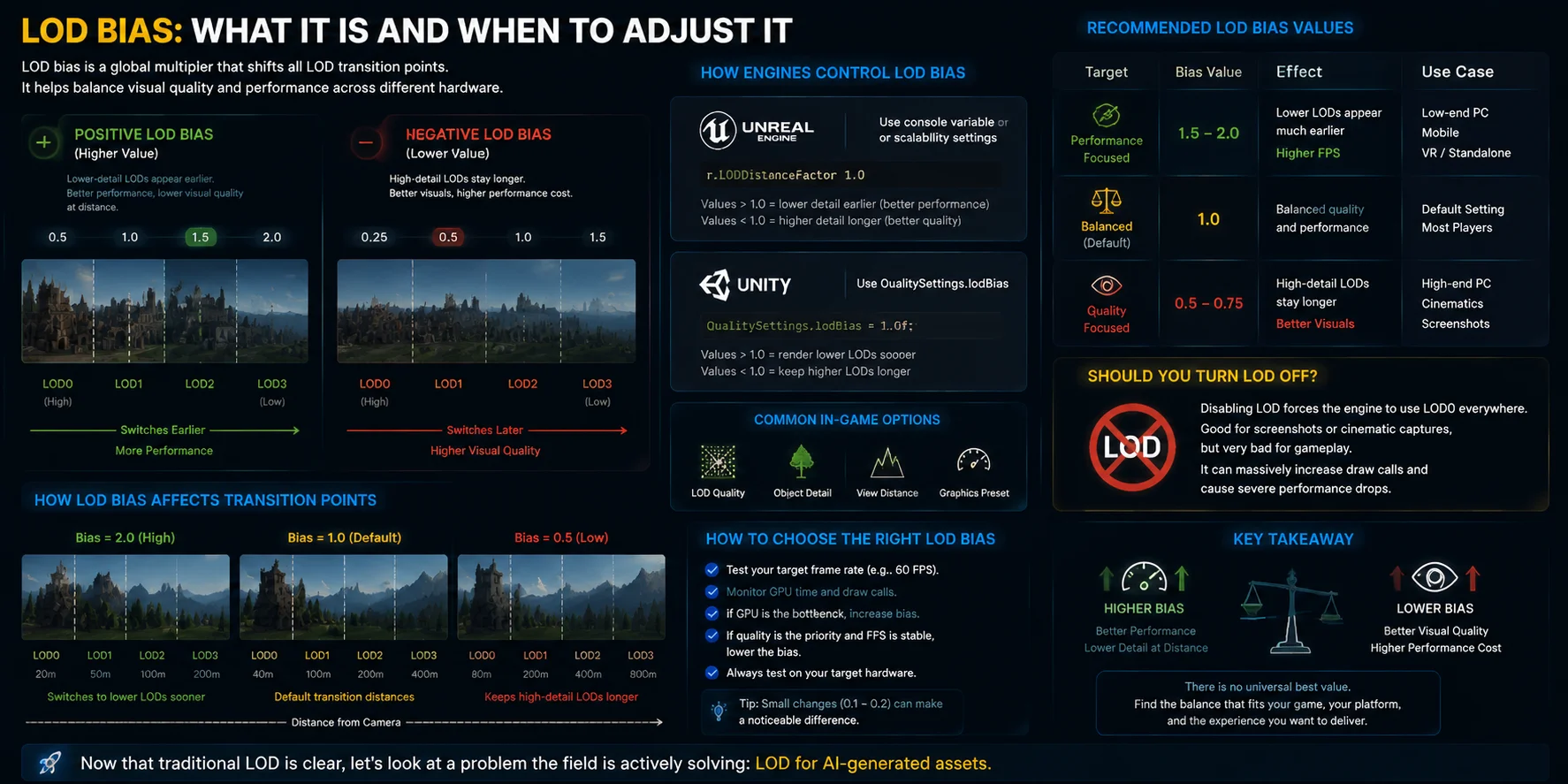
LOD bias is a setting that controls how aggressively a game engine switches between different levels of detail. Instead of changing each asset’s individual LOD settings, LOD bias acts as a global multiplier that shifts all LOD transition points higher or lower. It is commonly used to balance visual quality and performance across different hardware.
A positive LOD bias makes lower-quality LOD models appear earlier. This means the engine switches to simpler meshes sooner, reducing GPU workload and improving frame rates. A negative LOD bias keeps higher-quality models visible for longer, improving image quality but increasing rendering costs. In simple terms: higher bias = better performance, lower bias = better visuals.
Most engines provide a way to adjust LOD bias. In Unreal Engine, developers can control it through settings such as the r.LODDistanceFactor console variable or scalability options. In Unity, the equivalent setting is QualitySettings.lodBias, which controls how far away higher-detail models remain active. Many PC games expose similar controls through graphics options like LOD Quality, Object Detail, or View Distance.
The right LOD bias depends on the target hardware and performance goals. On a system limited by GPU performance, increasing the bias to around 1.5–2.0 can help reduce rendering workload by switching to simpler models earlier. On a high-end system where visual quality is the priority, lowering the bias to around 0.5–0.75 allows detailed models to remain visible longer. The default value is usually 1.0, providing a balanced middle ground.
A common question is: “Should I turn LOD off?” Disabling LOD effectively forces the engine to use LOD0 models everywhere, which may be useful for screenshots, cinematic captures, or visual comparisons. However, it is usually a bad idea for gameplay because open-world scenes can contain thousands of objects. Removing LOD optimization can dramatically increase draw calls and cause major performance drops.
So, should LOD bias be high or low? There is no universal best setting. A higher value improves FPS but reduces distant detail, while a lower value improves visuals but costs more performance. The best approach is to test your target frame rate and adjust the setting based on the platform and experience you want to deliver.
Now that traditional LOD is clear, let's look at a problem the field is actively solving: LOD for AI-generated assets.
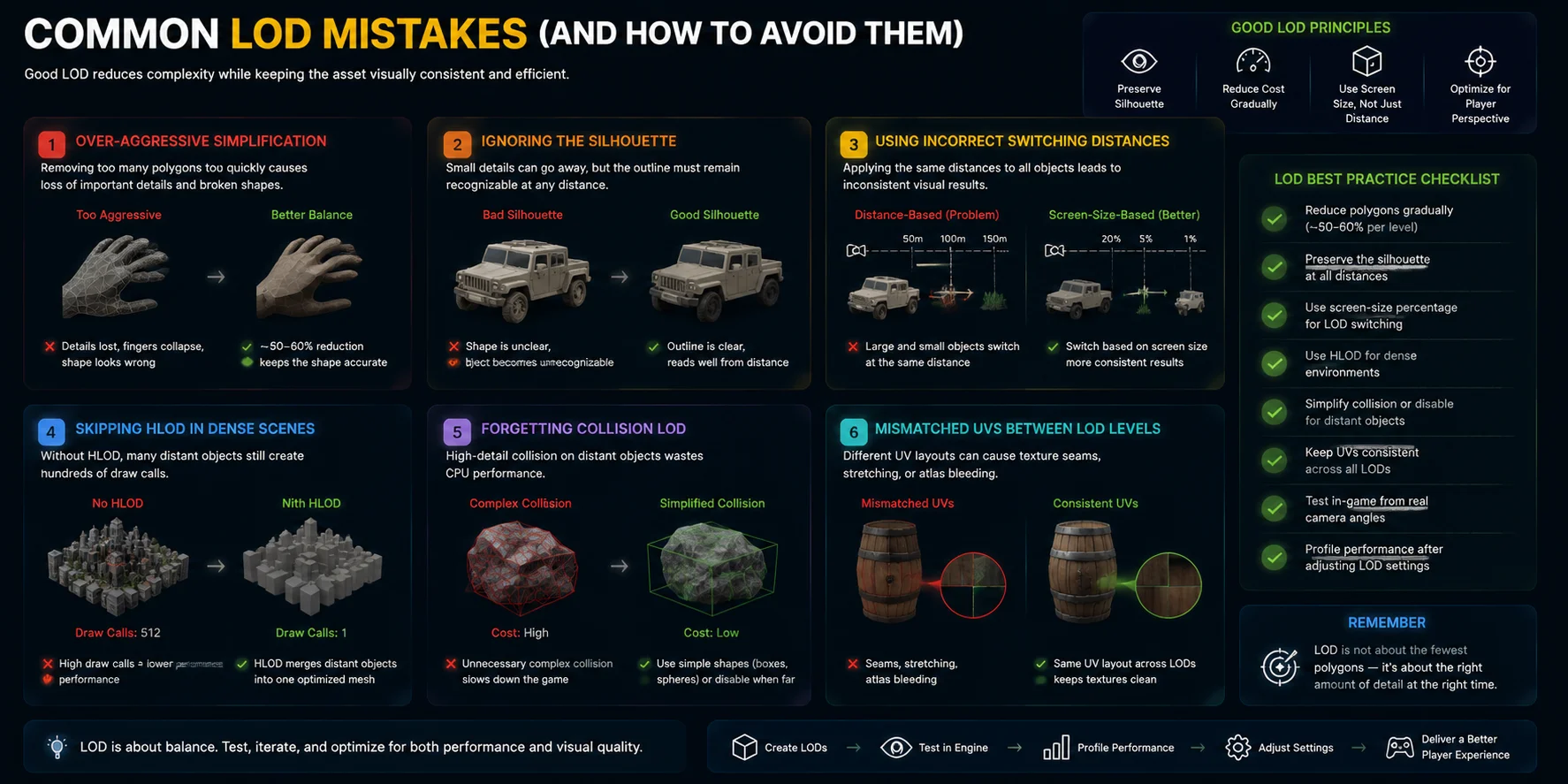
Common LOD Mistakes (and How to Avoid Them)
Even with a well-designed LOD system, poor setup can create visible quality problems or unnecessary performance costs. The goal of LOD is not simply to reduce polygons—it is to reduce complexity while keeping the asset visually consistent and efficient.
- Over-Aggressive Simplification
One of the most common mistakes is reducing too much geometry too quickly. If an LOD1 model removes too many polygons, important features can disappear and the silhouette may break. Fingers may vanish, thin parts may collapse, and curved shapes may become noticeably inaccurate.
A good rule is to avoid extreme reductions between levels. A typical LOD transition often targets around 50–60% polygon reduction rather than jumping directly to a 90% reduction. Gradual optimization usually creates better visual results.
- Ignoring the Silhouette
Small surface details can disappear at a distance, but the overall outline of the object must remain recognizable. A character’s body shape, a vehicle’s profile, or a building’s structure should still look correct after switching to a lower LOD.
Always test LOD models from the actual camera angles players will see. A model that looks acceptable in the viewport may still appear wrong during gameplay.
- Using Incorrect Switching Distances
Applying the same LOD distances to every object is another common mistake. A large vehicle and a small piece of grass should not switch detail levels at the same distance because their screen impact is completely different.
Using screen-size percentage instead of fixed distance values creates more consistent results across different object sizes.
- Skipping HLOD in Dense Scenes
Large environments can suffer without Hierarchical LOD (HLOD). In an open-world scene, hundreds of distant buildings may continue creating hundreds of individual draw calls instead of being combined into one optimized mesh.
HLOD reduces this overhead by merging distant objects into simpler representations.
- Forgetting Collision LOD
A visual LOD may be optimized while its collision mesh remains unnecessarily complex. This wastes processing power, especially for distant objects.
Use simplified collision shapes such as boxes or spheres for lower-detail objects, or disable collision completely when objects are too far away to interact with.
- Mismatched UVs Between LOD Levels
Different UV layouts between LOD0 and LOD1 can create texture seams, stretching, or atlas bleeding during transitions. To avoid this, finalize UV mapping before reducing the mesh and ensure all LOD versions maintain compatible texture layouts.
One scenario that's still evolving is LOD for AI-generated models — the workflow is different from hand-built assets.
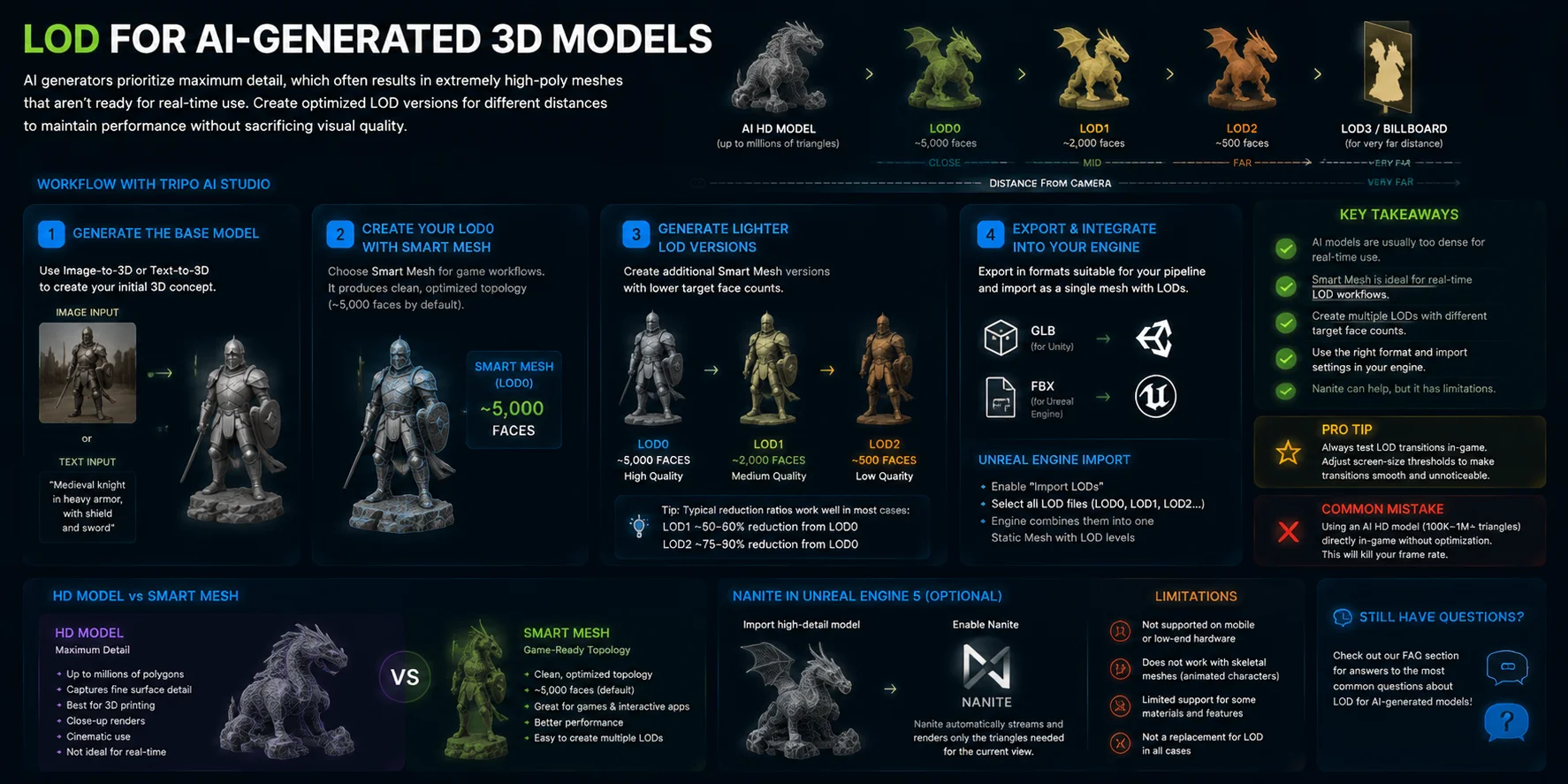
LOD for AI-Generated 3D Models
AI-generated 3D models introduce a new challenge for LOD workflows. Traditional game assets are usually created with optimization in mind, but AI generators often prioritize maximum detail. The result is typically a high-poly mesh that preserves surface information but is not ready for real-time rendering. Some AI-generated models can contain hundreds of thousands or even millions of triangles, and importing them directly into a game engine can quickly reduce frame rates.
A common mistake is treating an AI-generated HD model as a finished game asset. Instead, the model should go through an optimization process where different LOD versions are created for different viewing distances.
A practical workflow with Tripo AI Studio looks like this:
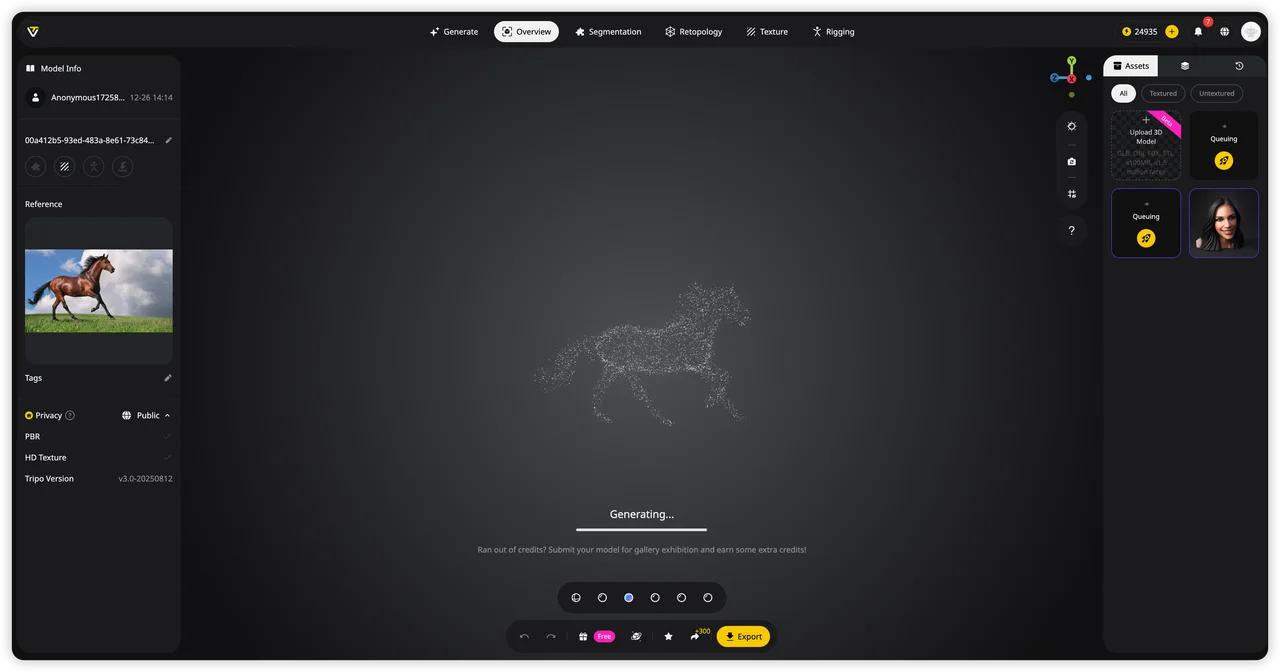
- Generate the base model
Start by creating your asset using Image-to-3D or Text-to-3D. This gives you the initial 3D concept, which can be refined depending on your target use case.
- Create your LOD0 with Smart Mesh
For real-time applications, choose Smart Mesh instead of an HD Model. Smart Mesh is designed for game workflows and produces cleaner, optimized topology with around 5,000 faces by default. This version can serve as your LOD0—the highest-quality version used when the object is closest to the camera.
- Generate lighter LOD versions
To create LOD1 and LOD2, generate additional Smart Mesh versions with lower target face counts. For example, you can create a version with around 2,000 faces for LOD1 and another with around 500 faces for LOD2. Each optimized version can be generated quickly and used at different distances in the game.
- Export and integrate into your engine
Export your models in formats suitable for your pipeline, such as GLB for Unity or FBX for Unreal Engine. In Unreal Engine, enable Import LODs during import to combine multiple meshes into a single Static Mesh with built-in LOD levels.
It is also important to understand the difference between HD Model and Smart Mesh. HD Models can contain up to millions of polygons and are better suited for 3D printing, close-up renders, and cinematic work. Smart Mesh is designed for interactive applications where performance matters.
For Unreal Engine 5 users, there is another option: Nanite. If your asset is a static mesh and your target platform supports it, you can import a high-detail model and enable Nanite to handle virtualized micro-polygon rendering automatically. However, Nanite is not a universal replacement for LOD—it has limitations on mobile devices, older hardware, and animated skeletal meshes.
Still have questions? Here are the ones we get most often.
Frequently Asked Questions
What does LOD mean in video games?
LOD stands for Level of Detail. It is a rendering optimization technique in video games where the engine automatically switches between different versions of a 3D model based on the camera distance. Close objects use high-detail meshes, while distant objects use simpler versions, reducing GPU workload and improving performance without noticeable visual quality loss.
How does LOD affect game performance?
LOD improves game performance by reducing the number of polygons and draw calls the GPU needs to process each frame. By replacing distant high-detail models with simpler versions, LOD lowers rendering workload, improves frame rates, and helps large open-world scenes run smoothly without sacrificing noticeable visual quality.
How many LOD levels do games usually have?
Most games use around 3–5 LOD levels for static objects, usually labeled LOD0–LOD4. LOD0 is the highest-detail version, while later levels use progressively fewer polygons for objects that are farther away. Characters often use fewer levels (around 2–3), while small props may only need two. For very distant objects, games may use Billboard LOD or HLOD to replace complex scenes with simplified representations.
Can LOD be disabled in game settings?
Most games do not provide a direct “disable LOD” option, but graphics settings such as Object Detail, View Distance, or LOD Quality can adjust how aggressively LOD switching happens. Higher settings keep detailed models visible for longer, while completely disabling LOD through developer commands can significantly reduce performance, especially in large open-world scenes.
What should my LOD be on my mouse?
For a gaming mouse, LOD means Lift-Off Distance, not Level of Detail. A lower LOD (around 1–2 mm) is usually preferred for competitive gaming because the sensor stops tracking sooner when you lift the mouse, preventing unwanted cursor movement while repositioning. It is unrelated to 3D graphics LOD settings.
Conclusion
LOD is one of the invisible technologies that keeps modern games running smoothly. It is the reason massive open-world environments can avoid overwhelming GPUs, mobile games can display hundreds of objects, and players rarely notice the optimization happening in the background.
If you are building a game, setting up LOD early with the right polygon targets, clean silhouettes, and proper bias settings can save significant optimization time later.
Need game-ready assets with optimized topology for your workflow? Generate your first model in Tripo AI Studio → Explore available features and options with Tripo AI pricing** →**