Best AI for 3D Model Printing in 2026: Tested and Ranked
TL;DR
- AI 3D printing tools make it possible to create printable models without CAD skills, but a good-looking AI mesh is not always print-ready. A successful print requires clean geometry, correct scale, and the right file format — STL for standard prints, 3MF for color and multi-material workflows.
- For best results, choose the right generation method: use text-to-3D for fast creative concepts, image-to-3D or multi-view for accurate shapes and replicas. A reliable workflow is: generate in Tripo AI → check the mesh → export STL/3MF → prepare in a slicer → print.
- Common issues like non-manifold edges, floating geometry, wrong scale, and thin walls can usually be fixed with tools such as Meshmixer, Netfabb, or slicer adjustments. With the right workflow, AI-generated models can become practical, high-quality 3D prints.
The best AI for generating 3D models for printing depends on your project and the level of detail you need. For high-detail models such as miniatures, sculptures, and product prototypes, Tripo AI’s HD Model mode can generate up to 2 million polygons and export directly to STL or 3MF formats. For faster concept models and simple props, tools like Meshy and PrintPal provide quick generation with features designed to improve print readiness.
The 3D printing industry is expanding rapidly, and AI is making custom model creation accessible to more creators than ever. You no longer need advanced CAD skills to turn an idea into a printable object. However, not every AI-generated model is ready for the printer straight away. This guide compares the best AI 3D generators for printing, explains what makes a model truly print-ready, and covers the fastest workflow from text prompt to finished physical print.
What Makes an AI-Generated 3D Model Actually Print-Ready?
A model that looks perfect on screen is not always ready for a 3D printer. Many AI generators create visually impressive meshes with detailed textures and complex shapes, but those models can fail during slicing because they were designed for appearance rather than physical manufacturing. “Print-ready” has a specific technical meaning: the mesh must have clean geometry, correct scale, and a file format that your printer workflow can handle.
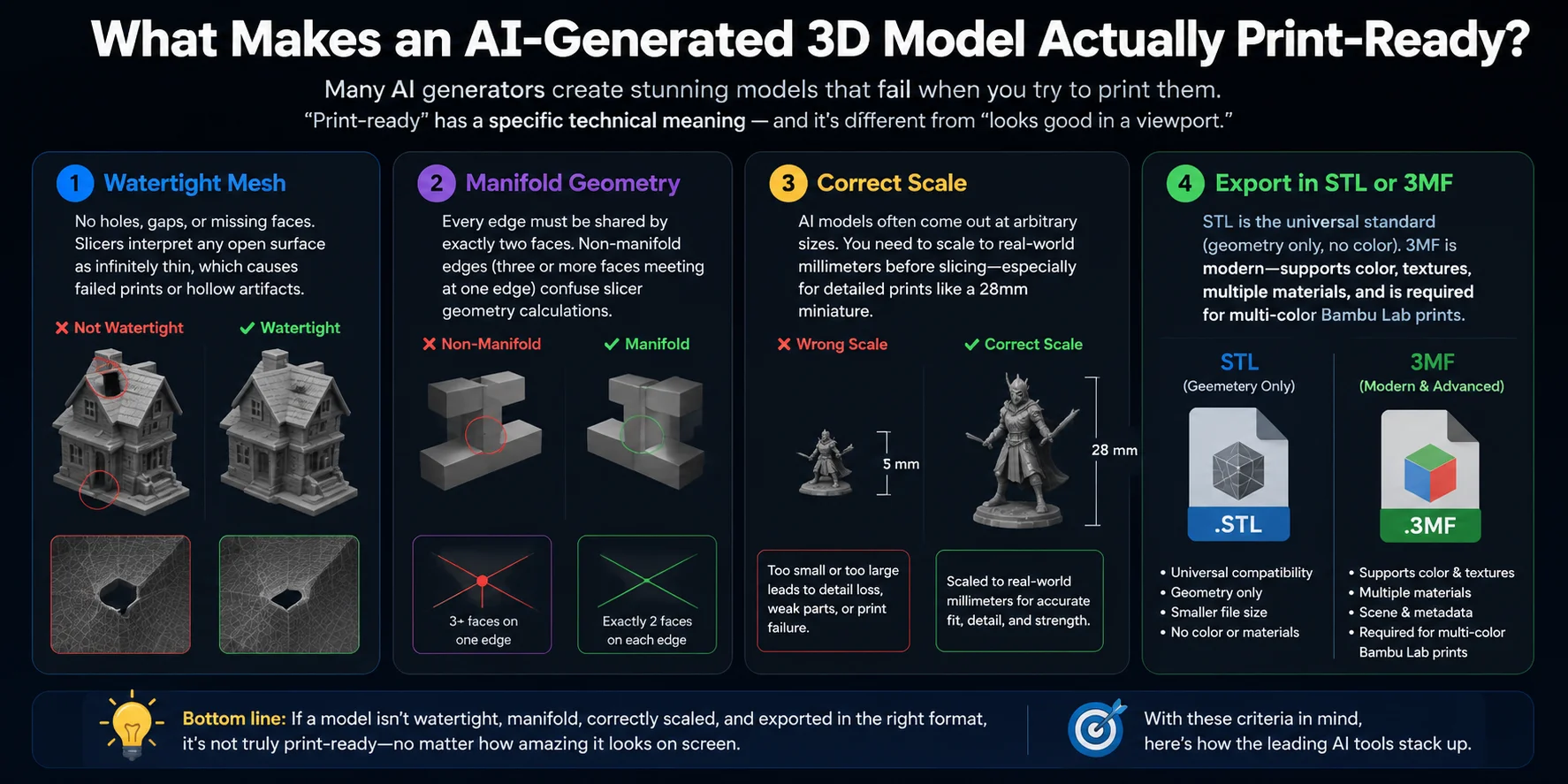
A truly printable AI-generated model should meet four key requirements:
1. Watertight mesh A printable model must be a closed surface with no holes, gaps, or missing faces. Slicers need a complete volume to calculate the inside and outside of an object. Open surfaces can cause failed prints, missing sections, or unexpected hollow areas.
2. Manifold geometry Every edge in a manifold mesh should connect exactly two faces. If three or more faces share the same edge, or if geometry overlaps incorrectly, slicers may not know how to interpret the shape, leading to printing errors.
3. Correct scale AI-generated models often have no real-world dimensions because they are created from visual references rather than measurements. Before printing, the model needs to be scaled accurately in millimeters — especially for detailed objects like a 28mm tabletop miniature, where even small size errors affect the final result.
4. Proper export format STL remains the most widely supported format for 3D printing and stores only geometry data. For modern workflows, 3MF is often the better choice because it can store colors, textures, materials, and multi-part printing information. It is also the preferred format for multi-color workflows such as Bambu Lab prints.
Understanding these requirements makes it easier to judge AI 3D generators beyond their screenshots. With those criteria in mind, here's how the leading AI tools stack up.
Best AI Tools for 3D Printing Models in 2026
AI 3D generators vary widely in how well they handle printable geometry. Some focus on fast concept generation, while others provide STL export, printability checks, mesh repair, or tools for splitting a model into printable parts.
How to compare the tools
Use the same text prompt and reference image in all five tools. Export the highest-quality STL available, open every file in the same slicer, and check for holes, non-manifold geometry, thin walls, incorrect scale, unsupported details, and repair time. This makes “print-ready” a measurable result rather than a marketing label.
| Tool | Best For | Input | Output Formats | Print-Ready? | Free Tier |
|---|---|---|---|---|---|
| Tripo AI | Fast concept models and multi-view reconstruction | Text, image, multi-view images | STL, OBJ, FBX, GLB, USDZ | Needs a slicer check and possible repair | Yes. 200 monthly credits, limited downloads, public CC BY 4.0 models |
| Meshy | Detailed assets, flexible exports, and printability checking | Text, image, chat prompts | STL, 3MF, OBJ, FBX, GLB, USDZ, BLEND | Built-in printability check, but files should still be inspected | Yes. 100 credits per month, with CC BY 4.0 licensing |
| PrintPal | Beginners and direct 3D printing workflows | Text, image | STL, OBJ, GLB | Designed to produce print-optimized meshes, but slicer validation is still recommended | Yes. 10 generations per month with basic exports for personal use |
| Sloyd | Controlled geometry, stylized assets, and parametric workflows | Text, image, templates | STL, OBJ, FBX, GLB, USD | STL and OBJ export supported; verify wall thickness and manifold geometry | Guest access includes one preview generation per day, but users cannot download their own models |
| Hitem3D | Image-based models, detailed reconstruction, and models that need splitting | Text, image, multi-view images | STL, OBJ, FBX, GLB, USDZ | Includes print preparation features, but final inspection is still required | Yes. 100 lifetime credits, up to 10 generated assets, and limited downloads |
Tripo AI
Tripo AI is a practical general-purpose option for turning text, a single image, or multiple reference views into a 3D model. It supports common formats such as STL, OBJ, and FBX, so models can move into a slicer or editing program without a separate conversion step. Generated files should still be checked for wall thickness, scale, and unsupported geometry before printing.
Meshy
Meshy provides text-to-3D and image-to-3D generation along with remeshing, several export formats, and a built-in printability check. STL and 3MF support make it convenient for printing workflows, although the printability check does not remove the need to inspect the model in a slicer.
PrintPal
PrintPal is the most printing-focused option in this group. Its official workflow includes automatic checks for non-manifold geometry, holes, and wall thickness, followed by direct STL export. The free plan includes 10 monthly generations, but higher-resolution output and all export options require a paid plan.
Sloyd
Sloyd combines generative AI with parametric templates, which can provide more predictable geometry than a completely free-form model. It exports STL and OBJ files for printing, as well as formats used by Blender and game engines. The guest plan allows preview generation, but downloading your own generated models requires a paid plan.
Hitem3D
Hitem3D is suited to image and multi-view reconstruction, especially when surface detail and visual similarity matter. Its current plans include printing tools such as Split to Print, Smart Layout, multi-color printing, and direct printer delivery. These features simplify preparation, but the exported mesh should still be checked before slicing.
No single tool is best for every print. PrintPal has the most direct print-focused workflow, while Meshy provides useful checking and export tools. Tripo AI is a flexible starting point for fast generation, Sloyd offers more controlled workflows, and Hitem3D is better suited to detailed image-based reconstruction.
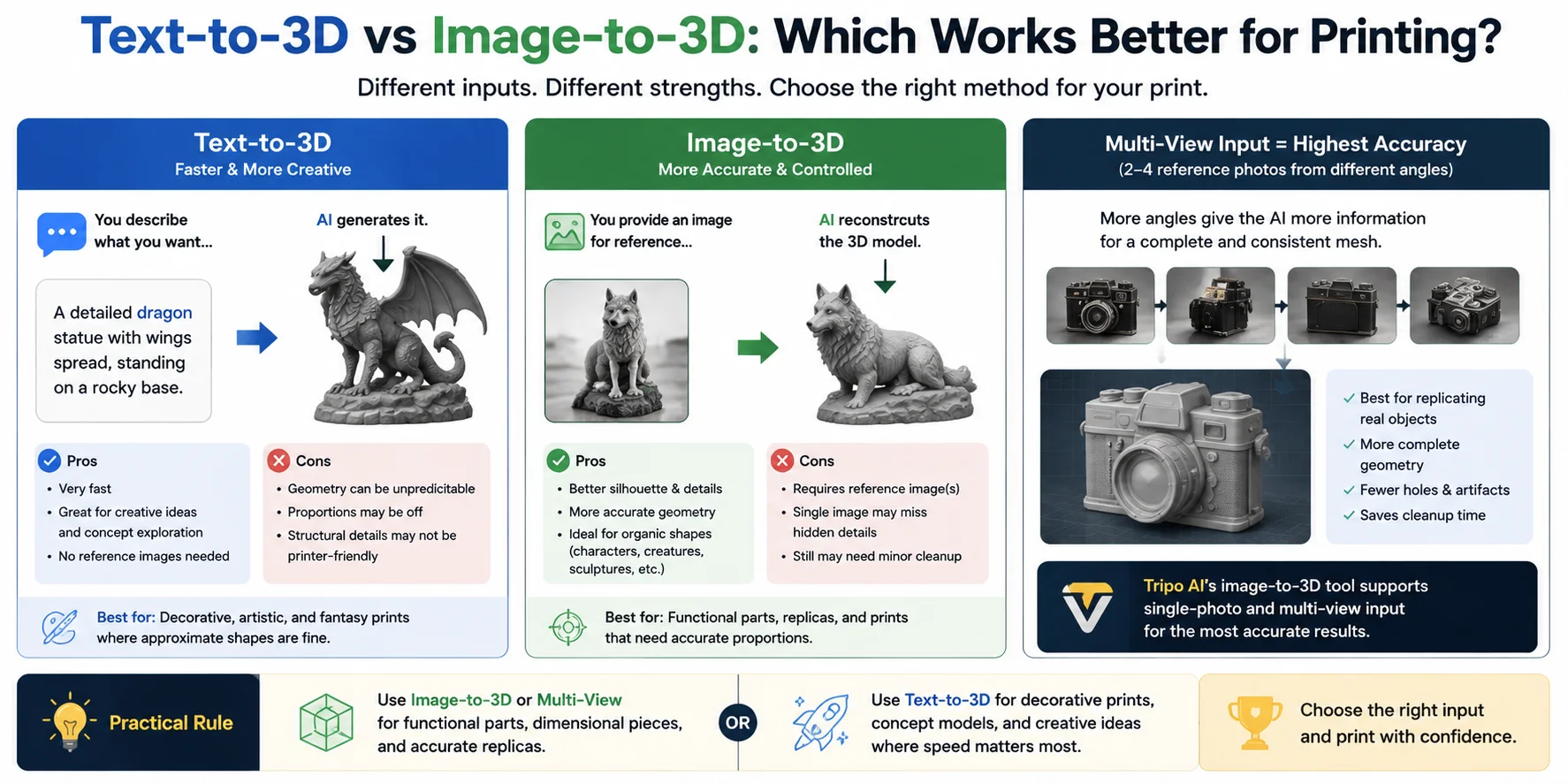
For the highest accuracy, multi-view input is often the best choice. Uploading 2–4 images of the same object from different angles gives the AI more information about the full shape, allowing it to create a more complete and consistent mesh. This workflow is ideal for recreating real-world objects or converting detailed concept designs into printable models. Tripo AI’s image-to-3D workflow supports both single-image and multi-view generation for these use cases.
As a practical rule, use image-to-3D or multi-view generation for functional parts, replicas, and objects that need accurate proportions. Use text-to-3D when speed and creative freedom matter more than exact measurements. Choosing the right input method can save significant cleanup time before your model reaches the printer.
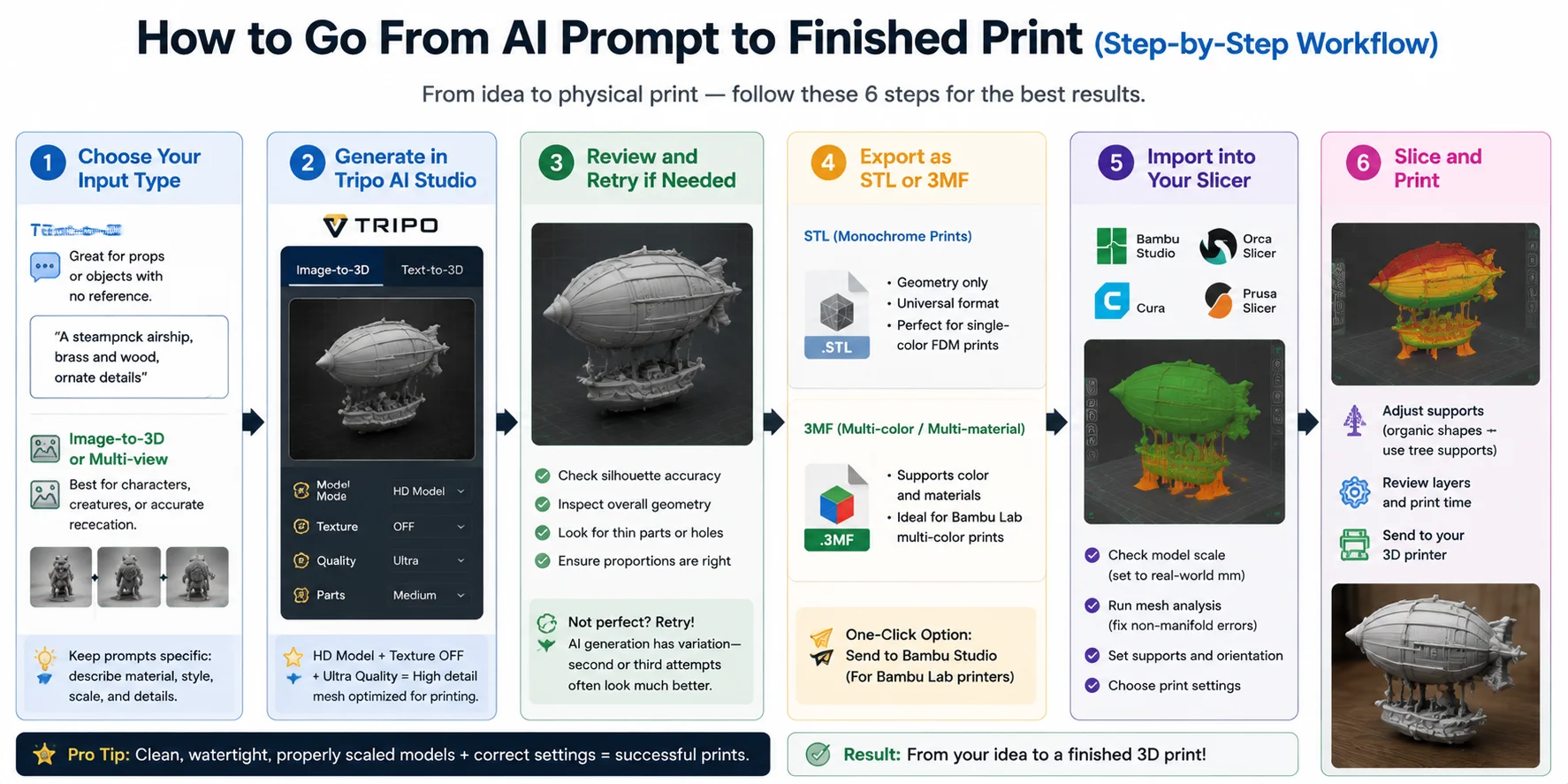
How to Go From AI Prompt to Finished Print (Step-by-Step Workflow)
Turning an AI-generated model into a physical print requires more than simply entering a prompt and pressing generate. A successful workflow combines the right input method, proper AI settings, model review, correct export format, and slicer preparation. Follow these steps to move from an idea to a finished 3D print.
Step 1: Choose your input type
Start by choosing the input method that matches your project. For characters, creatures, or detailed objects where appearance matters, image-to-3D or multi-view input usually provides better accuracy. For simple props, fantasy objects, or designs without a reference image, text-to-3D is often the fastest option. Keep your prompts specific by describing the material, style, shape, and approximate scale you want.
Step 2: Generate in Tripo AI Studio
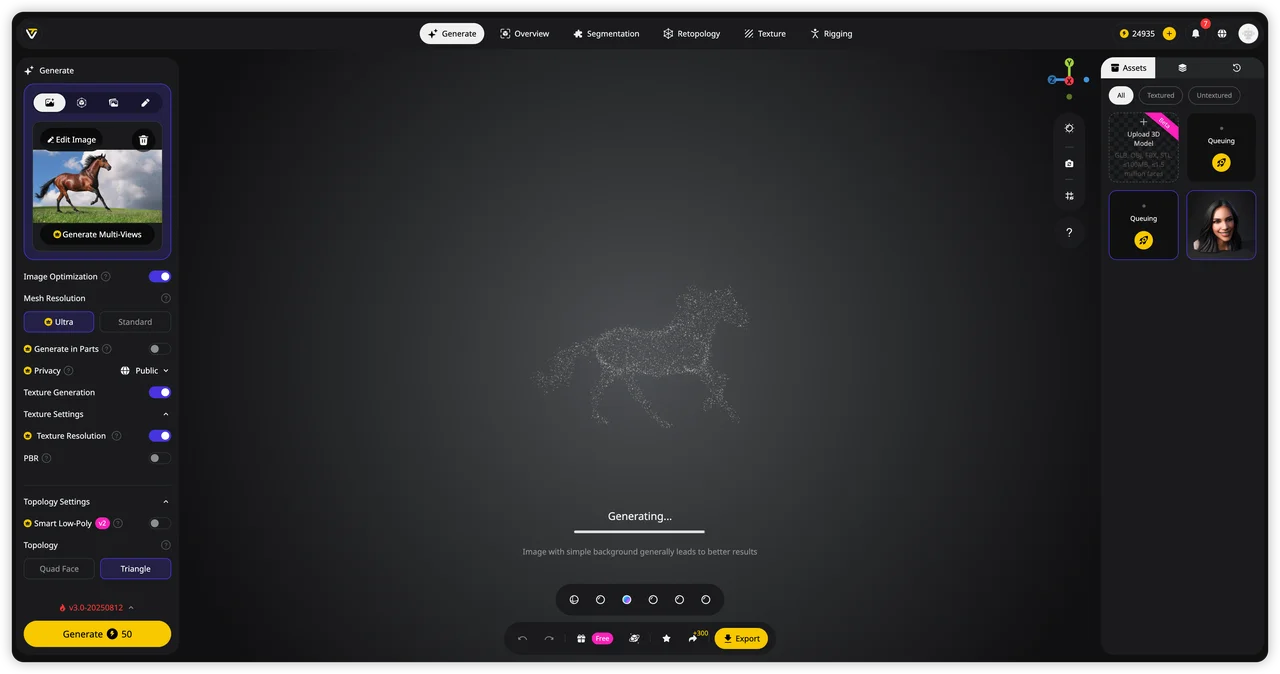
Open Tripo AI Studio and select either Image-to-3D or Text-to-3D based on your input. For 3D printing workflows, use HD Model mode with Texture OFF, Ultra quality, and Parts: Medium settings. This creates a high-polygon mesh that preserves fine surface details and provides more geometry for printable results.
Step 3: Review and retry if needed
Before exporting, inspect the model in the 3D viewport. Check the silhouette, proportions, thin areas, and overall geometry to make sure the result matches your expectations. AI generation naturally produces variations, so if the first result has problems, try generating again. A second or third attempt often produces a better starting point.
Step 4: Export as STL or 3MF
Choose the export format based on your printing needs. STL is the standard choice for traditional monochrome FDM printing because it stores the model geometry only and works with nearly all slicers. For multi-color or multi-material workflows, 3MF is the better option because it can preserve color and material information. For compatible workflows, you can also use the one-click Send to Bambu Studio option.
Step 5: Import into your slicer
Open the model in your preferred slicing software, such as Bambu Studio, OrcaSlicer, Cura, or PrusaSlicer. Confirm the model scale and convert it to real-world dimensions if needed. Run mesh checks to detect issues such as non-manifold geometry, then configure supports, orientation, and print settings before slicing.
Step 6: Slice and print
The final step is preparing the print file. Adjust support settings according to the model’s shape — organic models like characters and creatures often benefit from tree supports, while mechanical parts may require different support strategies. Once settings are optimized, slice the model and send it to your 3D printer.
Following this workflow turns AI-generated ideas into practical, printable objects while reducing failed prints and unnecessary cleanup.
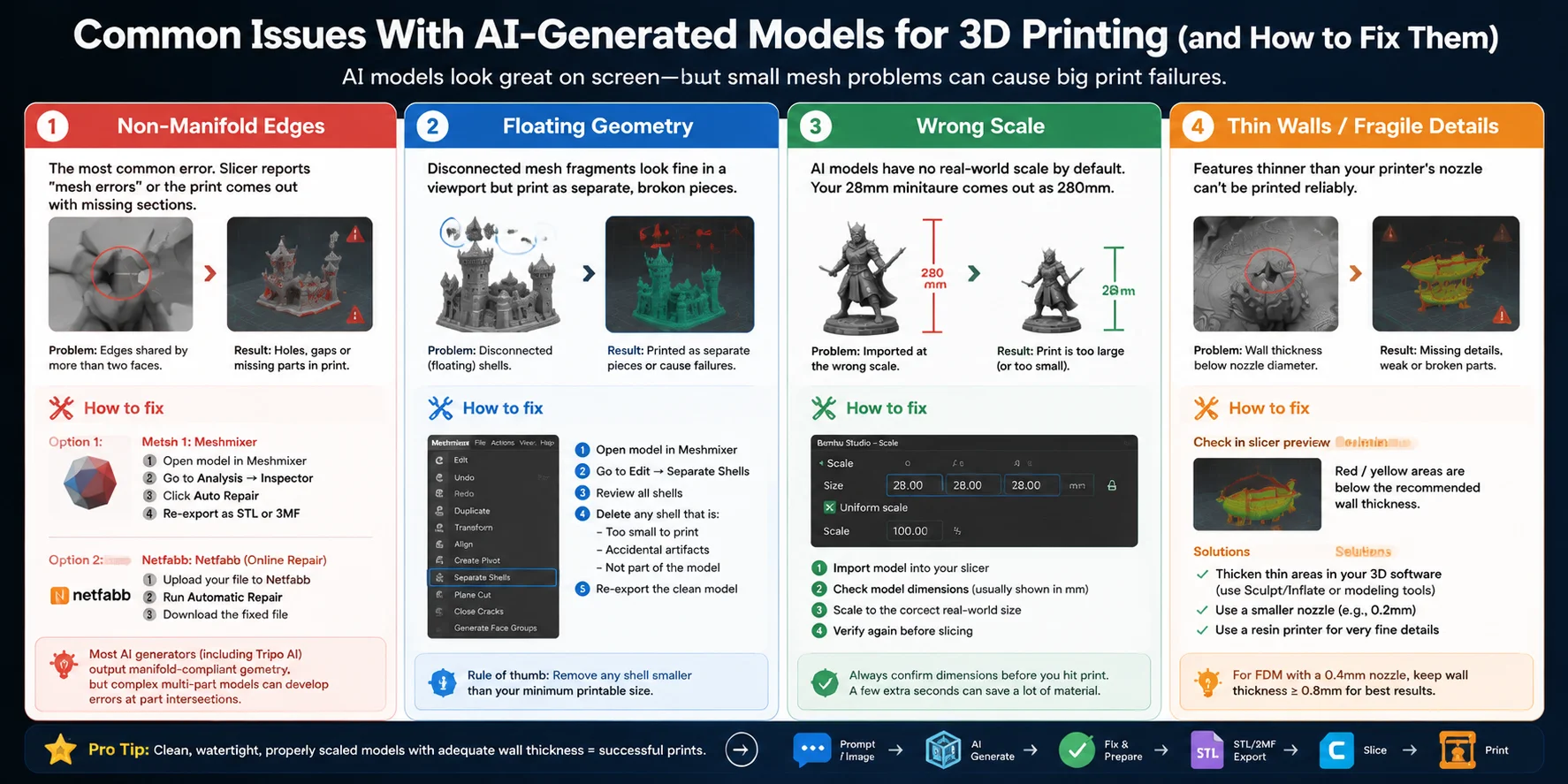
Common Issues With AI-Generated Models for 3D Printing (and How to Fix Them)
AI-generated 3D models can look impressive in a preview window but still fail when they reach the slicer or printer. Most problems come from geometry issues rather than the AI generation itself. Understanding the most common errors — and knowing the right repair workflow — can save hours of failed prints.
Non-Manifold Edges
Non-manifold geometry is one of the most common problems in AI-generated models. It happens when edges are connected incorrectly, such as when multiple faces share the same edge or when the mesh contains internal geometry. Slicers may report “mesh errors,” create missing sections, or produce unexpected holes during printing.
To fix it, open the model in Meshmixer and go to Analysis → Inspector → Auto Repair to detect and repair common mesh issues. You can also use Netfabb’s repair tools for more advanced automatic fixes. Many AI generators, including Tripo AI, produce manifold-compliant geometry by default, but complex multi-part models can still develop problems where separate components intersect.
Floating Geometry
Floating geometry refers to disconnected mesh fragments that appear normal in a 3D viewer but are not connected to the main object. During printing, these pieces may appear as separate objects, creating broken parts or failed layers.
In Meshmixer, use Edit → Separate Shells to split the model into individual components. Review each shell and remove any small fragments that are too tiny to print or are accidental artifacts.
Wrong Scale
AI-generated models often have no fixed real-world dimensions. A miniature intended to be 28mm tall could import into a slicer at 280mm, making the final print completely unusable.
Before slicing, always check the model dimensions in your slicer. Tools like Bambu Studio, Cura, OrcaSlicer, and PrusaSlicer display the imported size and allow you to scale the model accurately in millimeters before printing.
Thin Walls and Fragile Details
Small features may look detailed on screen but fail during printing if they are thinner than your printer can reproduce. For standard FDM printers with a 0.4mm nozzle, extremely thin walls, spikes, or decorative elements may disappear or become weak.
Check the slicer preview for missing details and verify the minimum wall thickness. For highly detailed miniatures, switching to a 0.2mm nozzle or using a resin printer can capture finer features than a standard FDM setup.
Fixing these common issues turns an impressive AI model into a reliable printable asset. Before we get to FAQ, here's a quick answer to the questions we see most often.
Frequently Asked Questions
Can AI generate a 3D model for printing?
Yes. AI tools like Tripo AI, Meshy, and PrintPal can generate 3D models from text prompts or images and export them in STL or 3MF format ready for slicing. The key is choosing a tool that outputs watertight, manifold geometry — Tripo AI's HD Model mode is specifically designed for this, producing meshes with up to 2 million polygons suitable for high-fidelity printing.
What is the best local AI for 3D printing?
As of 2026, most high-quality AI 3D generators are cloud-based — local generation at the same quality level requires specialized hardware (multi-GPU workstations). For home printers, cloud tools like Tripo AI and Meshy are the practical choice. Some open-source models (TripoSG, Hunyuan3D) can run locally on high-end consumer GPUs, but output quality and ease-of-use lag behind cloud tools.
Is Meshy AI worth it for 3D printing?
For casual prints and concept models, yes. Meshy is fast and easy to use, and its output is printable for simple to moderate geometry. For detailed character models, miniatures, or functional parts where dimensional accuracy matters, Tripo AI's HD Model mode produces consistently cleaner geometry for printing.
Do AI-generated STL files need to be repaired before printing?
Sometimes. Simpler models from quality AI generators are typically print-ready out of the box. Complex models — especially those with multiple parts, thin features, or intricate overhangs — may have non-manifold edges or floating geometry that need a quick pass through Meshmixer or Netfabb before slicing.
What file format should I use for AI-generated 3D prints?
STL for standard monochrome FDM prints — universally compatible with all slicers. 3MF for multi-color or multi-material prints on Bambu Lab printers — it supports color and texture data that STL cannot store. If you're using Tripo AI, you can send directly to Bambu Studio in 3MF format with one click, skipping the manual export step entirely.
Conclusion
AI has changed 3D printing from a specialized skill into a creative workflow anyone can explore. The right tool depends on your project, but for detailed models and production-ready prints, Tripo AI’s HD Model mode provides the geometry quality and workflow support needed to move from idea to physical object faster.
Ready to create your first print-ready model? Open Tripo AI Studio → and start your 3D printing workflow. Need more flexibility for larger projects? Explore Tripo AI Pricing to find the credit plan that fits your needs.