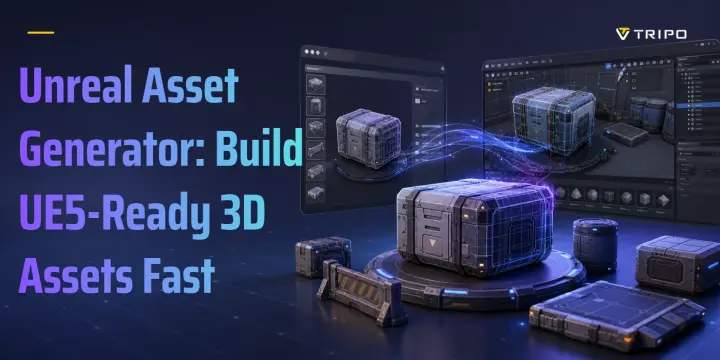
Unreal Asset Generator: Build UE5-Ready 3D Assets Fast
TL;DR
- An unreal asset generator turns a prompt or reference image into a 3D mesh you can prepare for Unreal Engine 5.
- AI generation is useful for props, characters, and hero objects; UE5 PCG is stronger for repeatable environments.
- For manual import, use FBX or GLB, then check scale, pivot, materials, collision, and texture paths.
- Tripo can support this workflow with text-to-3D, image-to-3D, Smart Mesh, PBR texture options, rigging for supported character types, export settings, and a Tripo3D Unreal Engine Bridge under its stated requirements.
An unreal asset generator is any tool that helps you create 3D assets for Unreal Engine without modeling every object by hand. It may use AI to turn text or images into a mesh. It may also use rules, nodes, and procedural systems to build assets inside UE5. Both paths aim at the same thing: a usable model in your project sooner.
This guide keeps the focus practical. You will see when to use AI generation, when to use procedural generation, how to move an asset into Unreal Engine, which import settings matter, and how to fix the import issues that usually slow people down. Tripo is used as the main AI 3D workflow example because it supports browser-based 3D generation, mesh and texture controls, export settings, and an Unreal Engine bridge workflow.
What Is an Unreal Asset Generator?
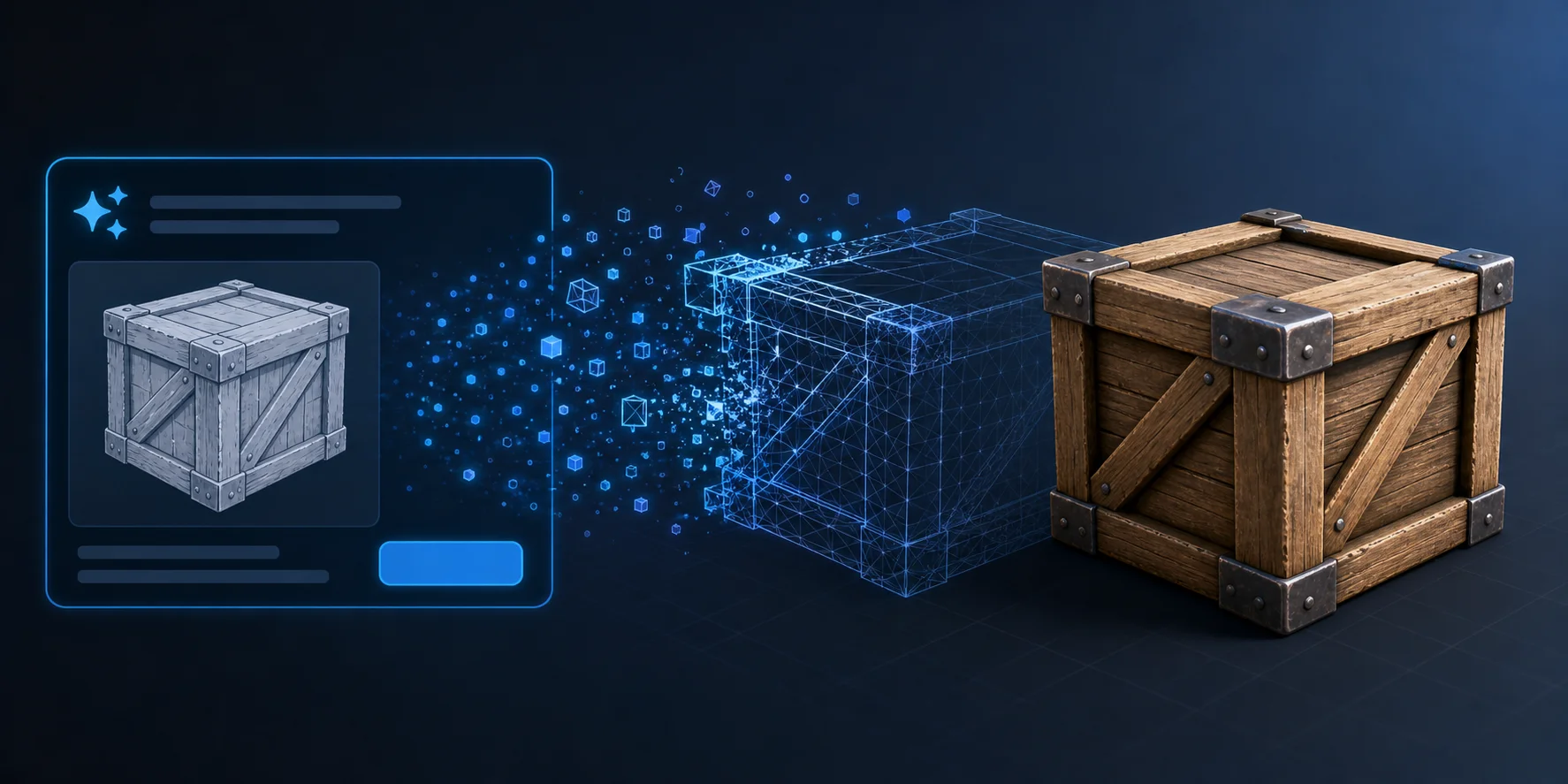
An unreal asset generator is a tool that outputs geometry, textures, or complete scene parts for Unreal Engine. Instead of building a crate, character, statue, weapon, rock, or prop from a blank scene in a 3D package, you start with a prompt, a reference image, or a procedural rule set.
People use the phrase in three different ways. First, it can mean an AI 3D generator that creates a textured mesh from text or images. Second, it can mean UE5's own Procedural Content Generation framework, often called PCG, which scatters and assembles assets inside the editor. Third, it can mean an external procedural pipeline, such as Houdini digital assets, where artists build a rule-based system and then send variations into Unreal.
The important point is that a generator does not finish the game for you. It does not create gameplay logic, tune your collision, decide your level design, or guarantee that every mesh is ready for animation. You still need to inspect the result and make choices about scale, topology, materials, and licensing. If you need one strong prop or character, start with AI generation. If you need hundreds of repeated trees, walls, rocks, or city pieces, start with PCG or a procedural pipeline.
AI Generation vs. Procedural Generation: Which Should You Use?
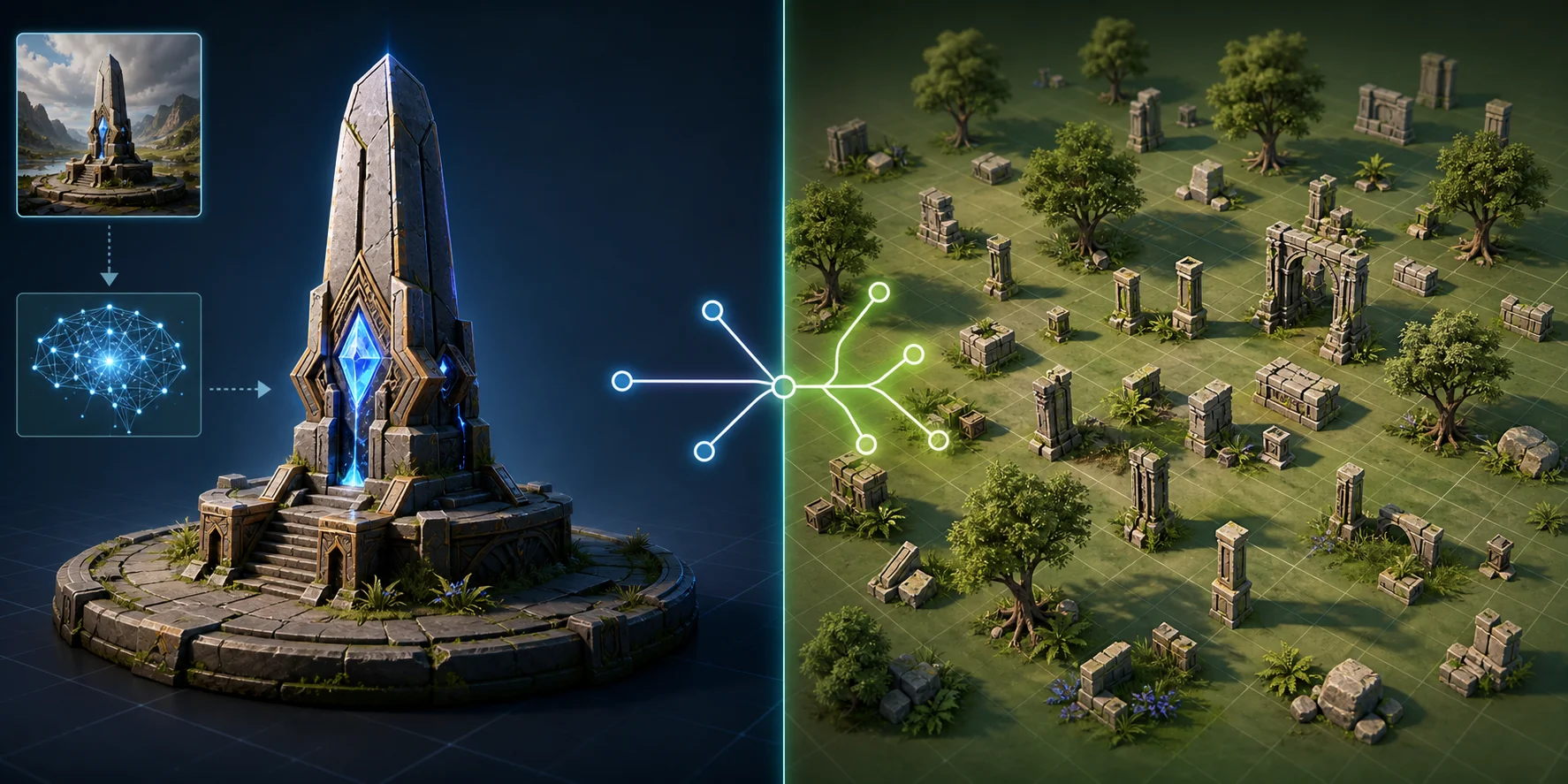
The fastest path depends on what you are building. A solo developer making a prototype usually needs a few believable assets now. A technical artist building a forest needs repeatable control. Those are different jobs, so they need different tools.
| Option | Best for | Time to first asset | Control level |
|---|---|---|---|
| AI generation | Props, characters, hero objects, fast concept assets | Minutes | Good for shape and style, but topology still needs review |
| UE5 PCG | Forests, cities, ground clutter, repeated environment details | Longer setup, fast regeneration | High once the graph is built |
| Houdini assets | Studio pipelines and art-directed variation | Days to author well | Very high, with more technical skill required |
For a game you want to ship this year, AI generation is usually the quickest route for individual assets. Use it for a supply crate, a stylised vendor stall, a creature statue, a shield, or a background character concept. Use PCG for anything you need a lot of: grass patches, modular ruins, pebbles, rooftops, alley props, or roadside debris.
The honest trade-off is control. AI generation gives you speed, but the first result may not have the exact edge loops, pivot, or material setup you want. Procedural generation gives you repeatable control, but you spend more time building the system before it pays you back. A practical workflow often uses both: generate unique assets with AI, then scatter, arrange, or vary them with Unreal's procedural tools.
How to Generate a 3D Asset for Unreal Engine 5
Before you generate anything, decide what the asset needs to do in the game. A static background prop has different needs from a pickup item. A creature or humanoid character has different needs again because rigging and animation introduce more constraints.
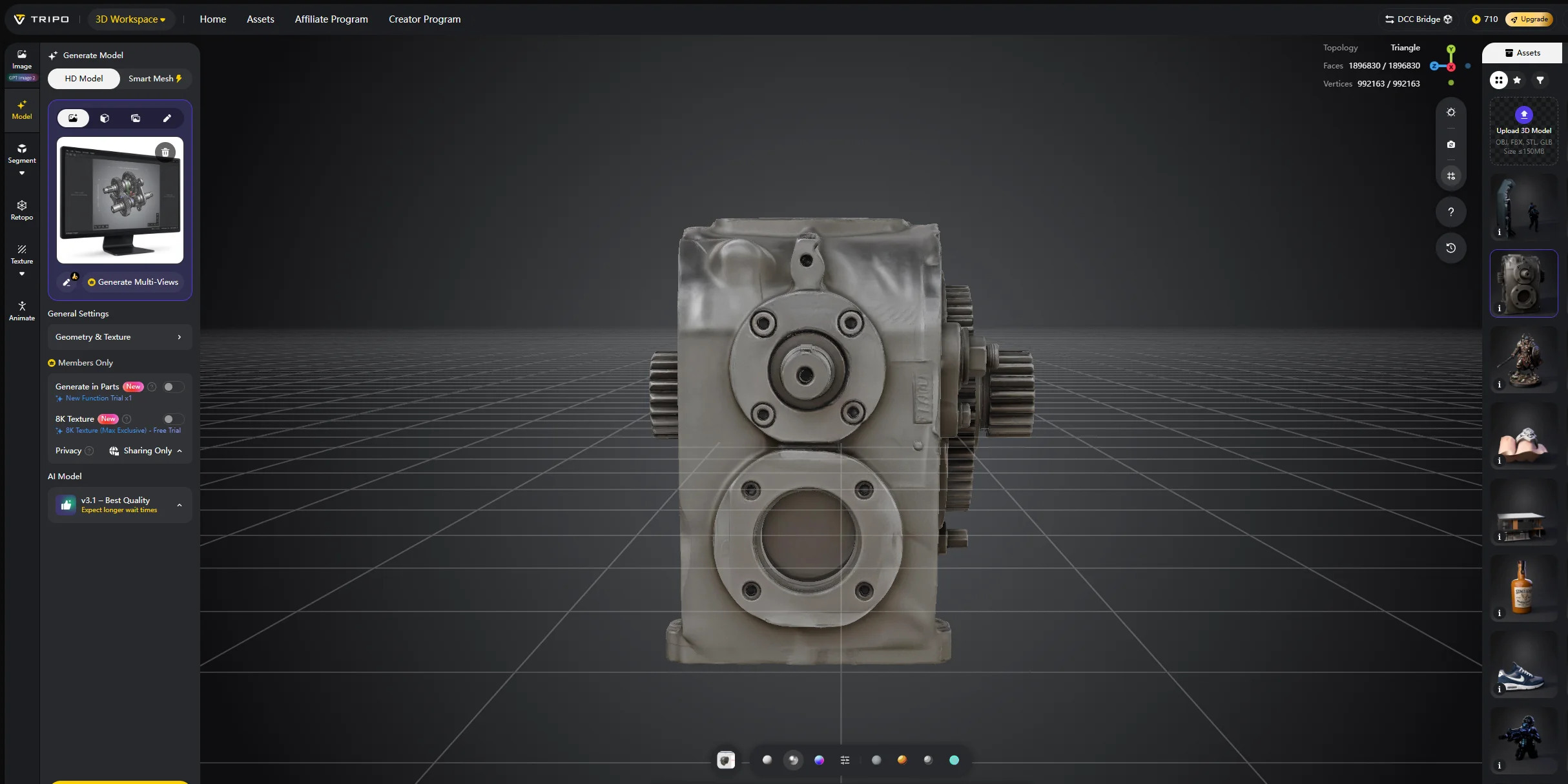
- Open Tripo AI Studio and choose Text to 3D or Image to 3D. Use Image to 3D when you already have concept art, because a clear reference image often gives the model a more predictable shape than a prompt alone.
- Write a specific prompt. Weathered wooden supply crate, iron corner brackets, chipped paint, stylised realism gives the generator more usable direction than a crate. Include material, silhouette, style, and structure.
- Generate the model and inspect the preview from several angles. Look for broken shapes, melted details, missing back faces, or silhouettes that do not read from a gameplay camera.
- If the asset will be used in gameplay, run a low-poly or topology pass instead of exporting the heaviest mesh by default. In Tripo, Smart Mesh is the feature to consider for cleaner and lighter topology workflows.
- Generate or upgrade textures when the asset needs to look finished in-engine. For Unreal workflows, PBR texture support matters because the material will usually need more than a single color map.
- Use rigging only when the source model fits the supported type. Auto Rig currently supports T-pose humanoid characters and standard standing quadruped animals only. Non-standard poses, non-humanoid creatures, or abstract shapes may not rig correctly.
- Export in a suitable format, or use the Unreal Engine bridge workflow if your setup meets the stated requirements.
If the first result is structurally wrong, retry before you over-edit it. AI generation is variable by nature. A clean second generation is often easier to prepare than a bad mesh that needs patching, retopology, and material repair.
Ready to test the workflow? Try a simple prop first in Tripo AI Studio, then move to a character or environment asset after you understand the import checks.
How Do You Import an AI-Generated Asset Into Unreal Engine?
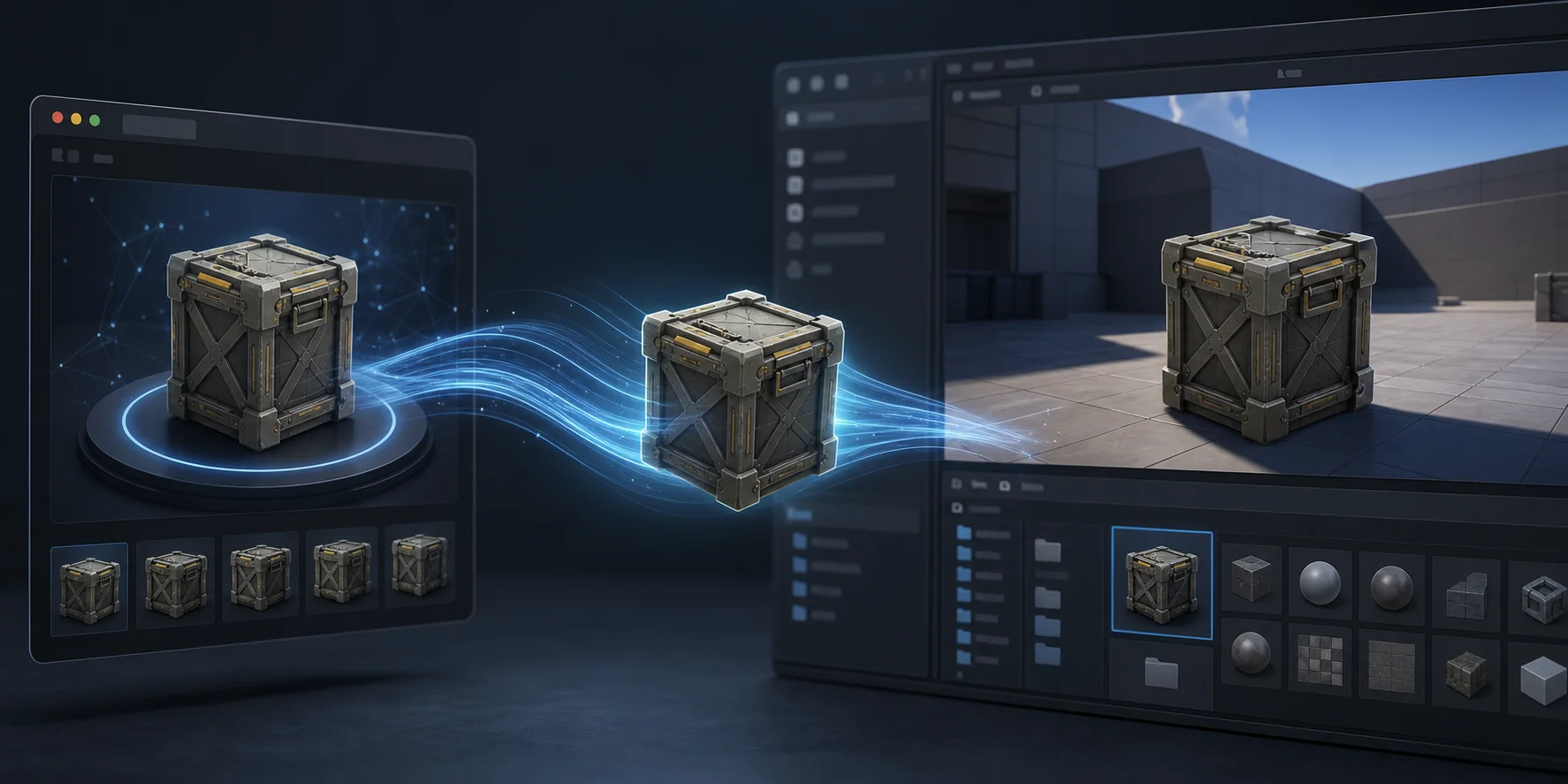
The manual path is simple on the surface: export the model, then drag it into the Content Browser or use Content Browser → Import. The part that matters is the import dialog. Check Import Mesh, material import behavior, collision generation, and whether separate pieces should remain separate or be combined. Epic's FBX import options reference is the best place to confirm the full option list.
The bridge path removes some manual steps. Tripo's Unreal Engine Bridge is described as a lightweight plugin that connects Unreal Engine to Tripo Studio so a generated model can be sent from the browser to the editor. The stated requirements include Windows, Unreal Engine 5.4 or newer, a Chromium-based browser, and editor mode. Tripo's official bridge notes also describe default behavior such as center-bottom pivot, automatic material creation, and automatic asset placement. Our walkthrough of the Unreal Engine bridge setup covers the plugin installation and version-matching step in more detail.
After import, do not move on immediately. Run the same first checks every time:
- Scale the asset against a character capsule or a known Unreal measurement.
- Check the pivot, especially for doors, weapons, pickups, and props that need exact placement.
- Open the material and confirm texture maps are connected.
- Look for a collision primitive if the object should block the player or floor.
- Check normals and shading from several angles in the viewport.
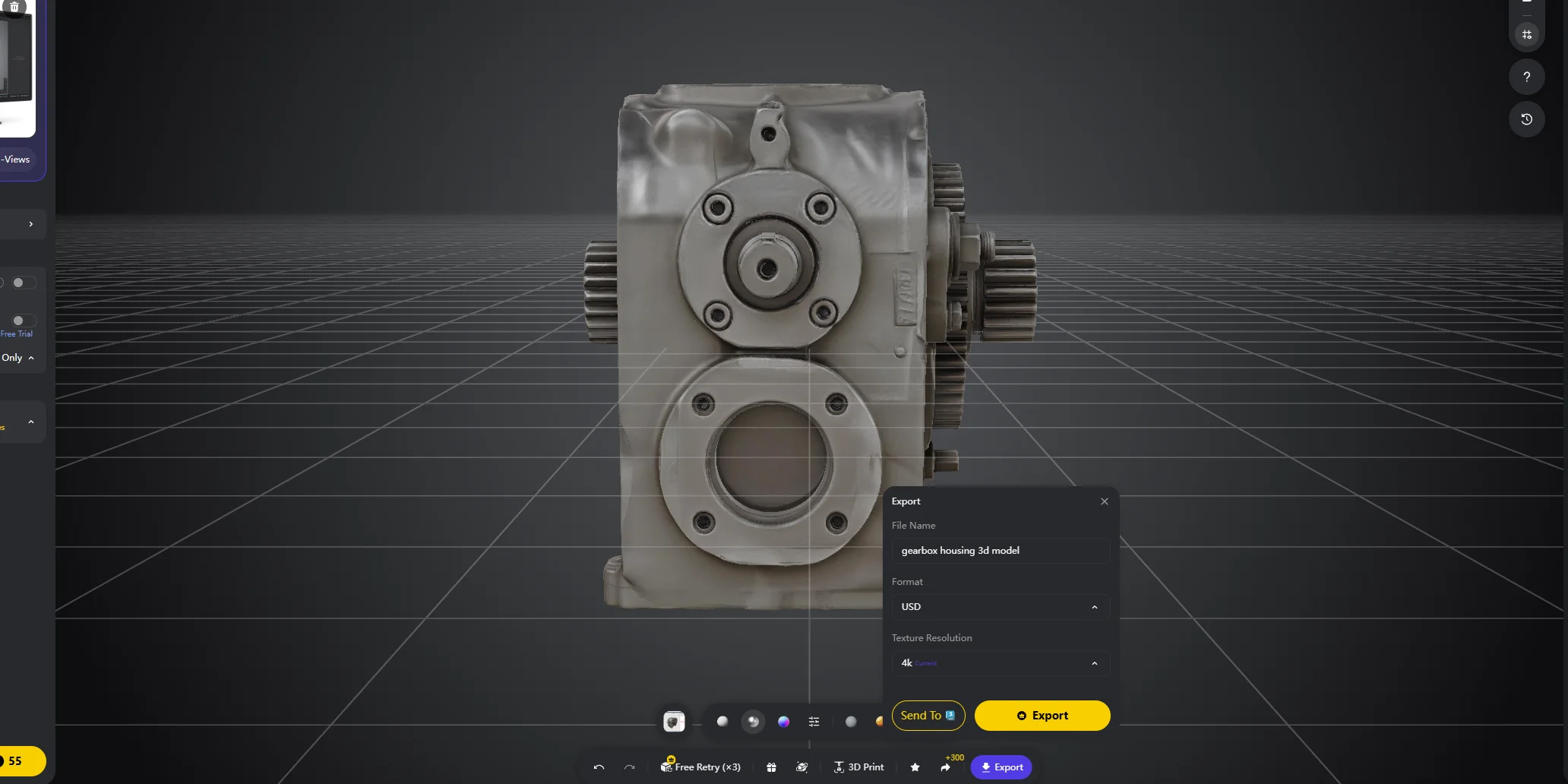
Scale problems are common because Unreal uses centimeters. If a model was authored or exported in meters, it may arrive one hundred times too small. Fix the export scale when possible. If not, use uniform import scale and record what you changed so the same issue does not return in the next asset.
Poly Counts, LODs, and Materials
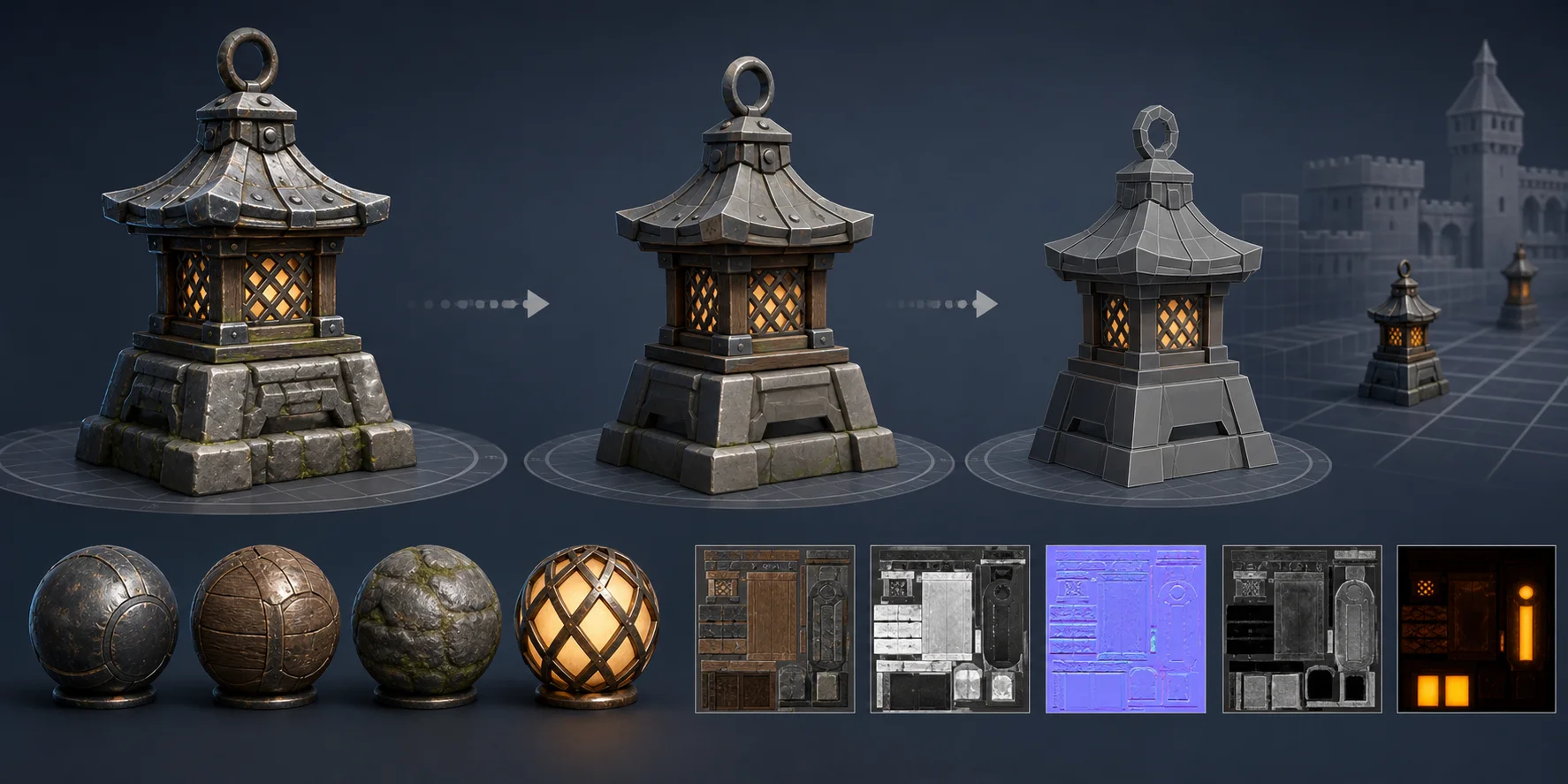
Generated assets should be judged by where they will appear in the game, not by how detailed they look in a preview window. A background object can often sit in the low thousands of triangles. An interactive prop might land around 5,000 to 20,000 triangles. Characters can go higher because silhouette and deformation matter, but they also need cleaner topology if they will animate.
A high-detail mesh can be useful for visualisation, sculptural work, or 3D printing. It is not automatically the right choice for a playable level. If a mesh is too heavy, use a retopology or low-poly workflow rather than deleting geometry by hand. Tripo's Smart Mesh feature is relevant here because it is designed for cleaner, lighter topology workflows, while HD-style output belongs in cases where visual detail matters more than real-time budget.
LODs are another part of the performance picture. A Level of Detail is a lighter version of the same asset that the engine can show at a distance. Unreal can generate LODs in the Static Mesh editor, so your generator does not always need to author them for you. You still need to inspect the result because auto-generated LODs can damage a silhouette if the asset has thin handles, cables, spikes, or decorative edges.
Nanite changes the poly-count conversation for static meshes, but it is not a free pass for every asset type. Animated characters, special material setups, collision, and platform targets can still affect the decision. Check Epic's Nanite documentation before you build a whole pipeline around it.
For materials, look for a real PBR set when the asset needs to hold up under Unreal lighting. A grey mesh usually means material slots are empty or texture paths did not come across. A shiny or flat result often means roughness, normal, or metallic information was not connected the way the engine expects.
Common Import Errors and How to Fix Them
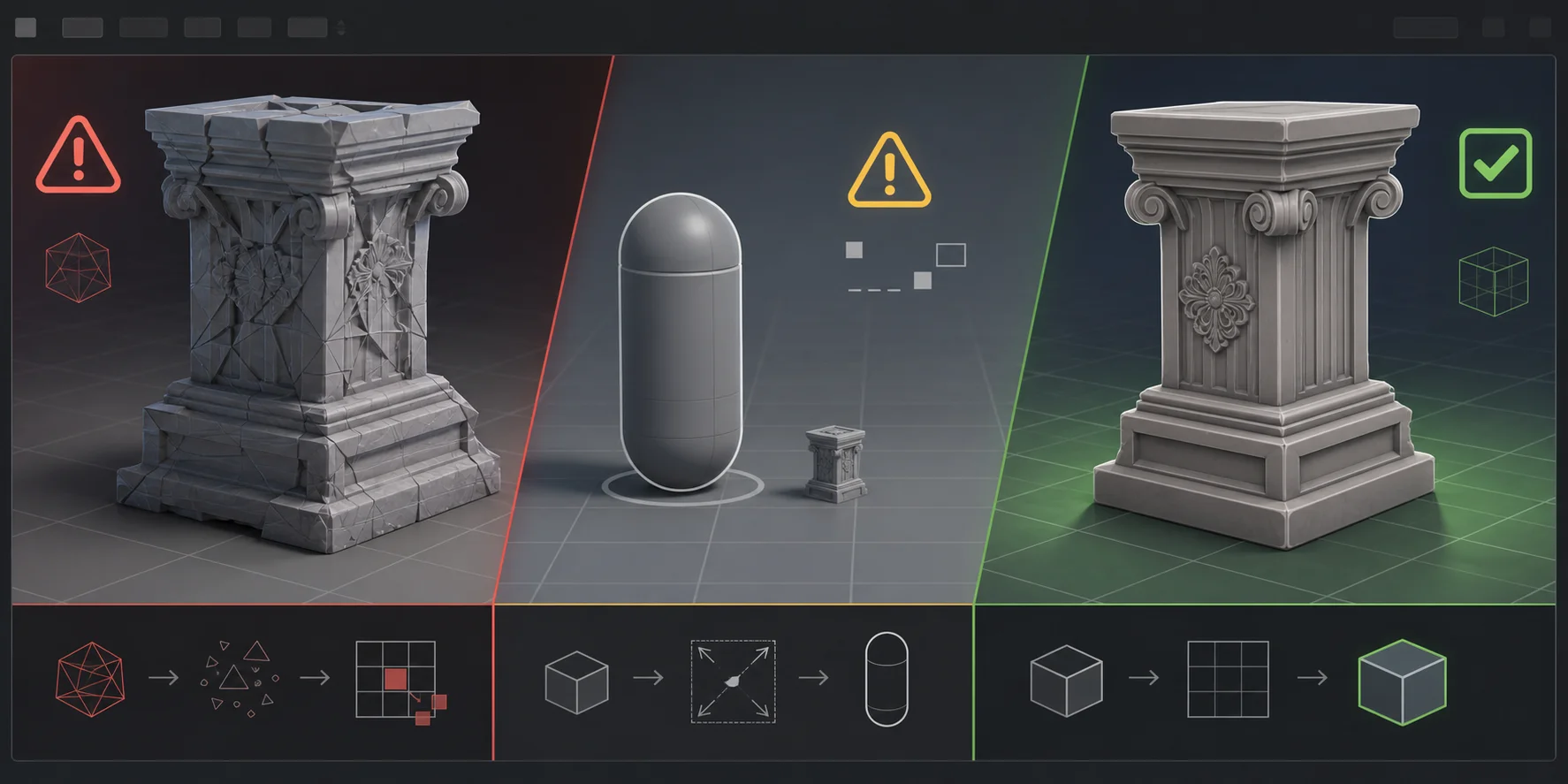
- Import fails silently or logs an error → The project path or file name may contain non-English characters, special symbols, or spaces. Rename the path with plain ASCII characters and check the Output Log for the actual message.
- Plugin refuses to compile → The plugin version may not match your engine version. Remove the plugin and reinstall the build that matches your current Unreal Engine project.
- Mesh imports too small or too large → The source file and Unreal are using different units. Unreal uses centimeters, so fix the export scale or use import uniform scale.
- Mesh has no collision → Collision was not authored. Enable Generate Missing Collision on import, or add a simple collision primitive in the Static Mesh editor.
- Model looks grey or purple → Textures did not import correctly or material slots are empty. Reassign the texture maps in a material instance and confirm the export included the expected maps.
- Rig looks twisted → The source model may not match the supported rigging type. Regenerate from a clearer T-pose humanoid or a standard standing quadruped reference before rigging.
- Bridge transfer never arrives → Another editor instance may hold the connection, or the bridge server may not be running. Keep one editor open and confirm the bridge panel is active.
Can You Sell or Ship AI-Generated Unreal Assets?
In most production conversations, the commercial question is not whether AI was involved. It is whether you have the rights to the inputs and whether the platform terms allow the use you want. If you upload a copyrighted character image, brand design, or another artist's concept art, the output can inherit that risk.
Tripo's stated copyright position grants commercial use when the source materials used for generation are free of copyright disputes, with the condition that export requires an eligible subscription. Keep those limits attached when you discuss the workflow. Do not shorten the rule to “you own everything,” because that removes the part users need most.
If you plan to sell assets on a marketplace, check the current storefront rules before listing them. Developers have debated AI-generated assets in Unreal communities for years, and platform policies can change. The safer workflow is simple: use your own concept art or prompts, keep source files, document the generation process, and read the store terms before publishing.
Frequently Asked Questions
What is an unreal asset generator?
It is a tool that produces 3D assets for Unreal Engine without hand-modeling every object. It can be an AI service that turns text or images into a textured mesh, or a procedural system that builds geometry from rules inside the editor.
Can AI generate 3D assets for Unreal Engine 5?
Yes. You can generate a mesh from a prompt or a reference image, export it as FBX or GLB, and import it into a UE5 project. A bridge plugin can also reduce the manual download-and-import step when your setup meets its requirements.
What file format should I use?
FBX is a common choice for meshes and skeletal animation. GLB is useful when you want embedded textures in one file. OBJ carries geometry but not animation data.
Is there a free unreal asset generator?
Some AI platforms provide free credits or limited trials, and Unreal Engine's PCG framework ships with the engine. Free tiers can limit exports, resolution, or commercial rights, so check the current plan terms before you rely on them.
How many polygons should a generated game asset have?
Background props can often stay in the low thousands of triangles. Interactive props often sit around 5,000 to 20,000 triangles. Characters may need more, but they also need topology that supports deformation.
Why does my imported asset look grey?
The material or texture maps probably did not come across correctly. Open the material, confirm each texture map is connected, and check whether the export included PBR maps instead of geometry only.
Can I use AI-generated assets commercially?
Usually, the answer depends on your source materials and the generator's terms. Use your own inputs, keep records, and confirm export and commercial-use rights for your plan.
Conclusion
An unreal asset generator does not replace your judgement about what the level needs. It removes the time between having an idea and having an asset you can inspect inside the engine. Use AI generation for unique props and characters, use PCG for repeatable environment systems, and always budget time for import checks.
Ready to try it? Generate your first UE-ready asset in Tripo AI Studio. If you are weighing credits and export limits, the Tripo AI pricing page explains what each plan includes.