How to Convert OBJ to USDZ for AR (3 Free Methods)
TL;DR
- USDZ is Apple’s preferred AR format for iPhone, iPad, and visionOS experiences because it packages 3D geometry, materials, textures, and animations into a single file optimized for Apple’s AR ecosystem.
- Converting OBJ to USDZ requires more than changing file extensions. A successful conversion must preserve mesh data, UVs, textures, materials, and scale so the model appears correctly in AR Quick Look and other Apple platforms.
- Free tools like Apple Reality Converter and Blender provide reliable desktop workflows, while online converters offer a faster option for simple conversions. The best method depends on whether you need speed, control, or production accuracy.
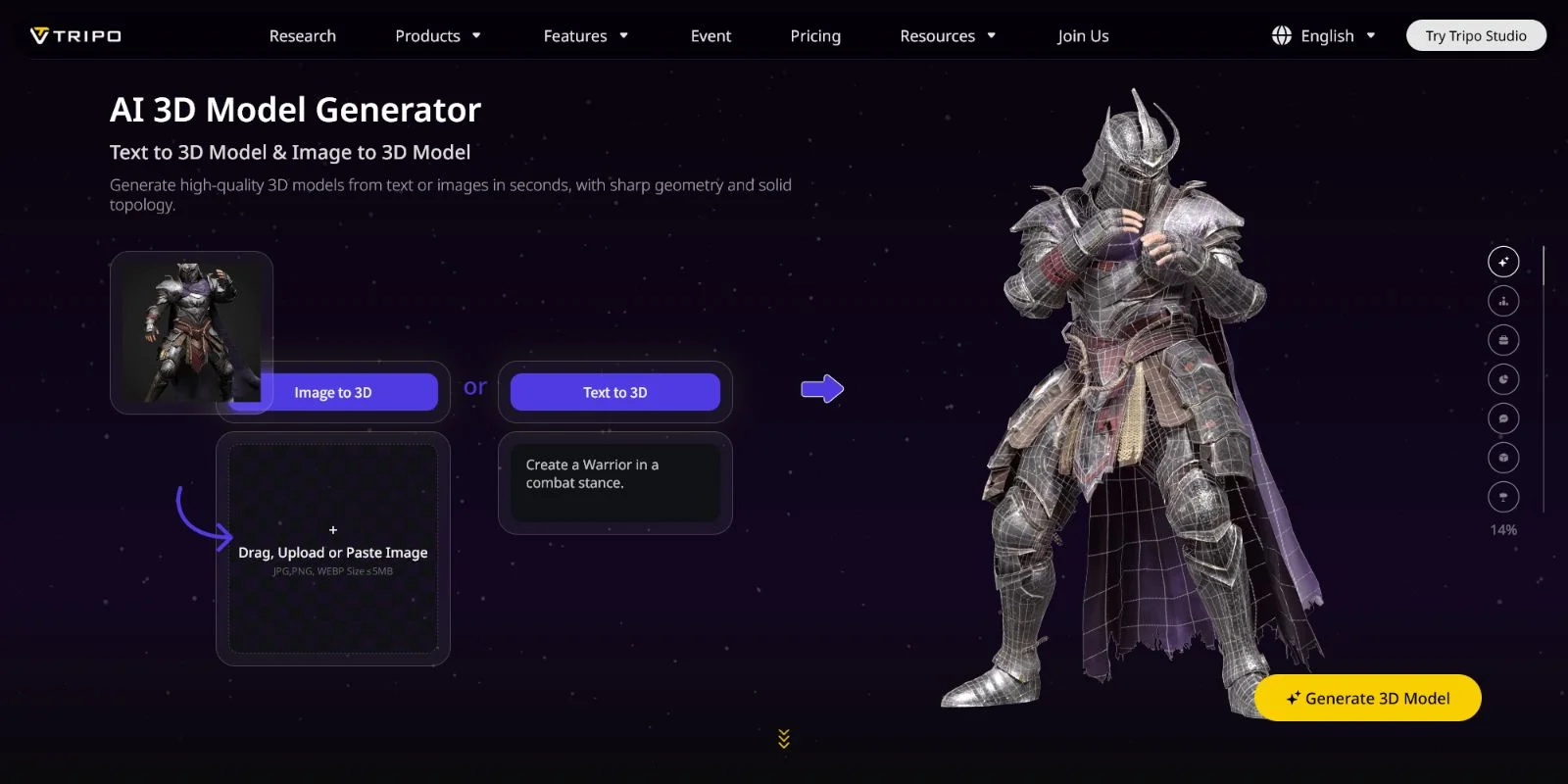
- If you do not have an OBJ model yet, AI 3D generation tools like Tripo AI can create a textured 3D asset first, then export it as OBJ or other formats for your USDZ workflow. This creates a faster path from idea to AR-ready content.
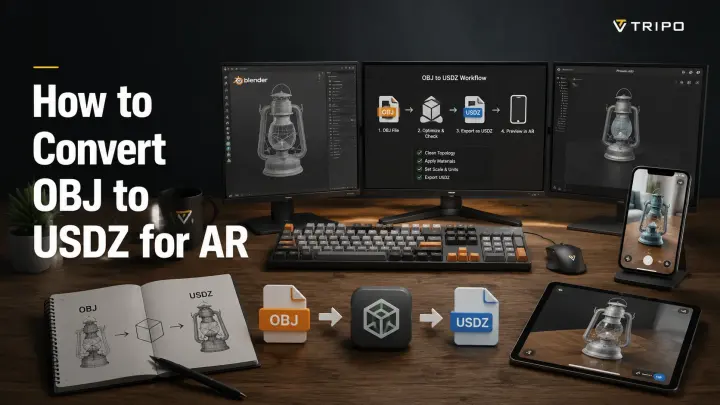
You can convert an OBJ file to USDZ using Apple’s free Reality Converter app on macOS, by exporting directly from Blender, or through a browser-based online converter — no paid software is required. USDZ is Apple’s preferred AR format for iOS Quick Look, Reality Composer, and visionOS experiences, so converting OBJ correctly is the first step toward publishing interactive AR content.
AR product previews are already used by brands to let customers view furniture, products, and 3D designs in their real environment directly from an iPhone or iPad. This guide covers three practical conversion methods, explains the key differences between OBJ and USDZ — especially for textures, materials, and animations — and shows what to check before publishing. If you do not have an OBJ model yet, you can also generate one with Tripo AI and prepare it for your USDZ workflow.
What Is USDZ and Why Does AR Need It?
USDZ is a compressed, zip-based 3D container format built around Universal Scene Description (USD) technology originally developed by Pixar and adapted by Apple for augmented reality workflows. It packages scene data, 3D geometry, materials, textures, and other resources into a single file that can be quickly loaded by Apple devices.
Apple introduced native USDZ support in iOS 12, macOS Mojave, and Safari, making it the standard format for AR Quick Look experiences. This allows users to place 3D objects in the real world directly from a webpage, without installing a separate AR application.
The reason OBJ files usually need conversion is that OBJ was designed mainly for geometry exchange. It stores mesh data and may reference basic materials through MTL files, but it does not include the complete AR-ready information that USDZ can carry, such as advanced materials, animations, and scene metadata. Since Apple’s AR frameworks do not directly display OBJ files, converting OBJ to USDZ is the bridge between a traditional 3D model and an interactive AR experience.
“USDZ is a file format optimized for sharing 3D content in augmented reality experiences.” — Apple USDZ documentation
OBJ vs USDZ — Key Differences
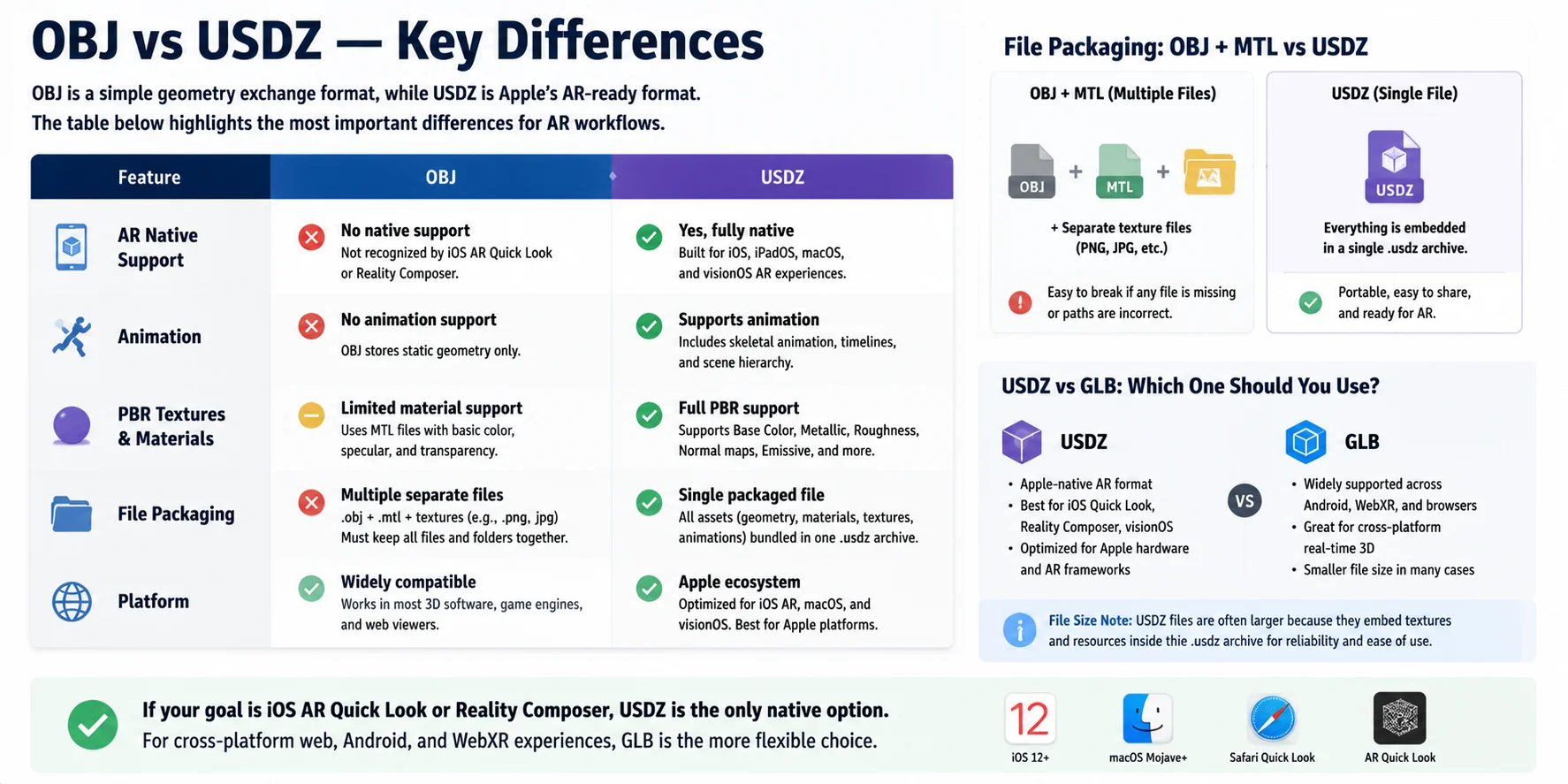
OBJ and USDZ serve different purposes in the 3D workflow. OBJ is a simple geometry exchange format that stores mesh data and can reference materials through a separate .MTL file. USDZ, on the other hand, is designed for modern AR experiences, packaging scene data, textures, materials, and other resources into a single .USDZ archive.
| Feature | OBJ | USDZ |
|---|---|---|
| AR Native Support | No native support in Apple AR frameworks | Yes — designed for iOS AR Quick Look |
| Animation | No animation support | Supports animations, skeletons, and scene data |
| PBR Textures | Limited material support through MTL files | Supports advanced materials and PBR workflows |
| File Packaging | Separate mesh, MTL, and texture files | Single packaged file containing assets |
| Platform | General 3D exchange format | Apple ecosystem: iOS, macOS, visionOS |
The main difference is how assets are delivered. OBJ workflows often require managing multiple files because textures are stored separately, while USDZ keeps geometry, materials, and textures together for easier AR deployment. This convenience can make USDZ files larger, especially when high-resolution textures are embedded.
USDZ and GLB are both modern formats used for AR and real-time 3D, but they target different ecosystems. USDZ is the native choice for Apple devices and AR Quick Look, while GLB is more common for Android, web viewers, and WebXR workflows.
If your goal is publishing an AR experience on iPhone or iPad, USDZ is the native format you should use. For cross-platform web and real-time 3D projects, GLB may be the more flexible option.
Method 1 — Reality Converter (macOS, Free)
For Mac users, Apple Reality Converter is one of the easiest ways to convert an OBJ file into USDZ. The free desktop app is designed specifically for preparing 3D models for Apple AR workflows, allowing you to preview and adjust assets before exporting them for AR Quick Look.
Start by downloading Reality Converter from the Apple Developer portal. After installation, simply drag and drop your OBJ file into the application window. For the best results, keep the OBJ file together with its related MTL material file and texture images in the same folder before importing. This helps Reality Converter correctly locate and load the model’s materials.
Once the model is loaded, you can preview it under different Image-Based Lighting (IBL) environments to check how it looks under various lighting conditions. The app also allows you to adjust material properties and assign textures if some details need correction.
When the model looks correct, go to File → Export and choose USDZ as the output format. Reality Converter will package the geometry, materials, and textures into a single .usdz file ready for use in Apple AR experiences.
Quick tip: Organizing your OBJ, MTL, and texture files before importing is the easiest way to avoid missing materials after conversion.
Method 2 — Blender (Free, Windows/Mac/Linux)
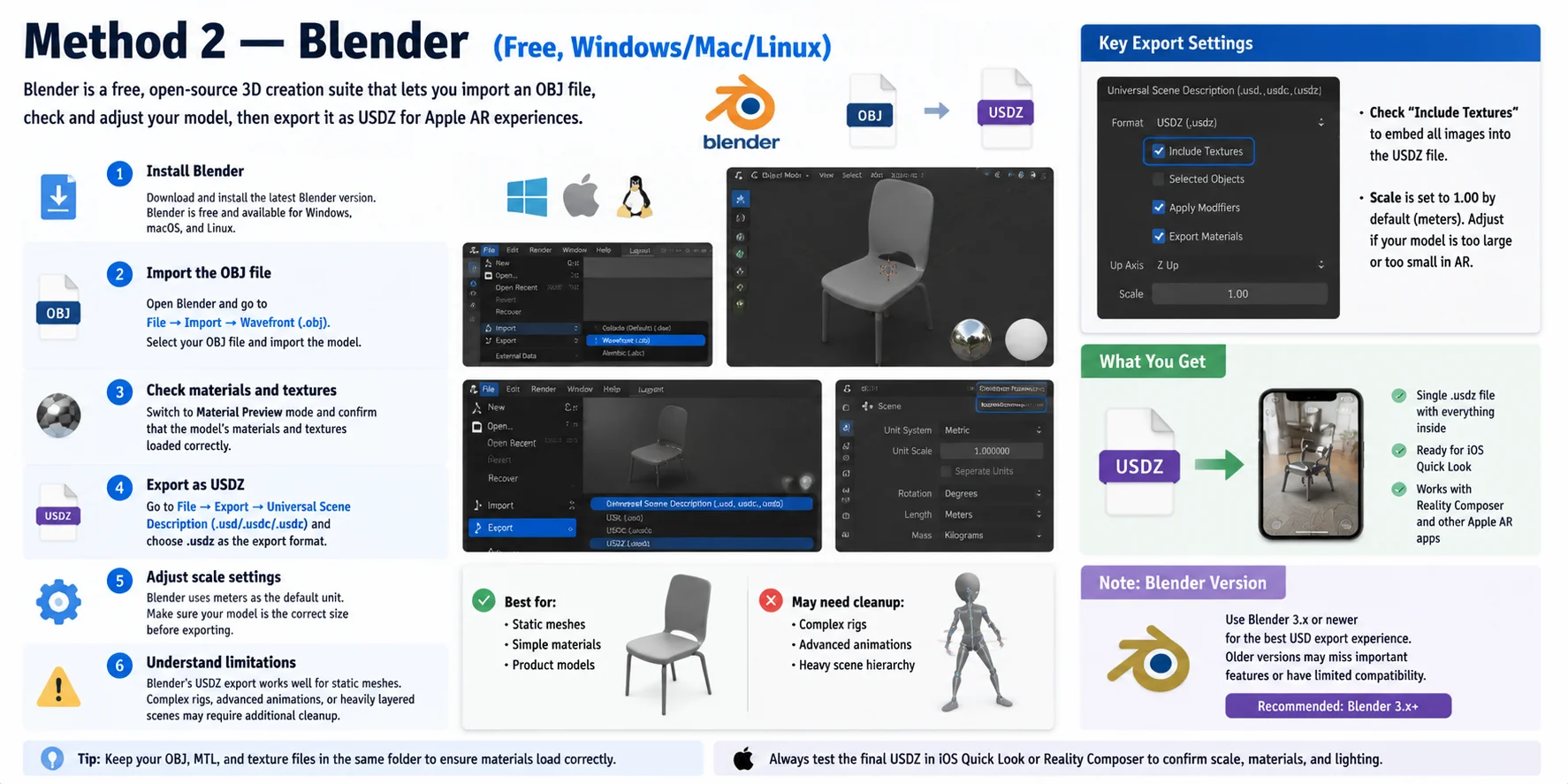
Blender provides a free and flexible workflow for converting OBJ files into USDZ, especially for users who want more control over materials, scale, and scene preparation. Unlike simple online converters, Blender allows you to inspect and adjust the model before exporting it for Apple AR workflows.
Follow these steps:
- Install Blender Download and install the latest Blender version. Blender is free, open-source software available for Windows, macOS, and Linux.
- Import the OBJ file Open Blender and go to File → Import → Wavefront (.obj). Select your OBJ file and import the model into the scene.
- Check materials and textures Switch to Material Preview mode and confirm that the model’s materials and textures loaded correctly. If textures are missing, check that the original OBJ, MTL file, and image textures are stored in the same folder.
- Export as USDZ Go to File → Export → Universal Scene Description (.usd/.usdc/.usdz) and choose .usdz as the export format. Before exporting, enable Include Textures so the USDZ file contains the required image resources.
- Adjust scale settings Check the export scale before creating the final file. Blender uses meters as its default unit system, so incorrect scale settings can cause the model to appear too large or too small in AR viewers.
Note: Blender’s USDZ export works best for static meshes and simple assets. Complex rigs, advanced animations, or heavily layered scenes may require additional cleanup before export. For the smoothest results, verify the final USDZ file in an Apple AR viewer after conversion.
Version note: The USDZ export workflow is recommended for Blender 3.x and newer versions, which include improved USD support compared with older releases.
Method 3 — Convert OBJ to USDZ Online (Free)
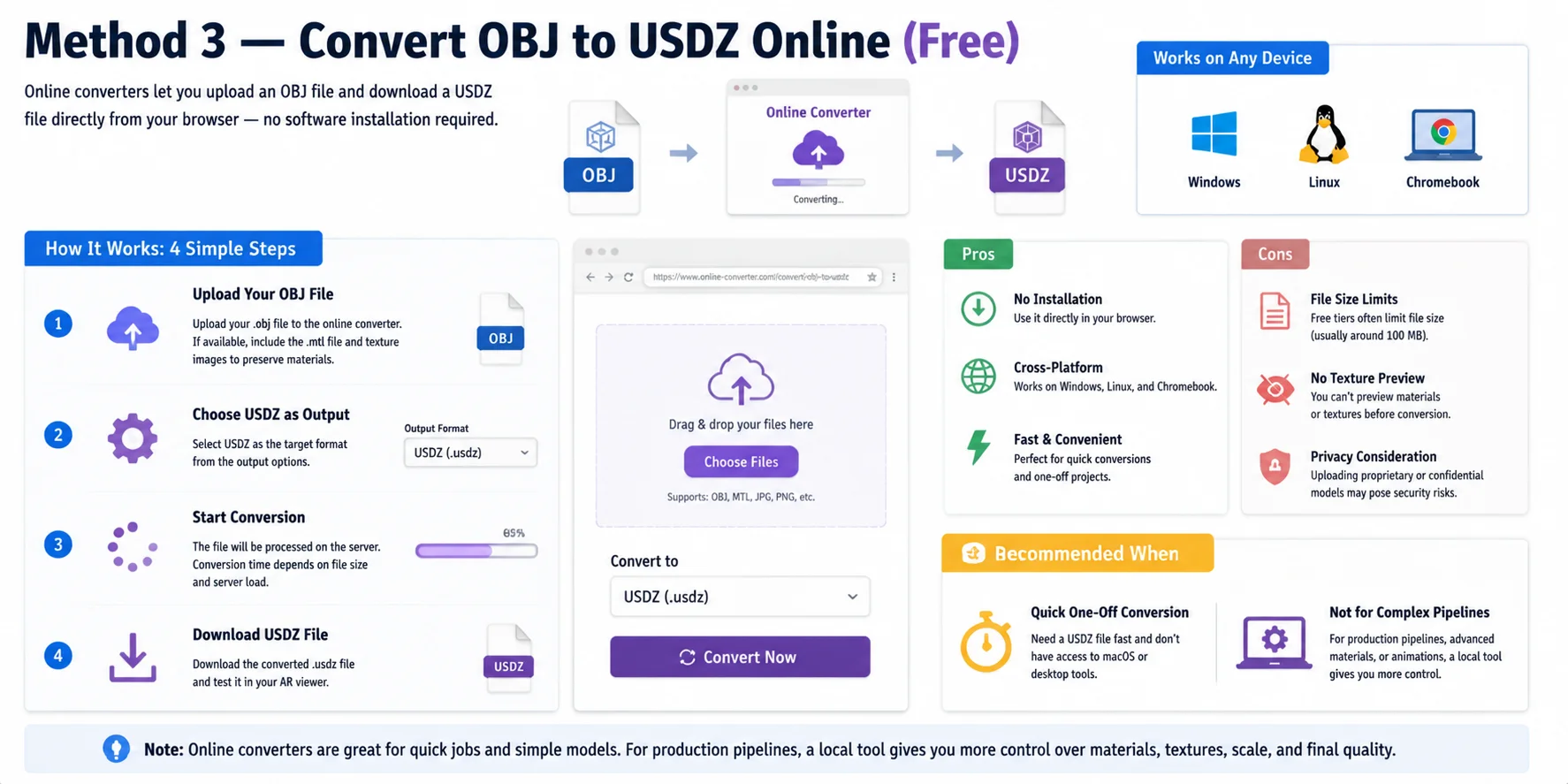
For users who need a quick conversion without installing software, browser-based OBJ to USDZ converters provide the simplest workflow. These online tools allow you to upload an OBJ file, convert it on a remote server, and download the finished USDZ file directly from your browser.
The typical process is straightforward:
- Upload your OBJ file Select your
.objfile and upload it to the converter. If your model uses materials, include the related .mtl file and texture images when supported. - Choose USDZ as the output format Select USDZ as the target format and start the conversion process.
- Download the converted file Once processing is complete, download the generated
.usdzfile and test it in an AR viewer or your target application.
The biggest advantage of online converters is convenience. They require no installation and work across Windows, Linux, and Chromebook systems. However, they also have limitations: free tiers often restrict file sizes (commonly around 100 MB), provide limited material previews, and may not be ideal for confidential or commercial 3D assets.
Online conversion works best for quick, one-time projects when you do not have access to macOS or desktop tools. For professional production pipelines, a local converter gives you more control over textures, materials, scale, and final output quality.
Before You Convert — Prepare Your OBJ File
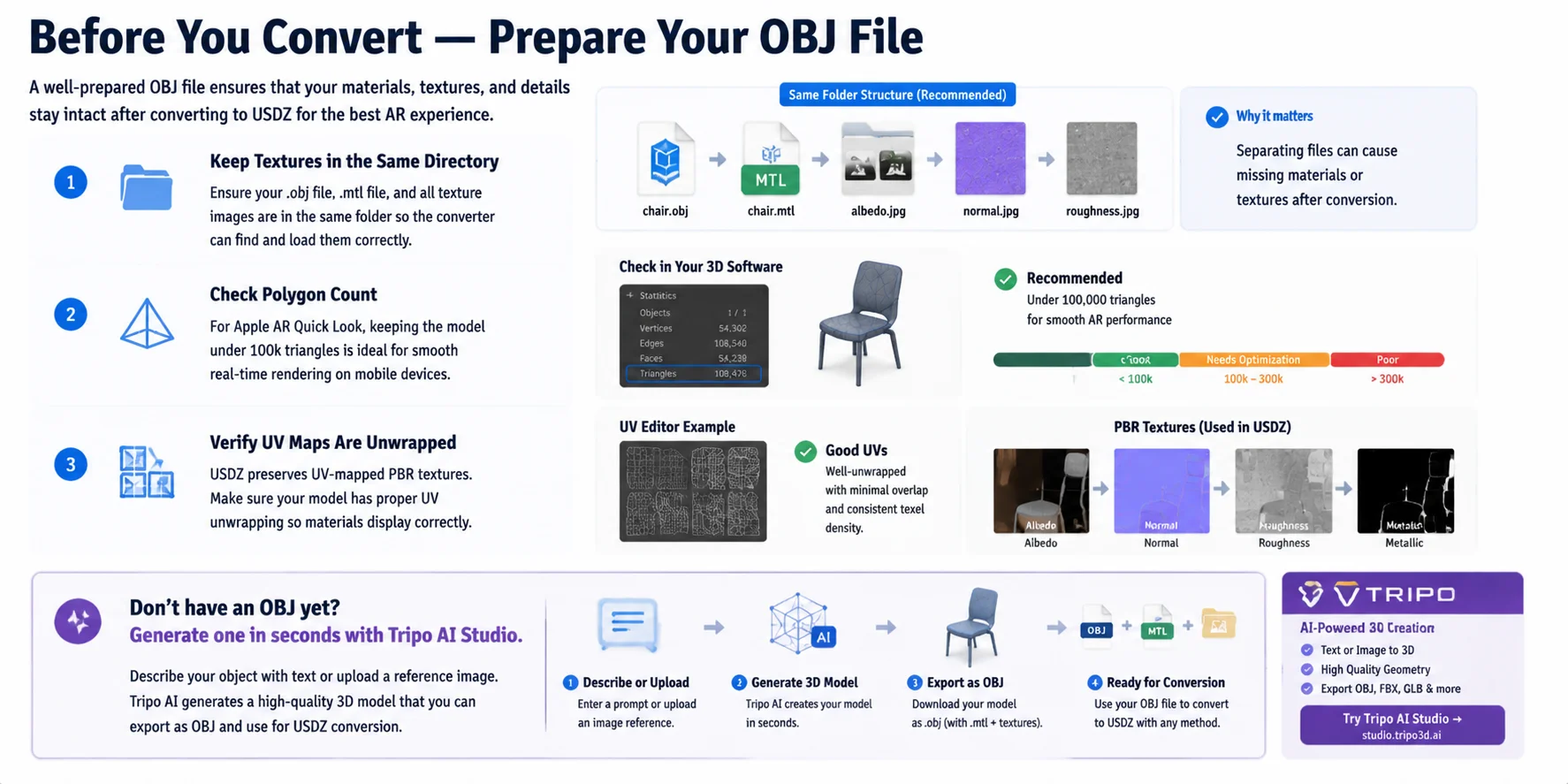
Before converting OBJ to USDZ, take a few minutes to prepare the source file. A properly organized OBJ package helps prevent missing textures, incorrect materials, and poor AR performance after conversion.
First, make sure your OBJ file, MTL material file, and all texture images are stored in the same folder. OBJ files often rely on external references, so separating these files can cause materials to disappear during conversion.
Next, check the model’s complexity. For Apple AR Quick Look, keeping the model around under 100k triangles is recommended for smoother real-time rendering on mobile devices. Also verify that your model has properly unwrapped UV maps, since USDZ preserves UV-based PBR textures and depends on correct mapping for materials to display accurately.
Don’t have an OBJ model yet? You can create one quickly with Tripo AI Studio. Describe your object with text or upload a reference image, generate the 3D model, and export it as OBJ before continuing to the USDZ conversion workflow. This provides a faster starting point without needing to build the model manually.
How to View USDZ Files After Conversion
After converting an OBJ file to USDZ, the next step is testing how the model appears in an actual AR environment. Apple makes this process simple because USDZ files are directly supported by AR Quick Look across iOS and macOS devices.
On iPhone or iPad, tap a .usdz file from Safari, Mail, or the Files app. The device will automatically open the model in Quick Look, allowing you to place it in the real world using AR. On macOS, double-click the USDZ file to preview it in Quick Look, or open it in Reality Composer if you need to build a more complete AR scene.
For fast testing, you can also AirDrop a USDZ file from your Mac to an iPhone and instantly check the model in a real-world environment. Developers can embed USDZ files directly into websites using Apple’s AR Quick Look link format:
This allows Safari users on supported Apple devices to launch an AR preview directly from a webpage. Always test your final USDZ file before publishing to confirm that textures, scale, and materials appear correctly.
Frequently Asked Questions
How do I convert OBJ to USDZ online?
Use a browser-based converter such as Convertio or CloudConvert. Upload your .obj file (and .mtl if available), select USDZ as the output format, and download the result. Free tiers typically support files up to 100 MB.
How do I convert OBJ to USDZ for free?
Apple's Reality Converter app (macOS) and Blender (all platforms) are both free. Reality Converter is the simplest option — drag in your OBJ and export as USDZ in one step.
What is the USDZ format?
USDZ is a zip-packaged Universal Scene Description file developed by Apple and Pixar. It bundles 3D geometry, PBR textures, and metadata into a single archive natively supported by iOS, macOS, and Safari for AR viewing.
What is the difference between USDZ and OBJ for AR?
OBJ is a plain geometry format that does not support AR anchors, animations, or bundled textures. USDZ packages everything iOS AR needs in one file, making it the required format for Quick Look and Reality Composer on Apple devices.
Is USDZ better than GLB for AR?
It depends on your platform. USDZ is the native format for iOS and macOS AR (Quick Look, Reality Kit). GLB is preferred for Android AR (ARCore, model-viewer) and WebXR. If you are targeting iPhone users, USDZ is the better choice.
Can I convert OBJ to USDZ on Windows?
Reality Converter is macOS-only, but Blender and online converters like Convertio work on Windows. Install Blender, import your OBJ, and export as .usdz using File → Export → Universal Scene Description.
Do textures transfer when converting OBJ to USDZ?
Yes, if your .mtl file and texture images are in the same folder as the .obj file before conversion. Reality Converter lets you preview and reassign textures before exporting. Online tools may lose textures if you upload only the .obj without its accompanying files.
What is Reality Converter?
Reality Converter is a free Apple developer tool for macOS that converts OBJ, GLTF, and USD files to USDZ. It supports drag-and-drop import, material editing, and IBL lighting previews before export. Download it from the Apple Developer portal.
Conclusion
Converting OBJ to USDZ is straightforward once you choose the workflow that fits your needs. Reality Converter is the easiest option for Mac users, Blender provides more control for a cross-platform pipeline, and online converters work well for quick one-off conversions. The most important step is making sure your textures, materials, and model data are preserved so the final USDZ file looks correct in iOS AR experiences.
If you do not have an OBJ model yet, you can start with Tripo AI and create a production-ready 3D asset in seconds. Generate your model first, export it as OBJ, then convert it to USDZ using any of the methods covered in this guide.
Main CTA → Try Tripo AI Studio — generate your 3D model in seconds **Secondary CTA → View **Tripo AI Pricing