Shopify 3D Product Models: GLB, AR & Viewer Workflow Guide
TL;DR
- Shopify natively supports 3D product models: no app is required to display them or enable AR.
- Shopify accepts GLB and USDZ models. A GLB-first workflow is convenient because Shopify creates the companion format needed for compatible devices.
- The real bottleneck is often not performance, but getting a 3D model. You can make, generate, or outsource one.
- Optimize before upload: keep polygon counts and texture sizes sensible so mobile stays fast.
- Pick your path: native 3D media (free) for most stores; a third-party app or custom Liquid viewer/configurator for advanced needs.
Shopify supports 3D product models as product media, letting shoppers rotate a model on the product page and use AR on compatible phones. The harder part is usually getting a suitable 3D model. This guide covers the workflow from model creation and optimization to upload, viewer setup, and mobile testing.
How 3D Product Models Work on Shopify
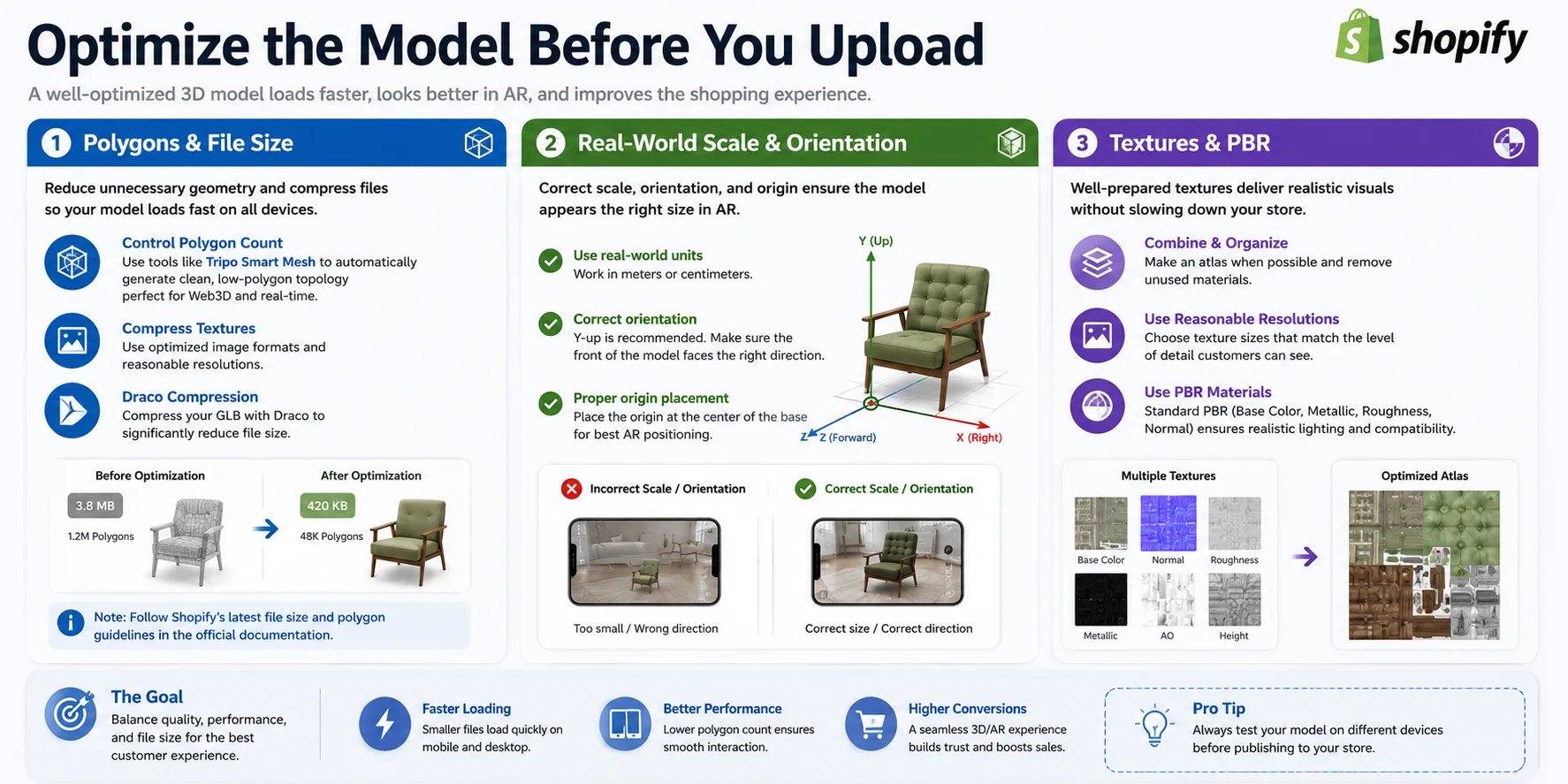
Shopify supports 3D models as native product media alongside images and videos. A compatible theme can render the model in the product gallery without requiring a separate storefront app.
Shoppers can rotate, zoom, and inspect the model in the browser. On supported mobile devices, the product page can also offer "View in your space" so the item can be placed in the shopper's environment through AR.
Shopify accepts both GLB and USDZ product models and processes an uploaded model so compatible formats are available across devices. This guide uses a GLB-first workflow because GLB packages geometry, materials, and textures in one file. Check Shopify's current product media requirements before delivery.
Where Do Your 3D Models Come From?
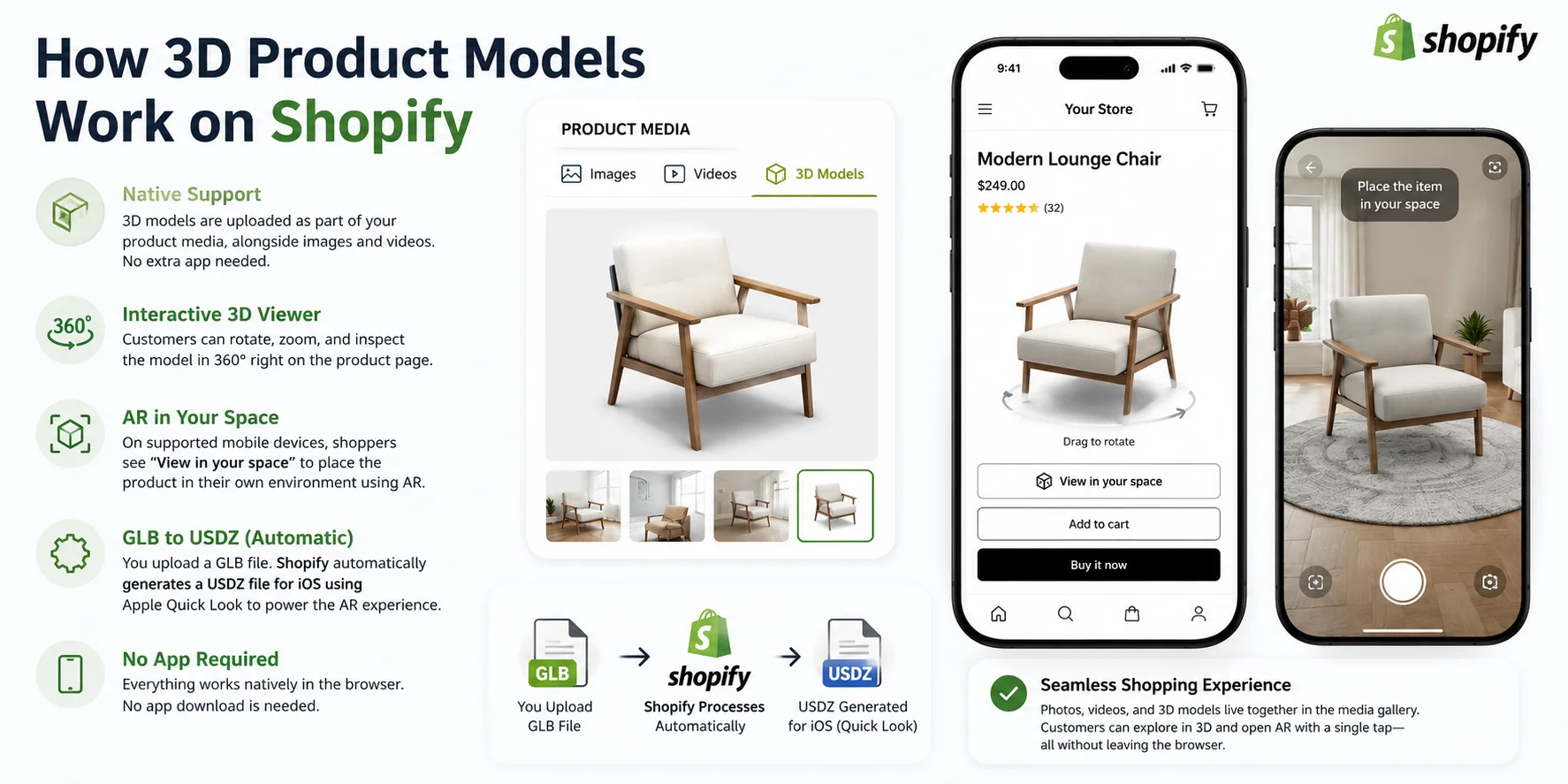
You can build a model, generate one with AI, or commission a 3D artist. Choose based on the product's required accuracy, catalog size, budget, and launch schedule.
Make Them Yourself: Blender or CAD
Blender and CAD tools provide the most control over dimensions, topology, UVs, and materials. This route suits engineering-led products and items that must match exact measurements, but it requires modeling expertise and more production time.
Generate with AI
For faster iteration, Tripo Image to 3D can turn a product image into a 3D starting point. Results should still be checked against the real product, especially for hidden surfaces, thin parts, symmetry, and exact scale.
A typical workflow is simple:
- Upload a product photo (or enter a text prompt).
- Generate the 3D model with AI.
- Review and refine the result if needed.
- Export the model as GLB and upload it to Shopify.
This route can shorten production for large catalogs, but complex or dimension-critical products may need manual cleanup before they are suitable for customer-facing 3D or AR.
Buy or Outsource
Existing assets can work for generic products, while unique merchandise usually requires a commissioned model. Ask for real-world scale, PBR materials, clean topology, and a Shopify-compatible deliverable.
AI is useful when speed and catalog coverage matter; manual modeling or professional refinement is safer when dimensional accuracy or premium close-up quality is essential. A hybrid workflow can combine fast generation with targeted artist cleanup.
Optimize the Model Before You Upload
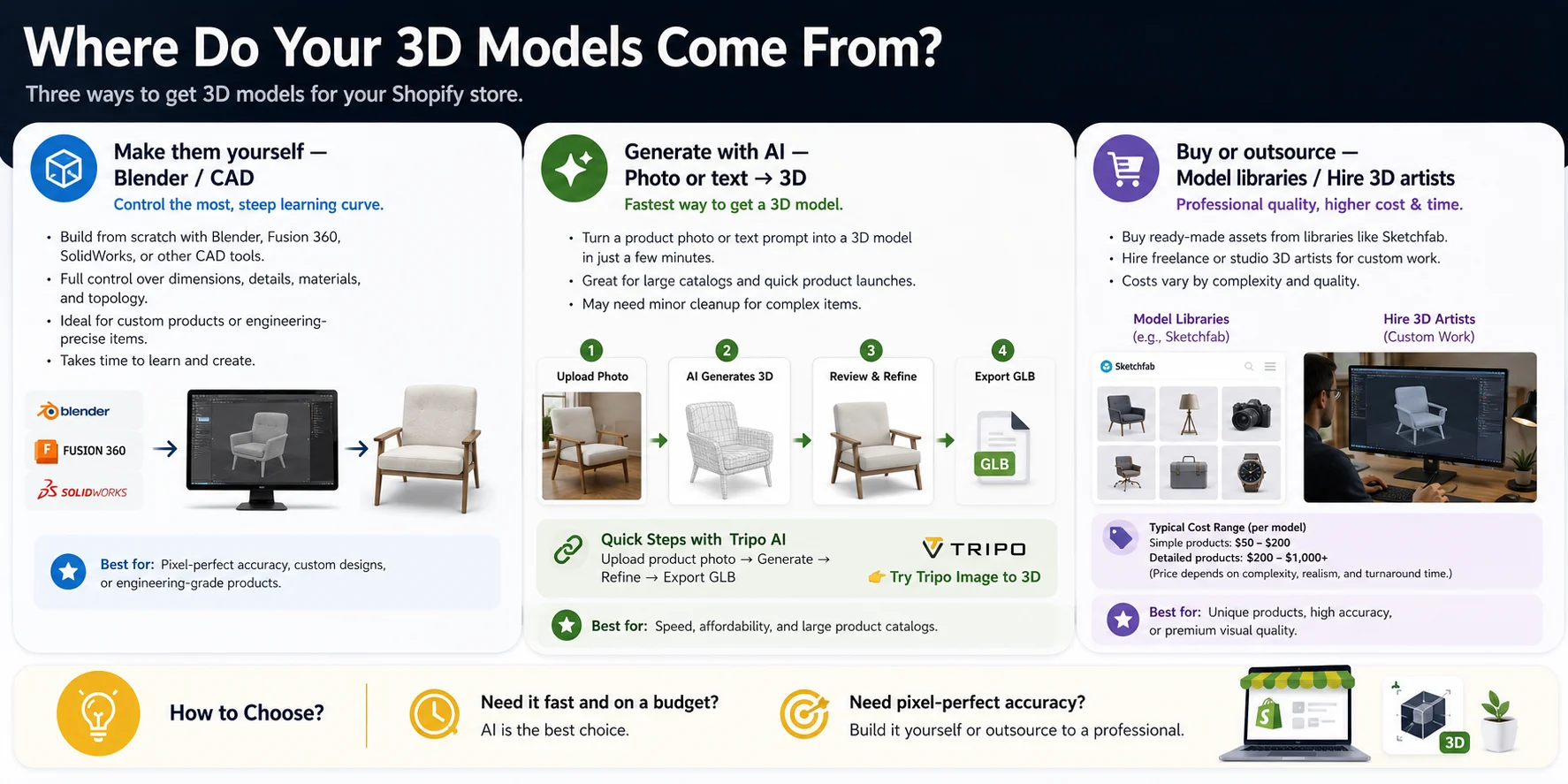
Web models must balance visual quality with download size and device performance. Check geometry, textures, scale, orientation, and origin before upload.
Polygons & File Size
Remove geometry that does not improve the product silhouette or visible detail. Lower-complexity meshes generally download and render more efficiently on mobile hardware.
For AI-generated or dense meshes, Tripo Smart Mesh can create cleaner, lower-polygon topology for Web3D and real-time workflows. Compress textures and use Draco only when the full export and viewer pipeline supports it.
Shopify currently accepts 3D model uploads up to 500 MB and automatically optimizes files larger than 15 MB. Treat 15 MB as an optimization threshold, not the upload limit, and verify current requirements in Shopify's product media documentation.
Real-World Scale & Orientation
Incorrect units, orientation, or origin placement can make a product appear too large, too small, or poorly positioned in AR.
Export at real-world scale, confirm the model's up and forward axes, and place the origin at a logical contact point such as the center of the base. Test the result on the surfaces where customers are likely to place it.
Textures & PBR
Remove unused materials, use sensible texture resolutions, and combine maps into an atlas when that reduces overhead without harming visible detail.
Use standard PBR materials and test their appearance in Shopify's viewer. Highly reflective, transparent, or layered materials may need extra adjustment across browsers and devices.
Add a 3D Model to a Shopify Product (Step by Step)
After optimization, upload the model as product media and configure its initial presentation before publishing.
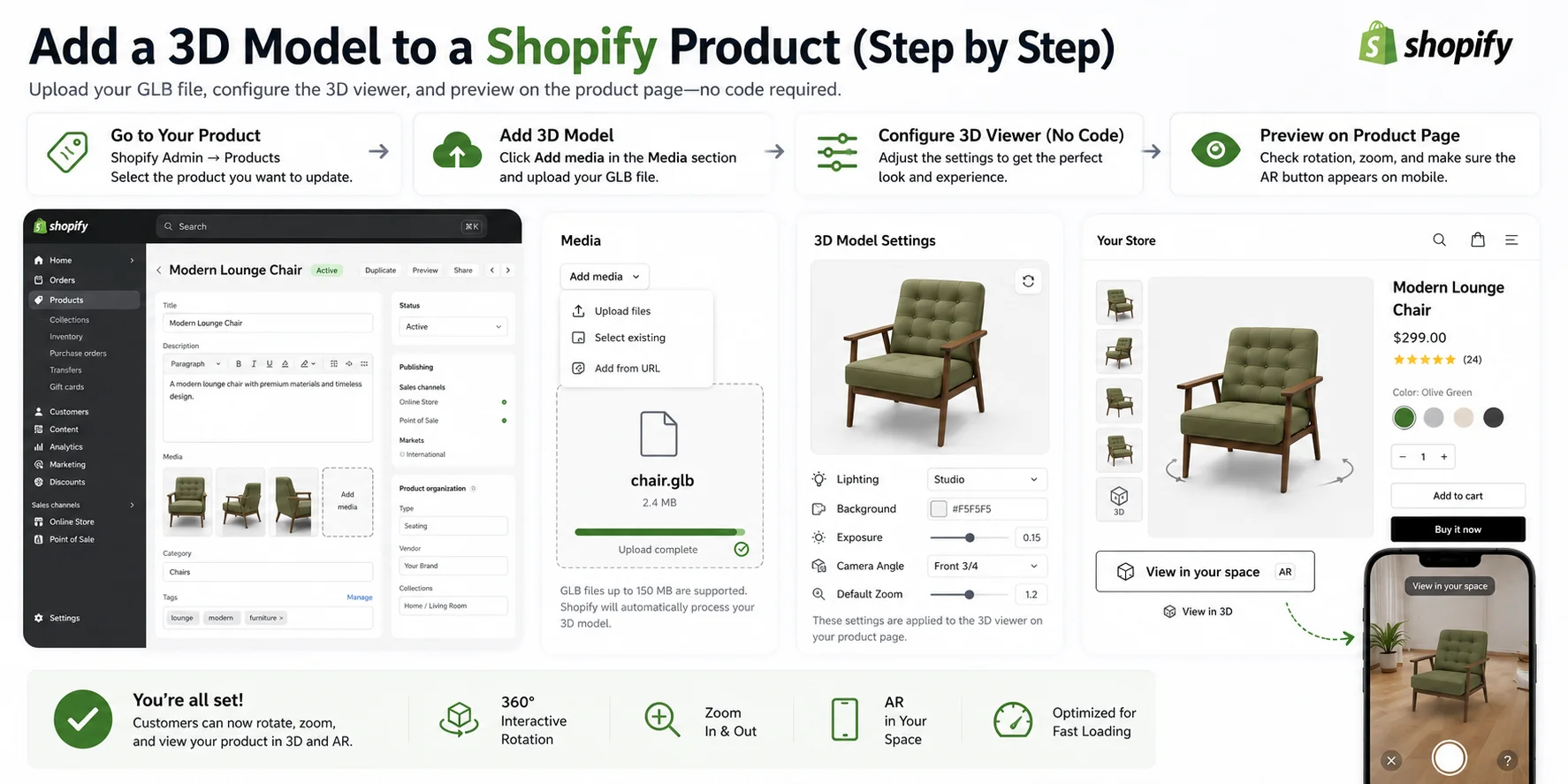
- Open Shopify Admin and go to Products, then select the product you want to update.
- In the Media section, click Add media and upload a supported GLB or USDZ file. Shopify processes it and adds it to the media gallery.
- Select the uploaded 3D model, click Edit file, and use Shopify's no-code editor to adjust the environment or lighting, background, and the model's initial rotation and zoom.
- Preview the product page. Check rotation and zoom on desktop, then test "View in your space" on supported iOS and Android devices.
For the current editor path and available controls, see Shopify's 3D model editor documentation.
Turn On AR: "View in Your Space"
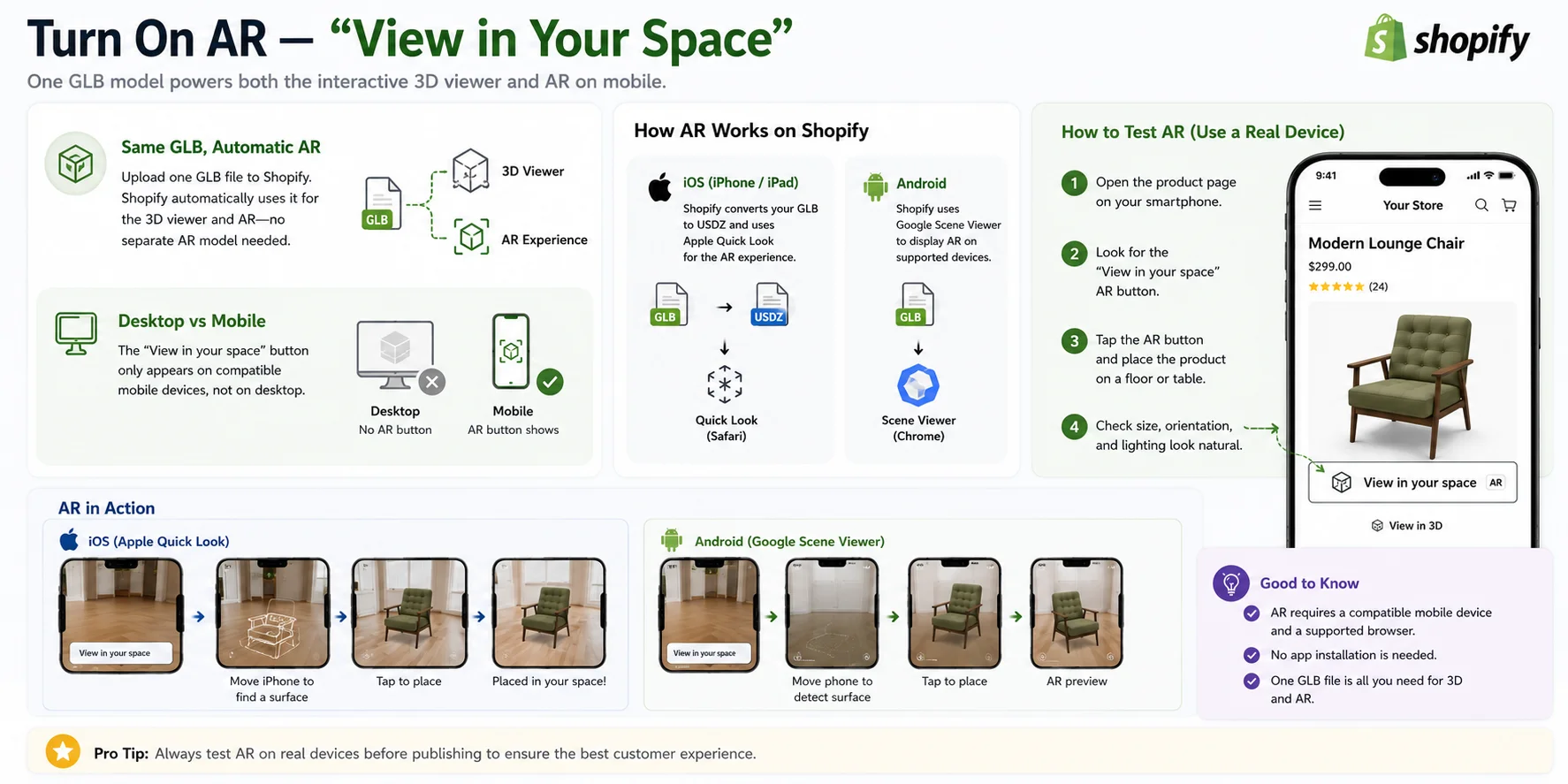
A single uploaded model can support both the interactive storefront viewer and AR after Shopify processes it into compatible formats. You do not normally need to manage separate storefront assets for each supported device.
The "View in your space" control appears only when the device, browser, theme, and model support AR. Test on physical devices rather than relying on a desktop preview.
Compatible Apple devices use USDZ with Apple Quick Look; supported Android devices can use Google Scene Viewer. Shopify prepares compatible model formats, while the theme is responsible for rendering the product media and AR controls.
Before publishing your product, test the experience on a real mobile device:
- Open the product page on a supported smartphone.
- Confirm that the "View in your space" button appears.
- Tap the AR button and place the product on a floor or table.
- Verify that the model's size, orientation, and lighting look natural.
Native 3D vs Third-Party Apps vs Custom Viewer
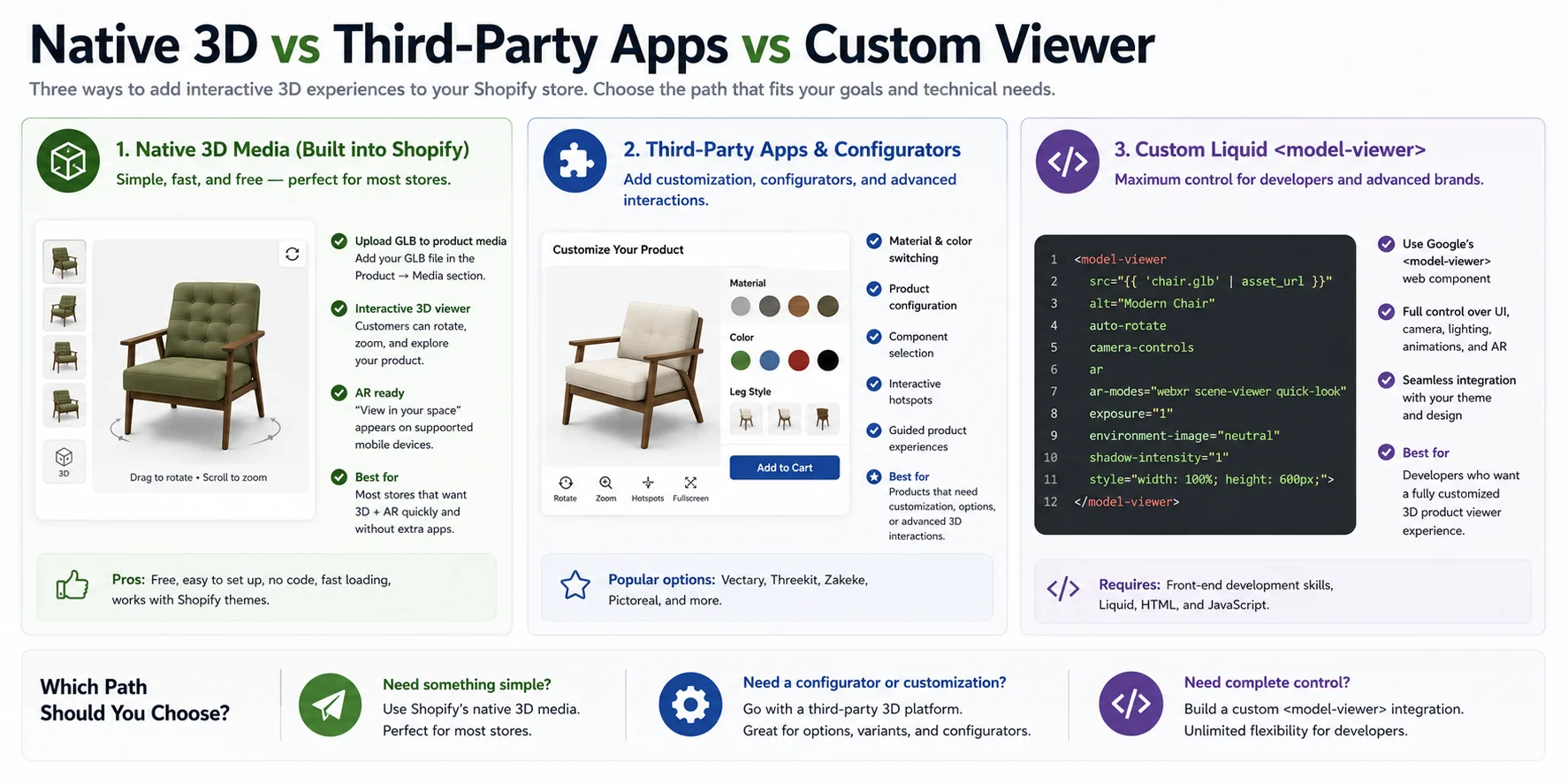
Choose among native product media, a third-party configurator, or a custom theme implementation based on the interaction the product requires.
Native 3D Media
Native 3D media is the simplest route for rotation, zoom, and supported AR. It works best when the theme already handles Shopify product media correctly.
Third-Party Apps & Configurators
Use a third-party platform when shoppers must change materials, configure components, trigger hotspots, or interact with product options inside the 3D experience.
- Color and material switching
- Product configuration
- Component selection
- Interactive hotspots
- Guided product experiences
Custom Liquid Viewer
For custom themes, start with Shopify's supported Liquid path: render product model media with model_viewer_tag and follow Shopify's product media and Shopify-XR guidance for device-specific AR.
A raw Google <model-viewer> integration can still be an advanced option when the theme needs custom controls, hotspots, animation, or loading behavior, but it requires the developer to manage accessibility, media state, fallbacks, and AR configuration.
Which should you choose?
- Need something simple? Use Shopify's native 3D media.
- Need product customization or configurators? Choose a third-party 3D platform.
- Need complete control? Extend Shopify's native media integration or build an advanced custom viewer.
Do 3D Models Actually Help? Performance & Conversion
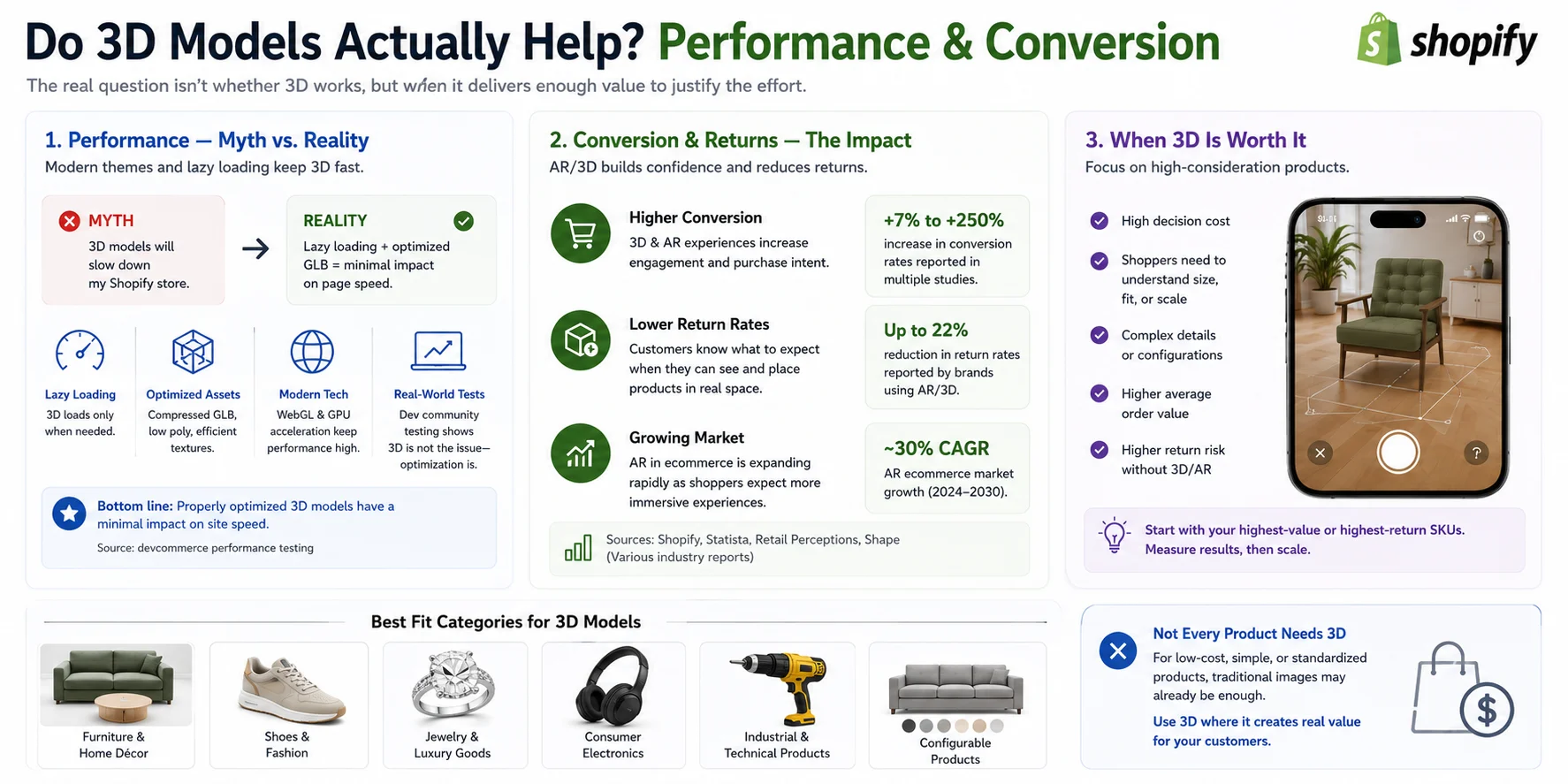
3D can add useful product context, but its value depends on the product and implementation. Measure performance and customer behavior instead of assuming that every catalog benefits equally.
Performance: Myth vs. Reality
Loading behavior varies by theme and viewer. Optimized geometry and textures reduce transfer, memory, and rendering costs, but merchants should still test representative product pages on mid-range mobile devices and slower connections.
Conversion & Returns
Interactive 3D and AR can help shoppers understand scale, shape, and details that are difficult to communicate with flat images.
Conversion and return-rate results vary widely by category, audience, asset quality, and placement. Treat external case studies as context rather than a forecast, and evaluate the feature with store-specific engagement, conversion, and return data.
When 3D Is Worth It
Not every product needs a 3D model. The greatest value comes from items where shoppers benefit from understanding scale, materials, or spatial fit before buying.
3D models are especially useful for:
- Furniture and home decor
- Shoes and fashion accessories
- Jewelry and luxury goods
- Consumer electronics
- Industrial equipment and technical products
- Products with configurable options
For inexpensive or highly standardized products, traditional photos may already provide enough information. A good strategy is to start with your highest-value or highest-return SKUs, measure engagement and conversions, and then expand 3D to the rest of your catalog if the results justify the investment.
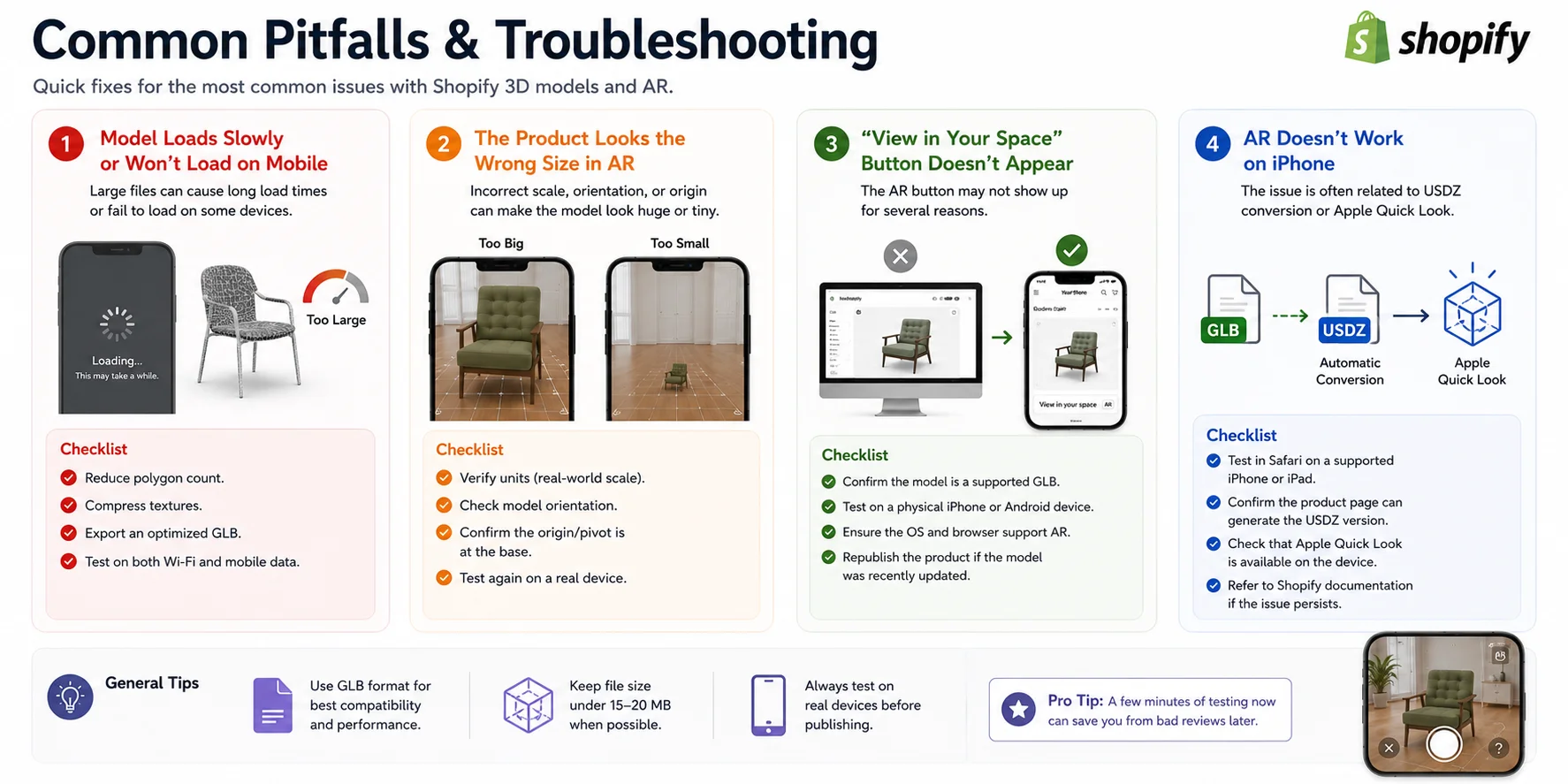
Common Pitfalls & Troubleshooting
Most failures come from asset complexity, incorrect scale, unsupported device conditions, or theme media handling. Use the checks below before publishing.
Model Loads Slowly or Won't Load on Mobile
If loading is slow, inspect geometry, texture resolution, material count, and total file size. Shopify accepts files up to 500 MB and optimizes files over 15 MB, but smaller, efficient assets are still preferable for mobile delivery.
Checklist:
- Reduce polygon count.
- Compress textures.
- Export an optimized GLB.
- Test on both Wi-Fi and mobile data.
The Product Looks the Wrong Size in AR
If the product appears enormous or tiny in AR, the model's scale or orientation is probably incorrect. Make sure it uses real-world units, has the correct forward axis, and the origin is positioned at the base of the object before exporting.
Checklist:
- Verify units (real-world scale).
- Check model orientation.
- Confirm the origin/pivot is correctly positioned.
- Test again on a real mobile device.
The "View in Your Space" Button Doesn't Appear
If the model rotates but AR is unavailable, verify that the upload is a supported GLB or USDZ model, test on a compatible physical device, and confirm that the theme renders Shopify's AR controls.
Checklist:
- Confirm the model is a supported format.
- Test on a physical iPhone or Android device.
- Make sure the operating system and browser support AR.
- Republish the product if you've recently replaced the model.
AR Doesn't Work on iPhone
On iOS, test in Safari on a Quick Look-compatible device. If AR still fails, allow Shopify processing to finish, recheck scale and materials, and confirm that the theme uses Shopify's supported product-media integration.
Checklist:
- Test in Safari on a supported iPhone or iPad.
- Check that Apple Quick Look is available on the device.
- Refer to the latest Shopify documentation if the issue persists.
A few minutes of testing on real mobile devices before publishing can catch most issues early, ensuring customers get a smooth 3D and AR experience.
Frequently Asked Questions
What file format does Shopify use for 3D models?
Shopify accepts both GLB and USDZ product models. A GLB-first workflow is convenient for web delivery because it packages the model and textures in one file, while USDZ is used by Apple Quick Look. Shopify processes uploads to provide compatible formats across supported devices.
How do I add a 3D model to a Shopify product?
Open Shopify Admin → Products, select the product, and upload a supported GLB or USDZ file in Media. Select the uploaded model and use Edit file to adjust its initial presentation. Preview the storefront and test AR on physical mobile devices before publishing.
Are 3D product models free on Shopify, or do I need an app?
Shopify's native product-media feature does not require a separate viewer app for basic 3D and supported AR. A third-party app may still be useful for configurators, material switching, hotspots, analytics, or specialized integrations. Check that the active theme supports Shopify product media.
How do I enable AR for my Shopify products?
Upload a supported 3D model and use a theme that renders Shopify product media and AR controls. Shopify prepares compatible GLB and USDZ assets; supported Apple devices use Quick Look, while compatible Android devices can use Scene Viewer. Confirm the result on real devices.
Do 3D models slow down my Shopify store?
They can if the assets are large or the theme loads them inefficiently. Reduce unnecessary geometry, optimize textures, and test the actual product page on mobile hardware and slower networks. Loading behavior is implementation-dependent, so measure rather than relying on a universal performance claim.
Where can I get 3D models for my Shopify products?
You can model the product in Blender or CAD, generate a starting point with Tripo Image to 3D, buy a suitable licensed asset, or commission a 3D artist. Whichever route you choose, verify dimensions, materials, topology, and usage rights before publishing.
What's the difference between GLB and USDZ on Shopify?
GLB is a compact web-oriented format that can include geometry, materials, and textures in one file. USDZ is used for Apple Quick Look AR. Shopify accepts both formats and processes the upload for compatible storefront and device experiences.
Conclusion
Shopify provides the product-media foundation for interactive 3D and supported AR; the quality of the experience depends on the model, theme, and testing. Create or source an accurate asset, optimize it, upload a supported format, and validate the result on real devices. To create a starting model from a product image, try Tripo AI Studio.