How to Make AI 3D Models for Free (Step-by-Step Guide)
TL;DR
- AI 3D models can be created for free using free credits, freemium tools, or open-source models. These options are usually enough for beginners to create assets, prototypes, and printable models.
- The main free methods are Text to 3D and Image to 3D. Text prompts create ideas quickly, while images usually provide more accurate results.
- Free AI 3D tools can create models for games, printing, and product visuals. When limits become a problem, users can upgrade or use open-source alternatives.
Yes, you can make AI 3D models for free. Many AI 3D generators offer free credits or free tiers that allow you to create, texture, and export models without a credit card. While free usage is usually limited, it is often enough to create your first game asset, prototype, or 3D-printable design.
This article focuses on AI-generated 3D models, not AI influencers or virtual characters. With the rapid growth of AI 3D tools, creators can now generate assets from text prompts or images in minutes. One example is Tripo, an AI 3D platform by VAST, which supports both text-to-3D and image-to-3D generation. We’ll explore the main free ways to create AI 3D models, including their available features, export options, and the real limitations you should know before starting.
What "Free" Actually Means for AI 3D Model Generators
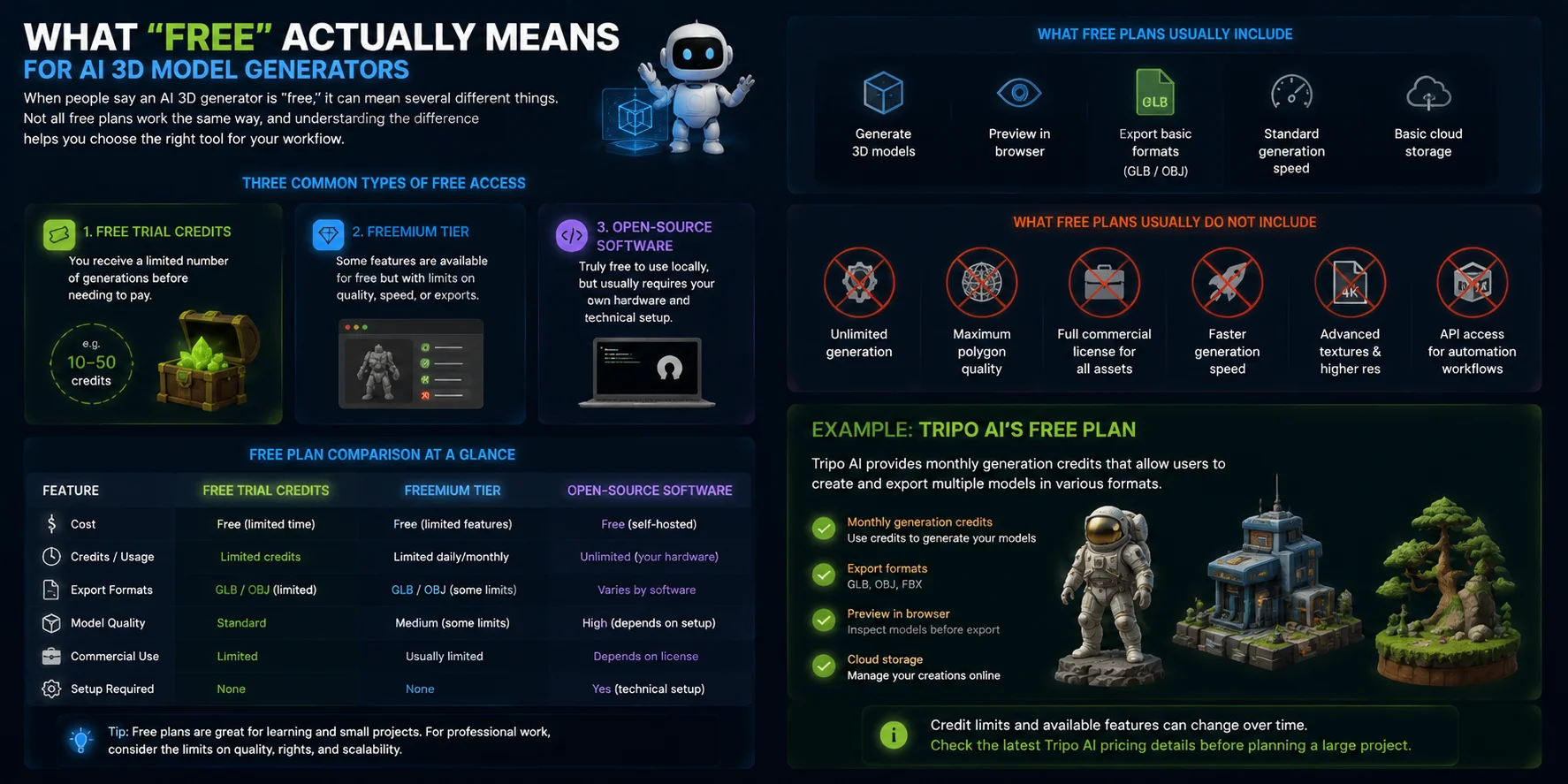
When people say an AI 3D generator is “free,” it can mean several different things. Not all free plans work the same way, and understanding the difference helps you choose the right tool for your workflow.
There are three common types of free access. The first is free trial credits, where you receive a limited number of generations before needing to pay. The second is a freemium tier, which keeps some features available for free but may limit quality, speed, or export options. The third is open-source software, which can be truly free to use locally, but usually requires your own hardware and technical setup.
Most free AI 3D tools allow users to generate models, preview them in a browser, and export basic formats such as GLB or OBJ. However, free tiers often come with restrictions. Higher-resolution models, advanced textures, commercial usage rights, faster generation, or additional export formats may require a paid plan.
What free plans usually do not include is unlimited generation, maximum polygon quality, full commercial licenses for every asset, or API access for automated workflows. These limitations help platforms provide free access while reserving advanced features for professional users.
For example, Tripo AI’s free plan provides monthly generation credits that allow users to create and export multiple models in formats such as GLB, OBJ, and FBX. The exact credit limits and available features can change over time, so checking the latest Tripo AI pricing details is recommended before planning a larger project.
Method 1 — Text to 3D: Generate from a Description
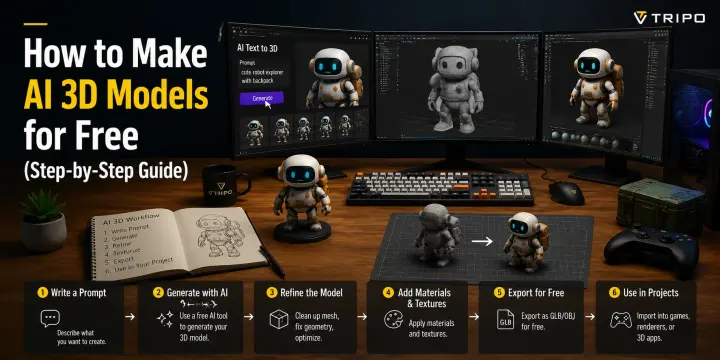
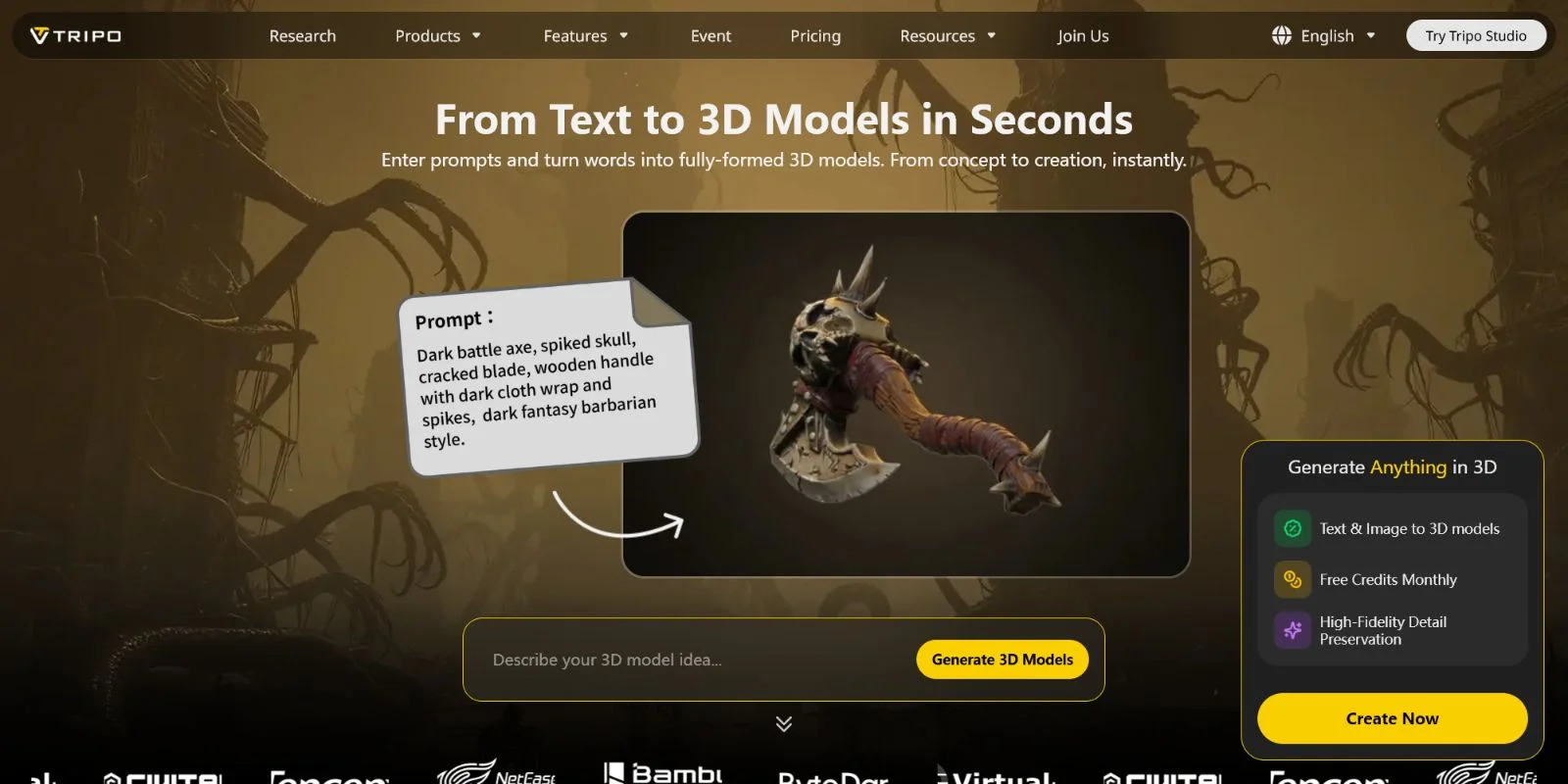
Text-to-3D is one of the simplest ways to create an AI 3D model because you only need a written description of what you want to generate. Instead of manually modeling every detail, the AI interprets your prompt and creates a 3D asset based on the shape, style, and material information you provide.
Step 1: Open Tripo AI Studio
Start by opening Tripo AI Studio in your browser. No software installation or app download is required, so you can begin creating directly from the web interface.
Step 2: Select Text to 3D
Choose the Text to 3D option and enter a detailed description of your model. The quality of the result depends heavily on your prompt. Specific descriptions usually work better than simple object names.
For example, instead of typing:
“a barrel”
try:
“a medieval wooden barrel, low poly, game-ready, with metal rings and realistic wood texture.”
Including details about shape, style, purpose, and materials helps the AI understand your desired result.
Step 3: Choose Your Model Type
Select the generation type based on your goal.
Smart Mesh is designed for real-time applications such as games and interactive experiences. It creates cleaner, optimized geometry with around 5,000 triangles, making it suitable for game-ready assets.
HD Model is better for high-detail renders, close-up visuals, or 3D printing projects where more geometry is preferred.
Step 4: Generate and Review the Model
After submitting your prompt, the model is usually generated within a short time. Once complete, rotate and inspect the preview from different angles. Check the shape, proportions, and overall details.
If the result does not match your idea, adjust your prompt with more specific descriptions and generate again. Small wording changes can significantly improve the output.
Step 5: Add AI-Generated Textures
After creating the model, use the Generate Texture option to add materials. You can choose different styles, such as Realistic, Stylized, or Hand-painted.
Tripo AI automatically applies PBR materials, helping the model look more complete for games, visualization, or presentations.
Step 6: Export Your 3D Model
When the model is ready, export it in the format that matches your workflow:
- GLB — a widely supported format for web, AR, and general 3D use
- FBX — commonly used for Unreal Engine and game pipelines
- OBJ — popular for Blender and general 3D editing
The exported file includes the model data and textures, allowing you to continue editing or use it directly in your project.
Ready to try? Open Tripo AI Studio →
Method 2 — Image to 3D: Turn a Photo or Sketch Into a Model
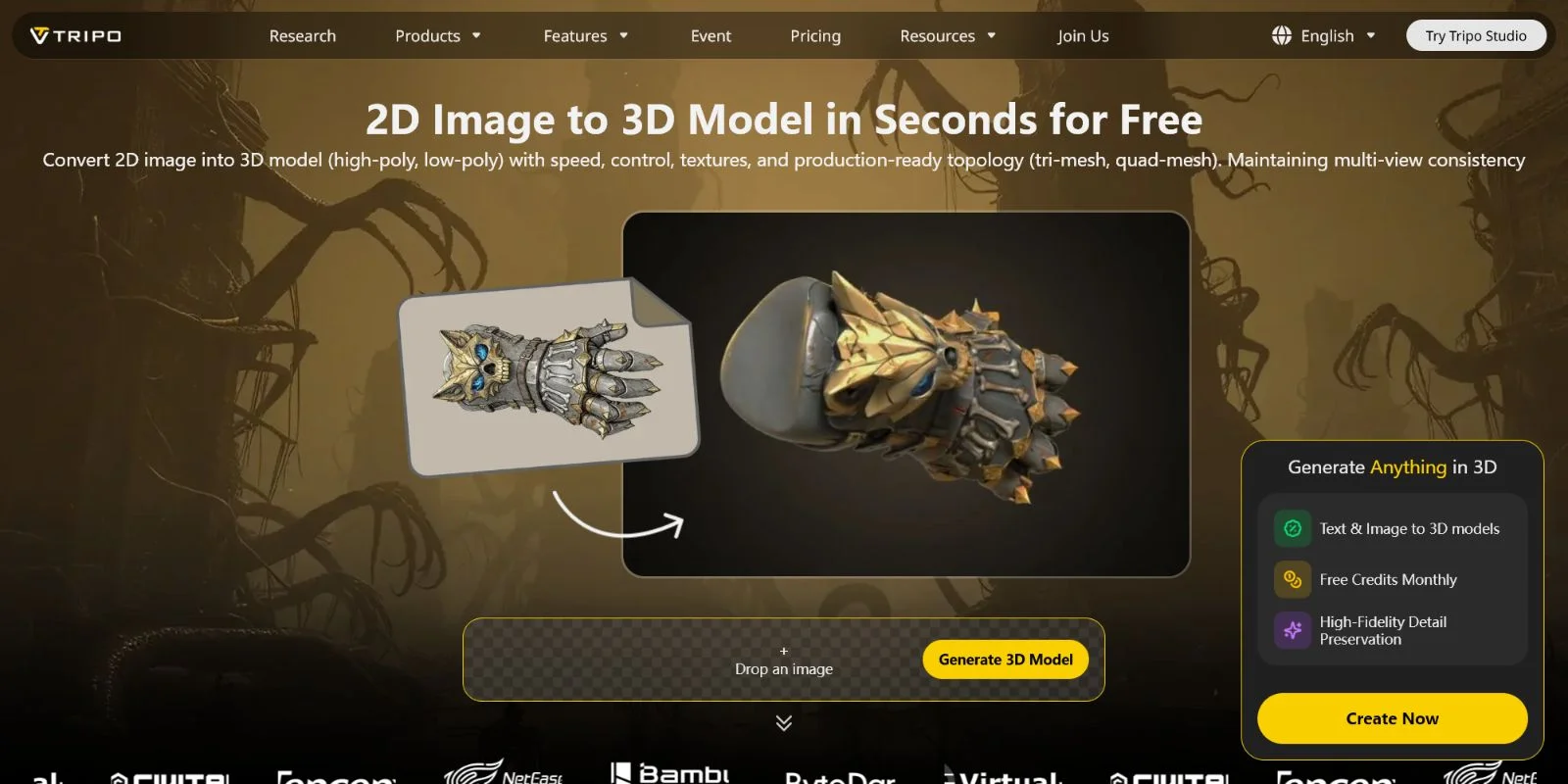
Image-to-3D is one of the most effective ways to create AI 3D models because the reference image gives the AI clear visual information about the object’s shape, style, and details. Compared with text prompts, which allow more creative variation, an image keeps the result closer to a specific design or concept.
Step 1: Prepare Your Reference Image
Start with a good-quality reference image. You can use a product photo, hand-drawn sketch, or AI-generated concept image. For the best results, choose an image with a clean background and clear object visibility.
A ¾ angle view usually works well for most objects because it provides information about both the front and side shapes. Avoid images with heavy shadows, extreme perspective distortion, or hidden details, as these can make reconstruction less accurate.
Step 2: Open Tripo AI Studio and Select Image to 3D
Open Tripo AI Studio in your browser and choose the Image to 3D option. This workflow allows you to transform a 2D reference into a complete 3D model without manually building the geometry.
Step 3: Upload Your Image
Upload your reference image by dragging and dropping the file or selecting it from your device. Tripo AI supports common image formats including PNG, JPG, and WEBP, making it easy to use photos, sketches, or generated artwork as input.
Step 4: Choose Your Output Type
Select the model type based on your final goal.
Smart Mesh is recommended for game assets and real-time applications because it creates cleaner, optimized topology with a lower polygon count.
HD Model is designed for maximum detail, producing high-resolution geometry with up to 2 million polygons for close-up renders, visualization, or 3D printing workflows.
Step 5: Review, Retry, Texture, and Export
Once the model looks correct, follow the same workflow as text-to-3D: add textures, review materials, and export your final file in formats such as GLB, FBX, or OBJ.
Image-to-3D is often the better choice when accuracy matters because the reference image anchors the AI output to a specific design. Text prompts are useful for exploring ideas, while images provide stronger visual guidance.
Both methods work well — here's what you can build with the models you generate.
What You Can Make: Common Free Use Cases
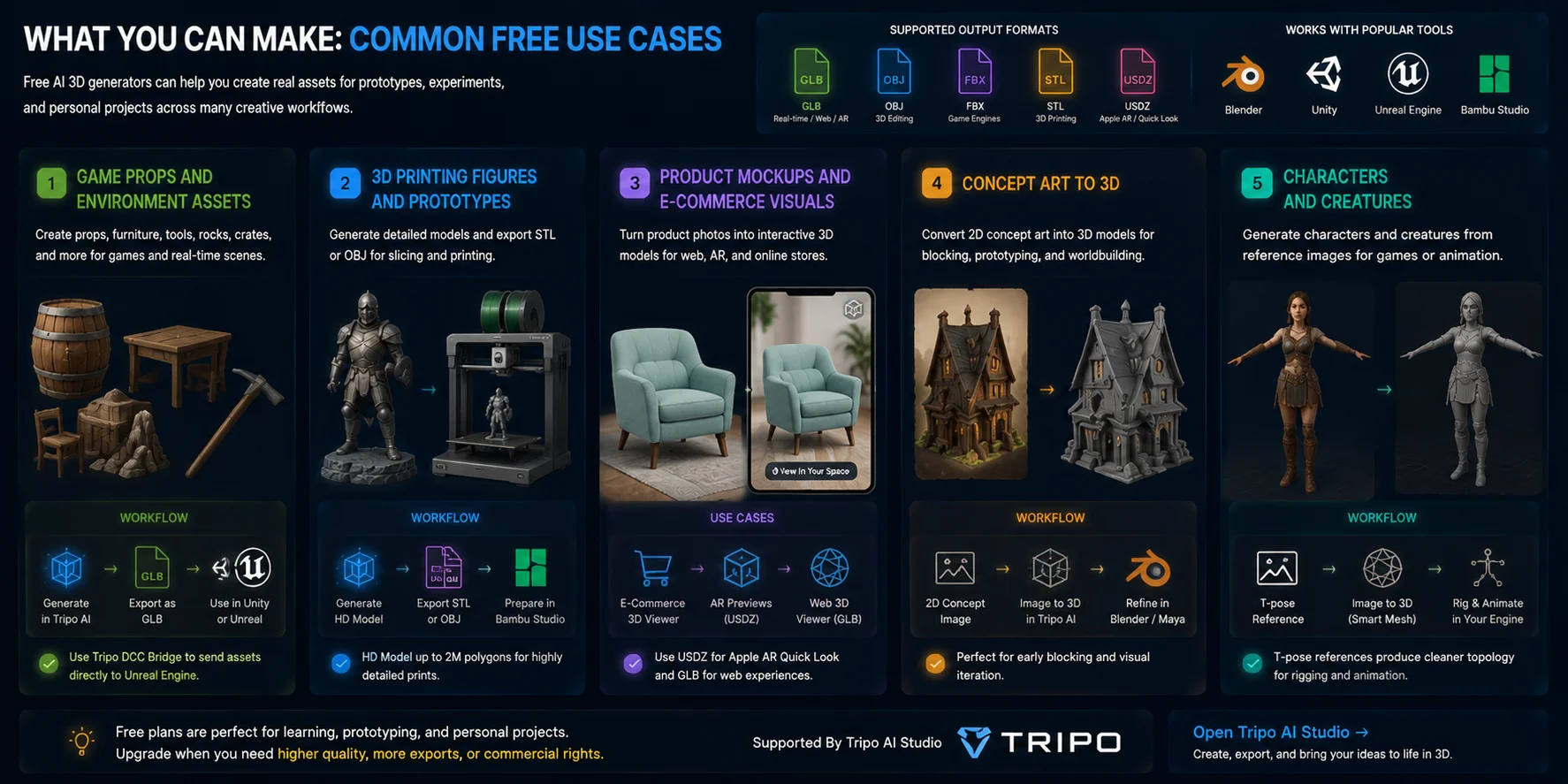
Free AI 3D generators are useful for many creative workflows, from game development and 3D printing to product visualization. While free plans may have limits, they are often enough to create real assets for prototypes, experiments, and personal projects.
Game Props and Environment Assets
AI-generated models work well for common game objects such as barrels, crates, furniture, rocks, and tools. You can export the model as GLB for Unity workflows or use tools like the Tripo DCC Bridge to send assets directly into Unreal Engine without manually downloading and importing files.
3D Printing Figures and Prototypes
For detailed prints, you can generate models using high-quality settings such as HD Model with up to 2 million polygons, then export formats like STL or OBJ for slicing. The model can be prepared in tools such as Bambu Studio, and Tripo AI Studio also supports sending models directly to Bambu Studio for printing workflows.
Product Mockups and E-Commerce Visuals
AI 3D models can turn product images into interactive assets for online shopping experiences. For example, a product photo can become a 3D model used for AR previews, with USDZ for Apple AR experiences and GLB for web-based 3D viewers.
Concept Art to 3D
Artists can use 2D concept images as input to create rough 3D versions of environments, props, or characters. These models are useful as starting points for blocking scenes in software such as Blender or Maya before further refinement.
Characters and Creatures
Image-to-3D workflows can also create characters and creatures from reference images. Using a T-pose character image often produces cleaner results for later rigging and animation, making it easier to prepare the model for game pipelines.
Before you dive in, it helps to know where the free tier ends and where you'll need to upgrade.
Free Tier Limits — What You'll Hit and How to Work Around Them
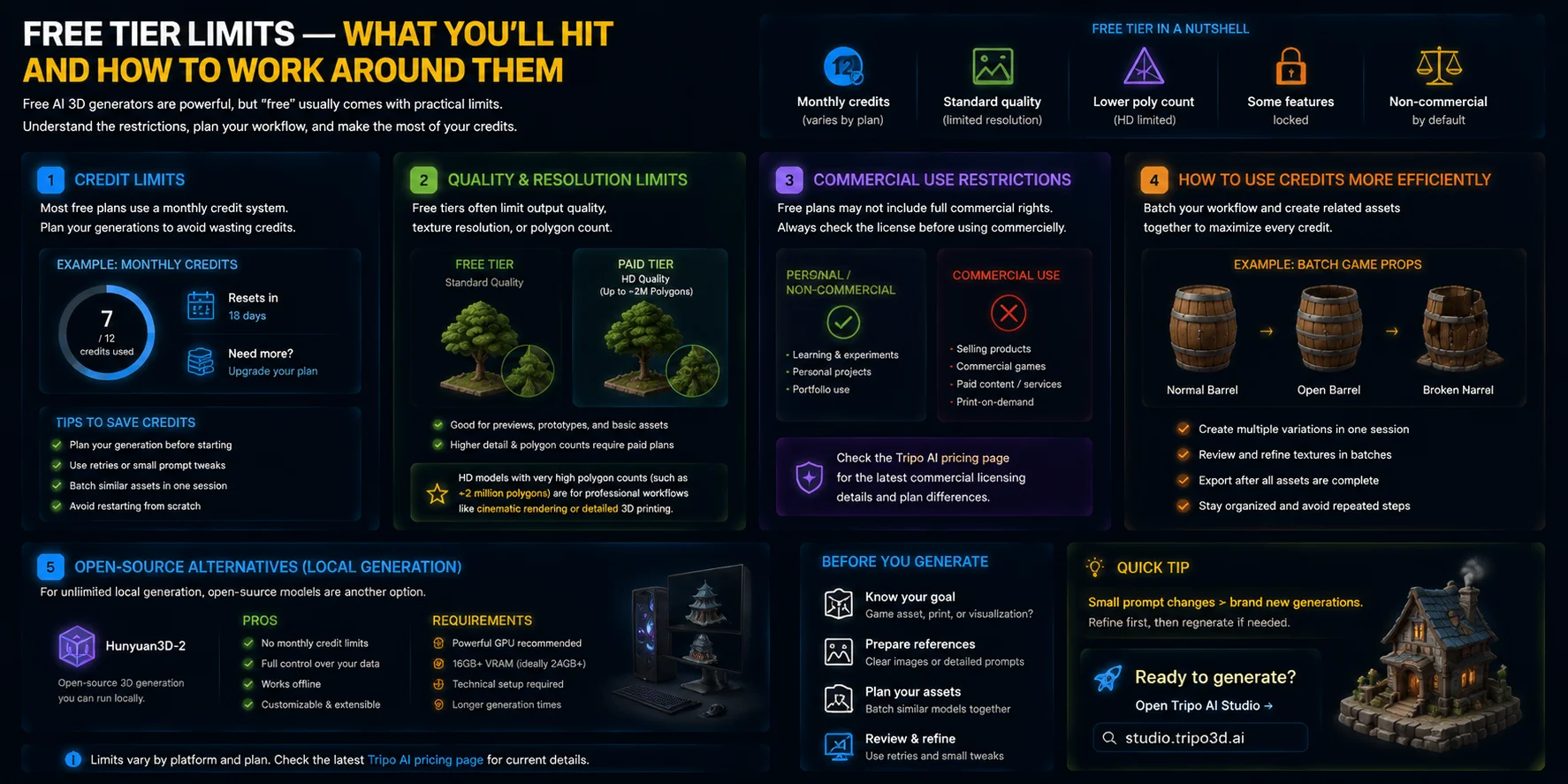
Free AI 3D generators are powerful, but “free” usually comes with practical limits. Understanding these restrictions helps you plan your workflow better and avoid wasting credits or time when creating models.
Credit Limits
Most free plans use a monthly credit system. You can generate a certain number of models for free, but once the credits are used, you either need to wait for the next reset or upgrade your plan.
A good way to save credits is to plan your generation session before starting. If a model is close but needs improvement, use retries or small prompt adjustments instead of creating completely new projects. Small variations are often more efficient than restarting from scratch.
Quality and Resolution Limits
Free tiers often limit output quality, texture resolution, or polygon count. Standard generations may be enough for previews, simple prototypes, or basic assets, but higher-detail options may require a paid plan.
For example, HD models with very high polygon counts (such as models reaching around 2 million polygons) are typically designed for professional workflows like cinematic rendering or detailed 3D printing. Always check the latest feature availability and limits on the Tripo AI pricing page before planning a larger project.
Commercial Use Restrictions
Another important limitation is licensing. A model generated on a free plan may not automatically include full commercial rights. Before selling products, using assets in a commercial game, or creating paid content, check the platform’s usage terms.
For Tripo AI, commercial licensing details and plan differences are available through the pricing information, so creators should confirm the rules for their specific use case.
How to Use Credits More Efficiently
The best way to maximize free credits is to batch your workflow. Instead of generating one object at a time, plan related assets together. For example, create multiple versions of a game prop in one session: a normal barrel, an open barrel, and a broken barrel. You can also generate and review textures in batches instead of repeatedly switching between generation and export steps.
Open-Source Alternatives
If you need unlimited local generation, open-source models such as Hunyuan3D-2 provide another option. Running AI 3D generation locally removes cloud credit limits, but it requires a capable GPU (often around 16GB+ VRAM) and more technical setup.
Once your model is generated, getting it into your workflow is straightforward.
Exporting and Using Your Free AI 3D Models
Generating an AI 3D model is only the first step. To actually use your asset in a game, 3D print, AR experience, or creative workflow, you need to export it in the right format. Different file types are designed for different purposes, so choosing the correct one can save time and prevent compatibility issues.
Choosing the Right Export Format
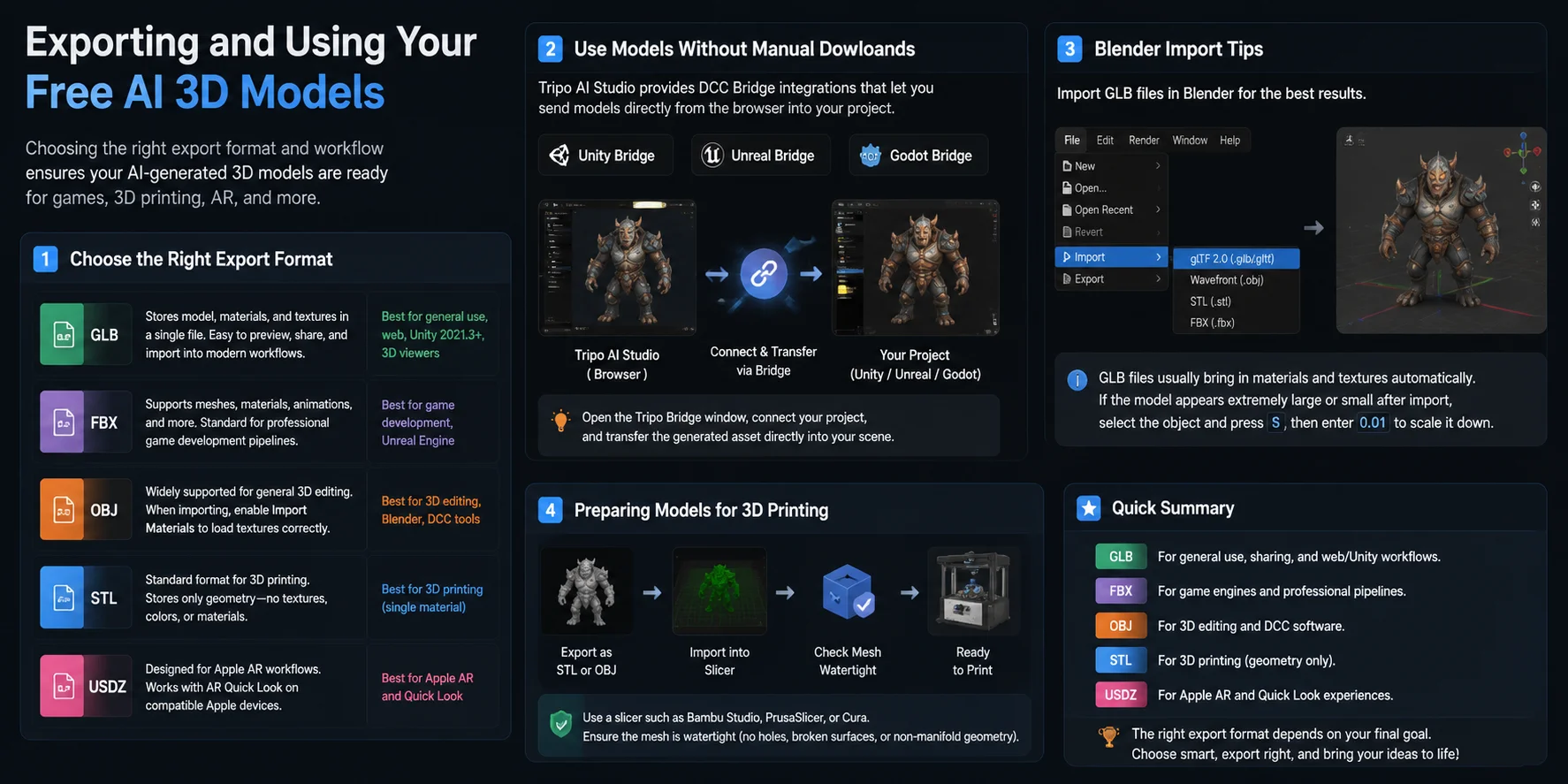
GLB is usually the best all-purpose format for modern 3D workflows. It stores the model, materials, and textures together in a single file, making it easy to preview, share, or import directly into platforms like Unity 2021.3+ and web-based 3D viewers.
FBX is commonly used for game development pipelines, especially with Unreal Engine. It supports meshes, materials, animations, and other game-ready data, making it a standard choice for professional game projects.
OBJ remains one of the most widely supported formats for general 3D editing. It works well with Blender and other DCC tools, but when importing OBJ files, make sure to enable Import Materials so the associated texture information is loaded correctly.
STL is the standard format for 3D printing. However, STL stores only geometry—it does not include textures, colors, or materials. If you need a colored or multi-material print, formats like 3MF may be a better option.
USDZ is designed for Apple AR workflows and works with AR Quick Look, allowing users to view 3D products and objects directly on compatible Apple devices.
Use Models Without Manual Downloads
For faster workflows, Tripo AI Studio provides DCC Bridge integrations that can transfer generated models directly into supported development environments. With bridge plugins for Unity, Unreal Engine, and Godot, you can send your model from the browser into your open project without manually downloading and importing files.
For example, in Unity or Unreal Engine, open the Tripo Bridge window, connect your project, and transfer the generated asset directly into your scene.
Blender Import Tips
If you are using Blender, GLB files can be imported through:
File → Import → glTF 2.0
GLB files usually bring in materials and textures automatically. If the model appears extremely large or small after import, select the object and press S, then enter 0.01 to scale it down.
Preparing Models for 3D Printing
For printing workflows, export your model as STL or OBJ, then import it into a slicer such as Bambu Studio, PrusaSlicer, or Cura. Before printing, check that the mesh is watertight, meaning it has no holes, broken surfaces, or non-manifold geometry.
Tripo AI’s HD Model is designed for high-detail workflows and is often a good starting point for 3D printing, but it is still recommended to verify the mesh before sending it to a printer.
The right export format depends on your final goal: GLB for general use, FBX for game engines, OBJ for editing, STL for printing, and USDZ for Apple AR experiences.
Here are the questions we hear most often about free AI 3D model generation.
Frequently Asked Questions
Can I create my own AI model for free?
Yes, you can create AI 3D models for free using tools that offer free credits or free tiers. For example, Tripo AI Studio lets you generate, texture, and export models in formats such as GLB, OBJ, and FBX. You can review Tripo AI pricing to check the current free-credit limits and available features.
Is there a free AI to generate 3D models?
Yes, several AI tools offer free options for generating 3D models. Tripo AI Studio provides free monthly credits for Image to 3D and Text to 3D generation, allowing users to create models without paying to start. For unlimited local generation, open-source models like Hunyuan3D-2 can also run on your own hardware if you have a capable GPU.
Are there any AI models that are free?
Yes, there are free AI models for 3D generation, ranging from cloud-based free tiers to open-source tools you can run locally. For example, Tripo AI Studio offers free credits for AI 3D generation, while open-source models like Hunyuan3D-2 provide unlimited local generation if you have suitable hardware. This guide focuses on free options specifically for creating 3D models.
How can I get all AI models for free?
No single platform provides unlimited free access to every AI model. A practical approach is to combine the monthly generation credits available through Tripo AI Studio with open-source models such as Hunyuan3D-2 or Stable Diffusion. Check Tripo AI pricing for current free allowances, while using open-source tools locally when your hardware supports them.
Conclusion
Creating AI 3D models for free is genuinely possible and can support real workflows like indie game development, personal projects, and rapid prototyping. Free plans do have limits on credits, quality, and advanced features, but they are usually enough for beginners to explore and create useful assets before needing an upgrade.
Ready to create your first free AI 3D model? Start generating with Tripo AI Studio.
Want to compare features and limits first? Check Tripo AI pricing.