How to Generate 3D Furniture Models with AI

TL;DR
- AI furniture generators turn text prompts or images into textured 3D furniture models quickly.
- Use Text-to-3D for new ideas and Image-to-3D for existing furniture references.
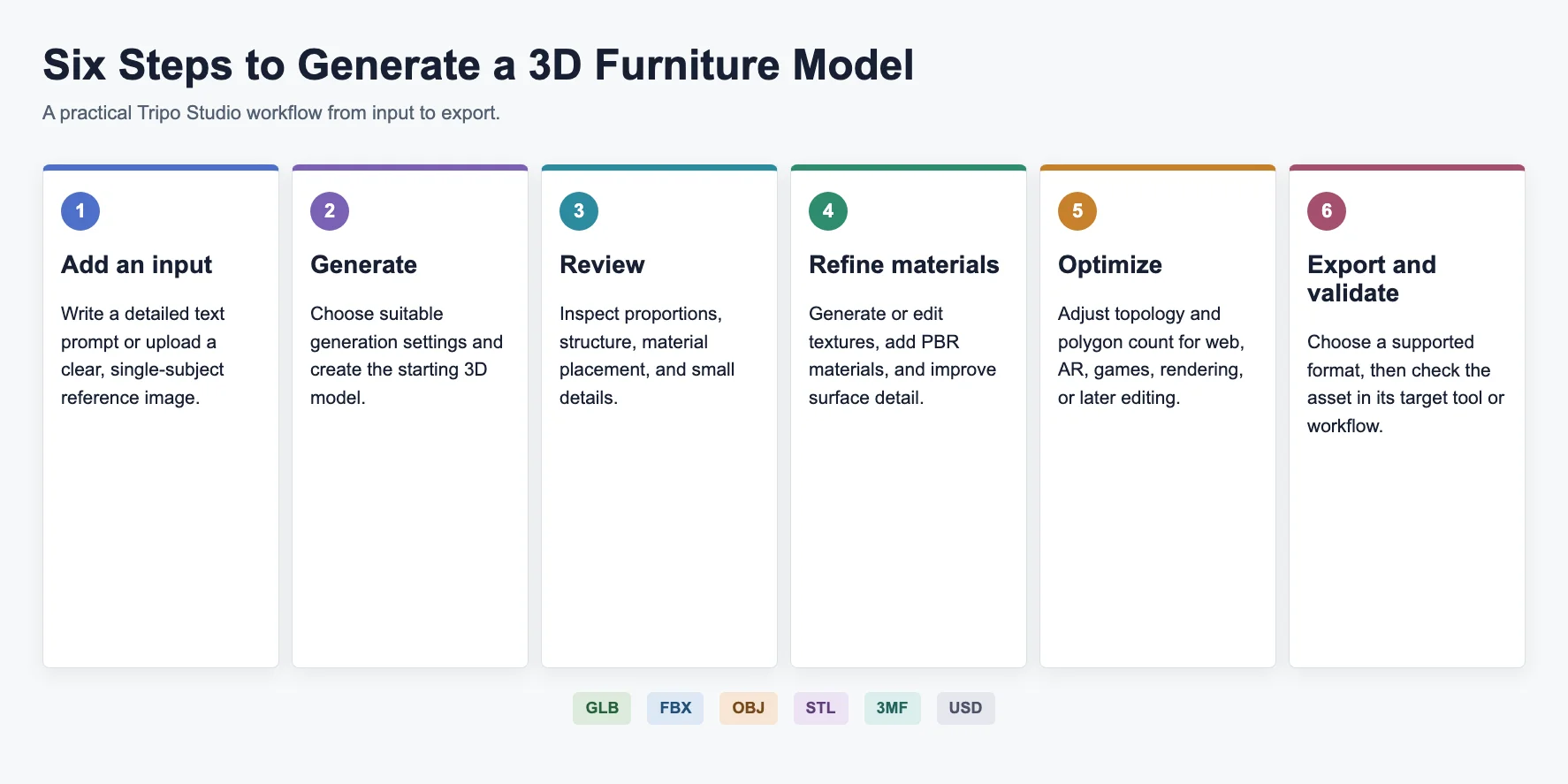
- A typical workflow is: prompt/image → generate → refine textures → optimize mesh → export.
- Add style, material, function, and finish details for better AI furniture results.
- Export GLB for web/AR, FBX/OBJ for 3D software, and STL/3MF for 3D printing.
- AI tools like Tripo Studio help you create usable furniture assets without advanced 3D modeling skills.
An AI furniture generator can turn a text description or reference image into a textured, exportable 3D furniture model without requiring advanced modeling experience. Tripo Studio supports text- and image-based generation, then lets you review, edit, optimize, and export the result for downstream workflows.
Creating a simple chair, table, or cabinet in Blender can take hours when you start from an empty scene. You need to build the mesh, adjust proportions, create materials, unwrap textures, and prepare the model for export. AI changes this workflow by helping you create a strong first version quickly. In this guide, you will learn what an AI furniture generator does, why designers use it, how to create furniture models step by step, and how to prepare AI-generated assets for real projects.
What Is an AI Furniture Generator?
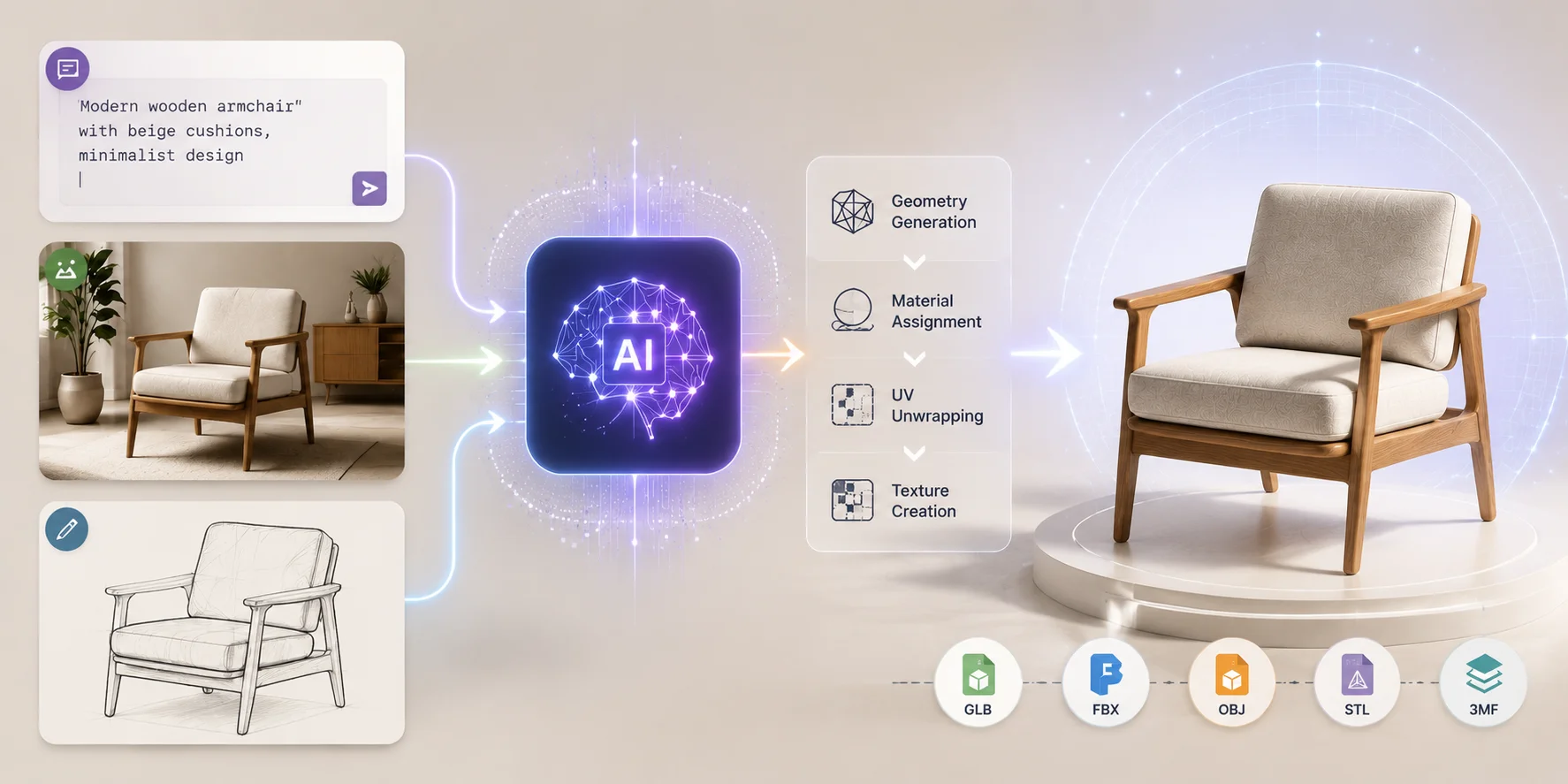
An AI furniture generator is a tool that uses artificial intelligence to create 3D furniture models from text descriptions or images. Instead of manually creating every vertex and surface, you provide an idea, and the AI generates the furniture shape, materials, textures, and basic UV information automatically.
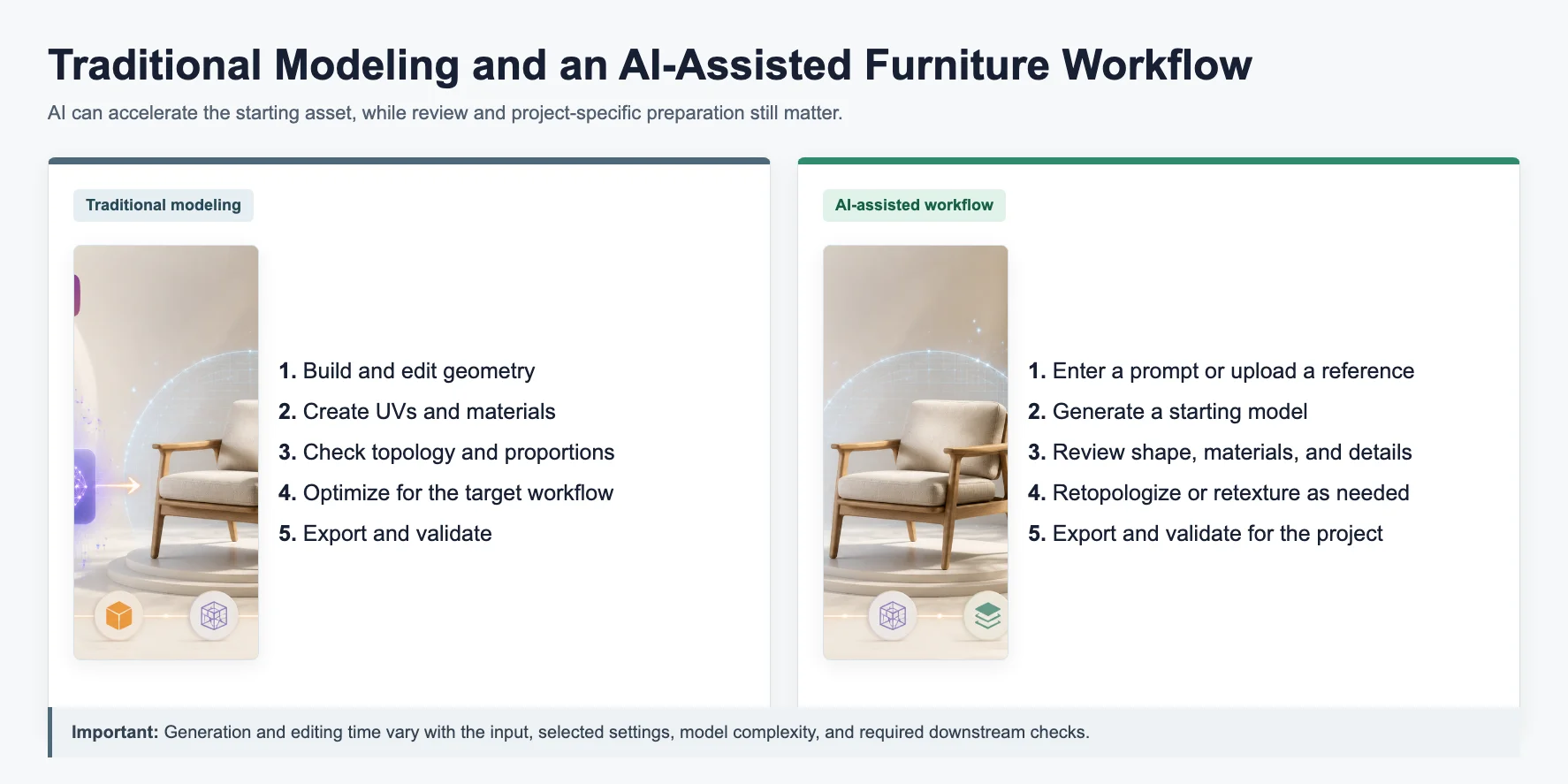
You can think of it as a digital 3D assistant. Traditional modeling software like Blender, 3ds Max, and SketchUp gives you full control, but you still need to build the object yourself. A chair, sofa, or table may require hours of modeling work before it is ready for rendering.
An AI furniture 3D model generator skips the slowest early steps. It creates a starting asset that you can refine, optimize, or export into another workflow.
Most AI furniture tools support two main creation methods:
**Text-to-3D: **You describe the furniture using words. The AI interprets the style, material, shape, and function to generate a 3D model.
Example:
“Modern Scandinavian oak dining chair with curved backrest, beige fabric cushion, and natural wood texture.”
Image-to-3D: You upload a reference image, product photo, sketch, or concept drawing. The AI analyzes the image and creates a matching 3D object.
This workflow is useful when you already have a furniture design but need a 3D version for visualization or production.
Unlike image generators that only create pictures, a real 3D furniture model AI workflow produces editable 3D geometry. Depending on the platform and plan, you can export models in formats such as:
- GLB: Web viewers, AR shopping experiences, and online product previews.
- FBX: Game engines, animation pipelines, and professional 3D software.
- OBJ: General modeling and rendering workflows.
- STL / 3MF: 3D printing and physical prototypes.
- USD: Advanced visualization and spatial computing workflows.
This makes AI furniture generation useful for designers, architects, developers, marketers, and hobbyists.
How AI Furniture Generators Create 3D Models
Why Use AI to Design Furniture in 3D?
AI furniture design generators are changing how people explore furniture ideas. Instead of spending most of your time building basic geometry, you can spend more time improving the design itself.
Create models faster
Speed is the biggest advantage of AI furniture generation.
A traditional workflow may require several hours to create a detailed furniture model. You need to model the shape, add materials, fix topology, and prepare textures.
With an AI furniture generator, you can create an initial concept in seconds or minutes.
For example, a furniture designer can generate:
- five sofa concepts
- ten chair variations
- multiple table styles
before choosing one direction for detailed development.
This makes AI especially useful during the early design stage when you want to test ideas quickly.
Start without advanced 3D skills
Many people have furniture ideas but do not have experience with professional 3D software.
AI removes much of the technical barrier. You do not need to understand polygon modeling, UV mapping, or complex CAD tools to create your first model.
A simple description can produce a useful starting point:
“Compact modern bookshelf made from light oak with hidden storage compartments.”
Beginners can use AI for learning and experimentation, while experienced artists can use it to speed up repetitive tasks.
Improve design iteration
Furniture projects often involve many revisions.
A client may request:
- a different fabric color
- another wood type
- a smaller size
- a different design style
Normally, each change requires manual editing. AI allows you to generate alternatives quickly and compare different options before spending time on final production.
Support many industries
AI-generated furniture models are useful in many areas:
E-commerce
Online furniture stores can create interactive 3D product previews. Customers can rotate products, view details, and understand the design better than with a flat image.
Interior design
Architects and designers can place AI-generated furniture into virtual rooms before construction or renovation begins.
3D printing
Creators can turn furniture concepts into physical prototypes or decorative miniatures.
Game development
Developers can quickly create environmental assets such as chairs, desks, cabinets, and props.
Traditional 3D Modeling vs AI Furniture Workflow
How to Generate a 3D Furniture Model with AI — Step by Step
Six-Step AI Furniture Model Workflow
Step 1: Open Tripo Studio
Start by opening Tripo Studio and selecting your creation method.
Before generating, decide your goal:
- product visualization
- interior design preview
- game asset creation
- 3D printing prototype
Your final purpose affects the amount of detail and optimization you need.
Step 2: Choose Your Input Method
You can create furniture using text prompts or reference images.
Text-to-3D Workflow
Text-to-3D works best when you have a clear idea but no existing visual reference.
A strong prompt should describe:
- furniture type
- design style
- material
- color
- surface finish
Example:
“Luxury curved sofa with dark brown leather upholstery, soft cushions, modern living room style, realistic stitching details.”
The more details you provide, the more control you have over the result.
Image-to-3D Workflow
Image-to-3D is better when you already have a reference.
You can upload:
- product photos
- furniture catalog images
- hand sketches
For example, a furniture company can upload a product image and quickly create a 3D model for online viewing.
The quality of the reference matters. Clear images with a simple background, limited occlusion, and one main subject usually produce more stable results because the system can interpret the furniture shape more clearly.
Step 3: Review the Generated Model
After generation, inspect the model in the 3D viewer.
Check:
- overall proportions
- furniture structure
- material appearance
- small design details
Look carefully at areas such as:
- chair legs
- table edges
- cushions
- handles
- decorative elements
If the result does not match your goal, improve your prompt or upload a better reference image.
Step 4: Improve Textures and Materials
Furniture depends heavily on realistic materials.
AI texturing can add details such as:
- wood grain
- fabric patterns
- leather surfaces
- metal finishes
- painted coatings
For example:
A basic wooden table can become:
“Dark walnut dining table with visible wood grain and satin finish.”
Material descriptions help the AI create more realistic results.
Step 5: Optimize the Model for Your Project
AI-generated models are designed for speed, but different projects need different levels of optimization.
For real-time applications such as games, AR, or websites, you may need lighter geometry.
Features like Smart Mesh and retopology help improve:
- polygon efficiency
- mesh quality
- performance
For example:
- A product render may need high detail.
- A mobile AR model needs optimized geometry.
- A game asset needs efficient topology.
- A 3D print model needs accurate surfaces.
AI creates the first version, while optimization prepares it for production.
Step 6: Export Your AI Furniture Model
Choose the export format based on your workflow.
For Web and AR
Use GLB.
GLB stores models, materials, and textures in one compact file, making it ideal for online furniture viewers and AR shopping experiences.
For 3D Software and Games
Use FBX or OBJ.
These formats work well with:
- Blender
- Cinema 4D
- 3ds Max
- Unity
- Unreal Engine
For 3D Printing
Use STL or 3MF.
Choosing STL or 3MF is only the first step. Before printing, check:
- wall thickness
- mesh errors
- scale
- watertight geometry and the sliced layer preview
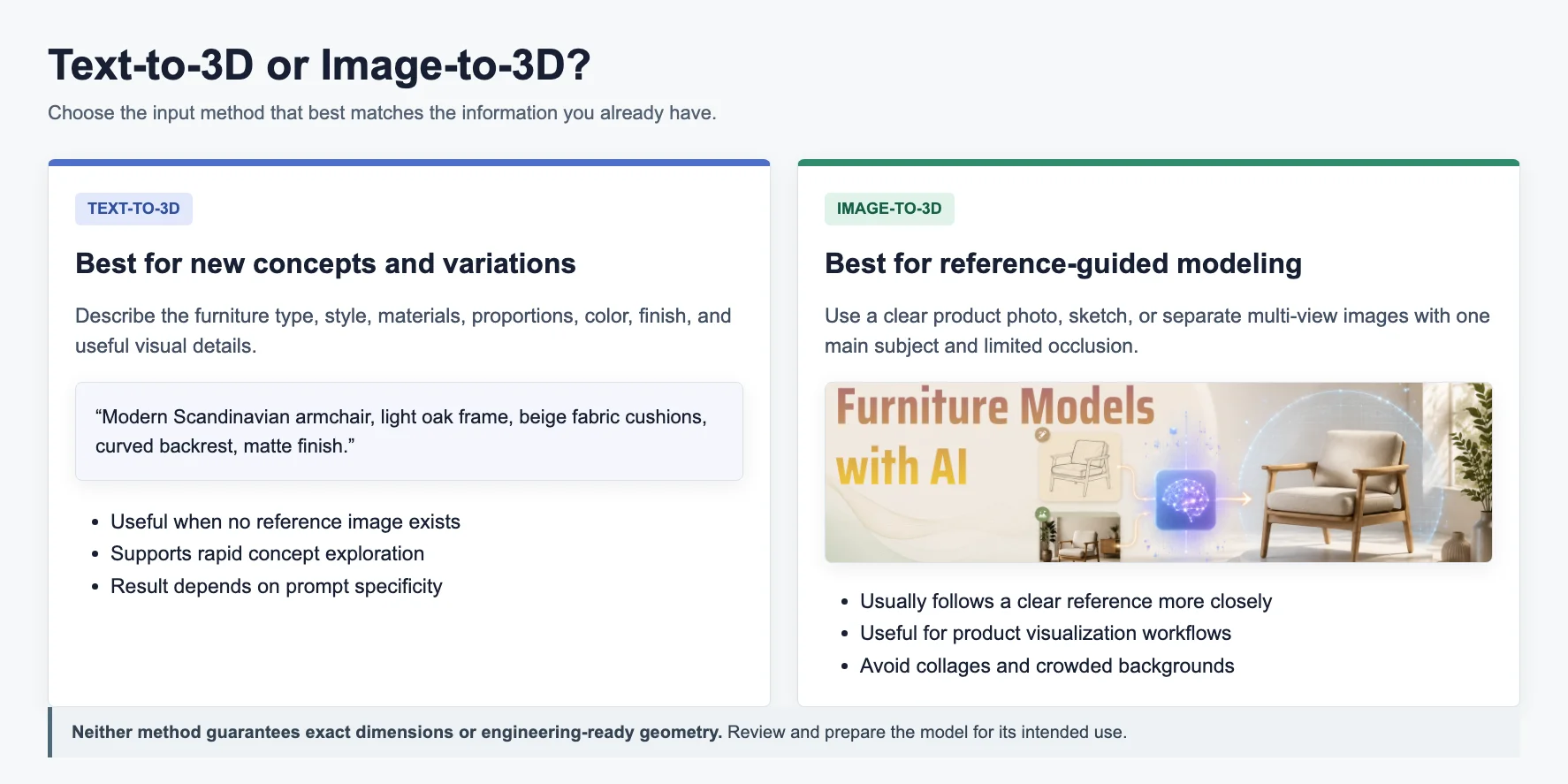
Choosing the Right Input — Text vs. Image
Choosing the correct input method can improve your results.
| Comparison | Text Input | Image Input |
|---|---|---|
| Best for | Creating new furniture concepts | Recreating an existing design direction |
| Input needed | A detailed description | A clear, single-subject reference image |
| Result consistency | Depends on prompt specificity | Usually follows a clear reference more closely |
| Best use case | Concept exploration and variations | Product visualization and reference-guided modeling |
Use Text-to-3D when you want creativity and freedom.
Use Image-to-3D when you need a model based on an existing design.
Many professionals combine both:
- Create a first concept with text.
- Upload a reference image.
- Adjust materials and details.
- Export the final model.
Text Input vs Image Input for AI Furniture Generation
Tips for Writing Better AI Furniture Prompts
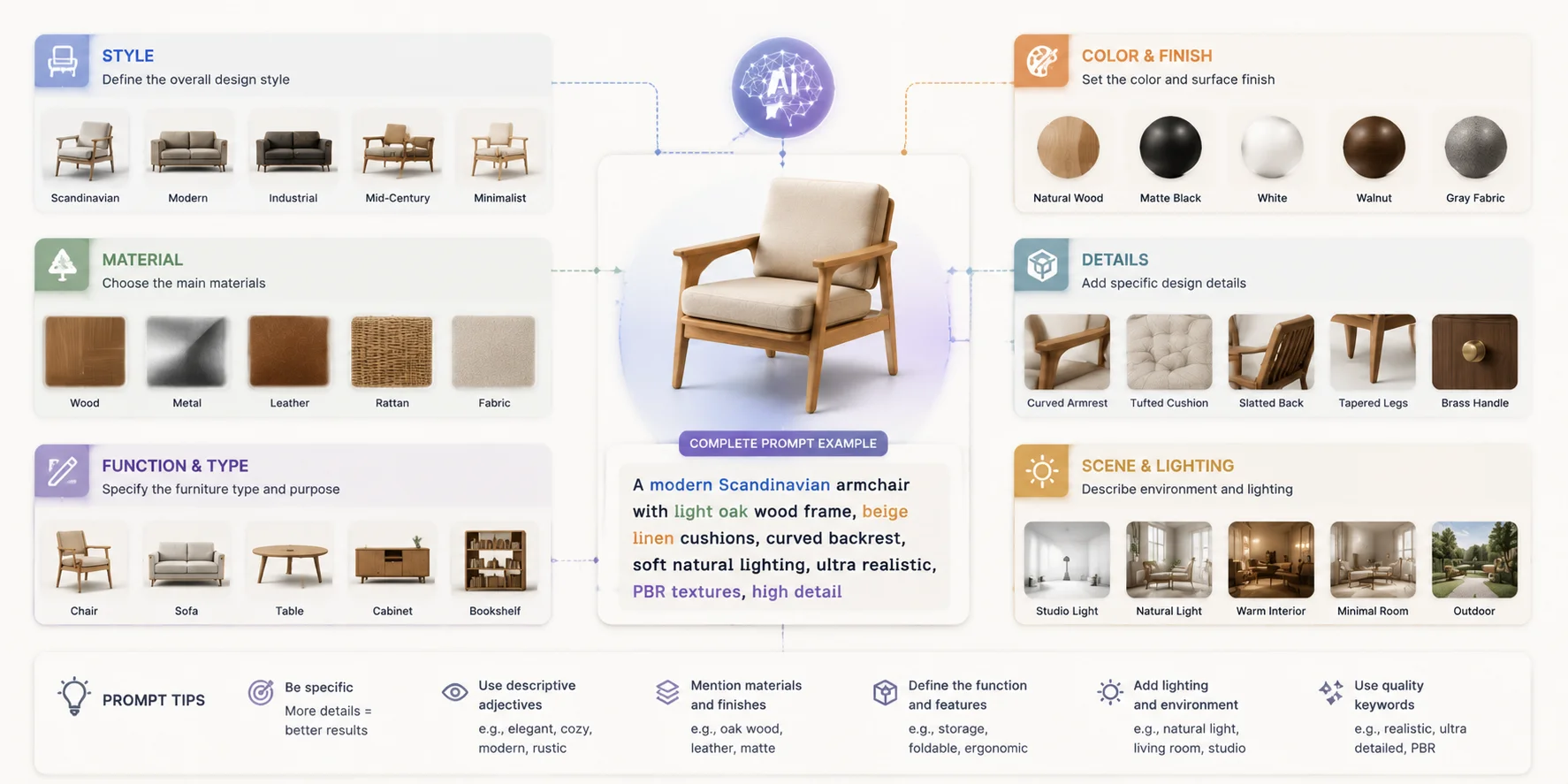
Better prompts create better models.
Avoid vague prompts like:
“Beautiful chair.”
Instead, include four important details.
Style
Examples:
- Scandinavian
- Industrial
- Minimalist
- Art Deco
- Mid-century modern
Material
Examples:
- solid oak
- walnut wood
- velvet fabric
- brushed steel
- black leather
Function
Examples:
- dining chair
- office desk
- storage cabinet
- outdoor lounge chair
Finish
Examples:
- matte finish
- glossy lacquer
- visible grain
- soft fabric texture
Prompt examples:
Dining Chair
“Scandinavian oak dining chair with curved backrest, beige fabric cushion, natural wood texture, minimalist furniture design.”
Coffee Table
“Modern walnut coffee table with black metal legs, rounded edges, matte finish, luxury apartment style.”
Storage Cabinet
“Minimalist storage cabinet with sliding doors, light oak panels, hidden handles, compact apartment furniture.”
For product concepts, you can add visual construction cues such as solid wood panels, a welded metal frame, or molded plastic. These words guide the model's appearance; they do not create engineering-ready CAD geometry or validate dimensions, joints, tolerances, materials, or structural performance.
How to Write Better AI Furniture Prompts
Free vs. Paid AI Furniture Generators
Tripo offers a free plan for testing the workflow, while paid plans provide larger credit allowances, broader generation access, longer model history, and expanded download options. Plan limits and export eligibility can change, so check the current pricing page before choosing a production workflow.
Free plans may restrict:
- generation credits
- download eligibility
- model history and storage
- access to some generation features
Free versions are usually enough for:
- personal projects
- mood boards
- early concepts
Paid plans are more suitable when you need higher generation volumes, broader download access, longer model history, or team collaboration features.
When comparing the best AI furniture 3D model generator, look beyond price. Check:
- download eligibility
- mesh quality
- texture support
- commercial rights
- image and text input options
Tripo offers text-to-3D and image-to-3D generation, with current plan details available on the Tripo pricing page.
Frequently Asked Questions
What is the best AI furniture 3D model generator?
The best tool depends on your needs. A good choice should support both text and image inputs, provide realistic textures, and export common formats like GLB, FBX, and OBJ.
Is there a free AI furniture 3D model generator?
Yes. Tripo offers a free plan for testing the generation workflow. Check the current pricing page for monthly credits, download eligibility, model history, storage, and feature access.
How do I make a 3D furniture model with AI?
Use an AI generator, enter a detailed prompt or upload an image, review the generated model, improve materials if needed, and export it in your required format.
Can AI turn furniture photos into 3D models?
Yes. Image-to-3D technology can convert furniture photos and sketches into 3D assets. Clear images usually produce better results.
Can I use AI furniture models commercially?
Tripo permits commercial use of outputs subject to its current Terms of Service and applicable law. You must have the necessary rights to any uploaded images or other source material, and you should review the current terms before delivering models to clients or including them in products.
Do I need 3D modeling skills?
No. AI furniture generators are designed for beginners. You can start with simple text prompts and learn advanced editing later.
Conclusion
AI furniture generators make 3D design faster and more accessible. Instead of spending hours building every model manually, you can turn ideas, sketches, and images into usable 3D assets in minutes.
Whether you create product visuals, interior designs, game environments, or prototypes, AI helps you explore more possibilities with less technical work.
Start creating your first furniture model with Tripo Studio, or review current options on the Tripo pricing page.