AI Environment Creator: Build 3D Game Worlds Fast
TL;DR
- AI environment creators build 3D scenes from prompts or images.
- Exportable meshes matter more than pretty previews.
- Build scenes from reusable objects, not one giant prompt.
- Use FBX or GLB for Unity and Unreal.
- Tripo AI fits a kitbash workflow for game assets.
An AI environment creator is a tool that generates a complete 3D scene — terrain, props, lighting, and atmosphere — from a text prompt or a reference image. Some tools produce interactive video worlds you can walk through; others produce editable 3D meshes you can import into Unity, Unreal Engine, or Blender.
The Market.us generative AI in gaming report valued the market at USD 1,137 million in 2023 and projected USD 7,105 million by 2032. This guide focuses on what you can export and use: output types, a kitbash workflow, file formats, and common pipeline mistakes.
What Does an AI Environment Creator Actually Do?
An AI environment creator lets you describe a place in words, upload a reference image, or provide several reference images. The tool then builds the 3D space or the pieces of that space instead of asking you to model every rock, tree, wall, and prop by hand.
A prompt might look like this: “a foggy pine forest at dusk, mossy rocks, old wooden lanterns, muddy ground, cinematic blue lighting.” A single image gives the tool a visual style target. Multiple reference images give tighter control when a prop needs a clear front, side, and back.
In this article, “environment” means a 3D game world or scene. It can include ground, terrain, background geometry, scattered props, sky, lighting mood, and atmosphere. It does not mean AI’s climate impact or ecological footprint.
The hard line is this: generating a world you can look at and generating assets you can ship are different jobs. If you need something a game engine can load, you need geometry and texture files, not only a video stream or a browser preview.
Three Kinds of AI-Generated 3D Environments (And Which One You Can Ship)
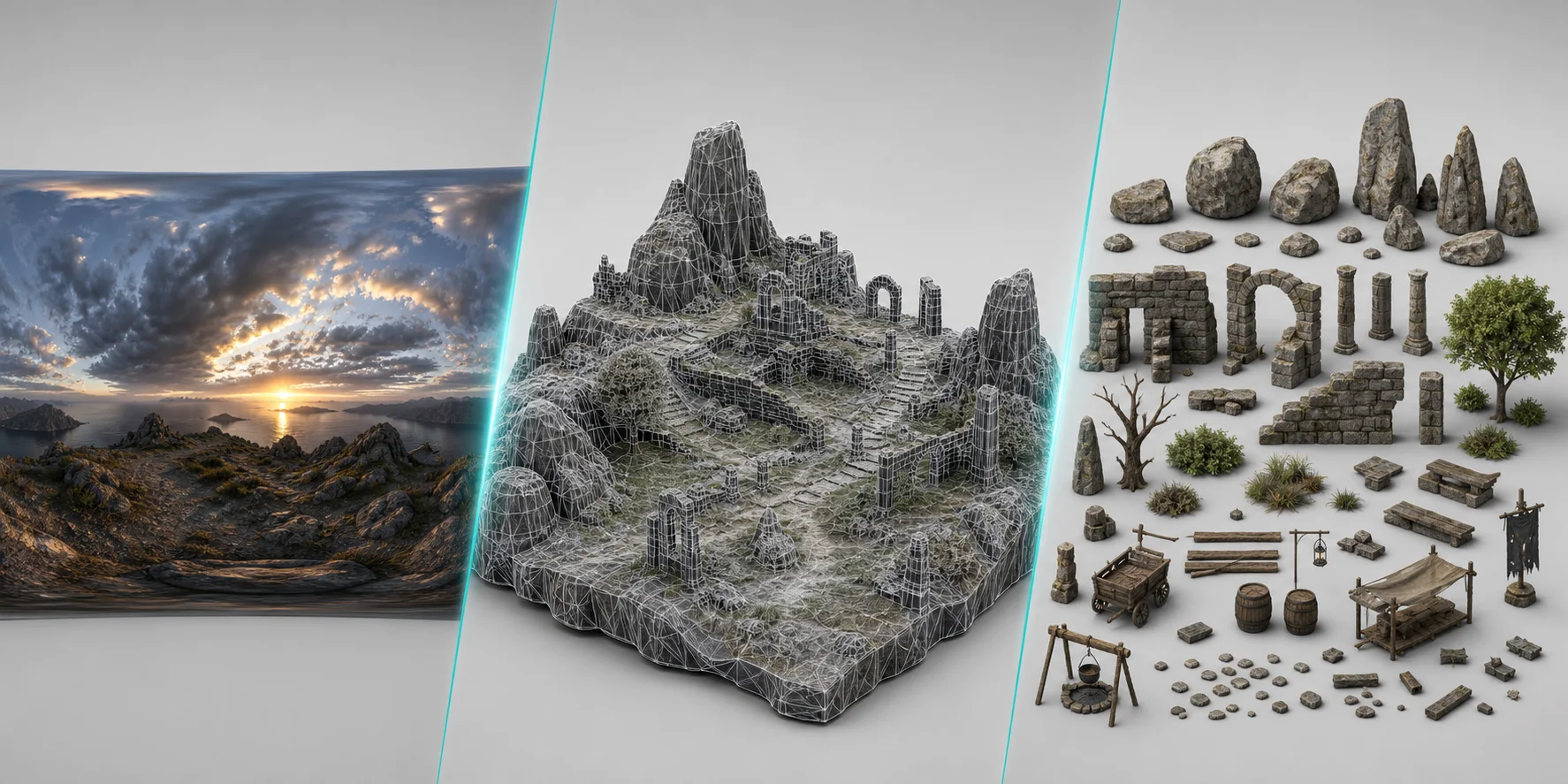
| What You Get | How It Behaves | Can You Export It? |
|---|---|---|
| Interactive world models | Real-time worlds generated from a text description. You move through them like a game, but they may not expose clean mesh files. Google DeepMind’s Genie 3 runs at 20–24 FPS, renders at 720p, and supports a few minutes of continuous interaction. | Usually no editable polygon mesh export |
| Scene reconstruction or splat-based worlds | Spatially consistent worlds generated from an image or capture. They can be navigable in a browser, but are often stored as point-like or view-based data instead of clean polygons. | Useful for preview, but hard to retopologize or hand to a level designer |
| Exportable 3D assets and props | Real geometry with textures, downloadable as GLB, FBX, OBJ, USD, STL, or 3MF. These assets can go into Unity, Unreal, Blender, or a 3D workflow. | Yes, this is the category you can ship |
If your environment has to end up inside a real game build, the third category is the practical path today. Interactive world models are impressive for research, pitching, previsualization, and prototyping. But a level designer needs editable parts: a rock that can move, a tree that can duplicate, a lantern with its own pivot, and a wall that snaps to a grid.
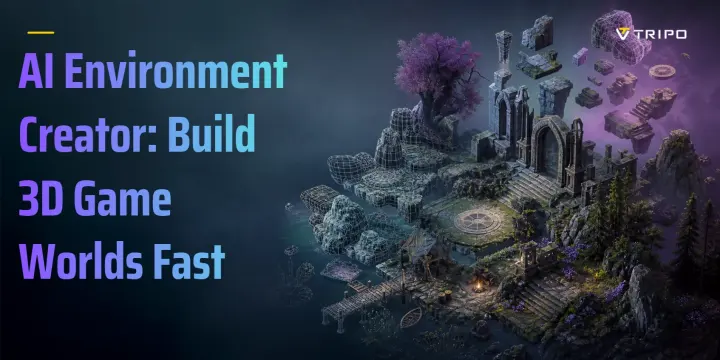
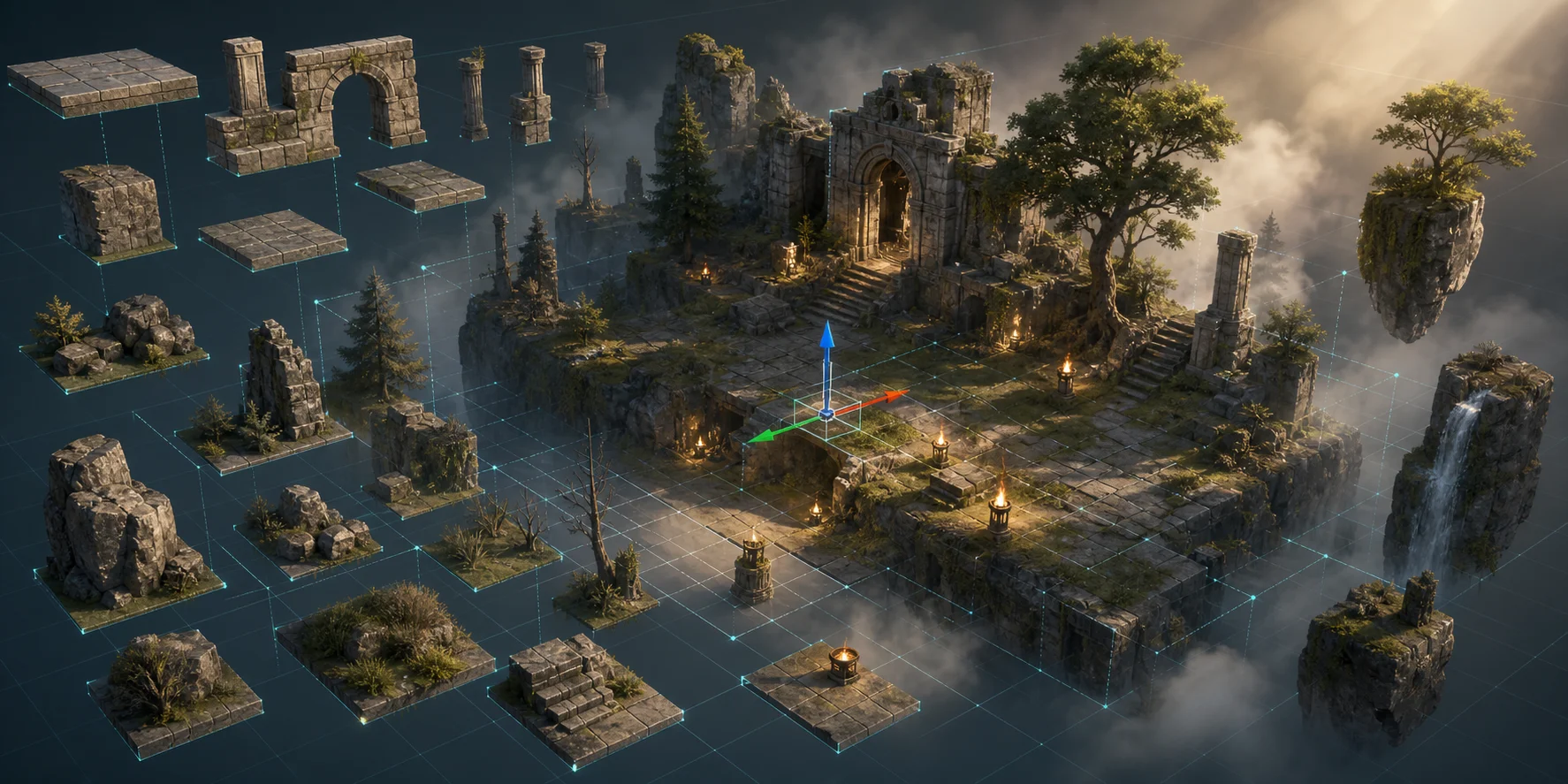
That is why many AI game environment workflows are really kitbash workflows. You generate pieces, then assemble the scene yourself.
How to Build a 3D Game Environment With AI, Step by Step
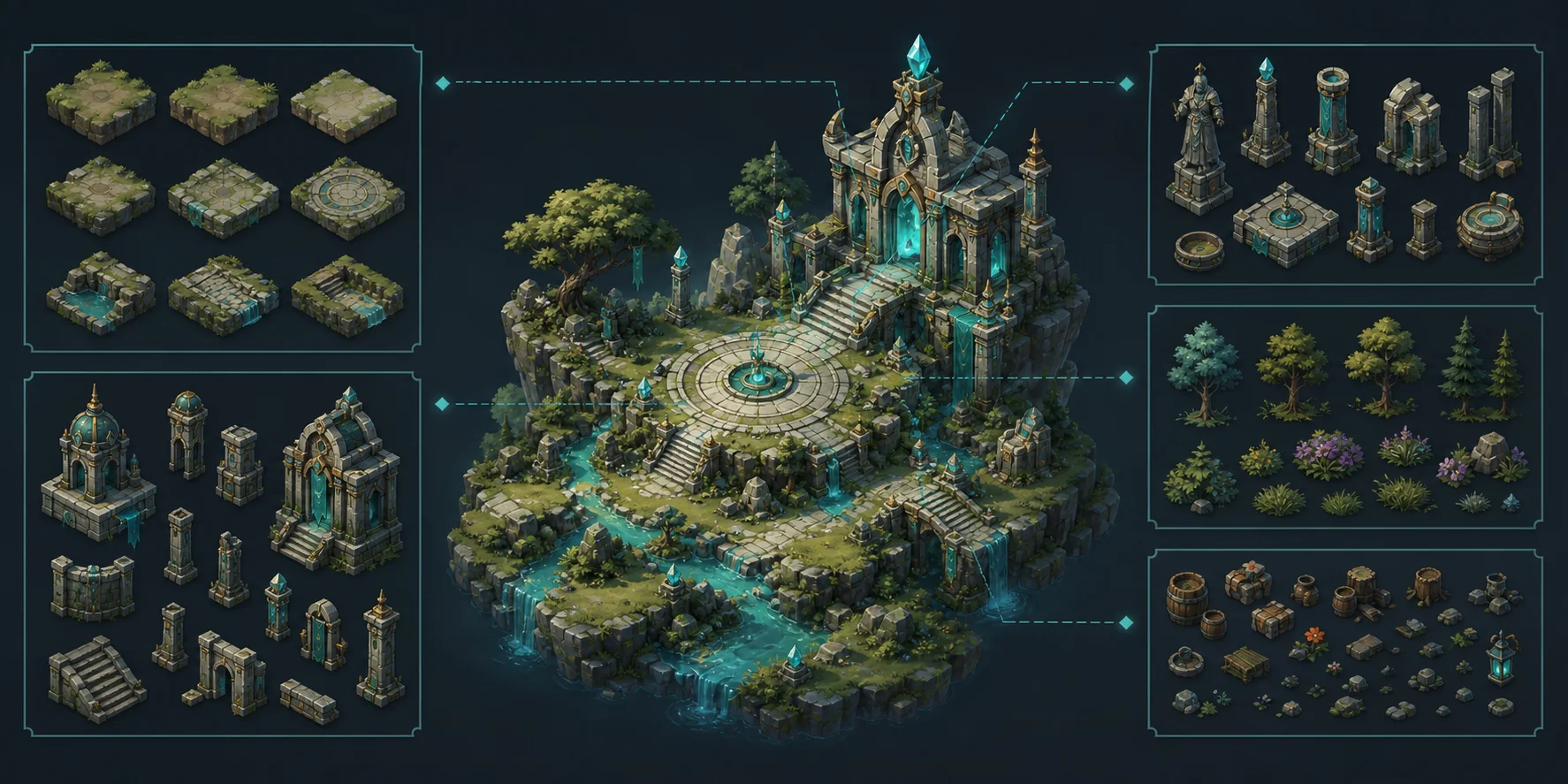
Step 1: Break the scene into objects, not one giant prompt
Do not start with “generate a whole fantasy forest level.” Start with a list: ground plane, three rock variants, two tree types, a broken wall, a lantern, a crate, a path marker, and a background ruin.
One prompt per object gives you control. If the tree fails, you regenerate the tree. You do not lose the entire scene.
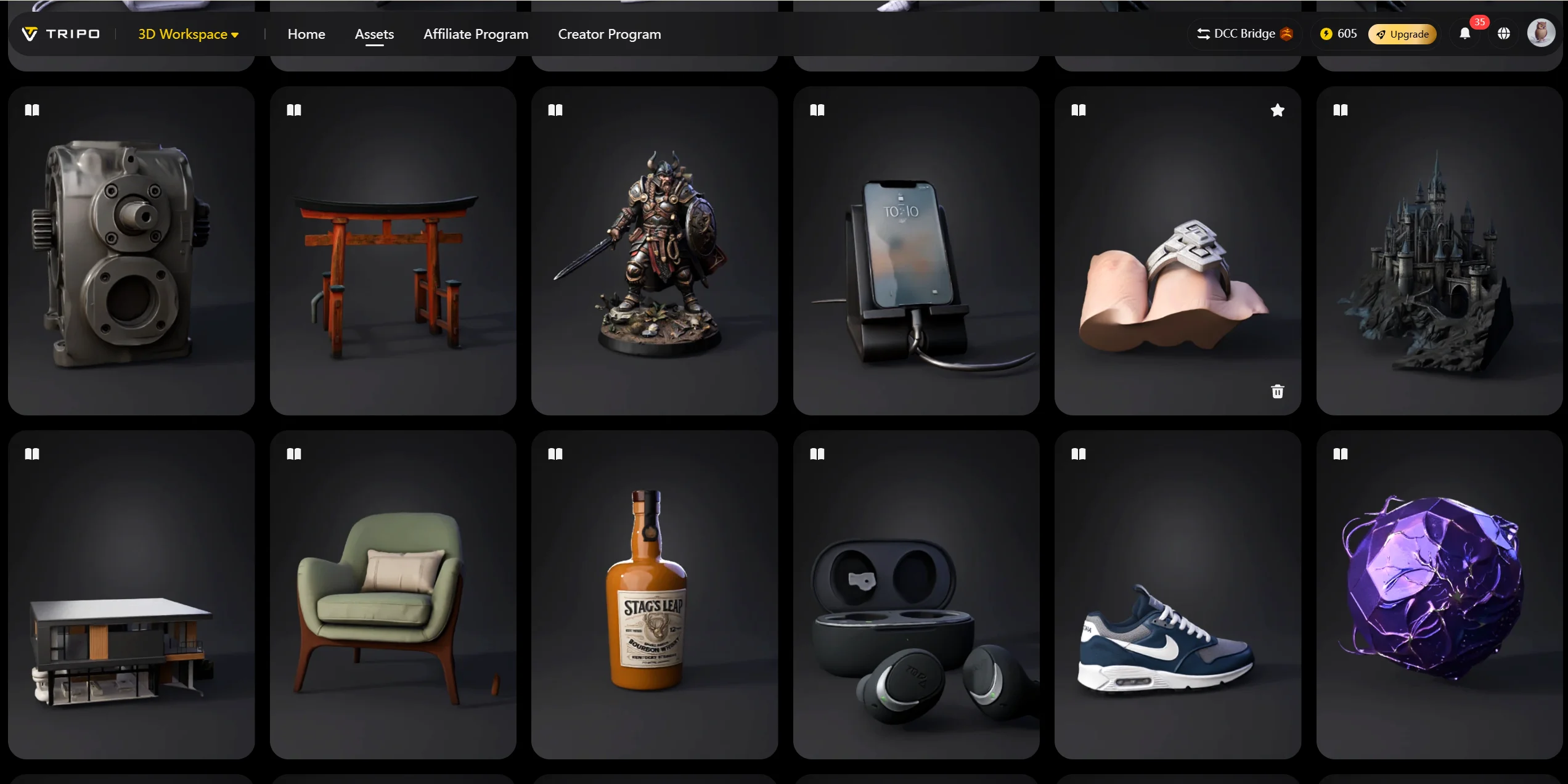
Step 2: Generate each piece from text or a reference image
In Tripo AI Studio, choose Text-to-3D when words define the object. Choose Image-to-3D when you have concept art, a sketch, or a photo. A sketch-to-3D pass lets you compare the result against a visible shape reference.
Use Multi-view-to-3D when the silhouette matters from several sides. Tripo’s multi-view guide recommends uploading 2–4 clean images for this kind of workflow. This helps for lanterns, vehicles, statues, machines, or props the camera may circle.
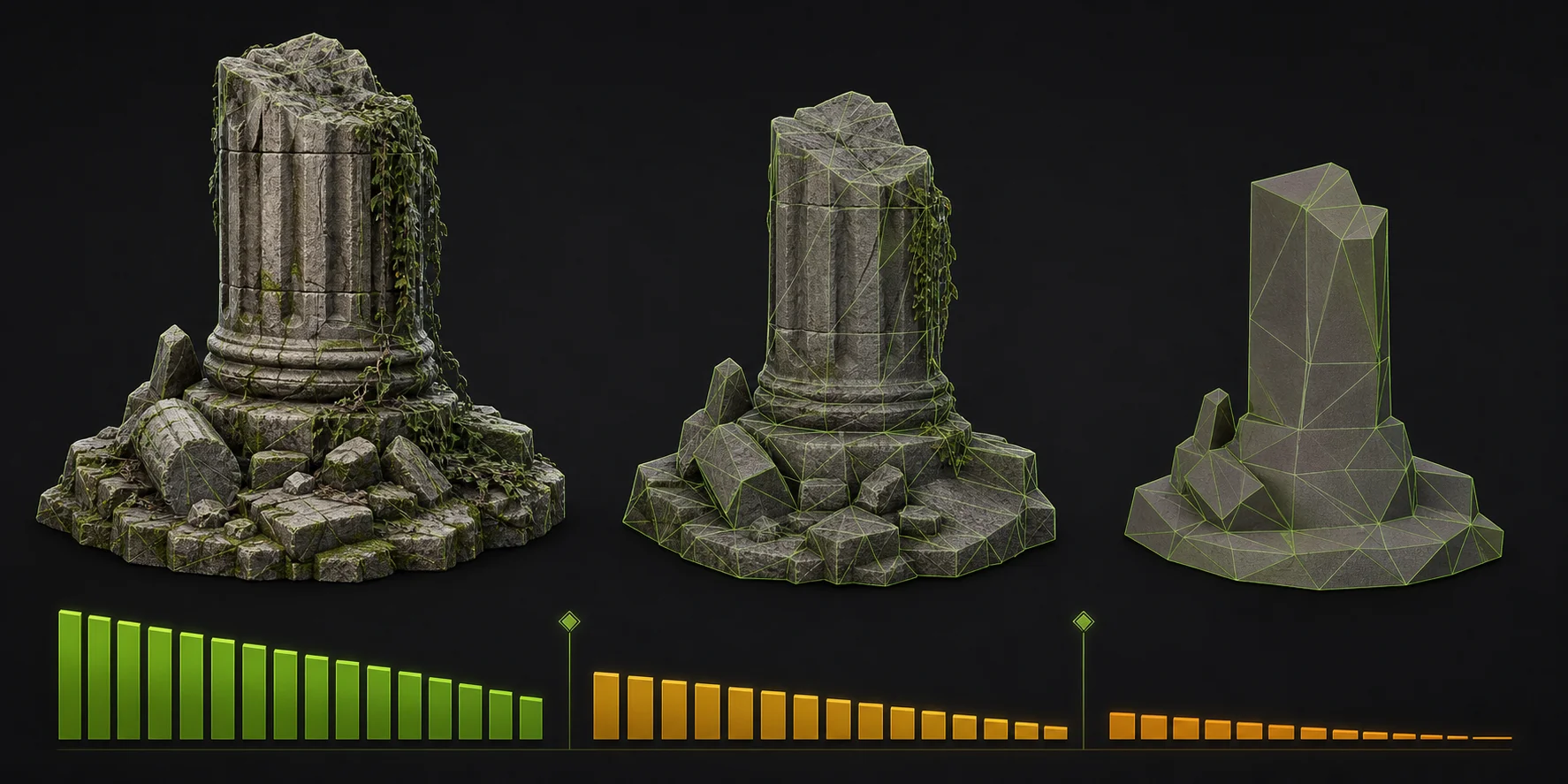
Step 3: Set the polygon budget before you generate, not after
For background scatter, target the low end. A small stone beside a path should not carry hero-level detail. For a shrine, statue, or object the player can inspect, allow more geometry.
For environment props, a good default recipe is: generate the image or model, use Smart Mesh, stay around the 5K–20K face range, retry if the shape fails, generate texture, then export to your DCC or engine. Tripo’s game-asset guidance points to Smart Mesh topology and DCC Bridge integrations for game workflows. Background scatter rarely needs a dense mesh, so running props through smart retopology keeps the scene light.
Step 4: Texture and stylize for a consistent look
Generate textures per object, but keep one style reference across the set. If the forest floor looks painterly and the rocks look photoreal, the player reads that as a bug.
Reuse palette, roughness level, and material style. A small environment feels better when ten simple assets belong together than when one perfect asset clashes with everything else.
Step 5: Assemble in the engine
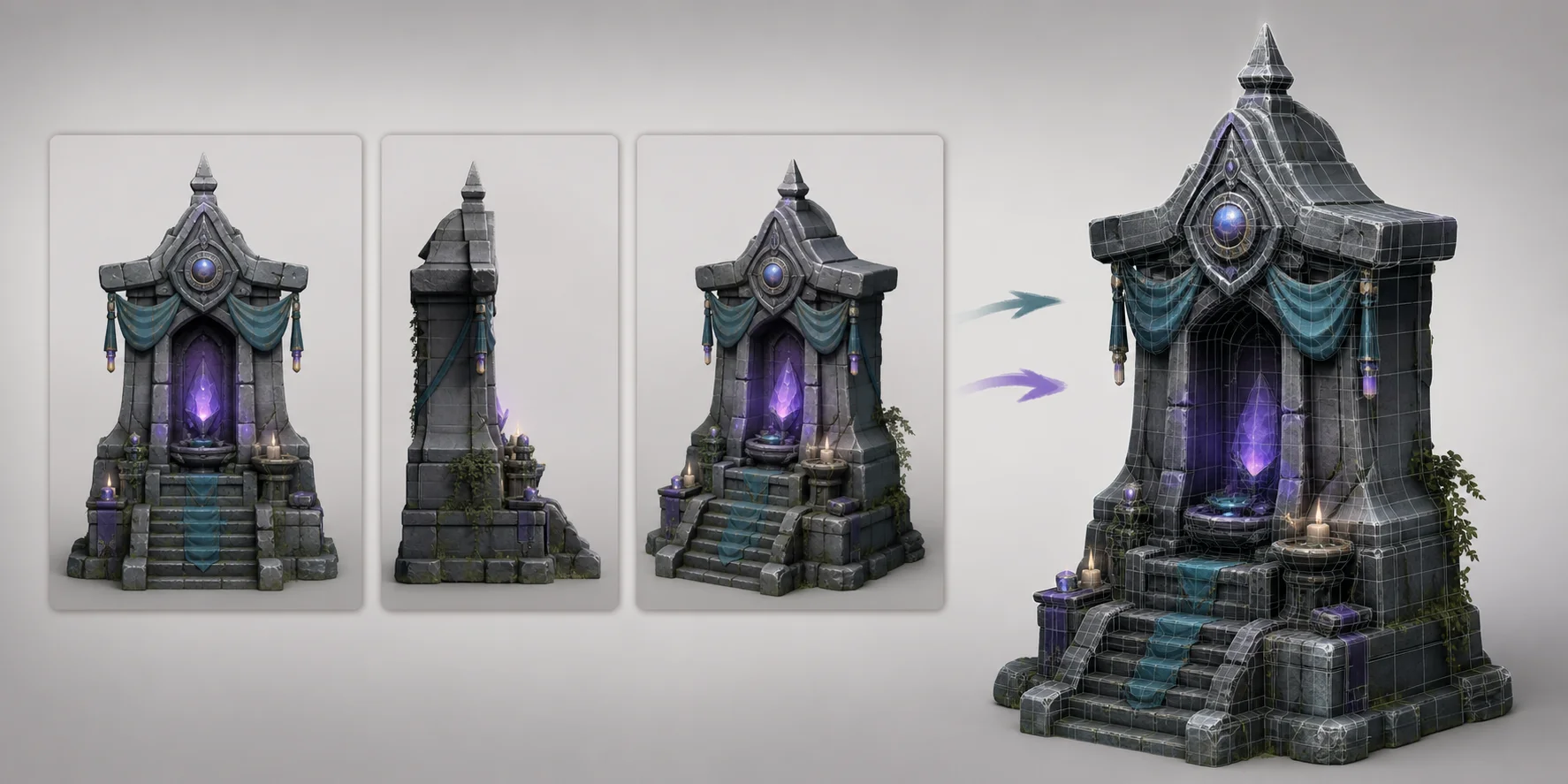
Import your props, duplicate variants, rotate and scale them, scatter them along the terrain, and light the scene. This is where ten generated objects become a 3D environment.
Check scale, pivot, and material on one prop before you scatter 200 copies. Then save that import setup and reuse it. Try it in Tripo AI Studio →
Your props exist. Now they have to survive the trip into your engine.
Which Export Format Should You Use for Game Environments?
| Format | Best For | Watch Out For |
|---|---|---|
| GLB | Web, AR/VR, and game engines | Textures are embedded, so fewer files go missing |
| FBX | Games and 3D animation software | Strong Unity and Unreal pipeline support |
| OBJ | General 3D editing and basic 3D printing | Simple format, but weaker for animation |
| USD | VFX, animation, and collaborative workflows | Better for larger scene pipelines |
| STL | 3D printing only | Geometry only, so no textures come along |
| 3MF | Modern 3D printing | Supports colors and textures |
For Unity and Unreal, use FBX or GLB. FBX is the safe default for many game pipelines. GLB is especially useful when the environment ships to the web, AR, or VR because mesh and material data can travel together. Tripo’s export guide lists USD, FBX, OBJ, STL, GLB, and 3MF as supported core formats.
Export requires an eligible subscription even when credits remain. Basic supports version 2.5 exports only. Versions 3.0 and 3.1 require an active paid subscription. Check the current pricing page before planning production delivery.
Scale and up-axis almost always need one correction pass on import. Check one rock, wall, or tree before scattering hundreds. If a teammate gives you an OBJ and your engine wants FBX, a quick 3D file conversion saves a round trip through Blender.
Five Mistakes That Ruin AI-Generated Environments
The single most expensive mistake is the fused-blob prompt. It turns a scene into one object and forces a restart.
- One prompt for the whole scene. You get a single fused blob where the tree and rock share one mesh, so nothing can move or be reused. Fix it by generating per object, then assembling the scene.
- Ignoring the polygon budget until import. The scene runs fine with one prop and stalls at eighty. Set the face target at generation time, and reserve dense meshes for hero objects.
- Mixing art styles across the prop set. Photoreal bark next to flat cartoon stone reads as a bug, not a style. Lock one style reference and regenerate outliers.
- Assuming a video-style world model gives you a file. The walkthrough looks perfect, but there is nothing to import. Confirm that the tool outputs geometry before you build your pipeline around it.
- Skipping the scale and pivot check. Props float, sink, or rotate around the wrong point once duplicated. Verify one prop’s scale and origin before scattering copies.
When AI Environment Generation Is Not the Right Call
Precise architectural or CAD-accurate spaces still belong to hand modeling or CAD tools. Generated geometry optimizes for looking right, not measuring right. If a room needs exact wall lengths, door clearances, or fabrication-ready dimensions, do not rely on a prompt.
Gameplay-critical space also needs a designer’s hand. Platform spacing, cover height, collision, sightlines, and enemy approach routes affect how the level plays. Generate the dressing, but block out the playable space yourself.
Long, continuous interactive worlds are still research-stage. DeepMind says Genie 3 supports a few minutes of continuous interaction rather than extended hours, and the model has limits around precise text rendering and exact real-world geography. AI generation removes the asset-production bottleneck, not the design decisions.
Frequently Asked Questions
Q: What is an AI environment creator? It is a tool that builds a 3D scene from a text description or reference image. Depending on the tool, the output may be an explorable world or a set of 3D files you can import into a game engine.
Q: What does an AI 3D environment generator actually produce? Some tools produce interactive video-style worlds, some produce reconstruction data, and some produce standard 3D geometry with textures. Only the last kind gives you files such as GLB or FBX that a game engine can load directly.
Q: Can I use an AI environment creator in Unity or Unreal Engine? Yes, if the tool exports real geometry. Generate props and terrain pieces, export them as FBX or GLB, then assemble the scene inside the engine.
Q: Is there free AI environment creator software? Many platforms offer a free tier with limits. Tripo AI’s pricing page lists 200 monthly credits on the free plan, but model export may still require an eligible plan depending on version and workflow.
Q: How is AI environment generation different from procedural generation? Procedural generation follows rules, noise, and parameters you configure. AI generation starts from text or images and offers less exact parametric control over repeated results.
Q: Can AI replace 3D environment artists? Not for design decisions. AI can remove a lot of asset-production work, but layout, pacing, collision, readability, and taste still need a human artist or designer.
Q: What file format is best for AI-generated game environments? FBX is a safe default for Unity and Unreal pipelines. GLB is better for web, AR, and VR because textures can travel inside the file. Avoid STL for textured game assets.
Q: How long does it take to generate a 3D environment with AI? Individual props can generate in seconds to a couple of minutes. The real work is assembly, cleanup, scale checks, and lighting, so plan an afternoon for a small usable scene.
Q: Can I use AI-generated 3D environments commercially? Tripo permits commercial use when the source material is free of copyright disputes, and you retain copyright in generated models. Free-plan models may appear on the Tripo homepage, so review privacy and plan terms before client work.
Q: Do AI-generated environments need cleanup before use? Usually yes. Plan one pass for polygon reduction, one scale and pivot check, and one style consistency review before scattering assets through a level.
Conclusion
An AI environment creator does not hand you a finished level. It gives you pieces that still need layout, cleanup, scale checks, lighting, and design judgment. Decide whether you need a preview or exportable files, generate one object at a time, and keep the delivery format consistent.
Start generating environment props in Tripo AI Studio. Compare plans and credit allowances on Tripo AI pricing.