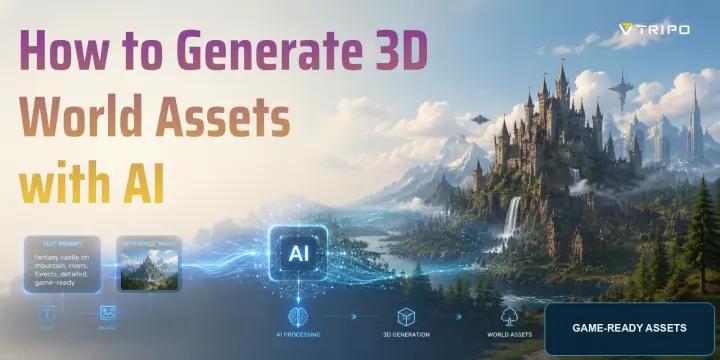
How to Generate 3D World Assets with AI
TL;DR
- Use text-to-3D or image-to-3D to generate individual environment assets, not an entire playable world in one step.
- Review shape, topology, UVs, textures, scale, and polygon count before treating a generated model as production-ready.
- Use Smart Mesh when you need optimized topology for real-time workflows, then validate the asset in the target engine.
- Assemble multiple AI-generated assets with level-design or procedural tools to build a complete 3D environment.
Introduction
An AI world generator can help you create individual 3D assets from a text prompt or reference image. In Tripo, text-to-3D and image-to-3D turn those inputs into editable models that you can inspect, texture, optimize, and export. These assets can include terrain pieces, props, buildings, vegetation, and characters.
Instead of treating AI as a one-click full-world builder, use it as an asset-production step. This guide explains how to generate reusable world assets, prepare them for real-time use, and assemble them with level-design or procedural tools in a game engine.
What Is an AI World Generator?
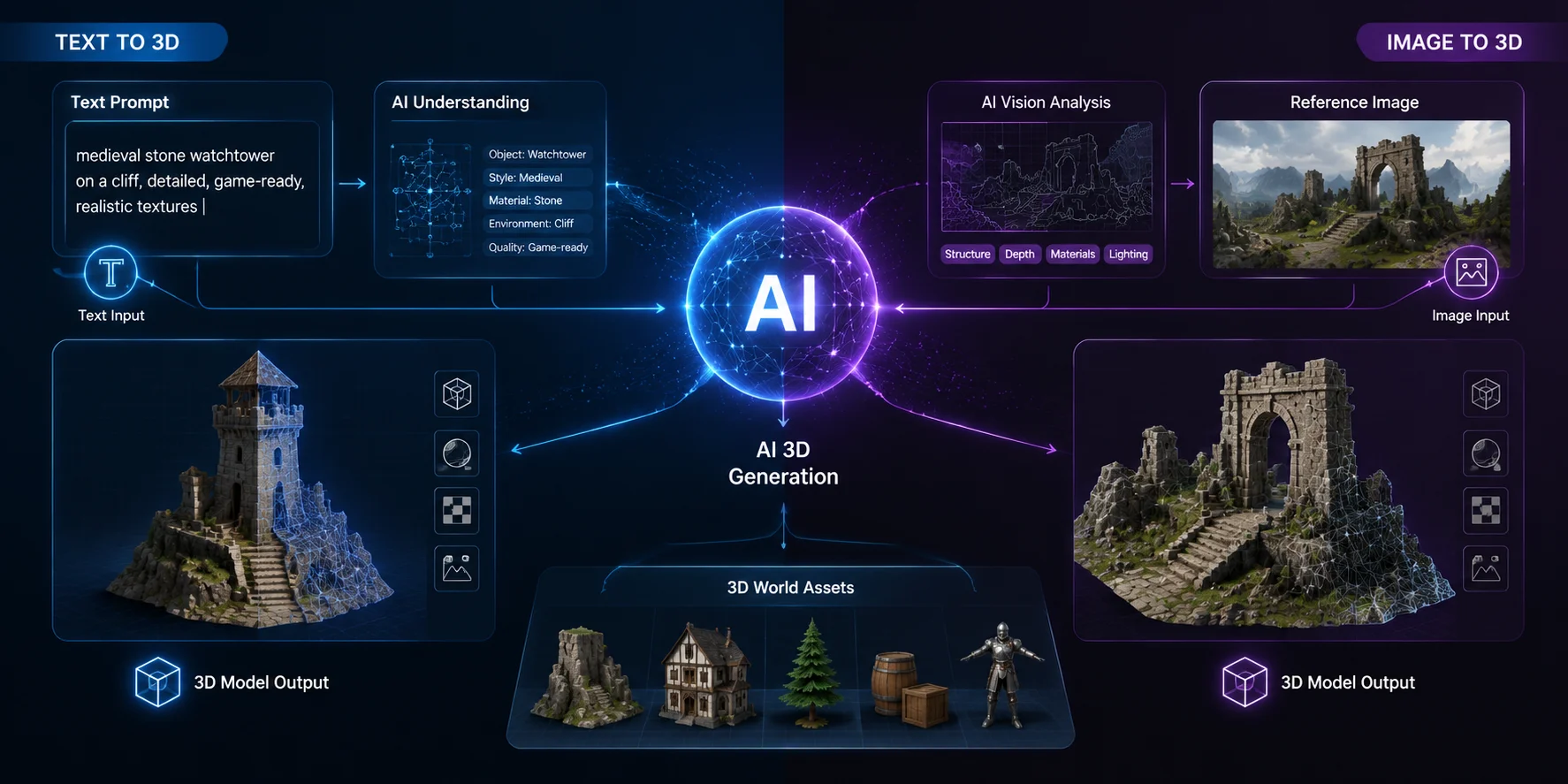
An AI world generator uses machine learning to help create assets for a 3D environment from text descriptions or images. In this article, the term refers mainly to asset-level generation: producing individual models that become building blocks for a larger scene.
Asset generation and full-scene generation are related but distinct. Asset generation creates individual objects such as buildings, vehicles, plants, props, and characters. Full-scene systems arrange or synthesize broader environments. For production work, generated assets still need to be reviewed and assembled inside a DCC tool or game engine.
Tripo supports text-to-3D and image-to-3D for asset creation. Text prompts are useful for rapid concept variations, while reference images provide clearer visual guidance for a specific object.
How AI Turns Text and Images into 3D Assets
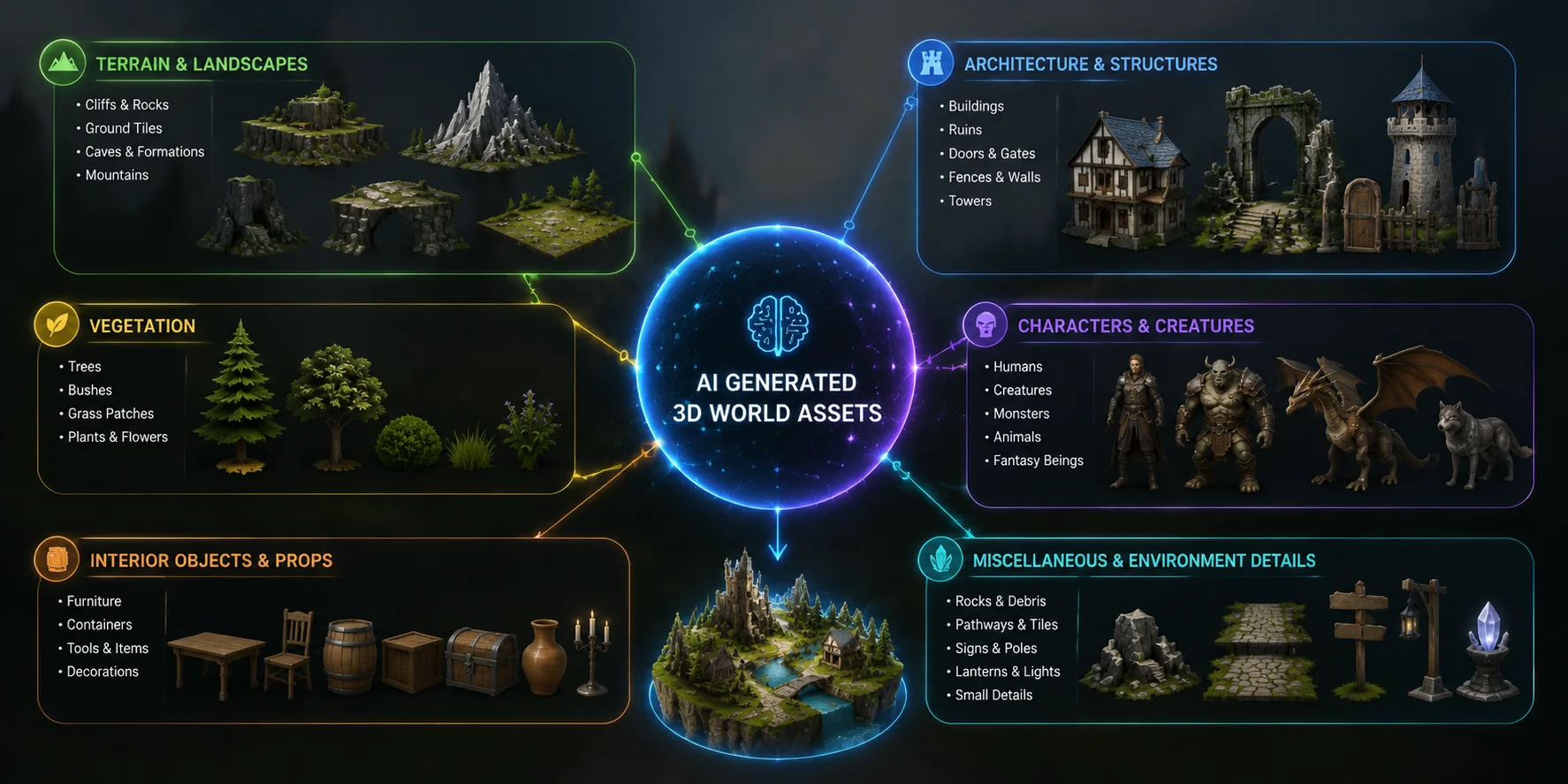
What Types of 3D World Assets Can AI Generate?
AI can create many types of assets used in 3D world-building workflows:
- Terrain: cliffs, rocks, caves, ground tiles, and landscape pieces.
- Buildings and props: houses, ruins, doors, fences, and decorations.
- Vegetation: trees, grass, bushes, and plants.
- Characters and creatures: humans, animals, monsters, and fantasy models.
- Interior objects: furniture, containers, tools, and small environment details.
AI is useful for creating individual assets, but a complete world also requires scene composition, consistent scale, lighting, collision, level-of-detail planning, navigation, and gameplay systems. Most creators generate reusable pieces and combine them into a larger environment.
Types of 3D World Assets Created by AI
How to Generate 3D World Assets with AI (Step-by-Step)
Step 1: Prepare your input
Choose between two methods:
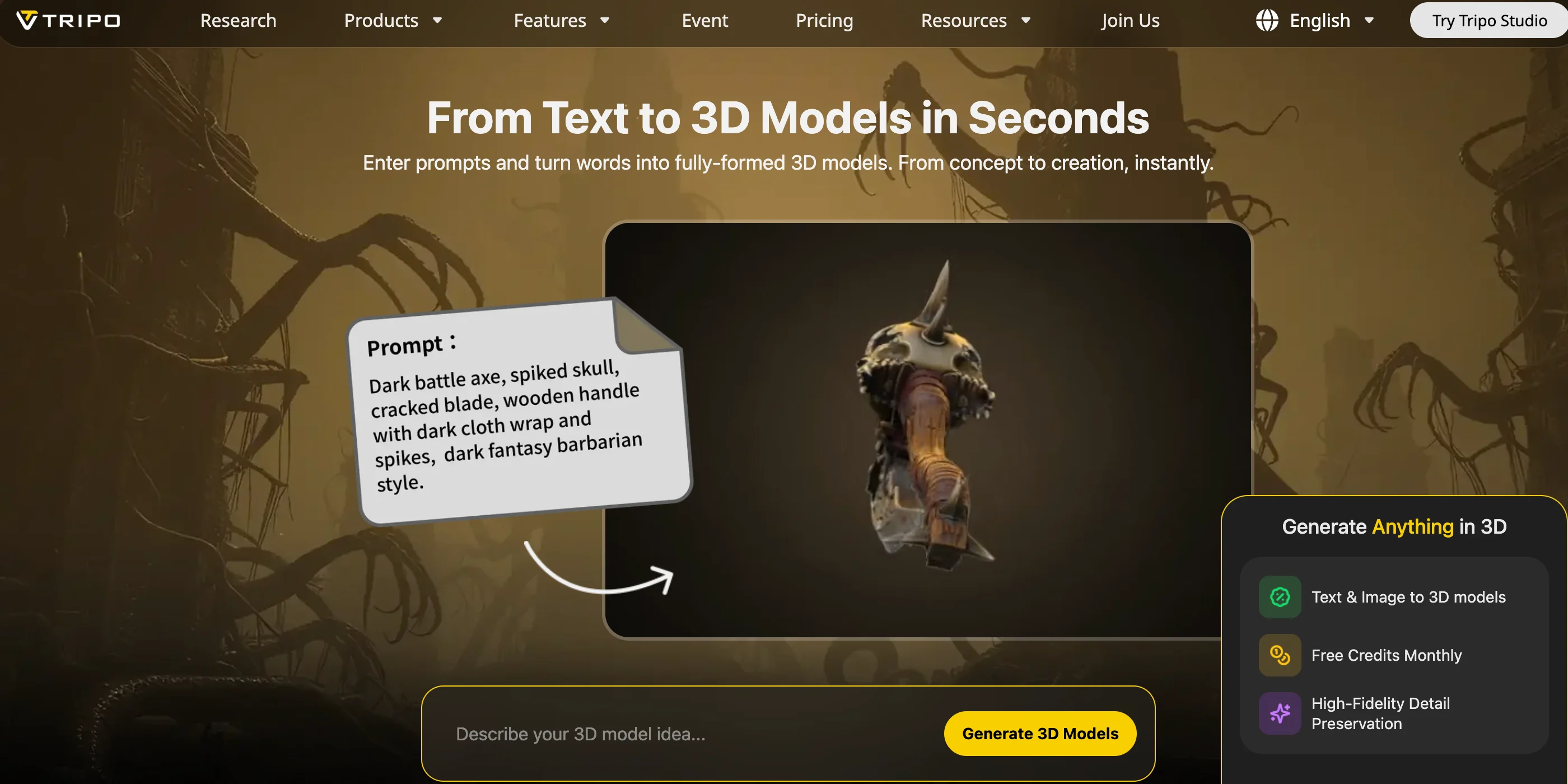
- Text-to-3D: Write a detailed prompt, such as “low-poly fantasy castle tower with mossy stone walls, intended for a real-time game environment.”
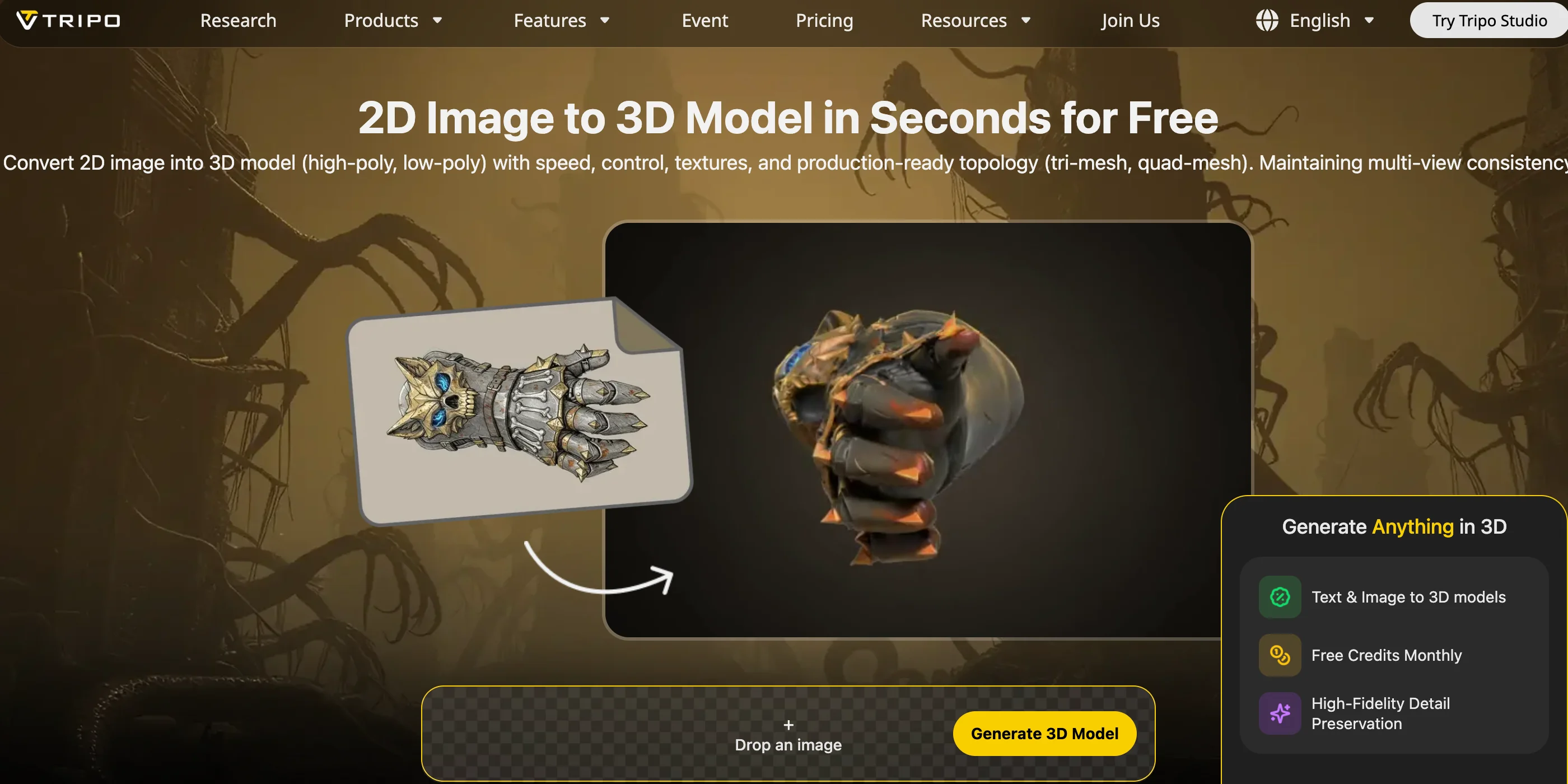
- Image-to-3D: Upload a concept image, sketch, or reference photo.
Describe the asset's shape, style, materials, and intended use. A prompt gives the generator clearer constraints, but the resulting geometry and textures still need review.
Step 2: Generate the model
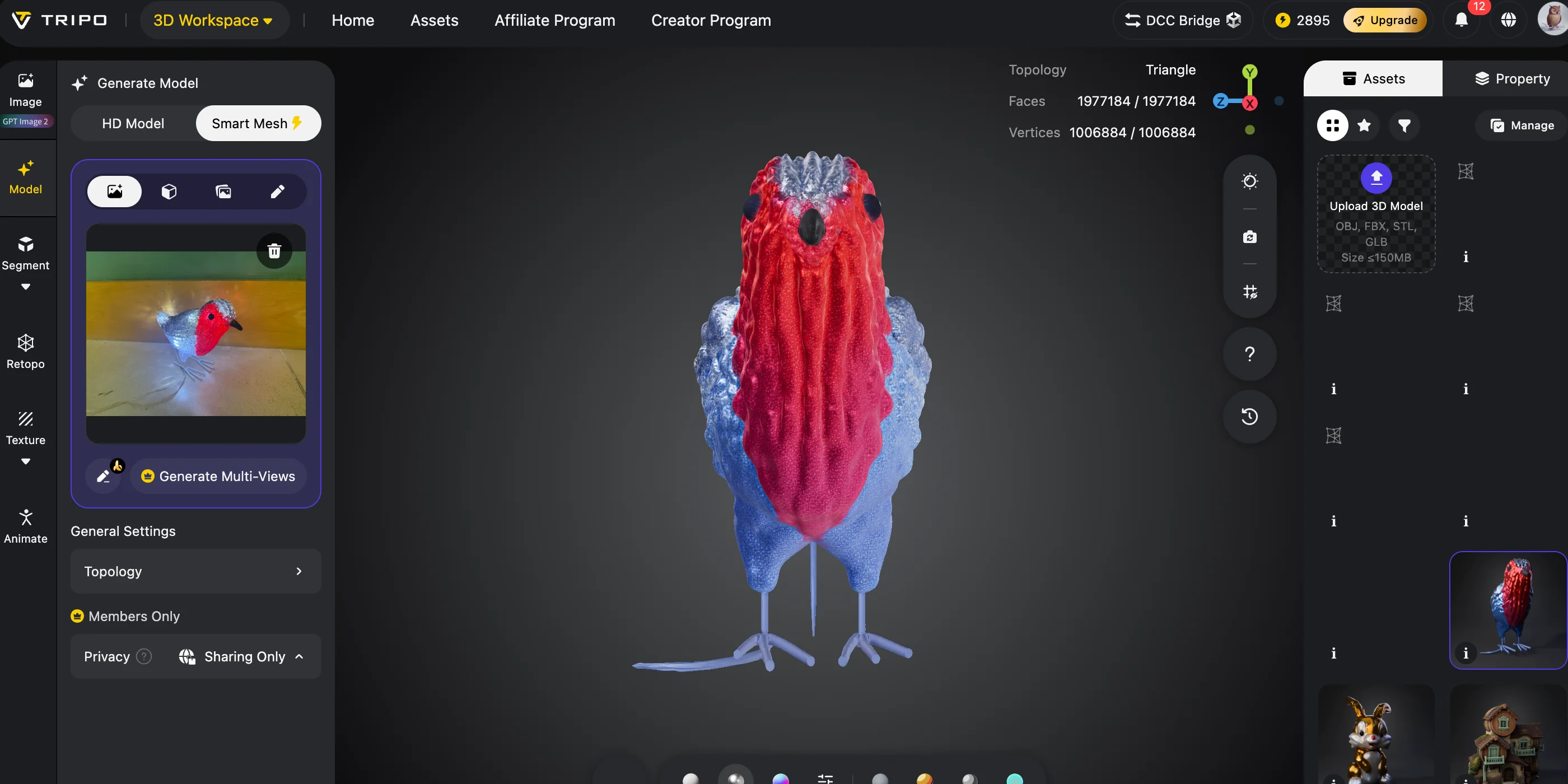
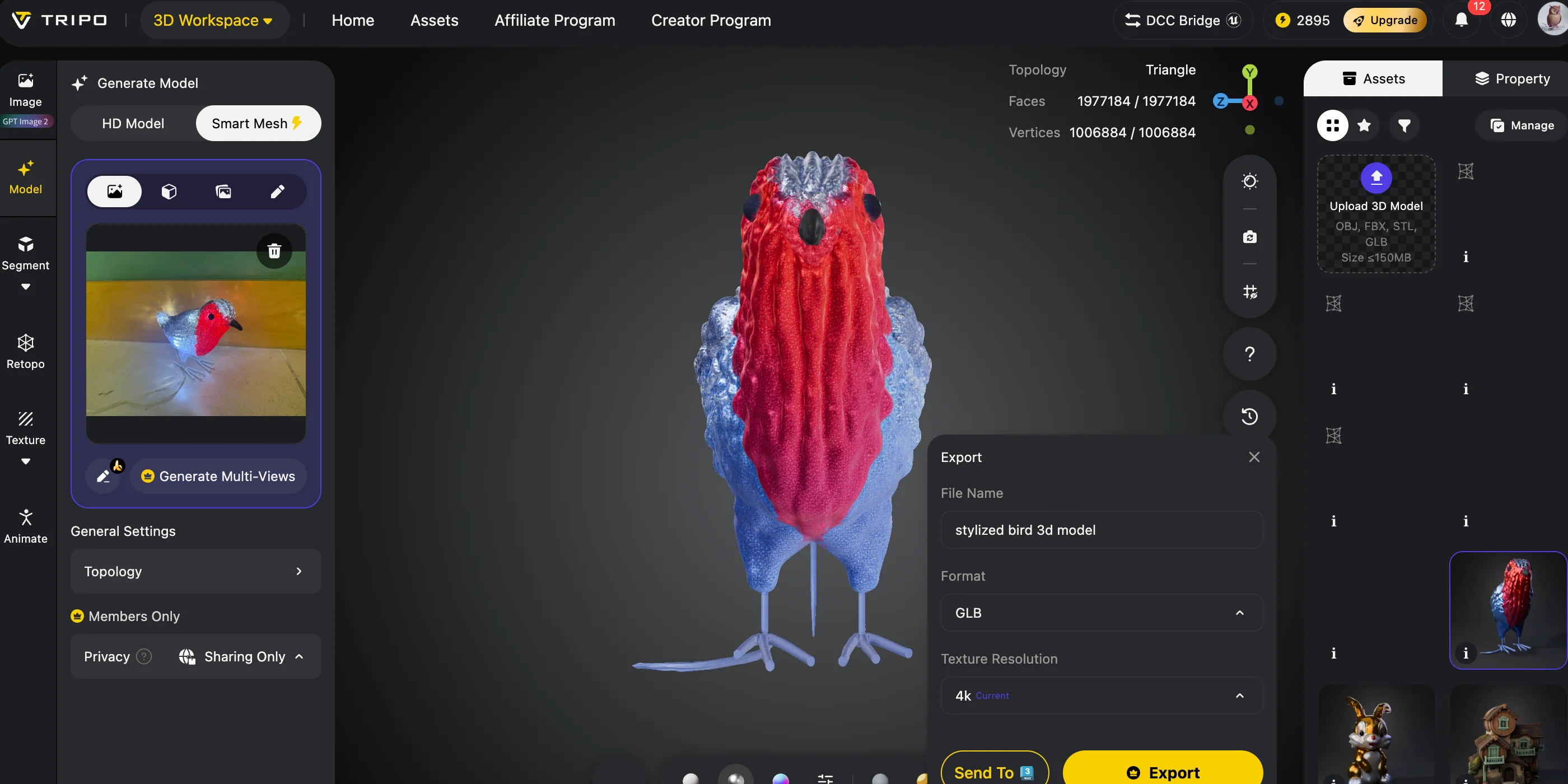
Open Tripo AI Studio and select Text-to-3D or Image-to-3D. Choose the generation mode and settings that match the asset you need, then inspect the result before moving to optimization or export.
This workflow gives you a starting asset without requiring you to sculpt every form from a blank scene.
Step 3: Review and optimize
Check the generated model for:
- Shape accuracy
- Texture quality
- Mesh cleanliness
- Polygon count
For games and real-time applications, Smart Mesh can generate clean, optimized topology. Validate the result against your target polygon budget and engine requirements; use additional retopology in a DCC tool when the project needs more manual control.
Step 4: Improve textures and export
AI texturing can add realistic materials such as wood, stone, metal, or fabric.
When the asset is ready, choose an export format based on the next tool in your workflow:
- GLB: web, AR/VR, and glTF-compatible real-time workflows
- FBX: game engines, animation, and DCC pipelines
- OBJ: broad geometry-editing compatibility
- USD: VFX, animation, and collaborative scene workflows
- STL or 3MF: 3D-printing workflows; STL carries geometry only
Conceptual AI 3D Asset Workflow: Generate, Validate, Optimize, and Export
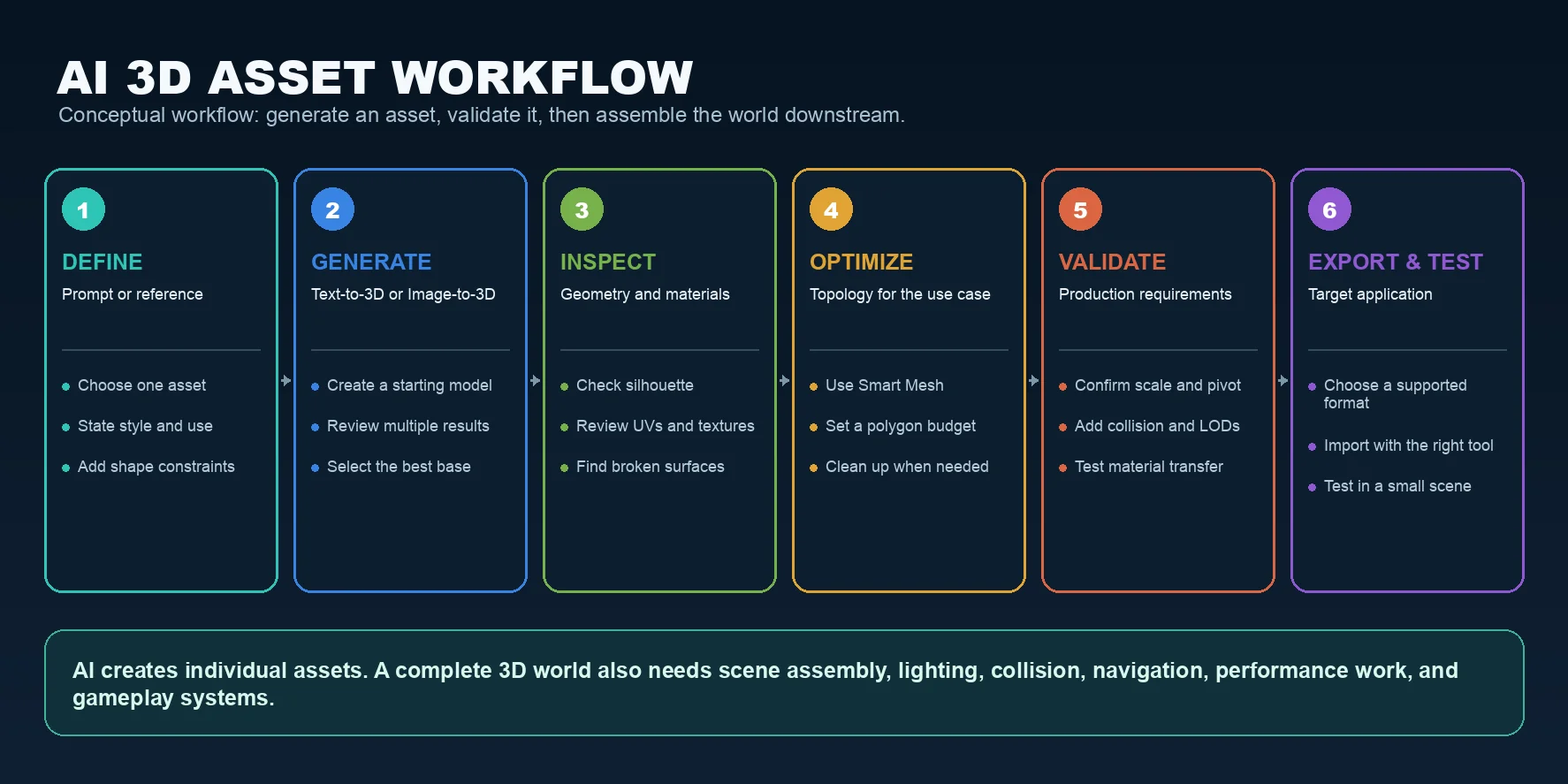
From a Generated Asset to a Finished 3D World
Generation is the beginning of the workflow, not the final production step. Before placing an AI-generated model in a level, prepare it so that it behaves consistently with the rest of the project.
1. Check scale, orientation, and the pivot
Compare the model against a known reference object in your DCC tool or engine. Set the correct up axis, confirm the asset faces the expected direction, and place the pivot where designers need it. A door, tree, modular wall, and handheld prop each need different placement behavior.
2. Inspect geometry and topology
Look for holes, intersecting surfaces, floating pieces, extreme thinness, or details that disappear at gameplay distance. Choose a topology and polygon budget that match the asset's screen size and importance. Smart Mesh is useful for optimized real-time topology, while a hero asset may need additional manual cleanup.
3. Validate UVs, materials, and textures
Confirm that UV islands are usable, texture seams are acceptable, and material assignments match the asset. Check color and data textures in the target renderer instead of assuming that every material will transfer identically between tools.
4. Add real-time production requirements
Create collision that matches gameplay needs rather than using an unnecessarily complex render mesh. Prepare level-of-detail variants when the engine or scene scale requires them. For modular kits, verify that dimensions, pivots, and connection points snap together without visible gaps.
5. Assemble and test the environment
Import the asset with the format and importer supported by your target application. Test scale, normals, materials, lighting response, collision, and performance in a small scene before building a full level. Repeat this process for multiple generated assets, then combine them with terrain, lighting, procedural placement, navigation, and gameplay systems.
Production check: A model becomes game-ready only after it passes the requirements of the specific project and engine. Generation, export, and successful import are separate checkpoints.
Tips for Better AI World Assets
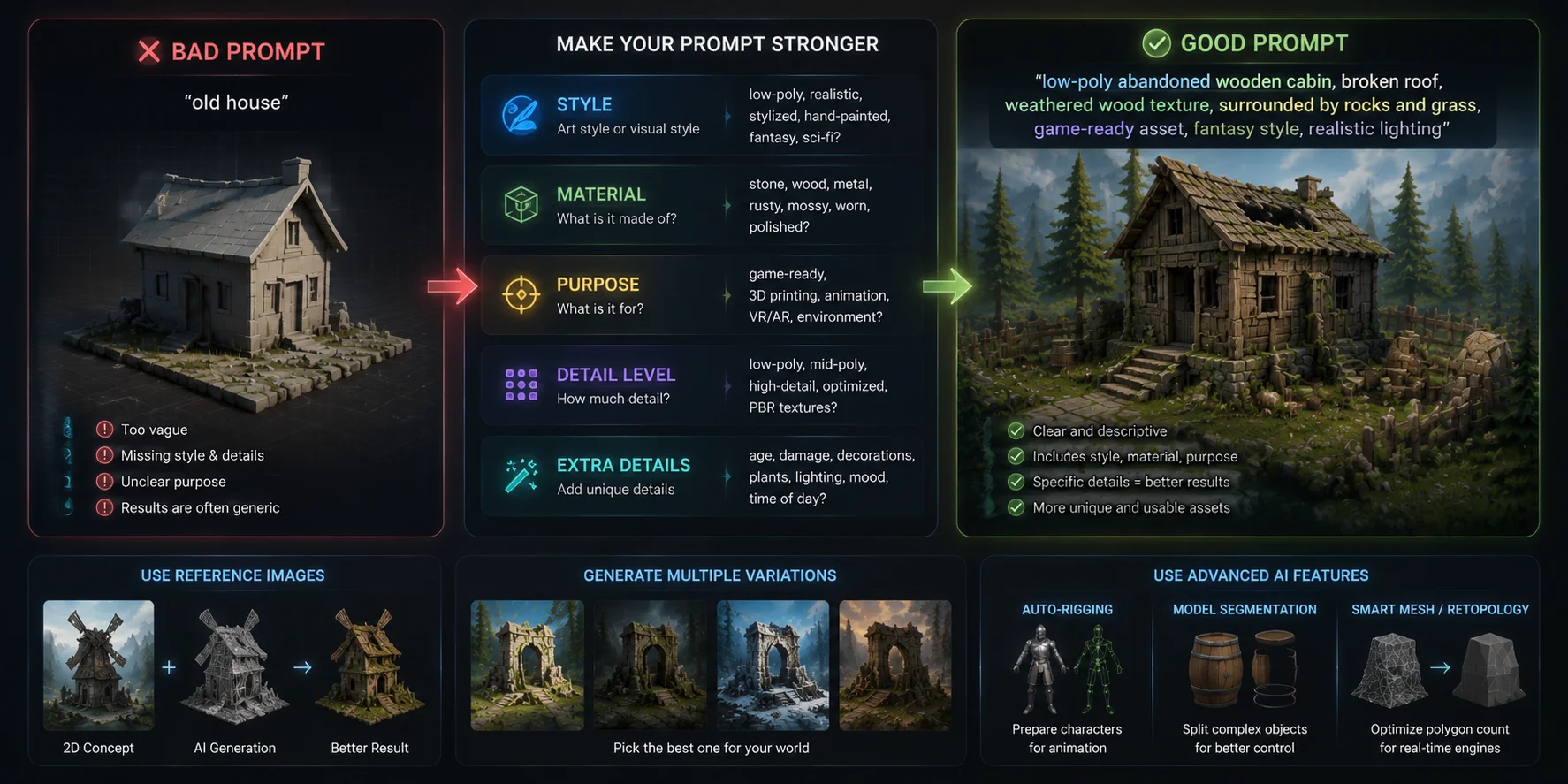
A detailed prompt gives the model clearer constraints. Instead of writing “old house,” try:
“Low-poly abandoned wooden cabin, damaged roof, realistic weathered wood texture, game-ready asset.”
Useful prompt details include:
- Style: realistic, cartoon, low-poly, sci-fi
- Material: stone, metal, wood, glass
- Purpose: game-ready, animation, printing
For unusual designs, a reference image can provide clearer guidance for silhouette, proportions, and visible details.
You can also generate several versions and choose the best one before adding textures or importing into your engine.
How to Write Better AI 3D Generation Prompts
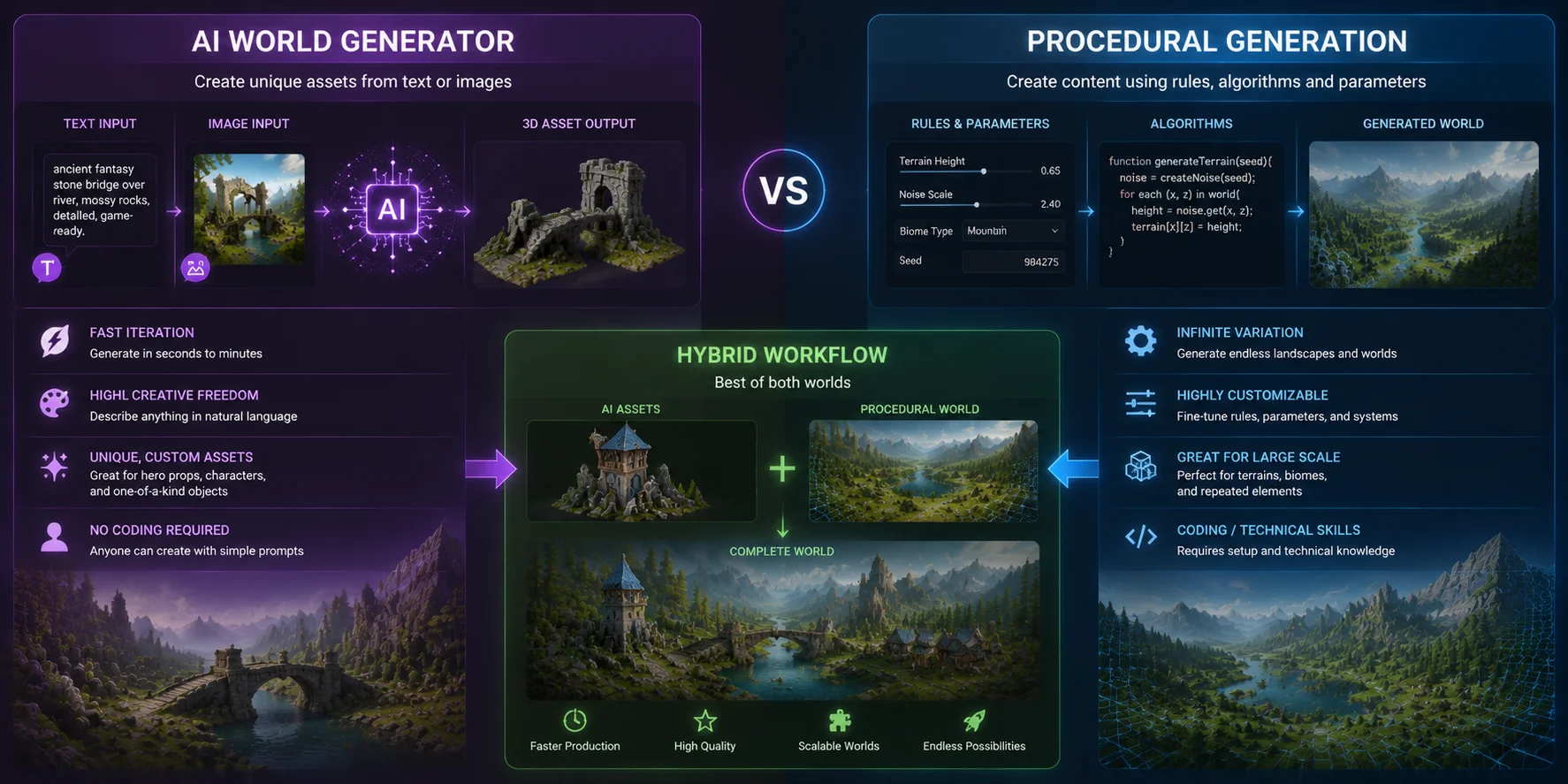
AI World Generator vs. Procedural Generation
Procedural generation creates content through rules, node graphs, algorithms, and parameters. It is well suited to large landscapes, repeated objects, and controlled variation, but setup may require technical tools or coding depending on the system.
An AI 3D asset generator works through natural language or images, which can make concept exploration more accessible. The generated asset still needs technical review before production use.
A practical hybrid workflow uses AI for distinctive assets such as hero buildings, creatures, and special props, then uses procedural or level-design tools for terrain, repeated elements, placement rules, and scene assembly.
AI-Generated Assets and Procedural World Building
Frequently Asked Questions
How do you generate 3D assets with AI?
Enter a text prompt or upload a reference image to an AI 3D generator. The result is a starting model that may include geometry, UVs, materials, and textures; inspect and refine those elements before export.
What is the AI for generating 3D game assets?
Tripo supports text-to-3D and image-to-3D workflows for game props, environment pieces, and characters. Smart Mesh is intended for clean, optimized topology in real-time production workflows.
Can AI generate 3D environments?
AI can generate individual environment assets such as terrain pieces, buildings, vegetation, and props. A complete playable environment still requires scene assembly, lighting, collision, navigation, performance work, and gameplay systems.
How do you make a 3D object in AI?
Type a descriptive prompt into a text-to-3D tool, or upload a photo or sketch into an image-to-3D tool. The output can include a mesh, UVs, materials, and textures. Export it in a format supported by the next application, then verify scale, normals, materials, and topology after import.
Is there a free AI world generator?
Yes. Tripo currently lists a Free plan for trying its generation workflow. Credits, download access, privacy settings, and export eligibility can change, so check Tripo AI Pricing for the latest terms.
What file formats do AI 3D generators export?
Tripo Studio supports GLB, USD, FBX, OBJ, STL, and 3MF exports. Choose the format based on the target application: Unity supports FBX in its standard model-import workflow, while GLB typically uses a glTF importer package; Unreal Engine provides a glTF/GLB import workflow. Always verify materials, scale, and orientation after import.
Can I use AI-generated 3D assets in a game engine?
Yes. Export the asset in a format supported by your target engine and importer. Smart Mesh can provide optimized topology for real-time workflows, but you should still validate polygon count, scale, pivots, materials, collision, and performance inside the project.
How long does it take to generate a 3D world asset with AI?
Processing time varies with the generation mode, input, selected options, and current service conditions. Use the completed task status as the reliable checkpoint, and avoid treating an estimated generation time as a full production schedule.
Conclusion
An AI world generator can accelerate the creation of reusable 3D assets, but generation is only one stage of a complete environment workflow. Review, optimize, export, import, and test each asset before using it in production.
For a game world, virtual environment, or 3D visualization, combine AI-generated assets with scene composition, lighting, procedural systems, and engine-specific validation.
Try Tripo AI Studio to create and evaluate your own AI-generated 3D world assets.
Explore Tripo AI Pricing to choose the right plan for your workflow.