AI 3D Model Examples: What Artificial Intelligence Can Build in 2025
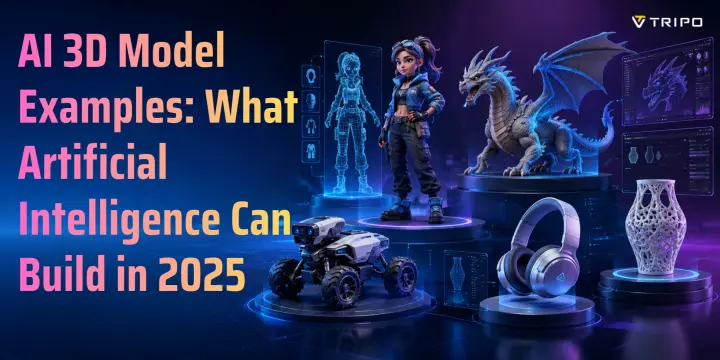
- AI can now generate characters, props, game assets, product models, architecture concepts, and printable objects.
- Tripo AI supports text-to-3D, image-to-3D, multi-view input, Smart Mesh, HD Model, texture generation, PBR output, retopology, and multiple export formats.
- Smart Mesh is useful for lightweight real-time assets; HD Model is better for detailed rendering, sculpting, and 3D printing.
- The best workflow is usually AI generation first, then manual cleanup when exact topology, rigging, or dimensions matter.
If you are searching for AI 3D model examples, you probably want to see what AI can actually build before choosing a tool. This guide shows practical examples across six categories and explains which Tripo AI workflow fits each one.
Tripo AI is used as the main tool because it supports both text prompts and reference images, and exports models in GLB, FBX, OBJ, STL, 3MF, and USD. For this article, use real screenshots from Tripo Studio rather than generic AI art or mockups.
What Can AI Actually Generate? A Quick Overview
AI 3D generators can produce useful first-pass models for games, ecommerce, architecture, printing, and concept design. In Tripo Studio, users can start with a prompt, upload an image, use multi-view input, generate models in batches, refine textures, and choose the output mode based on the final use case.
Smart Mesh is designed for lighter real-time assets, while HD Model supports higher-detail results. The choice matters: a mobile game prop, a printable miniature, and an ecommerce shoe model do not need the same polygon density or file format.
1. Characters and Creatures
Characters are a strong fit for AI generation because prompts can define silhouette, costume, material, and style quickly.
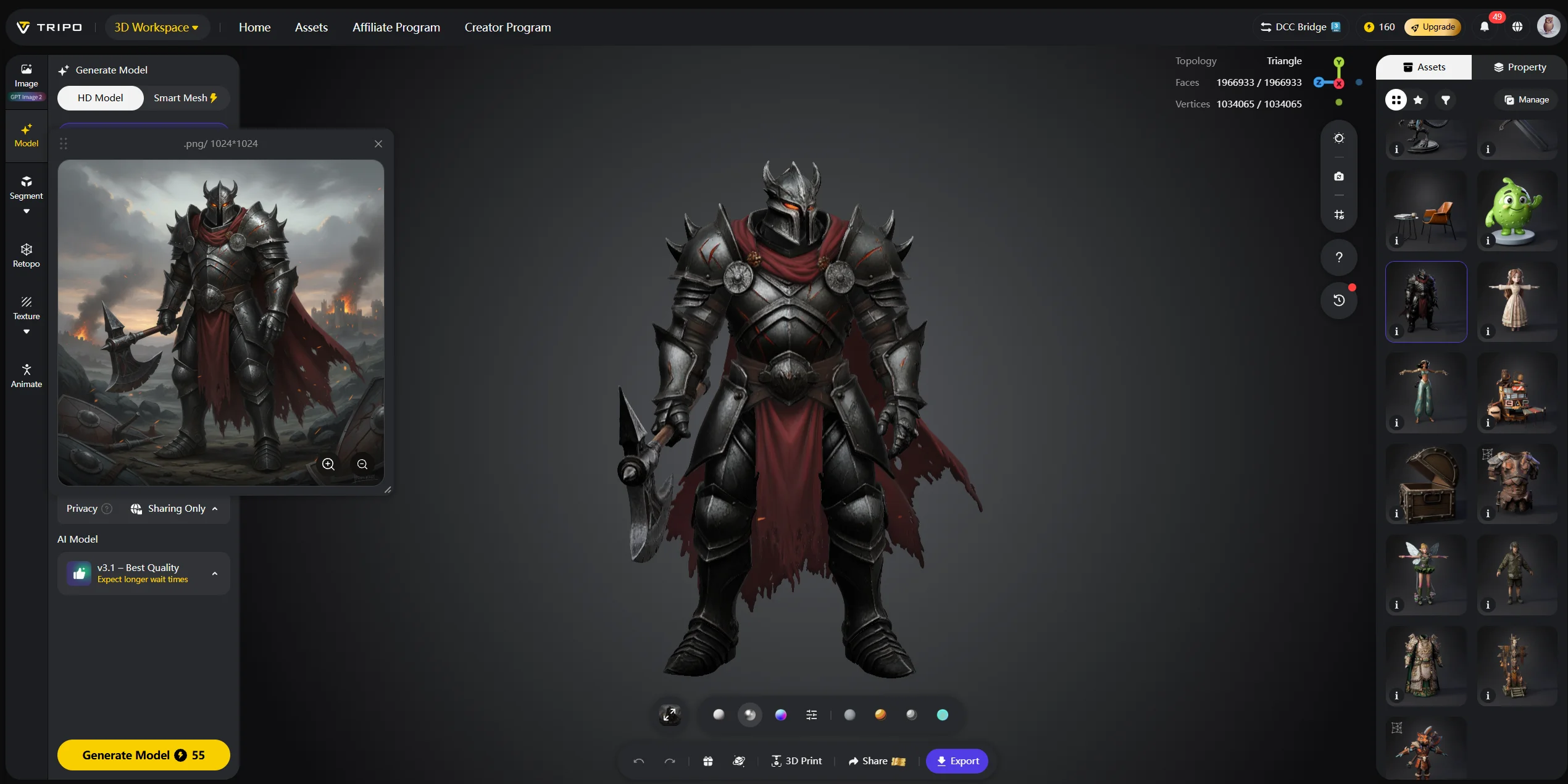
Example 1: Fantasy warrior character Generated with Text-to-3D. Prompt: “a heavily armored fantasy warrior, full body, dark steel, battle-worn.” Export FBX if the model will move into a rigging or animation pipeline.
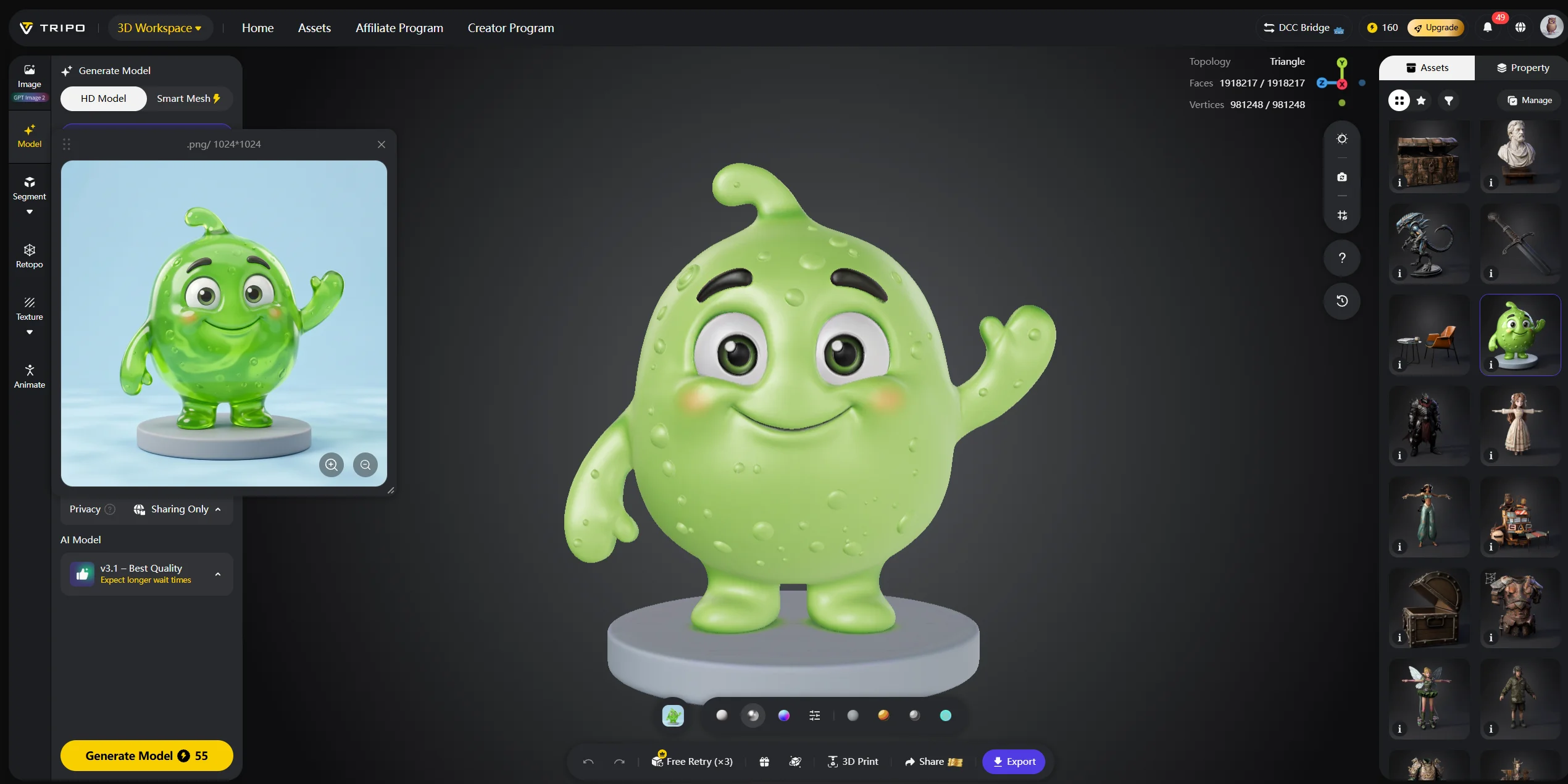
Example 2: Stylized cartoon creature Generated with Text-to-3D. Prompt: “a cute round slime monster with big eyes, cartoon style, pastel blue.” Use Smart Mesh when the goal is a lightweight mobile or web asset.
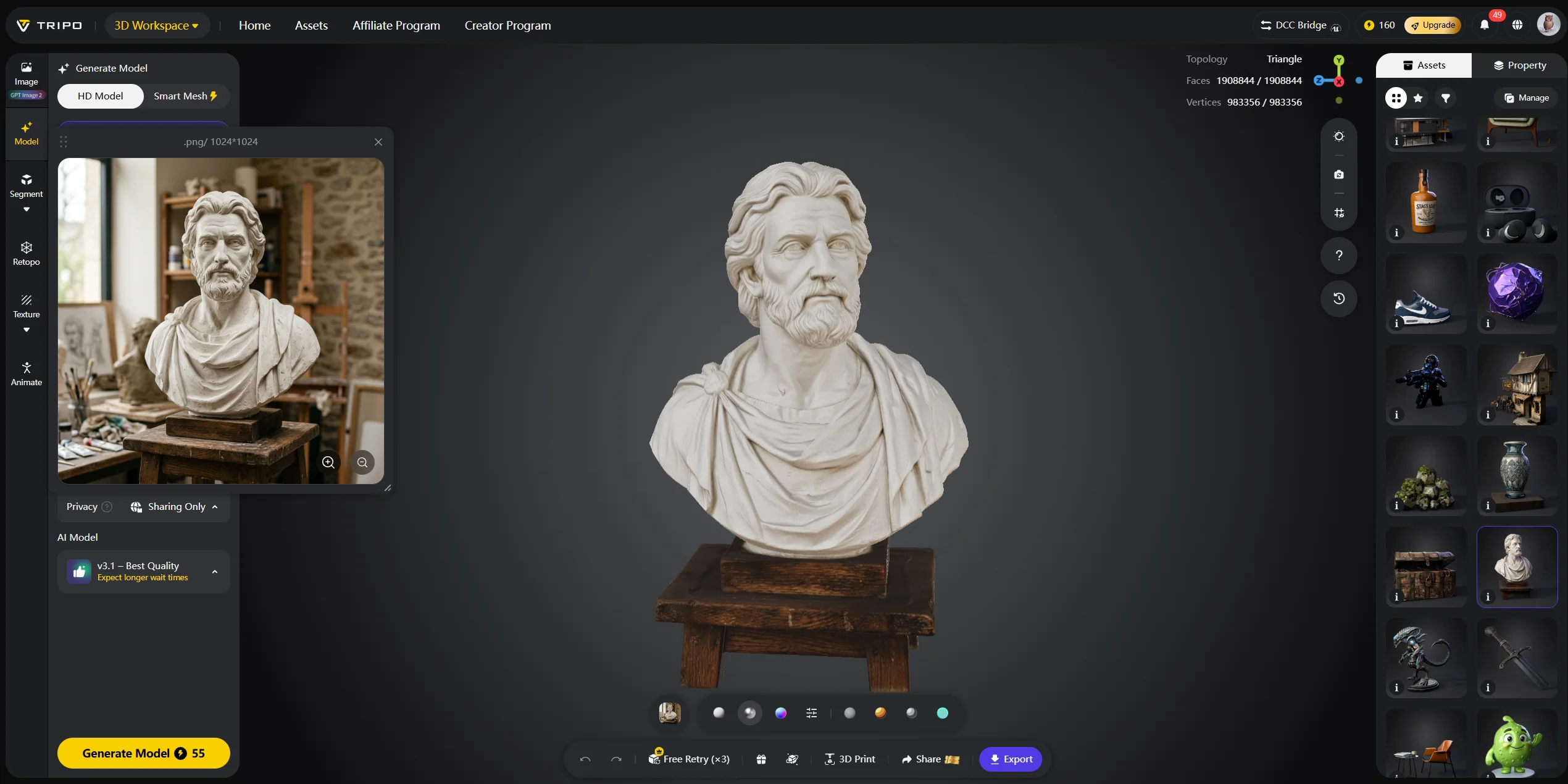
Example 3: Realistic human bust Generated with Image-to-3D from a clean front-facing portrait. Export OBJ for sculpting cleanup or further work in tools such as ZBrush. Learn more from Tripo AI’s Image-to-3D feature.
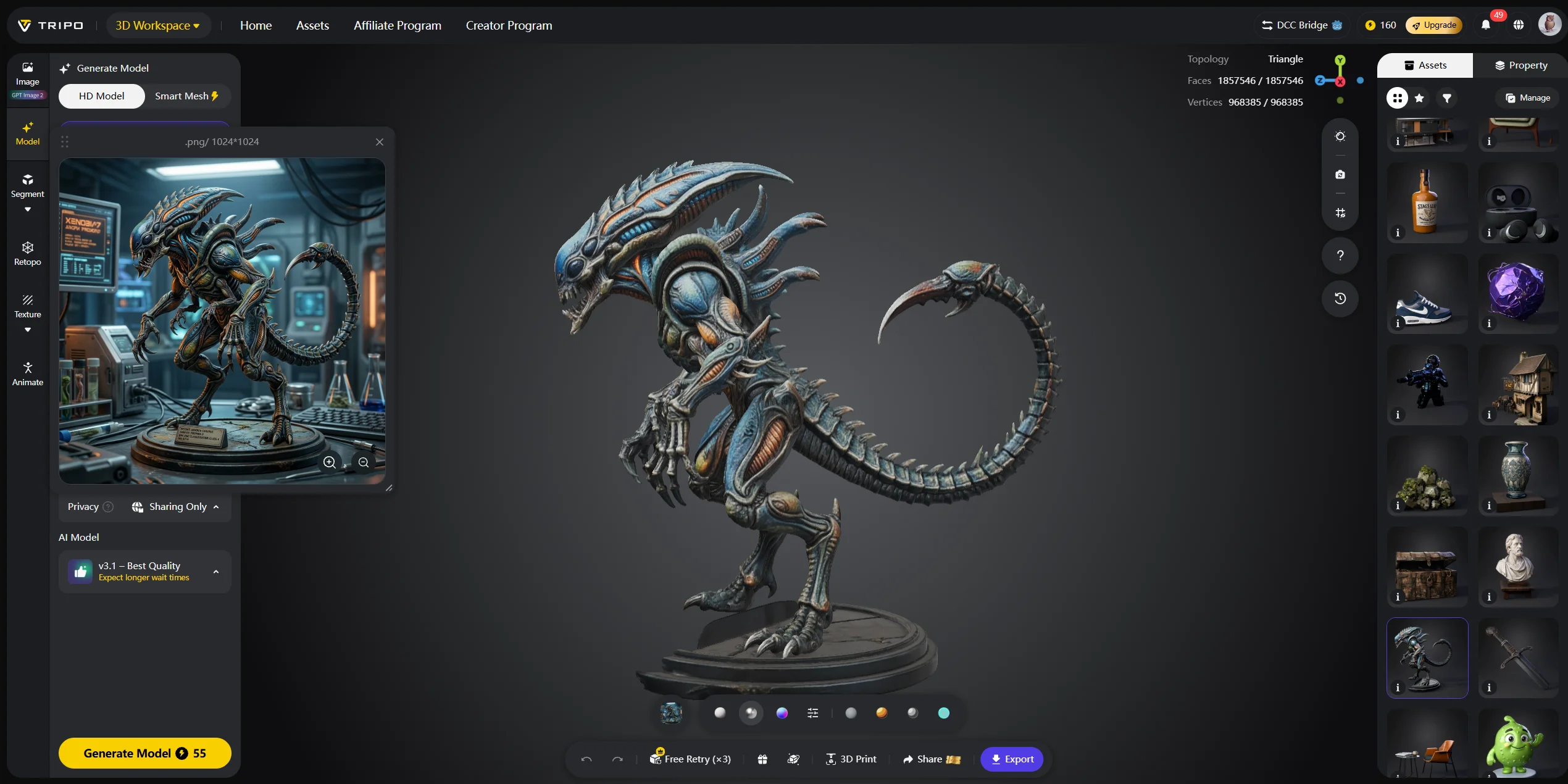
Example 4: Sci-fi alien creature Generated with Text-to-3D. Prompt: “bioluminescent deep sea alien, multiple tentacles, transparent skin.” Export GLB for real-time preview or USD for rendering pipelines.
2. Props and Objects
Props are ideal for fast generation because games, scenes, and product concepts often need many small objects.
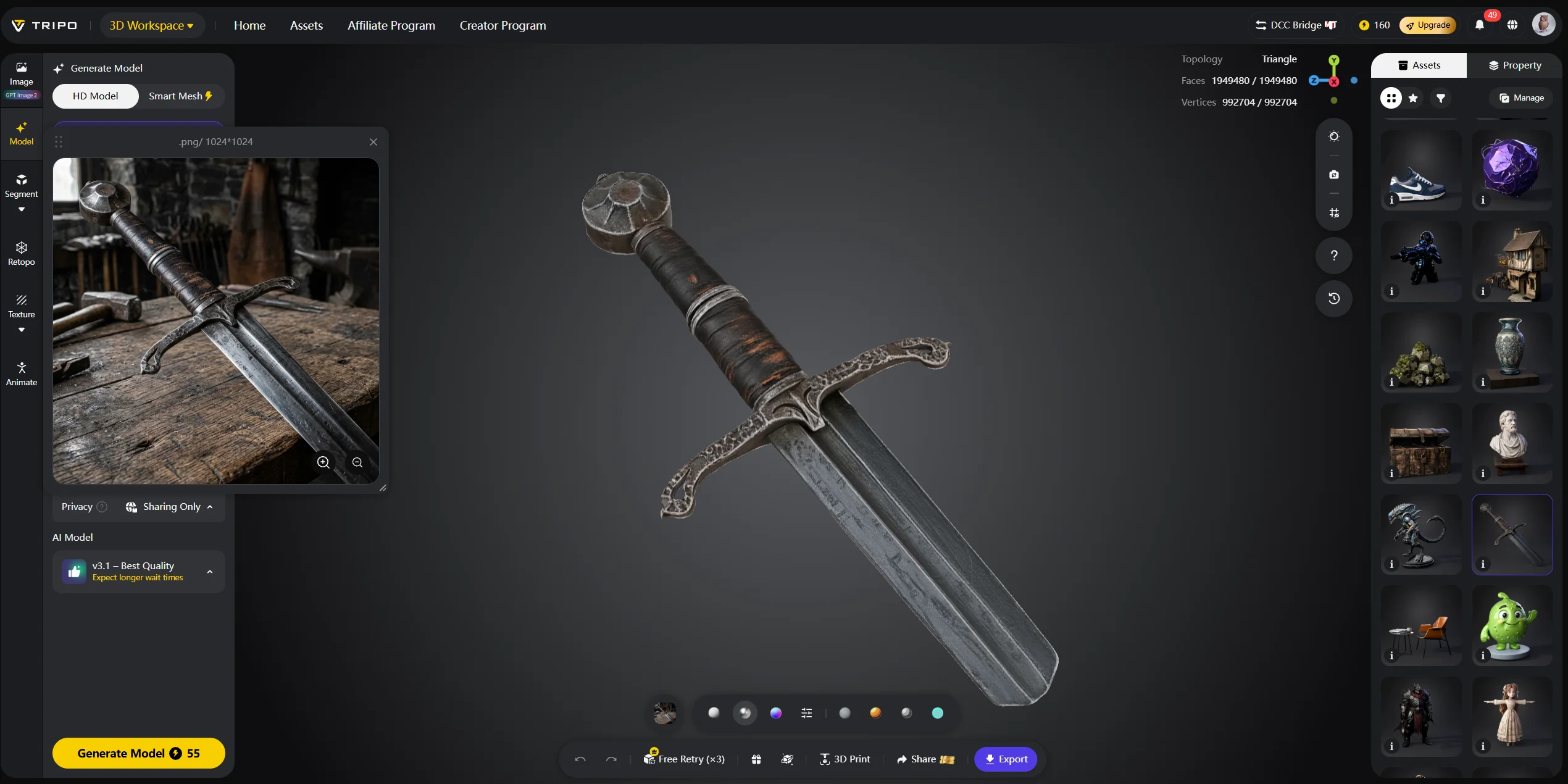
Example 1: Medieval sword Generated with Text-to-3D. Prompt: “ornate medieval longsword, gold hilt, rune engravings.” Export FBX for Unity or Unreal Engine.
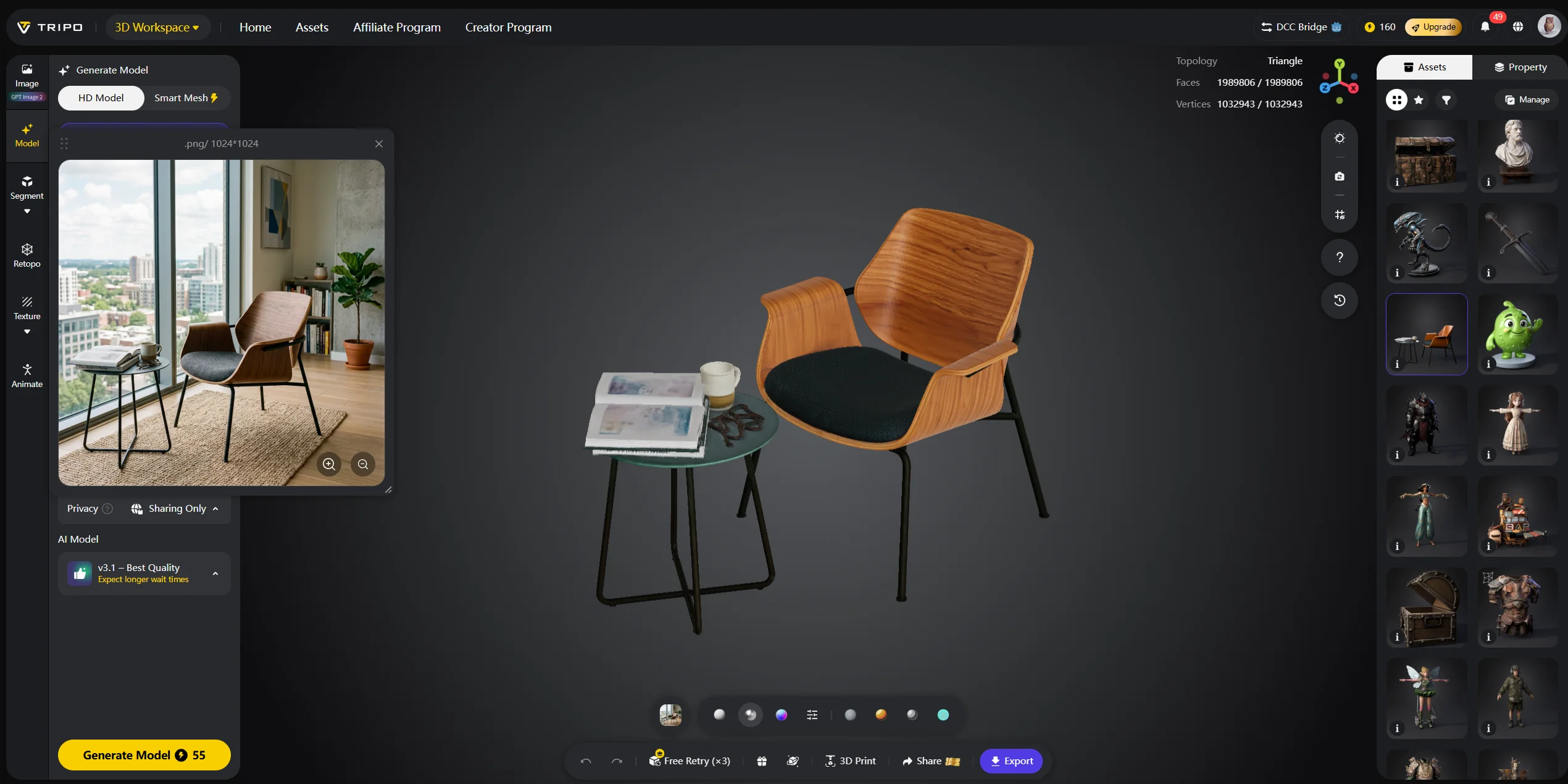
Example 2: Modern chair — product design reference Generated with Image-to-3D from a front-view product sketch. Export OBJ for interior design visualization or rendering.
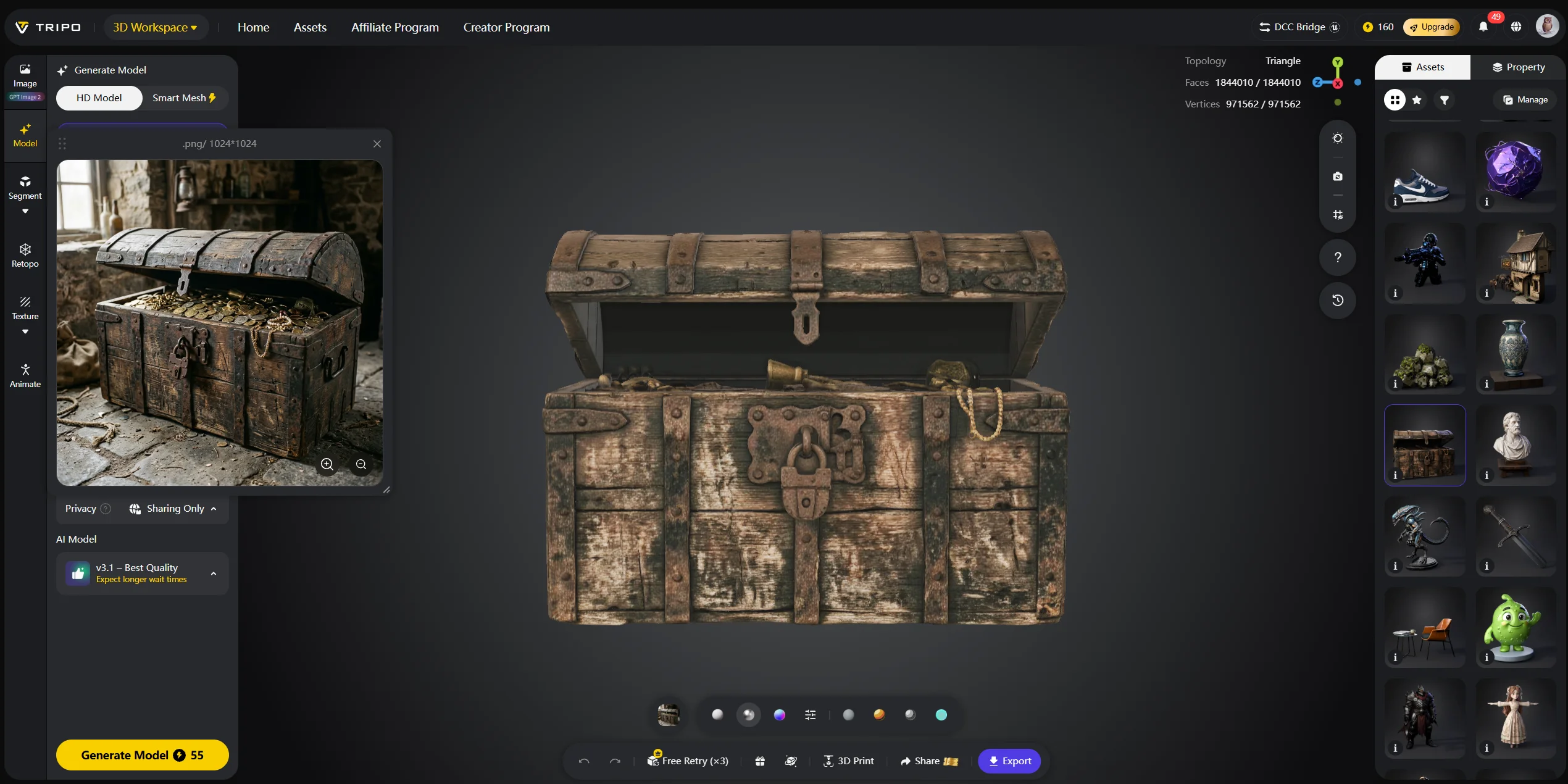
Example 3: Treasure chest Generated with Text-to-3D. Prompt: “worn wooden treasure chest with iron locks, slightly open, gold coins inside.” Smart Mesh can create a practical game prop quickly.
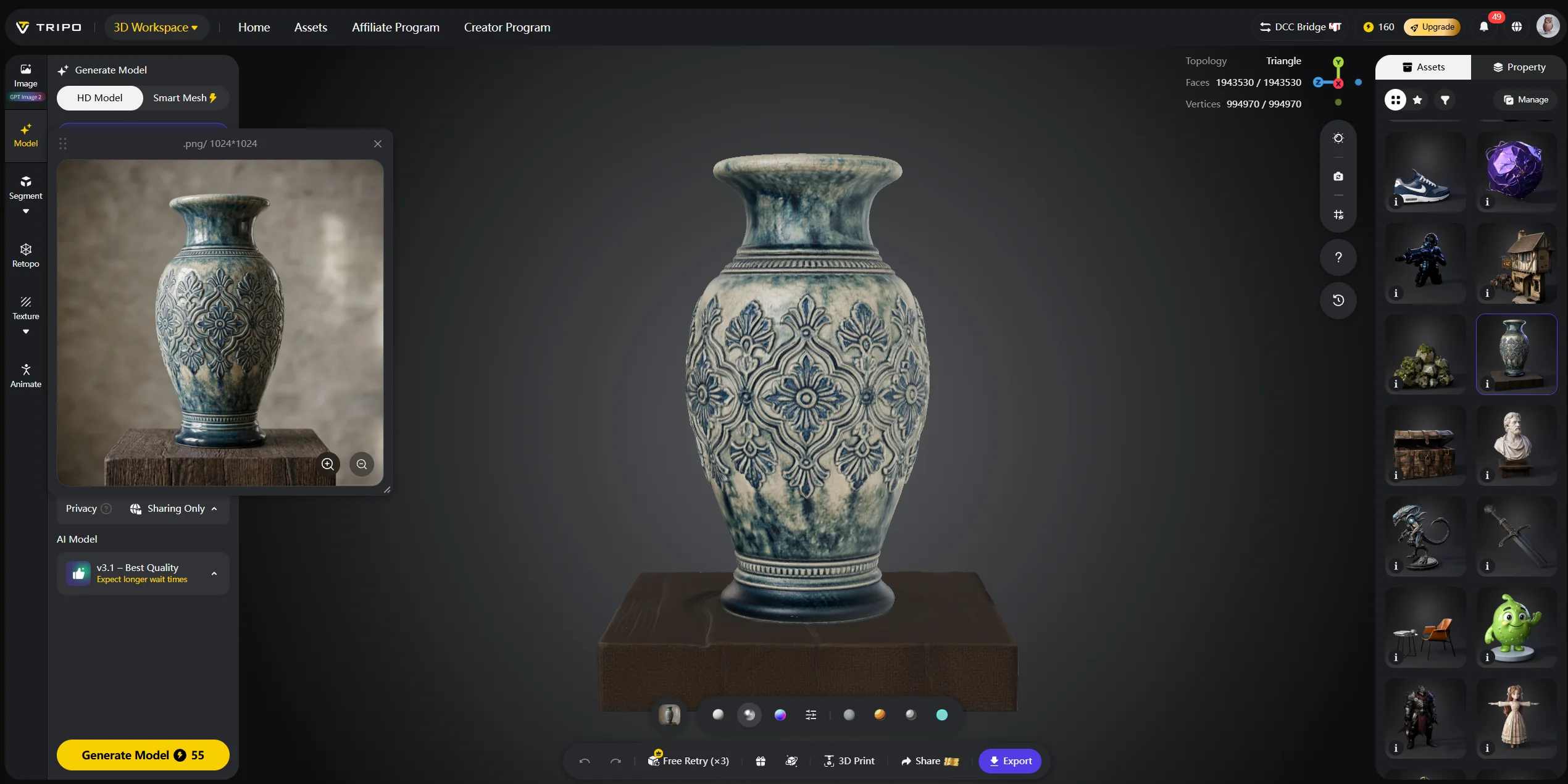
Example 4: Ceramic vase with floral pattern Generated with Image-to-3D from a vase photo. Export GLB for AR preview, ecommerce display, or interactive room placement.
3. Game Assets
Game developers care about polygon count, UVs, engine compatibility, and iteration speed. Smart Mesh is useful when an asset needs to be tested in a real-time engine without heavy cleanup.
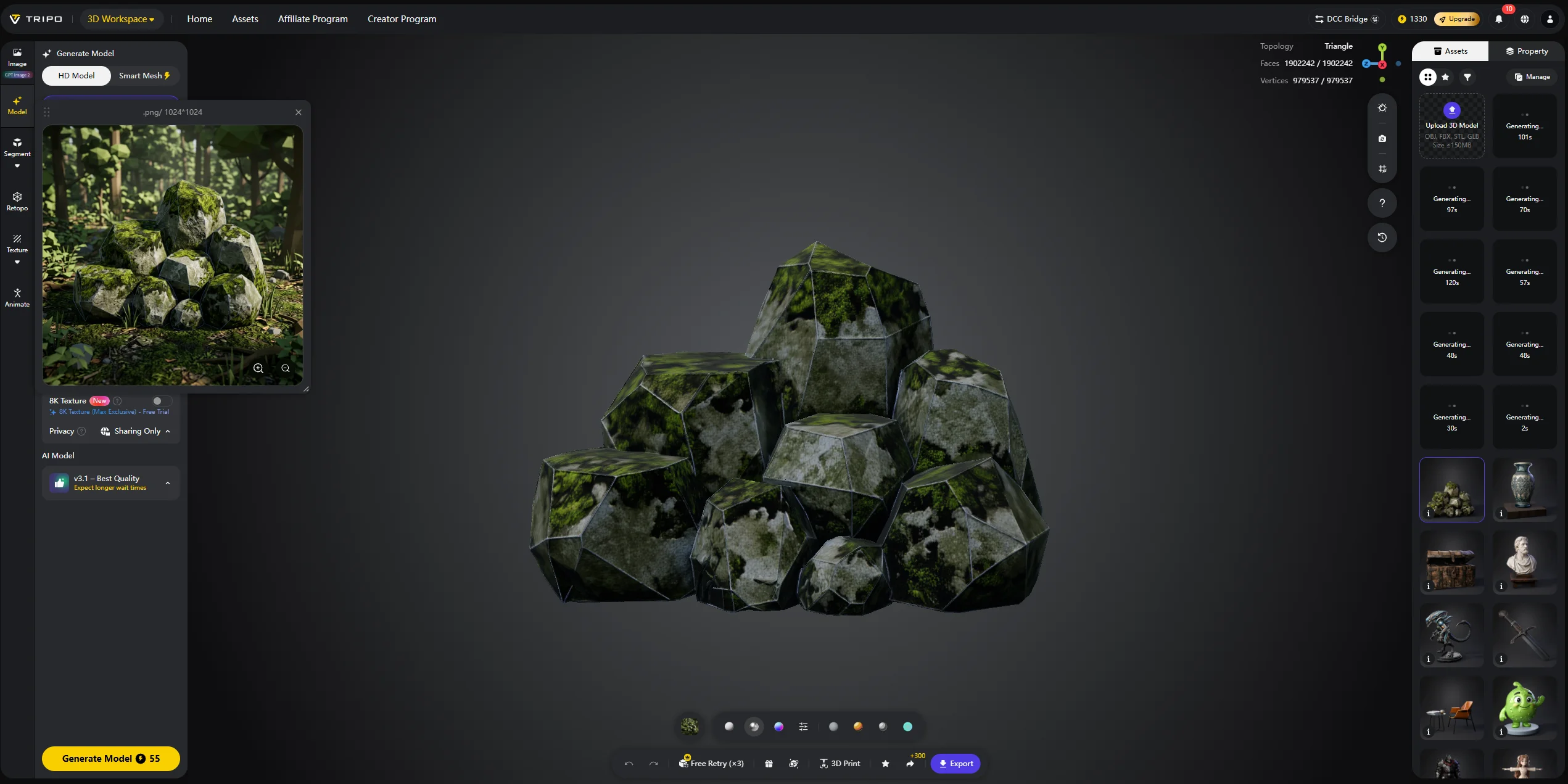
Example 1: Low-poly environment rock cluster Prompt: “mossy rock cluster, low poly, game ready.” Use Smart Mesh and export FBX to Unity or Unreal.
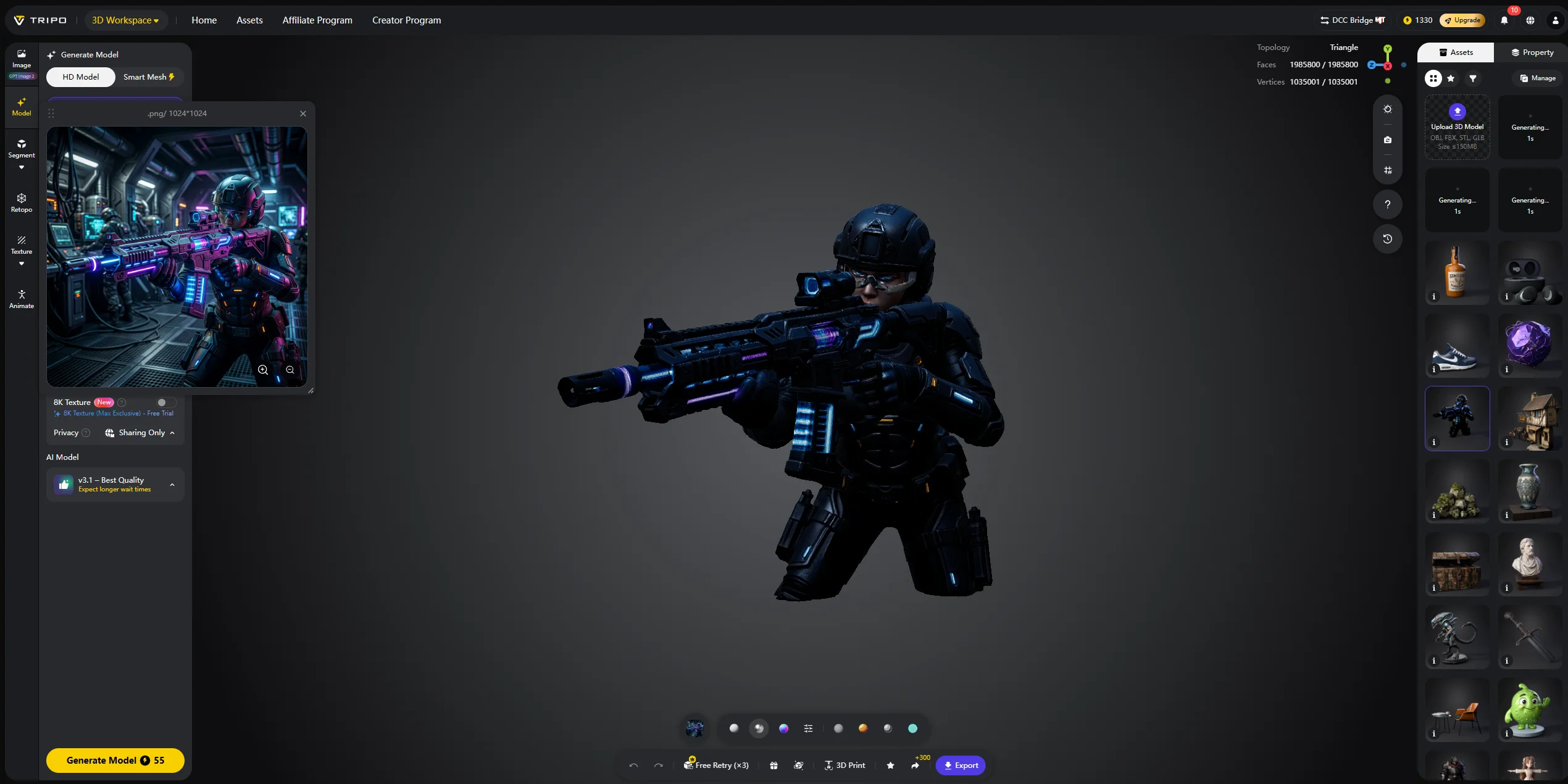
Example 2: Game-ready weapon — energy rifle Prompt: “futuristic energy rifle, neon accents, sci-fi design.” Export FBX for a shooter prototype or GLB for a web preview.
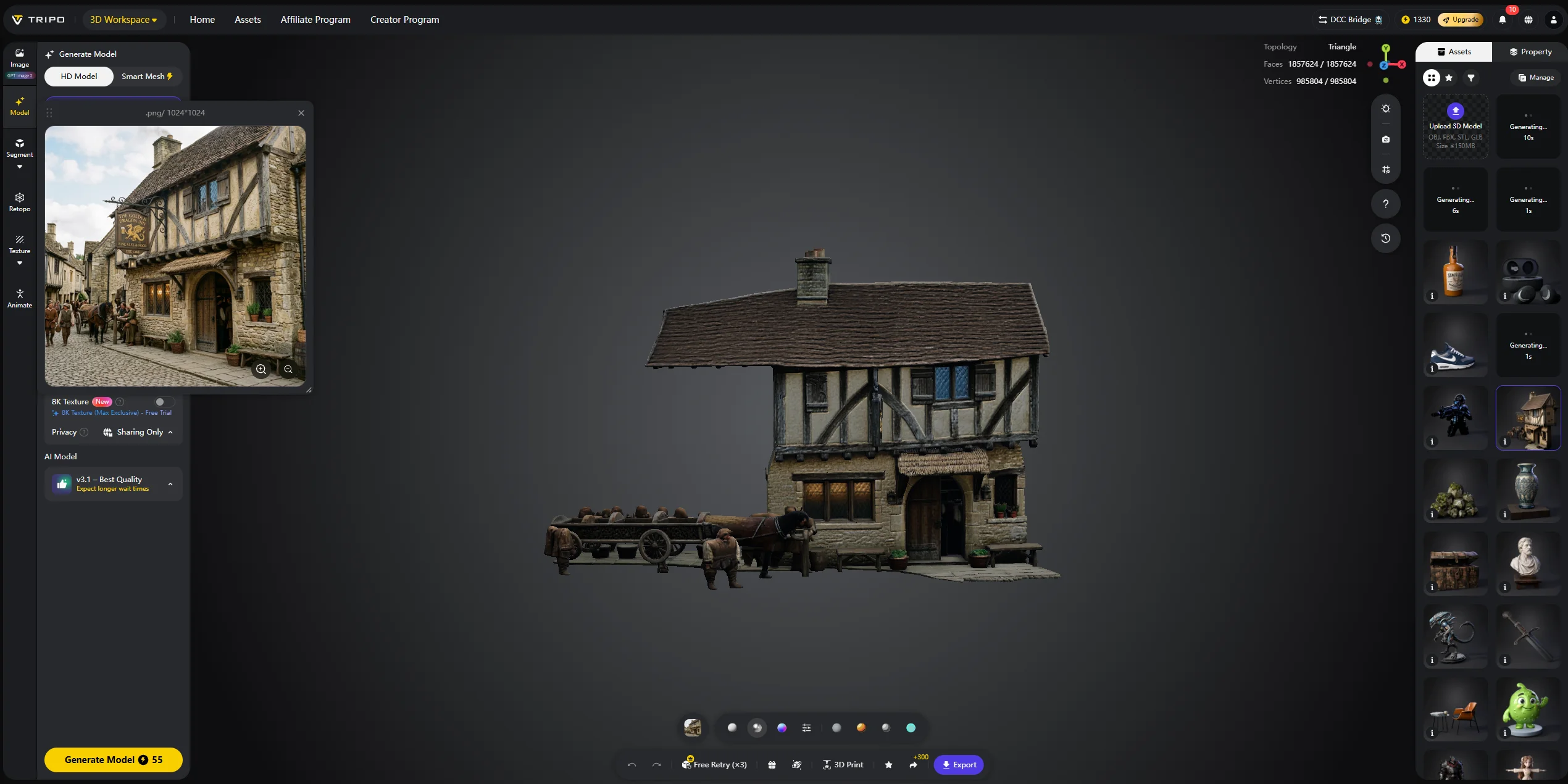
Example 3: NPC building — medieval tavern facade Prompt: “medieval tavern building exterior, stone and wood, hanging sign.” Use HD Model for a hero building or Smart Mesh for background scenery.
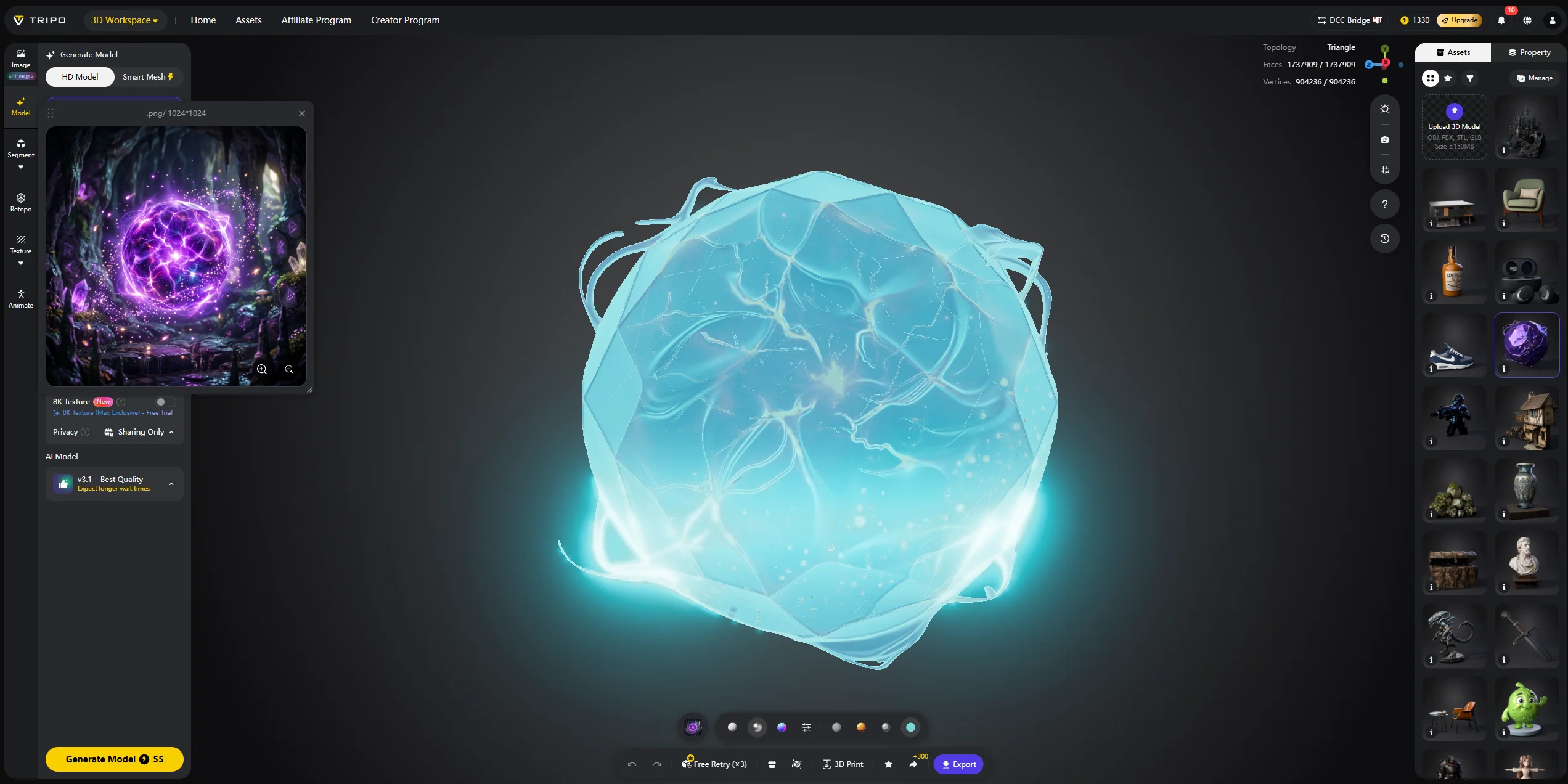
Example 4: Collectible item — glowing crystal orb Prompt: “magical glowing crystal orb, purple energy, floating particles.” Export GLB for web games or interactive previews.
4. Product Models and E-commerce Assets
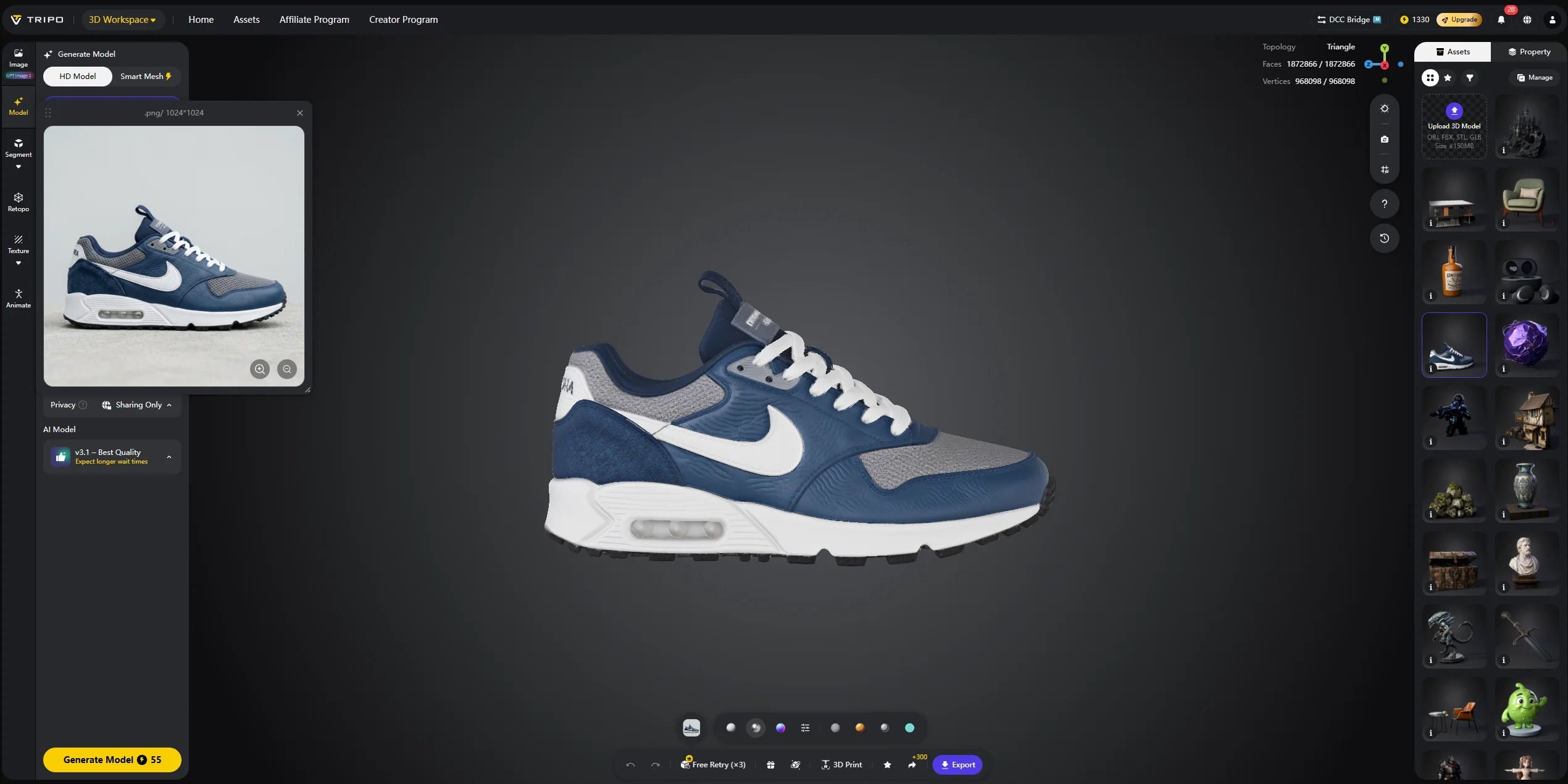
Image-to-3D is especially useful for ecommerce because a product photo can become a model for AR, product pages, or marketing renders.
Example 1: Sneaker from product photo Upload a clean side-view sneaker image and generate a textured model. Export GLB for web or AR display.
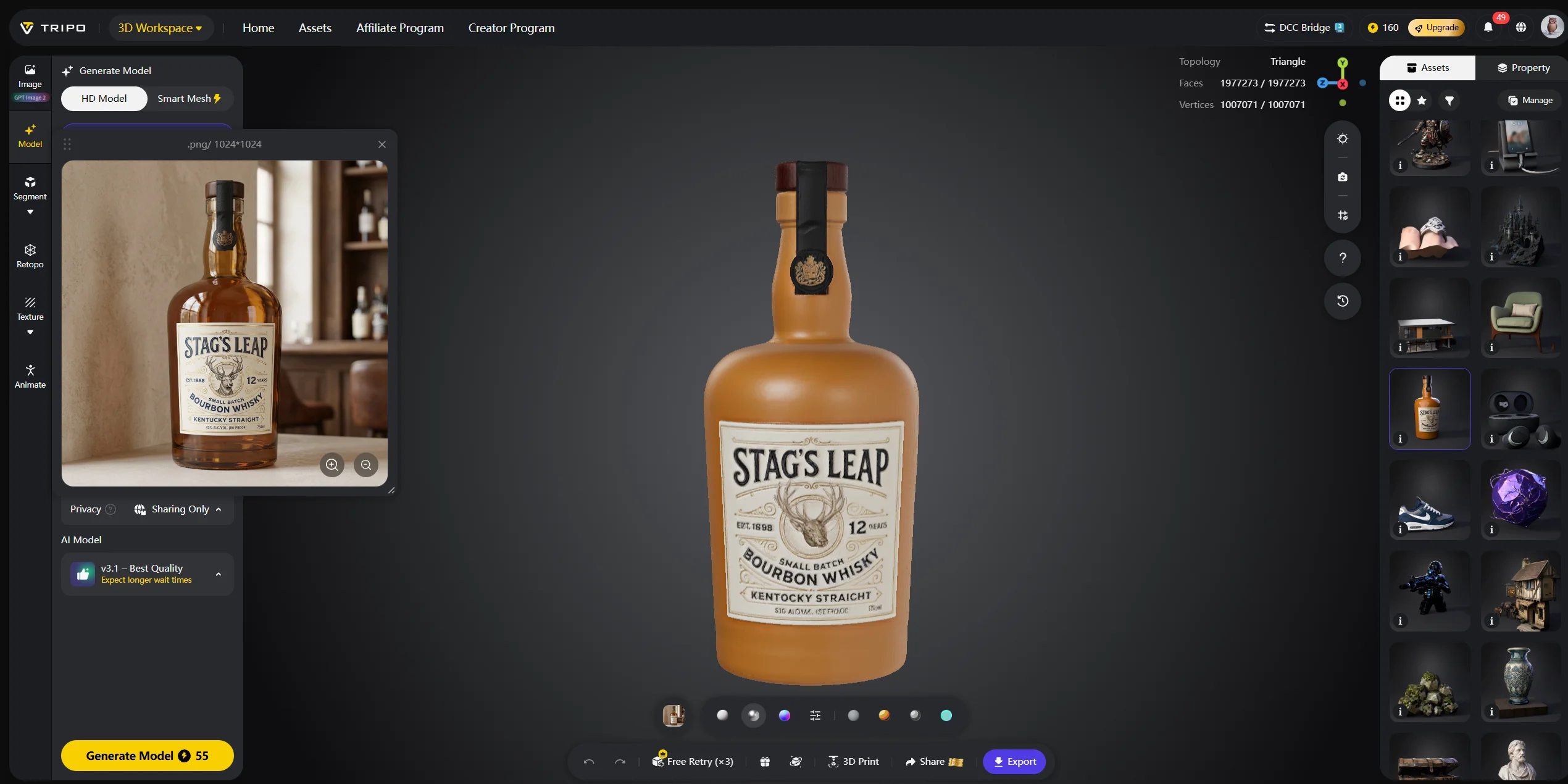
Example 2: Cosmetics bottle Upload a bottle photo and generate a model with material and label detail. Export USD or OBJ for rendering workflows.
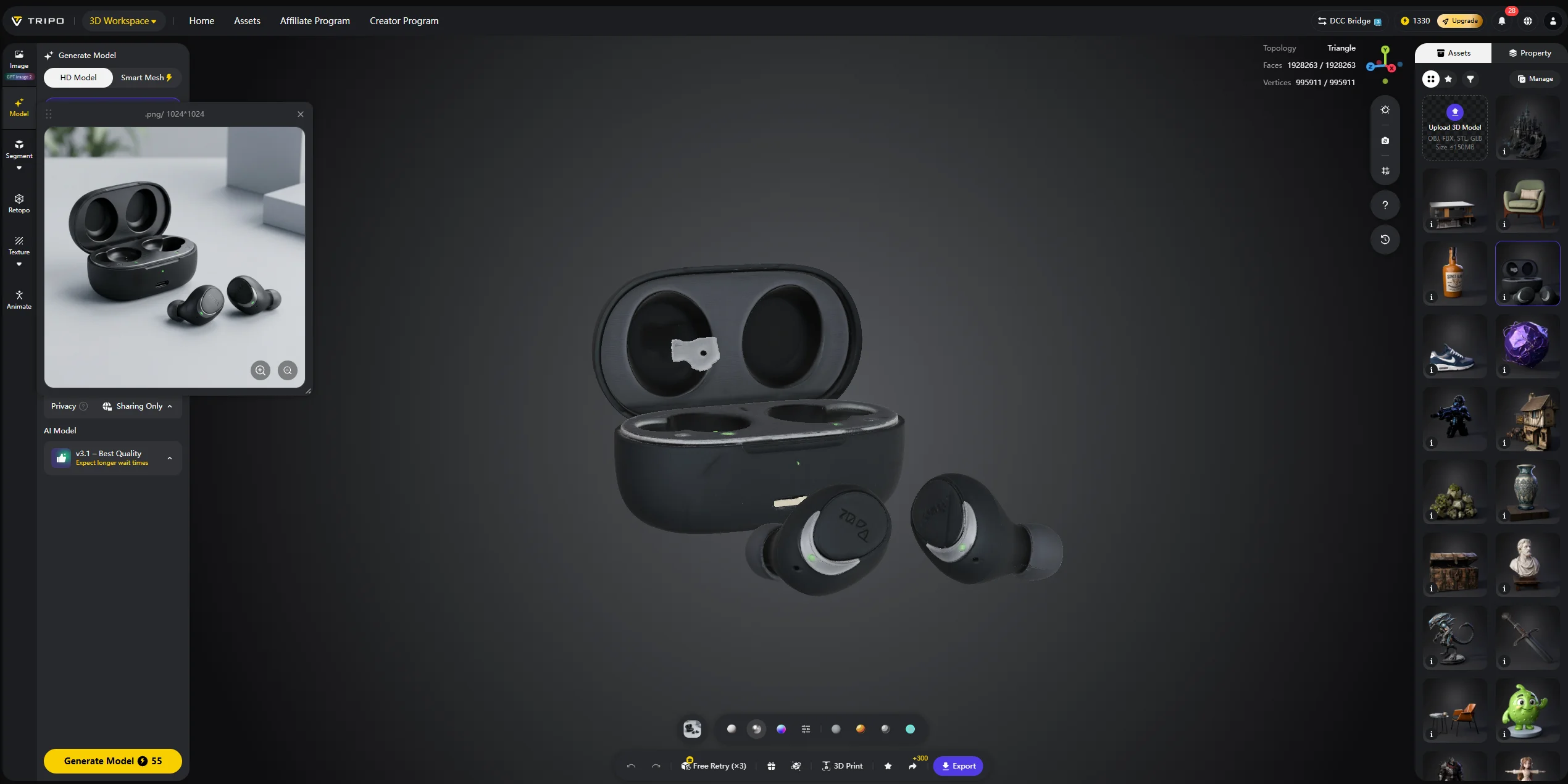
Example 3: Wireless earbuds Use a product reference image plus a clear prompt to generate earbuds and a charging case. Export FBX or GLB depending on the pipeline.
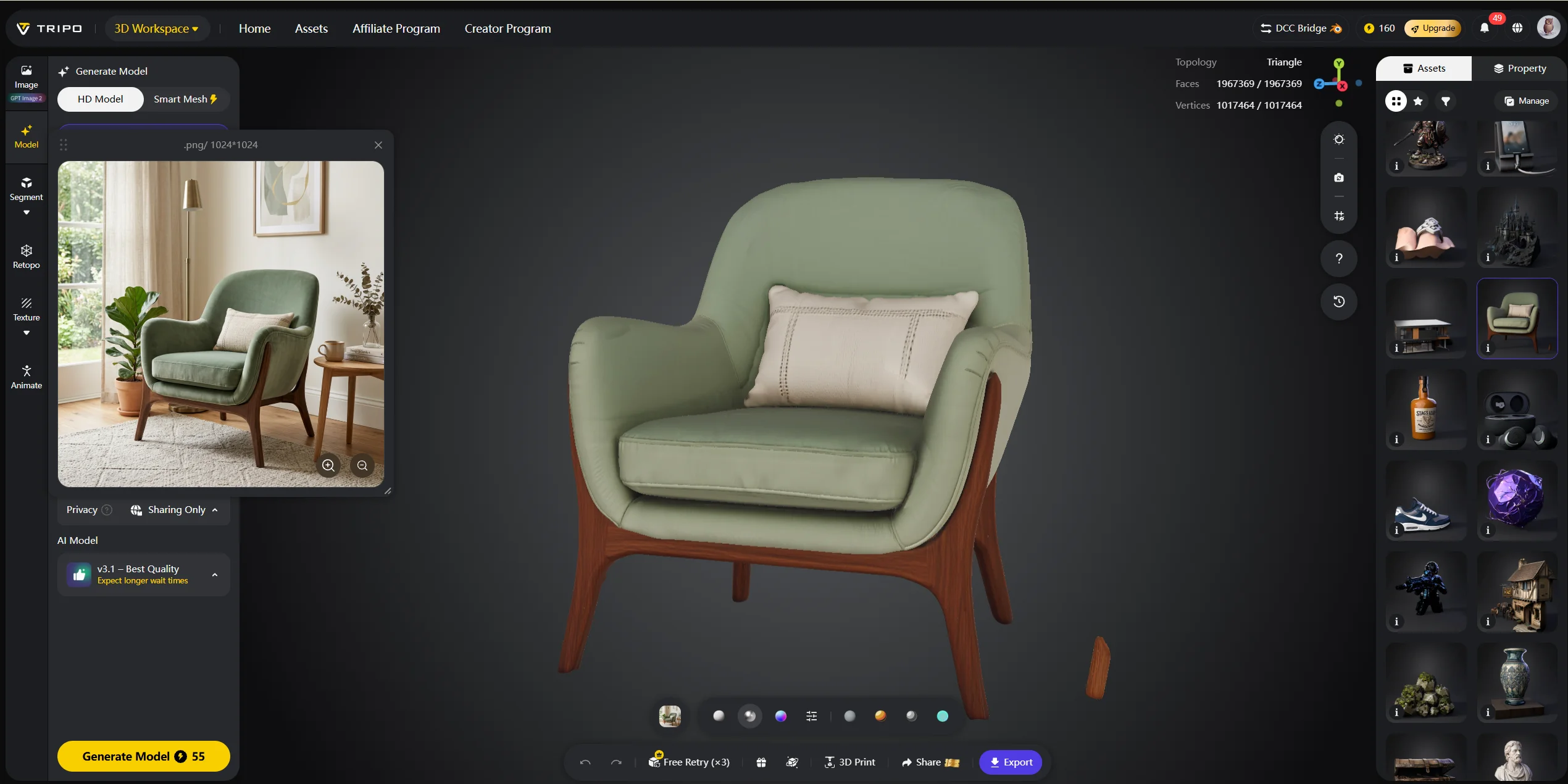
Example 4: Accent armchair Prompt: “modern accent armchair, velvet texture, curved legs, sage green.” Export GLB for furniture previews or room placement.
5. Architecture and Environments
AI-generated architecture is strongest for concept assets, background scenery, and modular environment pieces.
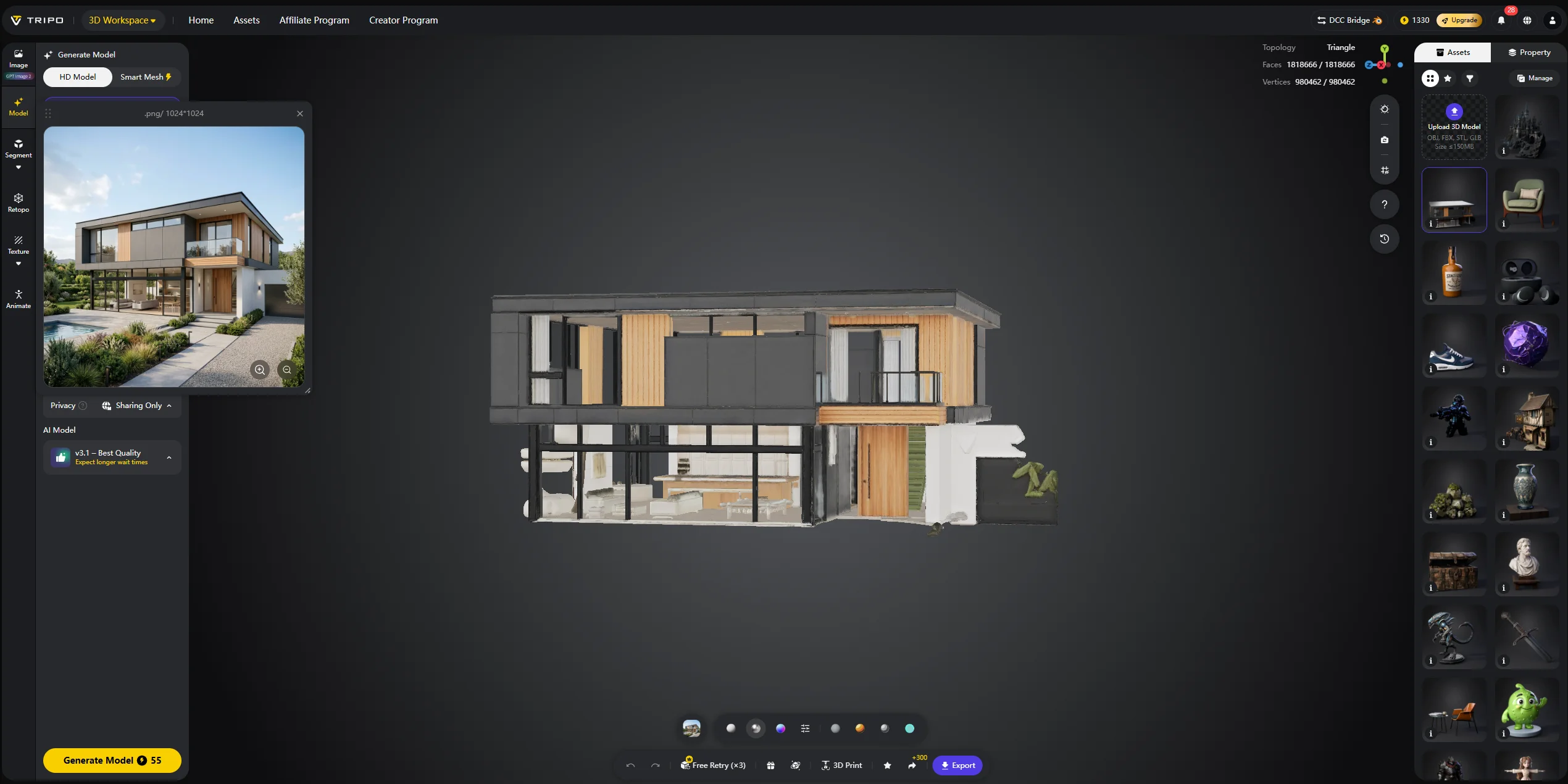
Example 1: Residential house exterior Prompt: “modern two-story house, large windows, flat roof, minimalist design.” Export OBJ for Blender or 3ds Max.
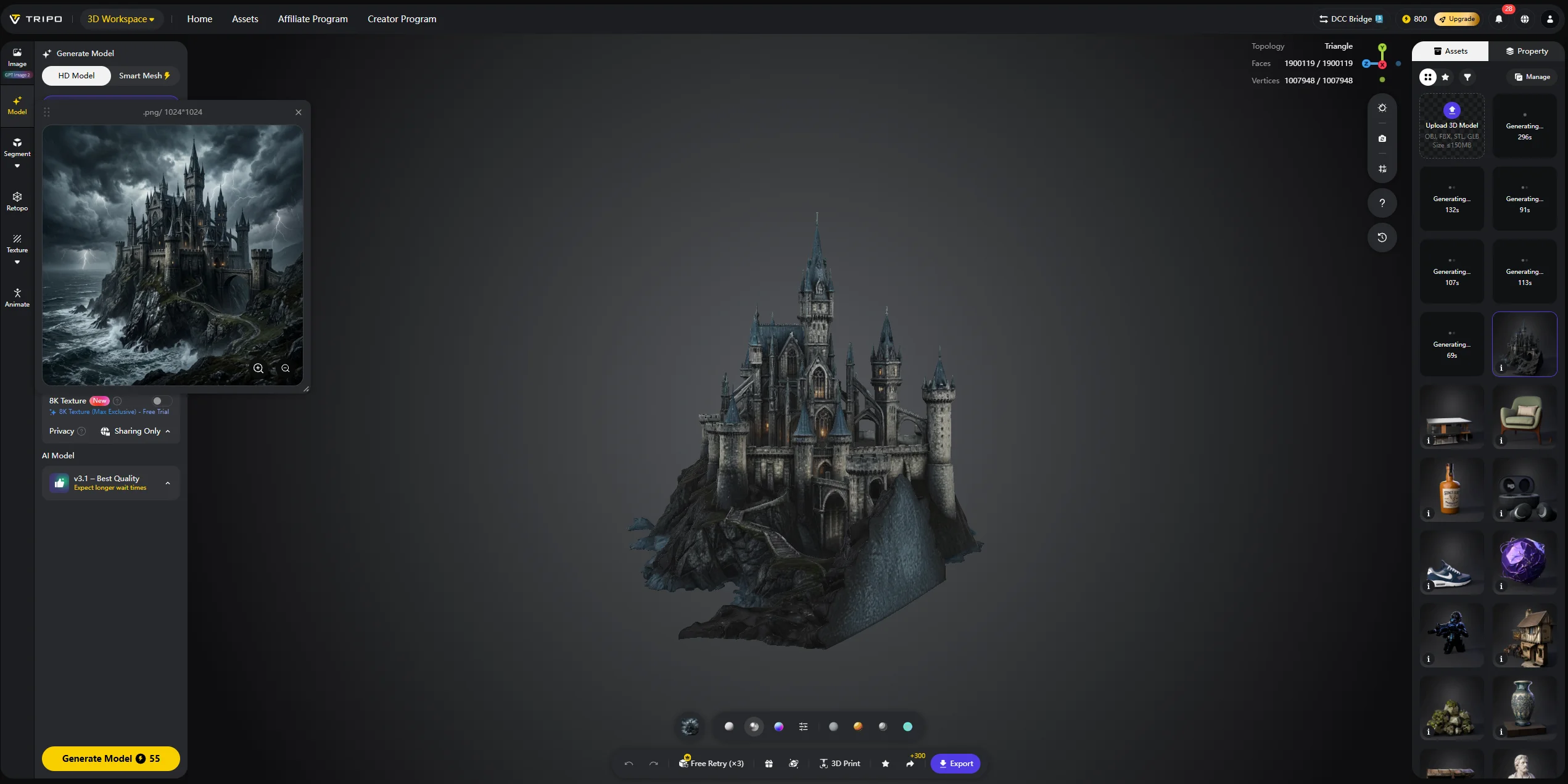
Example 2: Fantasy castle Prompt: “gothic fantasy castle on a cliff, multiple towers, stormy sky atmosphere.” Export FBX for a game scene or previs workflow.
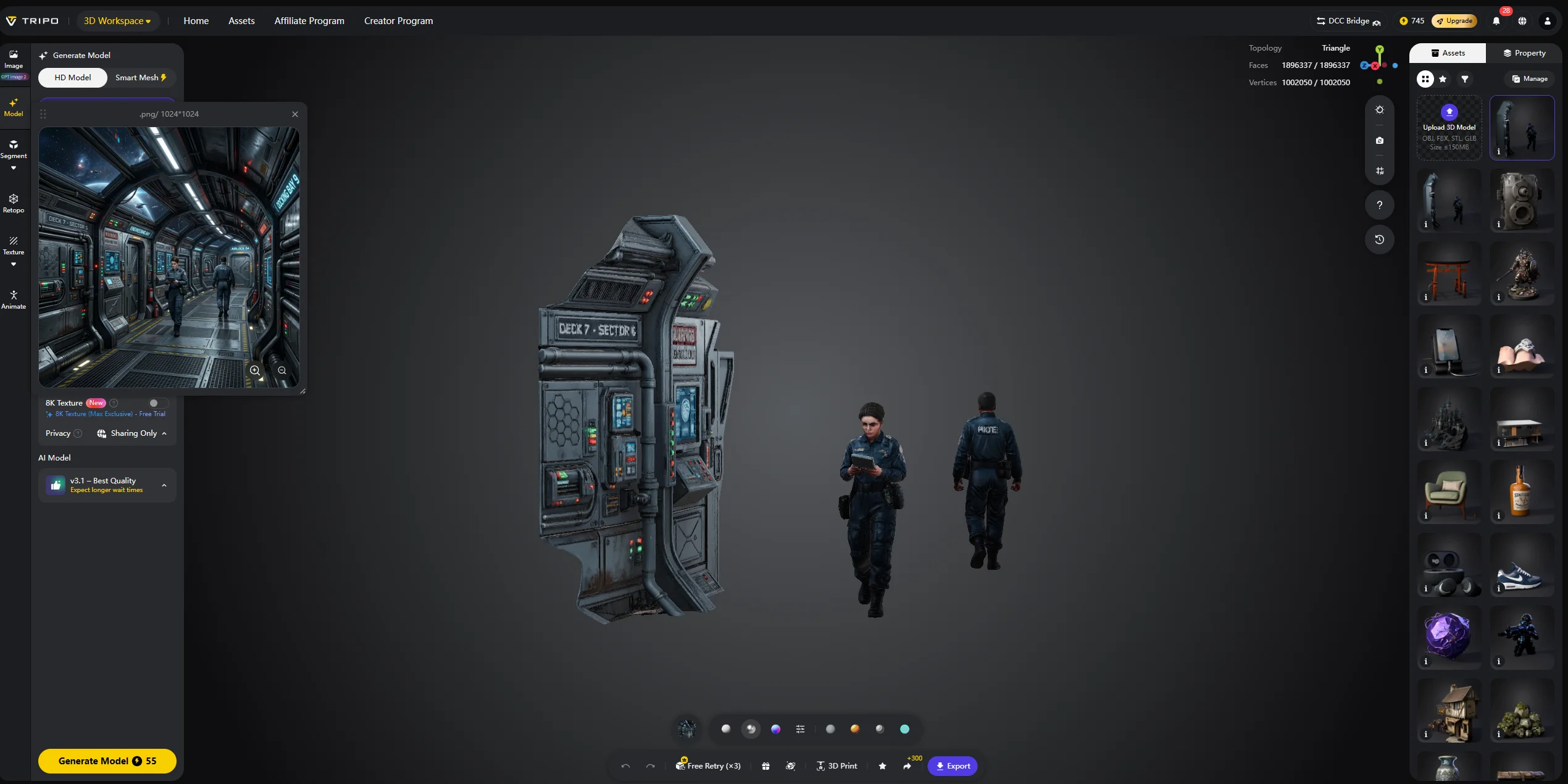
Example 3: Sci-fi interior corridor Prompt: “sci-fi space station corridor, metallic walls, blinking lights.” Smart Mesh can help test VR or real-time layouts.
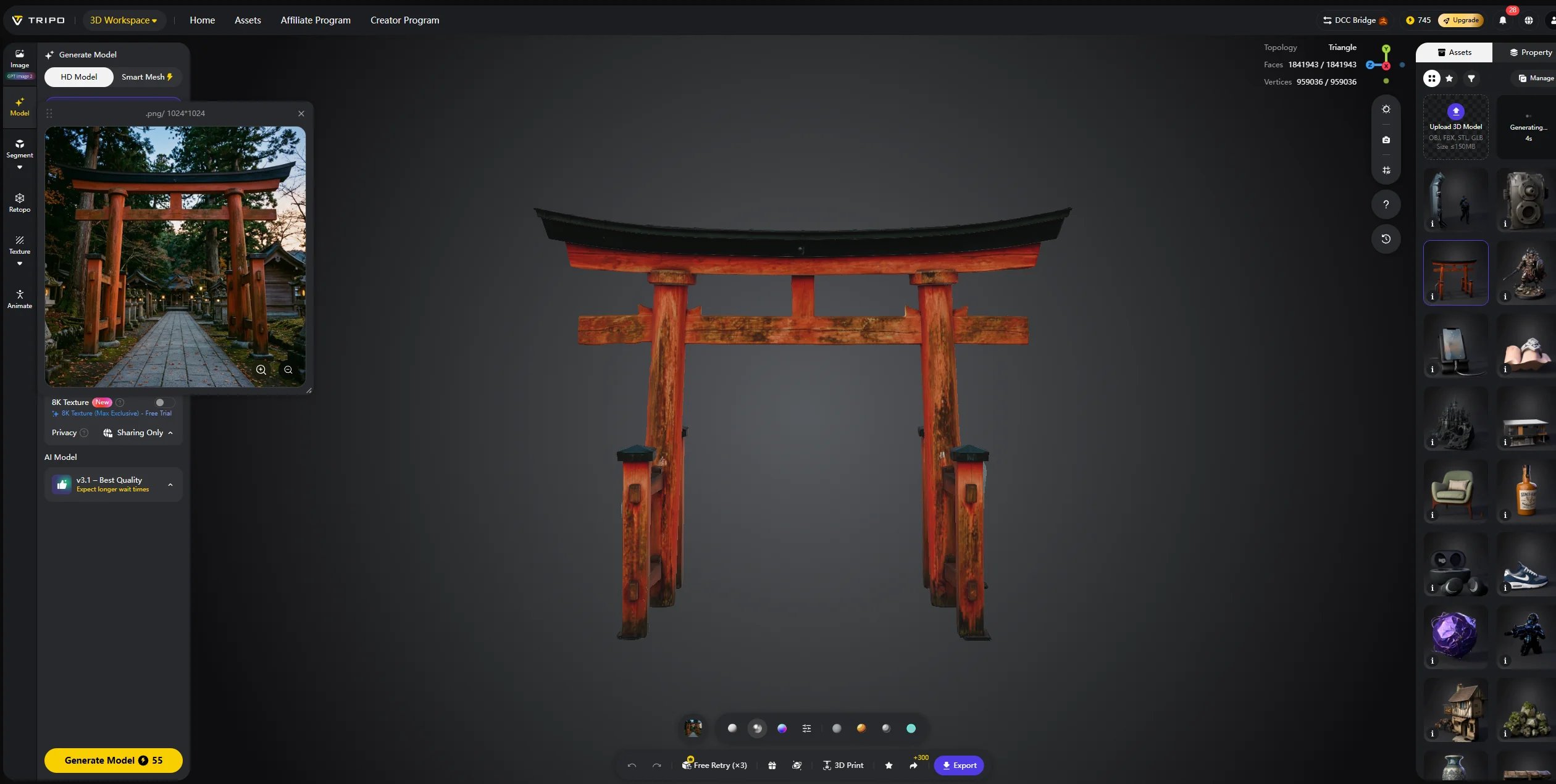
Example 4: Japanese torii gate Generated with Image-to-3D from a clean reference photo. Export GLB for AR landmarks or scene decoration.
6. 3D Printing Models
For printing, choose STL or 3MF and check scale, supports, wall thickness, and manifold geometry in a slicer before production.
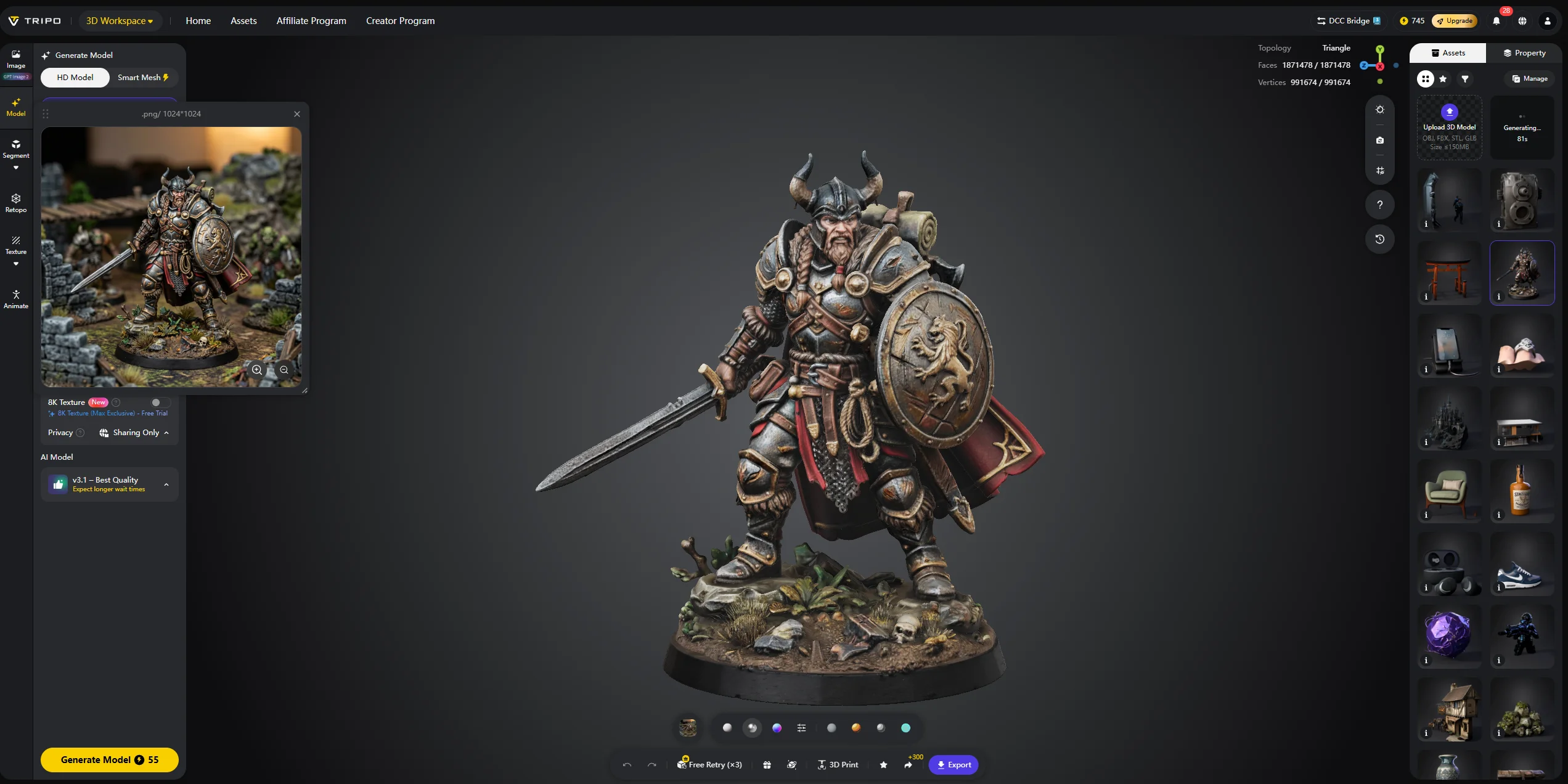
Example 1: D&D-style warrior miniature Prompt: “detailed fantasy warrior miniature, 28mm scale, Dungeons and Dragons style.” Export STL for slicer preparation.
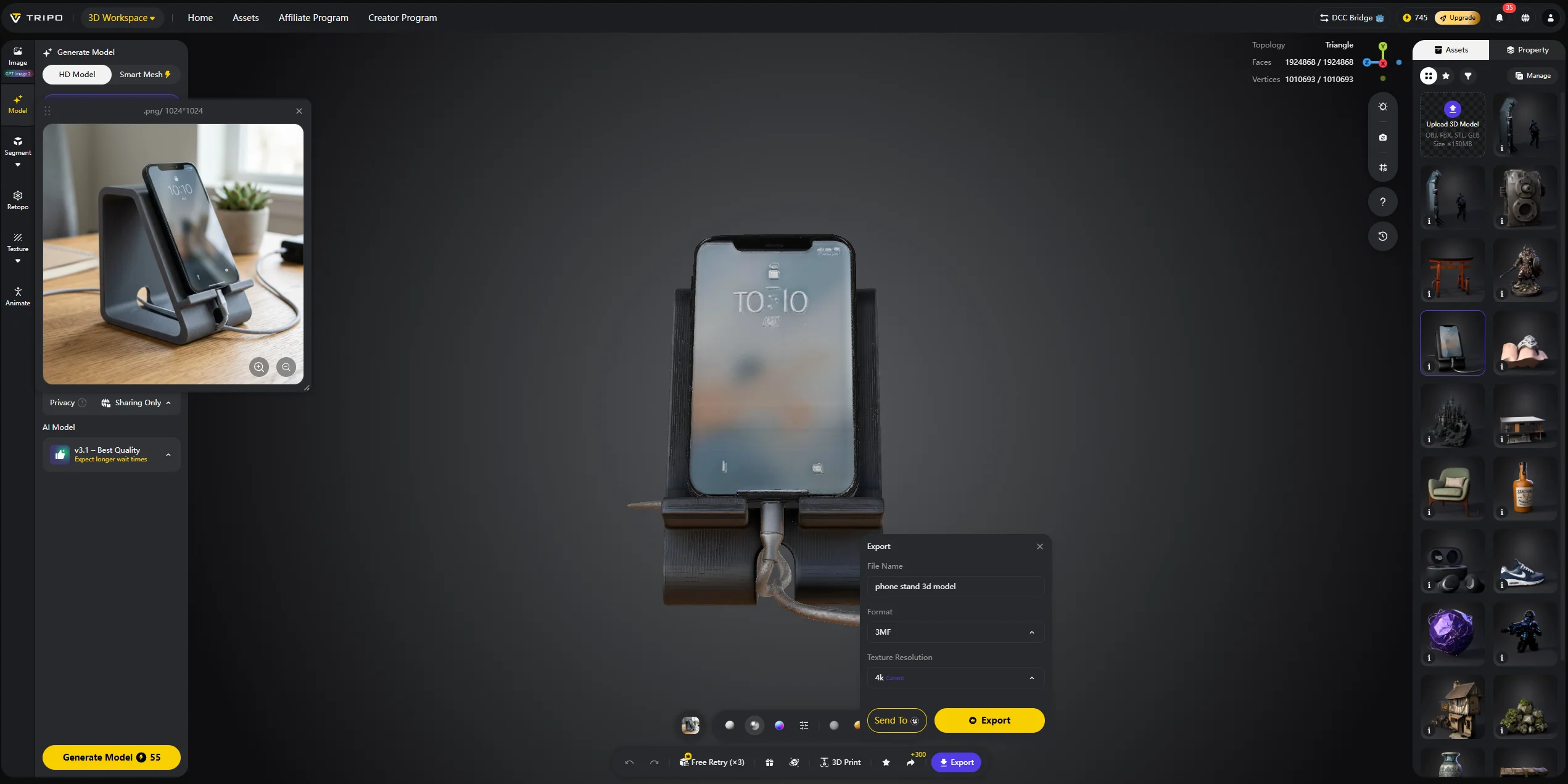
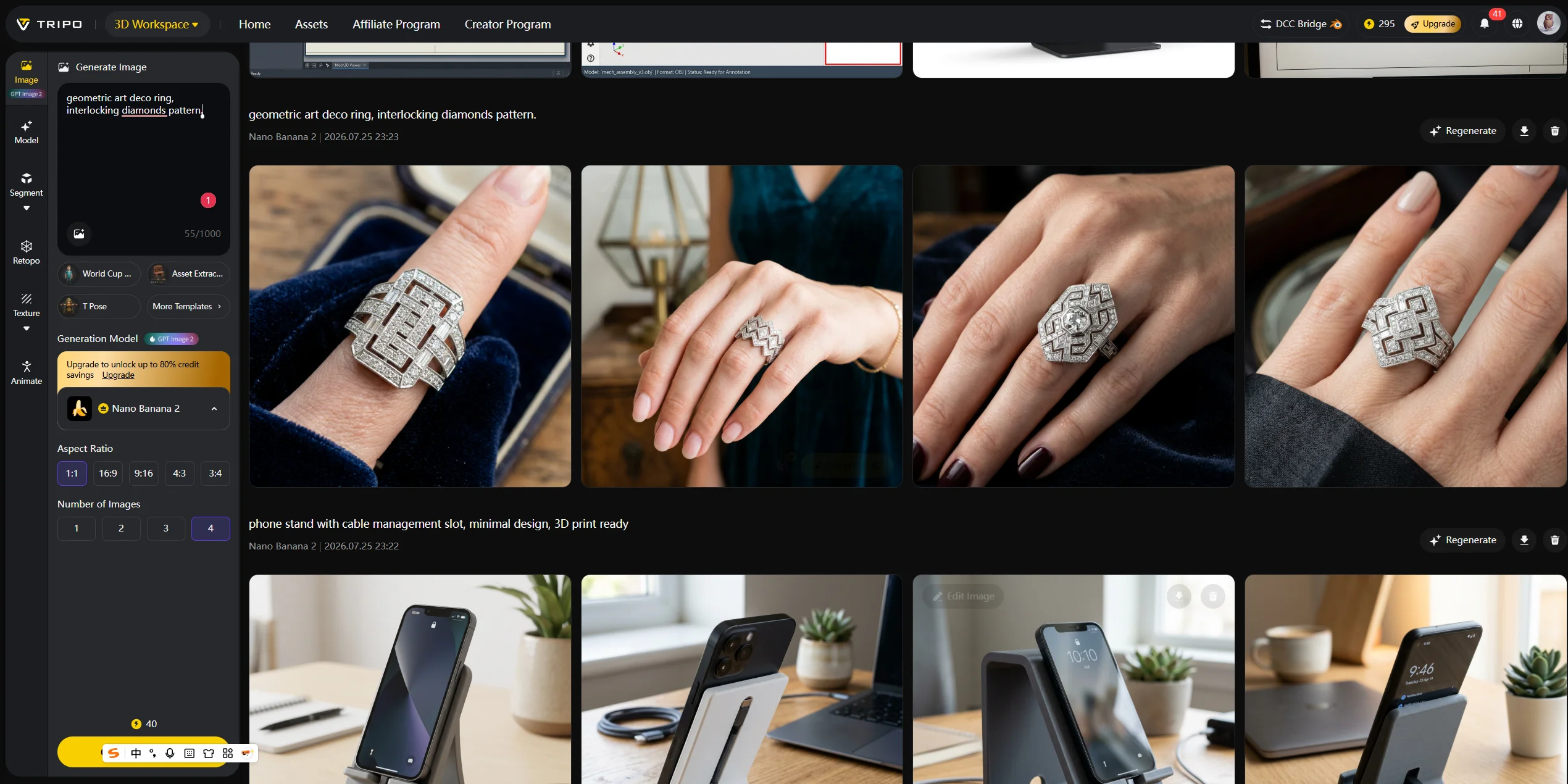
Example 2: Custom phone stand Prompt: “phone stand with cable management slot, minimal design, 3D print ready.” Export 3MF when print metadata is useful.
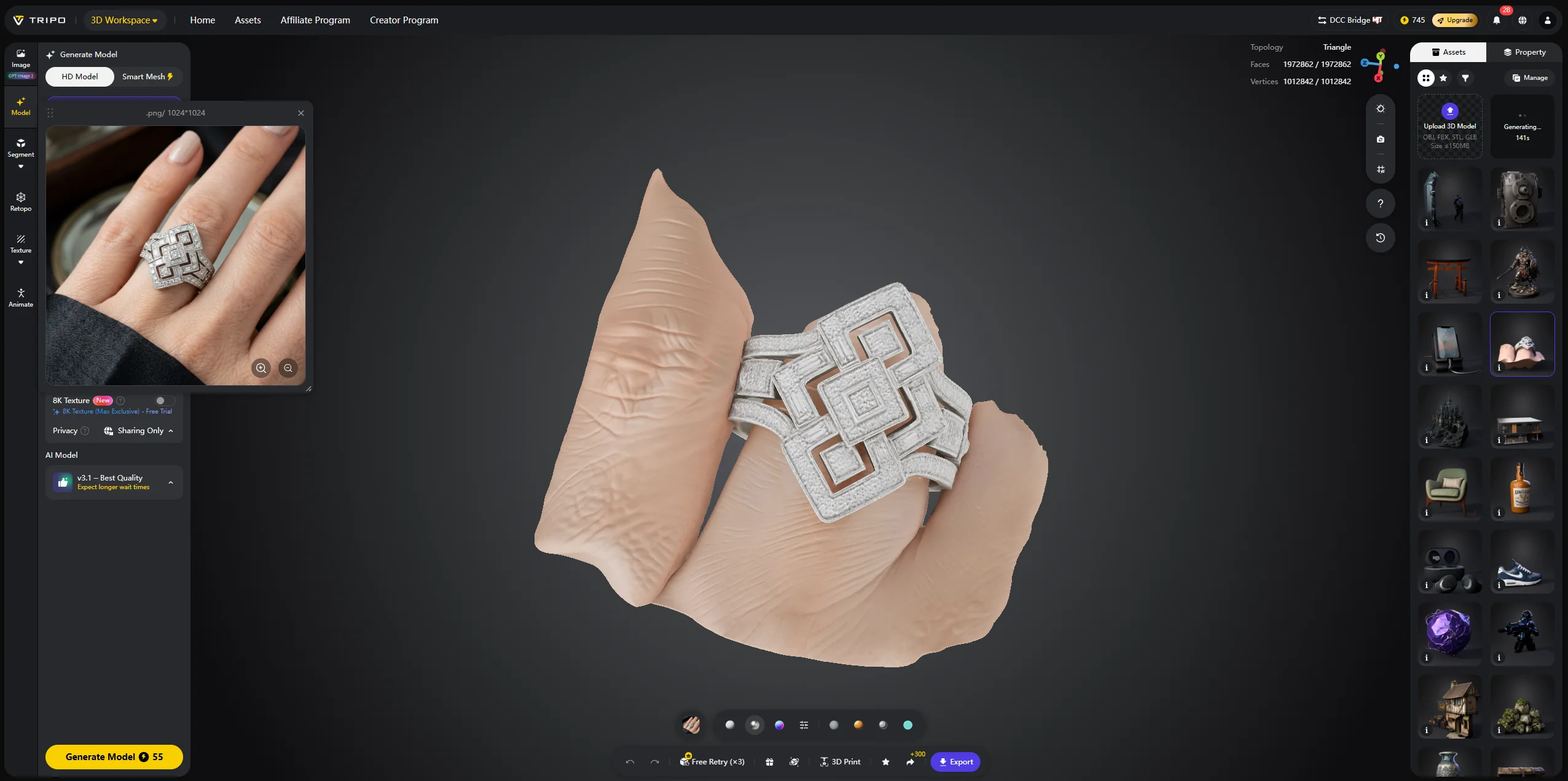
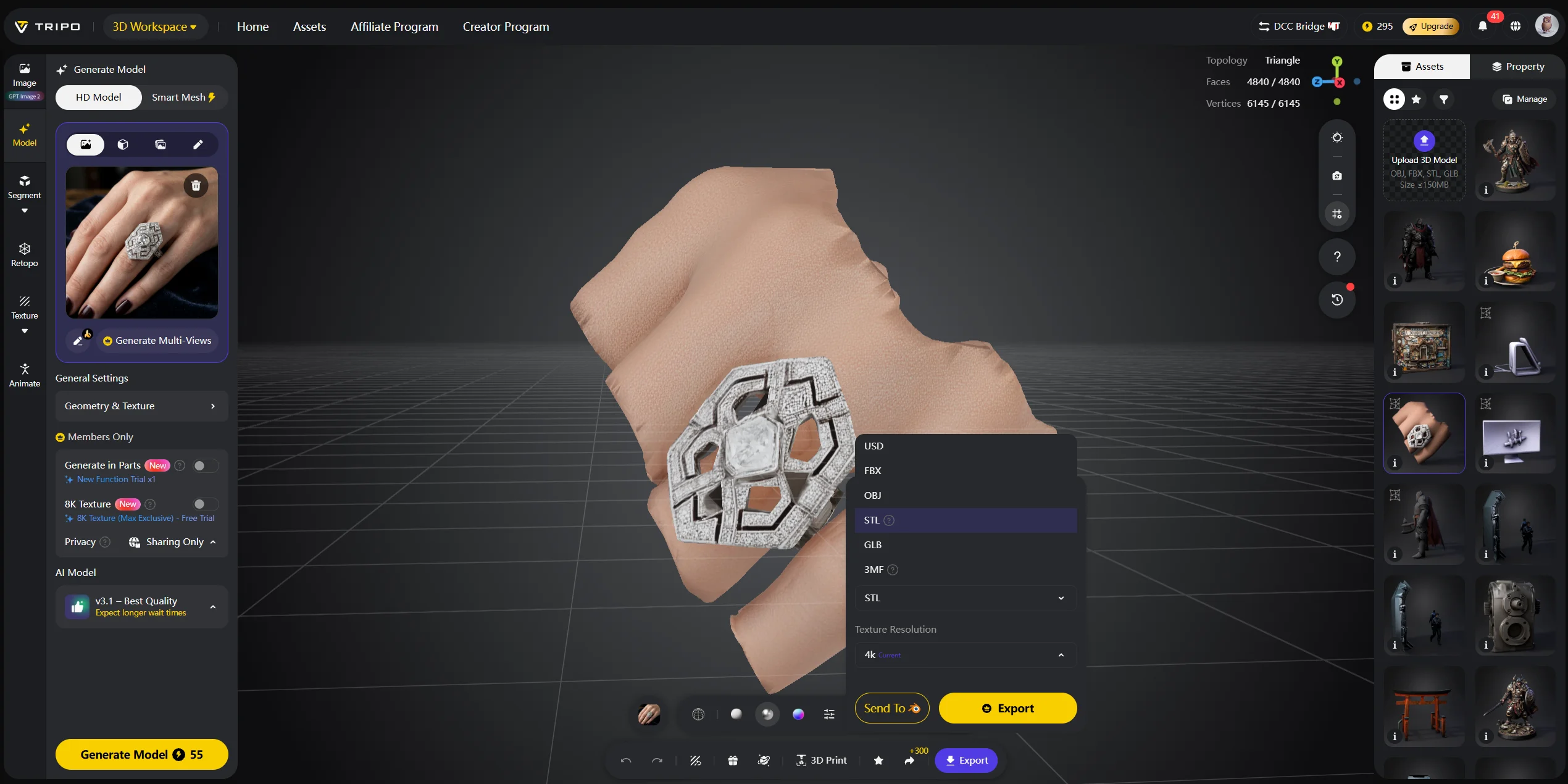
Example 3: Geometric ring Prompt: “geometric art deco ring, interlocking diamonds pattern.” Use HD Model for fine surface detail before STL export.
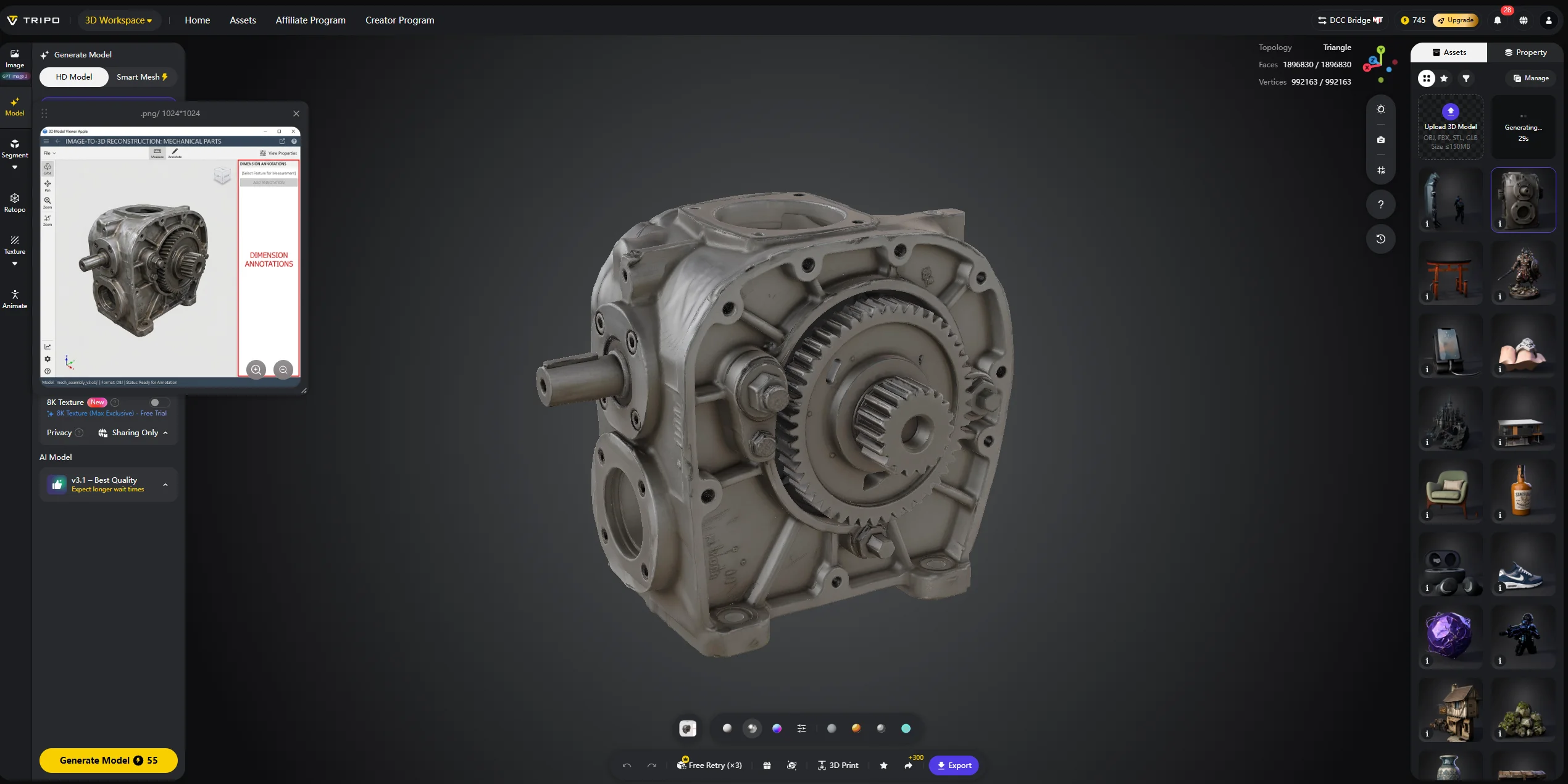
Example 4: Replacement mechanical part Generate from a clear reference image, then manually verify dimensions before printing. AI can help with shape recovery, but precision checks are still essential.
AI vs Traditional 3D Modeling — How Do the Examples Compare?
| Dimension | AI-Generated with Tripo AI | Traditional Manual Modeling |
|---|---|---|
| Time to first model | Smart Mesh can generate a standard white model in about 2–5 seconds; full textured or high-detail outputs vary | Often hours for complex assets |
| Skill level | Beginner-friendly for first drafts | Requires modeling, UV, texture, and topology skills |
| Control | Good for fast concepts and variations | Better for exact topology, dimensions, and art direction |
| Best for | Prototypes, asset batches, ecommerce previews, print concepts | Final hero assets, precision parts, film-quality production |
AI generation is best when speed and variation matter. Traditional modeling is still stronger when the final asset needs exact control, clean topology, or production-level refinement. A practical workflow is to generate the first model with Tripo AI, then refine it in Blender, Maya, ZBrush, or a slicer.
How to Generate Your Own AI 3D Model with Tripo AI
Step 1 - Open Tripo AI Studio and choose a starting point. Go to Tripo AI Studio, sign in, and decide whether you want to start from a written prompt, a single reference image, or multiple visual references. If you are creating a character, prop, or environment concept from scratch, Text-to-3D is usually the fastest route. If you already have a product photo, sketch, miniature, furniture design, or object reference, Image-to-3D gives the model stronger visual grounding.
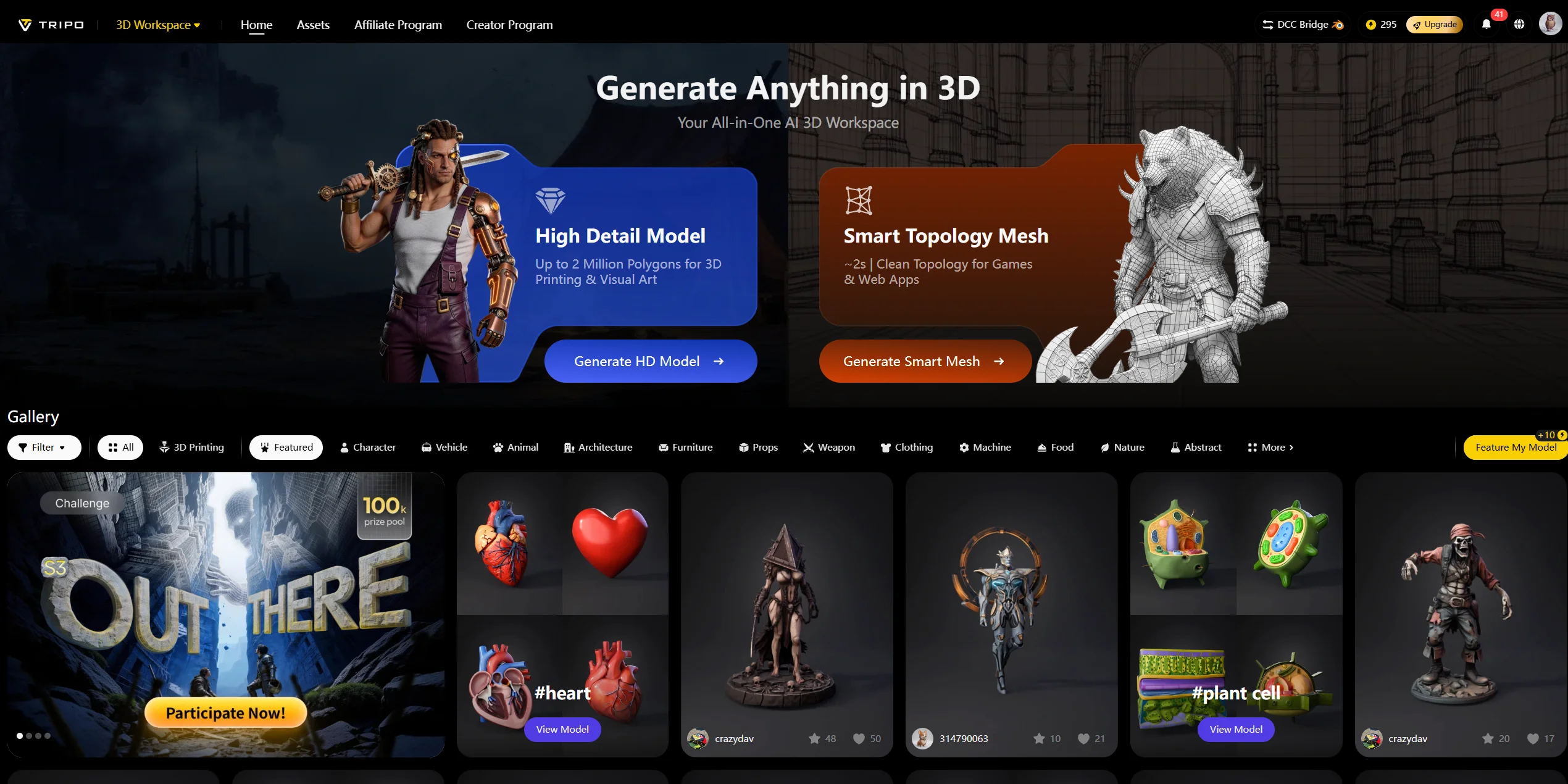
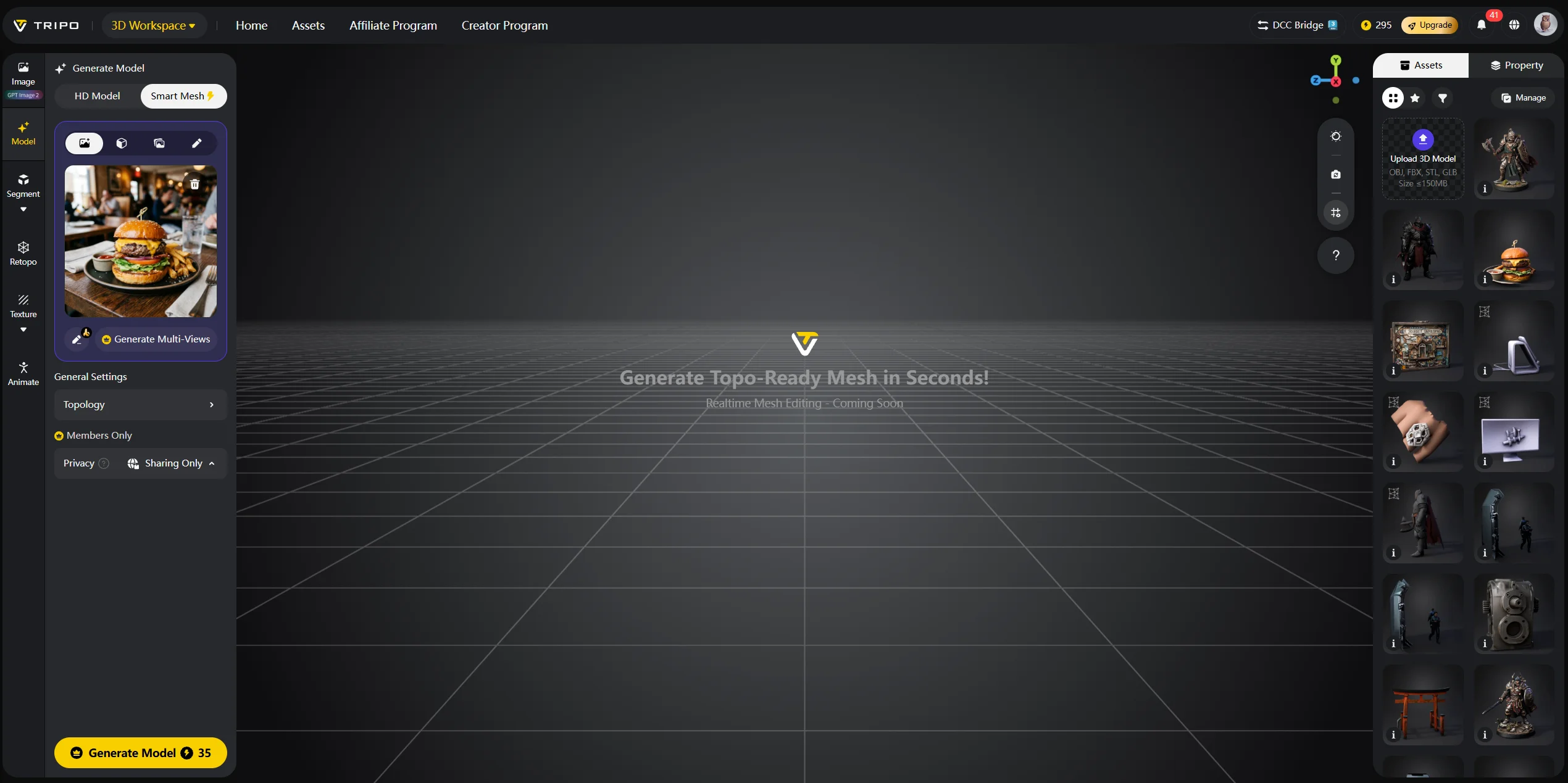
Step 2 - Select the right generation mode for the example you want to build. Use Text-to-3D when the most important input is a descriptive idea, such as a low-poly mossy rock cluster for a game or a modern accent armchair with sage green velvet. Use Image-to-3D when shape and surface details already exist in a reference image, such as a sneaker, bottle, chair, torii gate, or replacement part.
Step 3 - Write a prompt that includes use case, material, and style. A short prompt can work, but a production-oriented prompt usually performs better. Describe the object type, visual style, material, camera view, and intended use. For example, an ornate medieval longsword with a gold hilt and rune engravings gives the generator more useful constraints than simply asking for a sword. For characters, include full body or bust when framing matters.
Step 4 - Choose Smart Mesh or HD Model based on the downstream workflow. Smart Mesh is better for lightweight game assets, AR previews, web viewers, and fast iteration. HD Model is better when you need richer detail for product rendering, sculpting cleanup, or 3D printing. The right choice depends less on which model looks most impressive in the browser and more on where the asset will be used after export.
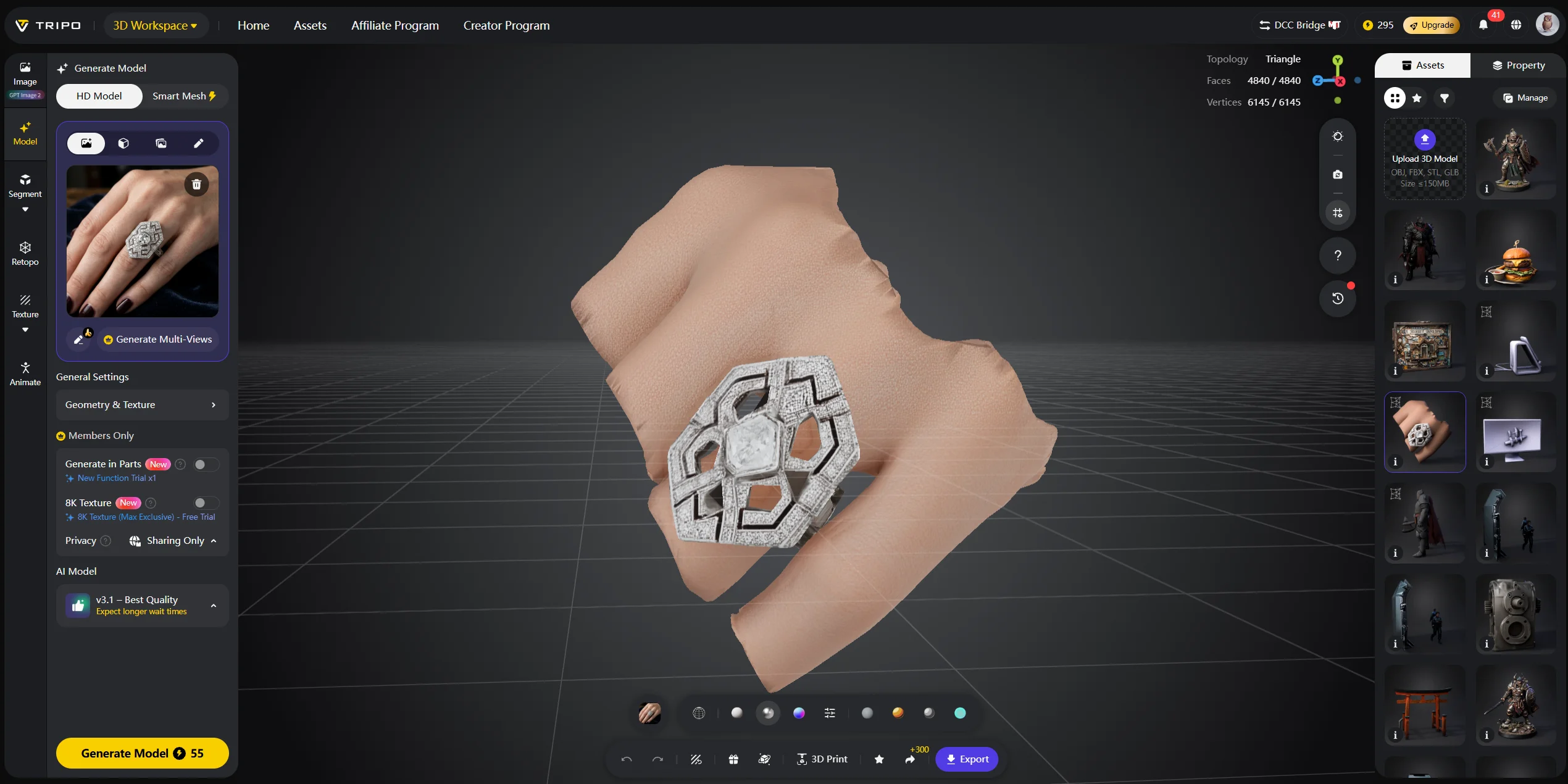
Step 5 - Export the model and test it in the target tool. Use GLB for web, AR, and quick sharing; FBX for Unity, Unreal Engine, or animation pipelines; OBJ for Blender, Maya, ZBrush, and other DCC tools; STL or 3MF for 3D printing; and USD for rendering or scene pipelines. After export, rotate the model, inspect texture seams, check scale, and do a quick cleanup pass before treating it as a final production asset.
Frequently Asked Questions
What are the best examples of AI-generated 3D models?
Strong examples include game characters, stylized creatures, props, product models, architecture concepts, and 3D printing assets. Tripo AI supports both lightweight Smart Mesh results and high-detail HD Model outputs.
Which AI tool is best for generating 3D models?
Tripo AI is a strong choice if you need text-to-3D, image-to-3D, Smart Mesh, HD Model, and exports such as GLB, FBX, OBJ, STL, 3MF, and USD.
Can I generate a 3D model from an image using AI?
Yes. Tripo AI’s Image-to-3D feature lets you upload a reference image and generate a textured 3D model, which is useful for products, repair references, and existing designs.
Are AI-generated 3D models good enough for game development?
Yes, especially for prototypes, background assets, mobile games, and concept passes. Hero characters or final game assets may still need manual cleanup.
Can AI generate 3D models for 3D printing?
Yes. Tripo AI supports STL and 3MF export, but you should still check scale, supports, wall thickness, and manifold geometry before printing.
What file formats do AI 3D model generators export?
Tripo AI exports GLB, FBX, OBJ, STL, 3MF, and USD. Use GLB for web or AR, FBX for engines, OBJ for DCC tools, STL/3MF for printing, and USD for rendering pipelines.
Is it free to generate AI 3D models?
Tripo AI offers a free tier through Studio. For current plan limits, export needs, and HD Model access, check Tripo AI Pricing.
How do I get better results from AI 3D model generation?
Use clear prompts with object type, style, material, and intended use. For Image-to-3D, use clean reference images with good lighting and simple backgrounds.
Can AI generate entire 3D environments?
Current tools are strongest for individual objects or modular assets. Generate buildings, props, furniture, and vegetation separately, then assemble them in Blender or Unreal Engine.
Can I use AI-generated 3D models commercially?
In many cases, yes, but commercial use depends on the tool's current license terms, your subscription plan, and the rights attached to any reference images you upload. Before using an AI-generated model in a game, product page, client render, or marketplace asset pack, check the platform's terms and avoid uploading copyrighted references that you do not have permission to use.
Conclusion
These AI 3D model examples show how broad the workflow has become. With Tripo AI, you can turn prompts or images into characters, props, game assets, product models, architecture concepts, and printable objects.
AI is not a full replacement for expert 3D artists, but it is a fast way to move from idea to model. Use it for drafts, variations, and first-pass assets, then refine manually when precision matters.
Ready to generate your own? Try Tripo AI atTripo AI Studio.
Compare current plan details at Tripo AI Pricing.