3D Models for Unity: Formats, Import Workflow, and How to Generate Your Own with AI
TL;DR
- Unity supports many 3D formats, but FBX is the best choice for most game assets. OBJ works for simple models, while GLB/GLTF is useful for AI-generated assets.
- A good Unity workflow requires correct scale, materials, rigs, and polygon optimization. Use LOD and platform-based budgets to keep performance stable.
- Free libraries help you find assets quickly, but AI tools like Tripo AI let you create custom Unity-ready models, optimize them, and export FBX or GLB faster.
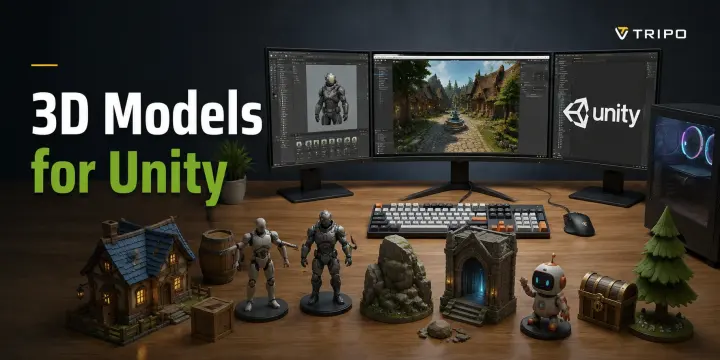
If you have a Unity project but no 3D assets yet, you quickly face a practical question: where do you get the right 3D model for Unity? You can download ready-made assets from marketplaces, hire a 3D artist, or create your own models, but each option comes with trade-offs in quality, cost, and workflow compatibility.
The bigger challenge is not just finding a model — it is getting it into Unity correctly. Scale issues, missing materials, broken textures, and unsupported rigs can turn a usable asset into a frustrating cleanup task.
This guide covers everything you need to know about using 3D models in Unity, including supported file formats, proper import settings, scale and material fixes, free asset sources, and how AI tools can help you generate custom Unity-ready models in minutes. By the end, you’ll have a clearer workflow for building your game assets faster.
Unity-Supported 3D Formats
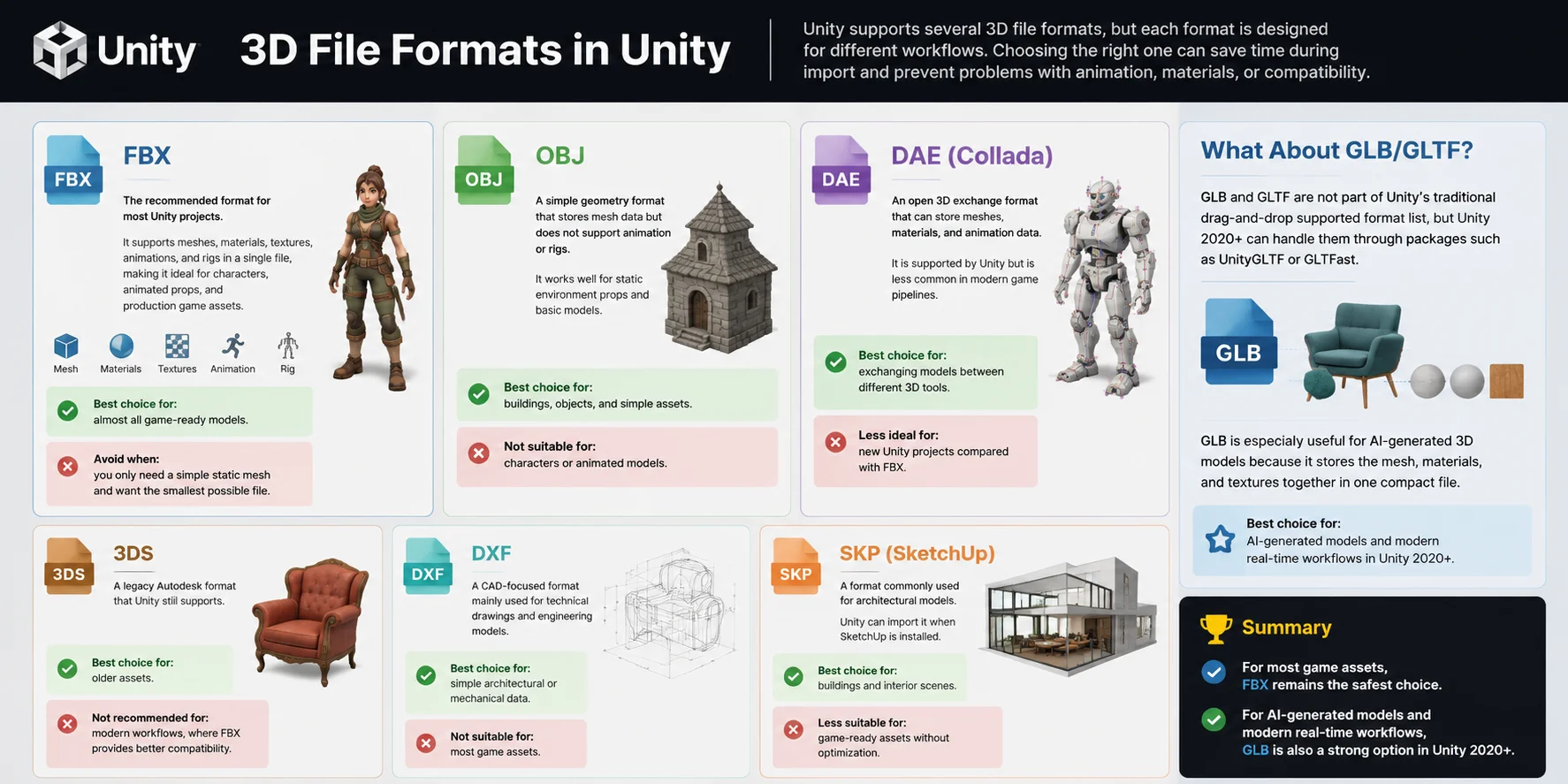
Unity supports several 3D file formats, but each format is designed for different workflows. Choosing the right one can save time during import and prevent problems with animation, materials, or compatibility.
FBX — The recommended format for most Unity projects. It supports meshes, materials, textures, animations, and rigs in a single file, making it ideal for characters, animated props, and production game assets. Best choice for: almost all game-ready models. Avoid when: you only need a simple static mesh and want the smallest possible file.
OBJ — A simple geometry format that stores mesh data but does not support animation or rigs. It works well for static environment props and basic models. Best choice for: buildings, objects, and simple assets. Not suitable for: characters or animated models.
DAE (Collada) — An open 3D exchange format that can store meshes, materials, and animation data. It is supported by Unity but is less common in modern game pipelines. Best choice for: exchanging models between different 3D tools. Less ideal for: new Unity projects compared with FBX.
3DS — A legacy Autodesk format that Unity still supports. Best choice for: older assets. Not recommended for: modern workflows, where FBX provides better compatibility.
DXF — A CAD-focused format mainly used for technical drawings and engineering models. Best choice for: simple architectural or mechanical data. Not suitable for: most game assets.
SKP (SketchUp) — A format commonly used for architectural models. Unity can import it when SketchUp is installed. Best choice for: buildings and interior scenes. Less suitable for: game-ready assets without optimization.
What About GLB/GLTF?
GLB and GLTF are not part of Unity’s traditional drag-and-drop supported format list, but Unity 2020+ can handle them through packages such as UnityGLTF or GLTFast. GLB is especially useful for AI-generated 3D models because it stores the mesh, materials, and textures together in one compact file.
For most game assets, FBX remains the safest choice. For AI-generated models and modern real-time workflows, GLB is also a strong option in Unity 2020+.
How to Import a 3D Model into Unity: Step-by-Step
Importing a 3D model into Unity is more than dragging a file into a folder. A correct import workflow ensures your model has the right scale, materials, shading, and animation setup before it enters your game scene.
Step 1: Prepare Your 3D File
Before importing, export your model from your 3D software with the correct settings. FBX is usually the safest choice for Unity, while OBJ works well for simple static meshes. Make sure transforms are applied before export; for example, in Blender you can use Ctrl+A → All Transforms and set FBX export scale to 1.0. Export textures separately or enable embedded textures if your workflow supports it.
Step 2: Drag the File into the Assets Folder
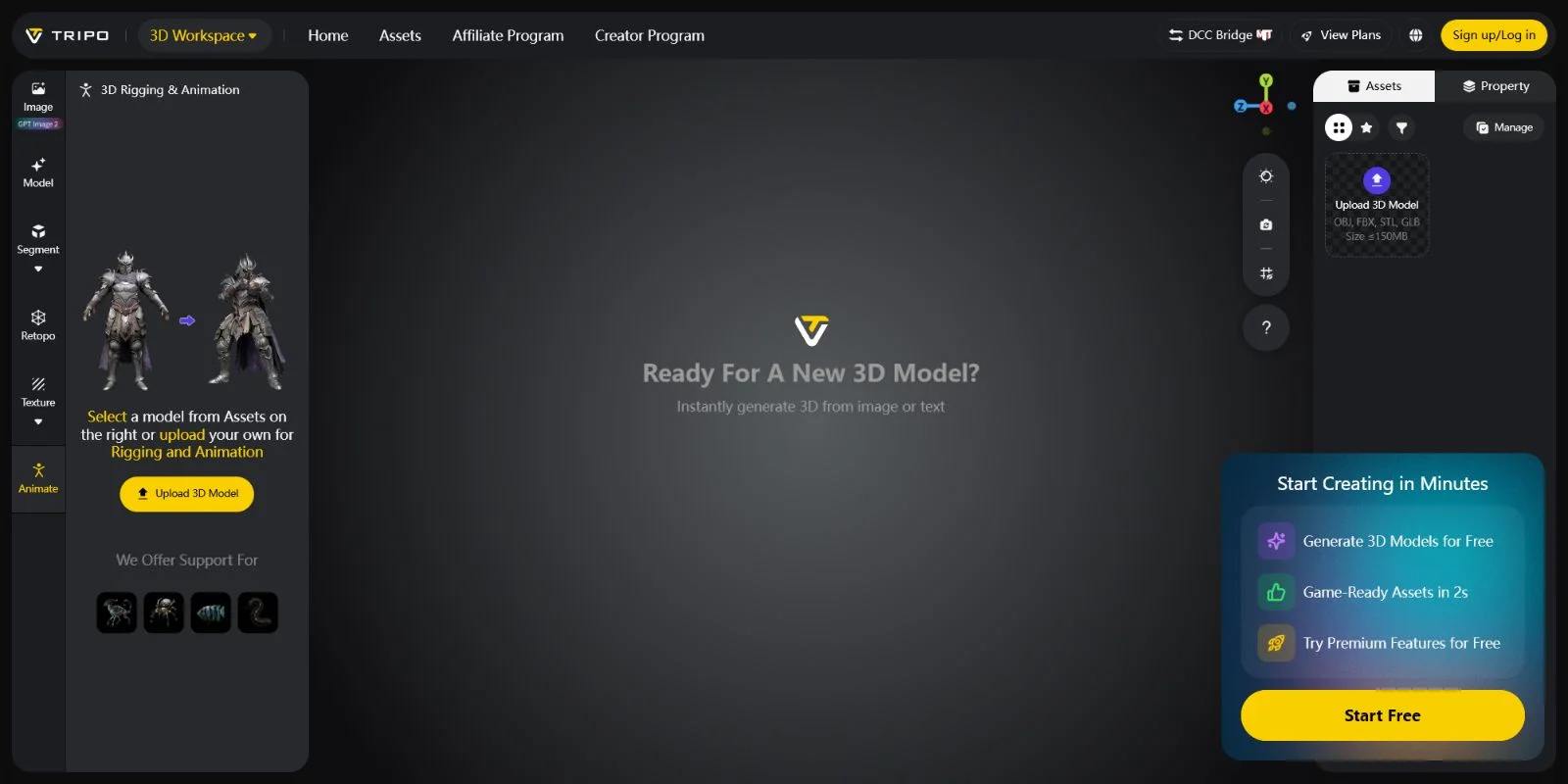
Open your Unity project and drag the FBX, OBJ, or other supported file directly into the Assets folder in the Project panel. Unity will automatically import the model and create the required asset files. No additional installation or conversion step is needed.
Step 3: Fix the Scale Factor
Scale issues are one of the most common problems when importing models into Unity. Unity uses 1 unit = 1 meter, but some 3D tools use different internal units. For example, Blender models may appear 100× too large after import because of unit conversion differences.
Select your imported model in the Project panel, open the Inspector → Model tab, and adjust Scale Factor. Set it to 0.01 if the model is extremely oversized, or keep it at 1.0 if the exported scale is already correct. Click Apply after changing the value.
Step 4: Configure Normals and Tangents
In the Model tab, check the normals and tangents settings. Choose Import to preserve the original shading from your modeling software, or select Calculate if you want Unity to rebuild them. For most finished assets with proper smoothing, importing the original normals gives more consistent results.
Step 5: Set Up Materials and Textures
Unity automatically reads material slots from imported FBX files. In the Materials tab, use Extract Textures if textures are embedded, then assign the generated materials to your model. For modern projects, update the material shaders to match your rendering pipeline, such as URP or HDRP.
Step 6: Configure the Rig (Animated Models Only)
For characters and animated assets, open the Rig tab and select the correct Animation Type. Use Humanoid for standard biped characters or Generic for creatures and custom rigs. Click Configure to check bone mapping and fix any missing assignments before applying changes.
Step 7: Place the Model into Your Scene
Finally, drag the imported model from the Project panel into the Scene view or Hierarchy window. Your asset is now ready to use in your Unity project, whether it is a static prop, environment object, or animated character.
Polygon Budgets for Unity: Mobile, PC, and Console
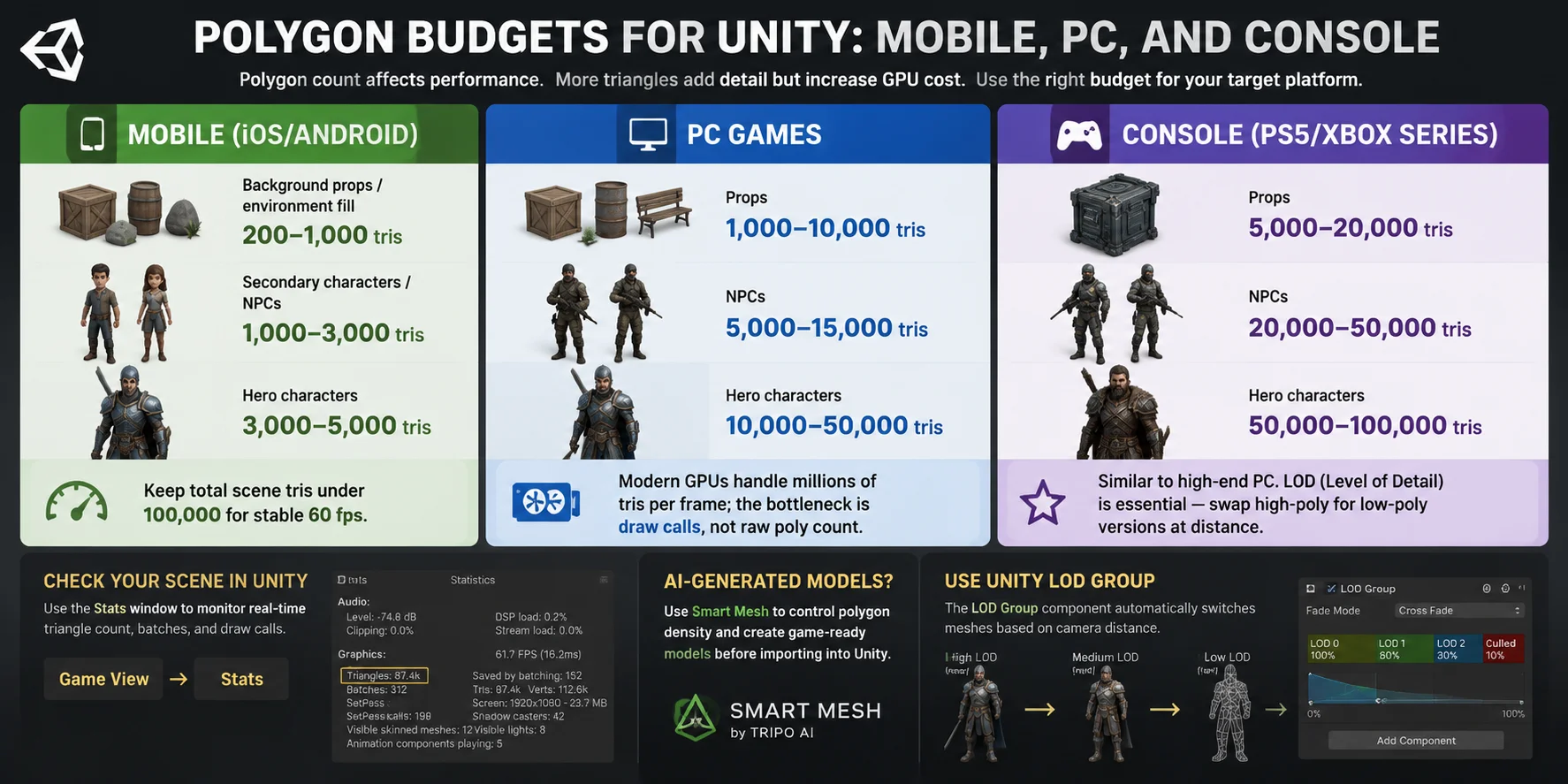
Polygon count directly affects how smoothly a Unity game runs. More triangles mean more geometric detail, but they also increase memory usage, rendering cost, and the workload on the GPU. The right polygon budget depends on your target platform, camera distance, and whether an asset is a hero object or background detail.
Mobile (iOS/Android)
Mobile devices have stricter performance limits, so assets need to stay lightweight:
- Background props / environment fill: 200–1,000 tris
- Secondary characters / NPCs: 1,000–3,000 tris
- Hero characters: 3,000–5,000 tris
- Total scene target: Keep scenes under roughly 100,000 tris for stable 60 FPS performance
For mobile games, optimization matters more than visual complexity. Use simple meshes, baked details, and efficient textures whenever possible.
PC Games
PC hardware allows much higher polygon counts, but performance is often limited by draw calls, shaders, and scene complexity rather than triangles alone:
- Props: 1,000–10,000 tris
- NPCs: 5,000–15,000 tris
- Hero characters: 10,000–50,000 tris
- Scene budget: Modern GPUs can handle millions of tris per frame with proper optimization
High-detail assets can work well on PC, but poorly optimized scenes can still cause frame drops.
Console (PS5/Xbox Series)
Modern consoles are closer to high-end PCs, allowing more detailed assets:
- Props: 5,000–20,000 tris
- NPCs: 20,000–50,000 tris
- Hero characters: 50,000–100,000 tris
However, even powerful hardware benefits from proper Level of Detail (LOD) management. Unity’s LOD Group component automatically switches between different mesh versions based on camera distance, replacing high-poly models with optimized low-poly versions when they are far away.
For AI-generated assets, tools like Smart Mesh can help control polygon density and create more game-ready models before importing into Unity.
Before optimizing, check your actual scene cost: open the Game view → Stats window in Unity to monitor real-time triangle counts, batches, and draw calls. Profiling first helps you reduce polygons only where they actually impact performance.
Where to Find Free 3D Models for Unity
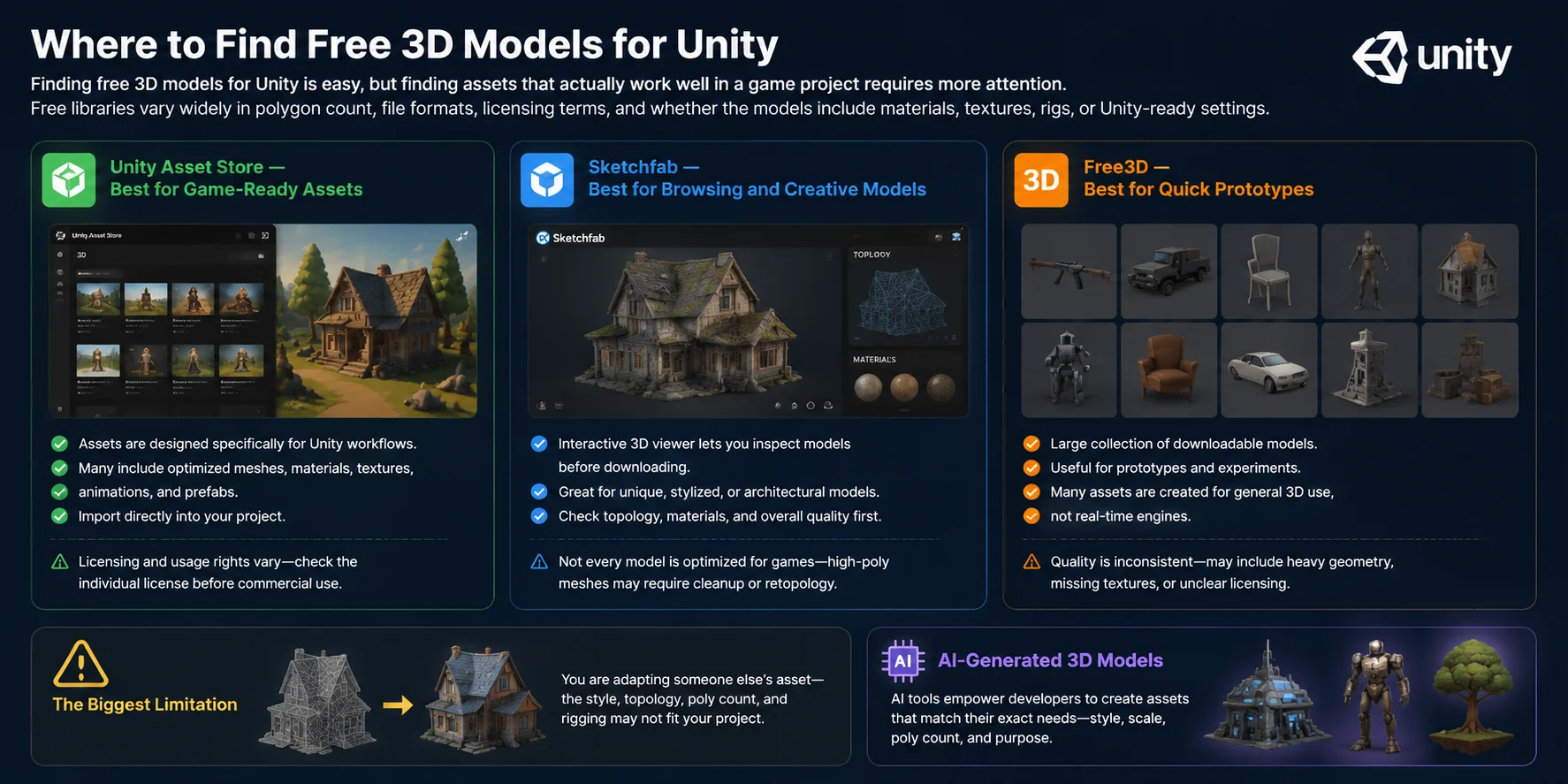
Finding free 3D models for Unity is easy, but finding assets that actually work well in a game project requires more attention. Free libraries vary widely in polygon count, file formats, licensing terms, and whether the models include materials, textures, rigs, or Unity-ready settings.
| Source | Best For | Format | License | Quality Range |
|---|---|---|---|---|
| Unity Asset Store | Game-ready assets | Unity Package / FBX | Check each asset | Beginner to pro |
| Sketchfab | Creative & previewable models | FBX / OBJ / GLB | CC or paid | Very wide range |
| Free3D | General 3D models | FBX / OBJ / 3DS | Usually free | Inconsistent |
Unity Asset Store — Best for Game-Ready Assets
For most Unity developers, the Unity Asset Store is the safest starting point. Assets are designed specifically for Unity workflows, and many include optimized meshes, materials, textures, animations, and prefabs that can be imported directly into a project. The main limitation is that licensing and usage rights vary by asset, so always check the individual license before commercial use.
Sketchfab — Best for Browsing and Creative Models
Sketchfab is useful when you need unique, stylized, or architectural models and want to inspect them before downloading. Its interactive 3D viewer lets you check topology, materials, and overall quality first. However, not every model is optimized for games, so high-poly meshes may require cleanup, retopology, or texture adjustments before Unity import.
Free3D — Best for Quick Prototypes
Free3D provides a large collection of downloadable models, but quality is less consistent. Many assets are created for general 3D use rather than real-time engines, meaning you may encounter heavy geometry, missing textures, or unclear licensing. It works well for prototypes and experiments, but production projects usually require additional optimization.
The biggest limitation of free model libraries is that you are adapting someone else’s asset — the style, topology, poly count, and rigging may not fit your project. This is where AI-generated 3D models become useful, giving developers more control over creating assets that match their exact needs.
How to Generate 3D Models for Unity with Tripo AI
AI-generated 3D models solve one of the biggest problems with free asset libraries: you are no longer limited to finding a model that is “close enough.” With Tripo AI, you can generate the exact asset you need and export it in Unity-friendly formats like FBX or GLB in minutes.
Why Tripo AI fits a Unity workflow:
- Unity-ready exports: Tripo AI supports FBX, Unity’s recommended format for game assets, and GLB, which Unity 2020+ can use through GLTFast workflows.
- Optimized topology options: Smart Mesh creates lightweight models with around 5,000 faces by default, making them suitable for mobile games and real-time projects without extra retopology.
- High-detail options: HD Model mode can generate assets with up to 2 million triangles, useful for PC, console, cinematic scenes, or hero objects.
- Simplified material setup: Textures are included in the export package, so you spend less time searching for missing files or reconnecting materials manually.
Tripo AI → Unity Import Workflow (6 Steps)
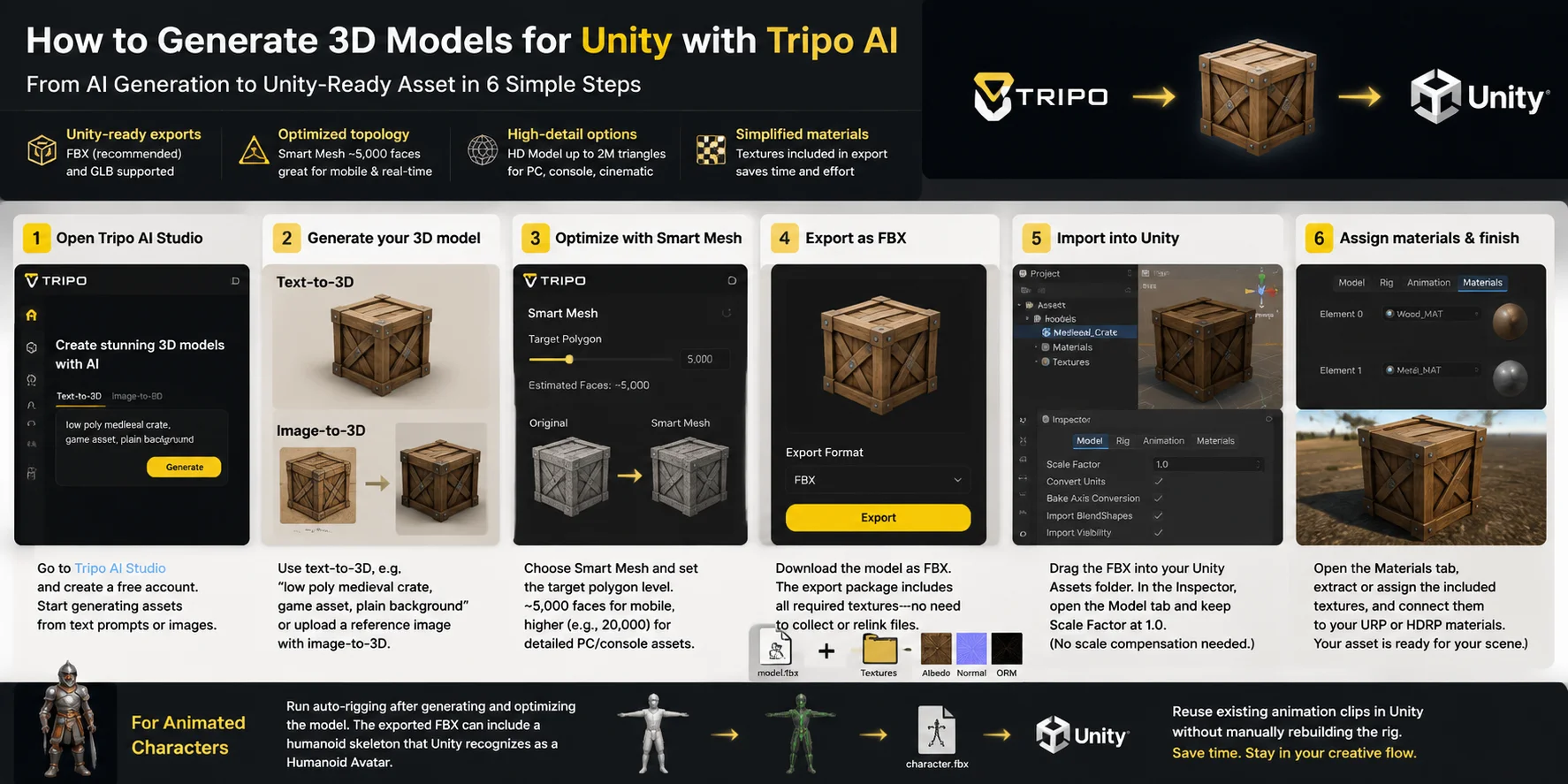
- Open Tripo AI Studio Go to Tripo AI Studio and create a free account. Once inside, you can start generating assets directly from text prompts or images.
- Generate your 3D model Describe the asset you need with text-to-3D, such as “low poly medieval crate, game asset, plain background,” or upload a reference image using the image-to-3D workflow. This gives you more control when you already have a visual target.
- Optimize the model with Smart Mesh Choose Smart Mesh and set the target polygon level based on your Unity project. Around 5,000 faces works well for mobile assets, while higher counts such as 20,000 faces are better for detailed PC or console objects.
- Export as FBX Download the model as an FBX file for Unity. The export package includes the required textures, so you do not need to manually collect and relink image files.
- Import into Unity Drag the FBX file into your Unity Assets folder. Unity will automatically process the model. In the Inspector, open the Model tab and check the Scale Factor. For Tripo AI exports, keep it at 1.0—unlike some Blender export workflows, you do not need to compensate for scale differences.
- Assign materials and finish setup Open the Materials tab in the Inspector, extract or assign the included textures, and connect them to your project’s URP or HDRP materials. Your asset is now ready to place in a Unity scene.
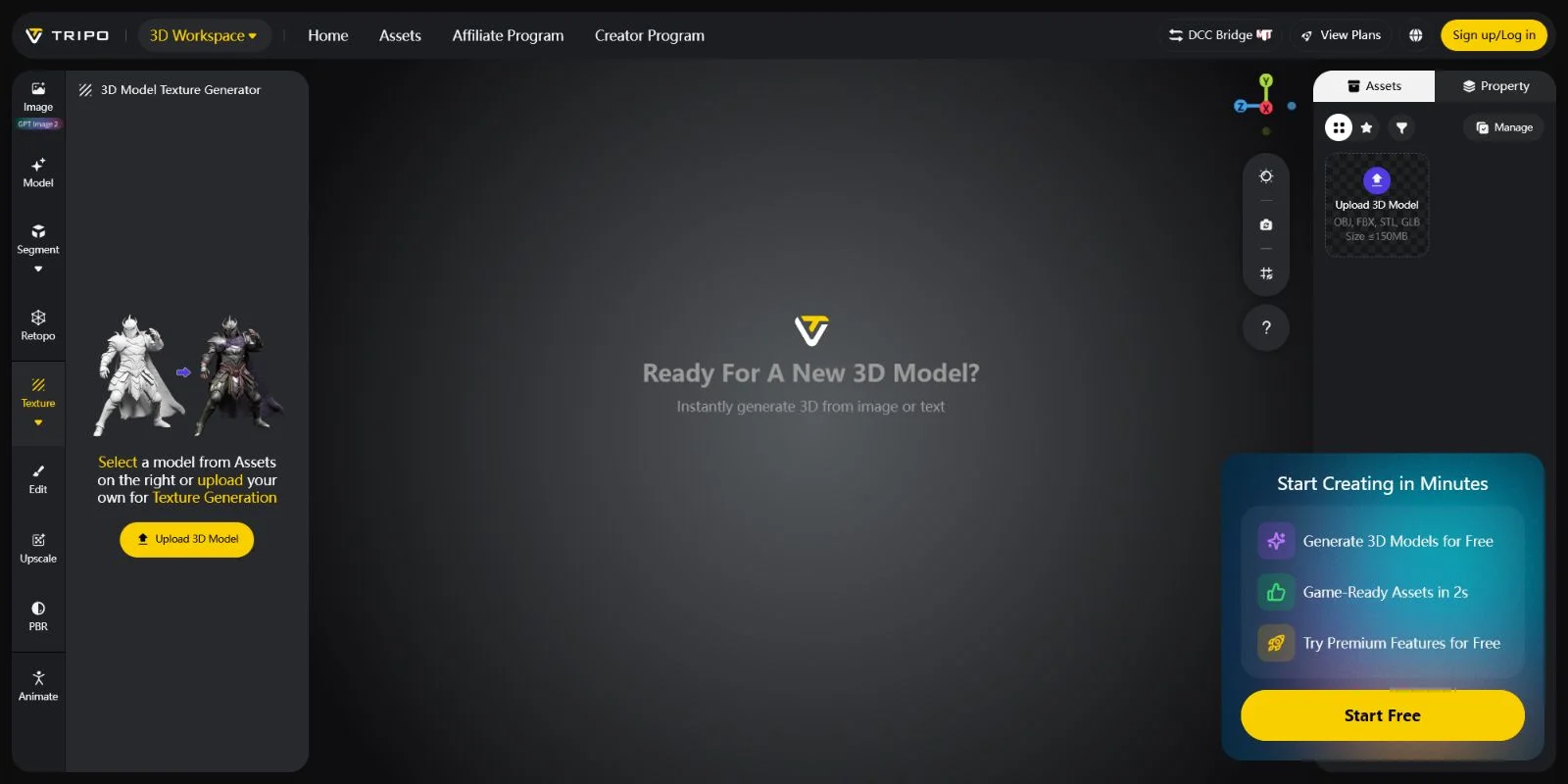
For animated characters, run auto-rigging after generating and optimizing the model. The exported FBX can include a humanoid skeleton that Unity recognizes as a Humanoid Avatar, allowing you to reuse existing animation clips without manually rebuilding the rig.
Tips for Using AI-Generated Models in Unity
Importing an AI-generated model into Unity is only the first step. A few extra checks after import can prevent common issues with scale, materials, physics, and performance. These practical adjustments help turn an AI-generated asset into a usable game-ready object.
Keep the Correct Scale Settings
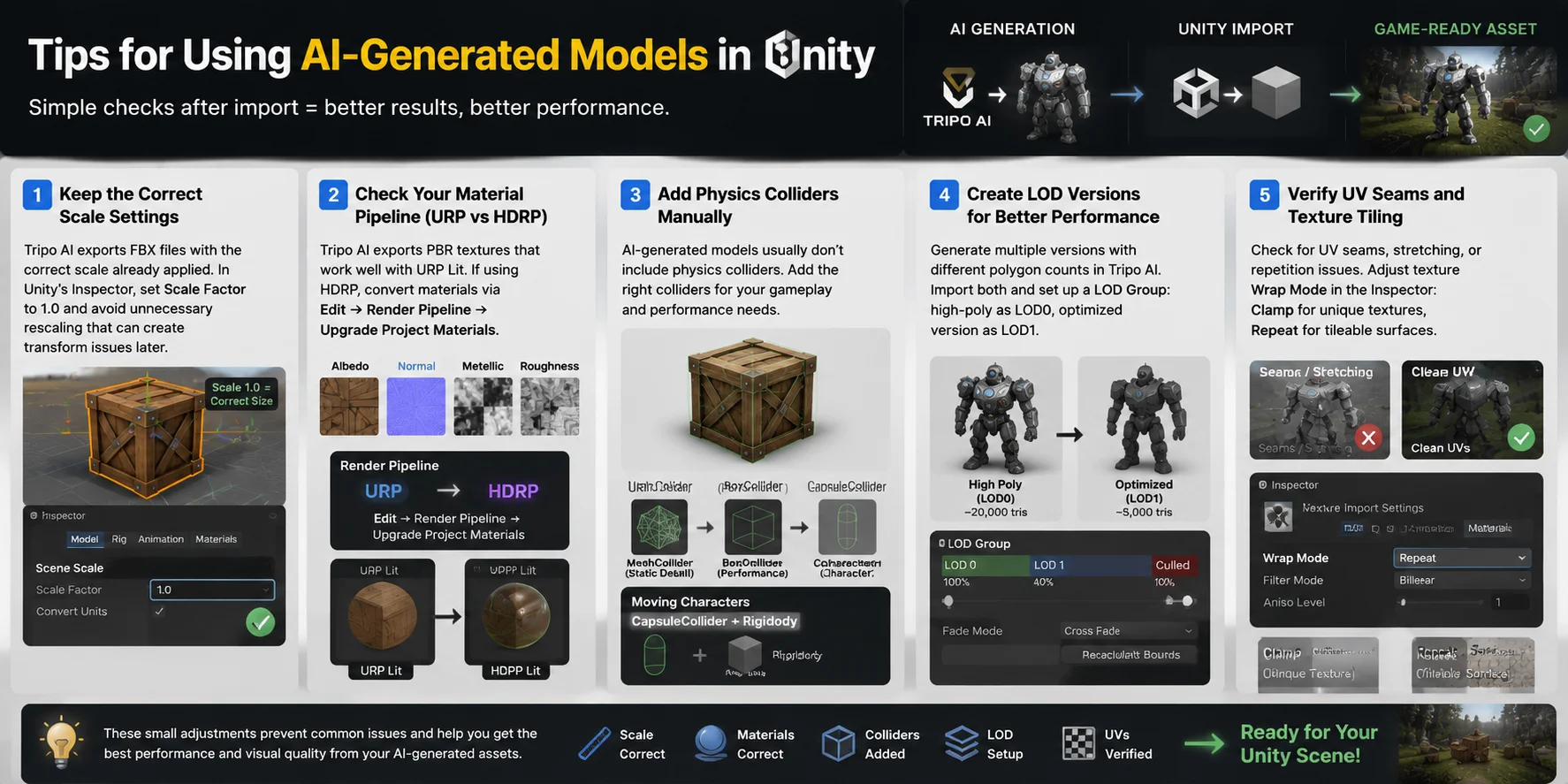
Tripo AI exports FBX files with the correct scale already applied, unlike some Blender FBX workflows that require a 0.01 scale correction. In Unity’s Inspector, set the model’s Scale Factor to 1.0 and avoid unnecessary rescaling that can create transform issues later.
Check Your Material Pipeline (URP vs HDRP)
Tripo AI exports PBR textures, including albedo, normal, and metallic/roughness maps, which work well with Unity’s URP Lit shader. If your project uses HDRP, convert materials through Edit → Render Pipeline → Upgrade Project Materials to ensure the textures display correctly.
Add Physics Colliders Manually
AI-generated models usually contain visual mesh data but do not include Unity physics colliders. Add a MeshCollider for detailed static objects, or use simpler BoxCollider and CapsuleCollider components when performance matters. For moving characters, a CapsuleCollider combined with a Rigidbody is usually the better choice.
Create LOD Versions for Better Performance
Large scenes and detailed AI assets can become expensive to render, so setting up LOD Groups is important. A simple workflow is to generate two versions of the same model in Tripo AI with different polygon counts, then import both and assign the high-poly version as LOD0 and the optimized version as LOD1 in Unity’s LOD Group component.
Verify UV Seams and Texture Tiling
After importing, inspect the model in the Scene view for visible UV seams, stretching, or texture repetition problems. If needed, adjust the texture’s Wrap Mode in the Inspector: use Clamp for single-use textures and Repeat for tileable surfaces like walls, floors, or terrain assets.
Frequently Asked Questions
What 3D file formats does Unity support?
Unity natively imports FBX, OBJ, DAE, 3DS, DXF, and SKP files. FBX is recommended for game assets because it supports meshes, materials, animations, and rigs in a single file. GLB/GLTF is also supported in Unity 2020+ via the GLTFast package.
How do I import a 3D model into Unity?
Drag the file directly into Unity's Project panel — no install process needed. Unity auto-imports it and creates the asset. Configure scale, normals, materials, and rig settings in the Inspector before using it in a scene.
Why is my 3D model too big or too small in Unity?
Unity uses 1 unit = 1 meter. FBX exports from Blender often use a 100× scale, making models appear oversized. Fix this by setting Scale Factor to 0.01 in the Inspector → Model tab and clicking Apply. Tripo AI exports are already at 1.0 scale.
Where can I find free 3D models for Unity?
The Unity Asset Store has the largest selection of game-ready, engine-tested assets. Sketchfab offers a wide range of creative models in FBX and GLB formats. Free3D provides general-purpose models suitable for prototyping, though quality varies.
What is a good polygon count for Unity mobile games?
For mobile, target 1,000–3,000 triangles per secondary character and 3,000–5,000 for hero characters. Props and environment objects typically range from 200–1,000 tris. Keep total scene triangle count under 100,000 for stable performance.
Can I use AI to generate 3D models for Unity?
Yes. Tripo AI exports FBX and GLB — both Unity-compatible — with PBR textures bundled. The Smart Mesh feature lets you set a target polygon count, so you get a model that hits your platform's budget without manual retopology.
How do I import an FBX file into Unity with correct materials?
After dragging the FBX into the Assets folder, select the asset → Inspector → Materials tab → Extract Textures. Unity pulls the embedded textures into your project and links them to the material slots. Assign the materials to a URP Lit or HDRP Lit shader to enable PBR rendering.
What is the best format for importing 3D models into Unity — FBX or GLB?
FBX is Unity's native recommendation and works with all Unity versions. GLB is a good alternative in Unity 2020+ with the GLTFast package — it bundles textures in a single binary file, making import simpler. For AI-generated models from Tripo AI, either format works; FBX is more universal.
How do I rig a 3D character for Unity animation?
Export the character as FBX with an embedded armature from your modeling tool, or use Tripo AI's auto-rigging feature to add a skeleton automatically. In Unity, set Animation Type to Humanoid in the Rig tab and configure the Avatar to map bones to Unity's standard humanoid skeleton.
Is Tripo AI compatible with Unity?
Yes. Tripo AI exports FBX (Unity's recommended format) and GLB (Unity 2020+). Smart Mesh outputs ≈5,000 faces by default — suited for mobile and mid-range targets — while HD Model mode supports up to 2M triangles for PC or console projects. Textures are bundled in the export, so no manual relinking is needed after import.
Conclusion
Unity gives you flexibility with 3D formats, but FBX remains the safest choice for production game assets because it handles meshes, rigs, animations, and materials in one workflow. GLB and OBJ are still useful for specific cases, especially lightweight or AI-generated assets.
The import process is simple once you understand the common issues: check scale settings, verify materials, and configure rigs correctly before using the model in your scene. For custom assets that match your style and performance needs, AI generation offers a faster route from idea to Unity-ready model.
Create your first Unity-ready 3D model free with Tripo AI Studio and explore available plans on the Tripo AI Pricing page.