VRChat Avatars: Where to Find Them and How to Create Your Own
TL;DR
- VRChat avatars are 3D characters that represent you in VRChat — they must meet polygon, bone, texture, and shader requirements to work correctly
- Free avatars are available on VRChat Avatar Search, Booth.pm, and Gumroad; paid options offer better rigging, PhysBones, and toggles
- Uploading a custom avatar requires Unity 2022 LTS + VRChat Creator Companion (VCC) + VRCSDK3-Avatars package
- Tripo AI generates a custom FBX/GLB model from a text prompt or image — import directly into Unity and upload to VRChat in minutes
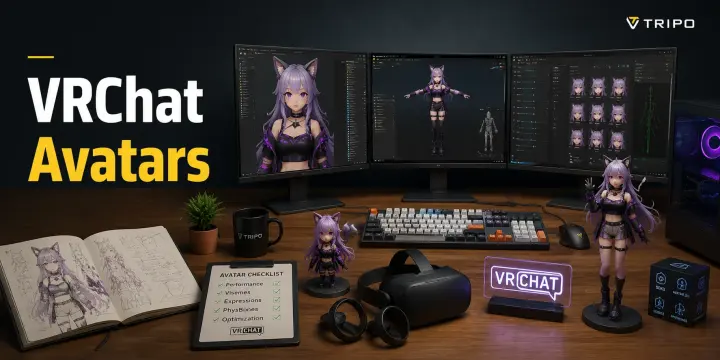
Your avatar is the most personal part of VRChat. It's the 3D character other players see when you walk into a world, wave, or dance. You can grab a free avatar from a community library, buy a polished one from a marketplace, or build something entirely original — and this guide covers all three paths.
Where to Find Free VRChat Avatars
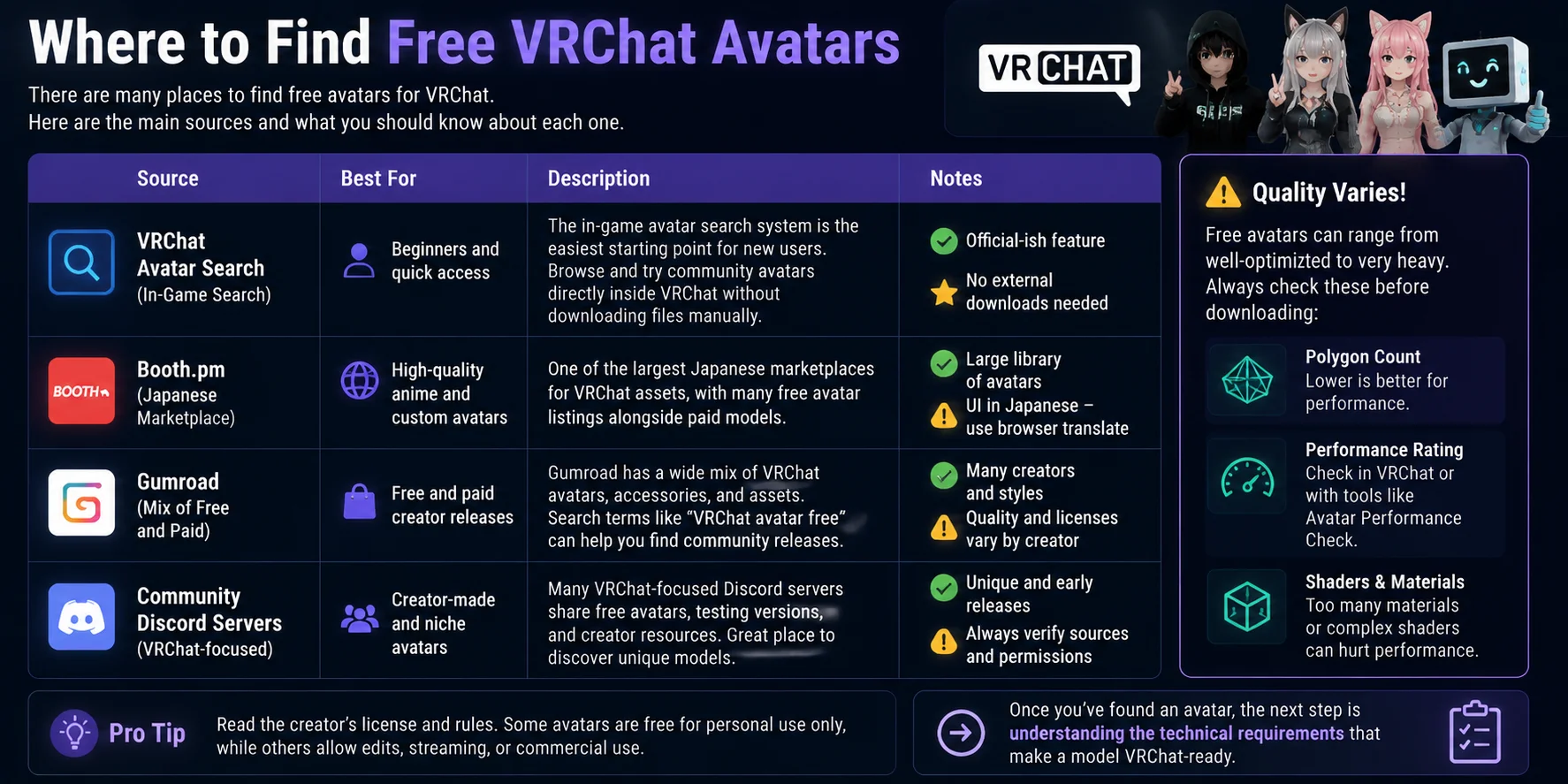
Finding a free VRChat avatar is easier than ever, but each source has different levels of quality, customization, and licensing. Before downloading any avatar, always check the creator’s terms, polygon count, shader usage, and VRChat Performance Rating to make sure it fits your needs.
| Source | Best For | Description |
|---|---|---|
| VRChat Avatar Search | Beginners and quick access | The in-game avatar search system is the easiest starting point for new users. It allows you to browse and try community avatars directly inside VRChat without downloading files manually. |
| Booth.pm | High-quality anime and custom avatars | Booth is one of the largest Japanese marketplaces for VRChat assets, with many free avatar listings alongside paid models. The interface is mainly Japanese, but browser translation makes navigation easier. |
| Gumroad | Free and paid creator releases | Gumroad has a wide mix of VRChat avatars, accessories, and assets. Search terms like “VRChat avatar free” can help you find community releases, but quality and licensing vary significantly between creators. |
| Community Discord Servers | Creator-made and niche avatars | Many VRChat-focused Discord communities share free avatars, testing versions, and creator resources. These servers can be a good place to discover unique models, but always verify download sources and usage permissions. |
Free does not always mean optimized. Some avatars may have extremely high polygon counts, heavy textures, excessive materials, or poor rig setups that reduce performance in VRChat. After finding an avatar, the next step is understanding the technical requirements that make a model VRChat-ready.
VRChat Avatar Technical Requirements
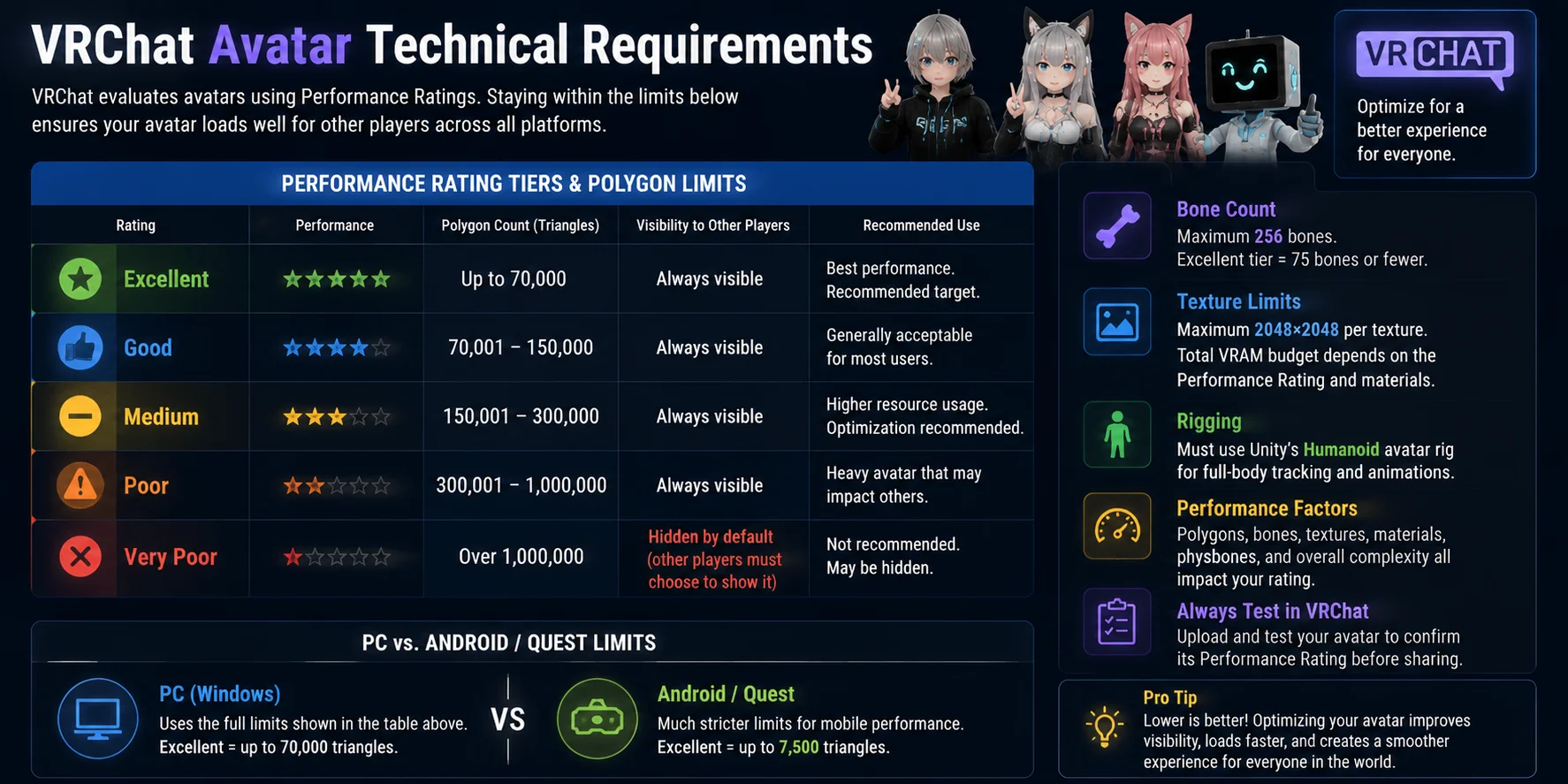
A good VRChat avatar is not only about appearance — performance optimization determines whether other users can see and interact with it smoothly. VRChat evaluates avatars using Performance Ratings based on factors such as polygon count, bone count, texture memory, and overall complexity. Before uploading an avatar, check these limits to avoid unnecessary performance issues.
| Performance Rating | Polygon Count (Triangles) | Notes |
|---|---|---|
| Excellent | Up to 70,000 | Best performance. Recommended target for optimized avatars. Bone count should be 75 or fewer. |
| Good | 70,001–150,000 | Generally acceptable for most users. |
| Medium | 150,001–300,000 | Higher resource usage; optimization is recommended. |
| Poor | 300,001–1,000,000 | Heavy avatar that may affect other users’ experience. |
| Very Poor | Over 1,000,000 | Hidden by default from other players unless they choose to show it. |
Other technical limits also affect avatar performance:
- Bones: VRChat avatars support a maximum of 256 bones. Keeping the count at 75 or fewer helps maintain an Excellent rating.
- Textures: Individual textures should not exceed 2048×2048 resolution. Total VRAM usage depends on the avatar’s Performance Rating and number of materials.
- Rigging: For full-body tracking and proper humanoid animations, avatars should use Unity’s Humanoid avatar rig setup.
- Platform differences: PC and Android/Quest avatars have different limits. Quest is significantly stricter — an Excellent-rated Quest avatar should stay around 7,500 polygons or fewer.
When optimizing a VRChat avatar, prioritize silhouette quality, efficient topology, reasonable texture sizes, and a clean rig. A visually impressive model that exceeds performance limits may load poorly or become invisible to other players.
How to Upload a Custom Avatar to VRChat (Step-by-Step)
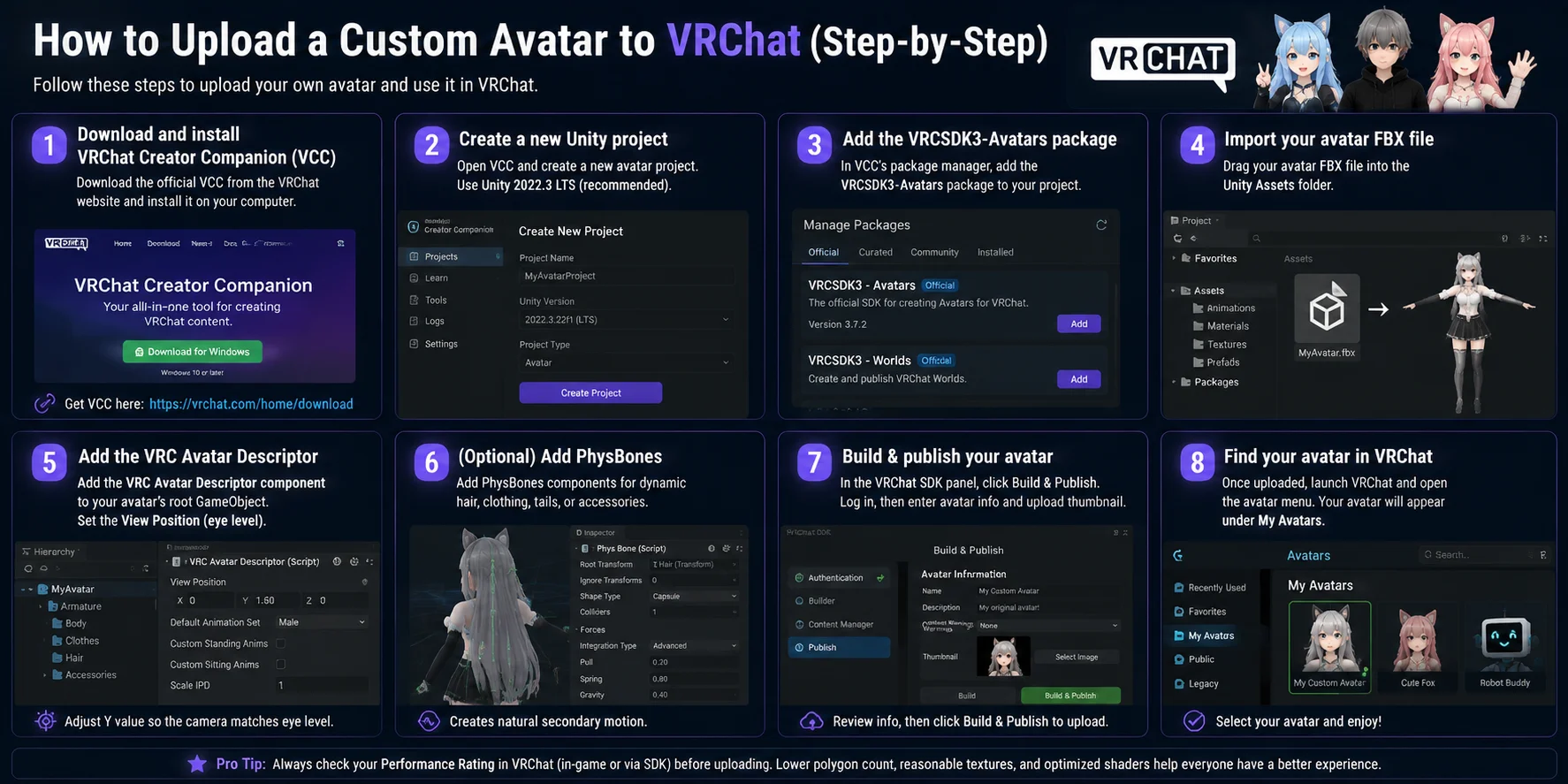
Uploading a custom VRChat avatar requires a Unity project with the official VRChat SDK installed. The workflow may look technical at first, but following the steps below will take you from a 3D model file to a fully usable avatar. Adding screenshots for each major step, especially Unity setup and SDK settings, can make the process easier to follow.
- Download and install VRChat Creator Companion (VCC) Download the official VRChat Creator Companion from the VRChat website and install it on your computer: https://vrchat.com/home/download. VCC manages Unity projects, SDK packages, and avatar upload tools in one place.
- Create a Unity project through VCC Open VRChat Creator Companion and create a new avatar project. Use Unity 2022.3 LTS, which is the recommended version for current VRChat avatar development.
- Add the VRChat Avatar SDK package In VCC’s package manager, add the VRCSDK3-Avatars package to your project. This installs the tools needed for avatar setup, testing, and uploading.
- Import your avatar model Drag your avatar FBX file into the Unity project’s Assets folder. Make sure textures, materials, and any supporting files are included or correctly linked.
- Configure the Avatar Descriptor Select your avatar’s root GameObject and add the VRC Avatar Descriptor component. Set the View Position correctly so the first-person camera matches the avatar’s eye level.
- Add optional dynamic features For moving hair, clothing, tails, or accessories, add PhysBones components. These create natural secondary motion when the avatar moves.
- Build and publish your avatar Open the VRChat SDK panel and click Build & Publish. Log in with your VRChat account, then enter the avatar name, upload thumbnail, and other required information before submitting.
- Find your avatar in VRChat After the upload finishes, launch VRChat and open the avatar menu. Your custom model will appear under My Avatars, ready to select and use.
Once your avatar is uploaded, the next step is checking performance ratings, polygon count, and platform compatibility to ensure other players can see it smoothly.
Generate a Custom VRChat Avatar with Tripo AI
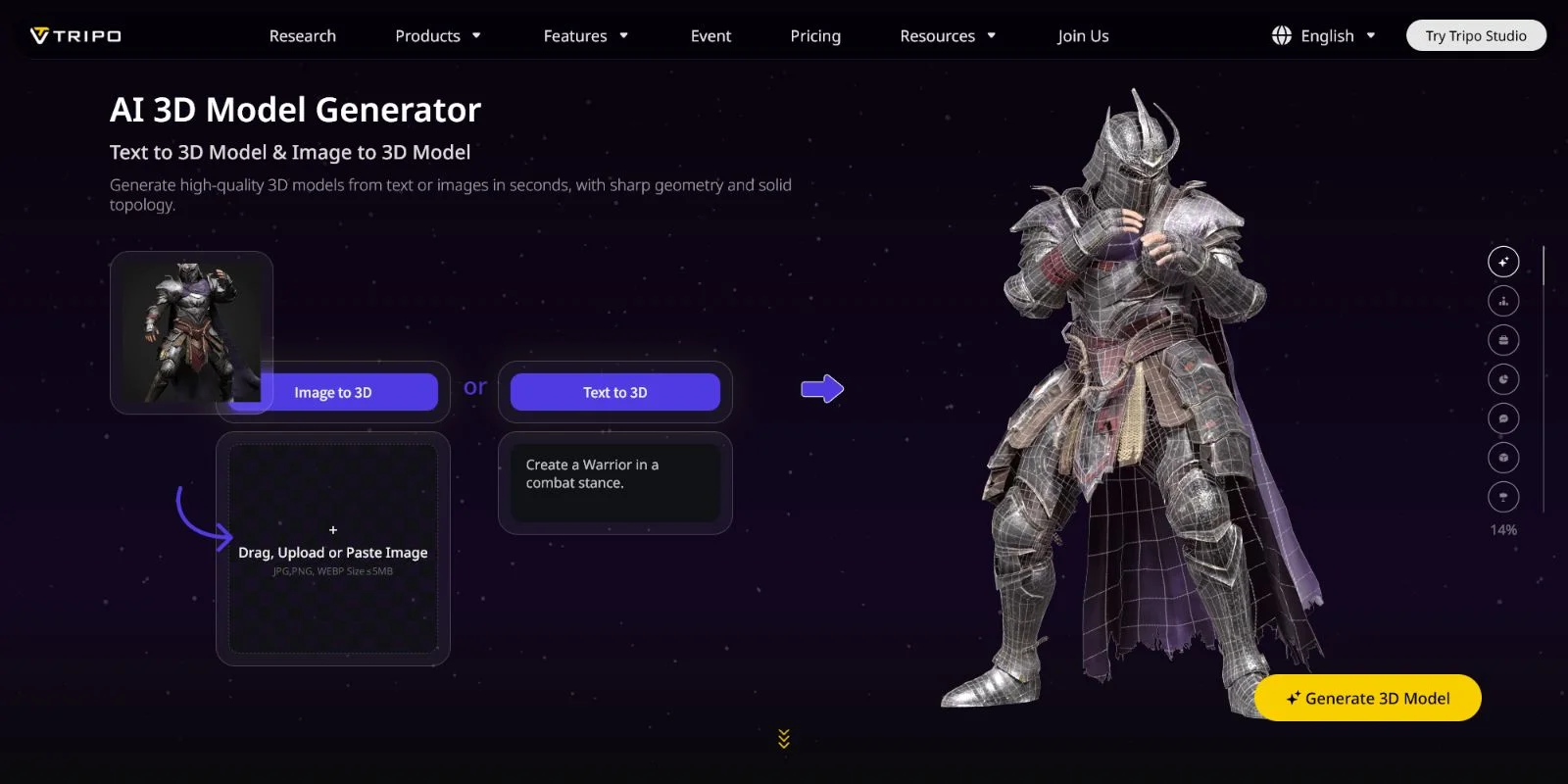
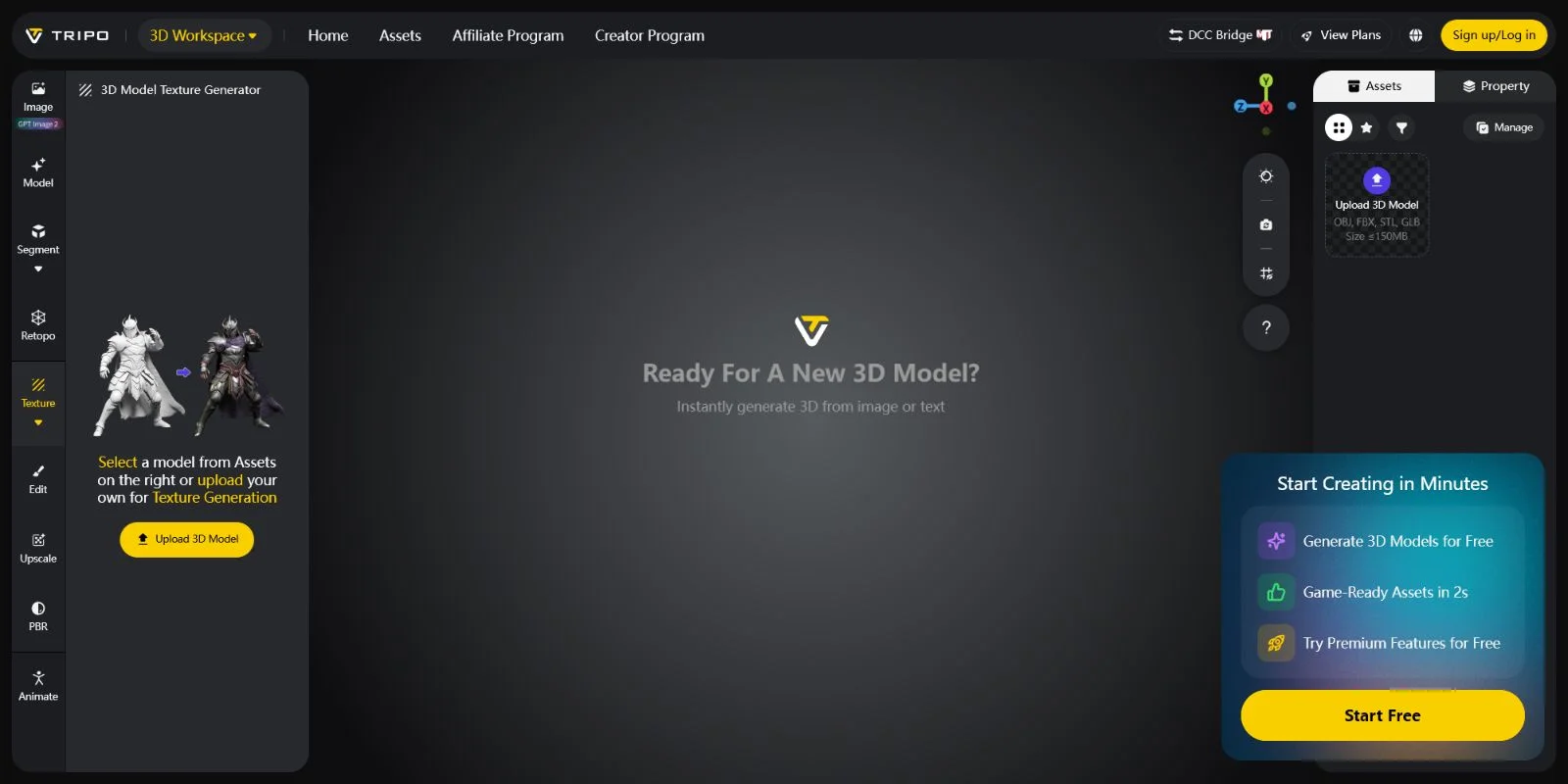
Instead of searching through avatar libraries or waiting months for a custom commission, Tripo AI lets you generate a unique 3D character from a text prompt or reference image in seconds. The exported FBX or GLB file can be imported directly into Unity, giving creators a faster way to build custom VRChat avatars.
6-Step Workflow: Tripo AI → VRChat Avatar
- Create your character in Tripo AI Studio Go to https://studio.tripo3d.ai/ and describe your avatar idea with a text prompt, such as “a cyberpunk elf with silver hair and glowing eyes.” You can also upload a reference image to guide the generation process.
- Generate and review the 3D model Generate your avatar and preview the result in Tripo AI’s viewer. If the character style, proportions, or details are not correct, adjust your prompt and regenerate until you get the desired result.
- Export as FBX or GLB Export the finished model in your preferred format. FBX is the recommended choice for VRChat workflows because it can be imported directly into Unity without additional conversion steps. GLB is useful for web and other 3D applications.
- Import the FBX into Unity Open your Unity project with VRCSDK3-Avatars installed, then drag the FBX file into the Assets folder. Check that materials, textures, and model settings are imported correctly.
- Add the VRChat Avatar Descriptor Select your avatar’s root GameObject and add the VRC Avatar Descriptor component. Adjust the View Position so the first-person camera aligns correctly with the avatar’s eye level.
- Build and publish your avatar Open the VRChat SDK panel, click Build & Publish, log in with your VRChat account, and complete the upload information. Once published, your custom avatar will be available in VRChat.
Tripo AI-generated models may still need some post-processing before they are ready for public use. Humanoid avatars should be checked in Unity’s Animation Rig settings to confirm correct bone assignments, and some models may require additional rigging or weight adjustments in Blender or Unity.
What Tripo AI Is Best For
- Original character (OC) avatars — create unique personal characters without starting from existing templates.
- Branded virtual mascots — quickly design recognizable characters for communities, events, or virtual experiences.
- Stylized fantasy and sci-fi avatars — generate creative designs that are difficult to find in standard avatar libraries.
- Rapid prototyping — test character ideas before investing in a full custom modeling workflow.
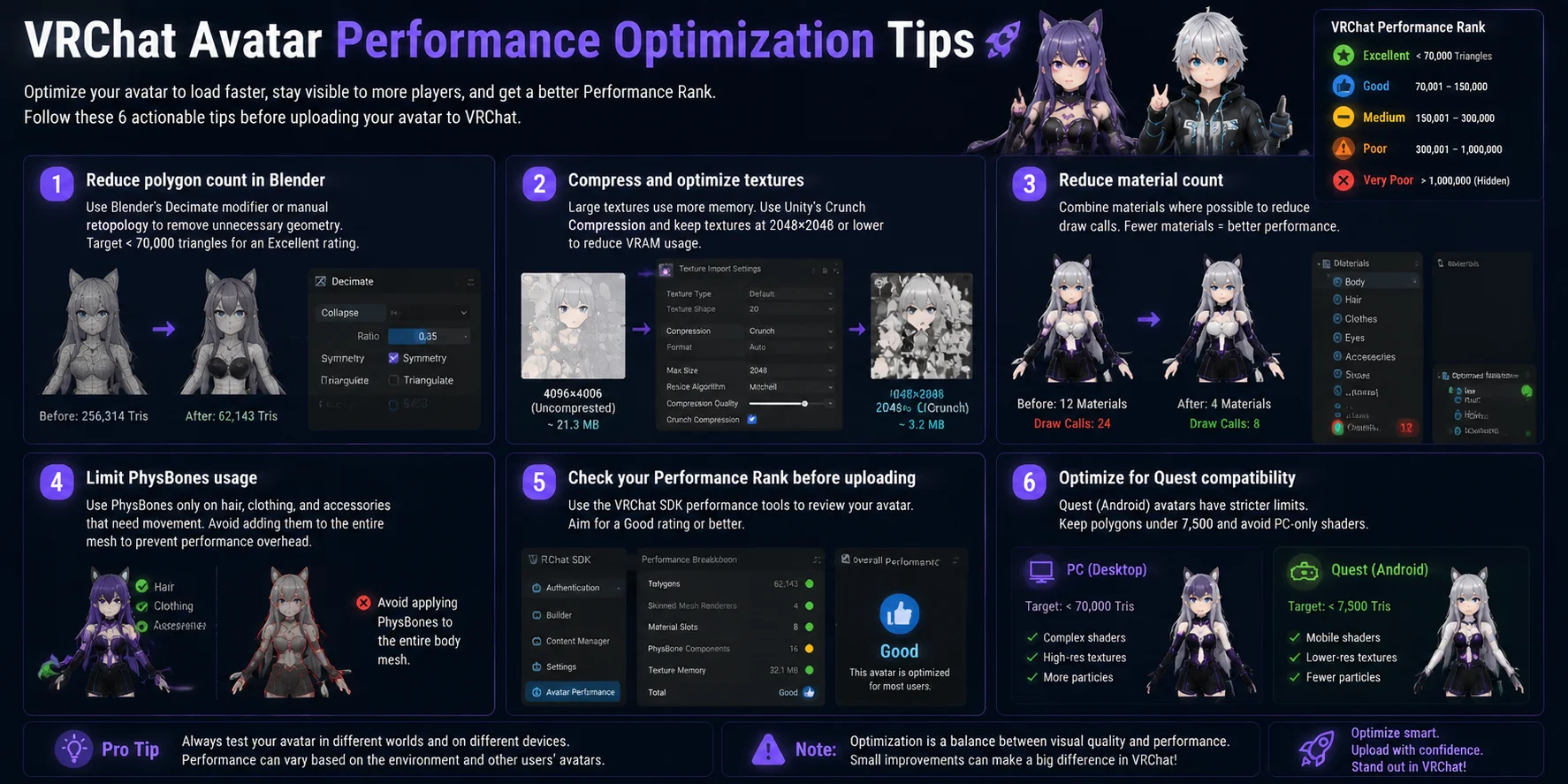
VRChat Avatar Performance Optimization Tips
A well-designed VRChat avatar should look great while staying lightweight enough for other players to load smoothly. Performance optimization improves visibility, reduces loading times, and helps your avatar achieve a better Performance Rank.
- Reduce polygon count in Blender Use Blender’s Decimate modifier or manual retopology to lower unnecessary geometry. For an Excellent VRChat rating, aim for fewer than 70,000 triangles on PC avatars.
- Compress and optimize textures Large textures quickly increase memory usage. Use Unity’s Crunch Compression when appropriate and keep individual textures at 2048×2048 or lower to reduce VRAM consumption.
- Reduce material count Combine materials whenever possible to decrease draw calls. Fewer materials and simpler shaders help your avatar render faster, especially in crowded worlds.
- Limit PhysBones usage PhysBones add dynamic movement to hair, clothing, and accessories, but too many can hurt performance. Use them only where motion improves the avatar instead of applying them across the entire model.
- Check your Performance Rank before uploading Use the VRChat SDK performance tools to review your avatar before publishing. Try to maintain a Good rating or better by optimizing polygons, materials, textures, and components.
- Optimize for Quest compatibility Android/Quest avatars have much stricter limits than PC avatars. Keep polygon counts around 7,500 triangles or fewer for excellent performance and avoid PC-only shaders that cannot run on Quest devices.
Following these optimization steps helps create avatars that load faster, remain visible to more users, and provide a smoother VRChat experience across different platforms.
Frequently Asked Questions
How do you get avatars in VRChat?
You can get avatars in VRChat by browsing the in-game Avatar Search, downloading from community sites like Booth.pm or Gumroad, or uploading a custom avatar using Unity and the VRChat SDK. Most beginners start with free community avatars before exploring custom options.
Where can I find free VRChat avatars?
The best places to find free VRChat avatars are VRChat Avatar Search (in-game), Booth.pm, and Gumroad (filter by free). Many VRChat-focused Discord servers also share free avatar files regularly. Quality and Performance Rating vary, so check the specs before downloading.
Can you make your own avatar in VRChat?
Yes — VRChat allows any user to upload a custom avatar. You need Unity 2022 LTS, the VRChat Creator Companion (VCC), and the VRCSDK3-Avatars package. You can model your own character in Blender or generate one with a tool like Tripo AI, then import and upload it through Unity.
What file format does VRChat use for avatars?
VRChat avatars are built and uploaded through Unity as asset bundles. The source file you import into Unity is typically an FBX, which is the most compatible format for rigging and animation. GLB files are also supported but may need additional setup.
What is the polygon limit for VRChat avatars?
The Excellent Performance tier allows up to 70,000 triangles. Good is 70,001–150,000, and avatars above 1,000,000 polygons fall into Very Poor — they are hidden by default for other players. Keeping your avatar at Good or Excellent ensures it is visible to everyone.
How do I upload a custom avatar to VRChat?
Install VRChat Creator Companion (VCC), create a Unity 2022 LTS project, and add the VRCSDK3-Avatars package. Import your FBX into Unity, add a VRC Avatar Descriptor component, then use the VRChat SDK panel to Build & Publish. The avatar appears in your in-game "My Avatars" list after upload.
Can I use AI to generate a VRChat avatar?
Yes — Tripo AI can generate a 3D character from a text prompt or image and export it as FBX or GLB. You then import that file into Unity, add the VRC Avatar Descriptor, and upload via the VRChat SDK. It is one of the fastest ways to get a completely original avatar.
What is VRChat Creator Companion (VCC)?
VCC is VRChat's official project management tool for avatar and world creators. It handles Unity project setup and SDK package installation. You download it from vrchat.com and use it to create new projects with the correct SDK version already bundled.
How many bones can a VRChat avatar have?
VRChat supports up to 256 bones per avatar. For the Excellent Performance tier, the limit is 75 bones. Staying within the Excellent or Good bone limit ensures your avatar performs well and is visible to other users without needing to be manually shown.
What is the best way to create an original VRChat avatar?
For a fully original avatar, you have three options: model it yourself in Blender, commission a 3D artist, or use Tripo AI to generate a model from a text prompt. Tripo AI is the fastest option — generate an FBX, import into Unity, add the VRC Avatar Descriptor, and upload through VCC.
Conclusion
Whether you choose a free avatar from Booth.pm or create a fully custom character, your VRChat identity begins with the avatar you use. For a character that is completely original without endless searching or compromises, generate your own design from a text description with Tripo AI and bring it into Unity in minutes.
Create your custom VRChat-ready character with Tripo AI Studio: https://studio.tripo3d.ai/ Explore Tripo AI pricing and find the plan that fits your workflow: https://www.tripo3d.ai/pricing