From Text to 3D Slides: The 15-Minute Workflow Using Tripo and AiPPT
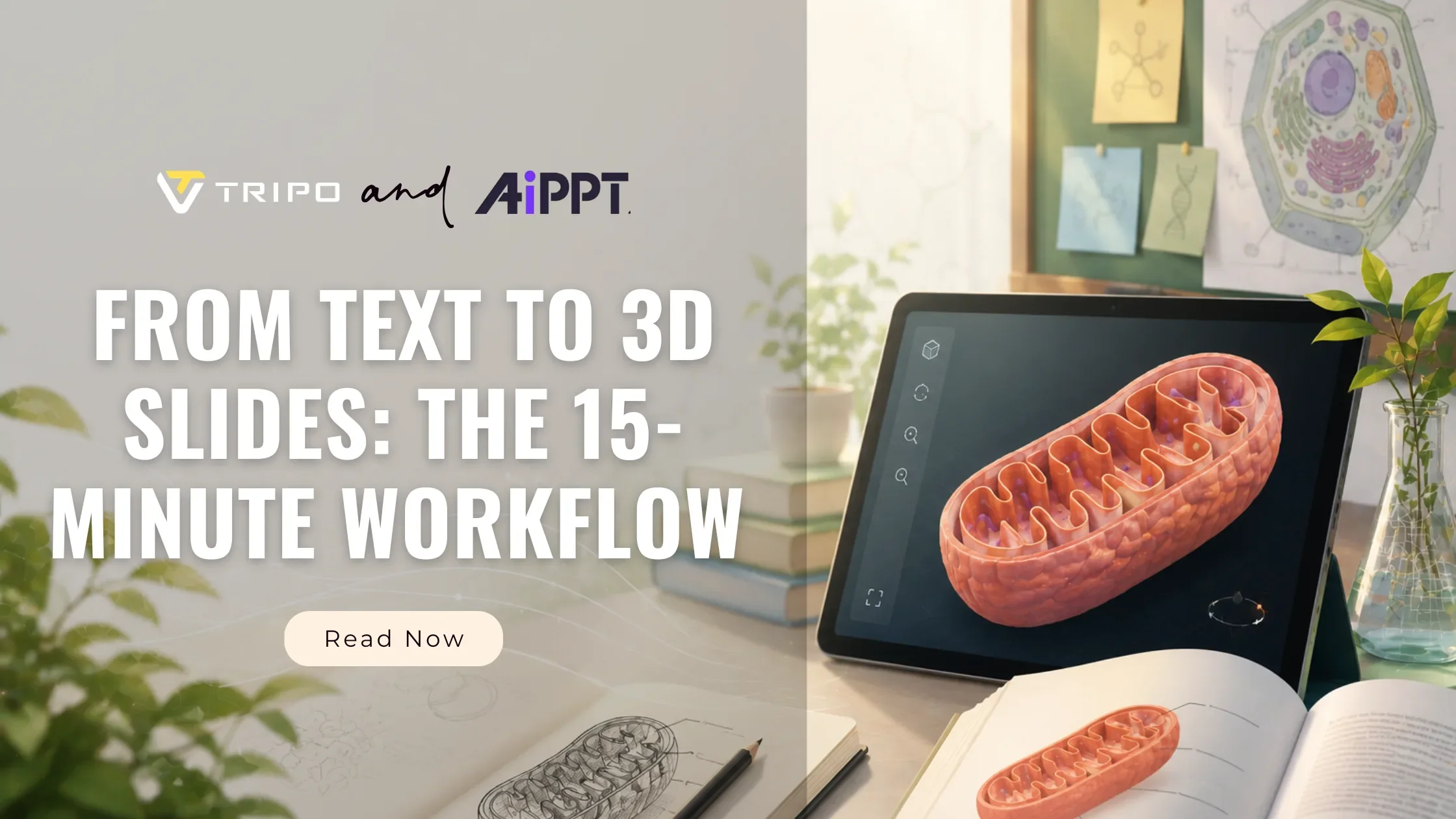
As 3D creators, we know how powerful Tripo is for generating assets. But how do we bring these models into the everyday world of non-designers—like education or corporate pitches? The answer lies in combining Tripo with modern AI presentation tools like AiPPT. Here is how you can use Tripo to revolutionize classroom learning without touching a single line of code or complex 3D software.
What You Need
- A Word document or markdown of your lesson plan (just headings and bullet points – nothing fancy)
- A clear textbook diagram of a cell part (mitochondrion, chloroplast, DNA – anything)
- Free accounts on AiPPT and Tripo (both have free tiers)
That’s it. No 3D software. No design skills.
Step 1: Paste Your Lesson Plan into AiPPT
Open AiPPT and click "Paste Text or Markdown." I copied my entire lesson plan—the one I wrote myself—pasted it into the input box, and pressed Enter to generate.
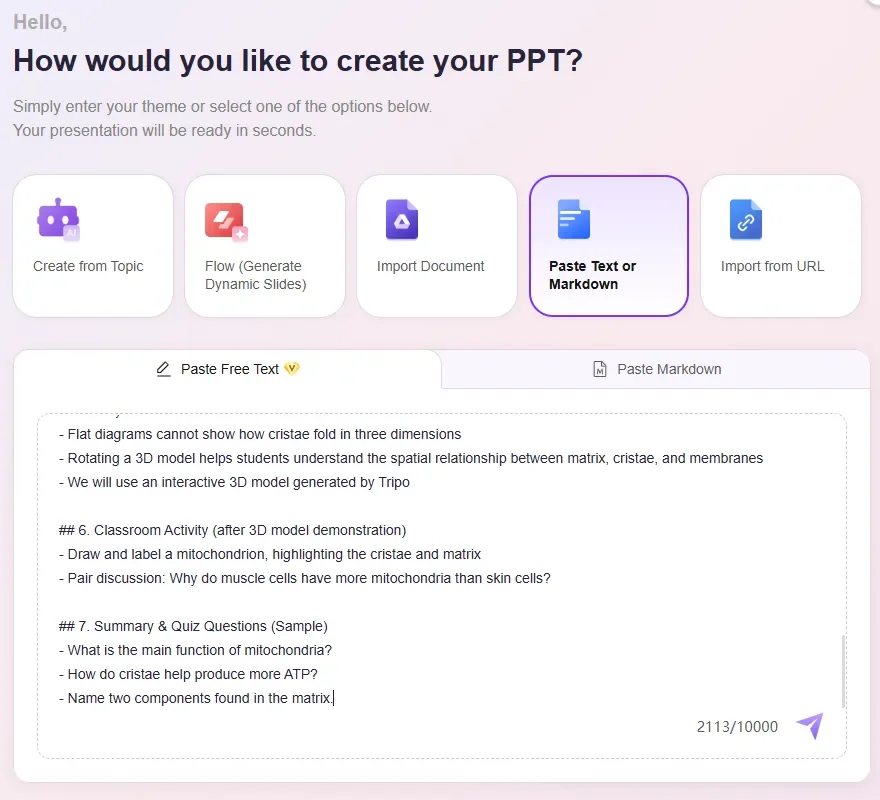
AiPPT took a few seconds to scan my text. It recognized my headings, subheadings, dash lists, and numbered steps. Then it showed me an Outline and a Mindmap – just like in their screenshot.The AI turned my raw notes into a structured presentation:
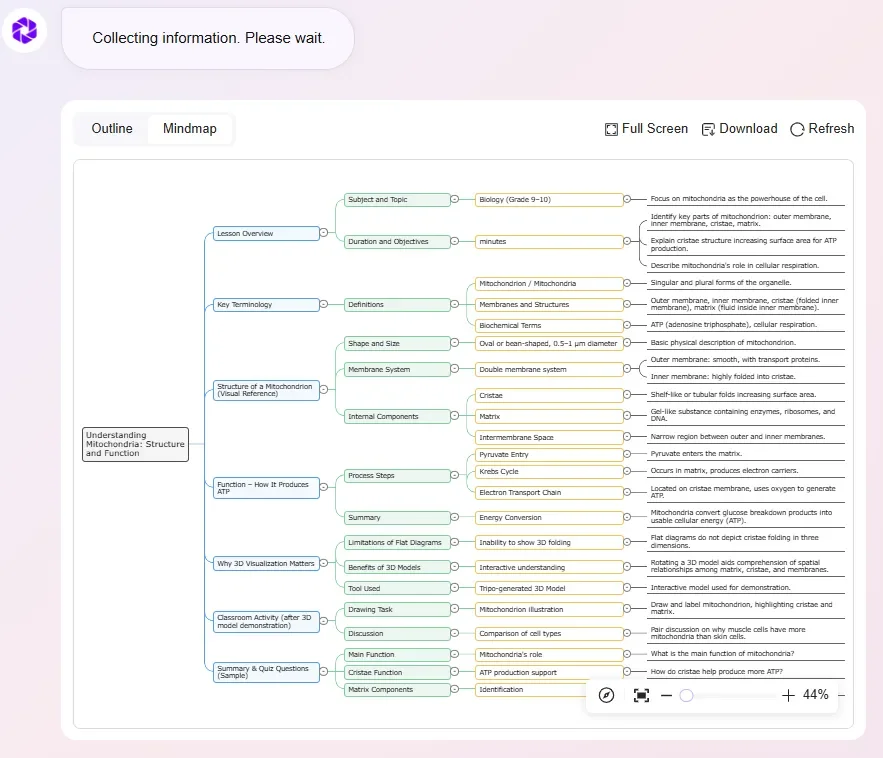
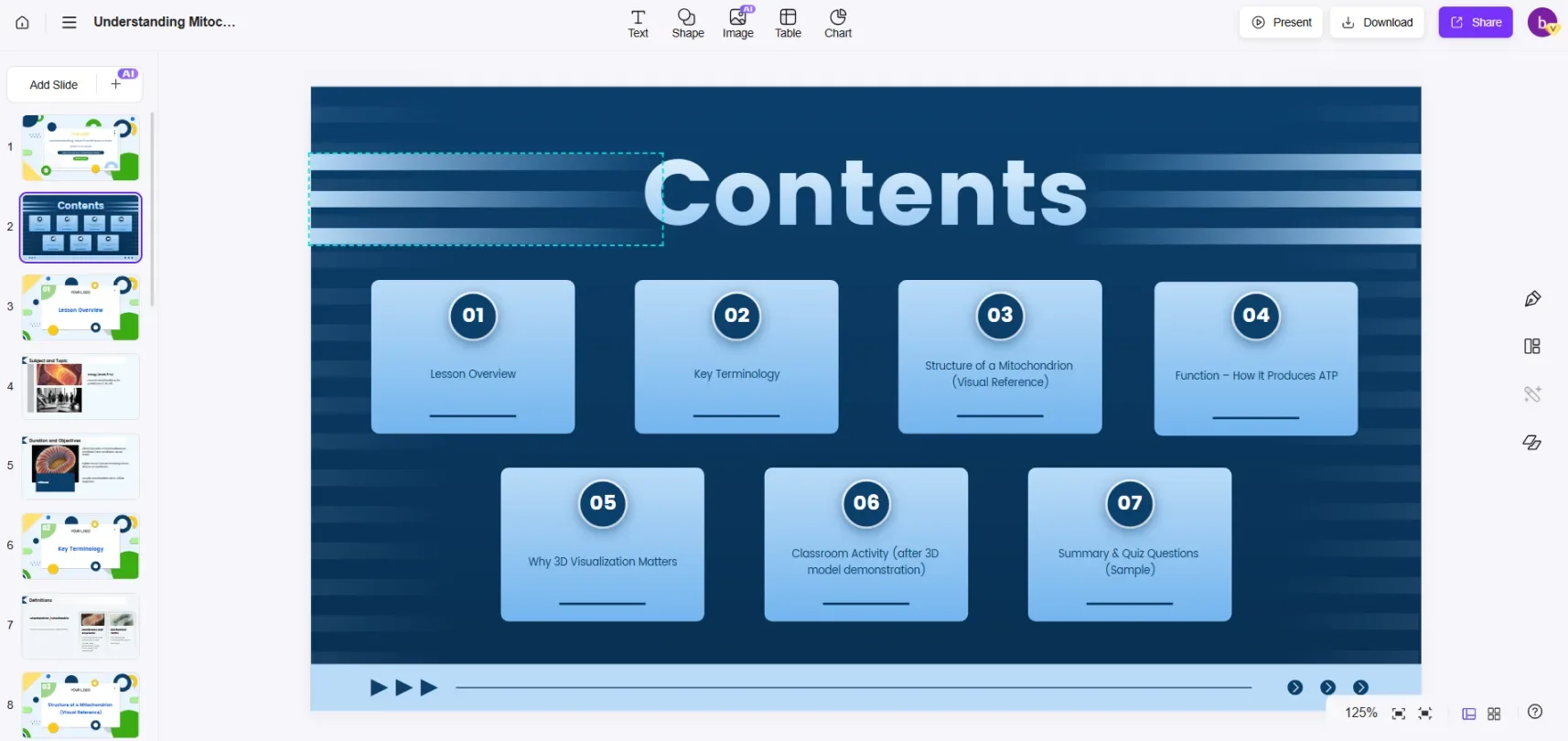
In under one minute, AiPPT turned my raw notes into a complete slide deck. I didn't have to rearrange the order, or perform any formatting whatsoever.
The only changes I made? I tweaked some of the text and images. That was it. As an AI presentation maker, AiPPT takes the pain out of slide creation.
One particularly good thing is that AiPPT can retain the original hierarchical structure of my teaching materials very well. This is exactly what I need.
Step 2: Textbook Picture → 3D Model with Tripo
I took a photo of the mitochondrion diagram from my textbook. Then I went to Tripo, selected “Image to 3D” and clicked Generate.
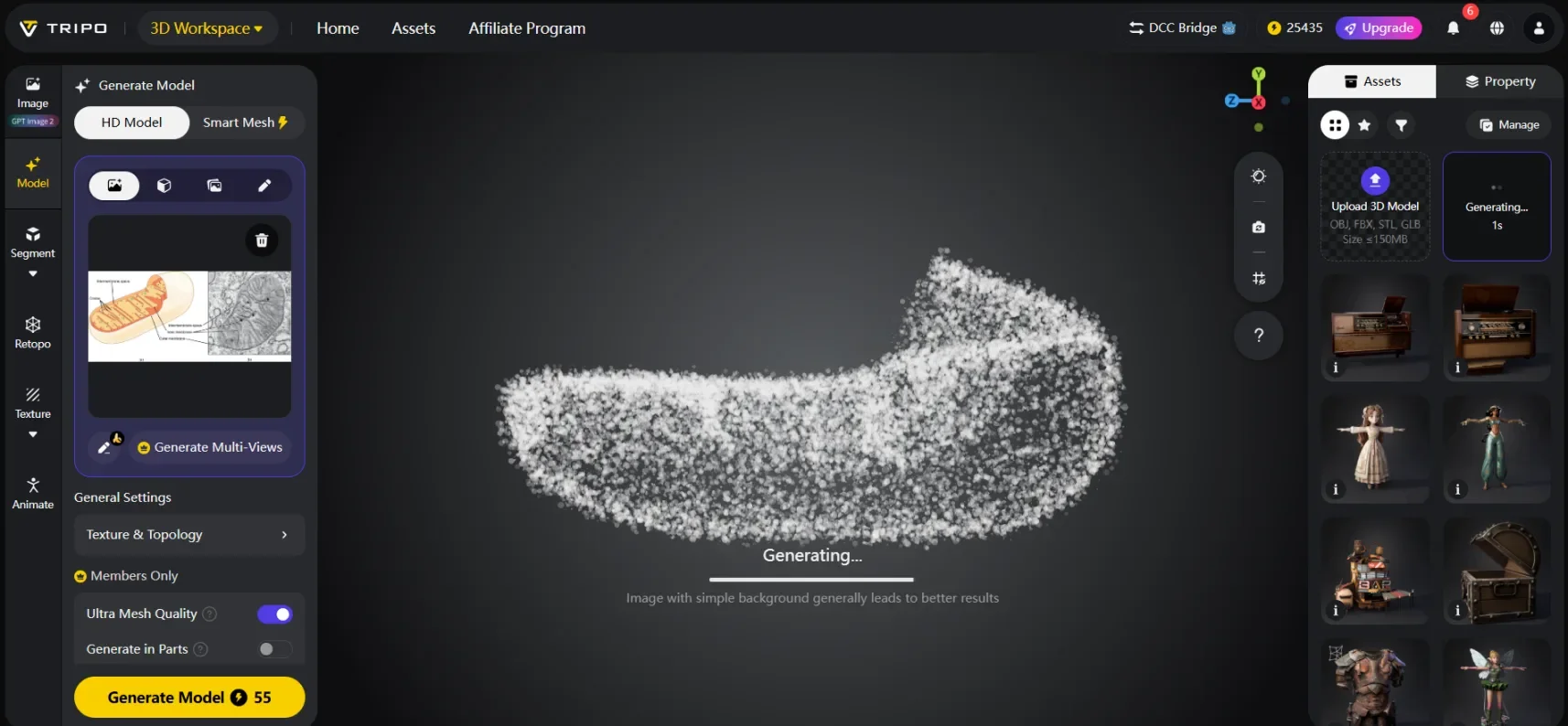
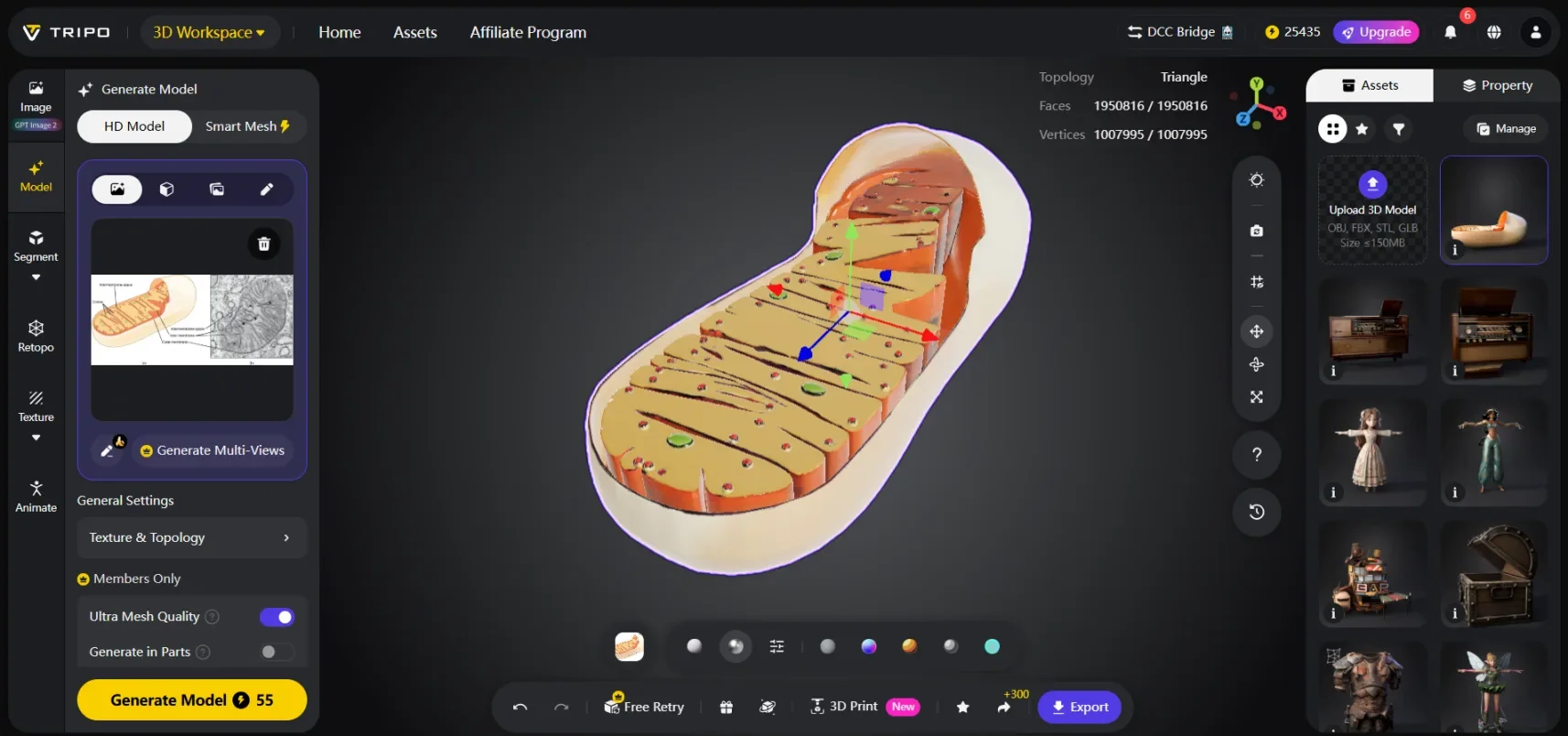
In about three minutes, I had a rotatable 3D mitochondrion. The cristae looked like folded shelves inside. The matrix showed as an empty-looking inner space. I could zoom in, spin it around, and see it from every angle.
Tripo also has a text-to-3D mode. If you don’t have a picture, you can simply enter text to generate a model. But honestly, image-to-3D is easier – just upload what you already have.If you're looking for an AI PPT generator to speed up your lesson prep, AiPPT has you covered.
Step 3: Embed the 3D Model into Your PPT
Tripo gives you a shareable link for every model. I clicked the "Share Link" button on the model page, copied the link, and pasted it into my PPT slide – right next to the diagram placeholder.
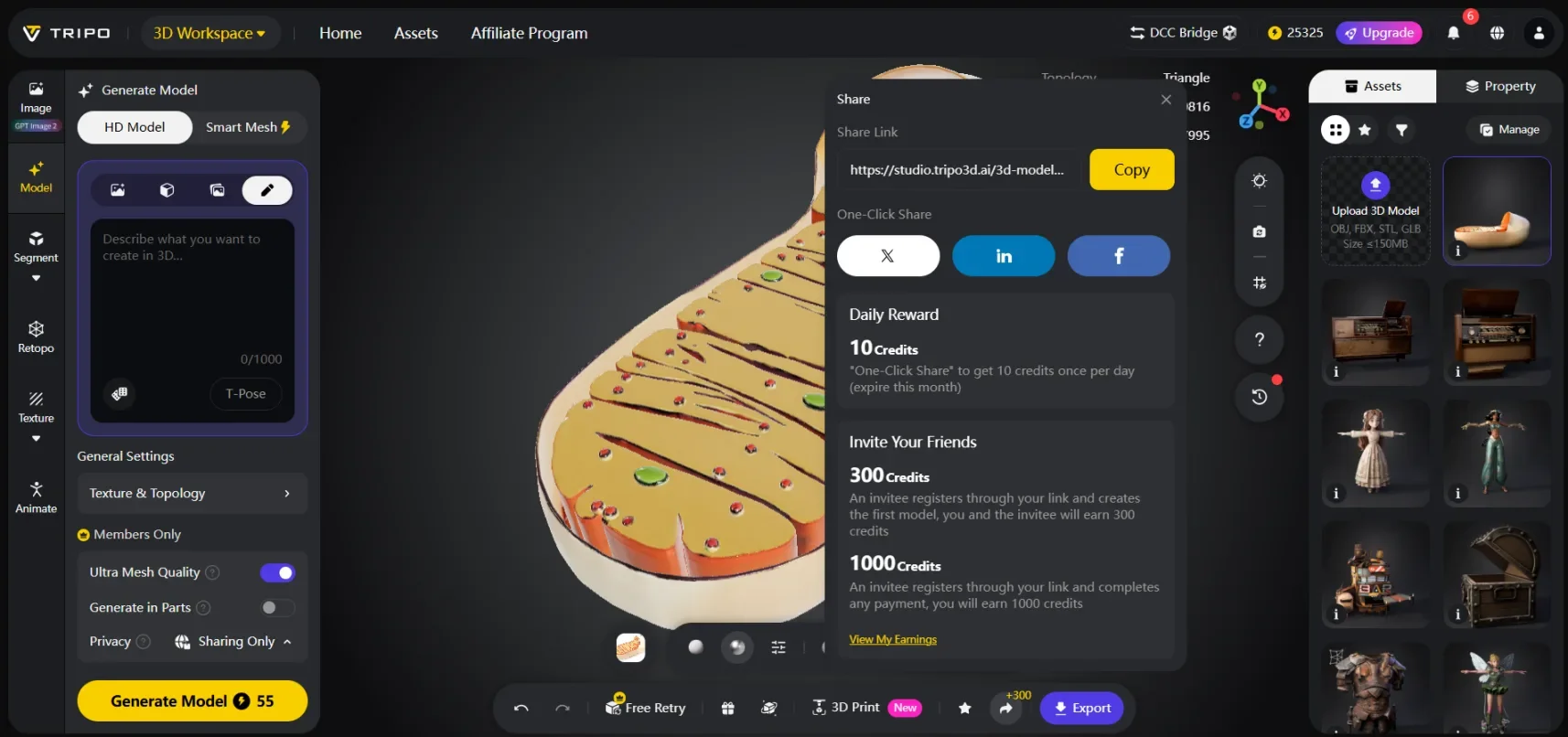
On the day of class, I opened the PPT on my projector and clicked the link. The 3D model opened in my browser. Suddenly, my students could see the mitochondrion from every angle. One of them said, “Ohhh, the cristae are like shelves inside.” That’s the moment I knew it worked.
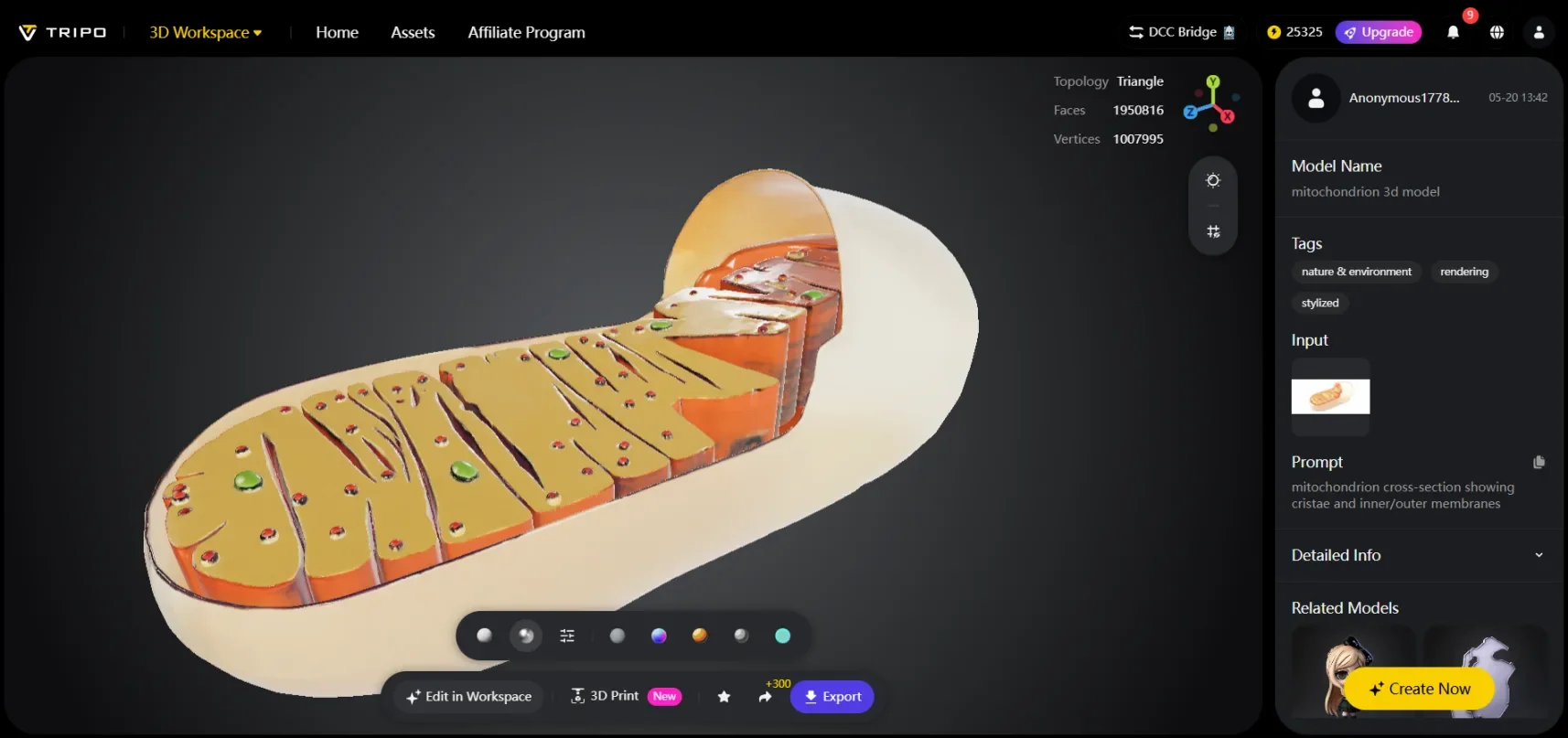
You can also shorten the link with any free URL shortener if it looks too long. Or just keep it as is – students can type it into their phones if you put it on a handout.
Conclusion:What Changed (Real Results)
Before this workflow:
- PPT creation: 3–4 hours of formatting and fixing
- In-class explanation: “Imagine the cristae folding like this…” (lots of hand gestures)
- Student questions after class: “So is the matrix the inside or the space between membranes?”
After this workflow:
- PPT creation: 15 minutes (Most of that time was spent fine-tuning the content.)
- In-class: Rotate the model once – everyone sees the cristae and matrix clearly
- Student questions: “Can we do the next chapter with a 3D model too?”
That last question is the best feedback I could ask for.
You’ll be surprised how easy teaching prep becomes. AiPPT turns your notes into a full PPT in under a minute. Tripo turns a textbook picture into a 3D model you can spin. That’s it. No more fighting with layouts or flat diagrams.
FAQ
Q: Do I need any 3D experience?
A: Zero. Tripo does everything. You just upload and click.
Q: What if my textbook diagram isn’t perfect?
A: Tripo still works. Even a phone photo of a simple drawing usually generates a decent 3D model. If it fails, try text-to-3D with a short description.
Q: Can I use this for other subjects?
A: Yes. Chemistry molecules (glucose, DNA), earth science (volcano layers), even geometry shapes. Anything you can draw or describe.
Q: Can I edit the slides after AiPPT generates them?
A: Absolutely. You get full editing control – change text, move images, swap colors. AiPPT gives you a starting point, not a locked file.
Q: What kind of lesson plan format does AiPPT accept?
A: Almost anything you already have. Plain text, bullet points, numbered lists, headings – even messy notes. You don't need to reformat your existing Word file or markdown. Just paste it in and let AiPPT figure out the structure.