Tripo DCC Bridge for Godot: Installation & Quick Start
Tripo3D Godot Bridge is a lightweight plugin that connects Godot directly to the Tripo Studio frontpage.
With this bridge, you can send generated models from the browser straight into your Godot project in real time—no manual downloads or imports required. It streamlines the workflow for artists and game developers, allowing you to focus on scene building and gameplay instead of file handling.
Requirements
- OS: Windows, Mac
- Godot: 4.6+
- Browser:
- Supports Google Chrome 116+, Edge 116+, Opera 102+
- Other browsers are not supported
- Default Import Settings:
- Pivot: Center Bottom
- Texture Resolution: Current Maximum
- Auto Material Creation: Enabled
- Auto Asset Placement: Enabled
Step-by-Step Installation
Step 1:
- Go to Tripo Studio and download the Tripo3D Godot Engine Bridge package.
Step 2:
- Extract the ZIP file.
- Copy the plugin folder into your Godot project’s
Addonsdirectory.- If the
Addonsfolder does not exist, create one at the root of your project.
- If the
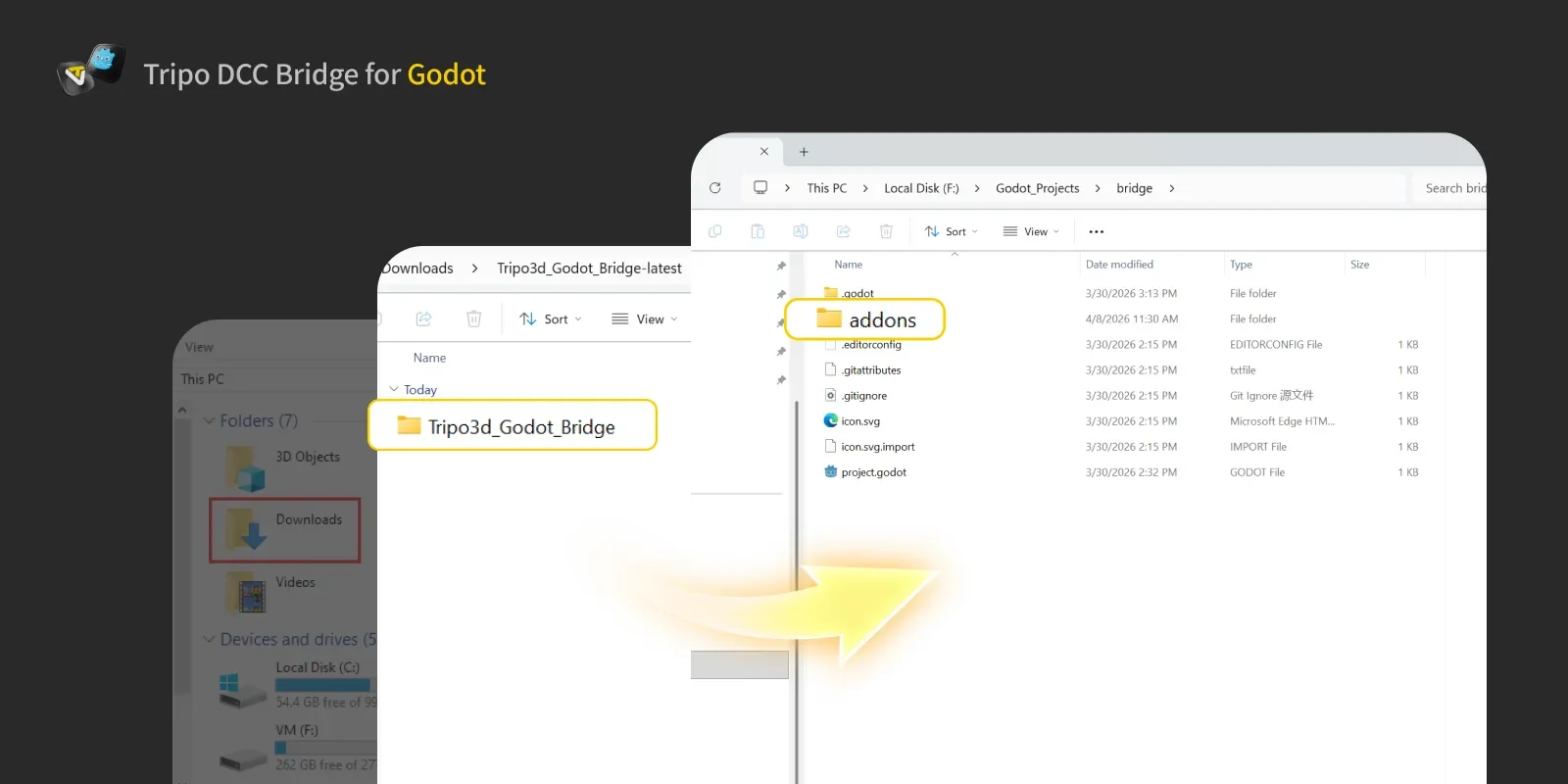
Step 3:
- Import the Package into Godot, open your project and navigate to: Project → Project Settings → Plugins. Make sure the Tripo Bridge plugin is enabled.
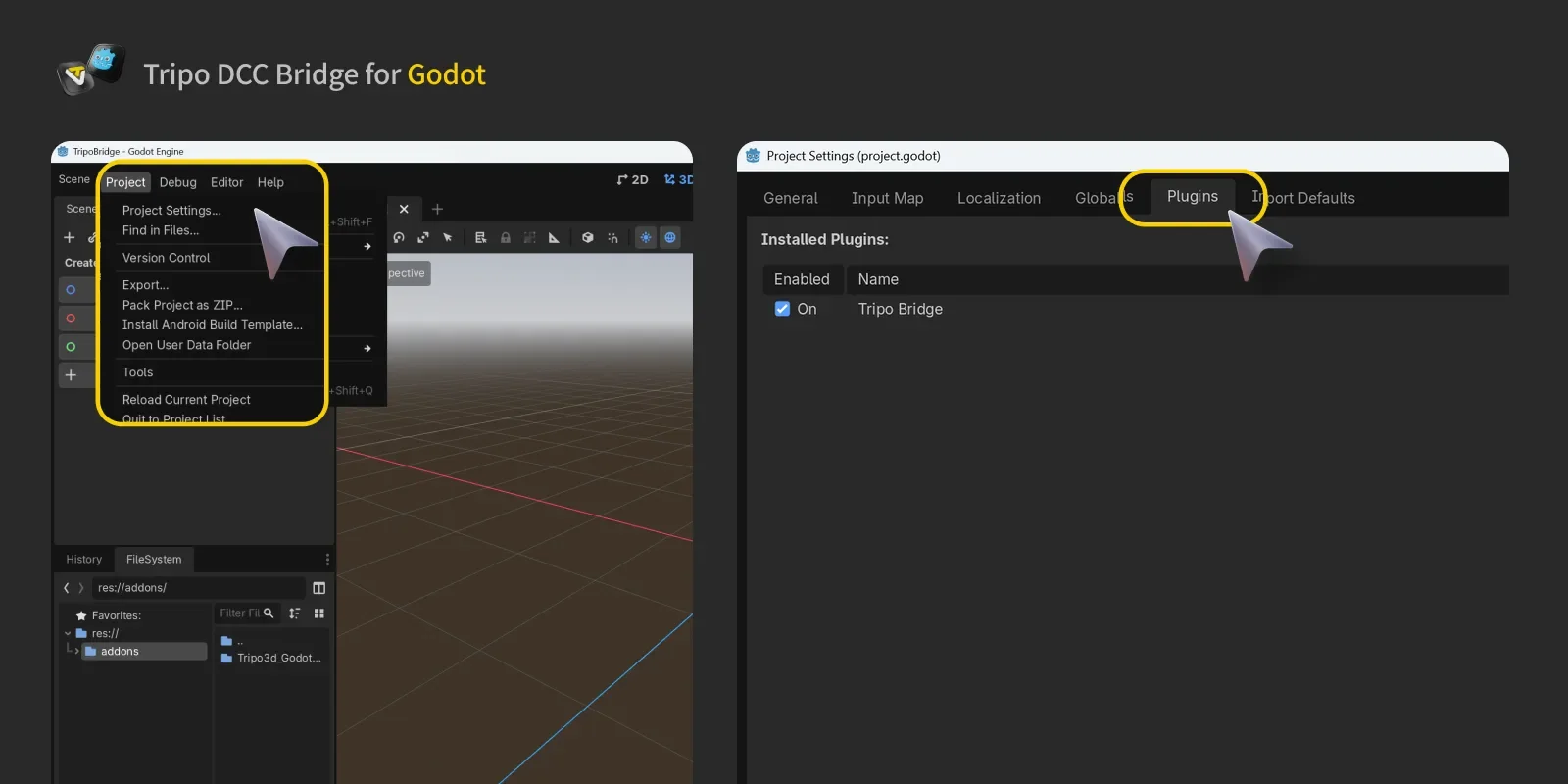
- When the panel is opened, the Bridge service starts automatically.
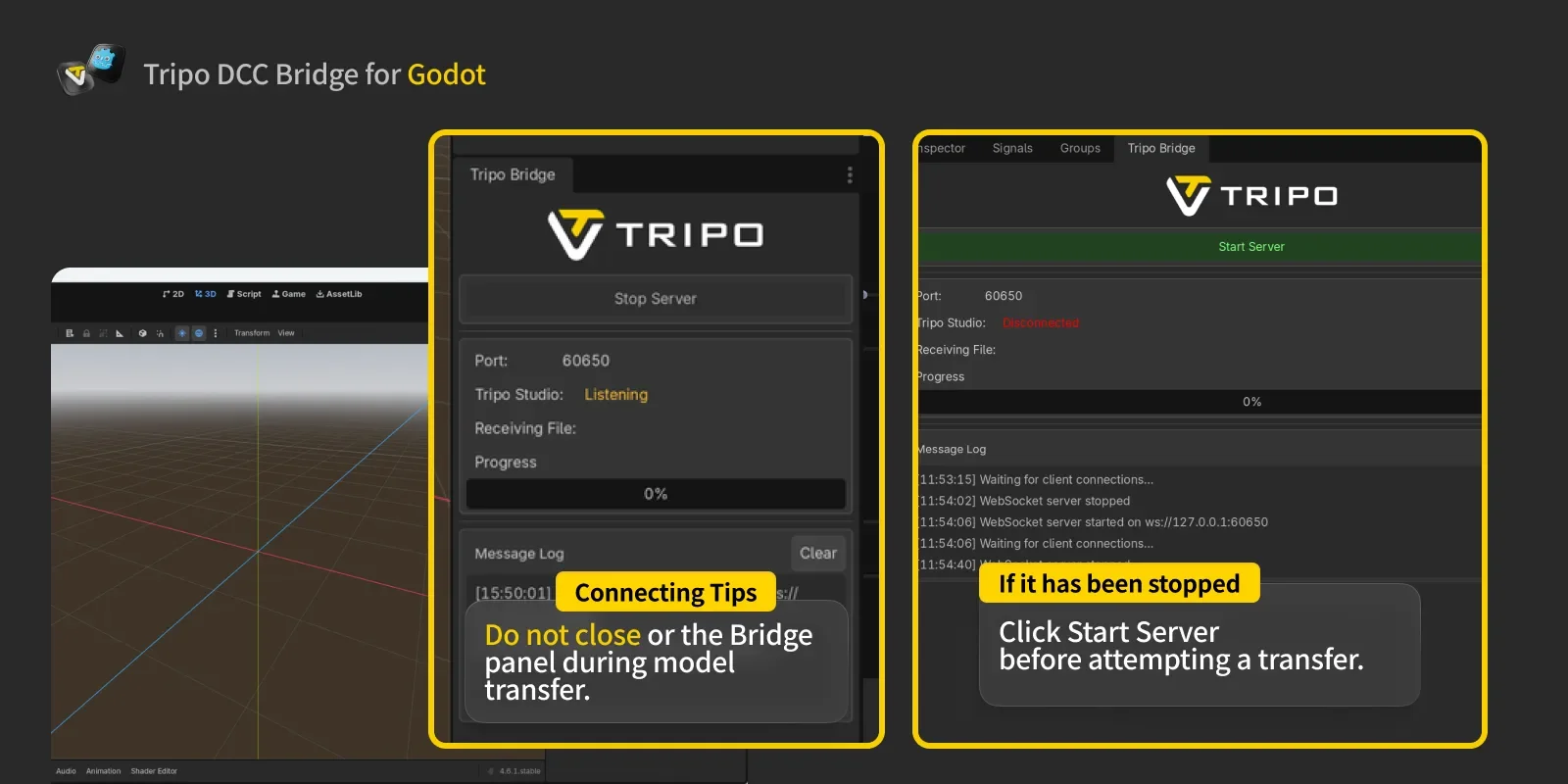
- The Bridge service must remain running while connecting to the web browser. Do not close Godot or the Bridge panel during model transfer.
PS: If you need to manually stop the service, click Stop Server in the panel. However, to send or receive models from Tripo Studio, the service must be running. If it has been stopped, click Start Server before attempting a transfer.
Step 4:
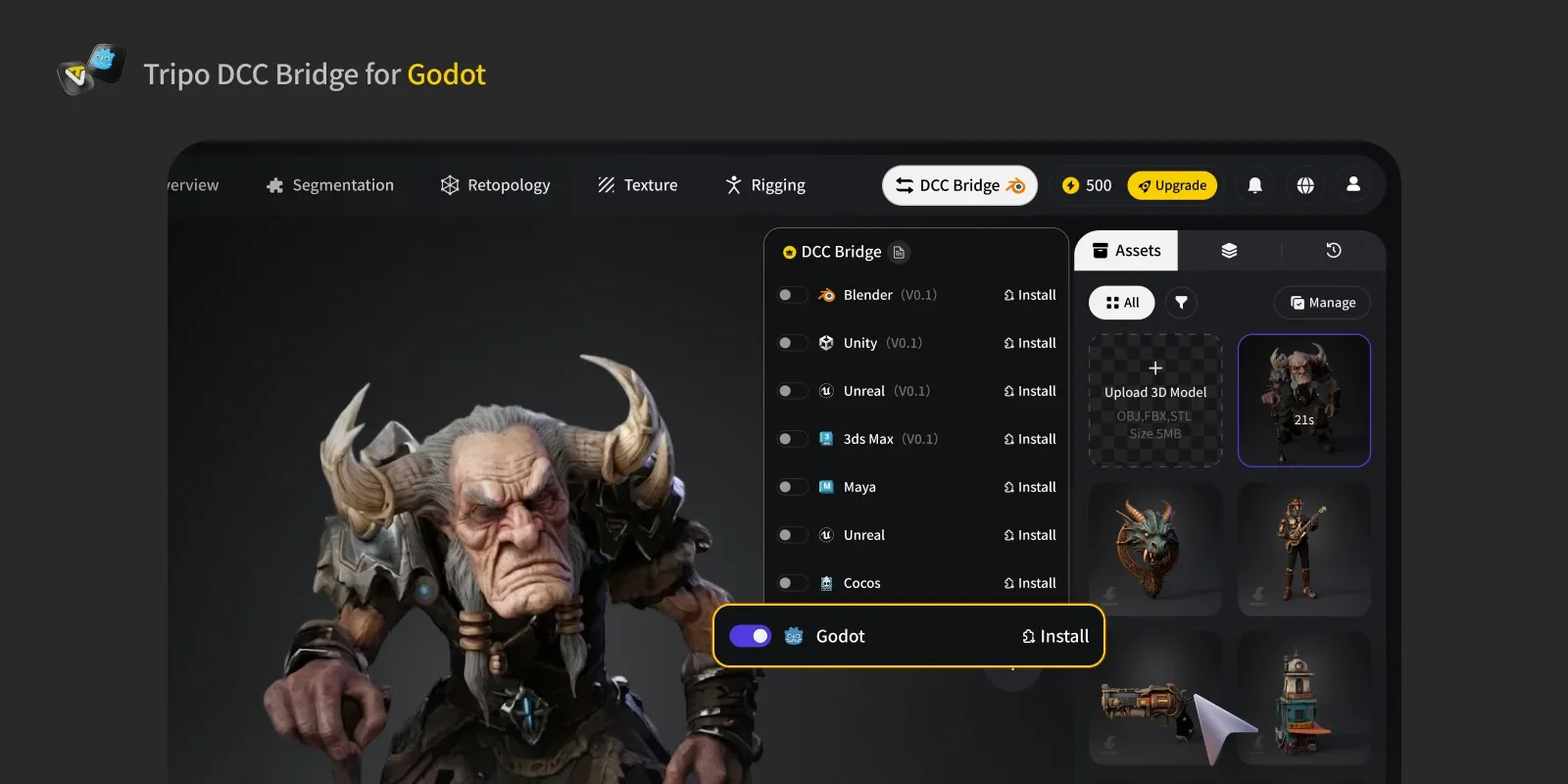
- Open the Tripo Studio website, click the DCC Bridge button, and activate the Godot plugin.
- Confirm the connection is set up correctly.
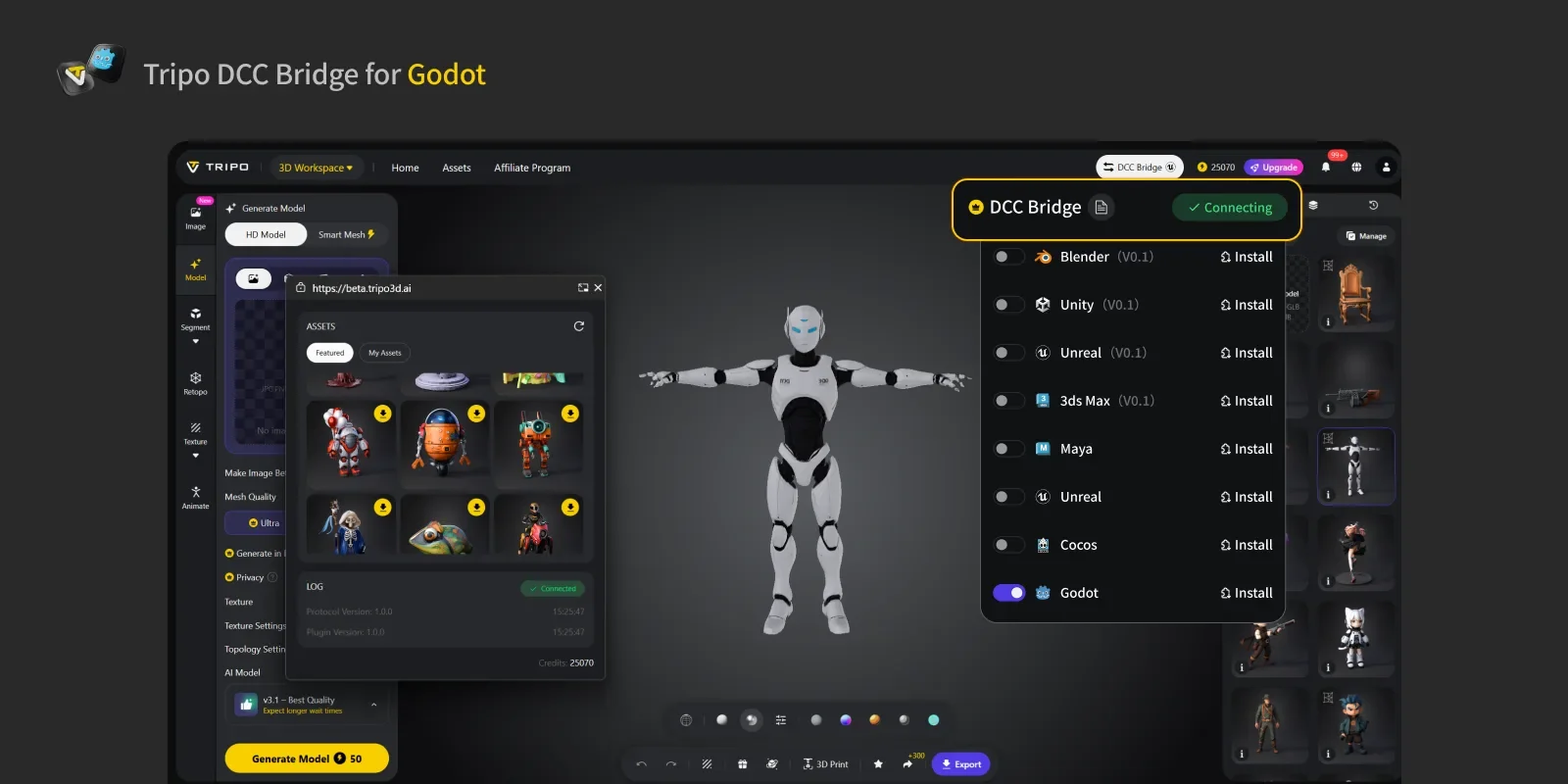
- Select a model. Press the Export button in the mini window.
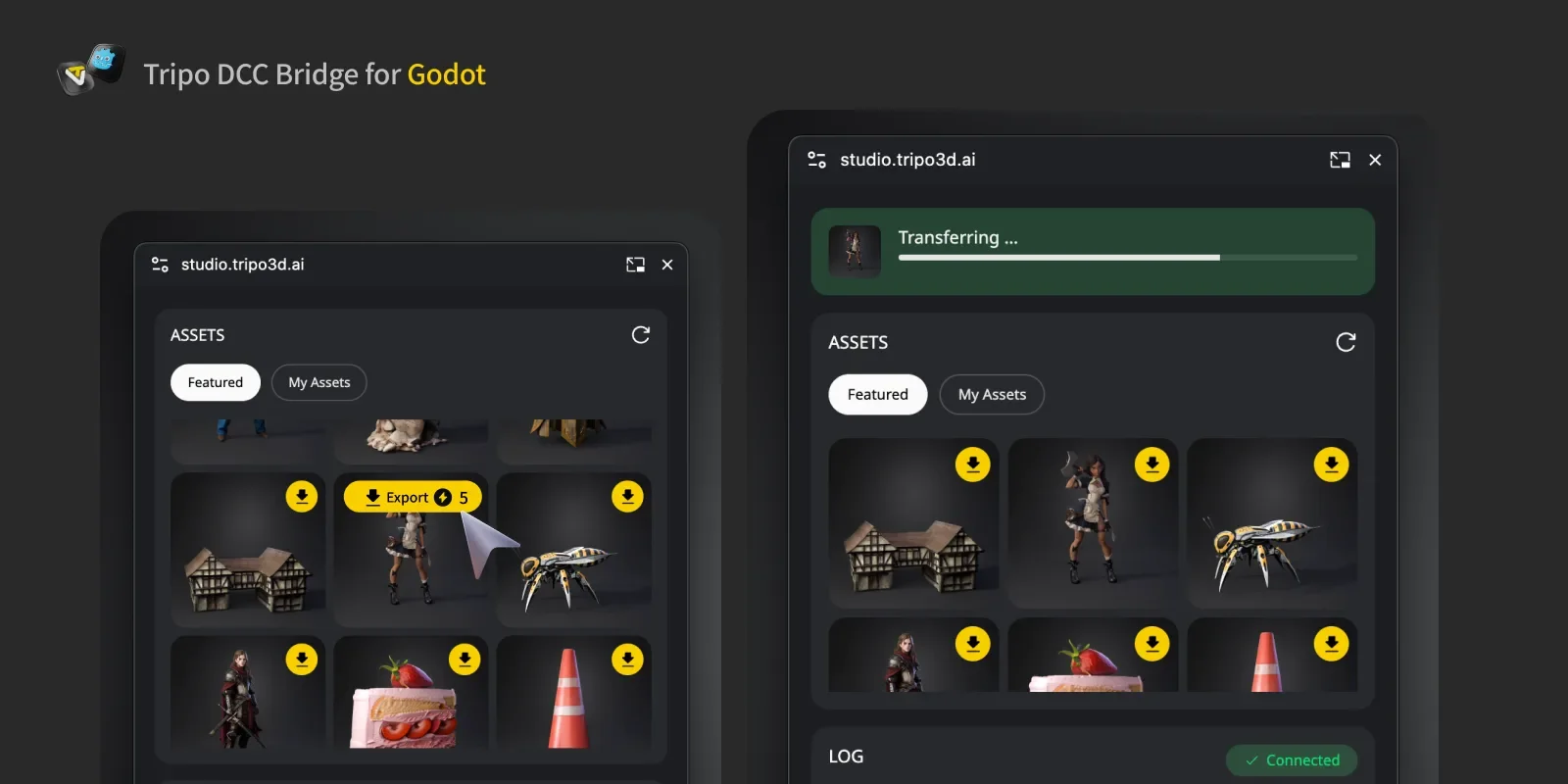
- If Godot is still transferring, please wait until the transfer is complete before initiating another one.
- If you want to export a model with animations, first generate the animations in Tripo Studio, then select the desired animations in the Export panel and send them directly to Godot.
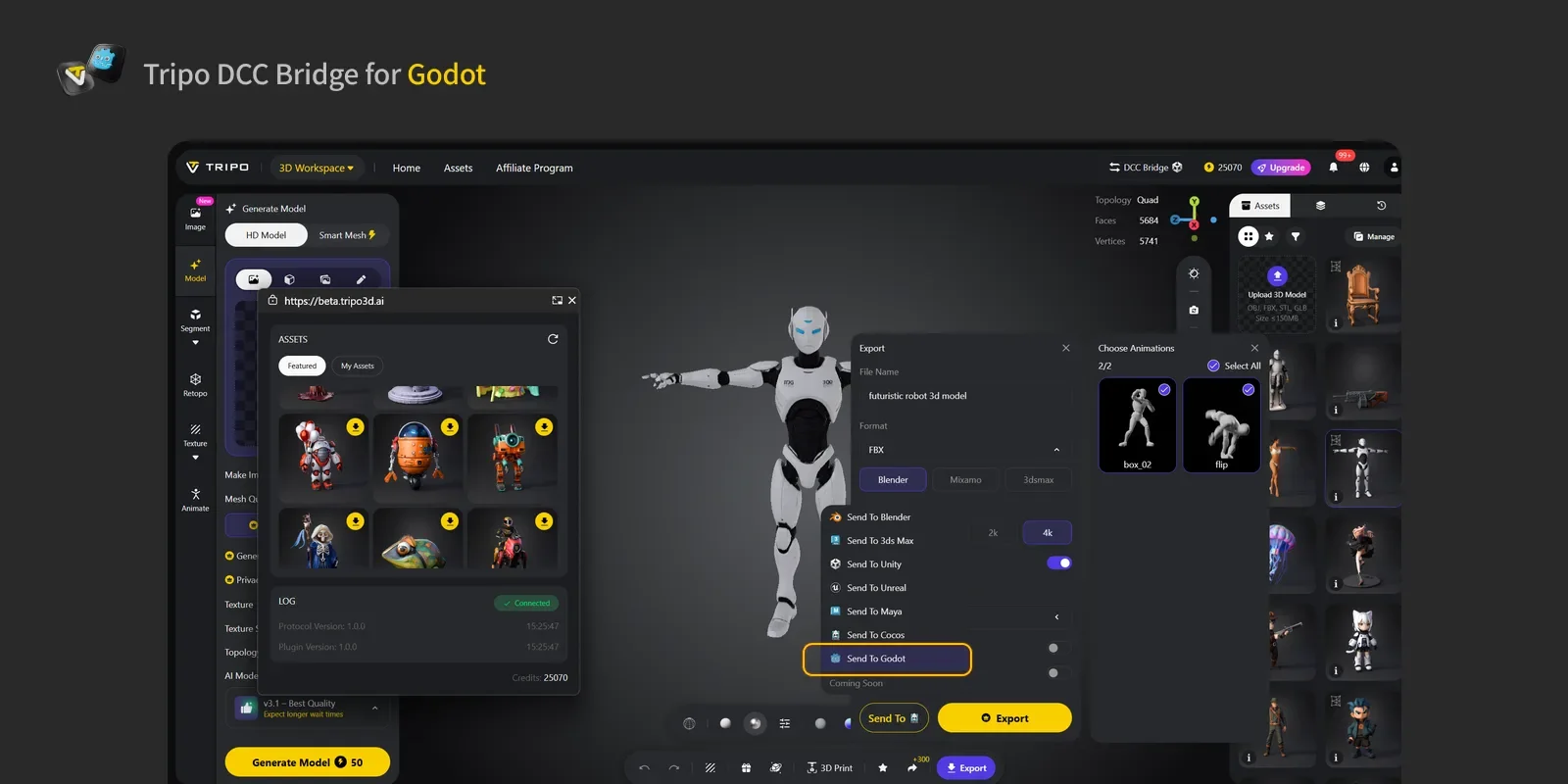
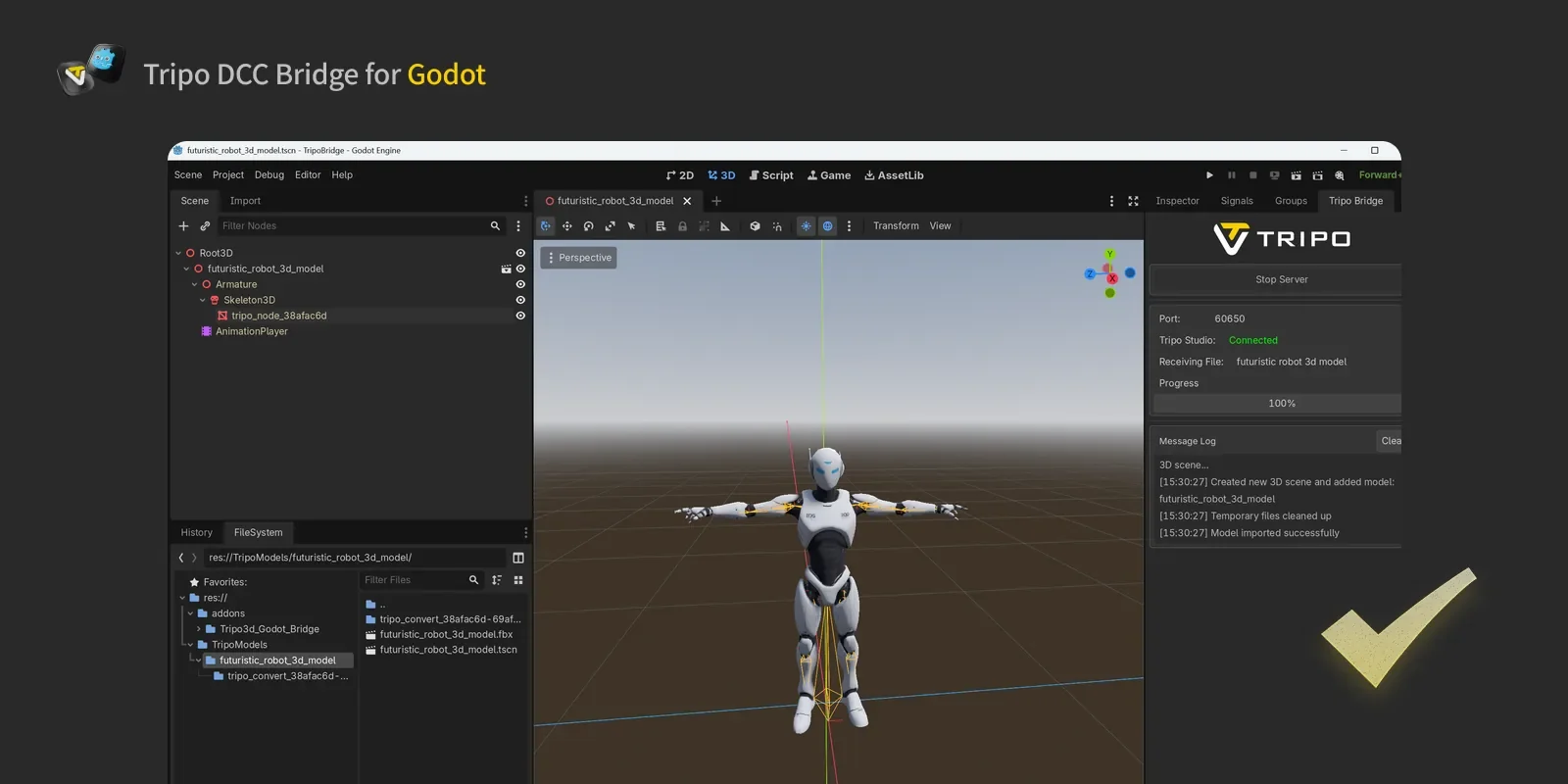
Step 5: You can now see the model in Godot sent from the website.
FAQs
Q: Can I transmit data to multiple Godot instances simultaneously?
A: No. The connection only recognizes the first Godot launched.
Q: Can I send models while Godot is in Play mode?
A: Currently, model transfer is only supported in Godot Editor mode.