STL vs OBJ for 3D Printing: Which File Format Should You Use?
TL;DR
For stl vs obj for 3d printing, STL is usually the safer choice if you only need printable geometry.
STL is simple, widely supported, and accepted by nearly every slicer.
OBJ is better when your model needs color, UVs, or texture data, although not every 3D printing workflow uses that information.
If you are printing a single-color prototype, use STL.
If you are working with textured models, full-color printing, or a visual pipeline before printing, OBJ may be worth keeping.
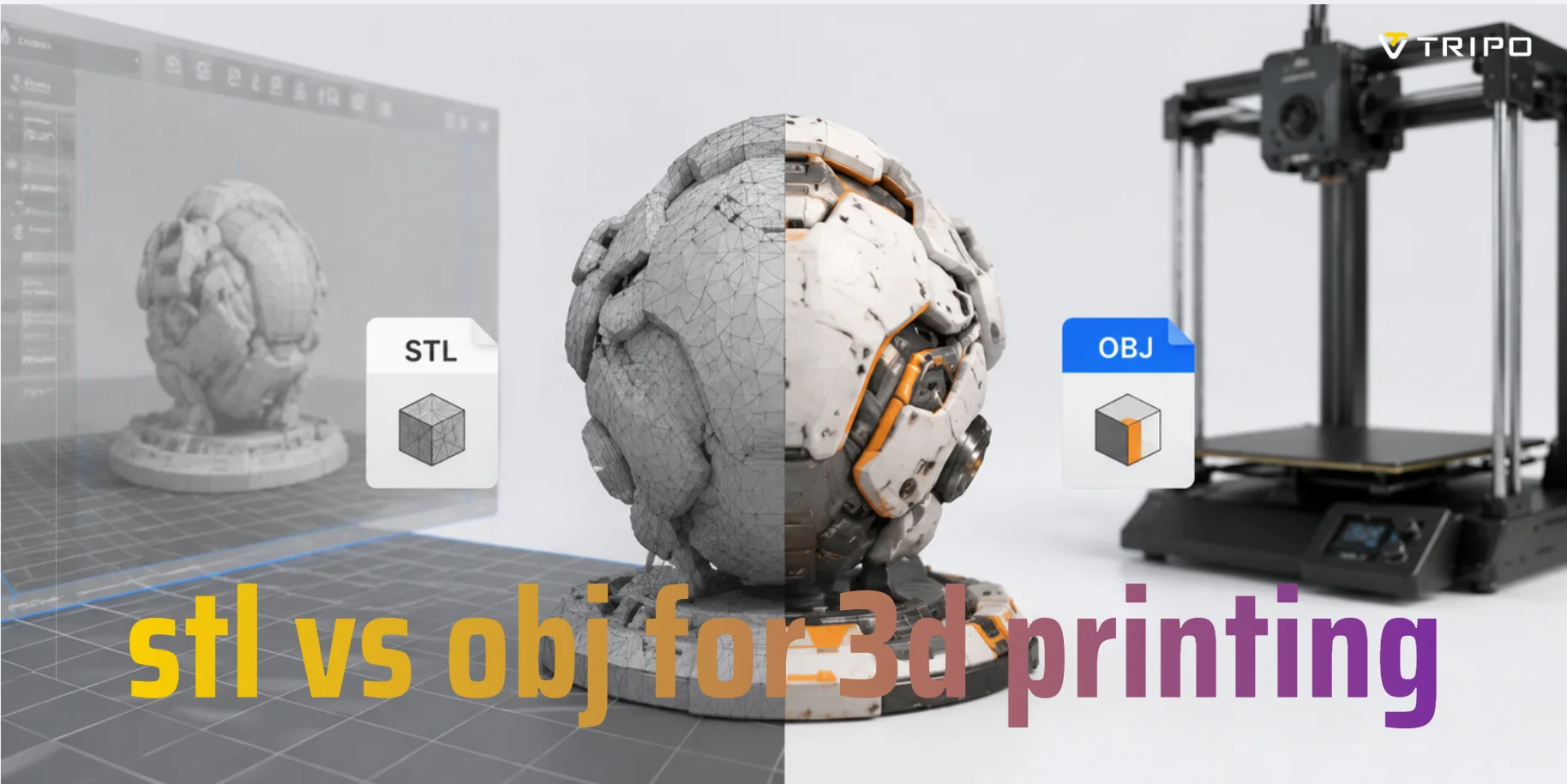
The stl vs obj for 3d printing question comes up because both formats seem to do the same job at first glance: they move a 3D model from one tool to another. In practice, they behave differently once you get close to the printer.
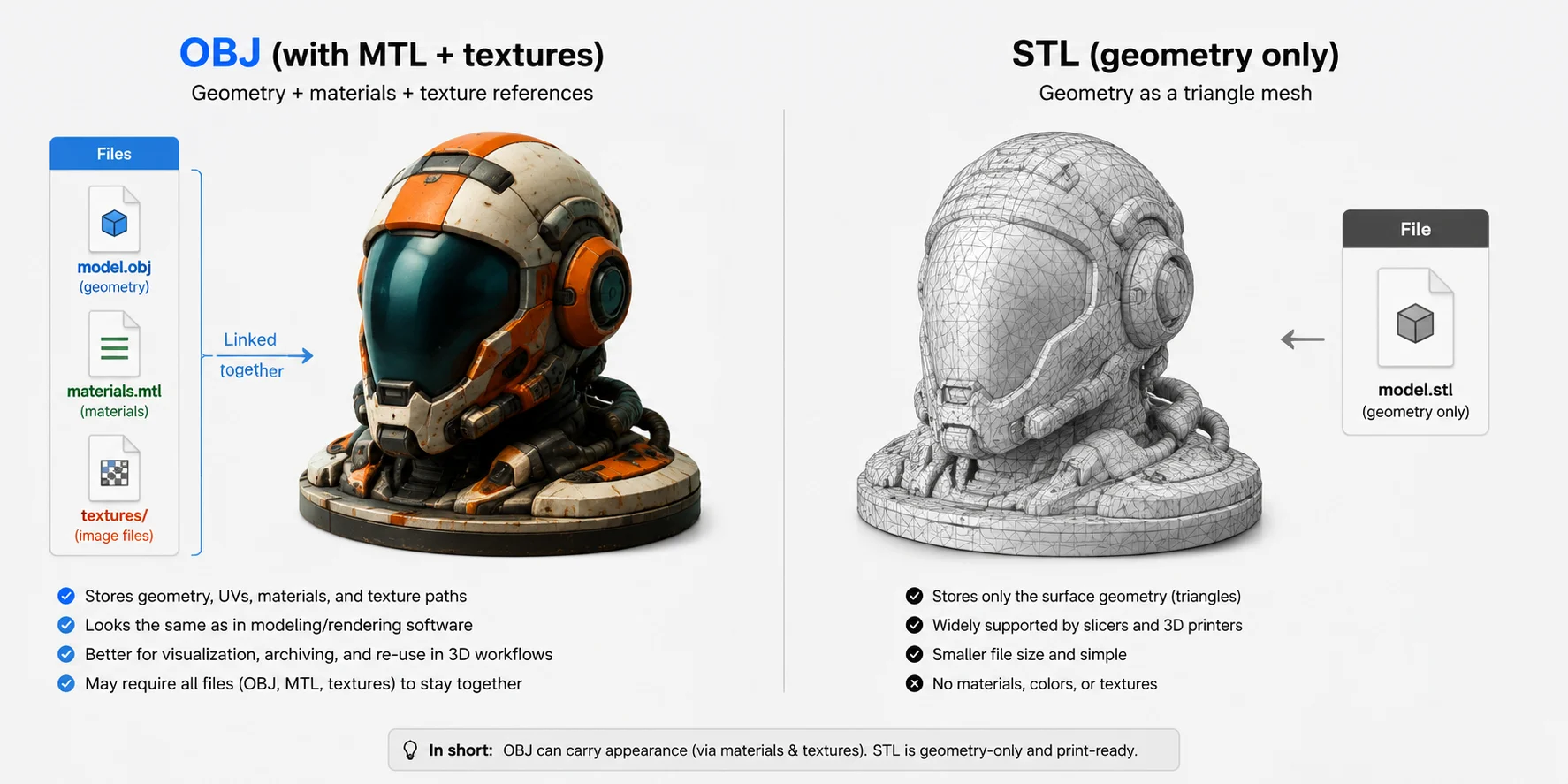
An STL file describes surface geometry as triangles. That is enough for most slicers. An OBJ file can also describe geometry, but it may carry extra data such as texture coordinates, material references, and color-related information through linked files. That makes OBJ useful in modeling and rendering workflows, but it can add friction when the goal is a clean print.
This matters even more when your model starts in a generative 3D tool. Tripo AI, for example, can generate 3D models from images or text prompts, then let you review and export the result in multiple formats. Choosing STL or OBJ at export is not just a file preference. This guide compares STL and OBJ for 3D printing, explains when each format makes sense, and walks through a practical Tripo workflow from generation to slicing and print prep.
What Is an STL File?
STL is one of the oldest and most common 3D printing file formats. The name is often linked to stereolithography, but today it is used across FDM, resin, and other printing workflows.
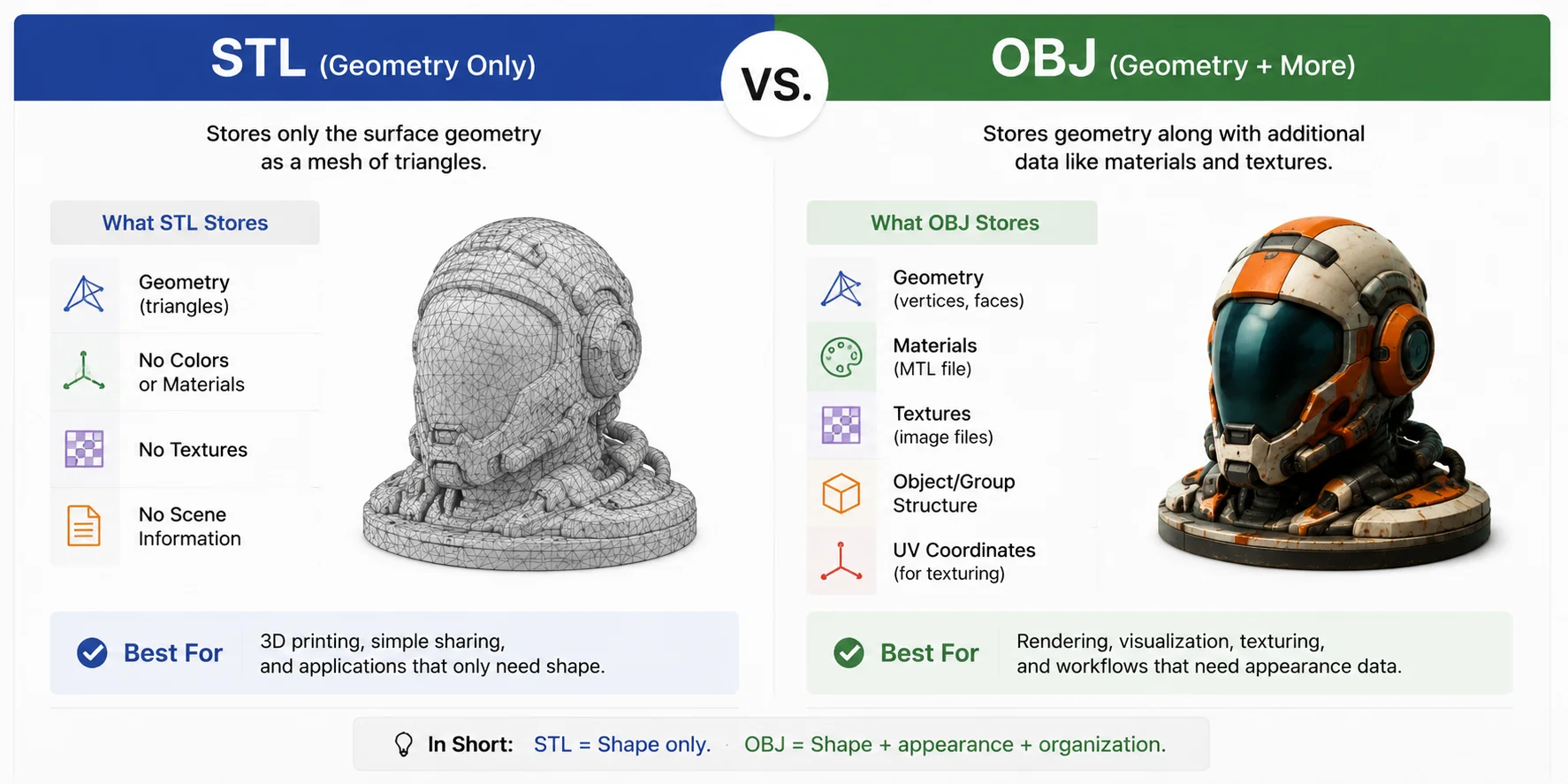
An STL file stores the outer surface of a model as a mesh of triangles. It does not store color, texture maps, material settings, units in a reliable universal way, animation, or scene information. It is basically saying, "Here is the shape."
That plainness is why STL for 3D printing remains so common. Slicers know how to read it. Printer manufacturers support it. Online model libraries use it heavily. If you download a bracket, enclosure, test cube, figurine, jig, or replacement part, there is a good chance it will include an STL file.
The tradeoff is that STL has no understanding of design intent. A cylinder becomes a set of flat facets. A smooth sculpture becomes triangle data. If the mesh is too low resolution, curves can look faceted. If the mesh has holes, flipped normals, self-intersections, or non-manifold edges, the slicer may misread the model.
STL is good at being boring. For printing, boring is often exactly what you want.
What Is an OBJ File?
OBJ is a more flexible 3D model format originally associated with Wavefront software. It is widely used in modeling, rendering, animation, scanning, and asset exchange.
An OBJ file can store polygon geometry, vertex normals, UV coordinates, and references to material files. Those material files, usually MTL files, can point to texture maps. This is why OBJ for 3D printing sometimes appears in workflows involving color models, scans, character assets, or models generated for visual use before they are prepared for printing.
OBJ is not limited to triangles in the same way STL is commonly used. It can contain polygons that later get triangulated by software. It can also preserve information that STL discards, which helps when you want to keep the model useful outside the slicer.
The catch is that 3D printers do not automatically care about most of that data. A standard single-filament FDM printer will not use a texture map. Many slicers will import OBJ geometry just fine, but material and texture handling varies. If an OBJ file depends on separate texture files and those files go missing, the model may still load as geometry, but its visual data will be incomplete.
OBJ is stronger as an exchange format than as a guaranteed print handoff format.
STL vs OBJ for 3D Printing: Key Differences
The main difference in stl vs obj for 3d printing is the type of information each format carries.
STL stores surface shape. OBJ can store surface shape plus visual data. That sounds like an easy win for OBJ, but printing rewards reliability more than richness. If your printer only needs geometry, the extra data in OBJ may not help.
STL files are usually easier to pass into a slicer. Cura, PrusaSlicer, Bambu Studio, Lychee, Chitubox, and most other slicers expect STL and handle it predictably. OBJ support is also common, but the result can depend on how the file was exported and whether the slicer keeps the data you care about.
File size can go either way. A dense STL can be huge because every triangle is written out. An OBJ with textures can also become large once you include linked image files. For a simple mechanical part, STL is often compact enough. For a textured character or scanned object, OBJ can carry more baggage because it is trying to preserve more than the print surface.
Repair workflows also tend to favor STL. Many mesh repair tools, slicers, and print preparation utilities were built around STL problems: holes, inverted normals, stray shells, non-manifold edges, and thin walls. OBJ can have the same geometry issues, but the added material and texture files can make asset management messier.
A good way to think about it: STL is a print container. OBJ is a model exchange container. They overlap, but they are not interchangeable in every workflow.
Comparison Table
| Category | STL File | OBJ File |
|---|---|---|
| Main purpose | 3D printing geometry | 3D model exchange with geometry and visual data |
| Stores mesh geometry | Yes | Yes |
| Stores color | No standard color support | Can reference materials and textures |
| Stores UVs | No | Yes |
| Stores texture maps | No | Can reference external texture files |
| Slicer support | Excellent | Good, but varies by slicer |
| Best for | Mechanical parts, prototypes, simple printable models | Textured models, scans, full-color workflows, visual pipelines |
| Common issue | Low mesh resolution or broken geometry | Missing material files, texture handling, export inconsistency |
| File management | Usually one file | Often one OBJ plus MTL and texture files |
| Best file format for 3D printing? | Usually yes for standard printing | Useful when color or textures matter |
When Should You Use STL?
Use STL when the model only needs to print as a shape.
That covers a large share of real 3D printing work: brackets, mounts, cases, fixtures, replacement parts, tools, miniatures, test pieces, and rough prototypes. If the printer will use one material or one color, STL is usually enough.
STL is also the right call when you want fewer surprises in the slicer. Import the file, check scale, orient it, choose supports, slice, and print. That path is familiar because most desktop printing workflows were built around it.
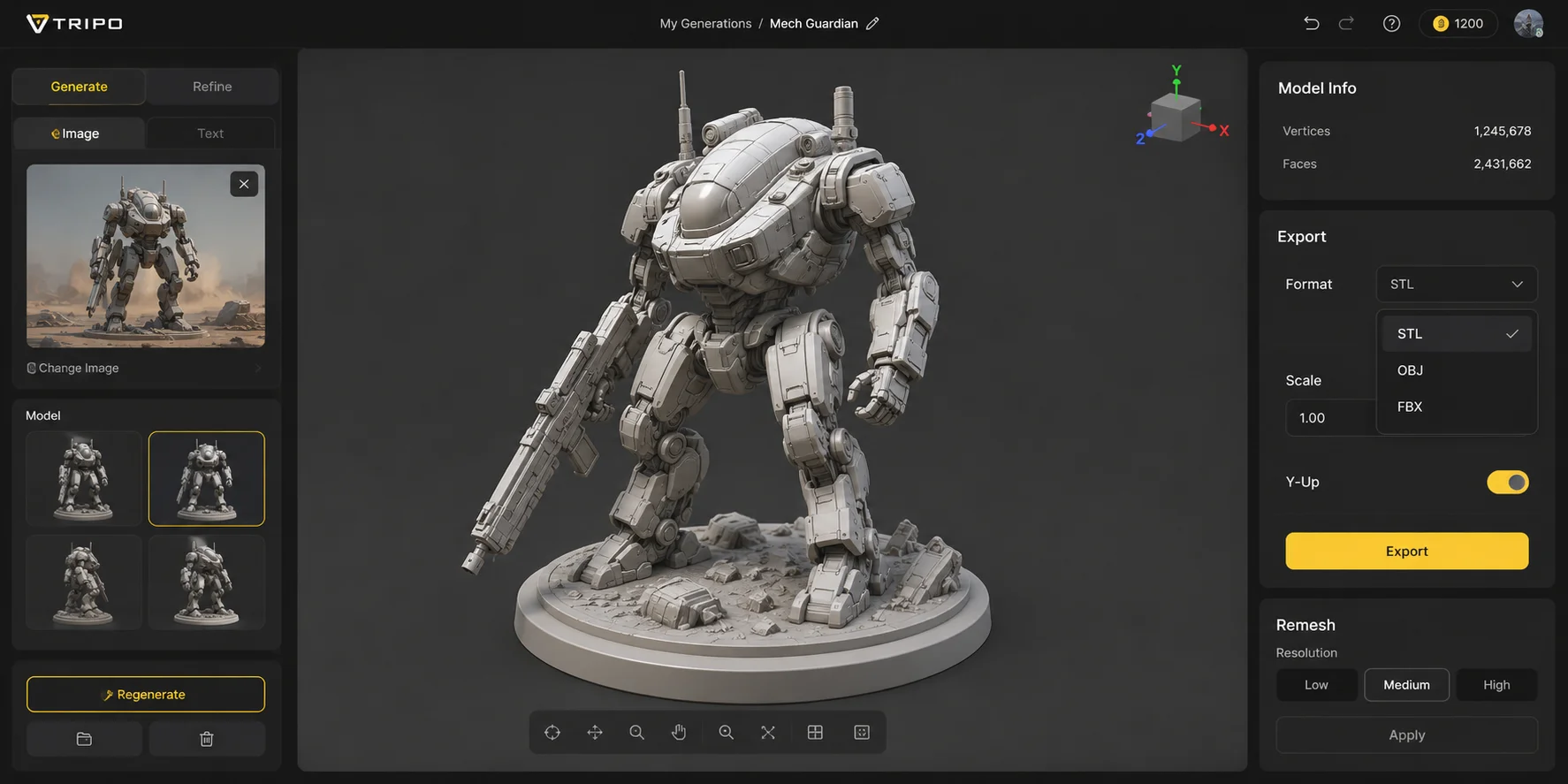
For models generated in Tripo, STL makes sense when you have reviewed the geometry and want to move directly into slicing. If you use Tripo's Image-to-3D or Text-to-3D workflow to create a printable object, exporting STL keeps the handoff focused on mesh data. If the model needs cleaner structure before printing, features such as HD Model and Smart Mesh can help prepare a better mesh before export, depending on what the model requires.
STL is not magic, though. A bad mesh exported as STL is still a bad mesh. Check wall thickness, floating details, overhangs, and whether small features will survive at your printer's nozzle size or resin pixel size.
When Should You Use OBJ?
Use OBJ when visual information matters before, during, or after print preparation.
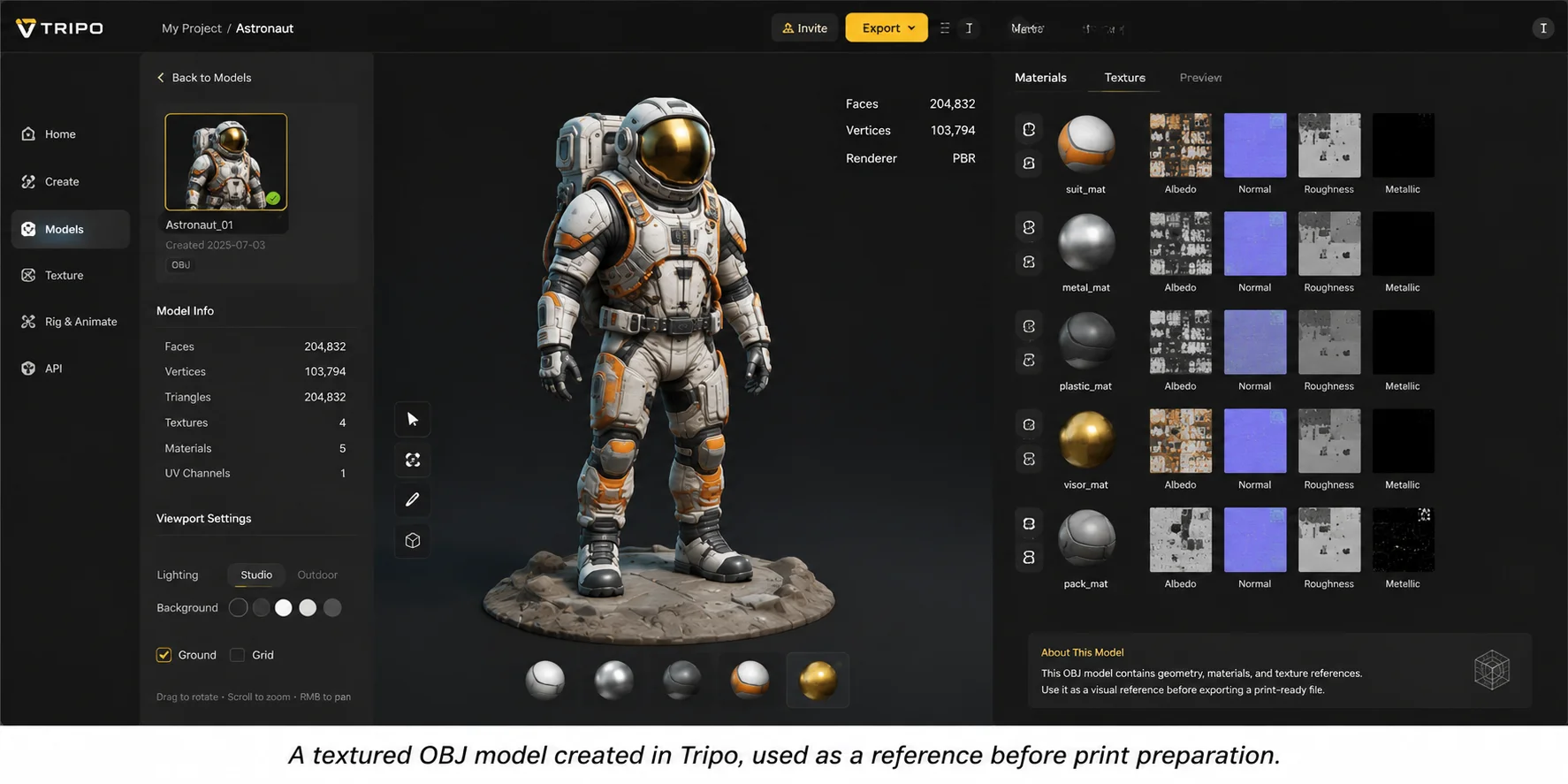
OBJ is useful for textured models, scanned objects, character models, color references, and workflows where the same asset may go into rendering, AR, game engines, or a full-color 3D printing process. If you need UVs or texture maps, STL will throw that data away. OBJ can keep it attached, as long as you manage the related files properly.
OBJ can also be helpful as an intermediate format. You may generate a model in Tripo, export OBJ, inspect or edit it in another 3D application, then later export STL or 3MF for printing. That gives you more visual context while cleaning the mesh.
For full-color printing, OBJ can be part of the workflow, but check the printer and slicer first. Some full-color systems prefer other formats. Some slicers import OBJ but ignore texture data. Others require the OBJ, MTL, and texture image files to stay in the same folder.
If you are unsure whether to choose STL or OBJ, ask what the next tool needs. A slicer for a single-color print usually wants STL. A modeling tool or color-aware pipeline may benefit from OBJ.
How to Export STL or OBJ with Tripo
Tripo fits into the early part of a 3D printing workflow: creating the model, refining the mesh, and exporting it in a usable format. The export choice depends on what you plan to do next.
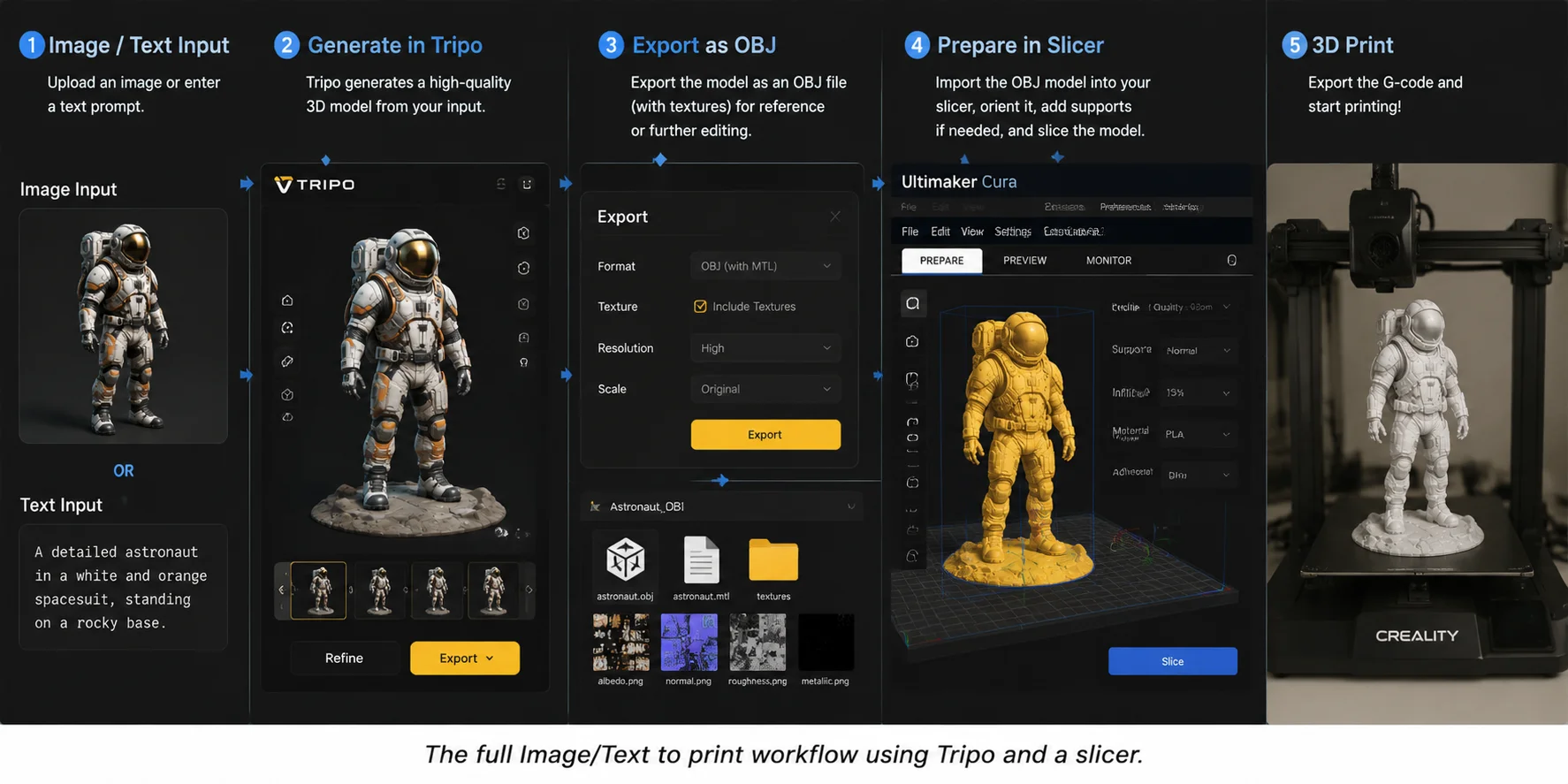
A complete workflow looks like this:
Image/Text -> Generate in Tripo -> Review geometry -> Export STL or OBJ -> Slice -> Print.
Start with Image-to-3D or Text-to-3D. An image prompt works well when you have a visual reference, such as a product concept, prop, figurine, or decorative object. A text prompt is better when you want to describe the form directly. Either way, keep printability in mind while prompting. Very thin spikes, hair-like details, floating parts, and deep undercuts can make printing harder later.
Next, generate the model in Tripo. The first result should be treated as a 3D starting point, not an untouched final print file. Look at the silhouette, proportions, surface detail, and whether important features are actually connected.
Then review geometry. Rotate the model. Check the underside. Look for parts that are too thin, details that may break, and areas that would need heavy supports. If the model needs a cleaner or denser result, consider HD Model or Smart Mesh before export. The goal is not to chase maximum detail everywhere. The goal is a mesh that your slicer can interpret and your printer can physically produce.
Now export STL or OBJ. Choose STL if your next step is a normal slicer and you only need geometry. Choose OBJ if you need to preserve texture or material information for another stage of the workflow. Tripo supports multiple export formats, so it is reasonable to export more than one version when you are testing a new process.
After export, open the file in your slicer. Set scale, orientation, layer height, infill, supports, and material settings. Inspect the preview layer by layer. This is where many problems show up: missing walls, tiny islands, unsupported features, or surfaces that looked fine in the model viewer but slice poorly.
Finally, print. For a first run, use a modest scale or draft settings if the object is large. A small test print can reveal support scars, weak details, or scale issues before you commit time and material.
How to Convert Between STL and OBJ
You can convert between STL and OBJ when your workflow changes after export. For example, you may start with an OBJ file because you want to keep texture or material data while editing, then convert it to STL before slicing. Or you may have an STL model that needs to move into a 3D tool that works more comfortably with OBJ.
Tripo AI 3D Tools provides an online format conversion tool that can help with this step. Upload your model, choose the target format, and export the converted file for the next stage of your workflow.
A few checks still matter after conversion:
- Open the converted file before sending it to a slicer.
- Confirm the scale and orientation.
- Check whether texture or material data carried over as expected.
- Inspect the mesh for holes, broken surfaces, or missing parts.
For standard 3D printing, converting OBJ to STL often makes sense before slicing. For editing, rendering, or texture-aware workflows, converting STL to OBJ can make the model easier to handle in other 3D software.
Common Mistakes to Avoid
Do not choose OBJ just because it sounds more advanced. If your slicer ignores the material data, OBJ may only add extra files to manage.
Do not assume STL means printable. STL can describe an impossible object. It can contain holes, intersecting surfaces, shells inside shells, and details thinner than your printer can handle.
Do not forget scale. STL files do not always carry unit information consistently. A model intended to be 100 mm tall may import as 100 inches or 100 centimeters depending on the software chain. Always check dimensions in the slicer.
Do not lose OBJ companion files. If your OBJ relies on an MTL file and texture images, keep them together. Renaming or moving one file can break material links.
Do not export too low. Coarse meshes can leave curves visibly faceted. This is especially noticeable on round objects, characters, and organic forms.
Do not export too high without a reason. Extremely dense meshes can slow down repair tools and slicers without improving the printed part. Your printer has a physical resolution limit.
Do not skip the slicer preview. The model view is not enough. The layer preview shows what the printer will actually try to build.
STL or OBJ for Different Use Cases
STL is best for functional prints, mechanical parts, jigs, fixtures, simple sculptures, miniatures without color data, and any model headed straight into a standard 3D printing workflow.
OBJ is best for textured models, color references, full-color print preparation, scanned models, character assets, and workflows that pass through modeling or rendering software before slicing.
For Tripo users, the choice often comes down to the purpose of the generated model. If you are making a printable prototype from a text prompt, STL will usually be the practical export. If you are generating a detailed visual model from an image and want to keep texture data available while you edit, OBJ may be the better working file.
There is also a third format worth knowing: 3MF. In the 3MF vs STL comparison, 3MF can store more print-related data, including units, colors, materials, and slicer-relevant metadata, depending on the software. Many modern slicers support it well. Still, STL remains the common fallback because it is simple and widely accepted.
Frequently Asked Questions
Is STL or OBJ better for 3D printing?
For most standard 3D printing, STL is better because slicers support it consistently and it contains the geometry needed to print. OBJ is better when you need textures, materials, UVs, or color-related data.
What is the main difference in stl vs obj for 3d printing?
The main difference is data. STL stores surface geometry. OBJ can store geometry plus references to materials and textures. For single-color printing, that extra OBJ data may not matter.
Can you use OBJ for 3D printing?
Yes, you can use OBJ for 3D printing if your slicer supports it. Many slicers can import OBJ geometry. Texture and material support depends on the slicer and printer workflow.
Why is STL so common in 3D printing?
STL is common because it is simple, old, and widely supported. Most slicers, printer tools, and model libraries can handle an STL file without special setup.
Does an STL file include color?
A standard STL file does not include color, texture, UV, or material data. It mainly stores the triangle mesh that describes the model's surface.
Does an OBJ file include textures?
An OBJ file can reference textures through an MTL file and linked image files. The texture data is usually not self-contained in the OBJ alone, so the related files need to stay with it.
Should I export STL or OBJ from Tripo?
Export STL from Tripo when you want to slice and print a geometry-only model. Export OBJ when you need texture or material information for editing, rendering, or a color-aware workflow before printing.
What is the best file format for 3D printing?
For everyday desktop 3D printing, STL is often the best file format because it works almost everywhere. For richer print data, 3MF may be better in supported slicers. For textured models, OBJ can be useful.
How does 3MF vs STL compare?
STL stores geometry only. 3MF can store more information, such as units, materials, colors, and print settings, depending on the software. STL is more universal, while 3MF is more capable in modern workflows.
Can I convert OBJ to STL?
Yes. Most 3D modeling tools and mesh utilities can convert OBJ to STL. Before converting, check that the mesh is watertight, correctly scaled, and free of geometry errors.
Conclusion
The stl vs obj for 3d printing decision is less about which format is "better" and more about what your next step needs.
Choose STL when you want a reliable geometry file for slicing. It is the default for a reason: simple models, functional parts, prototypes, and single-color prints rarely need anything more.
Choose OBJ when the model's visual data matters. If you need textures, UVs, material references, or a richer handoff between 3D tools, OBJ preserves information that STL cannot carry.
For Tripo workflows, start with the model source: Image-to-3D or Text-to-3D. Generate the model, review the geometry, use HD Model or Smart Mesh when the mesh needs improvement, then export the format that matches the print process. STL keeps the path to slicing direct. OBJ keeps more visual information available when the workflow needs it.
To test the workflow yourself, open Tripo Studio, generate a model from an image or text prompt, then compare STL and OBJ exports in your slicer.