Poly Count for Game Assets - How to Prepare AI 3D Models
TL;DR
- There is no single correct poly count; the target depends on platform, asset type, camera distance, and the number of objects visible at once.
- Starting ranges for PC and console include 2K–10K triangles for small props and 50K–100K+ for hero characters; mobile targets are usually much lower, from 300–2K for small props to 15K–30K for hero characters.
- High-poly and low-poly models serve different stages: build or generate the detail source, retopologize it, bake surface detail, and ship the optimized mesh.
- Set the polygon budget at scene level, then distribute triangles according to asset importance and viewing distance.
- Use retopology, LODs, and normal-map baking to reduce geometry while preserving silhouettes and visible detail.
- Tripo Smart Mesh supports a 5K–20K face workflow, but always verify the exported triangle count in Blender or the target engine before production use.
Poly count for game assets is the number of polygons, usually evaluated as triangles, in a model, and it directly affects performance. There is no universal right number: a mobile prop and a current-generation hero character live in completely different budgets. This guide gives concrete target ranges by platform, explains low poly vs high poly, and shows how to hit your polygon budget, including how to prepare game-ready AI 3D models in seconds.
What Is Poly Count (and Why It Matters)
How Game Engines Convert Polygons into Triangles
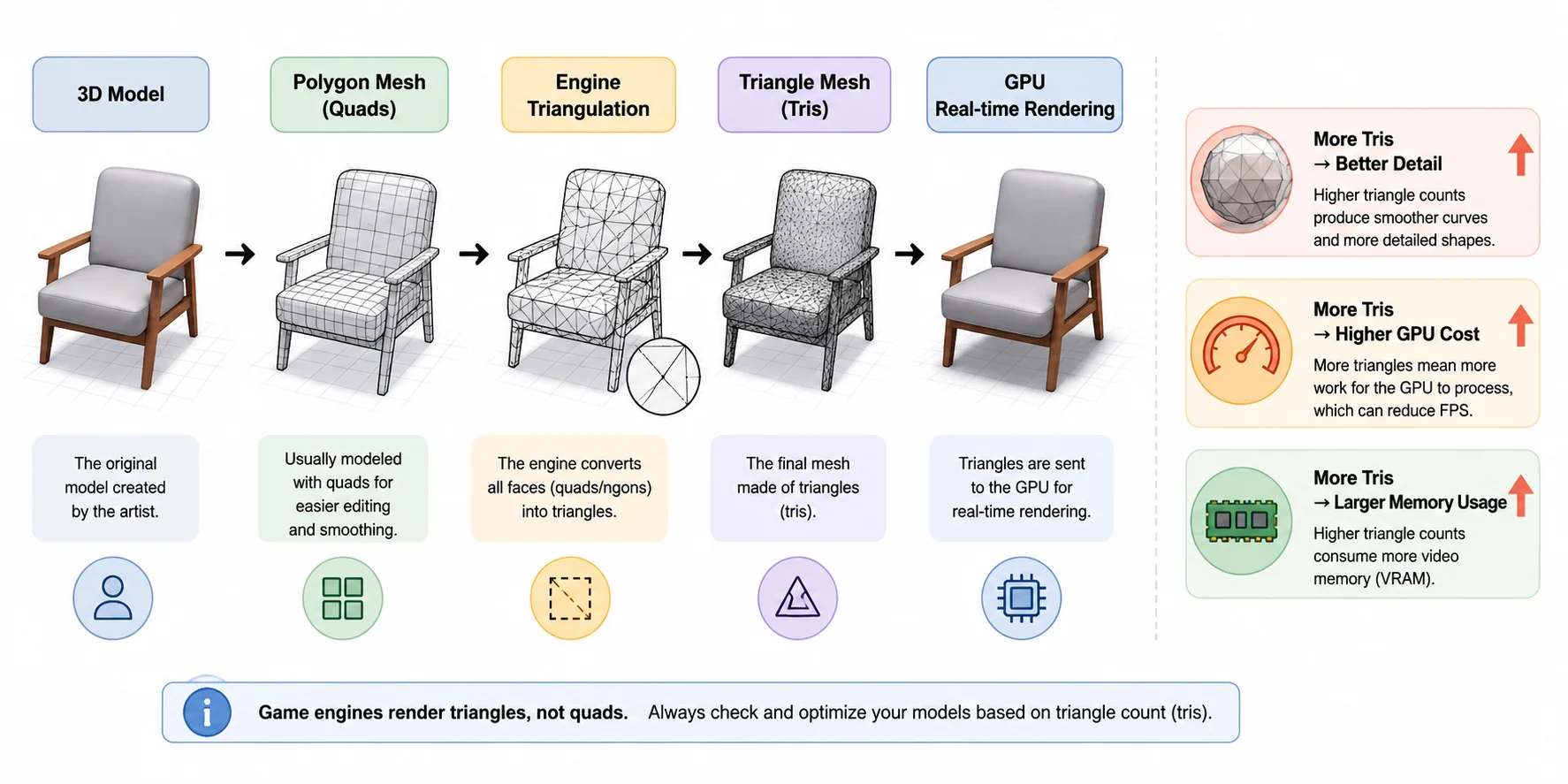
Poly count for game assets refers to the number of polygons used to build a 3D model. In real-time graphics, this number is usually discussed in terms of triangles (tris) because every modern game engine ultimately renders triangles, regardless of how the model was created. Whether you are developing for mobile, PC, or console, controlling poly count is one of the most important parts of building efficient, game-ready assets. The goal is not simply to reduce geometry, but to spend your available polygon budget where it creates the greatest visual impact.
More polygons generally produce smoother curves, cleaner silhouettes, and finer surface detail. That is why a playable character or cinematic hero prop often contains far more geometry than a background rock or a distant tree. At the same time, every additional triangle requires processing by the GPU and consumes memory. If every asset in a scene is unnecessarily dense, frame rates can drop quickly—especially on lower-powered hardware such as smartphones or the Nintendo Switch. Good optimization is therefore about matching each asset's complexity to its importance on screen rather than aiming for the highest possible poly count.
Polygons vs. Triangles vs. Tris
Although artists often say "poly count," engines actually measure triangle count. A polygon is any face with three or more edges. During modeling, most artists prefer working with quads because they are easier to edit, subdivide, and animate. However, before a model reaches the GPU, the engine automatically converts every face into triangles through a process called triangulation.
This is why technical specifications, engine profilers, and marketplace guidelines almost always list tris instead of polygons. For example, a mesh built from roughly 15,000 quads may end up containing around 30,000 triangles after export. When comparing assets or setting a game-ready poly count, triangle count is the metric that matters.
How Poly Count Affects Performance
Higher triangle counts increase the amount of geometry the GPU must process, which can reduce performance when many detailed assets are visible at once. For that reason, production teams typically establish a polygon budget for different asset types, from small props to hero characters. A mobile game asset poly count is usually much lower than one intended for a high-end PC or current-generation console because the available hardware resources are very different.
That said, poly count is only one part of optimization. Experienced developers often point out that shaders, textures, and draw calls can have an even bigger impact on performance than geometry itself. A model with modest triangle count but multiple 4K textures, transparent materials, or expensive shaders may cost more to render than a higher-poly mesh using simple materials. The best-performing assets balance geometry, materials, textures, and lighting together. Instead of chasing the lowest possible triangle count, aim for the right amount of detail for the platform, viewing distance, and gameplay experience.
Poly Count Targets by Platform & Asset Type
Triangle Count Reference by Platform & Asset Type
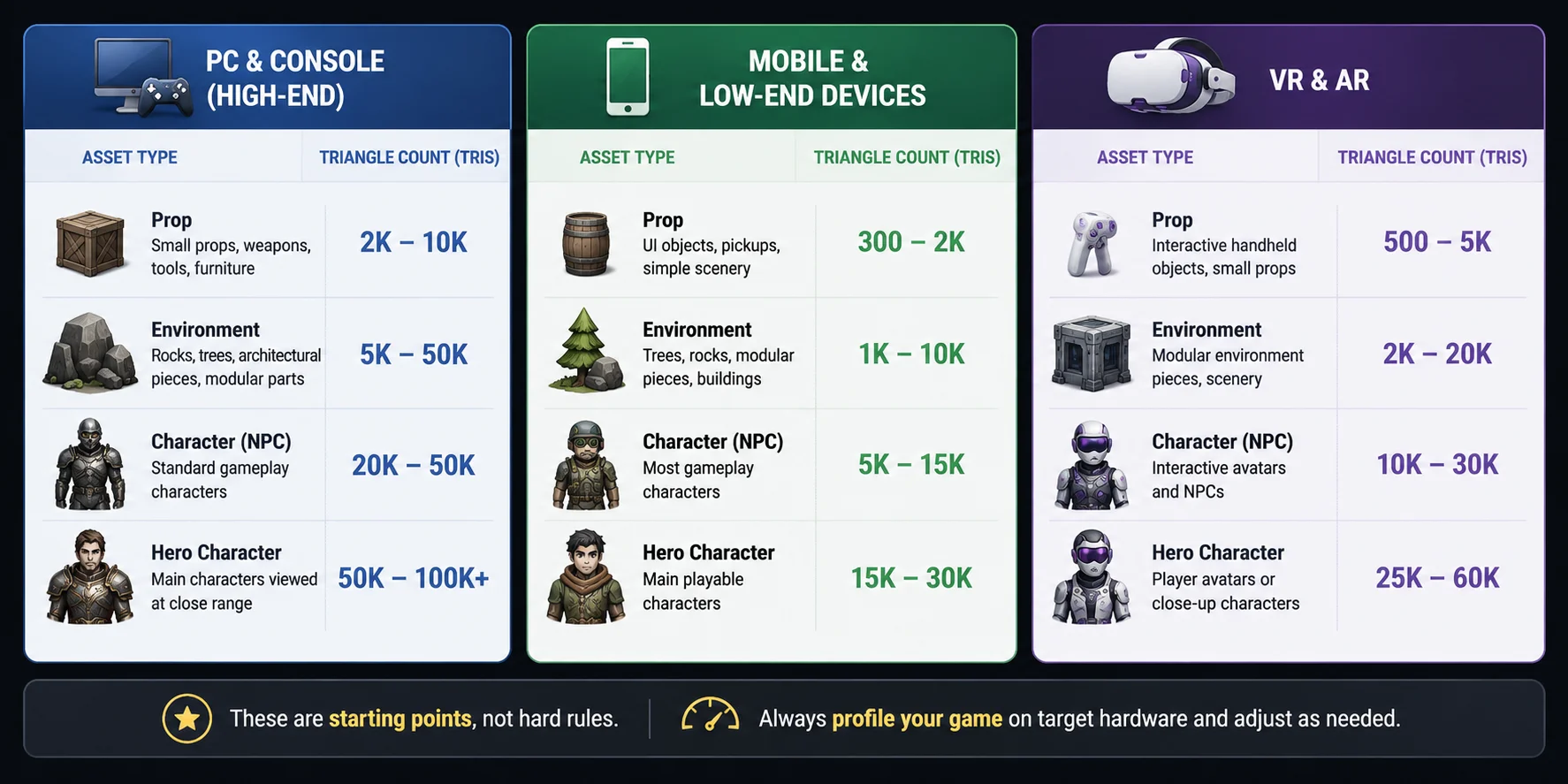
There is no universal poly count for game assets. The right number depends on where the asset will be used, how close the camera gets, how many similar objects appear on screen, and the performance target of the game. A hero character in a current-generation console title may use several times the geometry of the same character in a mobile game, while a small background prop often needs only a fraction of that budget.
The tables below provide practical triangle count ranges used in many modern production pipelines. Think of them as starting points rather than hard limits. After importing an asset into your engine, always profile the scene, test on your target hardware, and adjust the geometry if necessary. A well-balanced polygon budget should consider not only triangles but also textures, materials, shaders, animation, and the total number of visible objects.
PC & Console (High-End)
Modern PCs, PlayStation 5, and Xbox Series X|S can handle significantly more geometry than previous generations. Even so, experienced teams still assign a game-ready poly count to every asset type to prevent scenes from becoming unnecessarily heavy. Hero assets receive the highest budgets because players see them up close, while background objects are optimized more aggressively.
| Asset Type | Recommended Triangle Count (Tris) | Notes |
|---|---|---|
| Small prop | 2K-10K | Weapons, tools, pickups, furniture |
| Large prop | 10K-30K | Vehicles, machinery, large structures |
| Environment asset | 5K-50K | Rocks, trees, architectural pieces |
| NPC character | 20K-50K | Standard gameplay characters |
| Hero character | 50K-100K+ | Main characters viewed at close range |
These ranges assume physically based rendering (PBR), LODs, and modern GPUs. Instead of maximizing triangles everywhere, spend geometry where it improves the silhouette or supports animation. Small surface details are often better created with normal maps than extra polygons.
Mobile & Low-End Devices
For mobile games, every triangle matters more. Smartphones and tablets have much tighter GPU, memory, and battery constraints, so developers typically use a lower mobile game asset poly count than on PC or console. Games also tend to render many characters simultaneously while maintaining smooth frame rates, making optimization especially important.
| Asset Type | Recommended Triangle Count (Tris) | Notes |
|---|---|---|
| Small prop | 300-2K | UI objects, pickups, simple scenery |
| Large prop | 2K-8K | Vehicles, buildings, larger objects |
| Environment asset | 1K-10K | Trees, rocks, modular pieces |
| NPC character | 5K-15K | Most gameplay characters |
| Hero character | 15K-30K | Main playable characters |
These values work well as an initial polygon budget, but they are not fixed rules. A stylized game may need fewer triangles, while a flagship mobile title running on high-end devices may support more. Always test on your lowest supported hardware instead of relying solely on desktop previews.
VR & AR
Virtual reality and augmented reality place unique demands on optimization because they typically render at high resolutions and refresh rates, often 72, 90, or even 120 FPS. Since every dropped frame can affect user comfort, VR and AR projects usually adopt conservative triangle count targets, even on powerful hardware.
| Asset Type | Recommended Triangle Count (Tris) | Notes |
|---|---|---|
| Small prop | 500-5K | Interactive handheld objects |
| Large prop | 5K-15K | Furniture, machinery, scenery |
| Environment asset | 2K-20K | Modular environment pieces |
| NPC character | 10K-30K | Interactive avatars and NPCs |
| Hero character | 25K-60K | Player avatars or close-up characters |
Unlike traditional games, VR optimization focuses on the total scene rather than individual assets alone. Many medium-poly objects displayed together can become more expensive than a single detailed character. Combine sensible game-ready poly count targets with efficient materials, baked lighting, LOD systems, occlusion culling, and texture optimization to achieve stable performance. Ultimately, the best poly count for game assets is the lowest one that preserves the visual quality players actually notice while keeping the entire scene comfortably within your performance budget.
Where Should You Spend Your Polygon Budget?
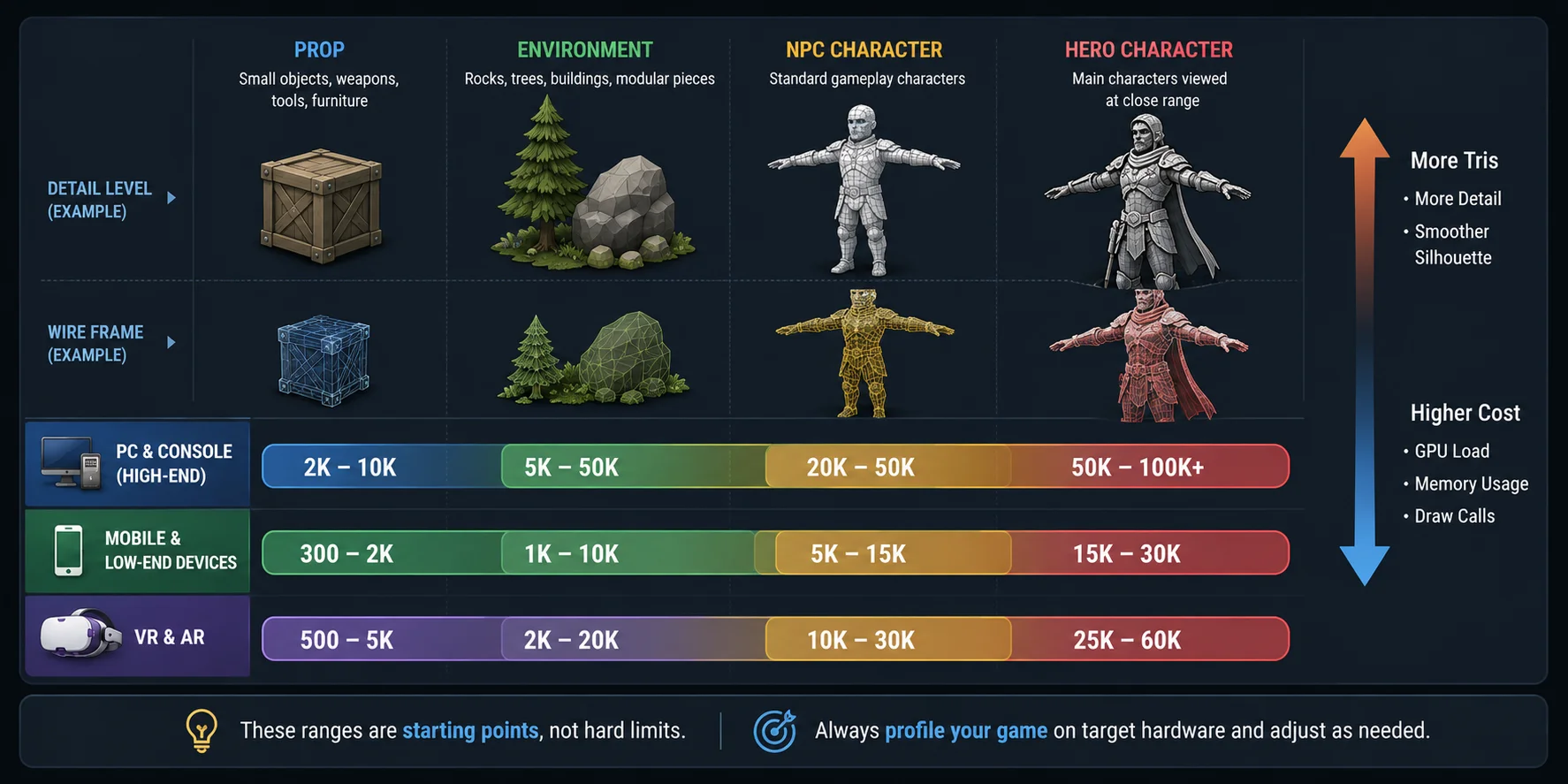
Low Poly vs High Poly Game Assets
Many beginners think low poly vs high poly game assets are competing choices, but in professional game development they work together. Most modern games do not use high-poly models directly in the engine. Instead, artists sculpt a highly detailed model, create an optimized low-poly version, and transfer the fine surface detail with normal map baking. The result is a lightweight asset that looks far more detailed than its actual triangle count.
This workflow is the industry standard because it delivers both visual quality and performance. The high-poly model captures wrinkles, bevels, scratches, and other small details, while the low-poly mesh keeps the game-ready poly count within the project's polygon budget. Players see the baked detail, but the GPU only renders the optimized geometry.
When to Go Low Poly
Low-poly assets are the best choice for real-time games where performance is critical. Mobile games, VR experiences, multiplayer titles, and large open-world scenes all benefit from lower triangle counts because many assets are rendered at the same time. Background props, modular environment pieces, and distant objects should also use fewer triangles since extra geometry is rarely noticeable.
A good low-poly model is not simply one with fewer polygons—it keeps a clean silhouette, removes unnecessary edges, and uses normal maps and textures to recover visual detail.
When You Still Build High Poly (and Bake It Down)
High-poly models are still essential during production. Artists typically sculpt millions of polygons first, then perform retopology to build an animation-friendly low-poly mesh. After UV unwrapping, normal and ambient occlusion maps are baked from the high-poly model onto the low-poly version before texturing and export.
The standard pipeline is:
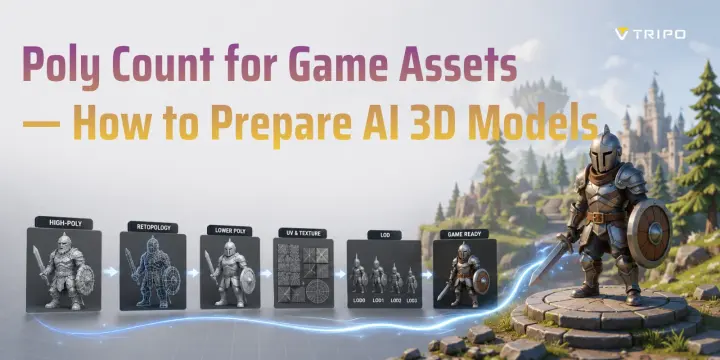
High-poly sculpt → Retopology → UV → Bake normal maps → Texture → Export
Instead of choosing between high poly and low poly, professional artists use both. The high-poly model creates the detail, while the low-poly version delivers the performance needed for real-time games.
How to Set a Polygon Budget for Your Game
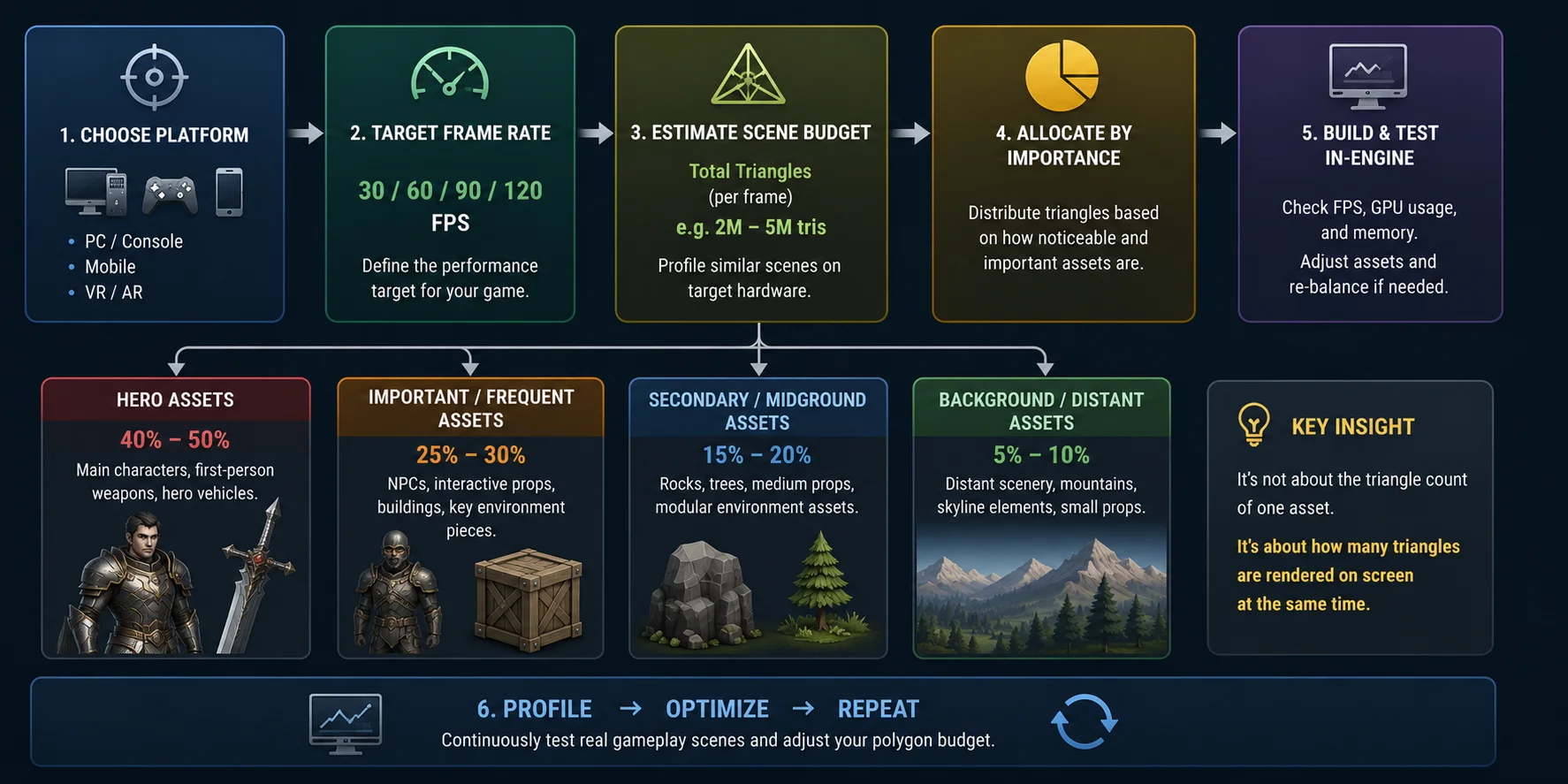
A polygon budget is more than a triangle limit for individual models—it is a plan for how your entire scene uses geometry. Many beginners focus on whether a single asset has "too many polygons," but experienced developers think about how many triangles are visible on screen at the same time. A scene with one 60K-triangle hero character can run smoothly, while hundreds of 5K-triangle props may not. Start with your performance target, then distribute your budget where players will notice it most.
Start from Your Target Frame Rate & Hardware
Before modeling anything, define your target platform and frame rate. A mobile game targeting 60 FPS has a much tighter geometry budget than a PC title, while a VR game targeting 90 or 120 FPS requires even more conservative optimization. Once you know the hardware requirements, profile similar scenes in your engine to estimate how much geometry your game can render comfortably. This overall limit becomes the foundation of your polygon budget.
Divide the Budget by Asset Importance
Not every asset deserves the same amount of geometry. Allocate triangles according to how important an object is during gameplay. Main characters and first-person weapons usually receive the largest share because players see them up close. Frequently viewed environment assets come next, while background props, distant scenery, and decorative objects should use much simpler meshes. Spending polygons where they improve the silhouette creates a better-looking game than spreading triangles evenly across every asset.
Account for the Whole Scene, Not One Asset
The most useful way to think about optimization is at the scene level, not the asset level. Triangle counts add up quickly when dozens of characters, props, vegetation, particle effects, and buildings appear together. This is why experienced developers often say the real question is not how many polygons one asset has, but how many are being rendered simultaneously.
When testing performance, load representative gameplay scenes instead of viewing assets in isolation. Check frame rate, GPU usage, and memory consumption on your target hardware, then adjust assets that contribute the least visual value. A successful polygon budget balances hero assets, background geometry, textures, shaders, and draw calls across the entire scene—not just a single model.
How to Build a Polygon Budget for Your Game
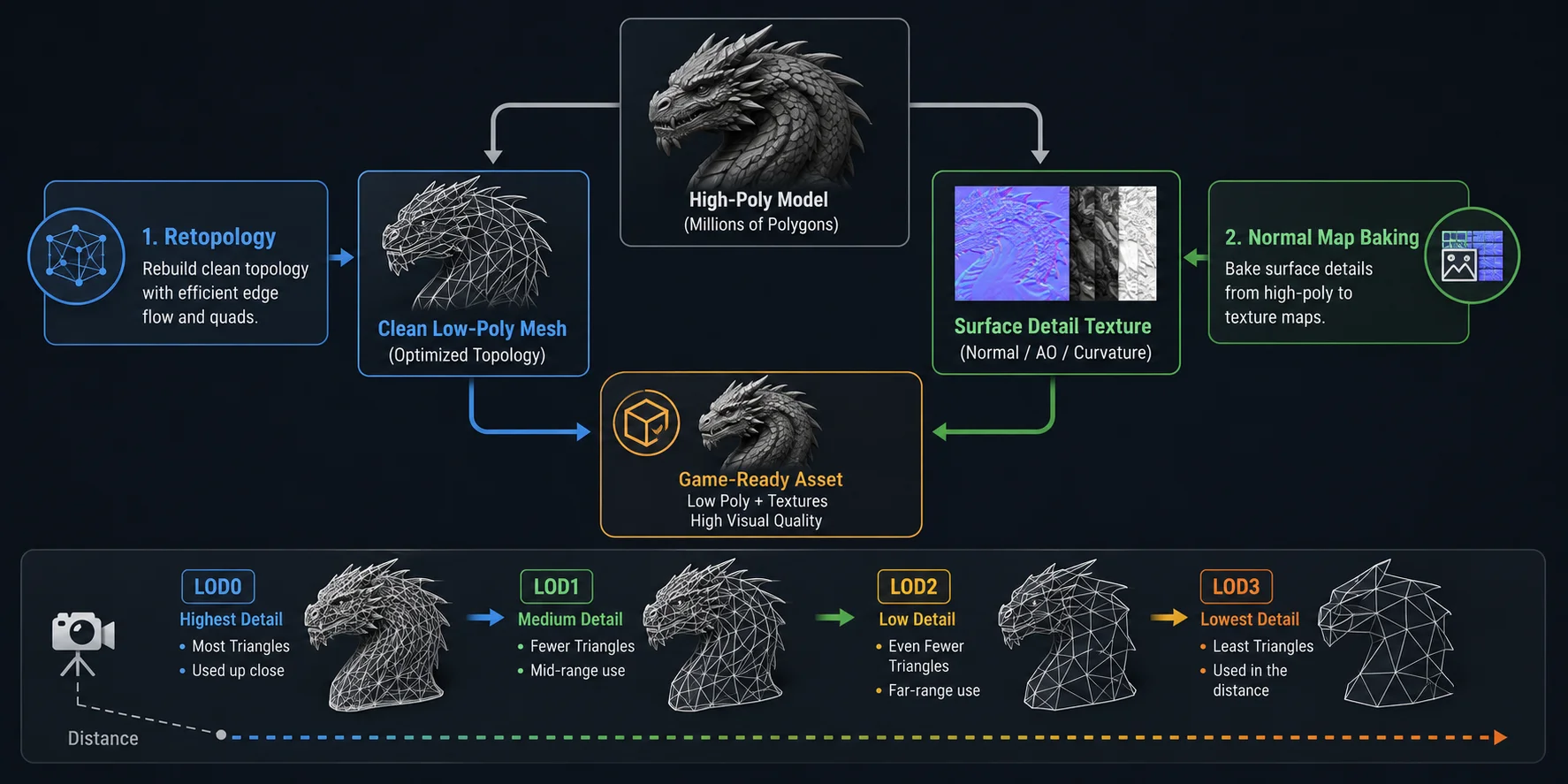
3 Ways to Reduce Poly Count (Without Losing Detail)
Reducing geometry does not have to mean sacrificing visual quality. Professional artists rarely delete random polygons to make a model lighter. Instead, they use proven optimization techniques that preserve the asset's silhouette while lowering its triangle count. The three methods below—retopology, LODs, and normal map baking—form the foundation of almost every modern game asset pipeline and help keep your game-ready poly count within budget.
Retopology — Rebuild Clean, Low-Poly Topology
What it is: Retopology is the process of creating a new, simplified mesh over a detailed model. Instead of reducing polygons automatically, you rebuild the topology with clean edge loops that are easier to edit, animate, and render efficiently. AI-assisted tools such as Smart Mesh can significantly speed up this step by generating cleaner, optimized topology that is closer to production needs before export.
When to use it: Use retopology after sculpting a high-poly model or when an AI-generated mesh contains messy geometry, uneven triangles, or unnecessary density.
Key tip: Focus on preserving the silhouette rather than every tiny surface detail. Remove hidden geometry, keep edge loops around joints, and aim for evenly distributed polygons that deform well during animation.
LOD (Level of Detail) — Swap Detail by Distance
What it is: LOD, or Level of Detail, uses multiple versions of the same model with different triangle counts. The engine automatically switches between them based on camera distance, showing the highest-detail mesh up close and lighter versions farther away.
When to use it: LODs are essential for open-world games, large environments, and scenes containing many repeated objects such as trees, rocks, vehicles, or buildings.
Key tip: Keep the silhouette consistent between LOD levels to avoid noticeable "popping" when the engine swaps models. Most projects use three to five LOD stages depending on asset importance.
Normal Map Baking — Fake Geometry with Texture
What it is: Normal map baking transfers small surface details from a high-poly model onto a low-poly mesh using textures. The engine renders the simplified geometry while the normal map creates the illusion of extra depth and complexity.
When to use it: Use normal map baking for characters, weapons, props, and hard-surface assets that need fine details without increasing the polygon budget.
Key tip: Bake after completing retopology and UV unwrapping. Keep the low-poly silhouette accurate, and let the normal map handle wrinkles, panel lines, bolts, fabric folds, and other small details that do not change the overall shape. By combining retopology, LODs, and normal map baking, you can dramatically reduce poly count for game assets while maintaining the visual quality players expect.
Three Techniques to Reduce Poly Count
Get Game-Ready AI 3D Models at the Right Poly Count
AI has made creating 3D assets dramatically faster, but speed alone is not enough. A model that looks impressive may still contain uneven topology, excessive triangle density, or geometry that is difficult to animate. The real advantage of modern AI tools is that they can connect generation directly to your polygon budget, producing assets that are much closer to a game-ready poly count without requiring hours of manual cleanup.
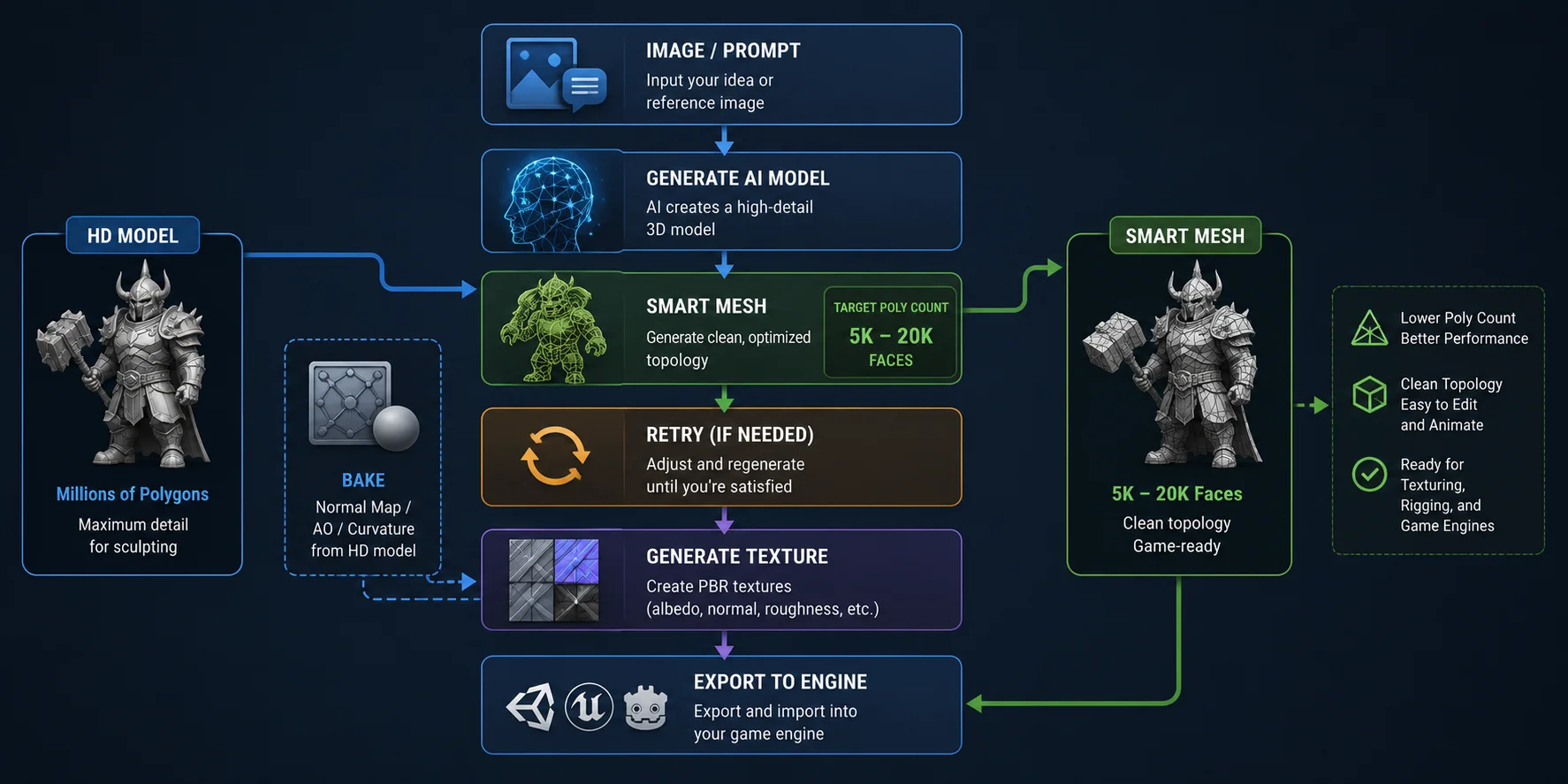
For game production, there are generally two workflows. If you need the highest possible detail for baking, generate an HD Model and use it as the source for retopology and normal-map baking. If your goal is an optimized real-time asset, choose Smart Mesh, which generates cleaner topology designed for game and Web3D workflows. Treat the result as closer to game-ready rather than automatically final: inspect the silhouette, normals, UVs, material count, and hidden geometry before export. For characters, also test joint loops, rigging, and deformation in representative poses; clean-looking topology can still require adjustment around shoulders, hips, hands, and facial features.
A practical workflow for game assets looks like this:
Quick Steps
Generate image or prompt → Smart Mesh → Set target poly count (5K–20K faces) → Retry if needed → Generate textures → Export to your game engine
The official 5K–20K face workflow is a useful starting point for many real-time props and environment assets, but faces and engine triangles are not interchangeable. A quad commonly becomes two triangles during triangulation, while mixed topology can produce a different ratio. Set the face target in Smart Mesh, export the asset, apply or preview triangulation, and check the final Tris value in Blender or the target engine. Then test the asset inside a representative scene on the lowest supported hardware. If the silhouette degrades, joints deform poorly, or the result contains unnecessary density, retry or refine the mesh before texturing rather than accepting the target number alone as proof that the asset is ready.
Think of AI as the starting point rather than the final optimization step. After generation, validate scale, pivot placement, normals, UVs, material slots, texture memory, collision needs, and the triangulated mesh. Create engine-side LODs where the project requires them, and profile the complete gameplay scene instead of judging the model in isolation. This short acceptance pass turns a fast generation workflow into a repeatable production workflow and keeps visual quality, animation behavior, and the actual triangle count aligned with the project's polygon budget.
AI Workflow for Game-Ready 3D Assets
How to Check Poly Count in Blender (and Other Tools)
Before optimizing a model, it's important to check its actual triangle count. Most 3D software and game engines include built-in tools that display poly count, helping you verify whether an asset fits your polygon budget before export.
Blender
In Blender, enable the Statistics overlay by opening the Overlays menu in the upper-right corner of the 3D Viewport and checking Statistics. The viewport will display Verts, Edges, Faces, and Tris in real time. Since game engines render triangles, the Tris value is the most useful metric when checking a game-ready poly count.
Unity
In Unity, open the Game view and click Stats. The panel shows rendering information, including Triangles and Vertices, allowing you to see how much geometry is rendered in the current scene.
Unreal Engine
In Unreal Engine, use stat RHI to inspect rendering counters that include the number of triangles being rendered. stat SceneRendering provides broader scene-rendering information rather than serving as a direct per-asset triangle readout. Test complete gameplay scenes, preferably in a representative non-debug build and on target hardware, to evaluate performance accurately.
Checking triangle count takes only a few seconds, but it helps catch overly dense models early and ensures your assets stay within the project's polygon budget.
Does Poly Count Still Matter in the Nanite Era?
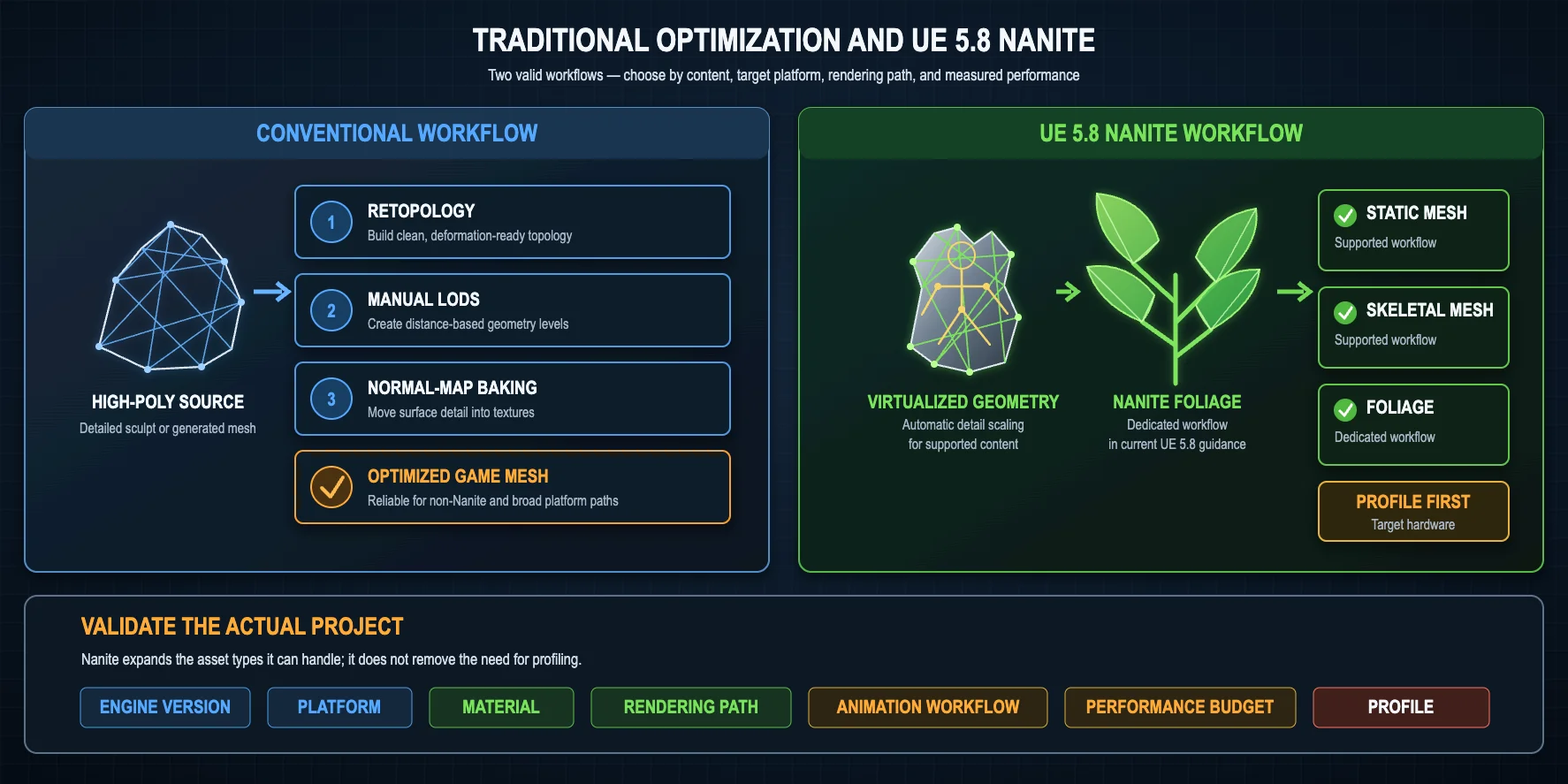
Nanite has changed how developers think about geometry, but it has not made poly count for game assets irrelevant. In Unreal Engine 5, Nanite uses virtualized geometry to render extremely detailed static meshes efficiently, allowing artists to import models with millions of triangles that would previously have required aggressive optimization.
However, Nanite does not remove the need for platform and content validation. Current Unreal Engine documentation includes Nanite support for static meshes, Skeletal Meshes, landscapes, and dedicated foliage workflows, so skeletal characters and foliage should not be described as universally unsupported. Support and performance still depend on the Unreal Engine version, rendering path, material setup, animation workflow, and target hardware. Translucent materials and assets that fall back to non-Nanite rendering paths still require conventional optimization, while mobile, VR, and cross-platform projects need testing against the exact feature set available on their target devices.
The biggest shift is where optimization happens. Nanite can preserve far more geometric detail and handles LOD automatically for supported content, but practical limits remain. Epic's documentation still recommends measuring instance counts, triangles per mesh, material complexity, output resolution, and performance for the actual combination of content and hardware. Materials, textures, overdraw, animation cost, CPU work, and non-Nanite content can become the new bottlenecks, so high source geometry is not permission to skip profiling.
The takeaway is simple: poly count still matters—it just matters differently. If your project targets mobile, VR, cross-platform releases, or uses assets that cannot take advantage of Nanite, traditional polygon budgets remain essential. Even for next-generation PC and console games, understanding poly count is still a core optimization skill; Nanite expands your options, but it does not eliminate the need for efficient asset planning.
Traditional Optimization vs. UE5 Nanite Workflow
Frequently Asked Questions
How many polygons should a game asset have?
There is no single ideal polygon count because it depends on the asset type, target platform, and viewing distance. As a practical starting point, small props often use 300–2,000 triangles on mobile and 2,000–10,000 triangles on PC or console. Environment assets commonly range from 1,000–10,000 triangles on mobile and 5,000–50,000 triangles on high-end platforms. Instead of aiming for the highest possible detail, keep each asset within your project's overall polygon budget.
How many polys should a game character be?
A typical mobile game character uses around 5,000–15,000 triangles, while a mobile hero character may reach 15,000–30,000 triangles. On PC and console, most NPCs fall between 20,000–50,000 triangles, and hero characters commonly range from 50,000–100,000+ triangles. These numbers are starting points rather than strict rules. Camera distance, animation complexity, and the number of characters visible at once should always influence your final budget.
How many polygons is too much for a game?
A model becomes "too much" when it negatively affects performance on the target hardware. A 100,000-triangle hero character may be perfectly acceptable in a modern PC game but excessive for a mobile title. Likewise, a 10,000-triangle prop may be fine on its own but become expensive if hundreds are rendered in the same scene. Always judge polygon count in the context of the entire scene rather than a single asset.
What is a good poly count for mobile games?
Mobile games require conservative geometry budgets to maintain smooth frame rates and reduce battery consumption. As a general guideline, keep small props around 300–2,000 triangles, environment assets around 1,000–10,000 triangles, and most characters between 5,000–15,000 triangles. Hero characters can often use 15,000–30,000 triangles on higher-end devices. Test your assets on the lowest supported device to ensure they still perform well.
Is lower poly count always better?
No. A lower polygon count improves performance only if it does not noticeably reduce visual quality. Removing too many triangles can damage silhouettes, create poor deformation during animation, and make lighting artifacts more visible. The goal is not the fewest polygons possible, but the right poly count for your platform, camera distance, and gameplay.
How do I lower the poly count of a 3D model?
Start by removing unnecessary geometry while preserving the overall silhouette. If the model is very dense, perform retopology to rebuild clean topology, then bake details into normal maps instead of keeping them as geometry. Create LOD (Level of Detail) versions so distant objects use fewer triangles, and simplify meshes that players rarely see up close. Finally, check the triangle count in Blender, Unity, or Unreal Engine to confirm the asset meets your target polygon budget before exporting.
Conclusion
Poly count for game assets is not about chasing the lowest possible triangle count—it is about setting the right polygon budget for your platform and using clean, efficient topology to meet it. Whether you build assets by hand or with AI, the goal is always the same: create game-ready meshes that balance visual quality and performance.
Ready to speed up your workflow? Generate an AI 3D model, optimize it with Smart Mesh, verify its exported triangle count, and send the asset to your preferred game engine from Tripo AI Studio.