Send models to Bambu Studio
Introduction
Tripo Studio supports one-click sending of models directly to Bambu Studio. There is no longer any need to manually download, save, and import 3D model files. With this feature, a 3D model generated by Tripo AI can go straight from your browser into your slicing software, Bambu Studio, with just one click.
Prerequisites
Installed software: Bambu Studio. We recommend updating to the latest version for better compatibility.
Browser: Chrome, Edge, or Safari is recommended
How to Use
Step 1: Select your model
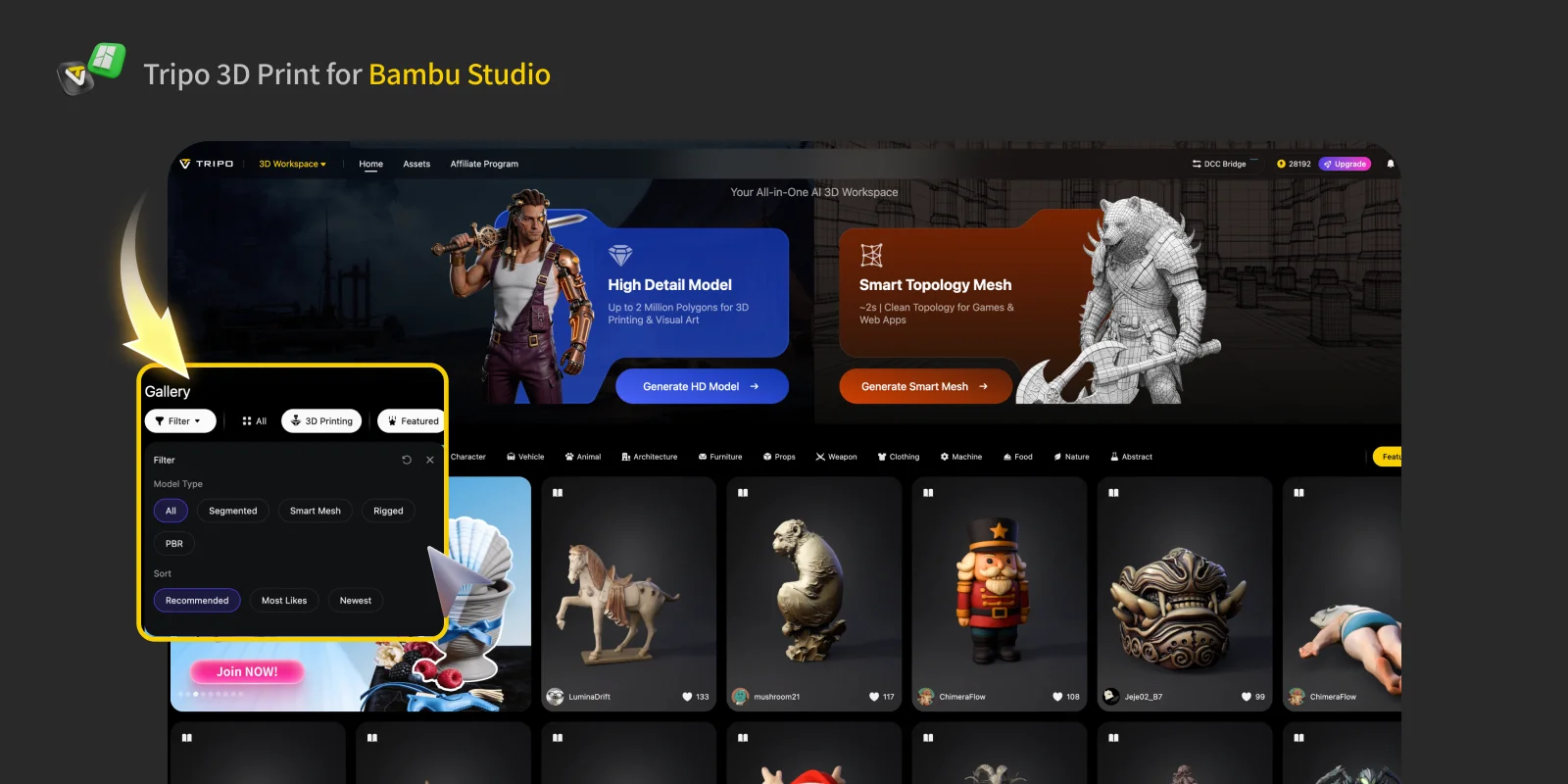
In Tripo Studio, choose either your own model or a model published by another creator in the Gallery.
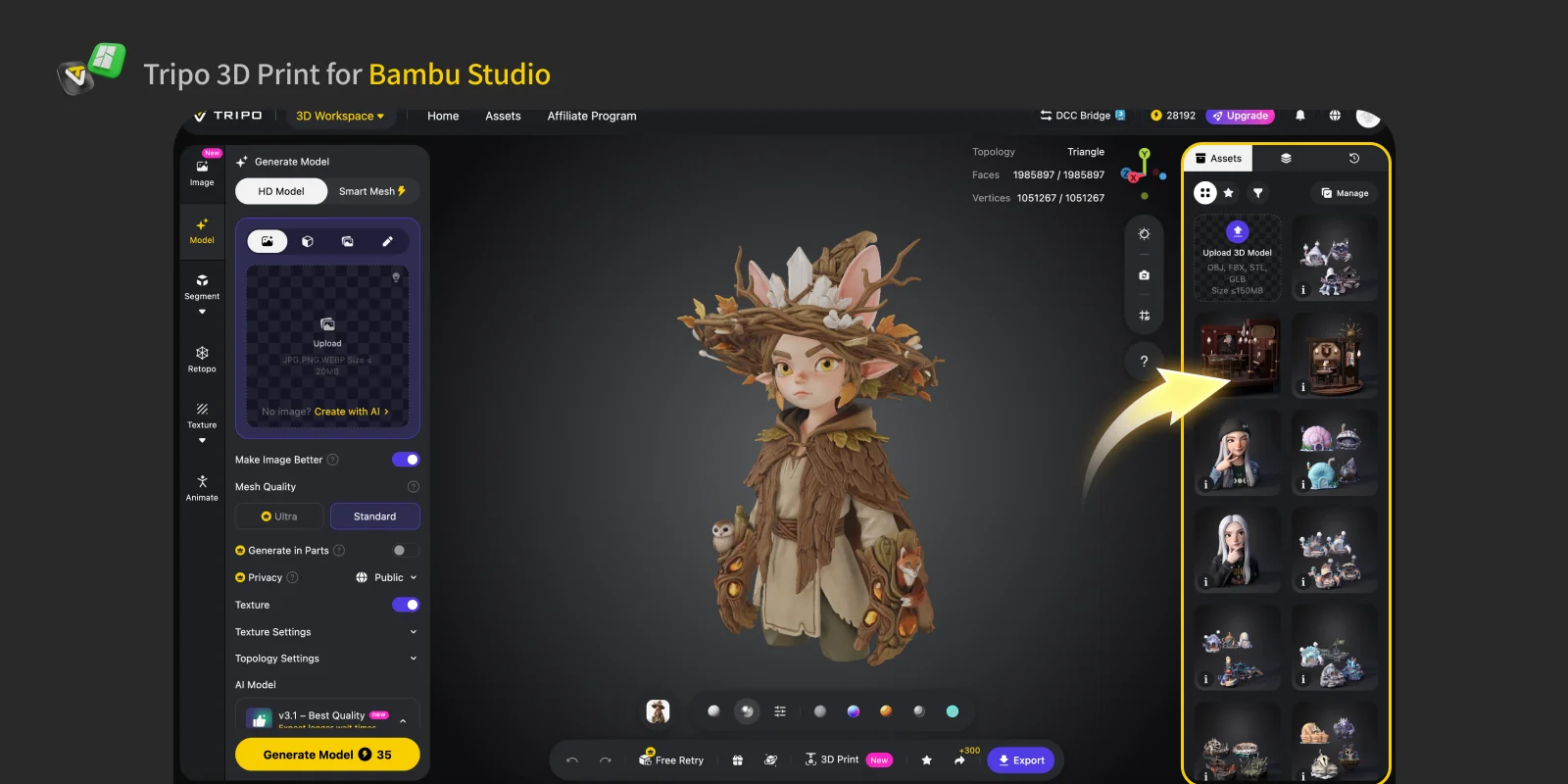
Step 2: After selecting the model, click 3D Print at the bottom. Then choose Send to Bambu Studio (Monochrome)
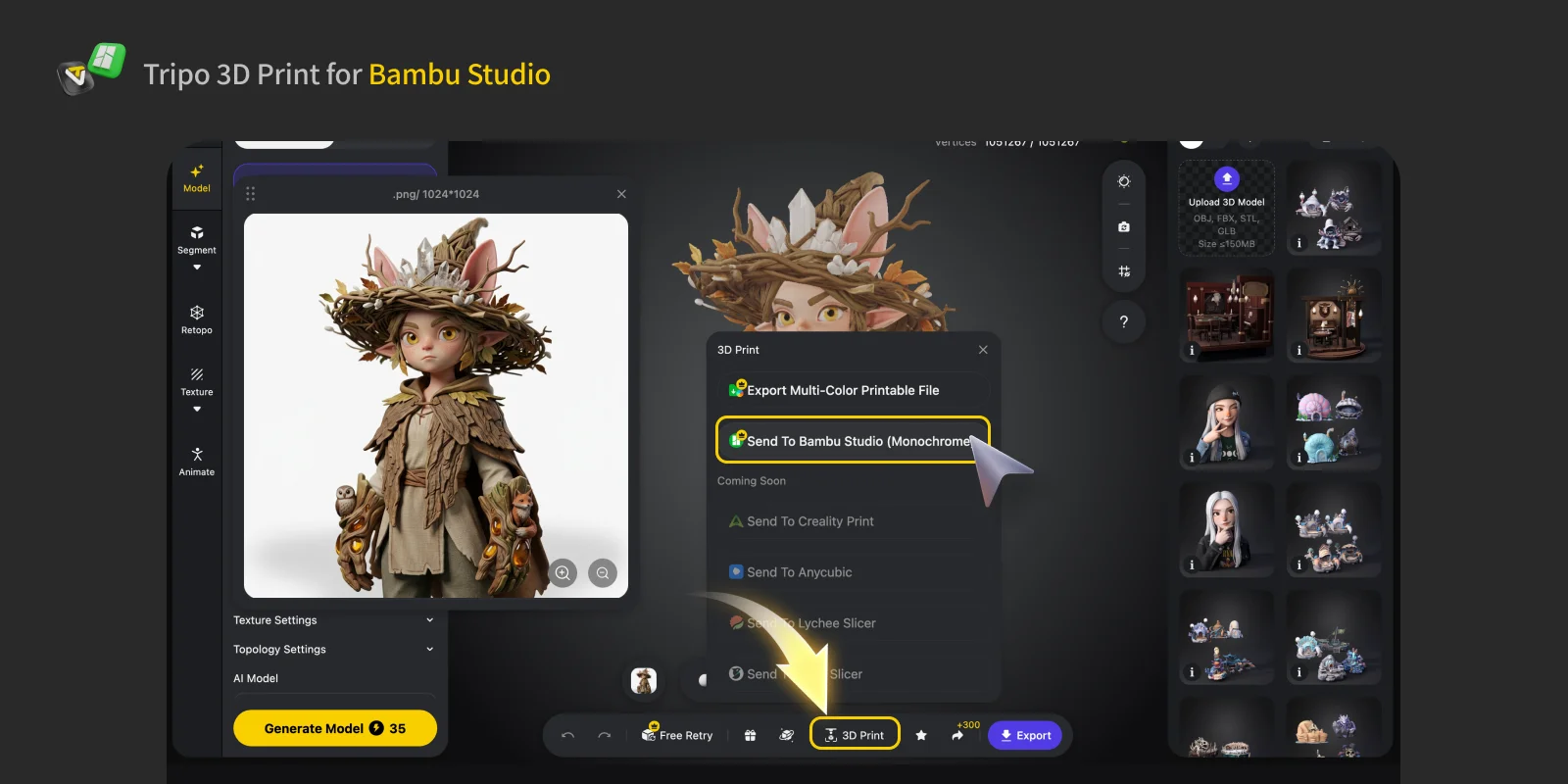
Step 3: Wait a few seconds for the browser permission prompt to appear, then click Confirm.
- We recommend checking "Always allow" so you will not need to confirm again next time.
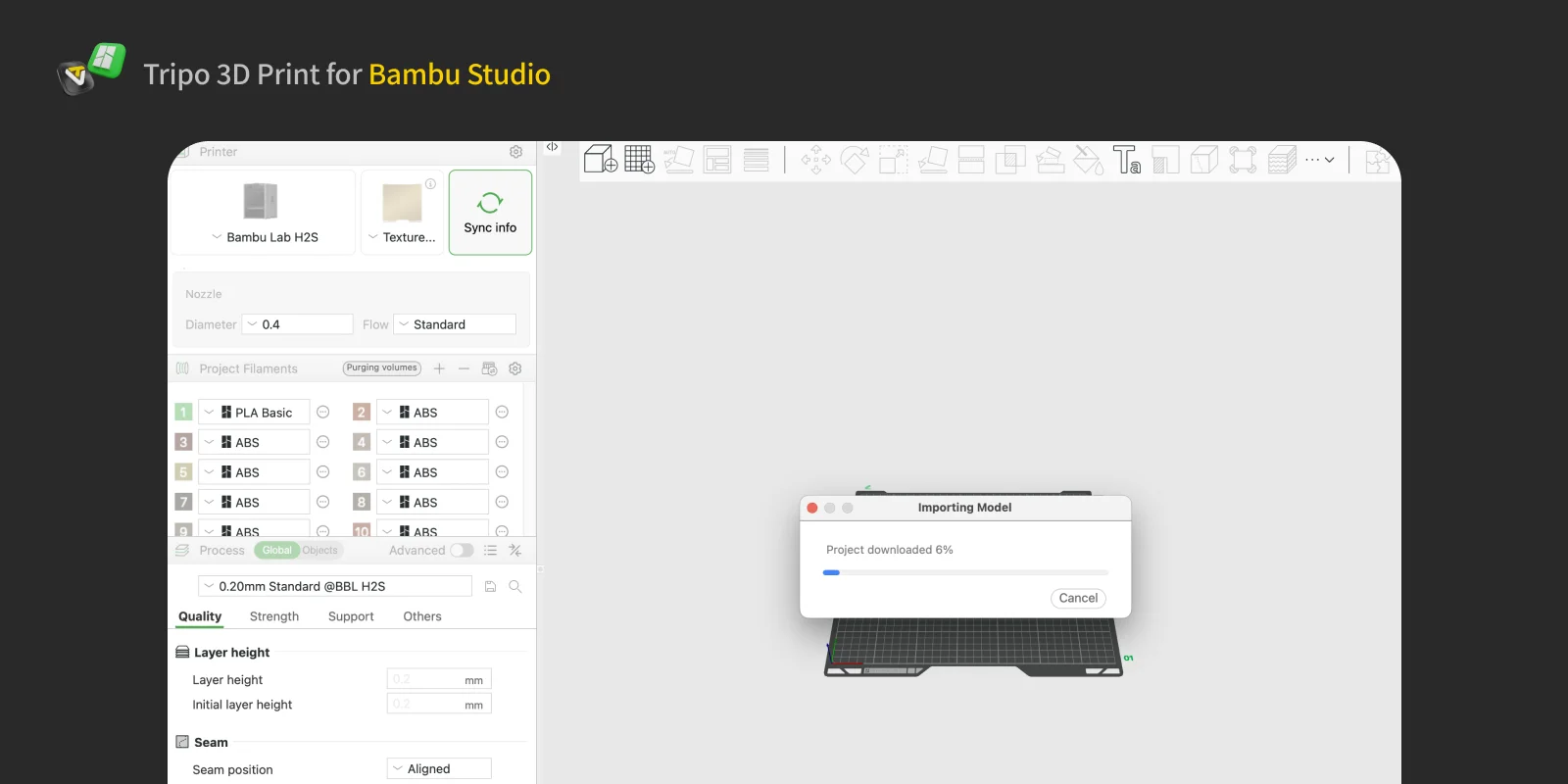
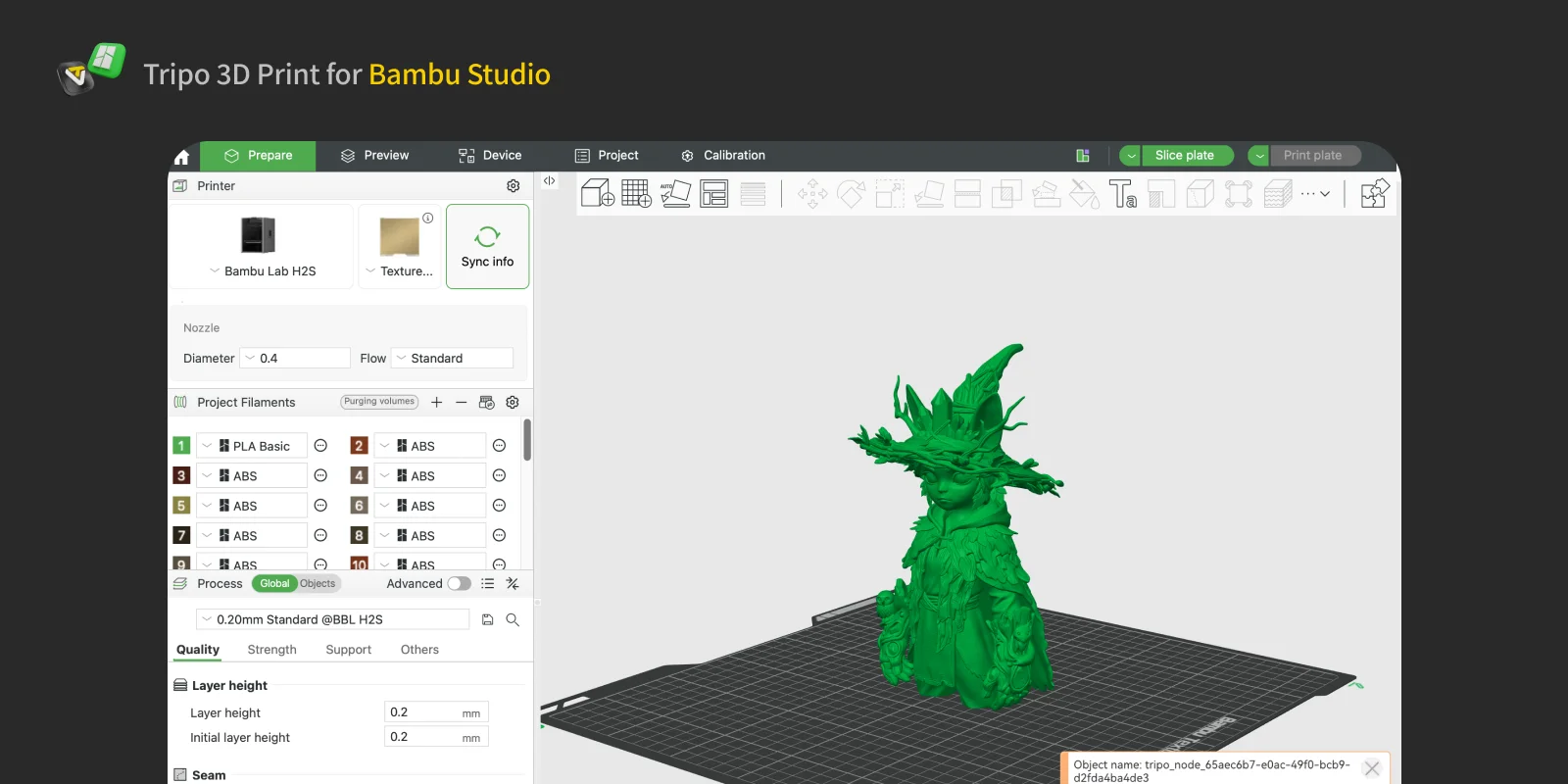
Step 4: Done. Bambu Studio will open automatically, and the model will appear in the center of the slicing workspace in Bambu Studio.
FAQs
Q: Can I send colored models to Bambu Studio?
A: Unfortunately, one-click sending of colored models to Bambu Studio is not supported yet. However, you can choose the other option, Export Multi-Color Printable File, and then import it into Bambu Studio manually.
Q: What file format is used when sending a model to Bambu Studio?
A: The model is sent in 3MF format.
Q: Why does nothing happen when I click "Send to Bambu Studio"?
A: Please make sure you have installed the official version of Bambu Studio on your computer. If it is already installed, check the browser pop-up and select "Always allow www.tripo3d.ai to open this type of link." Also, make sure your firewall or security software is not blocking the custom protocol launch.