Tripo DCC Bridge for Maya: Installation & Quick Start
Tripo3D Maya Bridge is a lightweight plugin that connects Maya directly to the Tripo Studio frontpage.
With this bridge, you can send generated models from the browser straight into Maya in real time—no manual downloads or imports required. It is designed to simplify workflows for artists and designers, allowing you to focus on modeling and scene assembly rather than file management.
Requirements
- OS: Windows
- Maya:
- 2022 or newer (requires PyMEL for Python 3)
- Maya 2023+ is recommended
- Browser:
- Supports Google Chrome 116+, Edge 116+, Opera 102+
- Other browsers are not supported
- Default Import Settings:
- Pivot: Center Bottom
- Texture Resolution: Current Maximum
- Auto Material Assignment: Enabled
- Auto Scene Placement: Enabled
Step-by-Step Installation
Step 1:
- Go to Tripo Studio and download the Tripo3D Maya Bridge package.
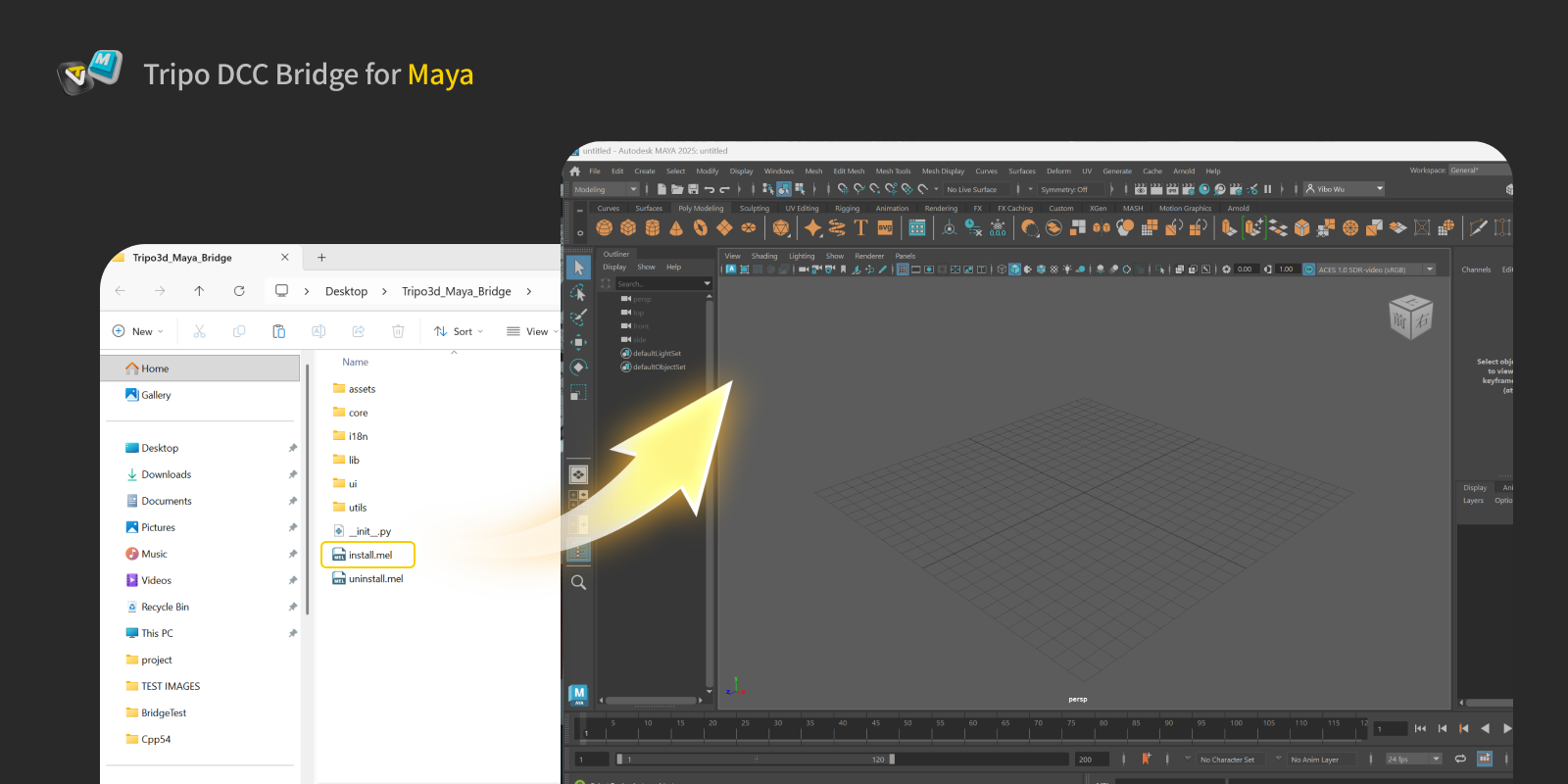
- Extract the ZIP file.
Step 2:
- Drag the
install.mele file directly into the Maya viewport. The plugin will install automatically.
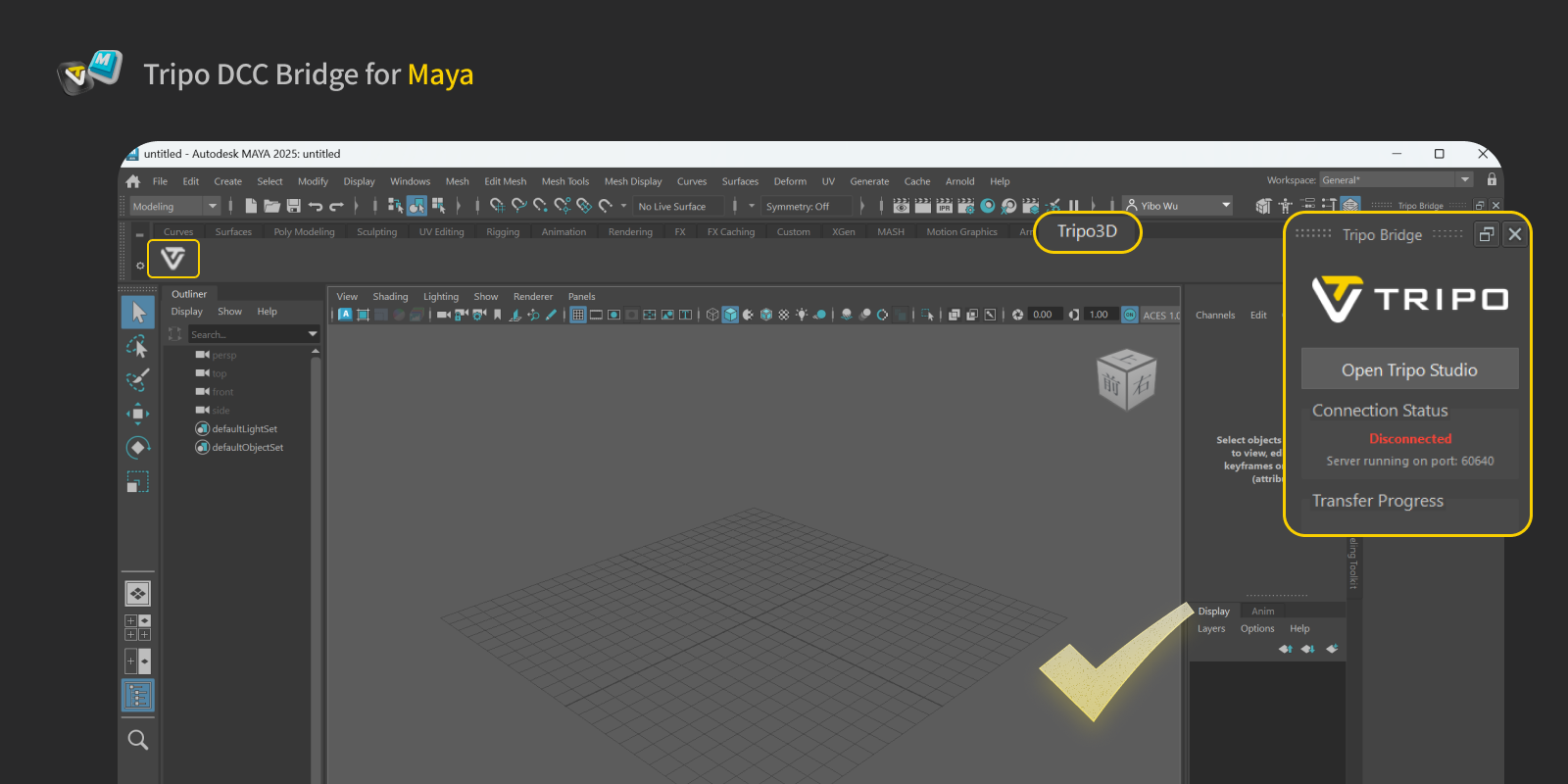
- The plugin can be found on the Maya Shelf after installation.
Step 3:
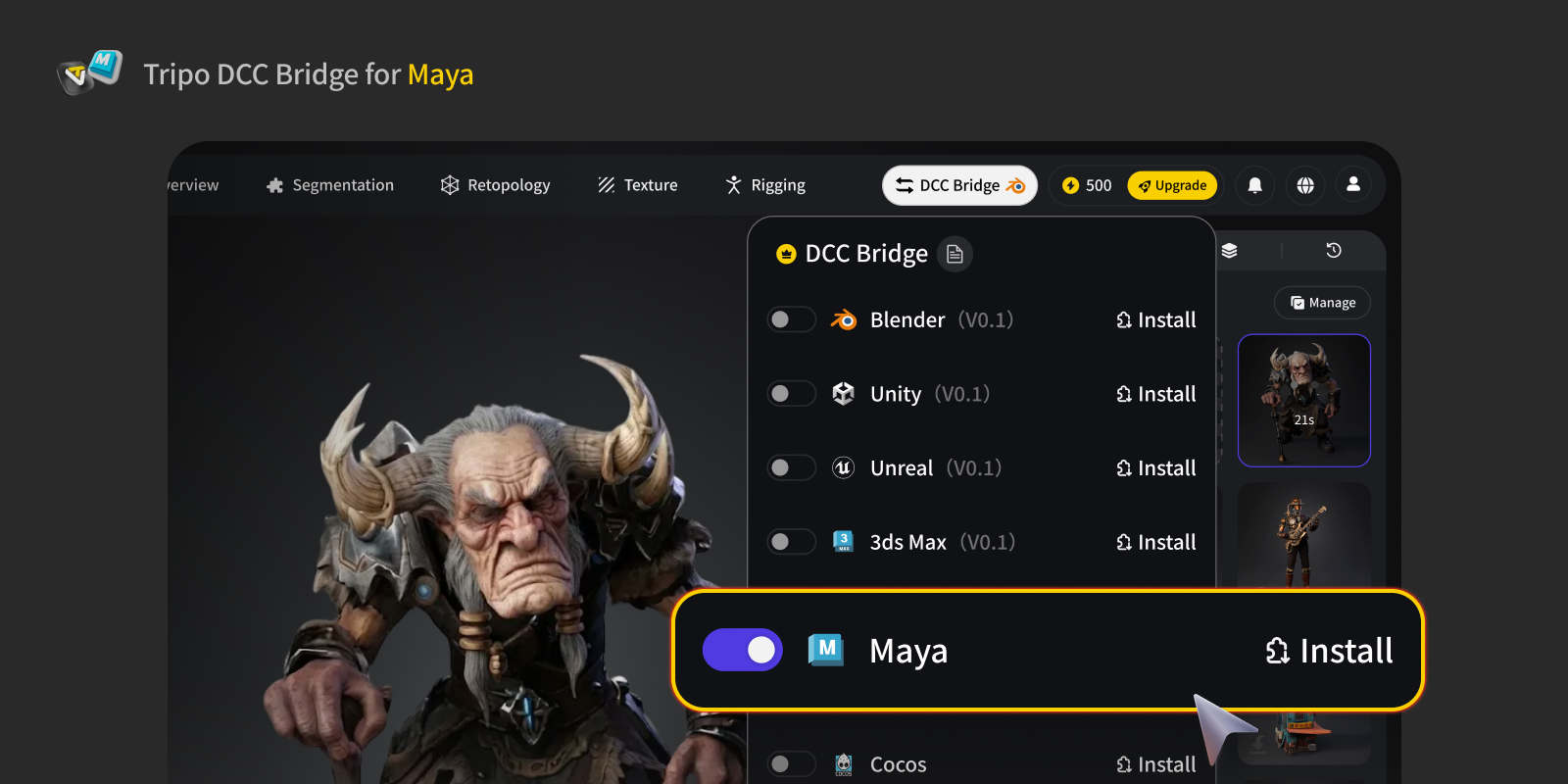
- Open the Tripo Studio website, click the DCC Bridge button, and activate the Maya plugin.
- Confirm the connection is set up correctly.
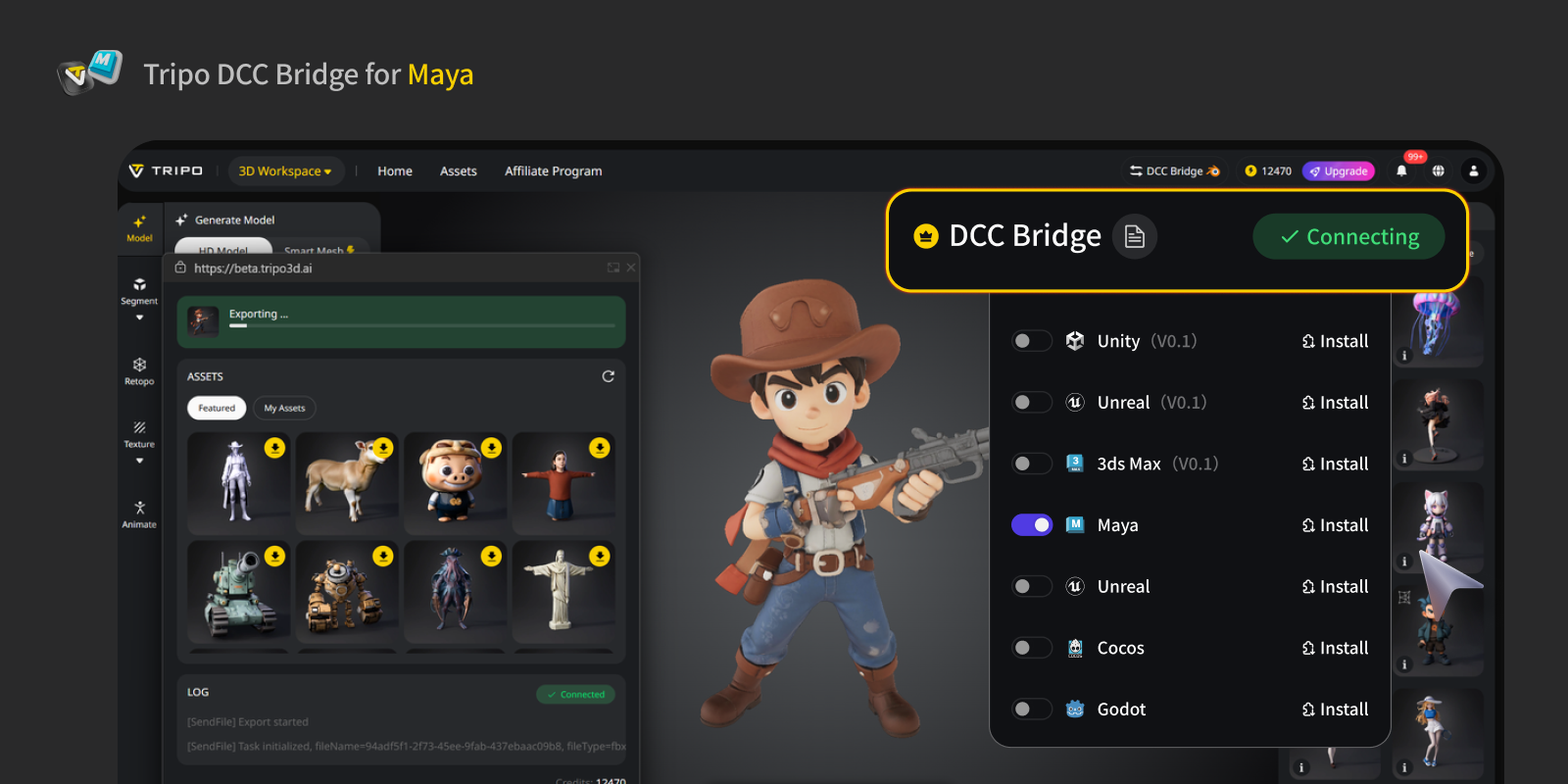
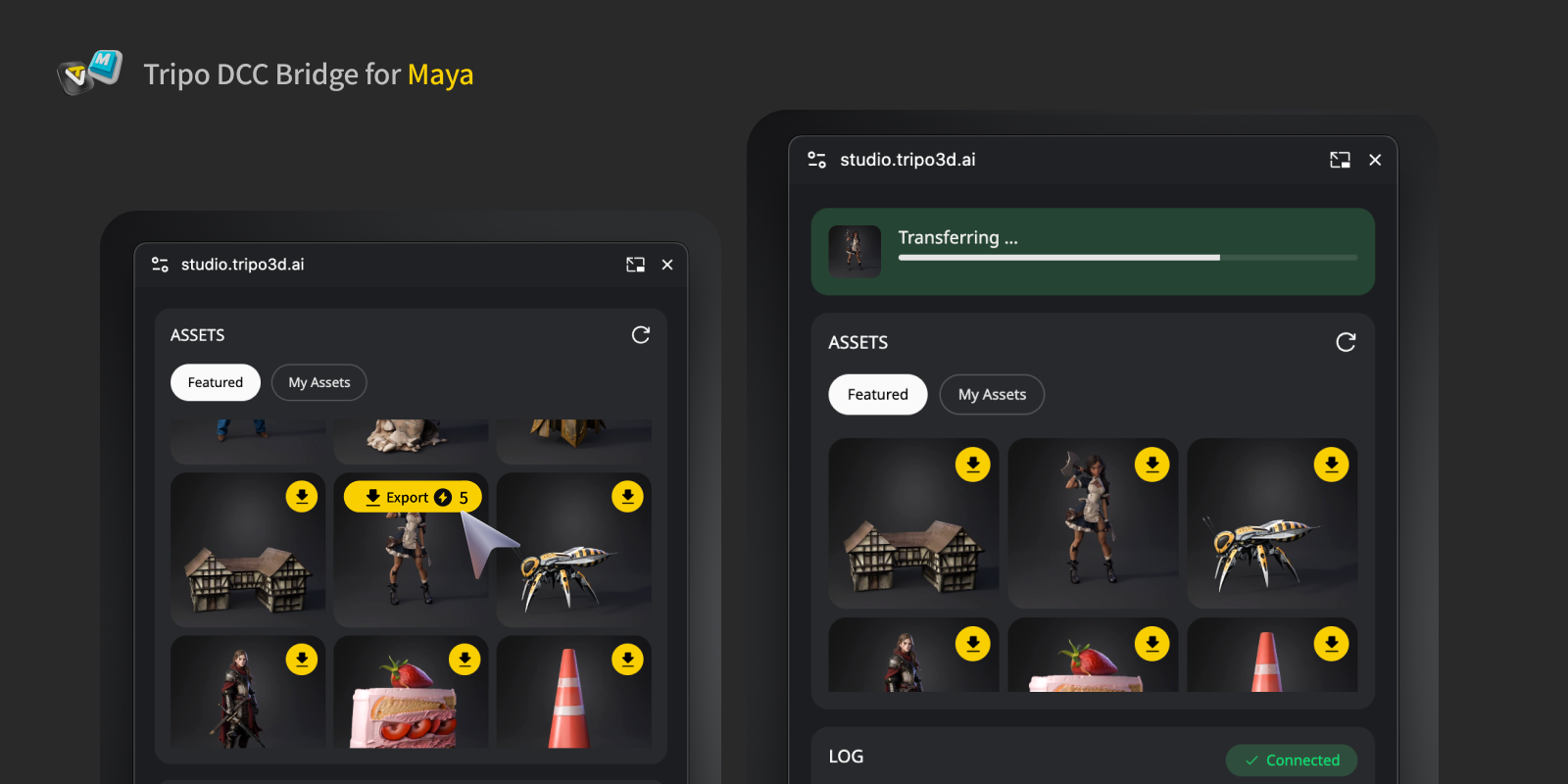
- Press the Export button in the mini window.
- If you want to export an animation, select the animation(s) you want to export in the export panel, then click Send to the specified DCC.
- Due to the way animations are handled in Maya, it is recommended to export only one animation per model.
Step 4:
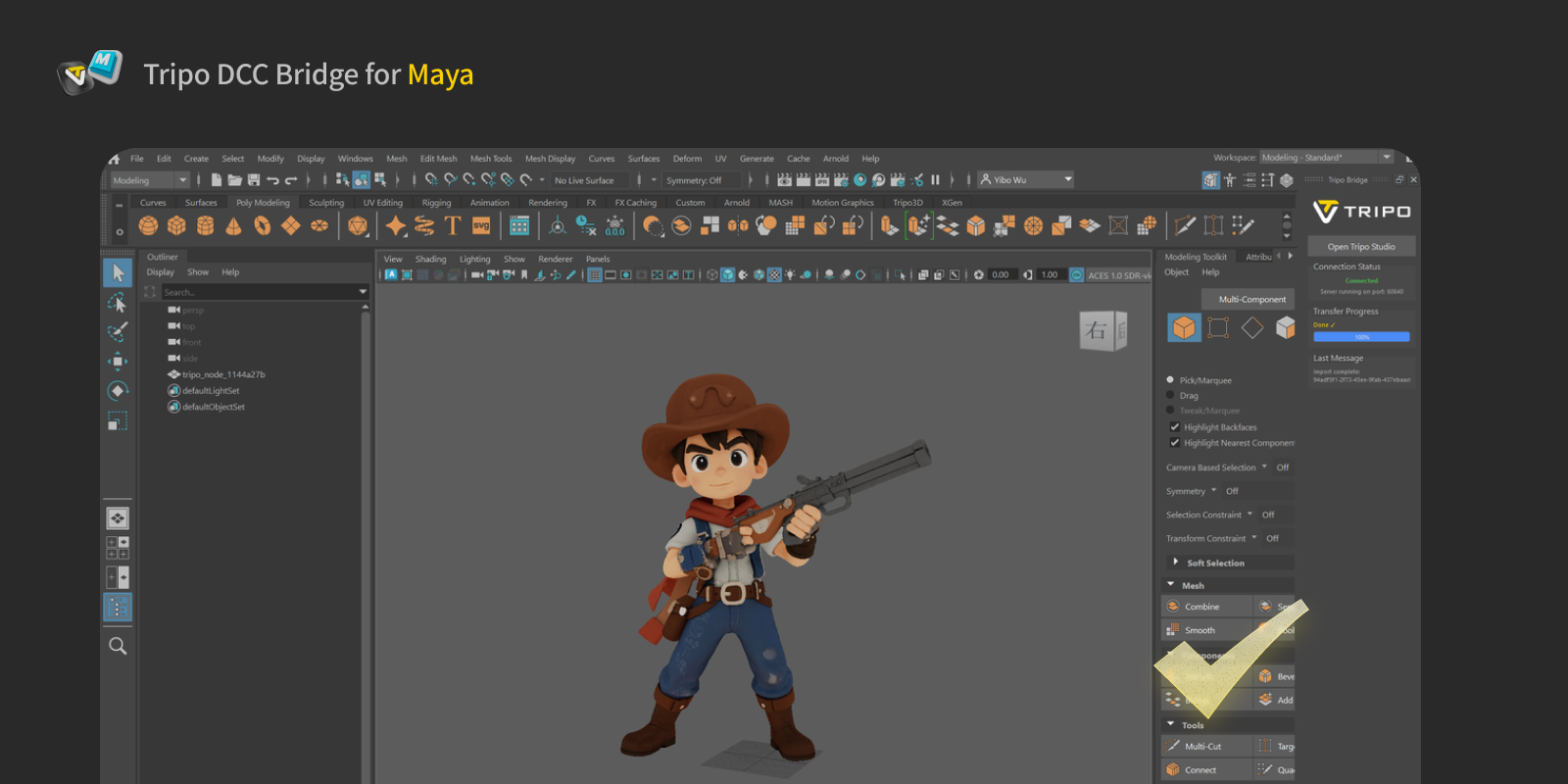
You can now view the model sent from the website in Maya.
FAQs
Q: Can I transmit data to multiple Maya instances simultaneously?
A: No. The connection only recognizes the first Maya launched. If you encounter an error such as “Port xxx is already in use,” ensure that only one instance of Maya is running, then restart the application.
Q: How do I uninstall the Maya plugin?
A: To uninstall the Tripo3D Maya Bridge, simply drag the uninstall.mel file into the Maya viewport. The plugin will be removed automatically.
Q: What should I do if I can't find the plugin after importing it?
A: Make sure that Maya has the Python 3 module installed and that you are using a compatible version of Maya. Try uninstalling the plugin, restart Maya, and then reinstalling the latest version of the plugin.
Q: What should I do if the model becomes extremely large after importing it into Maya?
A: Go to Window → Settings/Preferences. In the settings, set the Working Units to Linear: Meter.
Find Out More About DCC Bridge
Learn how to install and use the Tripo3D Unreal Engine Bridge to send models directly from Tripo Studio to Unreal Engine. Follow this quick setup guide for a faster UE workflow.
 Tripo Team
Learn how to install and use the Tripo3D 3ds Max Bridge to send models directly from Tripo Studio to 3ds Max. Follow this quick setup guide for a faster 3D workflow.
Tripo Team
Tripo3D Unity Bridge is a lightweight Unity plugin that connects Tripo Studio to your Unity editor, letting you send models from the browser straight into your project with one click—no manual downloads or imports required.
Tripo Team