Best VRChat Model Generator Tools in 2026 (Free & AI-Powered)
TL;DR
- AI VRChat model generators let you create custom avatars from text or images without starting from Blender.
- Tripo AI is a strong choice for custom AI avatars with Text-to-3D, Image-to-3D, Smart Mesh, Auto Rig, and FBX export.
- VRoid Studio is the best free option for anime-style avatars.
- A VRChat-ready avatar needs optimized polygons, textures, bones, and Unity compatibility.
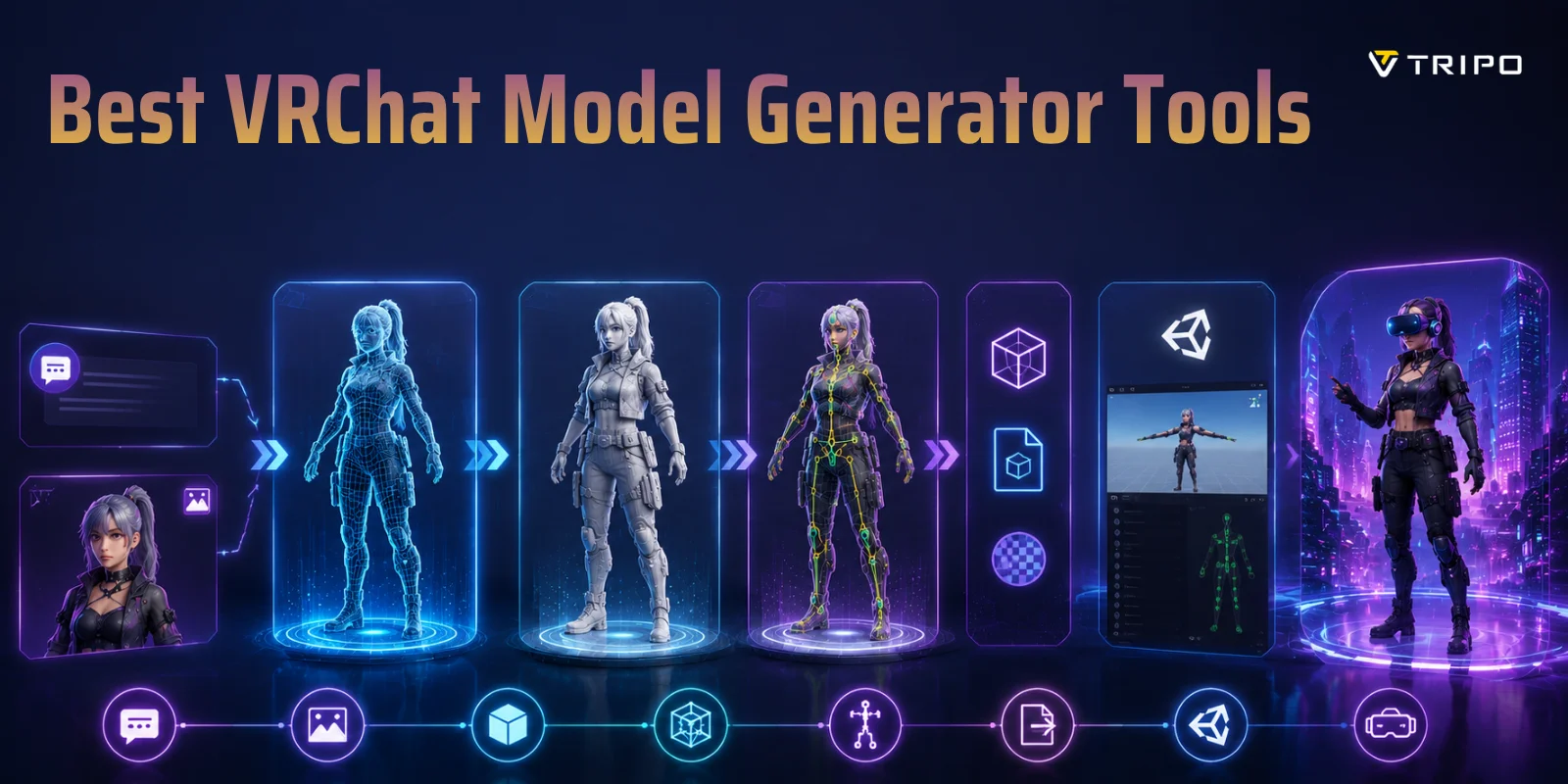
- The basic workflow is: Generate → Rig → Export FBX → Import Unity → Upload with VRCSDK3.
- Always optimize your avatar before uploading, especially for Quest performance.
A VRChat model generator is any traditional or AI-powered tool that helps you build a custom 3D avatar without starting from scratch in Blender. In 2026, AI tools can turn a text prompt or reference image into a starting 3D character, but you still need to check the rig, materials, performance rank, and Unity setup before uploading it to VRChat.
In this guide, you will compare current VRChat model generator tools, learn how to create an avatar from an image or text prompt, follow the Unity and VRChat SDK upload pipeline, and optimize the result for PC and Meta Quest.
What Makes a Good VRChat Model Generator?
Choosing a VRChat model generator is not only about finding a tool that creates attractive characters. A good generator must create avatars that work well inside VRChat’s real-time environment.
VRChat evaluates avatars through its Avatar Performance Ranking system. The platform checks several factors, including triangle count, bone count, texture memory, material count, and overall file size.
A model can look amazing in a preview but still perform poorly after uploading if it has too many polygons, oversized textures, or an inefficient skeleton.
Polygon Count and Performance
Triangle count is one of the most important limits.
For PC avatars:
- Excellent: around 32,000 triangles or fewer
- Good: up to around 70,000 triangles
For Quest avatars, performance requirements are much stricter:
- Excellent: around 7,500 triangles
- Good: around 10,000 triangles
- Medium: around 15,000 triangles; above 20,000 is rated Very Poor on mobile
A good AI vrchat avatar generator should either create optimized geometry directly or provide tools that help you reduce polygons before uploading.
Bone Structure and Rigging
VRChat avatars need a proper humanoid skeleton for:
- Full-body tracking
- Hand movement
- Facial animation
- VR interactions
A strong vrchat 3d model maker should include automatic rigging or create a model that Unity can easily convert into a Humanoid rig.
Bone count also affects performance:
- Around 75 bones or fewer is ideal for Excellent performance
- Around 150 bones is the Medium threshold on mobile and the Good threshold on PC
Poor bone structures are one of the most common reasons AI-generated avatars fail during Unity setup.
Texture Memory and Materials
Textures make avatars look detailed, but they also increase memory usage.
For PC avatars, Excellent performance aims for around 40 MB memory usage, while Quest avatars need much tighter control, around 10 MB or less.
A quality generator should help you manage:
- Texture resolution
- Material count
- Shader compatibility
- PBR materials
Export Format Support
Before choosing a generator, check export formats.
The most useful formats for VRChat workflows are:
FBX
FBX is usually the preferred format because Unity handles:
- Humanoid bones
- Animation data
- Blend shapes
GLB
GLB is becoming popular because it stores meshes, materials, and textures in one file. It works well for modern 3D pipelines, but Unity users should still verify rig compatibility.
VRM
VRM is popular in anime avatar workflows, especially with VRoid Studio. However, VRChat does not directly support VRM uploads, so additional Unity conversion steps are required.
The best VRChat avatar creator gives you a clean model, useful export formats, and enough control to optimize before publishing.
| Metric | PC Excellent / Good | Mobile Excellent / Good |
|---|---|---|
| Triangles | 32,000 / 70,000 | 7,500 / 10,000 |
| Texture memory | 40 MB / 75 MB | 10 MB / 18 MB |
| Material slots | 4 / 8 | 1 / 1 |
| Bones | 75 / 150 | 75 / 90 |
Best VRChat Model Generator Tools in 2026
Tripo AI — Best for AI-Generated Custom Characters
Best for: AI-generated avatars, custom characters, image-to-3D workflows, beginners
**Tripo AI **is one of the most flexible AI-powered tools for creating VRChat avatars in 2026. Unlike traditional avatar builders that limit you to preset designs, Tripo AI lets you create characters from text descriptions or reference images.
It works as an AI vrchat avatar generator that can transform your ideas into textured 3D characters.
For example, you can enter:
“A futuristic cyberpunk wolf warrior with glowing armor and a sci-fi style.”
The AI creates a 3D character based on your description.
You can also upload concept art or character images when you want to create a VRChat avatar from image. This is useful for artists, VTubers, and creators who already have 2D designs but need a 3D version.
Text-to-3D and Image-to-3D Workflow
Tripo AI supports two main creation methods.
Text-to-3D
Text-to-3D works best when you only have an idea.
You describe:
- Character style
- Clothing
- Materials
- Personality
- Visual details
The AI creates a starting model that you can refine.
Image-to-3D
Image-to-3D is useful when you already have:
- Character artwork
- Concept sketches
- Reference photos
Instead of manually rebuilding the character in Blender, you can convert the image into a 3D asset.
You can explore the Image-to-3D workflow for this process.
Smart Mesh for VRChat Optimization
One of the biggest challenges with AI-generated models is topology.
AI models can contain unnecessary geometry that increases polygon count.
Tripo AI’s Smart Mesh feature helps create cleaner, optimized topology designed for real-time applications.
Typical generated models can fall into a practical range of around 5K–20K faces, making them easier to prepare for VRChat.
Smart Mesh is especially useful because VRChat avatars need a balance between:
- Visual quality
- Performance
- Animation stability
Instead of spending hours manually cleaning topology, creators can start from a more optimized base model.
Learn more about Smart Mesh.
Auto Rigging for Humanoid Characters
A VRChat avatar needs bones before it can move.
Tripo AI’s Auto Rig feature adds a humanoid skeleton to compatible characters.
The current system supports:
- T-pose humanoid characters
- Standard standing quadruped animals
A T-pose model works well because Unity Humanoid setup expects a standard body position.
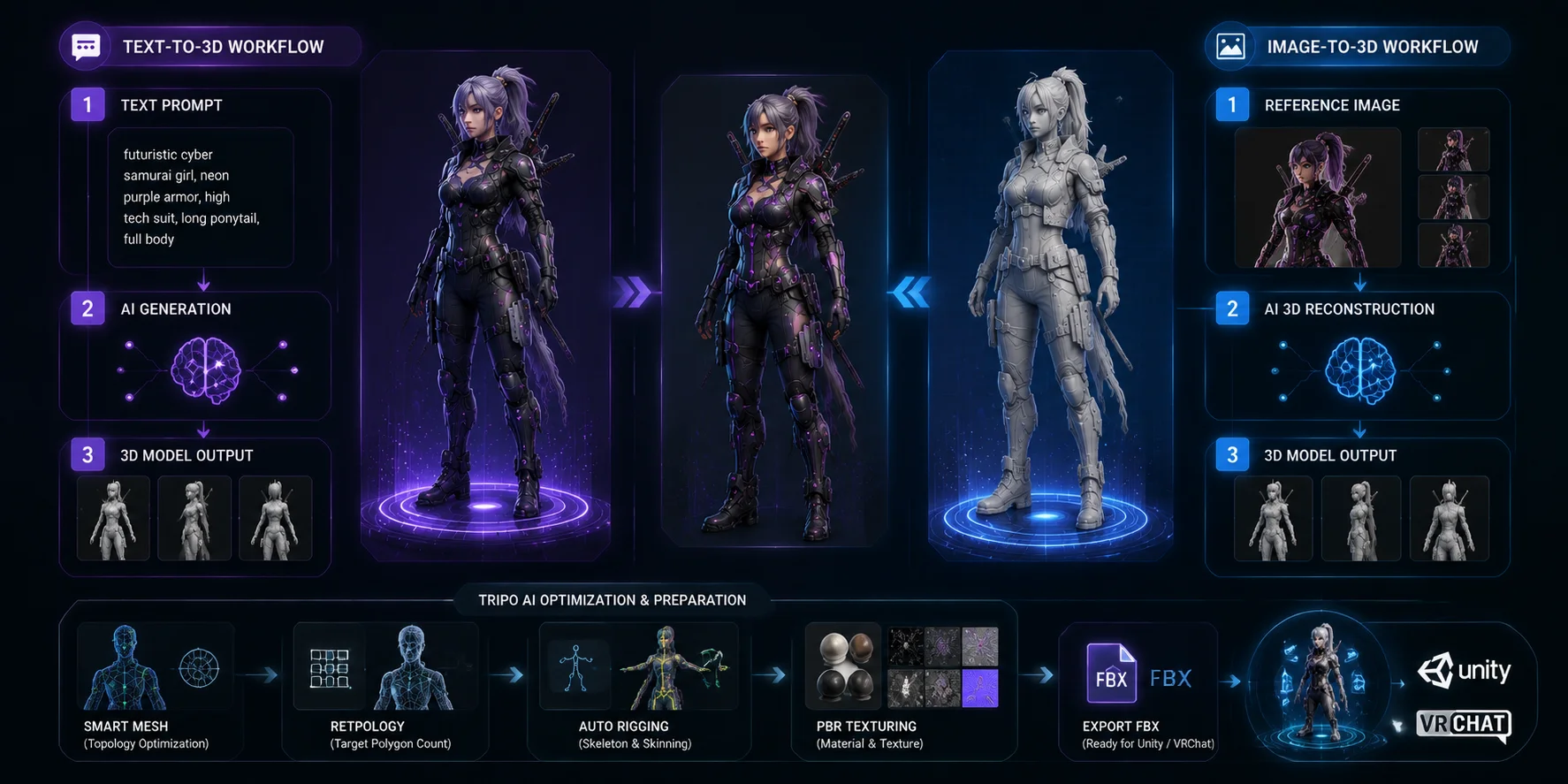
The workflow becomes:
- Generate character
- Optimize mesh
- Apply Auto Rig
- Export FBX
- Import into Unity
You can learn more about AI Auto Rigging.
Export and Unity Compatibility
For this VRChat workflow, the most relevant Tripo export options are:
- FBX
- GLB
For VRChat, FBX is usually the recommended choice because Unity handles humanoid rigs more reliably.
Tripo's current Free plan includes 200 credits per month, listed as up to eight models. Free downloads are limited and apply to eligible v2.5 models, so check the current pricing page before choosing a generation version or export workflow.
For creators who want a flexible vrchat avatar maker that supports many styles instead of only one character type, Tripo AI provides a complete AI-to-Unity workflow.
AI VRChat Avatar Generation Workflow: Text-to-3D vs Image-to-3D
VRoid Studio — Best Free Anime-Style Generator
Best for: Anime avatars, VTubers, free character creation
VRoid Studio remains one of the most popular free avatar creation tools.
Developed by Pixiv, VRoid Studio focuses on anime-style humanoid characters.
You can customize:
- Face shape
- Eyes
- Hair
- Clothing
- Body proportions
Its biggest advantage is price.
VRoid Studio is free and allows unlimited character creation.
For beginners who want a cute anime avatar, it is one of the easiest options available.
However, VRoid uses the VRM format.
The typical workflow is:
- Create avatar in VRoid Studio
- Export VRM
- Import into Unity using VRM plugins
- Convert and prepare for VRChat
- Upload with VRCSDK3
VRM is not directly supported by VRChat, so additional Unity steps are required.
VRoid Studio is excellent for:
- Anime characters
- VTuber avatars
- Stylized designs
It is less suitable for:
- Realistic humans
- Robots
- Creatures
- Highly custom fantasy characters
Avatar Maker by Vket — Best for Direct VRChat Upload
Best for: Beginners who want a guided browser workflow and direct VRChat upload
VRChat currently lists Avatar Maker by Vket on its official Avatar Systems page as a beginner-friendly creation option.
The service lets you assemble an avatar from modular parts created by participating artists, then upload it directly or download a Unity package for further editing.
It works well for:
- Direct VRChat upload
- Modular avatar customization
- Optional Unity package editing
This is a template-based creator rather than a text-to-3D generator, so customization depends on the parts available in its catalog.
Choose it when direct VRChat compatibility matters more than generating an entirely original mesh from a prompt.
For a fully original character concept, use an AI 3D workflow and complete the Unity validation steps described below.
VRChat Avatar Maker — Best Browser-Based AI Option
Best for: Beginners who want a browser workflow
VRChat Avatar Maker describes a browser-based workflow that accepts text prompts or reference images and produces a rigged avatar model.
Its advertised workflow includes:
- Text- or image-based generation
- Generated textures
- Rigged model output
- Browser-based creation
The site is convenient for experimentation, but its public pages do not clearly document every export entitlement, licensing condition, or free allowance.
However, advanced users may still need Unity and Blender for:
- Custom editing
- Better topology
- Facial expressions
- Quest optimization
Verify the current export format, license, and checkout terms inside the product before using it for a production avatar.
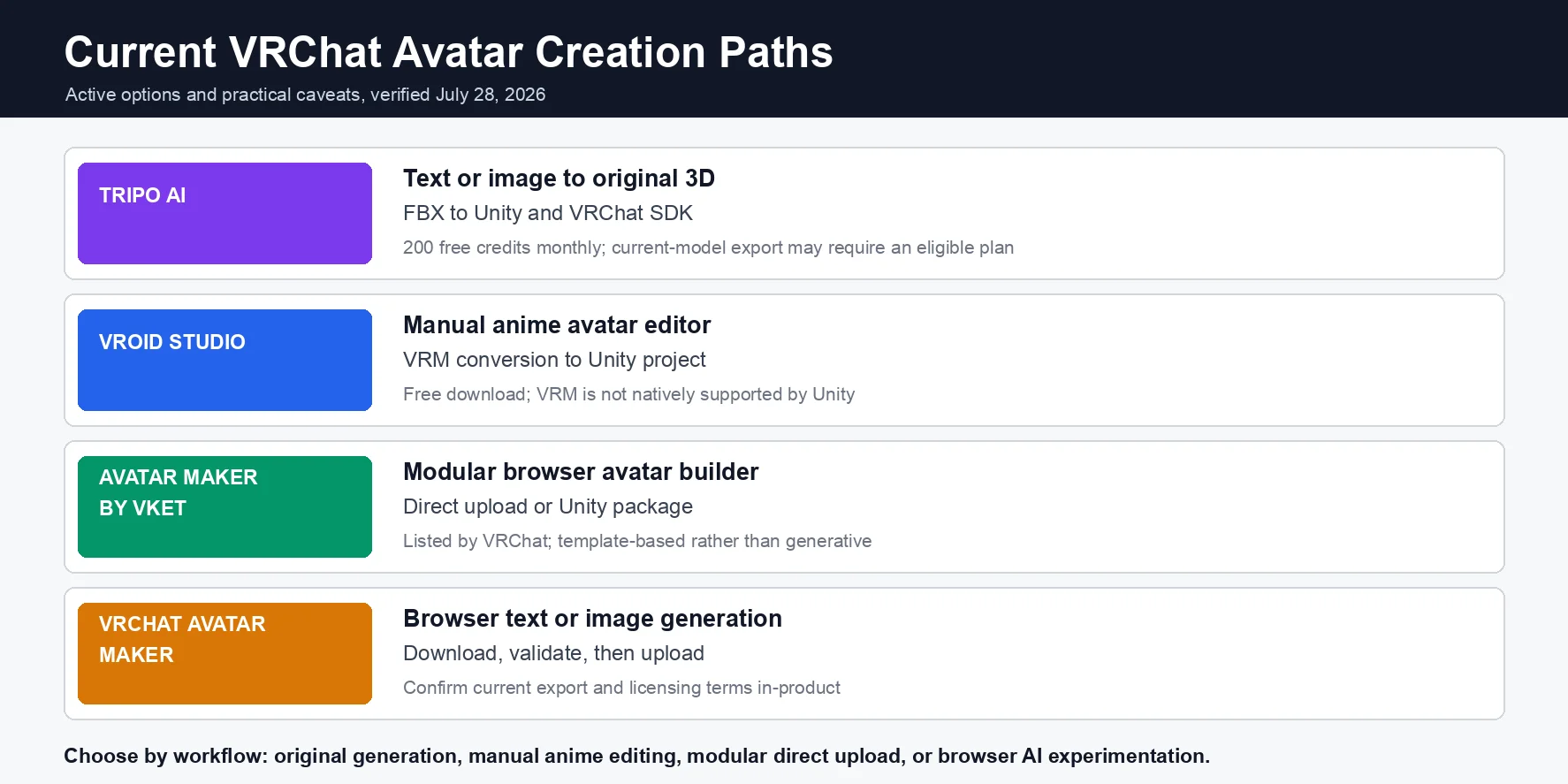
| Tool | Creation style | VRChat path | Current caveat |
|---|---|---|---|
| Tripo AI | Text or image to original 3D model | Export FBX, validate in Unity, upload with VRChat SDK | Free credits are available, but current-model exports may require an eligible plan |
| VRoid Studio | Manual anime-style character editor | Export VRM, then convert for a Unity VRChat project | VRM is not natively supported by Unity |
| Avatar Maker by Vket | Browser-based modular avatar builder | Direct upload or Unity package | Template-based rather than generative |
| VRChat Avatar Maker | Browser-based text or image generation | Download and validate the rigged model before upload | Confirm current export and licensing terms in-product |
How to Generate a VRChat Avatar with Tripo AI (Step-by-Step)
Creating a VRChat avatar with AI is much faster than traditional 3D modeling. Instead of building a character from a blank scene in Blender, you can start with an idea, image, or concept and turn it into a usable 3D model.
Follow this workflow to create your own AI VRChat avatar.
Step 1: Open Tripo AI Studio and Start a Project
First, open Tripo AI Studio and create an account.
The free tier gives you monthly credits, which lets you test AI avatar generation before choosing a paid plan.
Before generating, think about your avatar design:
- Character type
- Visual style
- Clothing
- Accessories
- Materials
A clear concept usually creates better results.
For example:
“A futuristic space explorer with a robotic helmet, detailed armor, and a stylized game character design.”
Specific descriptions help the AI understand the final look you want.
Step 2: Choose Text-to-3D or Image-to-3D
Tripo AI gives you two main ways to create a VRChat character.
Text-to-3D
Text-to-3D is useful when you only have an idea.
You can describe:
- Fantasy characters
- Sci-fi avatars
- Animals
- Creatures
- Original designs
The AI generates the initial 3D model from your description.
This is useful for creators who want a unique avatar but do not have drawing or modeling skills.
Image-to-3D
Image-to-3D works better when you already have a visual reference.
You can upload:
- Character artwork
- Concept sketches
- Reference images
- Custom designs
The AI converts the image into a 3D model.
This workflow is especially useful when you want to create a VRChat avatar from image because it connects 2D character design with a 3D avatar pipeline.
Step 3: Generate and Review the Model
After choosing your input method, start generation.
Generation time varies by model, settings, and service load. Review the result before spending credits on retopology, rigging, or texturing steps.
Before moving forward, check:
- Character proportions
- Face details
- Hands and feet
- Clothing shapes
- Missing geometry
AI generation saves time, but no generator creates a perfect VRChat avatar every time.
A quick review helps you catch problems before rigging and Unity setup.
Step 4: Optimize the Mesh with Smart Mesh
Raw AI models often contain more geometry than VRChat needs.
A detailed model may look good but perform poorly because:
- Too many triangles slow rendering
- Extra geometry increases file size
- Heavy meshes hurt Quest performance
Use Smart Mesh to create a cleaner model for real-time use.
Use VRChat's current mobile thresholds as your targets:
PC avatar:
- Up to 32,000 triangles for Excellent on PC; up to 70,000 for Good
Quest avatar:
- Up to 7,500 triangles for Excellent, 10,000 for Good, or 15,000 for Medium
If the model is still too heavy, you can further optimize it in Blender with tools such as:
- Decimate Modifier
- Merge by Distance
- Manual cleanup
The goal is not the lowest polygon count. The goal is keeping good visual quality while maintaining performance.
Step 5: Apply Auto Rigging
A VRChat avatar needs a skeleton before it can move.
Without rigging, your character cannot properly support:
- Body movement
- Hand animation
- Full-body tracking
- VR interactions
Tripo AI Auto Rig automatically creates a skeleton for supported characters.
For best results:
- Use a humanoid character
- Keep the model in T-pose
- Avoid unusual body structures
After rigging, check that:
- Arms are connected correctly
- Legs move naturally
- The skeleton follows the body
Automatic rigging saves significant time compared with manually creating bones in Blender.
Step 6: Improve Textures (Optional)
A good VRChat avatar needs more than geometry.
Materials affect:
- Character style
- Visual quality
- Performance
You can improve:
- Clothing textures
- Skin materials
- Surface details
However, avoid extremely large textures.
A beautiful avatar with oversized textures may perform worse than a simpler optimized model.
Step 7: Export the Avatar
For VRChat workflows, export your model as:
- FBX
- GLB
FBX is usually recommended because Unity handles:
- Humanoid skeletons
- Animation data
- Blend shapes
more reliably.
GLB is useful when you need a compact modern 3D format, but always test the import result inside Unity.
How to Upload Your VRChat Avatar (Unity + VRCSDK3)
Generating the avatar is only the first step. VRChat requires Unity preparation before your character becomes available.
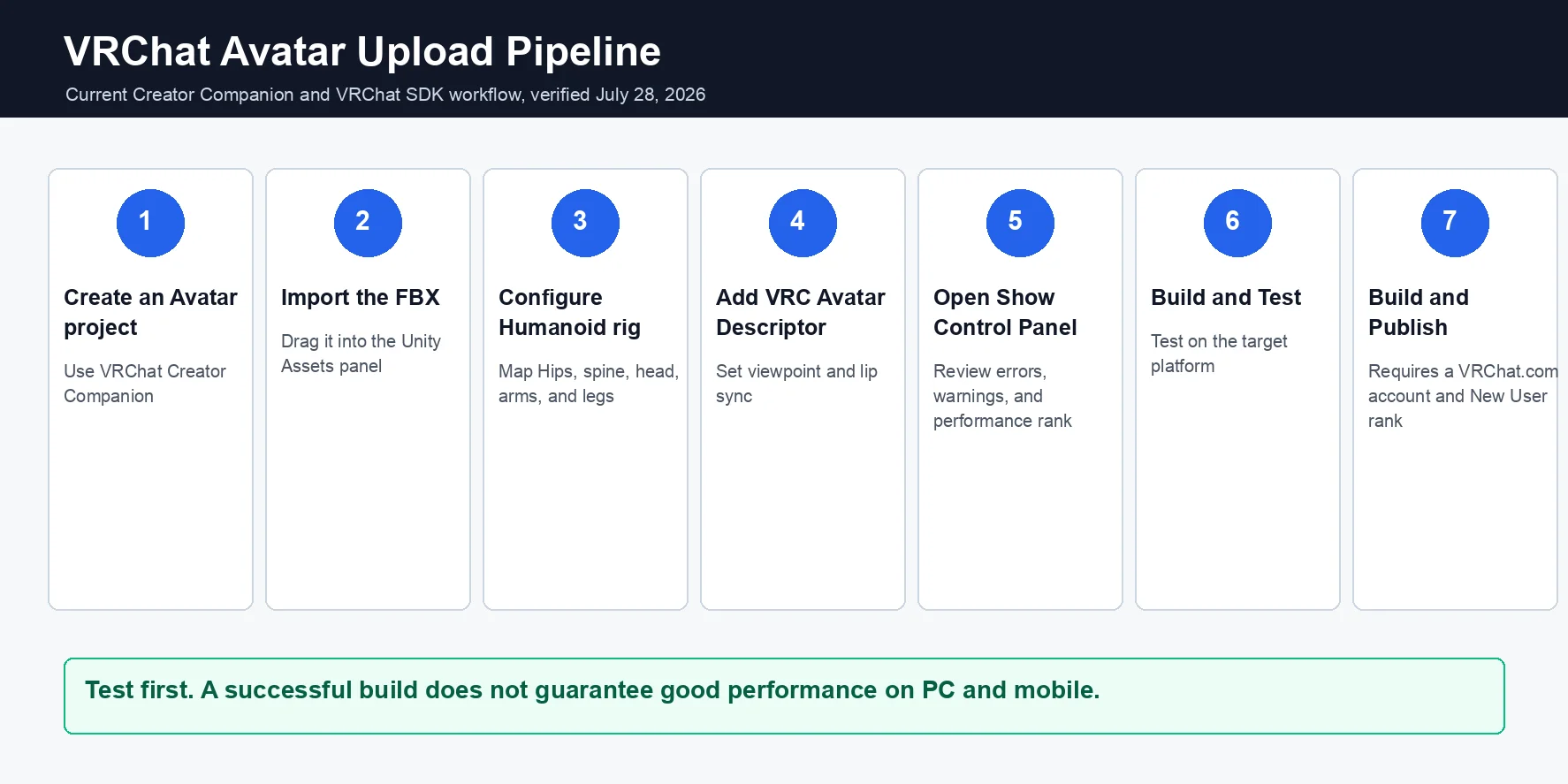
Step 1: Install VRChat Creator Companion
Download VRChat Creator Companion (VCC).
VCC manages:
- Unity installation
- VRChat SDK packages
- Avatar projects
Create a new Avatar project.
Step 2: Import Your FBX Model
Open your Unity project.
Drag your FBX file into:
Unity → Assets Folder
Unity will import:
- Mesh
- Materials
- Textures
- Skeleton
Drag the avatar into your scene.
Step 3: Configure the Humanoid Rig
Select your model.
Open:
Inspector → Rig → Animation Type → Humanoid
Then click:
Configure
Unity will display your bone structure.
Check:
- Hips
- Spine
- Chest
- Head
- Arms
- Legs
A common problem is the Hips bone not being assigned correctly.
If Unity cannot identify the hips or spine hierarchy, the avatar may fail humanoid validation.
Fix the bone mapping manually before continuing.
Step 4: Add VRC Avatar Descriptor
Select your avatar object.
Add:
VRC Avatar Descriptor
Important settings include:
Viewpoint
Controls where your VR camera appears.
Eye Settings
Used for eye movement and tracking.
Lip Sync
Controls mouth animation.
Expressions
Controls avatar menus and gestures.
Correct setup improves the final VRChat experience.
Step 5: Build and Publish
Open:
VRChat SDK → Show Control Panel
Then:
- Review warnings
- Enter avatar name
- Add description
- Confirm settings
- Click Build & Publish
After upload completes, your avatar will appear in VRChat.
VRChat Avatar Upload Pipeline: AI Model to Unity
How to Optimize Your VRChat Avatar for Quest
Quest users have stricter performance requirements than PC users.
A PC avatar that runs smoothly may still be too heavy for standalone VR.
Follow these optimization steps.
Reduce Polygon Count
Quest avatars should stay lightweight.
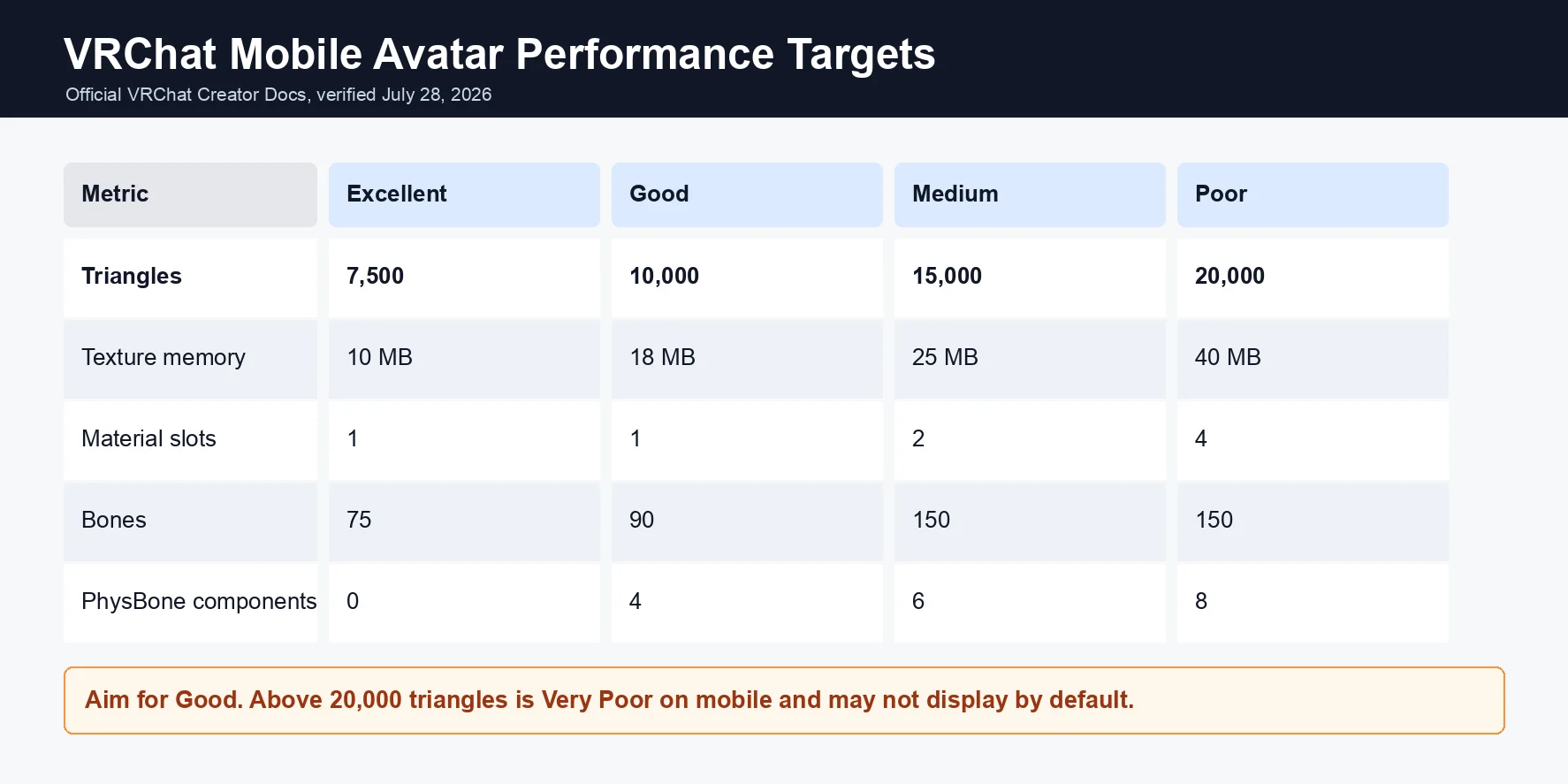
Recommended targets:
- Excellent: around 7,500 triangles
- Good: around 10,000 triangles
If your AI-generated model is too detailed:
Open Blender:
Modifier → Decimate
Reduce the polygon count while preserving the main shape.
Focus on reducing:
- Hidden geometry
- Small unnecessary details
- Complex accessories
Optimize Textures
Large textures increase memory usage.
For Quest:
- Use smaller texture sizes
- Compress images
- Remove unused materials
- Combine similar textures
Avoid using multiple high-resolution textures for small details.
Reduce Materials and Physics
Every material increases rendering cost.
Try to limit:
- Extra clothing materials
- Duplicate shaders
- Unnecessary effects
PhysBones also affect performance.
Use them only where needed:
- Hair
- Accessories
- Clothing movement
Check Performance Ranking
Before uploading:
Open VRChat SDK Avatar Stats.
Review:
- Triangle count
- Materials
- Texture memory
- Bones
- PhysBones
Fix warnings before publishing.
| Quest target | Excellent | Good | Medium |
|---|---|---|---|
| Triangles | 7,500 | 10,000 | 15,000 |
| Texture memory | 10 MB | 18 MB | 25 MB |
| Material slots | 1 | 1 | 2 |
| Bones | 75 | 90 | 150 |
Troubleshooting Common VRChat Upload Errors
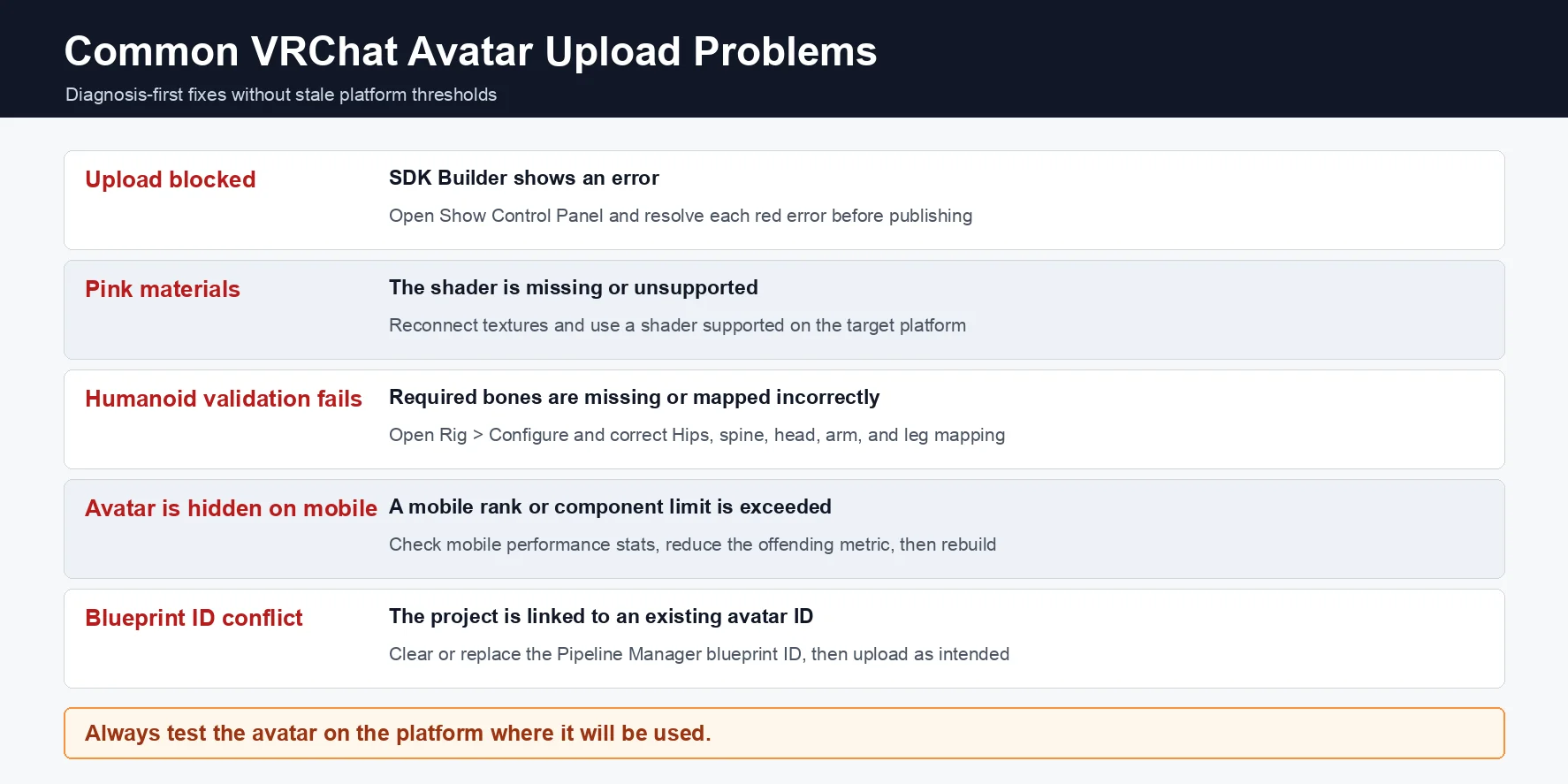
“Blueprint ID Already Exists”
This usually happens when you duplicate an avatar project.
Solutions:
- Remove the old Blueprint ID
- Create a new upload entry
- Upload again
Pink Materials in Unity
Pink materials usually mean Unity cannot load the shader correctly.
Common causes:
- Missing textures
- Unsupported shaders
- PC-only shaders used for Quest
Fix:
- Reconnect textures
- Replace shaders
- Use Quest-compatible materials
“Spine Hierarchy Missing”
This usually means Unity cannot understand the AI-generated skeleton.
Fix:
- Open Humanoid Configure.
- Check Spine, Chest, Upper Chest.
- Assign missing bones manually.
Auto Rig saves time, but final Unity validation is still important.
Avatar Build Size Too Large
Reduce:
- Texture resolution
- Material count
- Blend shapes
- Hidden objects
Optimization usually improves both loading speed and performance.
Common VRChat Avatar Upload Errors and Fixes
Frequently Asked Questions
Can I create a VRChat avatar for free?
Yes. VRoid Studio is completely free and works well for anime-style avatars. Tripo AI also provides a free tier with monthly credits, allowing beginners to test AI avatar generation.
What is the best VRChat model generator for beginners?
For anime characters, VRoid Studio is one of the easiest choices.
For custom characters from images or text prompts, Tripo AI provides more creative flexibility because it works as an AI vrchat avatar generator.
Do I need Blender to make a VRChat avatar?
No.
AI tools can create models, textures, and basic rigs automatically.
You only need Blender when you want advanced edits such as:
- Custom clothing
- Detailed topology changes
- Manual weight painting
Can I use my own 3D model in VRChat?
Yes.
You can export your model as FBX, import it into Unity, add VRC Avatar Descriptor, configure the humanoid rig, and upload through VRCSDK3.
What are VRChat avatar polygon limits?
For PC:
- Around 32,000 triangles = Excellent
- Around 70,000 triangles = Good range
For Quest:
- Around 7,500 triangles = Excellent
- Around 10,000 triangles = Good; around 15,000 = Medium
Does VRChat support VRM files?
Not directly.
VRM files usually require Unity conversion tools before they can enter a VRChat SDK project.
What file format should I export for VRChat?
FBX is usually the best option because it works well with Unity humanoid rigs.
GLB can also work, but check materials and skeleton compatibility.
How long does it take to create a VRChat avatar with AI?
Generation time varies by the selected model, queue, and settings.
The complete workflow can take much longer because you still need to inspect geometry, validate the rig, optimize materials, fix Unity warnings, and test the avatar on the target platform.
Is Ready Player Me still available for VRChat?
No. Ready Player Me announced that its services would shut down on January 31, 2026, so it should not be recommended as a current VRChat creation tool.
Use a currently maintained option such as VRoid Studio, Avatar Maker by Vket, or a verified AI-to-Unity workflow instead.
What trust rank is needed to upload avatars?
You need at least New User rank.
New Visitor accounts cannot upload custom avatars immediately.
Conclusion
Creating a VRChat avatar no longer requires years of 3D modeling experience. Modern AI tools make it possible to turn text prompts, images, and ideas into usable 3D characters much faster.
The best vrchat model generator depends on your goal. VRoid Studio works well for free anime avatars, while Tripo AI provides a more flexible AI workflow for custom characters, image-to-3D creation, optimization, and Unity export.
Once you generate your model, optimize performance, configure Unity, and complete the VRCSDK3 upload process, you can enter VRChat with a character that truly represents you.
Start creating your first avatar with Tripo AI Studio and explore Tripo AI Pricing when you need more advanced features and exports.