Batch 3D Asset Generation: An AI Workflow for Teams
TL;DR
- Batch 3D asset generation = creating many 3D models in one orchestrated batch workflow instead of one at a time.
- Three routes: manual batch (UI), API/programmatic batch (a script + a prompt list), and procedural generation.
- The real work is the pipeline around generation: QA, retopology, format/naming normalization, and version control.
- For teams, an API + a shared workspace + clear naming conventions beats heroic one-off generation.
- Budget by credits/subscription and keep a human in the loop—automation handles generation, not final approval.
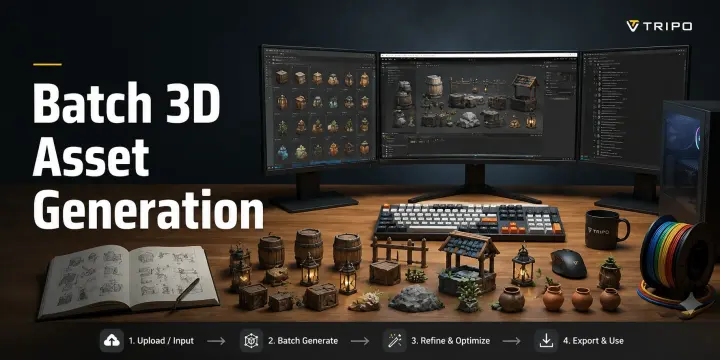
Batch 3D asset generation means producing many 3D models in a single automated run rather than creating them one by one. For teams, the fastest path is a script that feeds a list of prompts or images to an AI 3D generation API, then runs each result through QA, retopology, and export. This guide walks through three batch routes and a repeatable 6-step pipeline.
What Is Batch 3D Asset Generation?
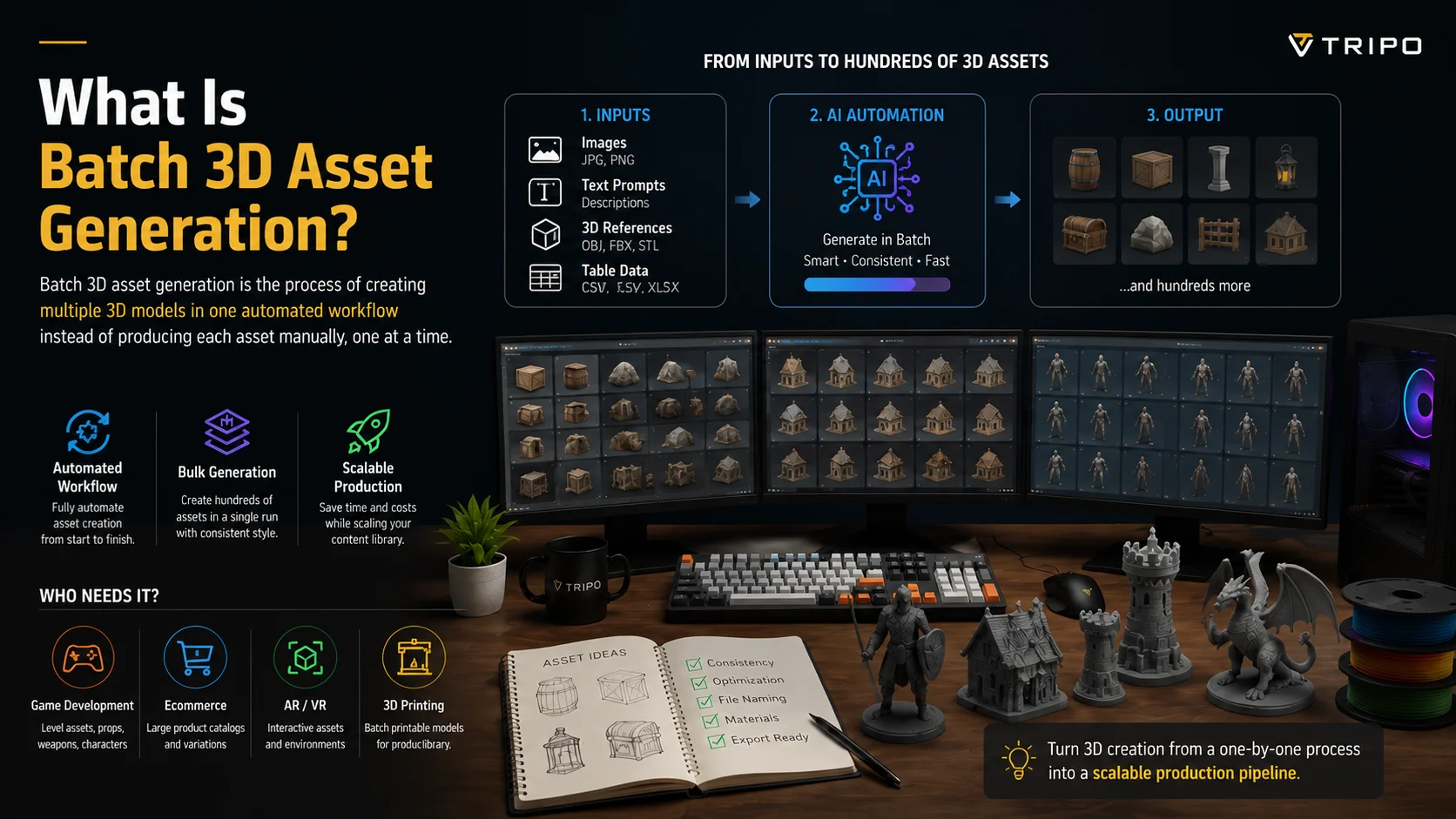
Batch 3D asset generation is the process of creating multiple 3D models in one automated workflow instead of producing each asset manually, one at a time. While traditional 3D modeling requires an artist to build every object separately, batch generation allows teams to process dozens, hundreds, or even thousands of assets together using AI tools, procedural workflows, or automated pipelines.
The idea is simple: provide a collection of inputs—such as images, text descriptions, CAD references, or product data—and the system generates multiple 3D assets in a single run. This approach is often described with related terms like “automate 3D asset creation” or “bulk 3D model generation,” because the goal is the same: reduce repetitive modeling work and scale production.
Batch generation is especially useful when a project requires a large number of similar or unique models. For example, game studios can quickly create environment props, weapons, characters, or level assets instead of modeling every item from scratch. Ecommerce companies can generate thousands of product models for online catalogs, while AR and VR teams can build large libraries of interactive assets more efficiently.
For 3D printing, batch workflows can also help manufacturers or creators turn multiple designs into printable models at scale, reducing the time between idea creation and physical production.
Compared with single-model generation, batch 3D asset generation focuses on speed, consistency, and scalability. It does not completely replace artists or designers—complex assets may still require manual refinement—but it dramatically accelerates the early creation stage.
In short, batch 3D asset generation turns 3D creation from a one-by-one process into a scalable production pipeline, making it practical for industries that need large volumes of models quickly.
Three Ways to Batch-Generate 3D Assets
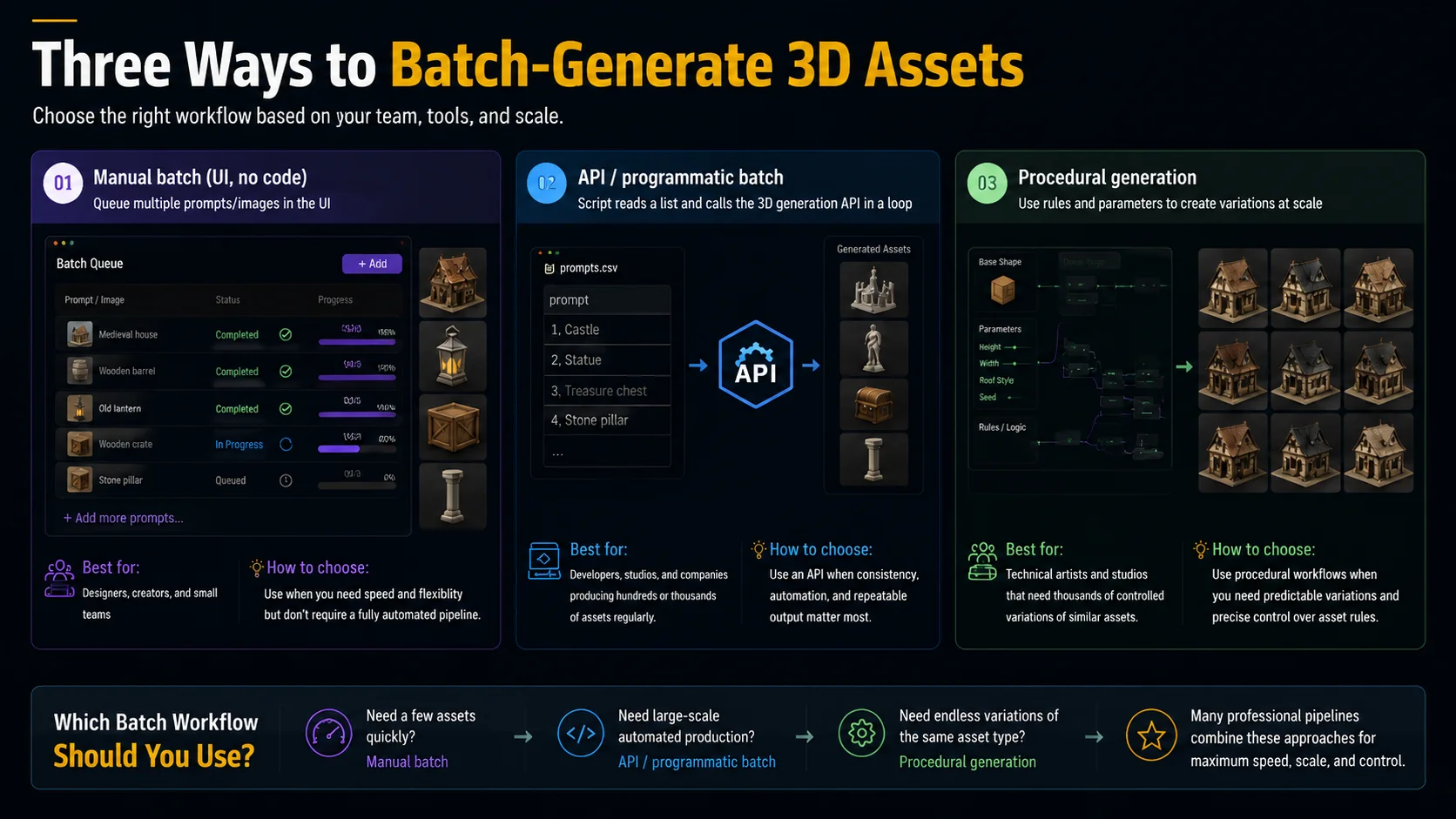
Batch-generating 3D assets can be done in several ways depending on how many models you need, how much control you want, and whether you have development resources. The three most common approaches are manual batch workflows, API-based automation, and procedural generation. Tools such as AI 3D generators and platforms like Tripo API can help teams move from one-off creation to scalable asset pipelines.
Manual Batch Generation (UI, No Code)
The simplest approach is using a 3D generation tool's interface and creating multiple assets through a queue. Instead of generating one model, you prepare several prompts or images, upload them together, and process them one by one without writing code.
This method works well for small batches, quick experiments, and teams that don't have developers. For example, a designer might generate several product variations, game props, or concept models from a list of prepared references.
Best for: Designers, creators, and small teams generating fewer than around 20 assets at a time.
How to choose: Use manual batch generation when you need speed and flexibility but don't require a fully automated pipeline.
API / Programmatic Batch Generation
For larger projects, API-based workflows allow developers to automate the entire generation process. A script can read a spreadsheet, database, or file containing prompts and image references, then automatically send requests to a 3D generation API and collect the results.
This approach is ideal for businesses that need repeatable production at scale. For example, an ecommerce company could process hundreds of product images, or a game studio could generate large libraries of assets using the same workflow.
With an API workflow, teams can integrate 3D generation directly into existing tools, websites, or internal pipelines.
Best for: Developers, studios, and companies producing hundreds or thousands of assets regularly.
How to choose: Use an API when consistency, automation, and repeatable output matter more than manual control.
Procedural Generation
Procedural generation creates 3D assets using rules, parameters, and algorithms instead of generating every model individually. Tools such as Houdini and Blender scripting can automatically create variations by changing values like size, shape, materials, or placement rules.
Unlike generative AI, which creates assets from learned patterns, procedural workflows rely on predefined systems. This makes them extremely powerful for producing large families of similar assets, such as buildings, environments, terrain, weapons, or game objects.
Best for: Technical artists and studios that need thousands of controlled variations of similar assets.
How to choose: Use procedural generation when you need predictable variations and precise control over asset rules.
Which Batch Workflow Should You Use?
- Need a few assets quickly? → Manual batch generation.
- Need large-scale automated production? → API/programmatic workflows.
- Need endless variations of the same asset type? → Procedural generation.
In practice, many professional pipelines combine these approaches: AI generation for fast creation, APIs for automation, and procedural tools for large-scale customization. The right choice depends on whether your priority is speed, scale, or control.
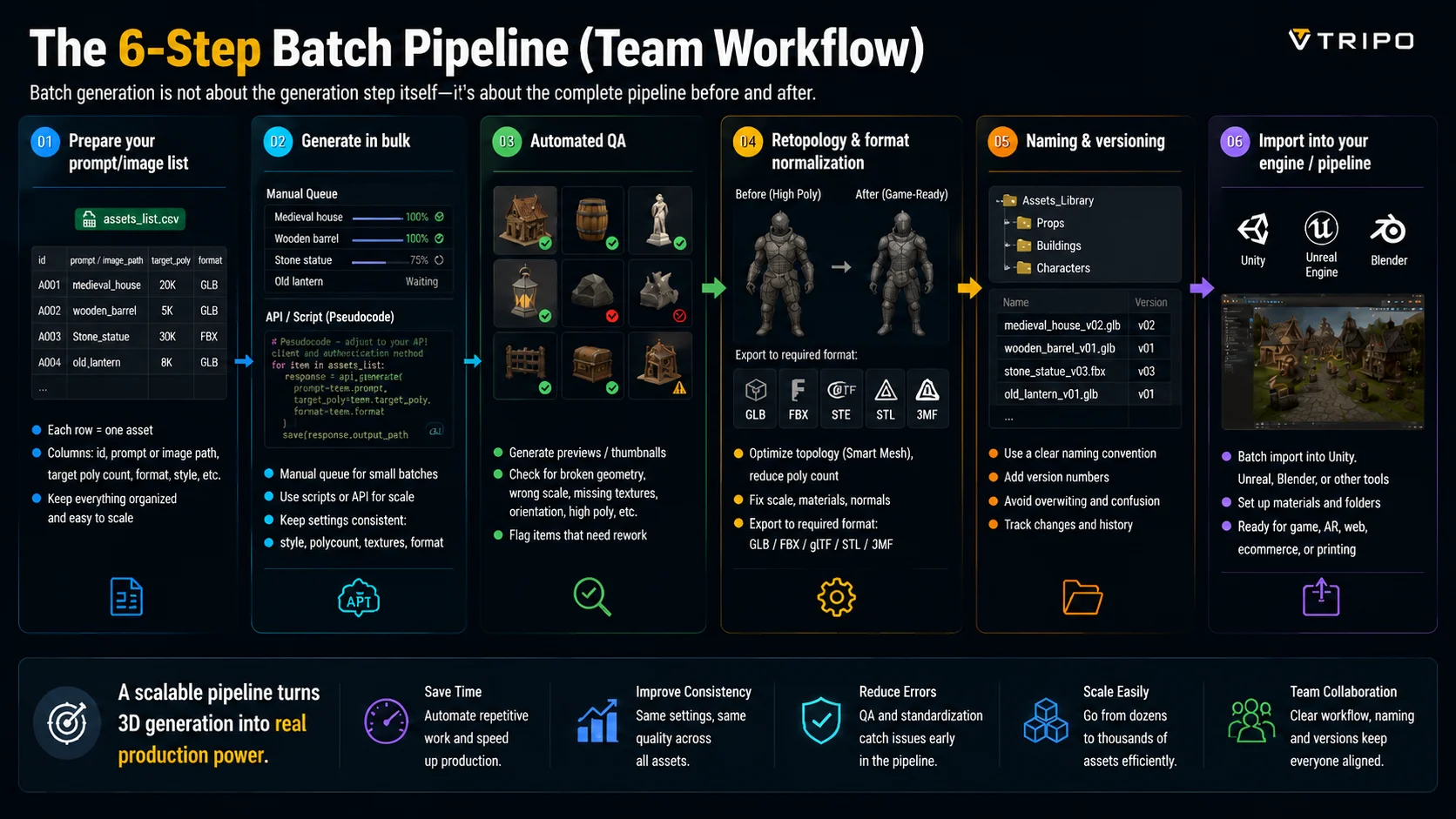
The 6-Step Batch Pipeline (Team Workflow)
Batch 3D generation is not difficult because of the generation step itself—the real challenge is everything before and after it. A professional batch workflow needs a repeatable system that can prepare inputs, submit generation jobs, track progress, validate results, organize versions, and deliver assets into the final production environment.
A scalable pipeline usually follows this flow:
Input Manifest → Batch Submission → Task Tracking → Quality Control → Optimization & Export → Production Delivery
Step 1 — Prepare Your Prompt/Image Manifest
Before generating anything, organize every asset request into a structured manifest file. Instead of manually entering prompts one by one, teams should maintain a CSV or spreadsheet as the single source of truth.
Example assets_manifest.csv:
asset_id,source,type,target_poly,format,style,status
A001,medieval_house.jpg,image,10000,GLB,fantasy,ready
A002,wooden_barrel.png,image,5000,FBX,stylized,ready
A003,stone_pillar.txt,text,8000,GLB,realistic,ready
A004,treasure_chest.jpg,image,12000,FBX,game_asset,ready
Recommended fields:
- Asset ID — unique identifier for tracking
- Source — prompt text, image path, or reference file
- Target polygon count — expected optimization level
- Output format — GLB, FBX, STL, 3MF, etc.
- Style requirements — visual consistency rules
- Status — generation state and review progress
A clean manifest prevents missing assets and allows scripts or automation tools to process hundreds of assets consistently.
Step 2 — Submit Batch Generation Jobs
After preparing the manifest, the next step is submitting generation requests.
A production workflow should not only send prompts—it should also record every submitted task.
Example submission record:
asset_id,source,task_id,submitted_time,status
A001,medieval_house.jpg,task_x8f92a,2026-07-20T10:00,submitted
A002,wooden_barrel.png,task_b72k31,2026-07-20T10:01,submitted
Each generation request should save:
- Source input
- Submission time
- Task ID returned by the API
- Requested settings
- Current status
For API-based workflows, a script can:
- Read each row from the manifest
- Submit the generation request
- Receive the task ID
- Save the task ID back into the tracking file
Example pseudocode:
for asset in manifest:
    task = submit_generation(
        source=asset.source,
        format=asset.format,
        settings=asset.settings
    )

    save_task_id(
        asset_id=asset.id,
        task_id=task.id
    )
The exact request format, authentication method, and usage limits should follow the current API documentation. Do not assume fixed concurrency numbers—configure request frequency and parallel jobs based on the API’s documented rate limits and your account settings.
Step 3 — Monitor Status, Retry Failures, and Run Automated QA
Submitting jobs is only the beginning. Large batch workflows need a tracking system that monitors every task until completion.
A typical status workflow:
Submitted
   ↓
Processing
   ↓
Completed
   ↓
QA Check
   ↓
Approved / Needs Review
A worker script can periodically check task status:
while tasks_remaining:

    for task in active_tasks:

        status = check_status(task.task_id)

        if status == "completed":
            download_asset(task)

        elif status == "failed":
            retry_or_flag(task)

        elif timeout_exceeded(task):
            mark_for_review(task)
Important handling rules:
Status polling
- Check unfinished tasks periodically
- Stop polling completed tasks
- Store every status change
Timeout handling
If a task remains incomplete beyond the expected processing window:
- Mark it as delayed
- Record the failure reason if available
- Retry according to workflow rules
- Send it to manual review if repeated failures occur
Retry handling
Common retry cases:
- Temporary generation errors
- Network failures
- Export failures
Avoid endless retries. Store retry counts and flag assets requiring attention.
Example:
asset_id,task_id,status,retry_count
A001,task_x8f92a,completed,0
A002,task_b72k31,failed,2
A003,task_p91kd2,review_required,3
Automated QA should check:
- Broken geometry
- Missing textures
- Incorrect scale
- Wrong orientation
- Excessive polygon count
- Failed exports
Preview thumbnails can also be generated automatically so reviewers can quickly inspect large batches.
Step 4 — Retopology and Format Normalization
Generated assets usually need optimization before entering production.
The goal is not only reducing polygon count—it is creating consistency across the entire asset library.
Typical processing steps:
- Remove unnecessary geometry
- Clean topology
- Apply consistent scale
- Validate materials
- Export required formats
Format selection depends on the destination:
| Format | Common use |
|---|---|
| GLB / glTF | Web, AR, real-time viewers |
| FBX | Unity, Unreal Engine, animation workflows |
| STL / 3MF | 3D printing |
For real-time projects, optimization methods such as Smart Mesh or retopology workflows can help create lighter assets with cleaner topology.
Step 5 — Naming, Versioning, and Asset Tracking
Once hundreds of assets are generated, file management becomes part of the pipeline.
A consistent naming structure prevents overwritten files and unclear revisions.
Example:
asset-name_version_date_format
Example:
castle_wall_v02_20260720.glb
Track every important stage:
- Original generation output
- Optimized version
- Final production export
- Updated revisions
A production manifest should keep the complete history.
Example:
asset_id,source,task_id,version,qa_status,final_path
A001,medieval_house.jpg,task_x8f92a,v02,approved,/game/assets/castle.glb
A002,barrel.png,task_b72k31,v01,approved,/web/assets/barrel.glb
A003,pillar.txt,task_p91kd2,v01,review,/archive/pillar.glb
This final manifest becomes the connection between generation, review, and production.
Step 6 — Import Into Your Engine or Production Pipeline
The final stage moves approved assets into their destination environment.
Depending on the project, this may include:
- Unity
- Unreal Engine
- Blender
- Ecommerce platforms
- AR experiences
- 3D printing workflows
For large libraries, automated import scripts can:
- Place files into correct folders
- Assign materials
- Apply naming rules
- Update asset databases
- Trigger additional optimization steps
A complete production workflow should always know:
- Where the asset came from
- Which generation task created it
- Which version is approved
- Where the final file is stored
Example Complete Batch Pipeline
A real team workflow might look like this:
1. Create assets_manifest.csv

        ↓

2. Submit generation jobs

        ↓

3. Save returned task IDs

        ↓

4. Poll task status

        ↓

5. Retry failed jobs or review errors

        ↓

6. Run automated QA

        ↓

7. Optimize and export formats

        ↓

8. Generate final production manifest
Final output:
source,task_id,version,qa_status,final_path
castle_prompt.txt,task_a82jd1,v03,approved,/unity/assets/castle.glb
barrel_image.png,task_b91kx2,v01,approved,/web/assets/barrel.glb
robot_reference.jpg,task_c73mz8,v02,needs_review,/review/robot.fbx
A professional batch pipeline turns AI 3D generation from a one-off experiment into a repeatable production system. By combining structured manifests, task tracking, status monitoring, quality checks, optimization, and version control, teams can scale from dozens of assets to thousands while keeping quality and organization under control.
Running Batch Generation as a Team
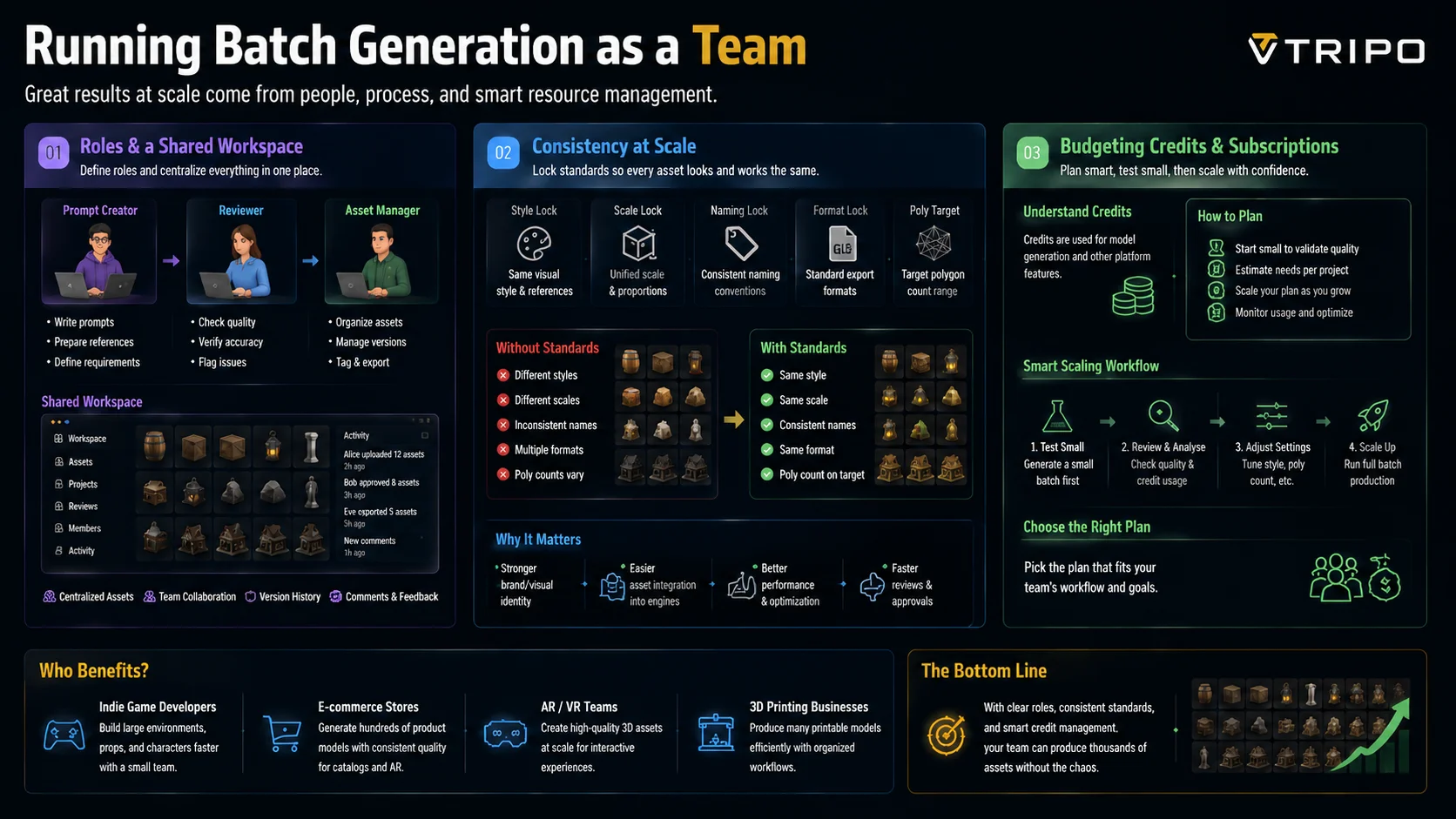
Batch 3D generation becomes much more effective when it is treated as a team workflow rather than a single-person task. Creating hundreds of assets is not only about generating models—it also requires clear ownership, consistent standards, and a predictable way to manage costs.
Roles & a Shared Workspace
A successful batch pipeline starts with defining who is responsible for each stage. Without clear roles, teams can easily create duplicate assets, inconsistent styles, or unfinished files that are difficult to track.
A typical workflow may include:
- Prompt creators — prepare text prompts, reference images, and asset requirements.
- Reviewers — check generated models for quality, accuracy, and issues that need fixing.
- Asset managers — organize final files, versions, tags, and exports.
A shared workspace helps keep everything in one place. Instead of passing files through different tools or messages, teams can centralize assets, feedback, and progress tracking. For example, Tripo Team subscriptions provide a shared workspace and centralized billing approach, making it easier for teams to manage collaborative 3D production.
Best for: Indie game developers, ecommerce stores, and creative teams producing assets together.
Consistency at Scale
Generating many models quickly is only useful if the results look and work consistently. Batch workflows should define standards before production starts.
Important settings to lock include:
- Visual style and references
- Model scale and proportions
- Naming conventions
- Polygon targets
- Export formats
For example, a game studio creating hundreds of environment props needs every asset to follow the same visual direction. An ecommerce store generating product models needs consistent dimensions, materials, and presentation quality across its entire catalog.
A shared standard prevents the common problem of every team member producing assets that look different from each other.
Best for: Teams that need large libraries of models with predictable quality.
Budgeting Credits & Subscriptions
Batch generation costs depend on factors such as model complexity, generation settings, output format, and the number of assets created. Before running a large batch, teams should estimate expected usage and test with a smaller sample.
A practical approach is:
- Generate a small batch first.
- Review quality and credit usage.
- Adjust settings if needed.
- Scale production gradually.
Credits and subscription plans should be treated as production resources rather than unlimited generation capacity. Tracking usage helps teams avoid unexpected costs and choose the right plan for their workload.
For example, a small design team may only need occasional batches, while an ecommerce company with thousands of products may benefit from a team plan with shared access and centralized management.
Best for: Businesses scaling from experimental batches to regular production.
A successful batch generation workflow combines people, process, and technology. With clear roles, consistent standards, and careful cost planning, teams can turn AI 3D generation into a repeatable production system for games, ecommerce, AR/VR, and other large-scale 3D projects.
When Batch Generation Isn't the Right Call (Limits)
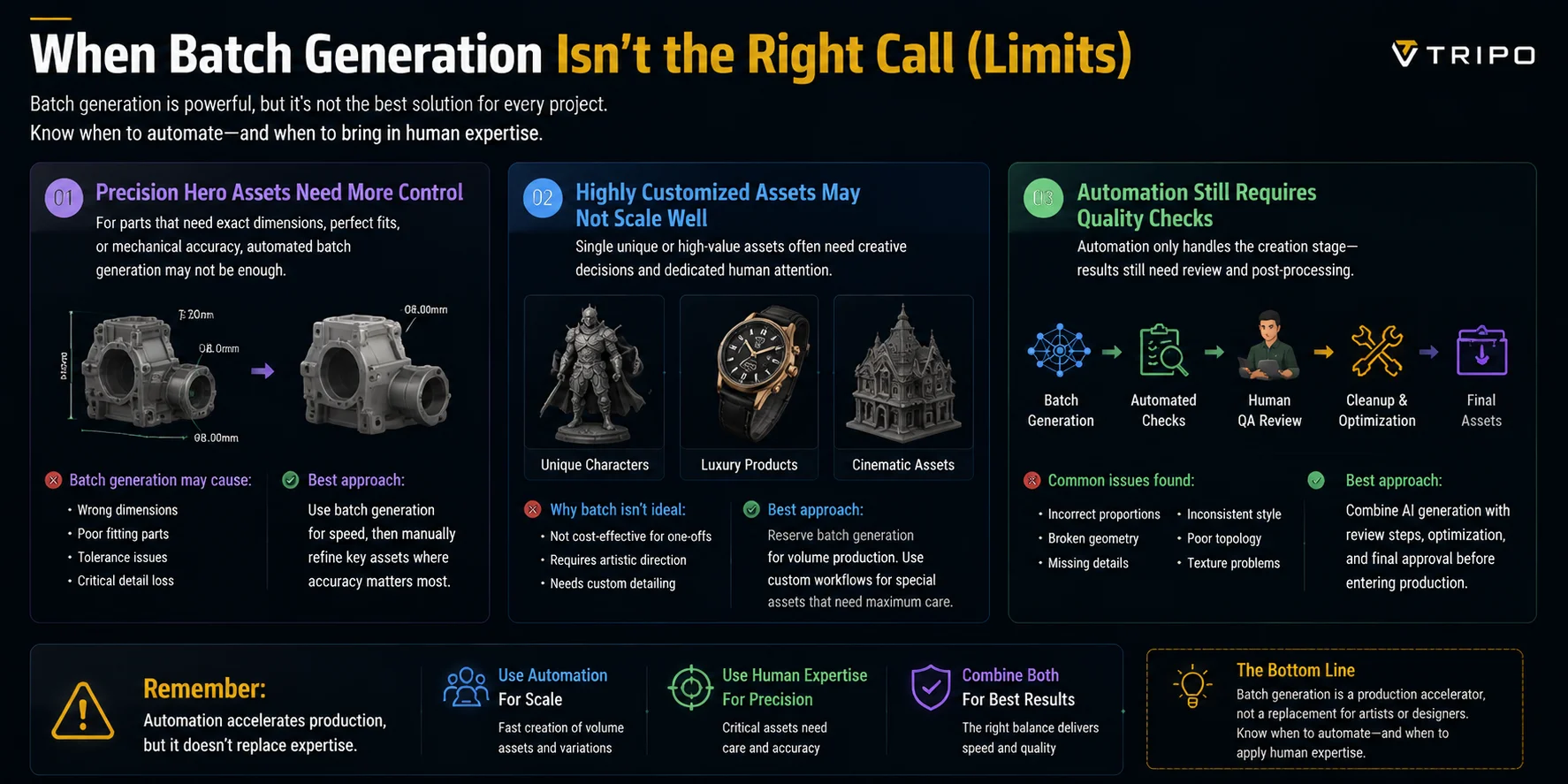
Batch 3D generation is powerful, but it is not the best solution for every project. Automation can dramatically speed up asset creation, but some models still require detailed human control, manual refinement, and expert review.
Precision Hero Assets Need More Control
For products or assets that require exact dimensions, perfect fitting, or mechanical accuracy, fully automated batch generation may not be enough. Examples include engineered parts, assembly components, premium products, or hero assets that customers closely inspect.
These models often need traditional CAD workflows, manual modeling, or additional cleanup from a 3D artist to achieve production-level precision.
Best approach: Use batch generation for speed, then manually refine important assets where accuracy matters most.
Highly Customized Assets May Not Scale Well
Batch workflows work best when creating many similar assets with repeatable requirements. However, creating a single unique, high-value model may not justify building an automated pipeline.
A one-of-a-kind character, luxury product visualization, or cinematic asset often benefits from a dedicated artist who can make creative decisions throughout the process.
Best approach: Reserve batch generation for volume production and use custom workflows for special assets that need maximum attention.
Automation Still Requires Quality Checks
A common misconception is that automation means a completely hands-off process. In reality, batch generation only automates the creation stage—the results still need review and post-processing.
Generated models may contain issues such as:
- Incorrect proportions
- Broken geometry
- Missing details
- Inconsistent style
- Poor topology or materials
A reliable workflow should include automated checks plus human QA before assets enter production.
Best approach: Combine AI generation with review steps, optimization, and final approval.
Batch generation is a production accelerator, not a replacement for artists or designers. The best results come from knowing when to automate and when to apply human expertise. Use batch workflows for scale, but keep manual control for assets where quality, precision, or uniqueness matters most.
Frequently Asked Questions
What is 3D asset generation?
3D asset generation is the process of creating 3D models from inputs like text, images, scans, or design data. It can use AI, procedural tools, or traditional modeling methods to produce assets for games, ecommerce, AR/VR, animation, and 3D printing.
Can you generate 3D models in bulk with one prompt list?
Yes. Many AI 3D generation workflows support bulk creation by using a list of prompts or images, either through a batch queue or an API-based pipeline. This allows teams to generate multiple assets at once while keeping settings like style, format, and quality consistent.
Can ChatGPT create a 3D model?
ChatGPT can help create 3D models by generating modeling instructions, scripts, design ideas, or workflows, but it does not work as a full 3D modeling tool by itself. For complete 3D assets, you can use dedicated AI 3D generators that turn text or images into downloadable 3D models.
How do I automate 3D asset creation in Blender?
You can automate 3D asset creation in Blender using Python scripts, Geometry Nodes, or procedural workflows to generate, modify, and export models automatically. For large batches, scripts can read prompts or parameters, create assets, apply materials, optimize meshes, and export files without manual repetition.
What file formats are best for batch 3D export?
The best format depends on the final use case. GLB/glTF is ideal for web, AR, and real-time applications, FBX works well for game engines and animation, while STL/3MF are better for 3D printing workflows. For batch export, choose a format that matches your pipeline and keeps scale, materials, and metadata consistent.
How much does batch 3D generation cost?
The cost of batch 3D generation depends on the number of assets, model complexity, tool pricing, and whether you use AI, APIs, or manual cleanup. Small batches may cost only a few credits or subscription fees, while large production pipelines require higher usage plans and additional processing resources.
Conclusion
Batch 3D asset generation transforms a slow, one-by-one modeling process into a repeatable production pipeline. Prepare your asset list, generate models in bulk, run quality checks, optimize formats, and move finished assets into your workflow faster.
Start building your own scalable 3D creation pipeline with AI-powered tools and explore the possibilities in Tripo Studio.