Scenario And Tripo: From AI Concept Image To 3D Game Asset
Game teams often start with a clear visual idea, but moving from that idea to a usable 3D asset can take a long time. A character may look strong in a sketch. A prop may feel ready in a concept image. But the team still has to build the 3D model, check the shape, add texture, prepare the mesh, and export it for the next tool.
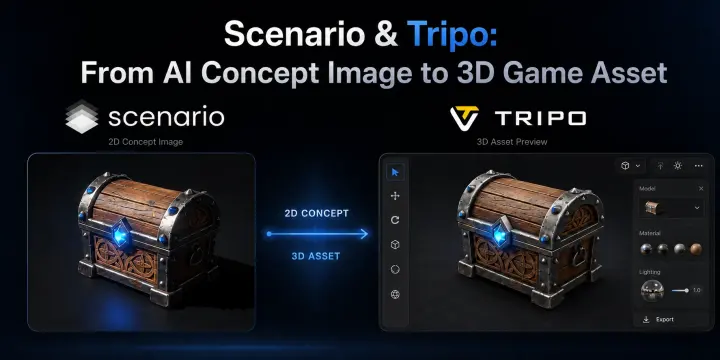
This gap is one reason AI tools are becoming useful in early game asset work. Scenario is a full creative platform that helps teams explore and develop ideas across image, video, 3D, and audio workflows. With Tripo models integrated into its creative ecosystem, users can move from visual concepts to 3D assets without breaking their creative process.
This workflow is useful because it does not ask creators to jump from a blank 3D scene. The creative process can start with visual exploration and continue into 3D asset creation through an integrated workflow. For small teams, indie developers, and artists testing many ideas, this can make the early stage of asset creation much faster.
Why Use Scenario in the Creative Workflow?
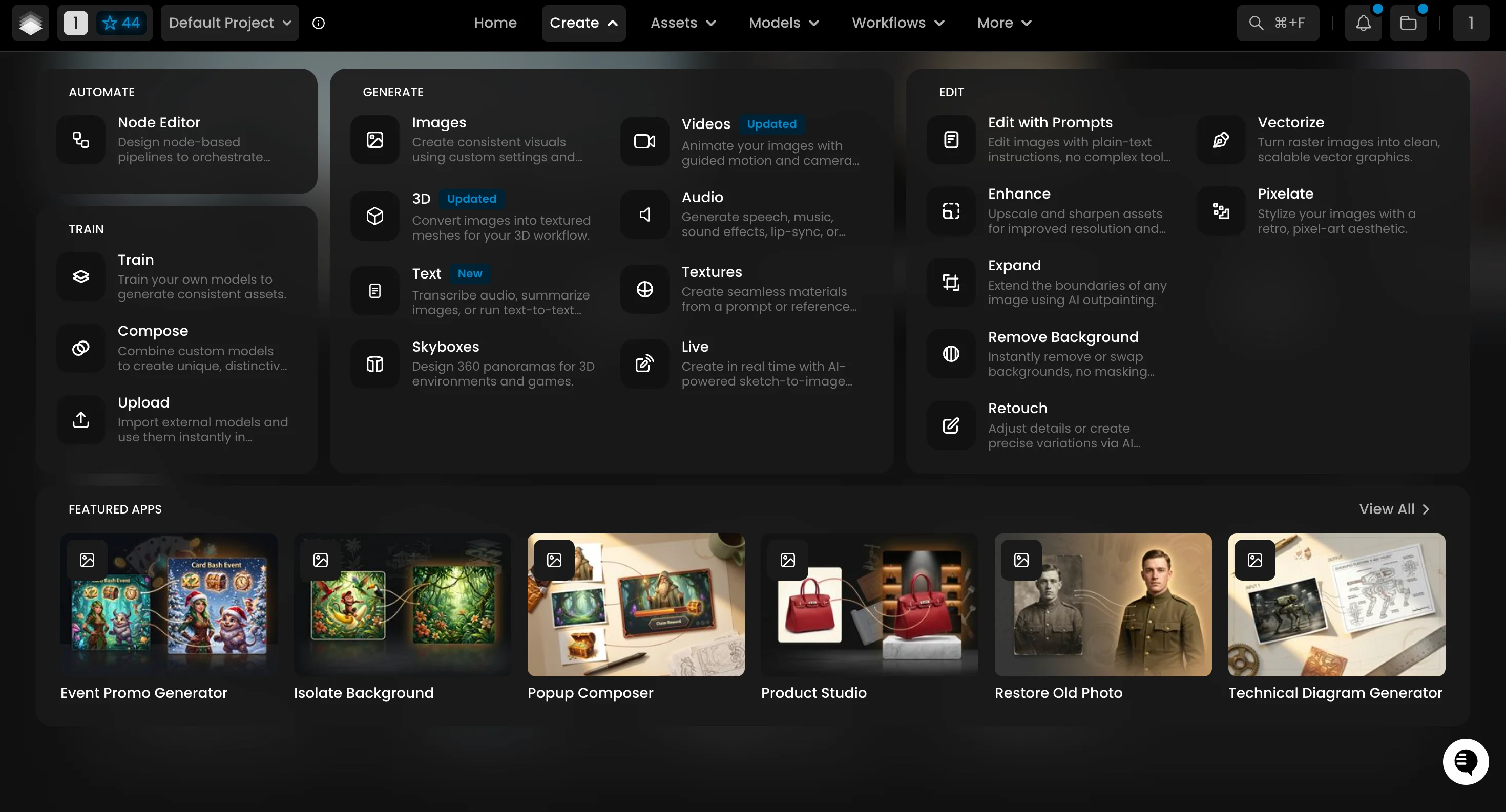
Scenario is designed for creative teams that need a flexible environment to explore ideas across multiple media formats. Whether creating character concepts, environments, props, videos, or other visual assets, teams can develop and refine creative directions before moving into production. In a game project, that can mean a character idea, a weapon design, a creature concept, a vehicle sketch, or an environmental prop.
The value of Scenario is not only that it can make images quickly. The bigger value is that teams can explore visual ideas before spending time on 3D work. If the art direction is still changing, it makes sense to test more image ideas first. A team can compare different shapes, outfits, materials, or moods before choosing the version that should move forward.
Within this workflow, Tripo provides the 3D generation capability that helps transform approved concepts into usable 3D assets. Users can continue the process directly inside Scenario through its integrated Tripo models, or use Tripo independently when they need a dedicated AI 3D creation workflow. The goal is to create a clean concept image that can guide the 3D model.
Where Tripo Fits in the Workflow
Once the creative direction is defined, the next step is bringing the concept into 3D.
This is where Tripo fits naturally. Tripo supports image-to-3D generation, which means users can upload a reference image and create a 3D model from it. For teams that already use Scenario to build visual ideas, Tripo can act as the next step after the image is approved.
A good way to use this is to treat Tripo as a fast 3D starting point. The model should still be reviewed by a human, especially if the asset will be used in a real game project. But instead of building the full shape by hand at the start, the team can use Tripo's image to 3D model workflow to create a base model from the Scenario image.
That base model can help the team test the asset in 3D space earlier. It can also help artists decide which parts need more work.
Step 1: Set a Clear Asset Goal
Before opening any tool, decide what the asset needs to do. A game prop has different needs from a character. A background object may not need the same detail as a hero asset. A model for a mobile game may need a lighter mesh than a model for a high-quality render.
A clear goal helps the whole workflow. It also helps the image stage because Scenario needs a focused visual target. For example, "small fantasy shop sign for a cozy village scene" is easier to work with than a broad idea like "fantasy object."
At this stage, it helps to write down the basic use case. Will the asset be used for a game level test? Will it be used for a character pitch? Will it be used for a marketing preview? The answer will guide the image style and the later 3D settings.
Step 2: Develop the Visual Concept in Scenario
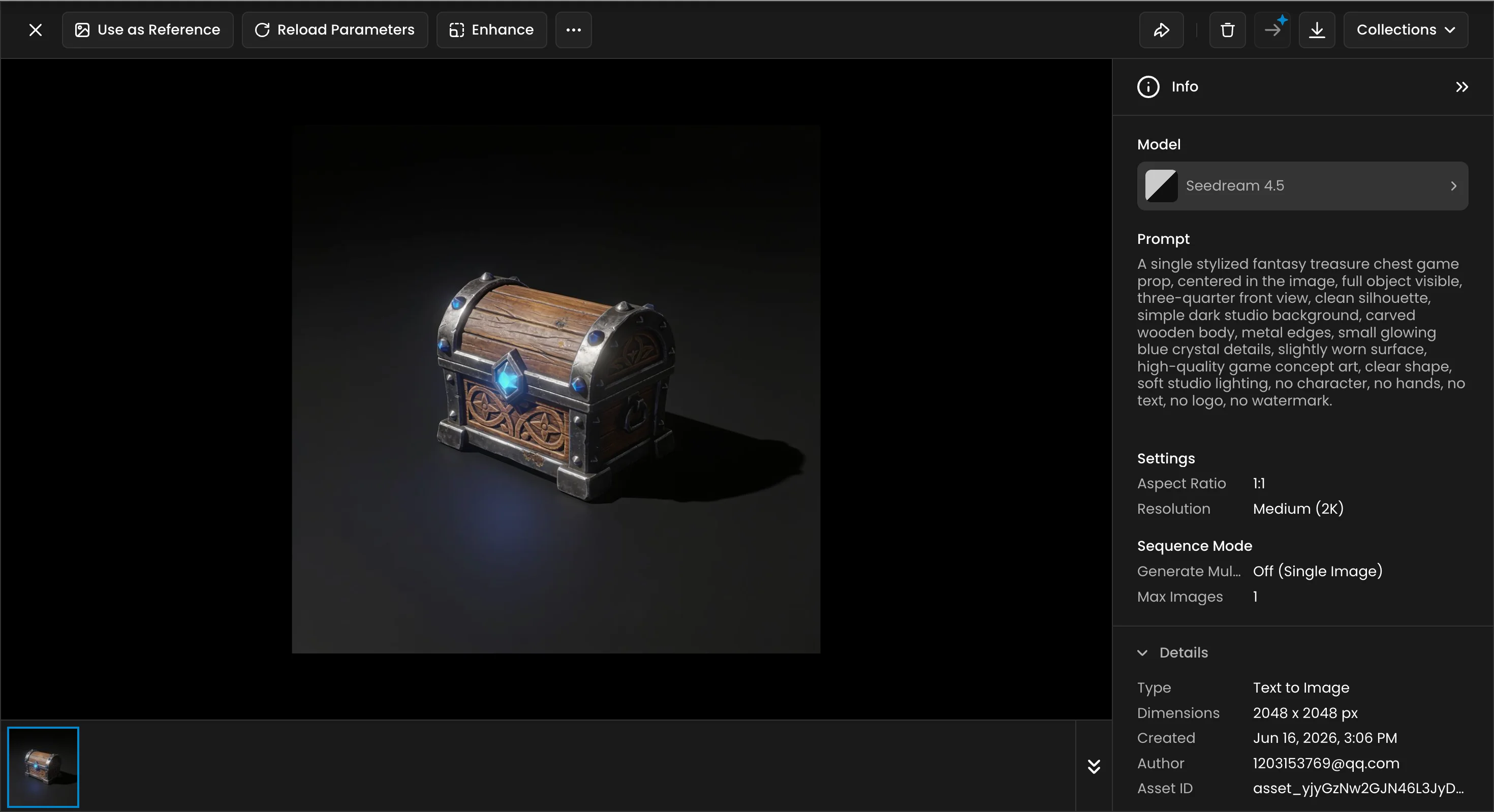
Once the goal is clear, use Scenario to create the image concept. The best image for image-to-3D work usually has a clear main subject, a simple background, and enough visible shape information.
If the object is too small in the frame, the 3D result may lose important parts. If the image has heavy shadows or blocked areas, the model may need more cleanup later. A clear side angle or a front view can be useful for simple objects. For more complex assets, it may help to create extra views if the workflow supports them.
During our research for this type of workflow, we found that the best results usually come from images that look like asset references, not busy final artwork. A clean concept image gives the 3D tool more direct visual information.
Step 3: Prepare the Image Before 3D Generation
After choosing the best image, check it before sending it to Tripo. The subject should not be cut off. Important parts should be visible. The image should not include too many objects unless the whole scene is meant to become one model.
This small review step can save time later. AI 3D generation depends heavily on the input image. If the image already has a clear shape, Tripo has a better starting point. If the image is unclear, the 3D result may still be useful, but the team may need to spend more time fixing it.
For many game assets, a clean single subject works best. A sword, helmet, creature, toy-like character, stylized chest, or small vehicle can be a good starting point.
Step 4: Generate the 3D Model with Tripo
Now upload the Scenario image to Tripo. In Tripo, users can generate a model from the image and review the first result in 3D. This is the moment where the concept moves from a flat image into a form that can be rotated and checked from different angles.
The first model does not need to be perfect to be useful. It can already answer important questions. Does the shape make sense in 3D? Is the silhouette strong? Are the main parts readable? Does the asset still match the original idea from Scenario?
If the answer is yes, the model can move into cleanup or further editing. If the answer is no, the team can go back to Scenario, improve the image, and generate again. This loop is faster than waiting until the full manual modeling stage to find out that the concept does not work in 3D.
Step 5: Check Mesh, Texture, and Shape
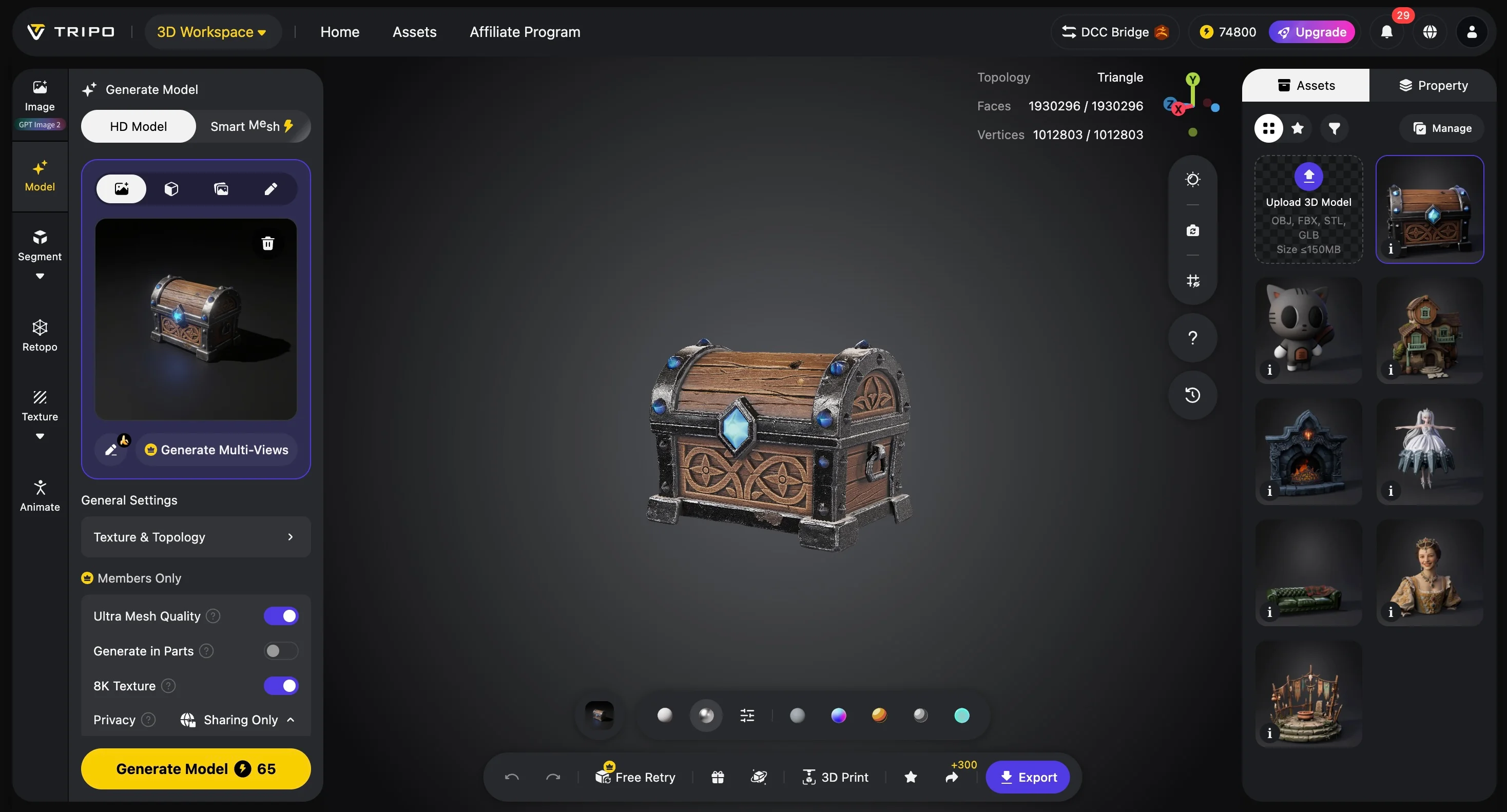
After the model is created, the next step is review. A good review should look at the overall shape first. The model should match the main idea of the concept image. Small details can be fixed later, but the main form should be strong enough to continue.
Tripo also gives users tools that can help after generation. Depending on the project, users can work with mesh settings, topology, texture, and other model options. For game work, this matters because a model has to be useful inside a real-time scene.
Users who want to keep improving the result can continue in Tripo Studio. This is useful when the model needs extra checking before export. A team can look at the model in the viewer, inspect the surface, work on texture quality, and prepare the asset for the next tool.
Step 6: Export for the Next Production Step
When the model is ready for the next stage, export it based on the project need. A game team may bring it into a game engine. A 3D artist may open it in a modeling tool for more polish. A designer may use it for a quick product or character preview.
This is where the Scenario and Tripo workflow becomes practical. Scenario helps the team find the visual direction. Tripo helps the team turn that direction into a 3D model. The result is not only a nice image. It becomes something the team can test in a 3D space.
Use Cases for Game Creators
This workflow can help in several game asset tasks.
For props, a team can test many object ideas before choosing the best one. A chest, sign, helmet, bottle, statue, or weapon can start as a Scenario image and move into Tripo for 3D testing.
For characters, the workflow can help with early shape exploration. A stylized creature or NPC concept can become a 3D base model, which gives the team a faster way to judge the design from different angles.
For marketing visuals, the same asset can support more flexible content. Once the idea exists as a 3D model, it may be easier to create new views, previews, or short visual tests.
For small teams, the biggest benefit is speed. They can try more ideas before choosing which assets deserve full manual work.
Tips for Better Results
- Use a clean image with one clear subject.
- Keep the background simple.
- Avoid heavy blur or strong shadows.
- Make sure the full object is visible.
- Use a concept image that shows the main shape clearly.
- Review the 3D result before treating it as final.
These tips may sound basic, but they matter. A better input image usually gives a better 3D starting point. This is especially true when the model needs to keep the style and shape of the original concept.
Final Result: From Image Idea to 3D Asset
The final result of this workflow is a faster path from 2D concept to 3D asset. Scenario helps teams explore and refine creative directions across multiple formats. Tripo brings those ideas into 3D assets that can be reviewed, refined, and prepared for production.
For game teams, this can make early asset work more flexible. Instead of waiting for every concept to be modeled by hand, teams can test more designs in 3D at an earlier stage. That does not remove the need for artists. It gives artists a faster base to work from.
If your team wants to explore AI-powered creative workflows, try Scenario and experience how visual ideas can move from concept development to 3D asset creation.
If you want to turn those images into 3D models, try Tripo's AI 3D model generator.
Scenario and Tripo provide a connected workflow for creators, helping teams move from early creative exploration to 3D asset production. Users can explore concepts, generate visuals, and create 3D assets within a flexible AI-powered creative ecosystem.
Together, Scenario and Tripo give creators a simple path from idea to image, and from image to 3D.