3D Printing File Formats Explained: STL vs OBJ vs 3MF and More
TL;DR
- 3D printing files fall into 3 groups: design (CAD), mesh/print (STL, OBJ, 3MF), and machine (G-code).
- STL is the universal default for shareable geometry: it carries no color and is supported by nearly every slicer, which then creates printer-specific G-code.
- 3MF is a modern container that can hold geometry, colors, multiple objects, and project data in compatible workflows.
- OBJ is useful when an animation, game, or scanning workflow needs to carry materials or texture references.
- Pick by goal: STL for simple geometry, 3MF for compatible multi-object or material-aware projects, STEP for editable CAD, and G-code as the final printer instruction—not a model.
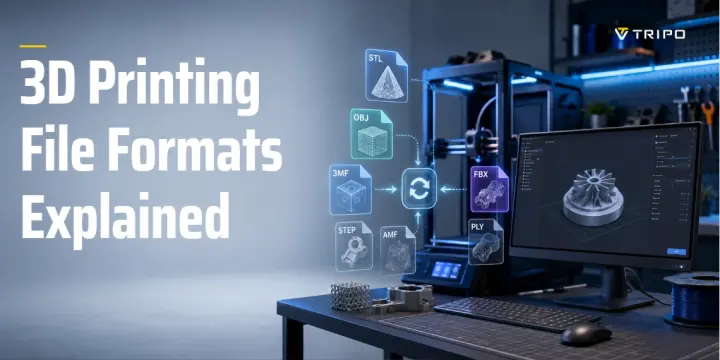
If you've ever downloaded a model or exported your own and wondered whether to save it as STL, OBJ, or 3MF, you're not alone. 3D printing file formats fall into three groups—design files, mesh/print files, and machine files—and picking the right one affects what information reaches the slicer, how easily the model is shared, and how reliably the job can be prepared for printing. This guide breaks down each format and shows you exactly which to use.
The 3 Categories of 3D Printing Files
3D printing files generally fall into three categories: design files, mesh files, and machine files.
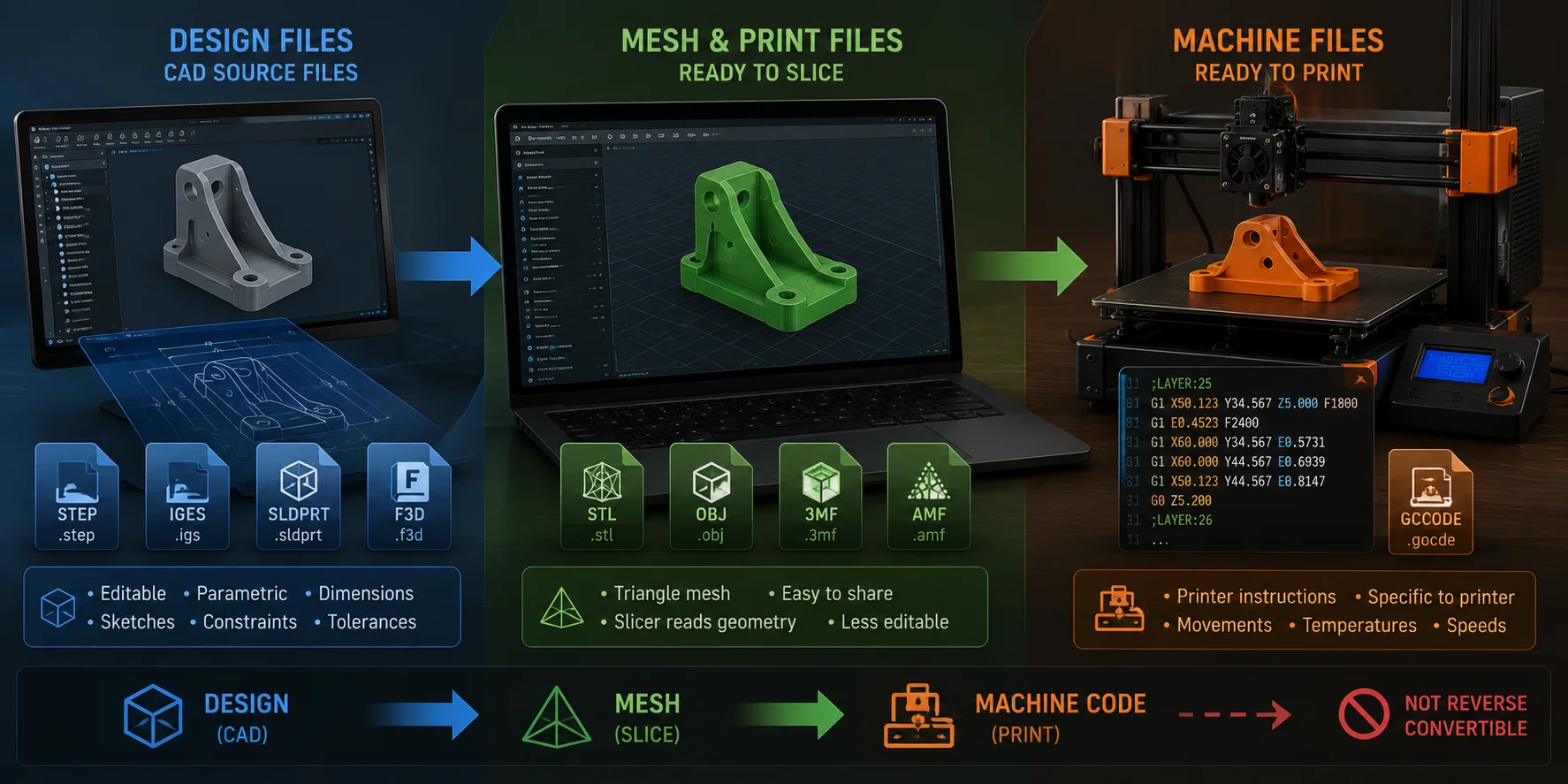
Design Files: CAD Source Files
Design files are editable source files created in CAD software. Common examples include STEP, IGES, SolidWorks .SLDPRT, and Fusion .F3D.
They store mathematical surfaces, dimensions, sketches, constraints, and parametric features. This makes them useful for changing hole sizes, wall thickness, threads, mounting points, and tolerances.
CAD files are best for engineering and product development, but most printers do not print them directly. They normally need to be converted into a mesh format before slicing.
Mesh and Print Files: Ready to Slice
Mesh files describe an object through vertices and faces, often many small triangles. STL, OBJ, 3MF, and AMF are common examples.
A slicer reads these meshes, calculates walls, infill, supports, and movement paths, then creates machine instructions for the printer. Mesh files are easy to share and prepare for printing, but they are less editable than original CAD files.
Machine Files: Ready to Print
Machine files contain printer instructions rather than a general 3D model. The main example is G-code, usually saved as .gcode.
G-code controls movements, extrusion, temperatures, retractions, layer changes, and speeds. It is created by a slicer for a specific printer, nozzle, material, and print profile.
The normal workflow is:
Design file → mesh file → machine file
This is mostly a one-way pipeline. You can revise the design or mesh and generate new G-code, but G-code cannot reliably be turned back into an editable CAD model.
STL — The Universal Standard
STL stands for Stereolithography. It is the most widely used 3D printing format because nearly every slicer can import it.
An STL stores triangle-based geometry only. It does not normally include colors, textures, material assignments, object names, slicer settings, or reliable unit information. Always confirm whether an imported STL is correctly scaled in millimeters.
STL is ideal for:
- single-color functional parts;
- brackets, mounts, hooks, and enclosures;
- replacement parts;
- basic prototypes;
- downloaded community models;
- beginner printing workflows.
There are two main STL variants:
- ASCII STL: Human-readable but larger.
- Binary STL: Smaller and more practical for normal printing.
Binary STL is usually the better choice because it reduces file size without changing the printable shape.
The main limitation is that STL carries little information beyond geometry. It cannot preserve color or print settings, and it can contain holes, flipped normals, overlapping shells, or non-manifold edges that must be repaired before printing.
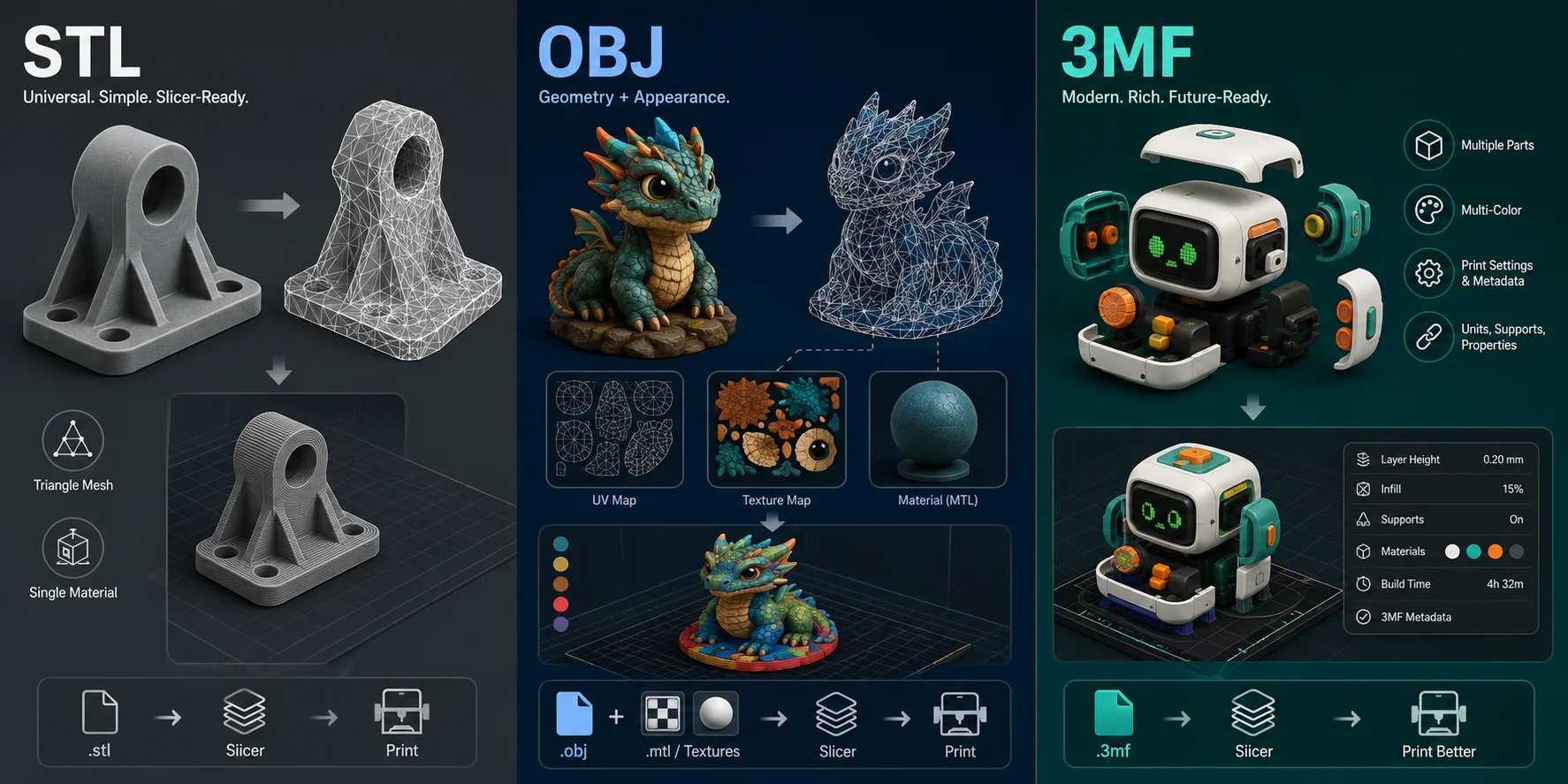
OBJ — When You Need Color and Texture
OBJ is a Wavefront mesh format used widely in animation, game development, scanning, and digital-content workflows.
Like STL, OBJ stores mesh geometry. Unlike STL, it can also reference materials and textures through companion files, usually an .MTL file and texture images connected through UV mapping.
OBJ is useful for:
- textured figurines;
- scanned objects;
- models that carry color data;
- assets exported from Blender, Maya, ZBrush, or game pipelines;
- presentation models where surface appearance matters.
OBJ files often come as a set: the mesh file, an MTL file, and one or more texture images. Keep them in the same folder, or the object may open without its intended colors.
For ordinary FDM printing, OBJ color information may not provide much value because the printer may use only one filament or a limited multi-material setup. In those cases, OBJ can create larger, more complicated files than necessary.
OBJ is still useful when your model originates in animation or scanning, but 3MF is often more practical for modern printing because it can package geometry, color, materials, and print-related data together.
3MF — A Modern Alternative to STL
3MF stands for 3D Manufacturing Format. It was designed specifically for additive manufacturing and stores more information than STL.
A 3MF file is a compressed container that can include geometry, colors, materials, textures, multiple objects, build-plate layouts, and other print-related metadata. In compatible slicers, it may also preserve supports, modifiers, filament assignments, and project settings.
3MF is useful for:
- color-aware printing workflows;
- multi-material printing;
- several objects on one build plate;
- saved slicer projects;
- prototypes with material assignments;
- print jobs where settings must be shared or reused.
The practical difference is simple: STL gives the slicer a shape; 3MF can give it the shape plus useful printing context.
For example, a multi-part enclosure may include a housing, lid, button, and internal bracket. STL may require exporting and arranging each piece separately. A 3MF project can preserve more of that structure in one file.
STL remains safer when you only need to share geometry across software. For a compatible slicer workflow involving multiple parts, material assignments, or saved project data, 3MF is often the more capable option. Slicer-specific settings may not transfer completely when the file is opened in different software.
Other 3D Printing File Formats: AMF, STEP, PLY, VRML, and G-code
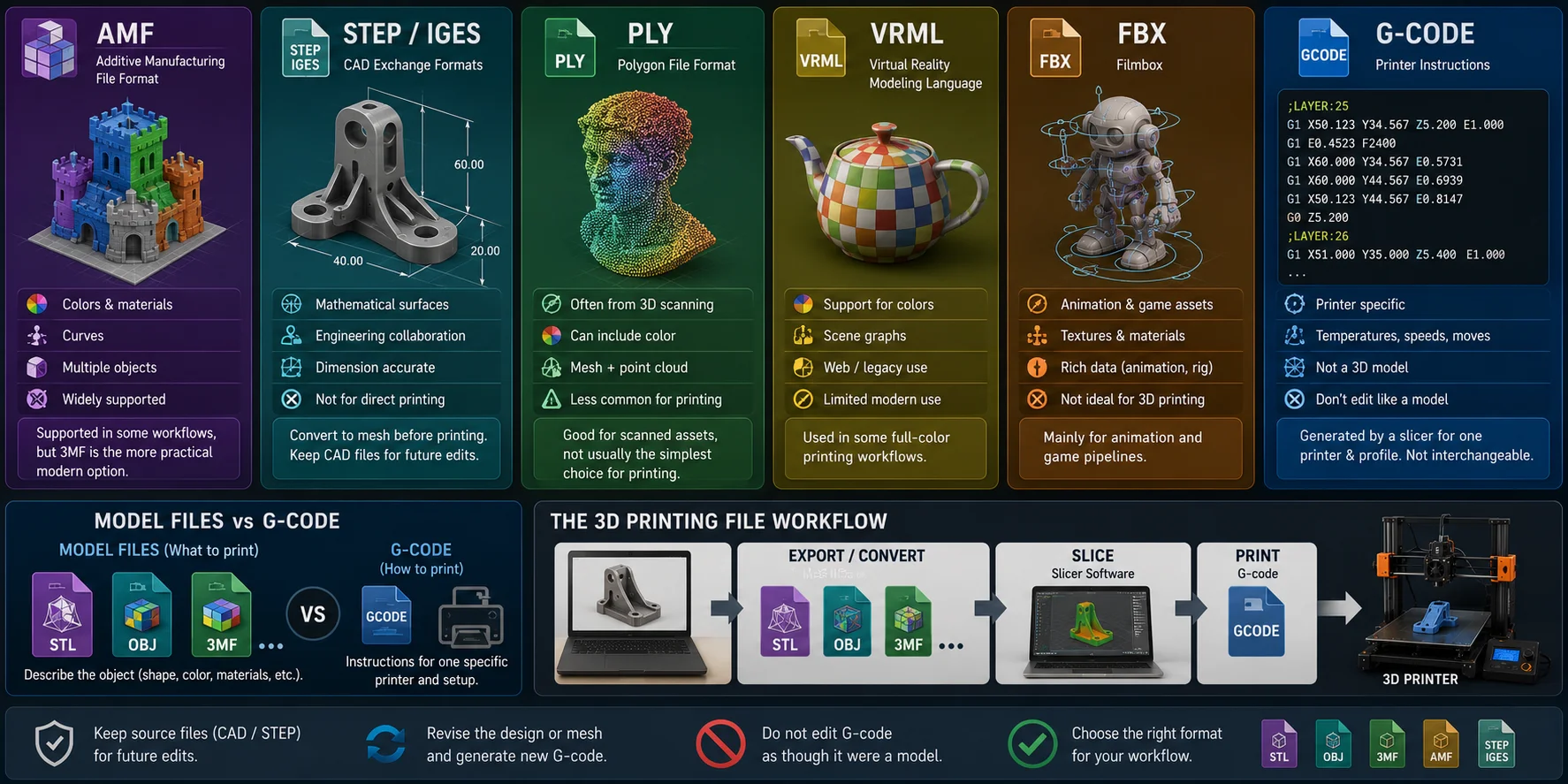
AMF
AMF, or Additive Manufacturing File Format, was designed as a more capable alternative to STL. It can support colors, materials, curves, and multiple objects.
However, AMF never became as widely adopted as 3MF. It is still supported in some workflows, but 3MF is generally the more practical modern option.
STEP and IGES
STEP and IGES are CAD exchange formats. They store mathematically defined surfaces rather than triangle meshes.
They are useful for engineering collaboration, product design, and dimension-sensitive parts. Before printing, they are usually converted into a mesh through CAD software or a compatible slicer.
Keep STEP or native CAD files whenever a design may need future edits.
PLY, VRML, and FBX
PLY is often used in 3D scanning and can include color data. VRML has appeared in some full-color printing workflows. FBX is mainly used in animation and game pipelines.
These formats are less common for everyday 3D printing. They may be useful for scanned or textured assets, but they are rarely the simplest choice for a normal functional print.
G-code: The Final Printer Instruction
G-code is not a 3D model format.
STL, OBJ, and 3MF describe the object you want to print. G-code describes how one particular printer should print it.
A slicer creates G-code according to printer dimensions, nozzle size, material, temperatures, speeds, supports, infill, and layer height. G-code made for one printer may not be safe or suitable for another printer.
Do not edit G-code as though it were a model. Return to the original CAD, STL, OBJ, or 3MF file, revise it, and slice again. Never print G-code made for another printer, nozzle, material, or profile without re-slicing it for your own machine.
STL vs. OBJ vs. 3MF — Side-by-Side Comparison
| Dimension | STL | OBJ | 3MF |
|---|---|---|---|
| What it stores | Triangle geometry only. | Triangle geometry plus optional material and texture references. | Geometry plus optional colors, materials, textures, multiple objects, and print metadata. |
| Color support | No native color support. | Yes, usually through .MTL and texture files. | Yes, with color and material information stored in the package where supported. |
| File size | Usually compact as binary STL, but large for dense meshes. | Often larger because mesh, material, and texture files may be separate. | Often efficient because it is a compressed container format. |
| Print settings | Does not preserve slicer settings. | Does not normally preserve slicer settings. | Can preserve project data in compatible slicers; slicer-specific settings may not transfer fully across software. |
| Multiple objects | Limited and often awkward for multi-part workflows. | Can contain multiple objects, but workflow support varies. | Designed to support multiple objects and richer project structure. |
| Compatibility | Excellent; works almost everywhere. | Good, especially in content-creation pipelines. | Strong in modern slicers, but may be less universal in older workflows. |
| Best use | Single-color functional parts, simple sharing, beginner workflows. | Textured models, scanned assets, animation or game exports. | Multi-color, multi-material, multi-part, or settings-preserving print projects. |
A simple rule is:
- Choose STL for straightforward single-color printing.
- Choose 3MF when a compatible workflow needs material assignments, multiple parts, or preserved project data.
- Choose OBJ when the model comes from animation, scanning, or texture-heavy workflows.
How to Choose the Best 3D Printing File Format
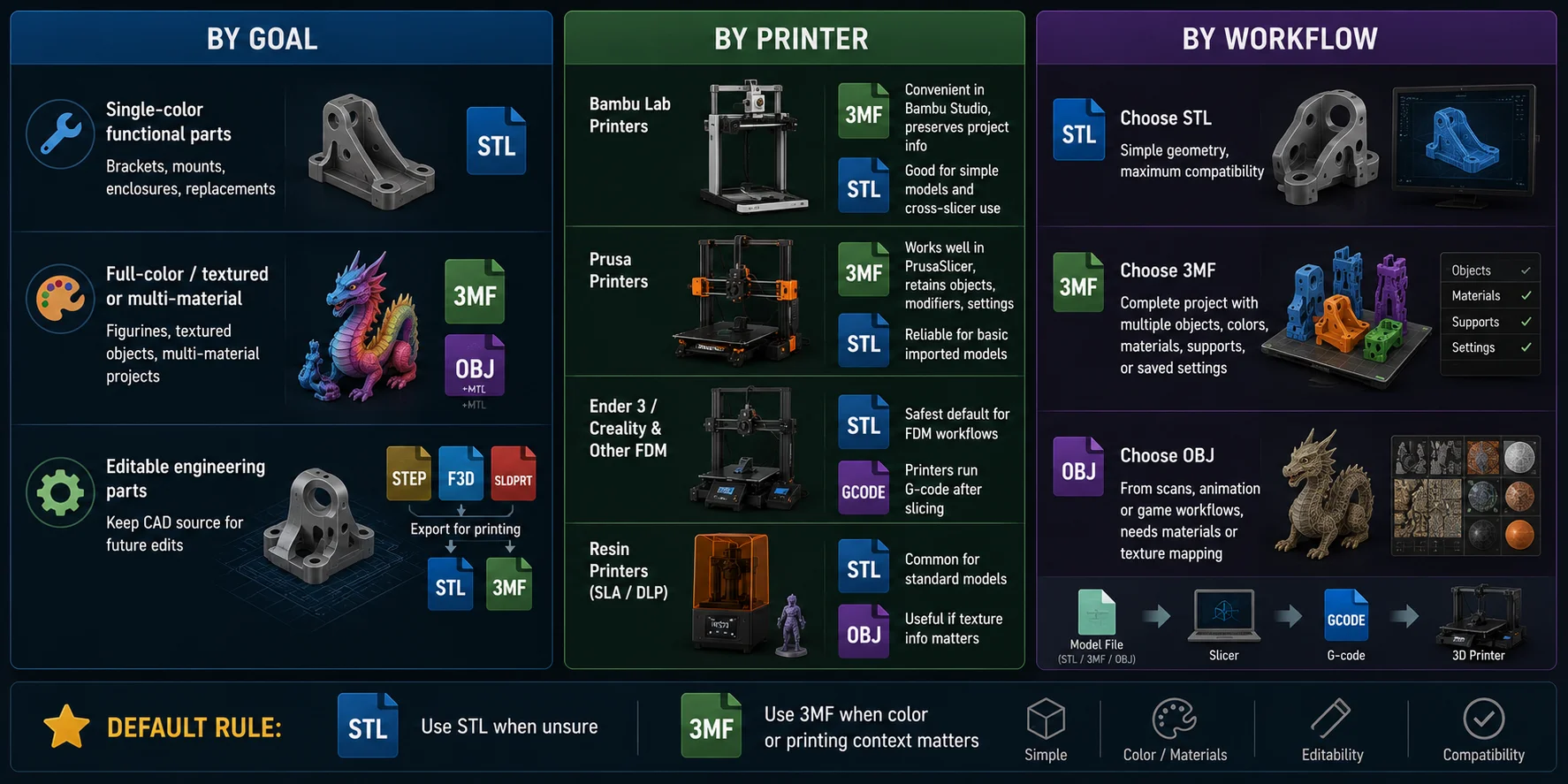
By Goal
For single-color functional parts, such as brackets, mounts, enclosures, and replacement components, STL is usually sufficient.
For projects that need to preserve color or material assignments, multiple objects, or slicer-project information, use 3MF in a compatible workflow. OBJ may also work when the original model already uses UV textures and MTL materials. The file can carry this data, but the final print still depends on the slicer, printer, and available material or color system.
For editable engineering parts, keep the original STEP, .F3D, .SLDPRT, or similar CAD file. Export STL or 3MF only when preparing a printable version.
By Printer
For Bambu Lab printers, 3MF is often convenient inside Bambu Studio because it can preserve project information. STL remains useful for simple downloaded models and cross-slicer workflows.
For Prusa printers, 3MF works well in PrusaSlicer because it can retain objects, modifiers, and project settings. STL is still reliable for basic imported models.
For Ender 3, Creality, and similar FDM printers, STL is a common default for model sharing. The printer itself normally receives G-code after slicing, not STL directly.
For resin printers, STL is sufficient for most standard models because the workflow focuses on geometry, orientation, supports, exposure settings, and surface quality. Use a richer format only when your software and color-capable workflow can use its extra data.
By Workflow
Choose STL when you want simple geometry and maximum compatibility.
Choose 3MF when a compatible slicer workflow needs multiple objects, material assignments, supports, or saved project data. If someone only needs the geometry, share STL as well or confirm that their slicer can read the project data you intend to preserve.
Choose OBJ when your model comes from a scan, animation tool, or game workflow and needs materials or texture mapping.
Default rule: use STL when you only need widely shareable geometry; use 3MF when a compatible workflow needs project context, multiple objects, or material assignments.
Where Your Model Comes From and How to Export the Right Format
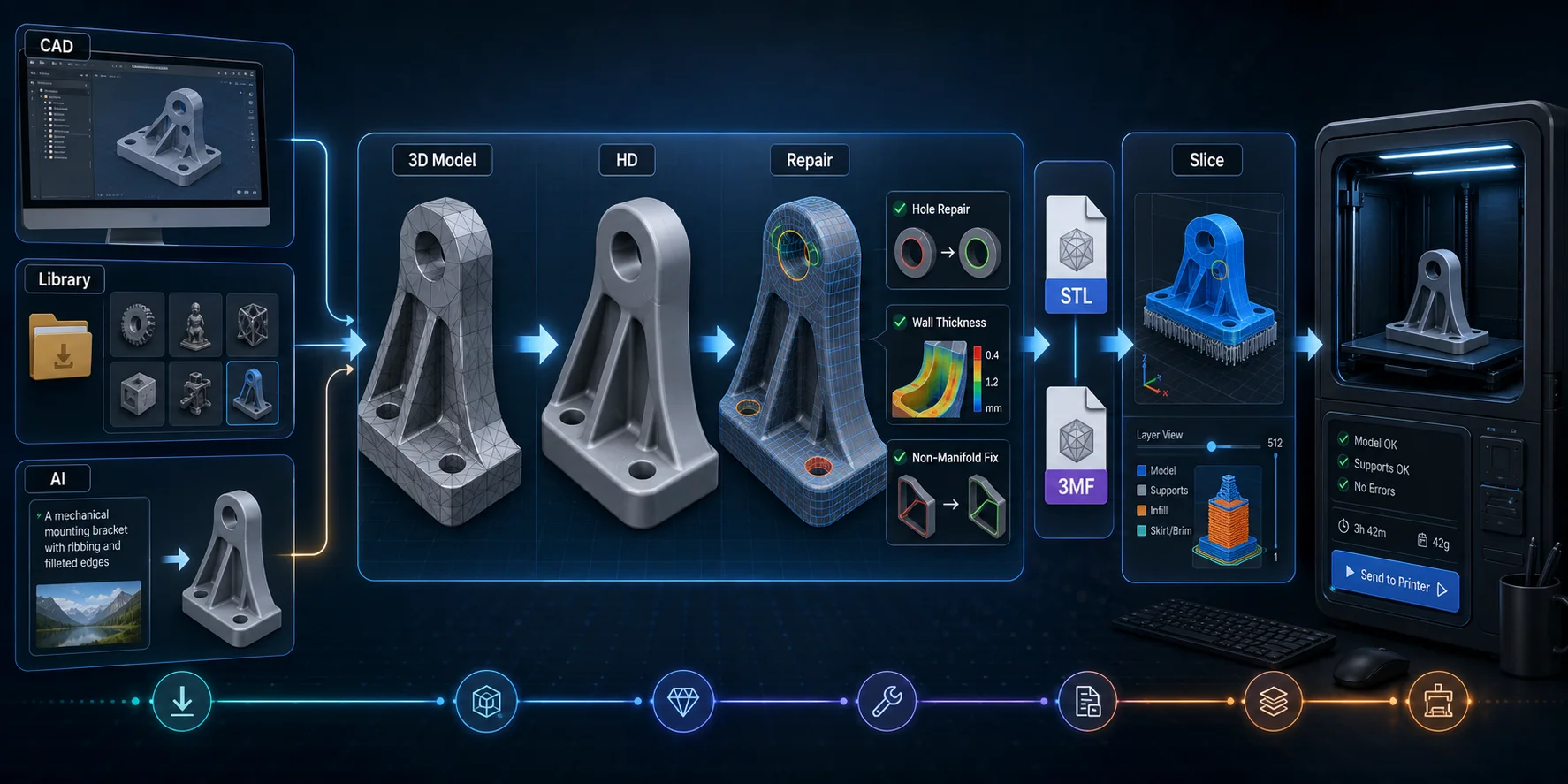
A printable model usually comes from one of three sources:
- You create it in CAD or 3D software.
- You download it from a model library.
- You generate it from text or an image with AI.
For CAD-made parts, retain the editable source file and export STL or 3MF only for printing. For downloaded files, check the format and inspect the model in your slicer before starting a long print.
AI generation helps people who have an idea, reference image, or sketch but do not want to begin with manual modeling.
A print-focused workflow can be:
Text or image → 3D model → inspect scale, walls, and mesh errors → export STL or 3MF → import into a slicer → preview layers → export printer-specific G-code
With Tripo High-Detail Model, higher-detail settings can preserve complex surface features. For print-focused work, Ultra detail with up to 2 million polygons can be useful when fine surface detail matters. It does not replace printability checks: inspect scale, wall thickness, holes, and non-manifold geometry, and simplify the mesh if it is denser than the final print needs.
Tripo supports:
- STL: Geometry-only format for standard 3D printing.
- 3MF: A modern format supporting colors and textures.
Export access can depend on your model version and subscription conditions. For a compatible monochrome workflow, you can send models directly to Bambu Studio in 3MF format, then check orientation, support placement, walls, infill, and layer preview before printing. For color workflows, export the multi-color printable file and import it into Bambu Studio manually so you can verify material assignments before slicing.
Common File Problems and How to Fix Them
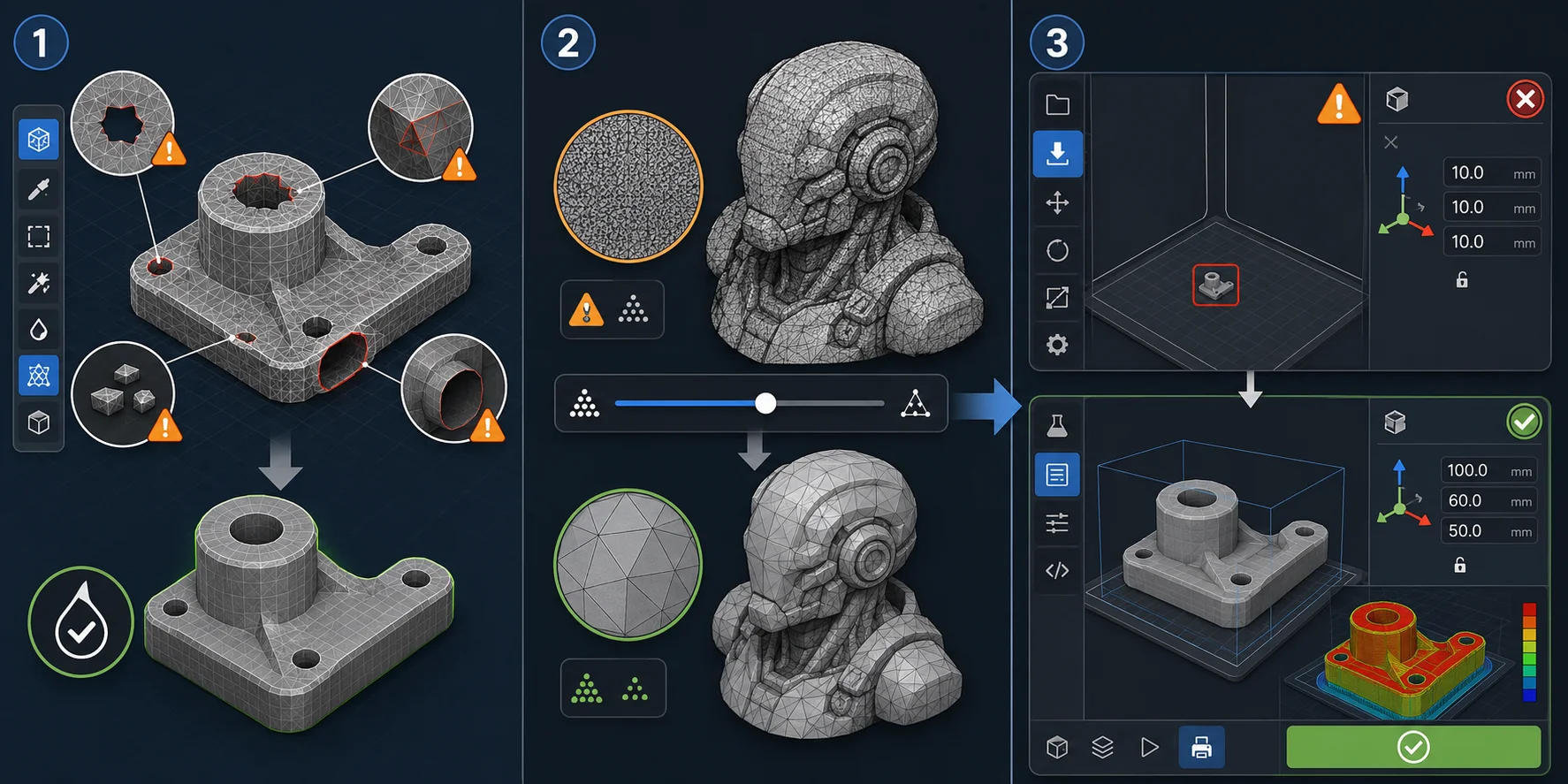
Non-Manifold Edges and Holes
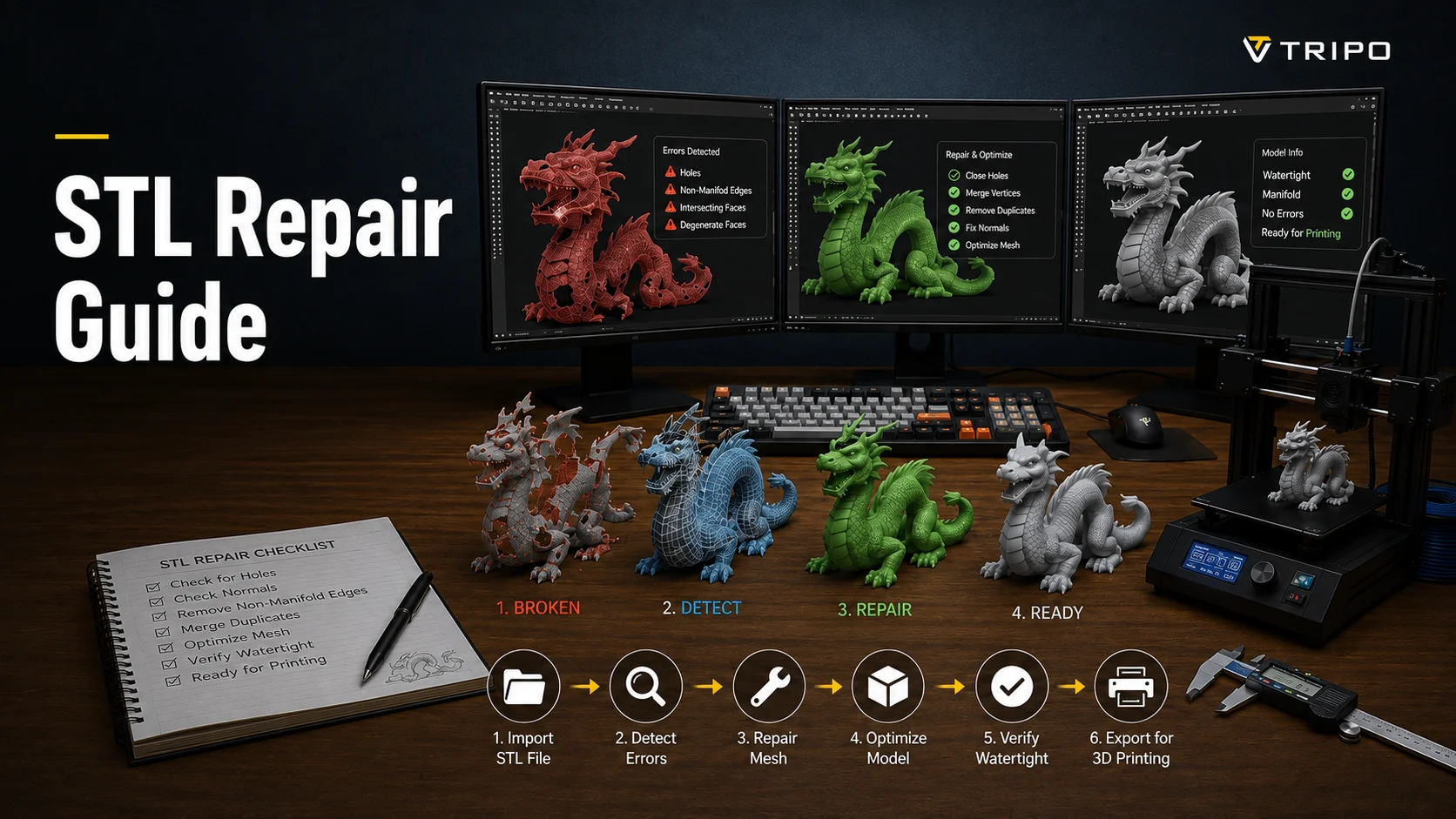
Each intended solid in a printable mesh should normally be watertight: a closed volume without holes, self-intersections, unintended internal faces, or non-manifold edges.
Use Blender, Meshmixer, Autodesk Netfabb, or slicer repair tools to close holes, remove loose fragments, recalculate normals, and inspect open boundaries. Always review the slicer preview after repair.
Files That Are Too Large
Dense meshes can slow down or crash slicers. Reduce complexity with mesh decimation or simplification when the object contains unnecessary tiny triangles.
Binary STL is smaller than ASCII STL, but it will not solve an excessively dense mesh on its own. Simplify carefully so you do not remove curves, embossed text, small holes, or critical details.
Files That Will Not Open or Slice Correctly
First, confirm that the slicer supports the file type. Convert a copy of the original file through Blender, Meshmixer, CAD software, or a trusted converter if necessary.
Also check units. STL does not reliably store units, so a model can import far too large or small. Confirm millimeters, centimeters, or inches before printing.
Frequently Asked Questions
What file formats can be 3D printed?
Most desktop workflows start with STL, OBJ, or 3MF. A slicer imports the model, checks the print setup, and creates G-code for the printer; the printer usually does not receive the model file directly. CAD formats such as STEP can also be used, but they are commonly converted into mesh geometry before slicing.
Is OBJ or STL better for 3D printing?
STL is usually the simpler choice for a standard single-color print because it is widely supported and contains only geometry. OBJ is useful when the model needs material or texture references through an MTL file and UV mapping. Those references do not automatically become physical color on an FDM printer, so OBJ often carries data that a basic printing workflow will not use.
Should I use 3MF or STL?
Use STL when you only need a simple, widely compatible geometry file. Use 3MF when a compatible slicer workflow needs multiple objects, material assignments, supports, or project data. When sharing a 3MF project with someone using different software, confirm that its slicer-specific settings will transfer as intended; otherwise, also provide an STL.
Can I convert a JPEG to STL?
A JPEG is a flat image, not a 3D model, so it cannot be converted into a useful STL by changing the file extension. A high-contrast logo can become a raised relief or lithophane, while a regular photo needs image-to-3D software or manual modeling to create a starting mesh. In either case, check thickness, scale, and printability before slicing.
What is the best file format for 3D printing?
There is no universal best format. STL is a dependable default when you only need widely compatible geometry, while 3MF is often better for compatible workflows that need multiple objects, material assignments, or project data. Keep the original CAD or source file so you can make future engineering changes without rebuilding the model from a mesh.
Is G-code a 3D printing file format?
G-code is a machine file, not a 3D model format. It contains instructions created by a slicer for a specific printer, nozzle, material, and print setup, so a file made for another machine may be unsafe or unsuitable. Keep the original model file because you need it to revise the design and generate new G-code for your own profile.
Conclusion
STL covers most simple prints, OBJ remains useful for textured and animation-based assets, and 3MF is often the more capable choice when a compatible workflow needs material assignments, multiple objects, or slicer-project data.
Match the format to your model, slicer, and printer rather than treating one extension as universally best. Need a model first? Generate one from a text description or image, then export it to STL or 3MF in Tripo AI Studio.