Introducing Tripo Segmentation v2: Segment a 3D Model With Precision Control
Most 3D models don't come ready to print or rig. Getting them there means time in a mesh editor: marking seams, cleaning up cuts, fixing fragments that show up where they shouldn't.
Tripo Segmentation v2 skips all of that. It segments any 3D model into clean, named parts in under a minute, with three precision tiers and semantic boundary detection built in. After segmentation, every part stays fully editable. No manual cleanup is required.
What's New in Segmentation v2
If you used v1, three things will feel different:
- Precision is a choice. Pick the tier before generating.
- Cuts follow meaning. Boundaries land along semantic lines.
- Complex models stay stable. No more mystery fragments in the parts panel.
Your first try is free. Subscribe to unlock more.
Upgrade now with up to 90% off
How Segmentation v2 Works
Most segmentation tools cut wherever the mesh allows. Segmentation v2 cuts where it makes sense.
The algorithm recognizes what it's looking at: a torso versus arms, a head versus a neck, a weapon versus the hand holding it. It places boundaries where a human would logically separate them. Whether you're preparing a character for 3D printing, rigging a game asset, or breaking down a prop for assembly, the result fits how you work.
Who Segmentation v2 Is Built For
3D printing creators preparing character models, figurines, and props for print. Get independently printable components without opening a mesh editor.
Game developers and 3D animators breaking down characters for rigging. The Detailed tier produces part counts suited to rigging pipelines, with boundaries that follow the model's structure.
3D design studios scaling segmentation across the team. With shared team credits, everyone works from the same library and the same workflow.
How to Use Segmentation v2
Choose Your Precision Tier
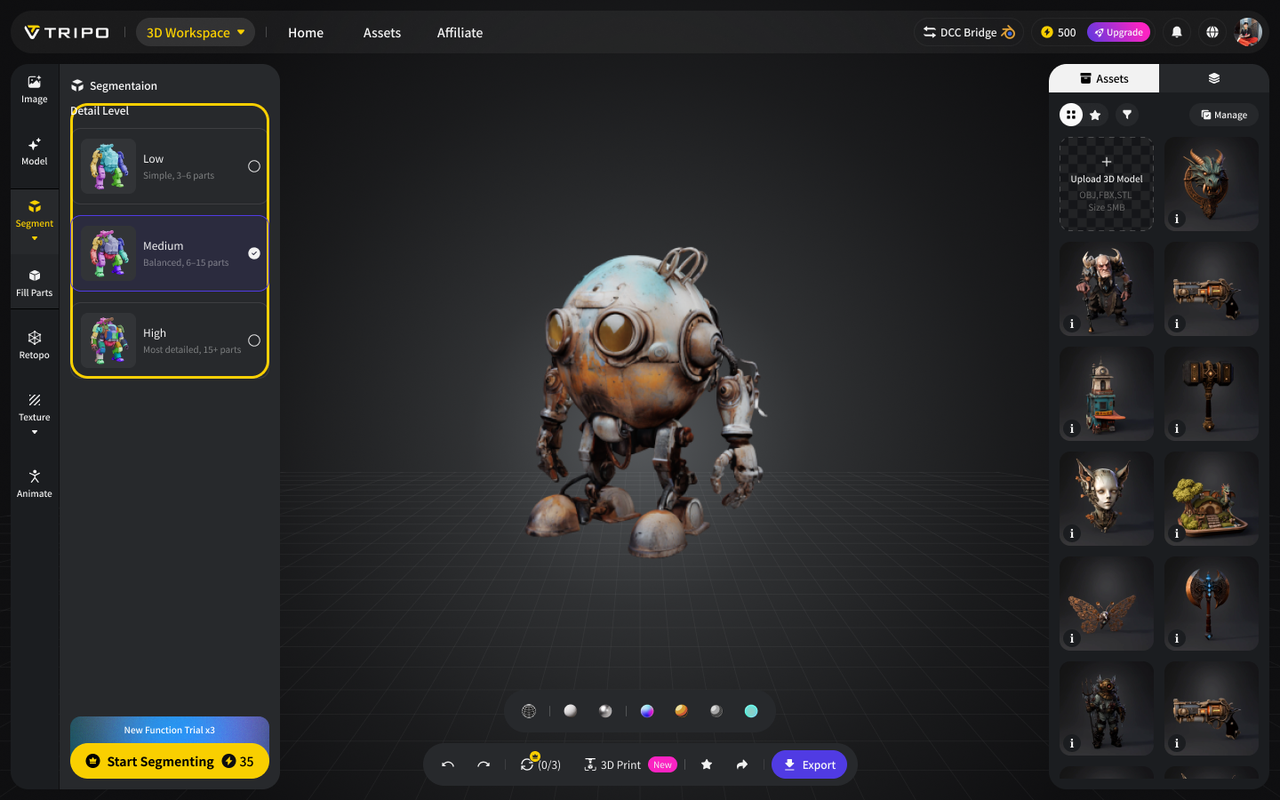
Pick how many pieces you want to work with. Segmentation v2 has three precision tiers.
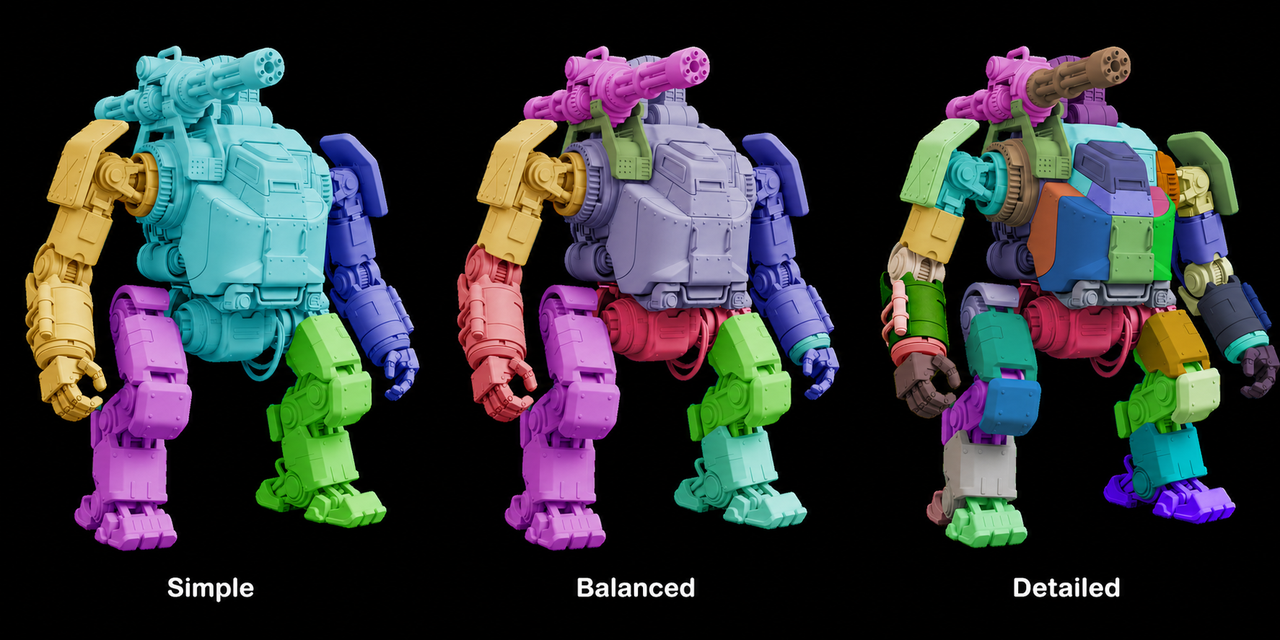
Simple (3–6 parts) is quick and clean. Good for a first look or a print that doesn't need much separation.
Balanced (6–15 parts) is the default for most workflows. It gives you enough detail to work with, without overwhelming you with pieces to track.
Detailed (15+ parts) gives every limb, accessory, and joint its own piece. Use this when you need full control: complex characters, multi-part assemblies, anything where the details matter.
Segment Your Model
If you already know you will need separate parts, turn on Generate in Parts in the Model tab before you generate. The model comes out pre-segmented, no extra step needed.
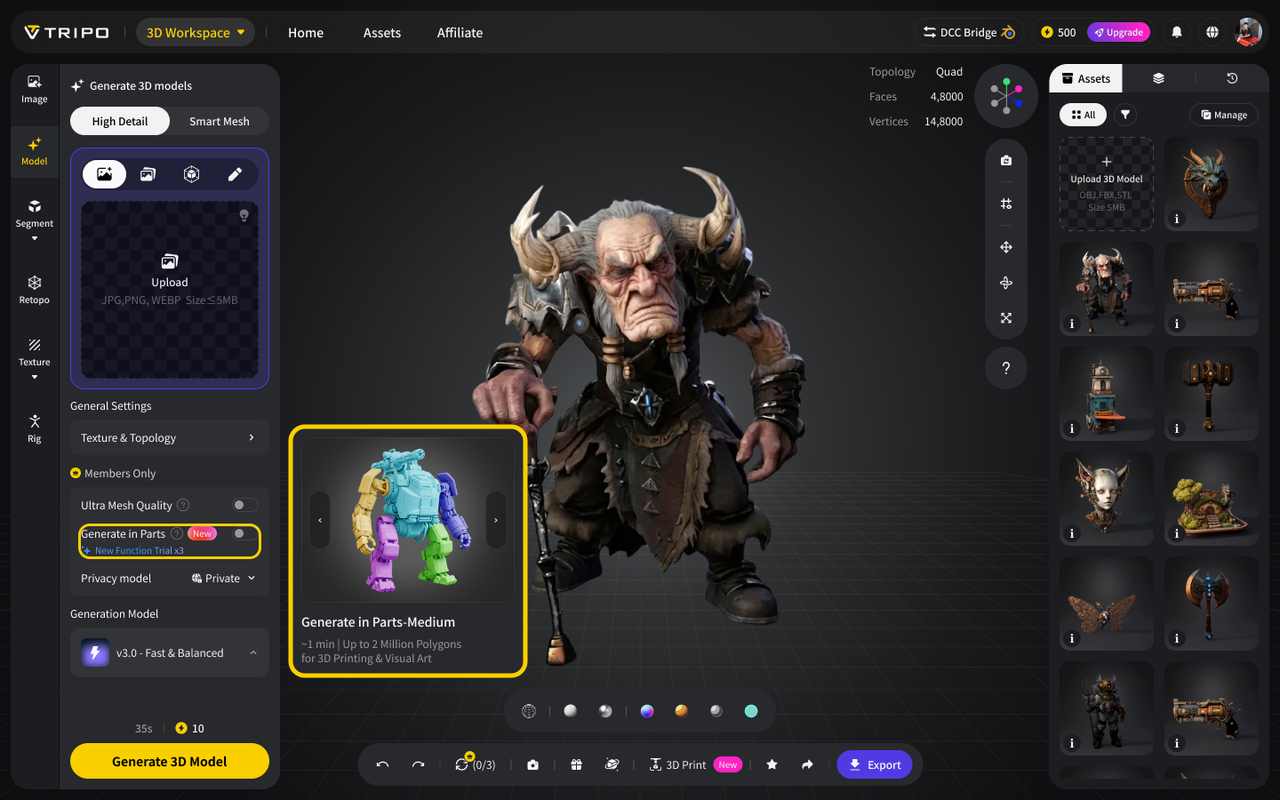
If you are working with a model that already exists — whether you generated it in Tripo or imported it from another tool — open the Segment tab and run it from there. Same result, different starting point.
Review and Adjust the Result
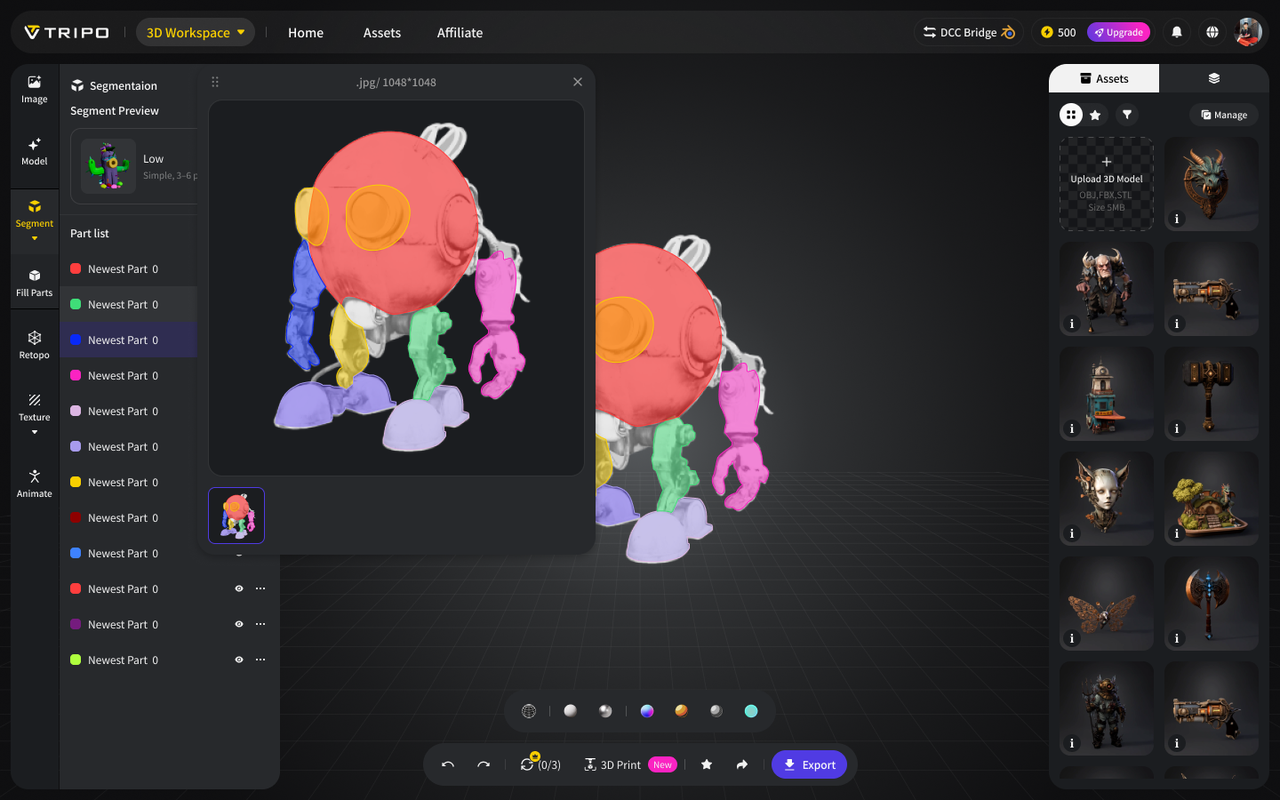
After segmenting, each piece appears in the panel with its own color so you can see exactly how the model was split. If a boundary landed in the wrong place, open the 3D editor and move it. Hover to check details. Rename any part by double-clicking.
The segmentation result is a starting point you control, not a final answer.
Seal Open Meshes Before Export
When you segment a model, the cut surfaces come back open. Open edges cause print failures, so close them before exporting. The Fill Parts feature handles this with two completion modes.
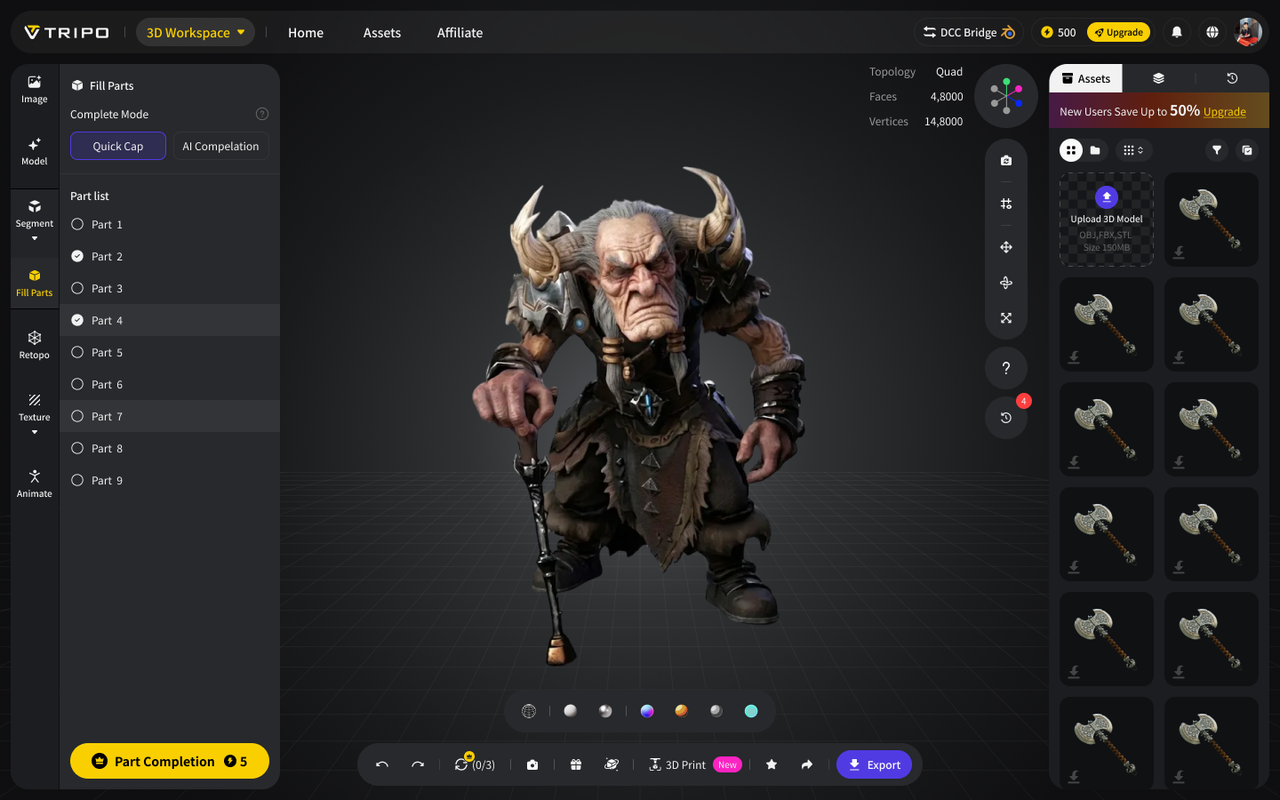
Quick Cap seals openings instantly by closing the mesh boundary. It's free for everyone and consumes no credits.
AI Completion rebuilds the open surface into a clean, watertight mesh, which handles complex geometry and irregular gaps better than Quick Cap. It's included with any paid plan and consumes no credits.
Frequently Asked Questions
- What is the difference between the three precision tiers?
Simple gives you 3–6 parts, Balanced gives you 6–15, and Detailed gives you 15 or more. The right tier depends on how much control you need over the final assembly.
- Does a use count when I run segmentation or when I export?
Running the segmentation counts as a use. Exporting follows your plan's standard export limits.
- What improved in Segmentation v2 compared to v1?
Three precision tiers (v1 had no precision control), more accurate semantic boundary detection, and more consistent results on complex models with accessories and overlapping geometry.
- Can I adjust the segmentation result after segmenting?
Yes. Each part appears in the panel with its own color label. Open the 3D editor to adjust boundaries, and rename parts by double-clicking.
- Can I segment a model I imported from another tool?
Yes, as long as it is in your Tripo library.
Get Started
Segmentation v2 handles the part that used to slow everything down. Pick your tier, run it, and you have clean separated parts in under a minute.
Your first try is free. Subscribe to unlock more.