How to Create Game Assets with AI: A Practical Workflow
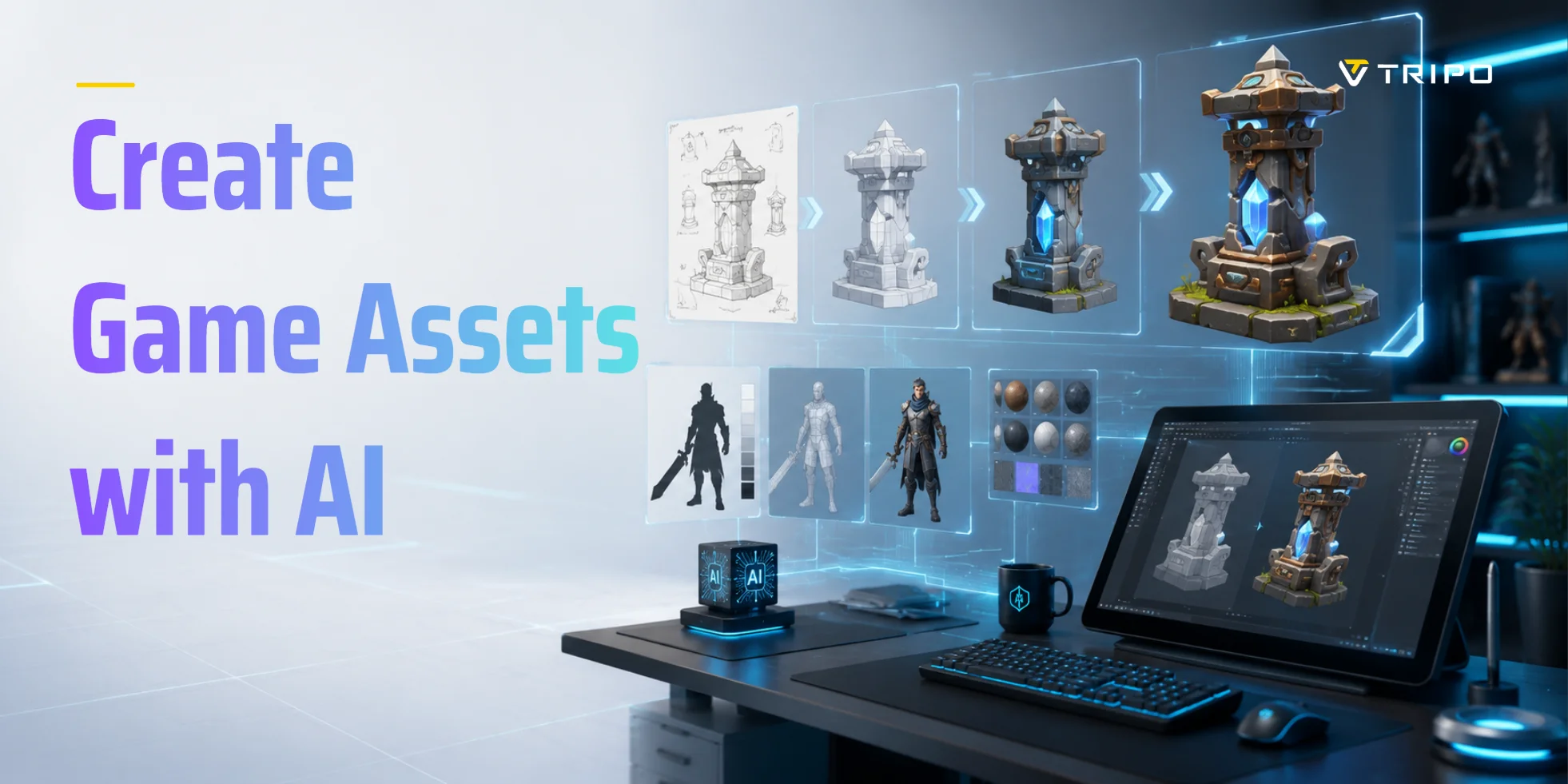
This guide shows you how to create game assets with AI from start to finish—covering 2D sprites, 3D props, a step-by-step hybrid workflow, engine import for Unity, Unreal, and Godot, and what to know about licensing before you ship.
TL;DR
- Yes, you can create game assets with AI—best results come from a hybrid workflow, not full automation.
- Two main routes: 2D (sprites, icons, UI, textures) and 3D (props, environments, characters).
- The reliable pipeline: generate → refine/clean up → optimize topology → export game-ready file → import to engine.
- Keep polycounts low (use clean game-ready topology); export GLB or FBX for 3D, PNG sprite sheets for 2D.
- Check licensing before you ship: who owns AI-generated assets and whether commercial use is allowed.
To create game assets with AI: pick your route (2D sprites or 3D props), generate a draft from a text prompt or reference image with an AI asset tool, refine and clean it up, optimize it into a game-ready file, then export it into Unity, Unreal, or Godot. AI works best as part of a hybrid pipeline—it speeds up production rather than replacing your art direction.
Can You Actually Make Game Assets with AI?
Yes, independent developers and small studios can absolutely use AI to create playable, game-ready assets for indie game projects, prototypes, and full commercial releases.
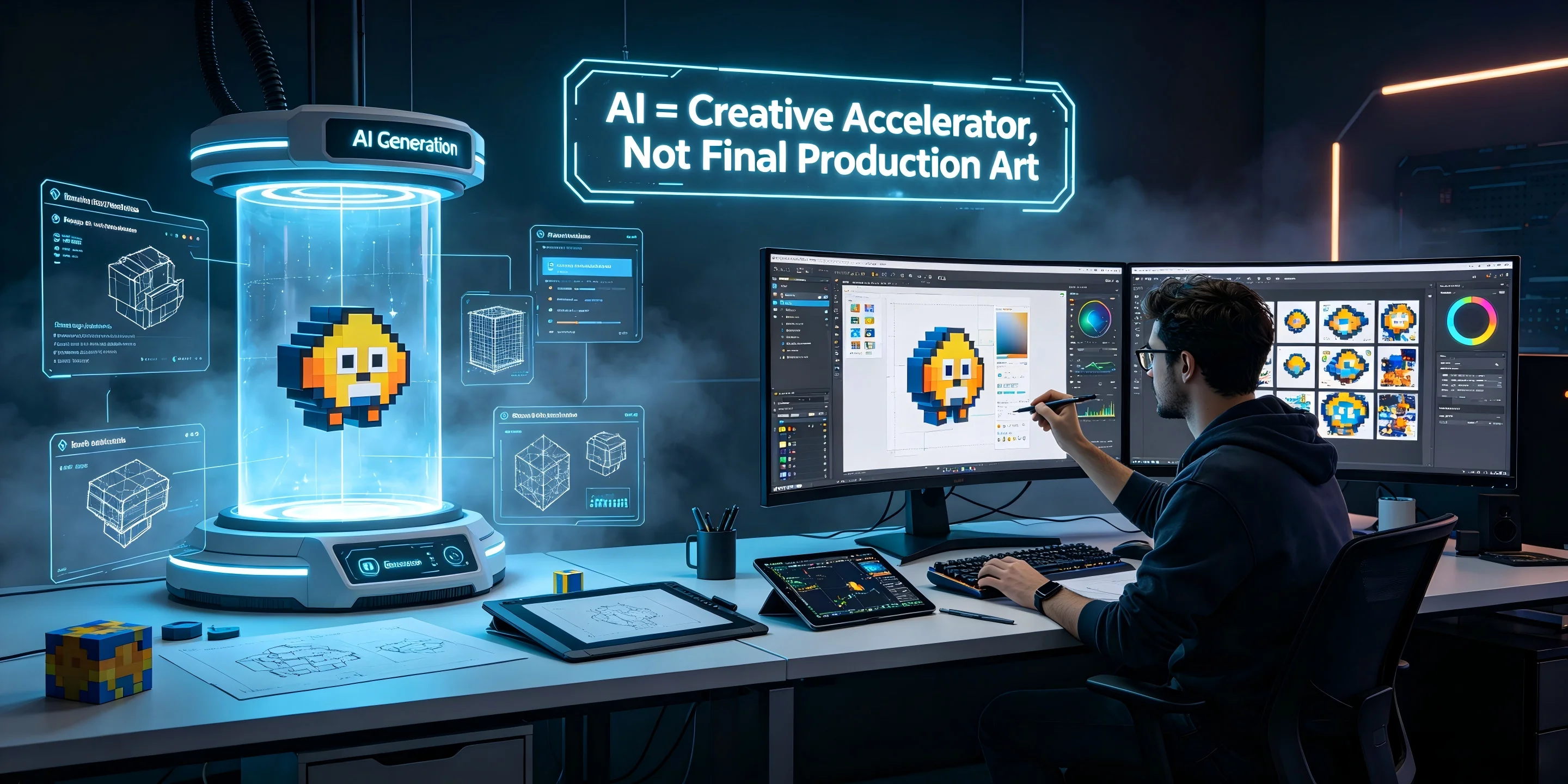
It is critical to establish one clear rule upfront: AI is a powerful speed booster and creative assistant, not a fully automatic one-click solution for production-grade game art. Raw AI outputs contain common flaws including mesh errors, texture artifacts, inconsistent scaling, and improper rendering data, making them unfit for direct in-game use. AI excels at rapid concept drafting, placeholder creation, and generating diverse asset variants. However, assets needing precise technical specs, strict IP style consistency, or high-fidelity polish require manual refinement. This AI-assisted hybrid workflow is ideal for non-artist solo developers looking to speed up production without sacrificing game quality.
The Two Routes — 2D Assets vs 3D Assets
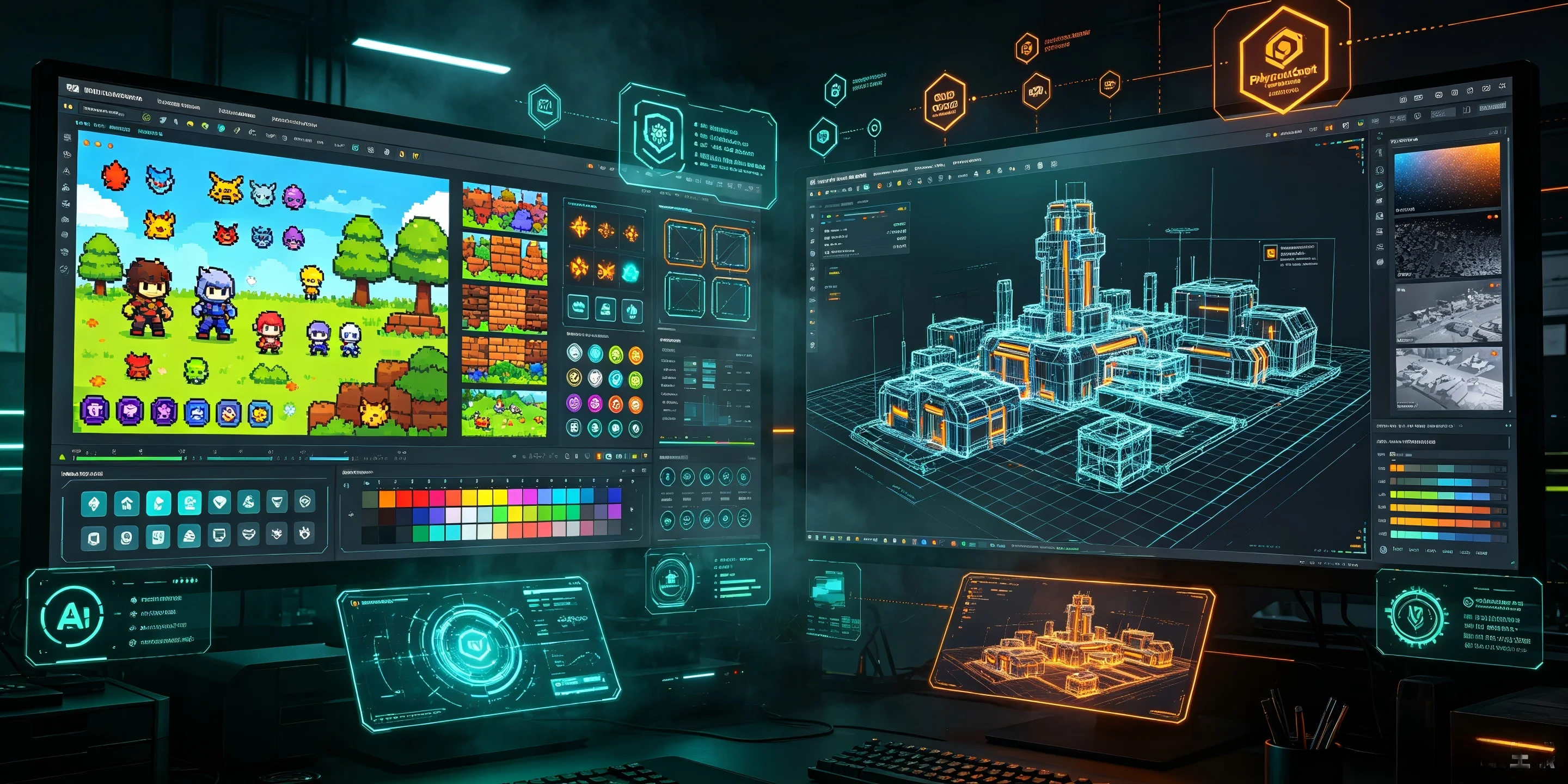
Route A — 2D assets (sprites, icons, UI, tilesets, textures)
AI 2D asset creation is beginner-friendly and compatible with all mainstream game engines, covering sprites, sprite sheets, UI icons, tilesets and textures. It supports pixel, cartoon, retro and realistic styles with low technical barriers. Developers only need to define style and resolution, then perform simple post-processing including background removal, color unification and sprite sheet assembly. This pipeline perfectly fits 2D platformers, pixel games, casual mobile titles, and fast iterative prototypes.
Route B — 3D assets (props, environments, characters)
AI 3D pipelines generate props, environment assets and character models for real-time 3D games. Tools like Tripo AI produce fast text/image-based 3D concept drafts. Unlike 2D assets, raw 3D AI outputs require mandatory technical refinement, including mesh repair, retopology, UV correction and PBR texture calibration to meet engine standards. This route is the mainstream modern solution for 3D indie games, simulation projects, and 3D scene prototyping.
Combine AI with Your Traditional Pipeline (Hybrid Workflow)
The hybrid AI-traditional pipeline is the most reliable approach for consistent, scalable game asset production. AI handles repetitive foundational work such as concept drafting and base mesh generation to save massive time. Developers retain control over creative direction, technical standardization and final polish. Use parametric generation for standardized modular assets and generative AI for creative conceptual designs, balancing speed and production quality for small indie teams.
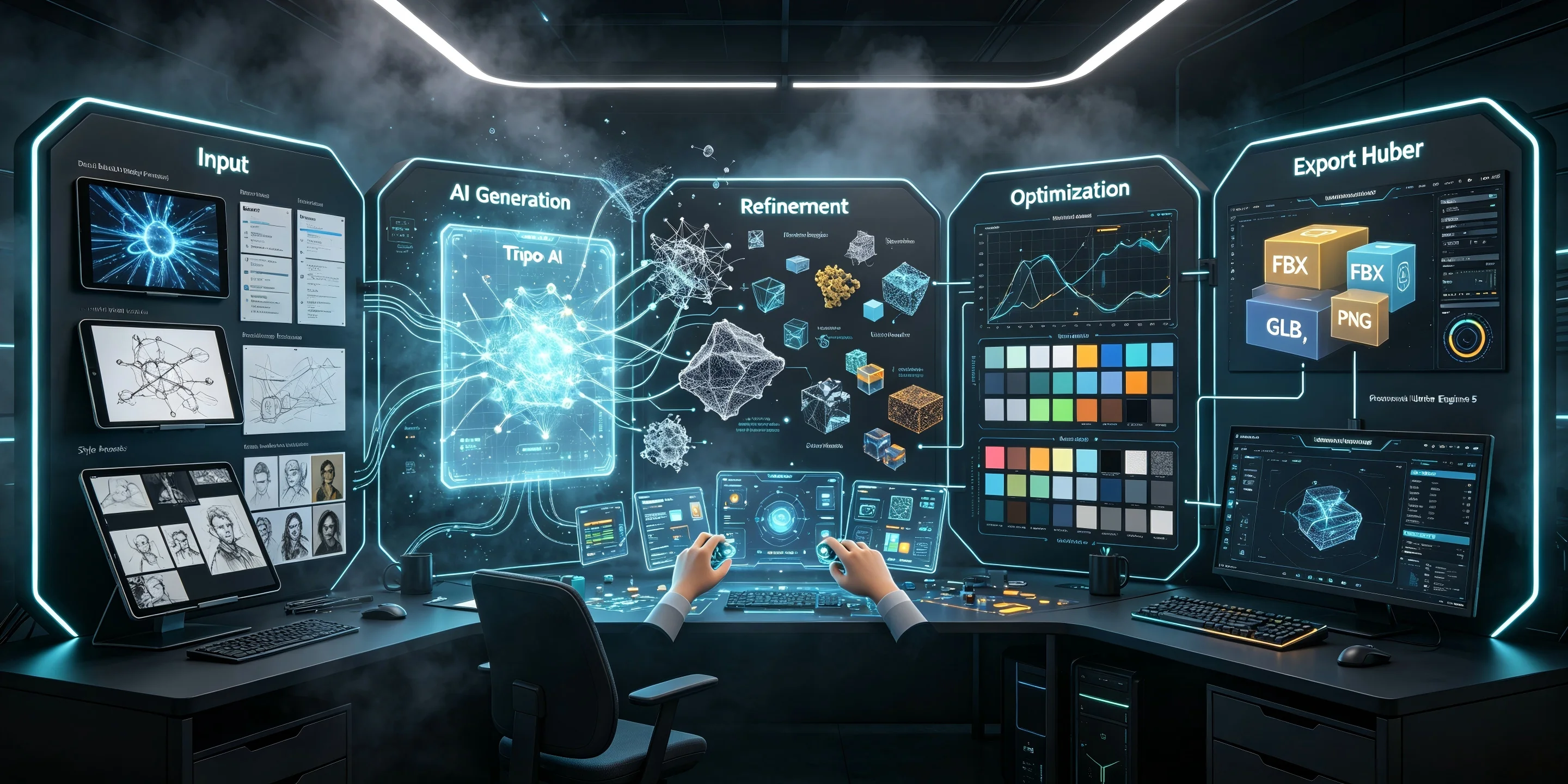
Step 1 — Write a clear prompt or pick a reference image
Produce accurate AI drafts with specific prompts or reference images. Clearly define asset type, style, material, perspective and resolution, avoiding vague descriptions. Reference images further improve style consistency. Precise input reduces repeated revisions and unifies your project's art direction.
Step 2 — Generate the draft asset
Use AI tools like Tripo AI to generate initial draft assets via text-to-asset or image-to-asset modes. Produce 3–5 variants per asset for flexible style selection. For 3D models, prompt for closed, watertight meshes to reduce geometry errors. For 2D assets, lock resolution and style parameters to ensure consistent coloring and linework. This fast iteration stage accelerates prototyping within the Smart Mesh workflow.
Step 3 — Refine & clean up
Clean up raw AI assets to fix inherent defects. For 3D models, delete floating geometry and internal faces, repair mesh holes, and correct normals, scale and orientation. For 2D assets, remove backgrounds, fix edge blurriness, unify colors and compile sprites into standard engine-ready sprite sheets for stable production use.
Step 4 — Optimize for the engine
Optimize assets for real-time engine performance. For 3D models, conduct retopology for clean low-poly meshes, build multi-level LODs, fix overlapping UVs, and bake complete PBR texture sets. For 2D assets, compress resolution and standardize pixel formatting. This critical step guarantees engine compatibility and stable in-game frame performance.
Step 5 — Export game-ready files
Export the resources in the format that matches the engine. Unity and Unreal use FBX, while Godot uses lightweight GLB. Export 2D content as transparent PNG images and compiled sprite sheets. Before exporting, check the pivot position, mesh triangulation, and texture paths for validity to avoid errors upon import.
Getting AI Assets into Unity, Unreal & Godot
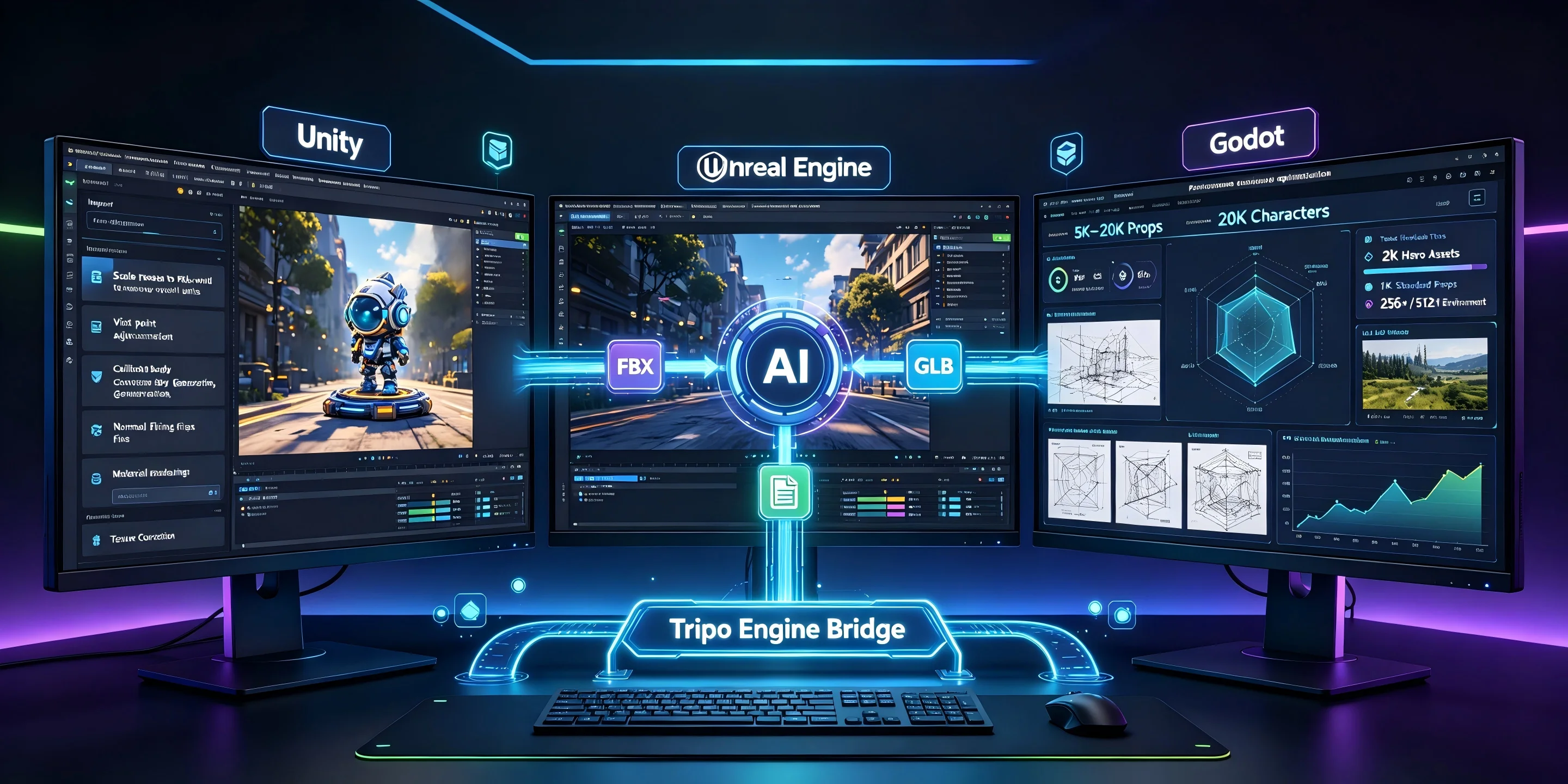
Major game engines have distinct AI asset compatibility standards. Unity and Unreal support FBX/GLB, while Godot works best with GLB files. After import, calibrate scale, pivots and collision bodies, and fix normal/texture errors. Use official Tripo engine bridges for one-click asset import to streamline your workflow.
Game Engine Optimization Tips
Strict performance optimization prevents in-game frame drops. Limit polygon counts to 5K–20K for props and 20K for playable characters. Adopt tiered texture resolutions: 2K for hero assets, 1K for standard props, and 256–512px for environmental decorations. Use texture atlasing to reduce draw calls and implement LOD switching to maintain consistent real-time rendering performance across all scenes.
Who Owns AI-Generated Game Assets?
AI asset copyright and commercial rights are vital for indie developers. Licensing terms vary by tool; always check official rules. As long as your input materials are copyright-free, models generated through Tripo are cleared for commercial use—the only restriction is that you cannot use them to build products or services that directly compete with VAST. Always verify the licensing terms of whatever AI tools you use, and check your distribution platform's AI disclosure requirements (e.g., Steam) before release.
When AI Game Assets Don't Work (Limits)
AI assets have clear production limitations. They are unsuitable for high-precision modular assets requiring strict dimensional consistency. Fixed IP projects with unified art styles face visual inconsistency risks with unrefined AI content. Complex rigging, weight painting and high-precision character animation also require professional manual tuning, which AI cannot fully automate.
Frequently Asked Questions
Is it OK to use AI to generate game assets?
AI-generated assets are fully acceptable for indie game prototyping and commercial releases. You must clean up, optimize, and standardize raw AI outputs before in-game use, while strictly abiding by your AI tool's commercial license and platform disclosure rules.
Can you make 3D game models with AI from a text prompt?
Professional AI tools like Tripo AI can generate complete structural 3D model drafts from text prompts. These drafts require retopology, UV fixing, and PBR texture optimization to meet formal game-ready standards.
How do I create 2D sprites or a sprite sheet with AI?
Generate stylized single 2D sprites via AI tools and unify their color and edge specifications. Remove backgrounds and splice individual sprites into standardized sprite sheets compatible with mainstream game engine animation systems.
Are AI-generated game assets free to use commercially?
Commercial usability depends entirely on your AI tool's official licensing terms. Avoid commercial use of assets created with copyrighted inputs, and confirm paid authorization requirements for formal game releases.
What file format should I export AI game assets in for Unity or Unreal?
Use FBX for full mesh, rig and material compatibility with Unity and Unreal Engine. Choose lightweight GLB for fast import, and export 2D assets as transparent PNG and standardized sprite sheets.
Can AI replace a game artist?
No. AI can shorten exploration and variants, but it cannot replace style direction, production judgment, or final polish. A game artist turns drafts into a coherent asset family and catches issues before players see them.
Conclusion
AI turns hours of asset work into minutes—generate, refine, optimize, and drop your asset straight into the engine. Start building your game-ready library today. Leverage Tripo AI Studio to build a high-quality, efficient game asset library and accelerate your game development progress.