How E-Commerce Teams Can Build an AI 3D Asset Pipeline?
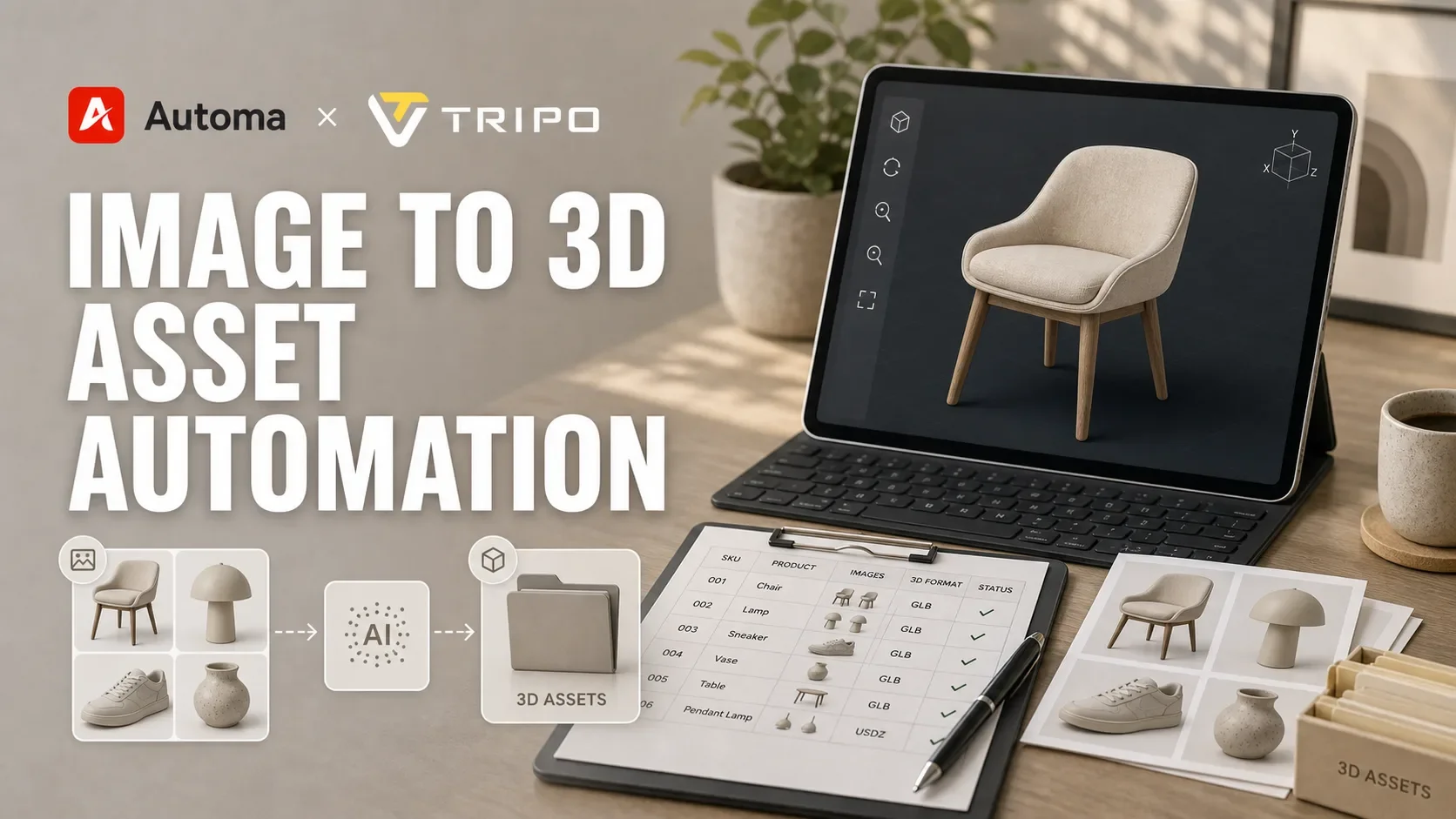
AI 3D generation has made product modeling much faster. E-commerce teams can now turn product images, sketches, or prompts into 3D models without building every asset from scratch. But speed creates a new challenge: how do teams manage these assets when the catalog grows from 10 products to 1,000?
An AI 3D asset pipeline gives teams a clear process for moving from product images to approved 3D models. It covers product data, source files, generation rules, review, naming, storage, and publishing. Without that pipeline, teams may create models quickly but still lose time in manual review, file handling, and version control.
Why E-Commerce Teams Need a 3D Asset Pipeline?
3D assets are becoming more useful across e-commerce. Product pages can show interactive 3D viewers. Mobile shoppers can preview products in AR. Brands can use 3D models for ads, configurators, virtual showrooms, and product education.
For a small product set, teams may manage this work manually. A designer creates a model, checks the file, renames it, and sends it to the product team. That can work for a handful of items.
Large catalogs are different. Every product model needs the right source image, SKU, product name, material, color, category, file format, review status, and final storage location. If the team uses spreadsheets, shared drives, and manual messages, small mistakes become common.
A file may use the wrong SKU. A model may be saved in the wrong folder. A product image may be missing. These issues slow down the whole e-commerce 3D workflow. A pipeline keeps the process organized. It helps teams know which products are ready, which models need review, and which assets can go live.
What Goes Into an AI 3D Asset Pipeline?
A strong pipeline includes more than model generation. It connects all the steps that happen before and after the model is created.
1. Product data
Teams need basic fields such as SKU, product name, category, dimensions, material, color, and publishing channel. These fields help the team connect each 3D model to the right product record.
2. Source input
For e-commerce, this often means product images. Some products may need front, side, and detail images. Others may only need one clear product photo. The better the input, the easier it is to build a reliable product image to 3D model process.
3. Generation rules
Teams should define target file formats, naming rules, version rules, and quality expectations before generating models at scale.
4. Review
Even when AI creates the first model, people still need to check visual accuracy, material match, proportions, and brand quality.
5. Storage and publishing
Approved files need to move into the right asset library, CMS, PIM, product page, or AR viewer.
How to Build an AI 3D Asset Pipeline?
Building an AI 3D asset pipeline does not need to start with a complex system. E-commerce teams can begin with one product category and a simple set of rules.
Step 1: Prepare Product Data and Images
Start with clean product data. Each item should have a SKU, product name, category, material, color, image URL, target format, and final destination.
For example, a furniture retailer may prepare fields such as:
- SKU
- Product name
- Category
- Product image
- Material
- Color
- Dimensions
- Target format
- Asset status
This gives the team a shared source of truth. It also prevents
Step 2: Standardize Generation Rules and Workflow Parameters
Before creating 3D models, define the rules that every asset should follow.
These rules may include:
- File naming format
- Target file type
- Version number format
- Storage folder
- Review owner
- Required product fields
- Status labels
For example, a team may name files with this structure: SKU_ProductName_Version_Format
A chair model might become: CH123_ModernDiningChair_V1_GLB
Clear rules reduce manual decisions. They also make it easier for designers, developers, and product teams to find the right file later.
Step 3: Generate 3D Product Models with AI
Once the data and rules are ready, teams can generate AI 3D product models from product images or prompts. Tools like Tripo can help e-commerce teams turn product images into 3D assets faster than traditional manual modeling. This can support product visualization, early concept testing, AR experiences, and interactive product pages.
Step 4: Review and Approve the 3D Asset
A model may look good at first glance, but it still needs review, naming, storage, and publishing steps before it becomes useful in production. AI can speed up creation, but people should check quality before a model appears on a product page.
Reviewers should check:
- Does the model match the product image?
- Are the proportions close to the real product?
- Do the material and color look correct?
- Is the file format correct?
- Is the file size suitable for web or mobile use?
- Does the model need another version?
Step 5: Save Models to the Asset Library
After approval, the final model should move to a clear storage location. This may be a digital asset management system, product information system, CMS, storefront, or internal shared library.
The asset record should include the SKU, version, approval status, file path, and publishing destination. This makes future updates easier.
For example, if a product image changes or a new model version is needed, the team can quickly find the latest approved file and avoid using an old version.
Where Workflow Automation Fits?
Workflow automation is most useful when an e-commerce team needs to generate 3D assets from many product images, not just one image at a time.
In a batch image-to-3D workflow, automation can help teams:
- Read product images and SKU details from a product sheet or asset folder.
- Check whether required fields, such as product name, category, material, and target format, are complete.
- Send product images into the 3D generation step in a repeatable order.
- Apply consistent naming rules, such as SKU, product name, and version number.
- Save generated 3D models to the correct asset folder or product library.
- Update each product’s status after generation, review, or approval.
- Flag failed or incomplete items for manual review.
Automation tools can help coordinate these repeatable steps around product data, image files, generation tasks, and asset storage.
For larger catalogs, teams can use e-commerce workflow automation to reduce manual file handling and keep batch 3D asset production organized.
Automa X Tripo Workflow: Batch Image-to-3D Asset Generation
A simple batch workflow does not need to start with a complex system. For many e-commerce teams, the first useful setup is a folder of product images, a tracking spreadsheet, and a target folder for generated 3D models.
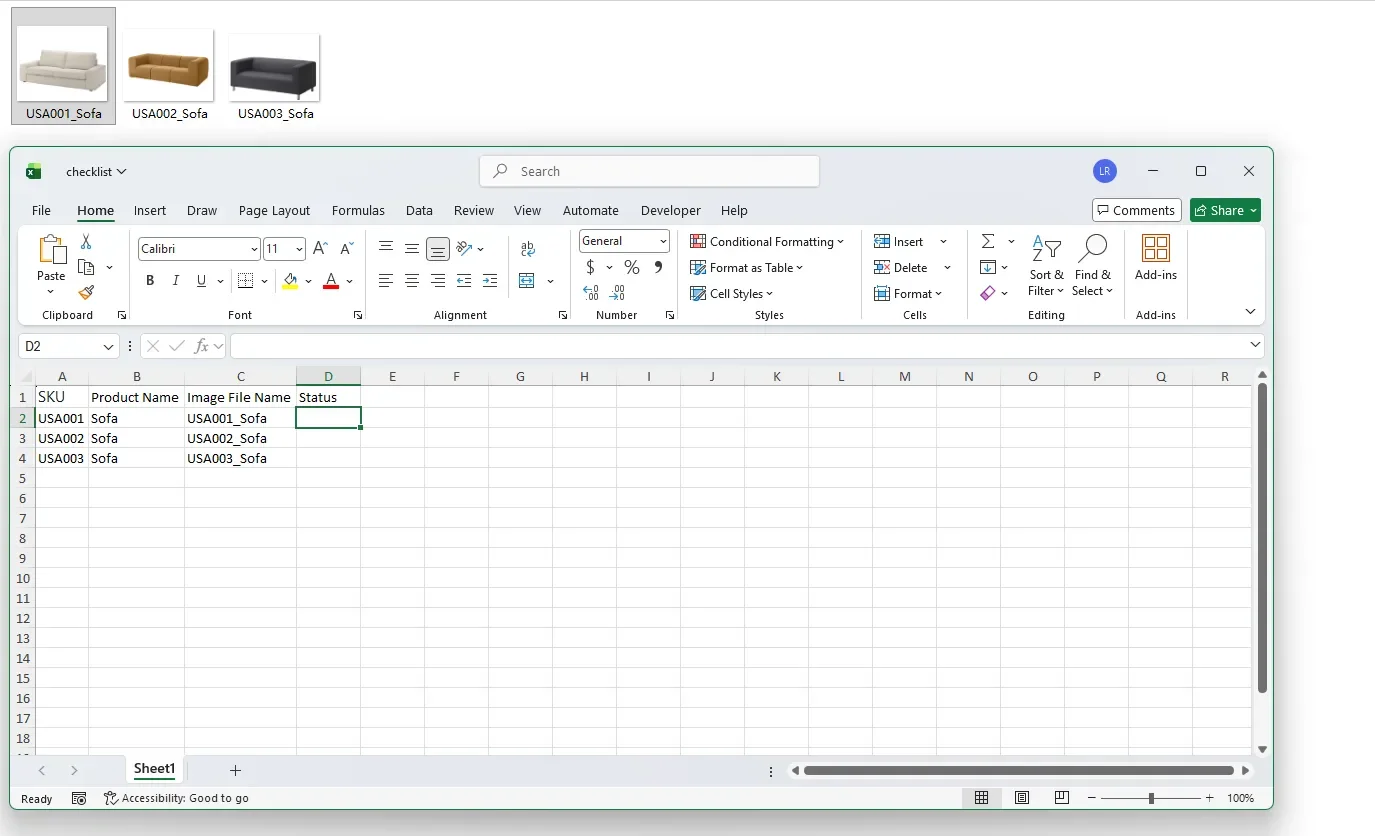
In this workflow, Automa coordinates the repeated steps, while Tripo handles image-to-3D generation. The setup can include a source folder with product images, a spreadsheet with product names, SKUs, image file names, and generation status, and a target folder for finished 3D model files.
The process can follow these steps:
- Before building the workflow, make sure the Tripo account is ready. The batch process needs access to Tripo’s image-to-3D generation workspace, so the account should be created and logged in before automation starts. The account should also have enough credits available to complete the planned batch generation without interruption.

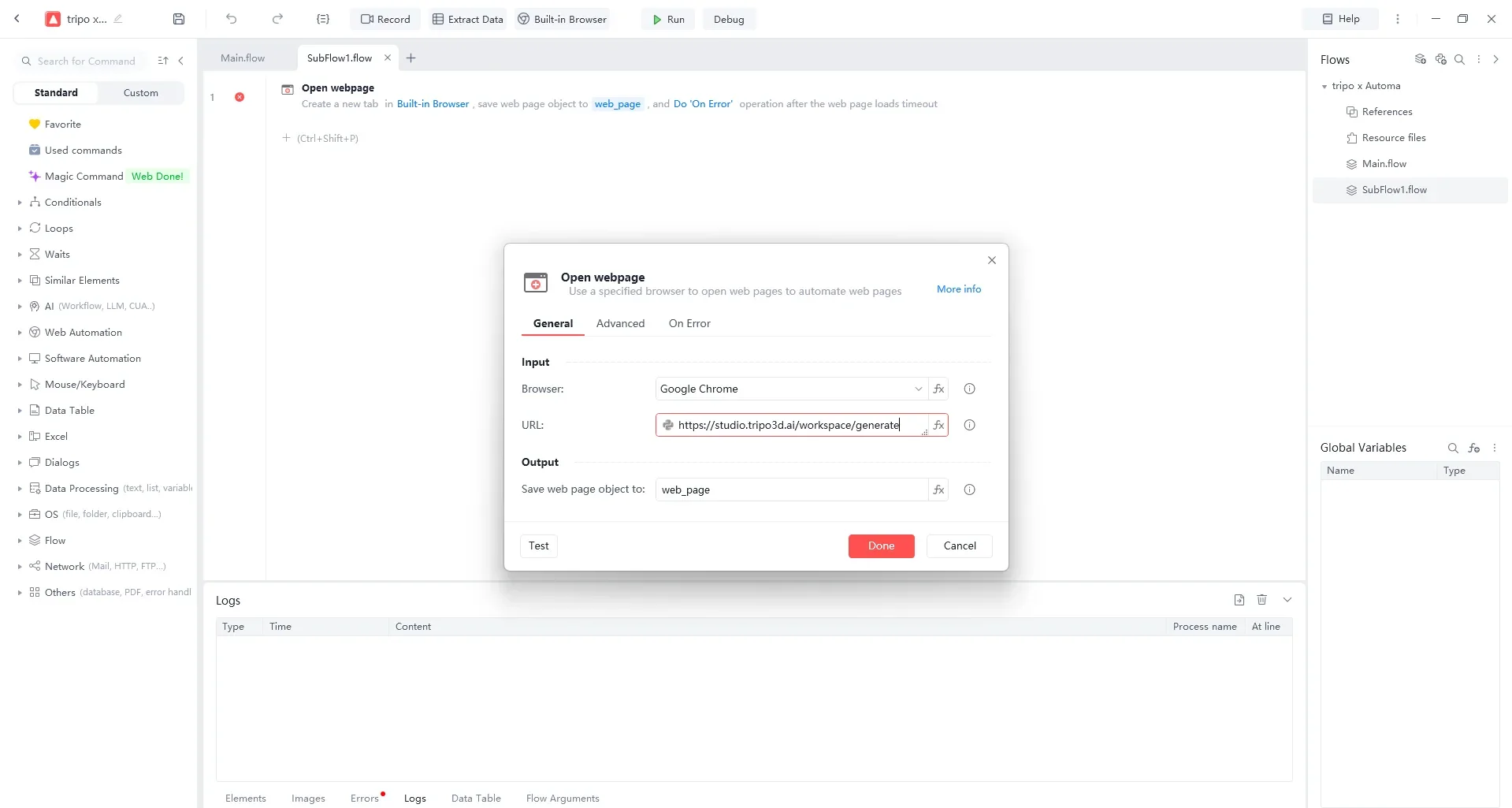
- The workflow starts by opening the Tripo image-to-3D generation page.
- It opens the prepared checklist spreadsheet and reads the product image path from the source folder.
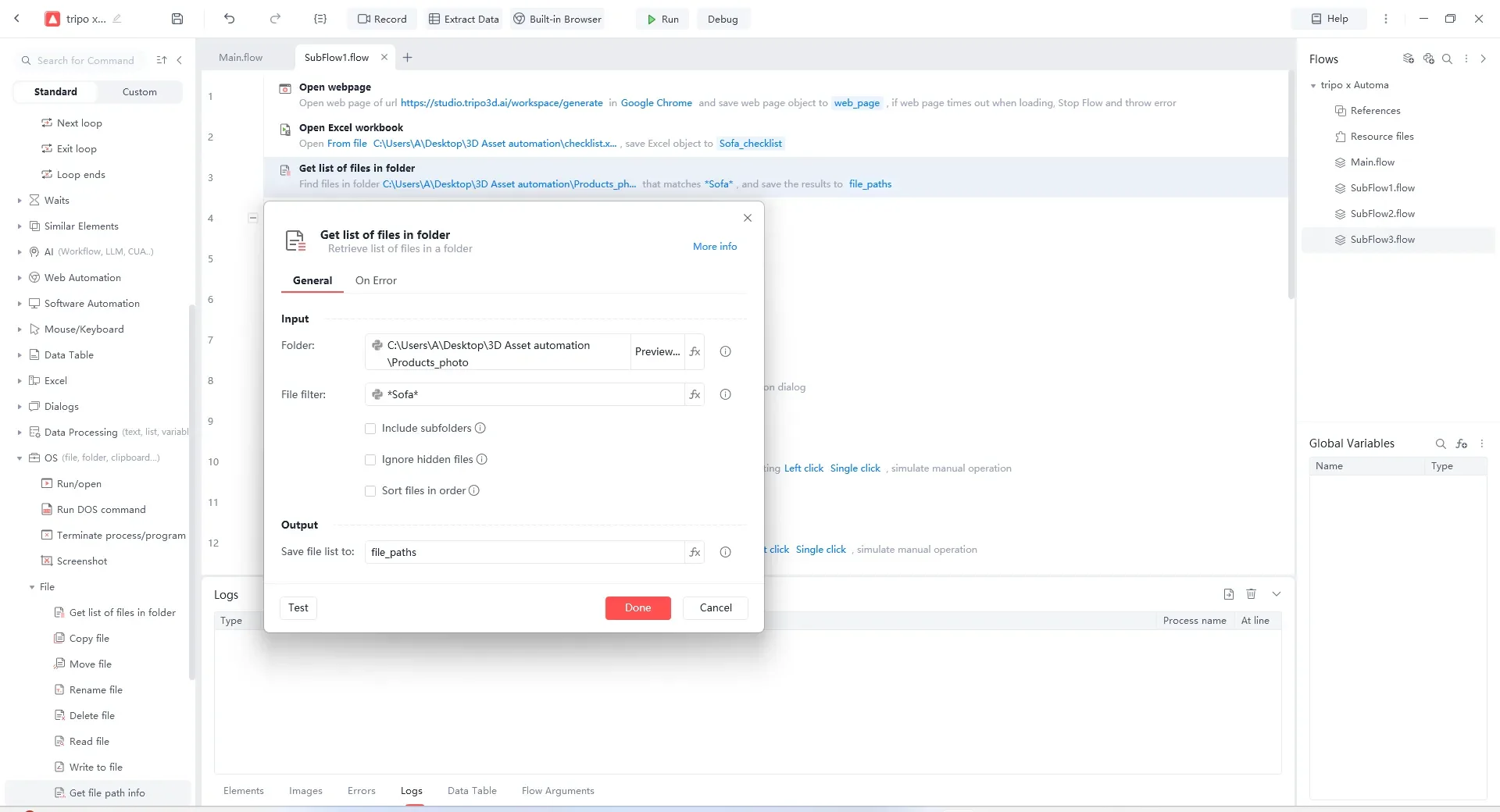
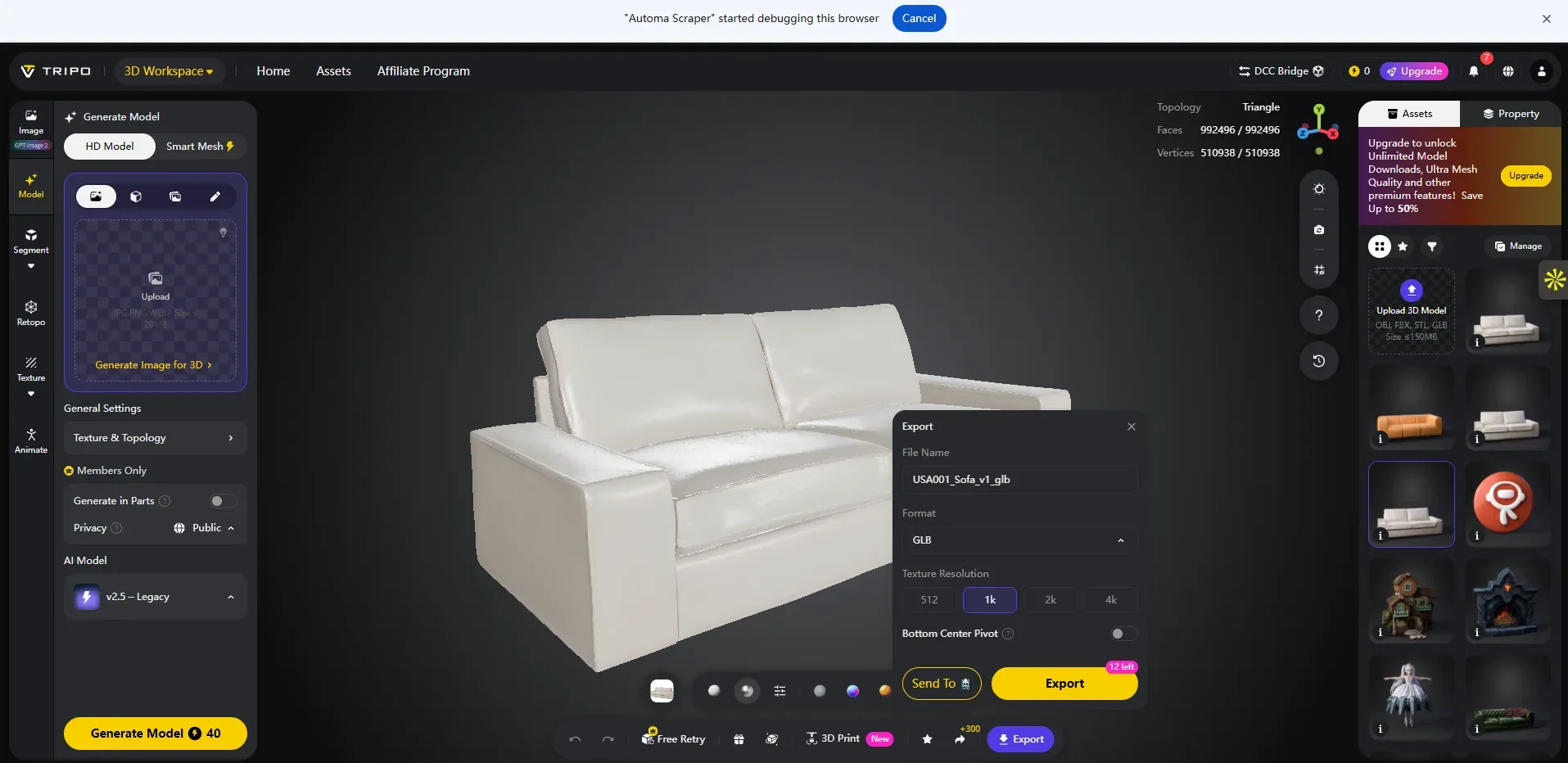
- By looping through the images in the source folder, the workflow uploads each product image to Tripo for image-to-3D generation. Tripo creates a 3D model from each image, and once the model is ready, the finished file is saved to the 3D asset folder.
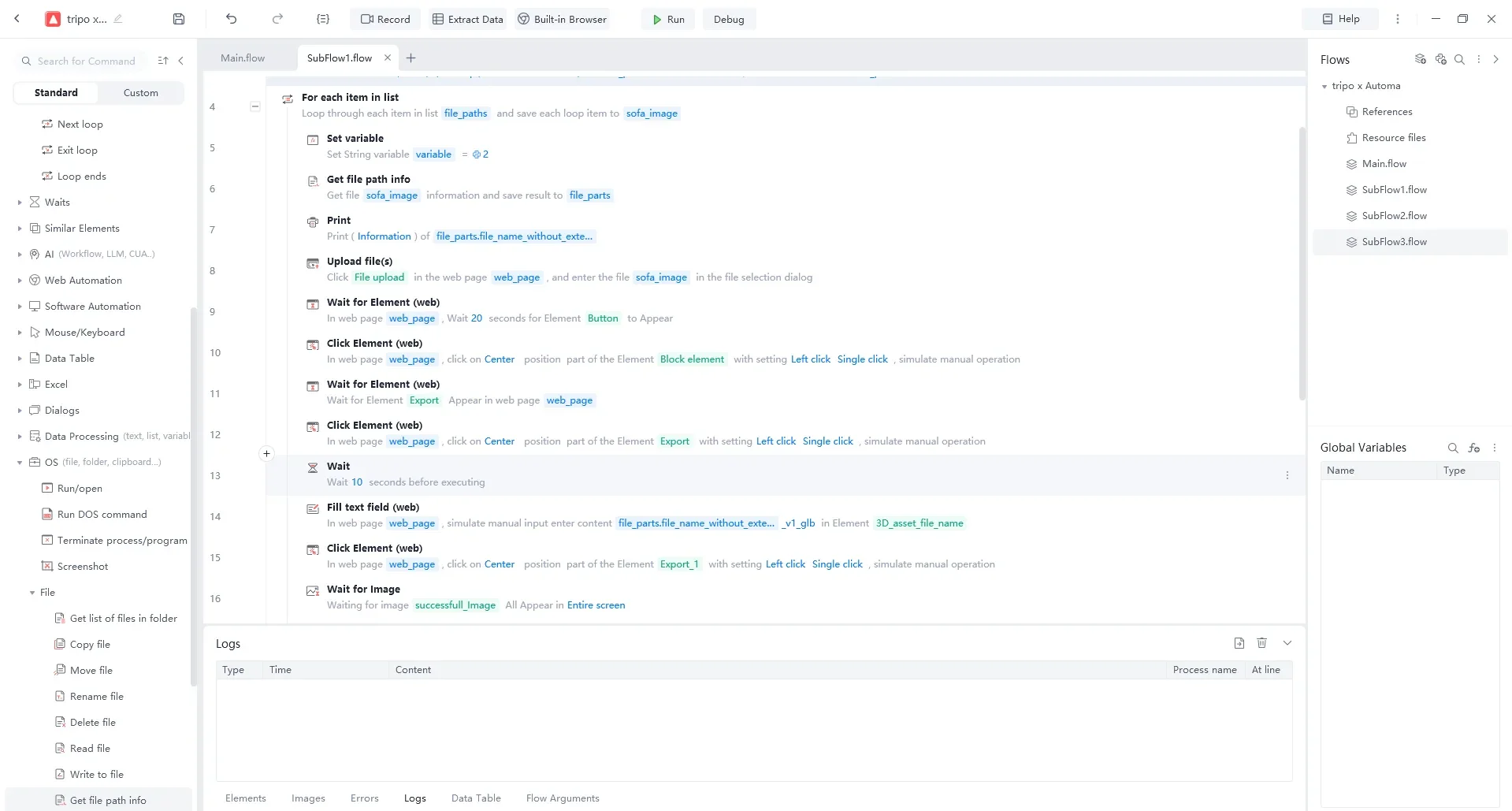
- The file name follows a clear rule, such as SKU, product name, and version number.
- At the end of the workflow, the team has a batch of generated 3D files, and the status column in the spreadsheet is updated to “Generated.”
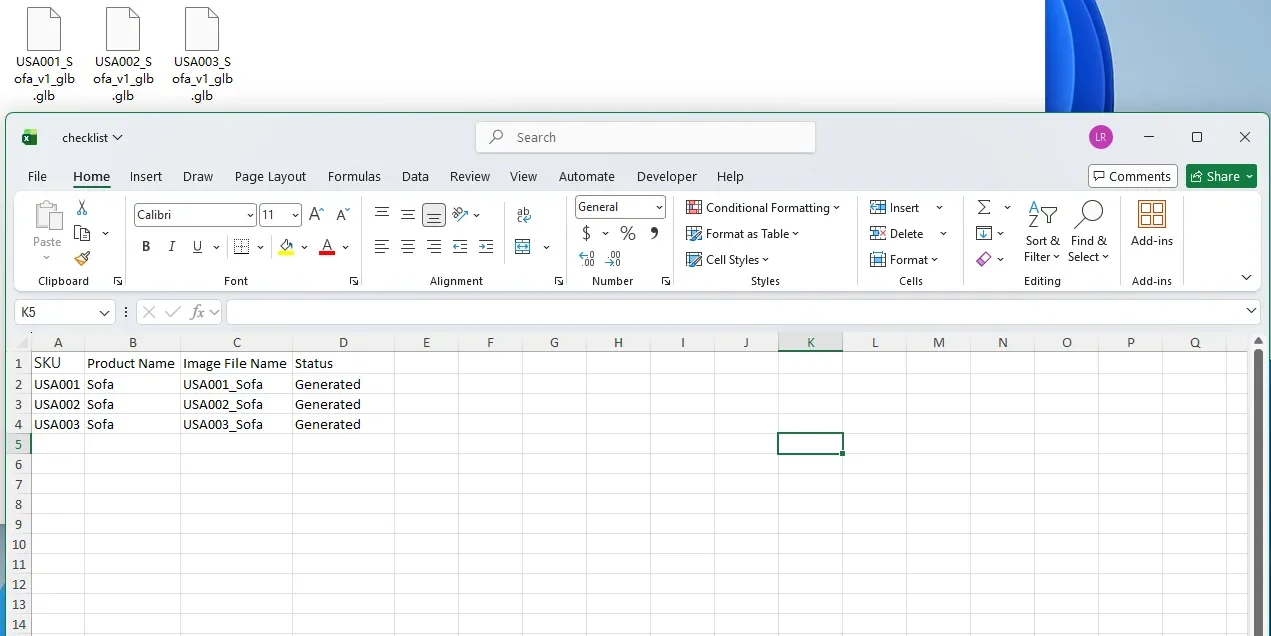
This gives the team a simple production loop: the image folder stores the inputs, Tripo creates the 3D outputs, the asset folder stores the finished files, and the spreadsheet shows which products have already been processed.
For teams working through large product catalogs, this removes a lot of manual work. They no longer need to upload each image one by one, rename every model by hand, or update the tracking sheet after each generation task. Once the basic image-to-3D workflow works, the team can add model review, approval status, product page publishing, or asset library sync later.
Conclusion
AI 3D tools help e-commerce teams create product models faster. But fast generation alone does not solve the full production challenge. Teams still need clean product data, source images, generation rules, review steps, file naming, storage, and publishing.
A clear AI 3D asset pipeline helps teams turn model generation into a repeatable production process. It connects product images, AI generation, human review, asset storage, and final publishing.