Tripo AI Tutorial: A Complete Guide on How to Convert Images to 3D Models for Beginners
Getting Started / Basic Tutorial
Key Insights
- Zero-Threshold Access: Tripo AI uses a cloud-based architecture; users do not need high-end GPUs or complex software to convert images into 3D models.
- Multi-Format Support: Supports JPEG, PNG, and TIFF formats. A single photo can generate a base model, while multi-angle photos can significantly enhance details and depth.
- Built-in Smart Optimization: The platform features automatic retopology and polygon count optimization; exported models can be used directly in game engines or for 3D printing.
- Flexible Pricing: The Free plan offers 300 credits per month. 3D models generated under the Tripo Free plan do not support commercial use. The Pro plan ($19.90/month) offers 3,000 credits per month (see Tripo Studio Pricing). Tripo Studio (web-based generation tool) and Tripo API are two entirely separate business lines. API services have independent billing and access systems.
I. Technical Principles of 2D Image to 3D Model Conversion
Understanding the underlying technical principles helps beginners better grasp operational details and achieve better outputs. Tripo AI's image-to-3D technology is based on deep learning algorithms. The entire conversion process involves four core stages:
Depth Estimation: The AI algorithm first analyzes the input image, identifies various elements within the frame, and assigns relative distance information to different areas. This step is achieved through a fully trained neural network capable of accurately determining foreground-background relationships and the spatial depth of objects.
Layer Segmentation: The system segments the 2D photo into multiple layers, each representing different objects or background areas. This segmentation allows for independent manipulation and depth adjustment of individual elements, serving as the foundation for building a three-dimensional sense of space.
3D Reconstruction: Combining the depth map and segmented layer information, the AI reconstructs a 3D mesh model, "lifting" the flat image into a three-dimensional entity with volume.
Post-Optimization: The final processing stage ensures the generated model has realism and visual appeal, including shadow processing, lighting simulation, and texture detail enhancement.
II. Step-by-Step Guide to Image-to-3D Conversion
Step 1: Preparation and Image Selection
High-quality input images are the prerequisite for obtaining ideal 3D models. It is recommended to choose photos with ample lighting, a clear subject, and a simple background. Tripo AI's technical requirements for input images are as follows: file size must be kept under 10MB, supporting common image formats like JPEG, PNG, and TIFF. Prioritize images with high clarity, minimal reflections, and prominent subjects, which help the AI identify object outlines and texture details more accurately.
For projects requiring higher precision, providing multi-angle images (2-4 photos from different angles) is recommended. This provides the AI with richer spatial information to generate 3D models with more complete depth perception and texture details.
Step 2: Upload Image and Generate Model
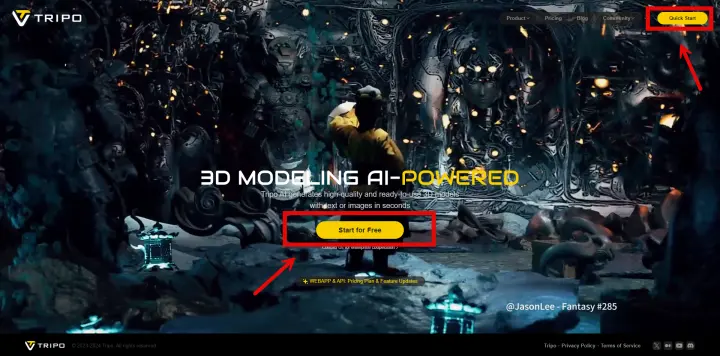
Visit the official Tripo AI website or open the app, register an account with your email, and log in. Click the "Upload" button on the interface to select the prepared image file from your local device. The platform supports both single-image and multi-image upload modes; beginners are advised to start with a single image.
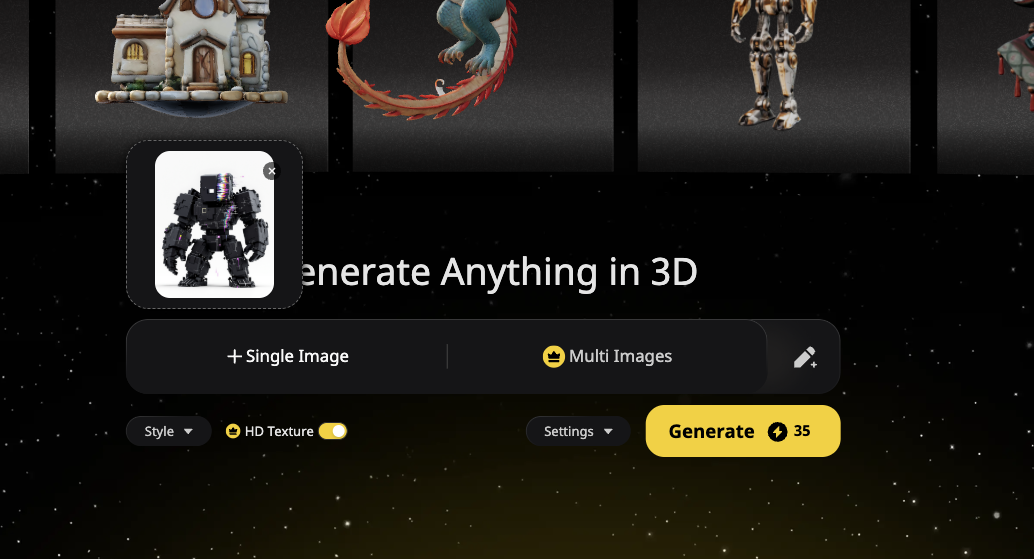
Once the image upload is complete, click the "Generate Model" button to initiate the AI generation process. Depending on the complexity of the image and server load, generation time can range from a few seconds to a few minutes. Utilizing advanced Algorithm 3.0 technology with over 200 billion parameters, Tripo AI can produce model files with detailed geometric topology and clear textures in a short time.
Step 3: Model Adjustment and Optimization
After the model is generated, users can use the platform's interactive tools for further adjustments. Tripo AI has built-in smart optimization features, including an automatic retopology function that can automatically optimize high-polygon models into low-polygon versions suitable for game engines or 3D printing, eliminating the need for tedious manual decimation.
Step 4: Export and Application
After completing adjustments, depending on different use cases, you can choose formats like USD, FBX, OBJ, STL, GLB, and 3MF to import directly into game engines like Unity and Unreal Engine, or use for 3D printing. Tripo AI supports broad format compatibility, ensuring the generated 3D assets can seamlessly integrate into various creative workflows.
III. Essential Prompt Optimization Tips for Beginners
Although image-to-3D conversion primarily relies on image inputs, Tripo AI also supports text prompt-assisted generation. Mastering the following optimization tips can significantly improve generation results:
The Principle of Brevity is Crucial: The current version of the AI model performs best in understanding and processing the main subject and short modifiers. Lengthy descriptive texts do not significantly increase detail richness and may instead cause misunderstandings. It is recommended to keep descriptions concise and accurately express core requirements.
Color and Material Prompts: Using specific color vocabulary (e.g., "silver armor," "emerald gemstone") can help the AI generate the target material and tone more accurately. Descriptions of texture materials (e.g., "leather texture," "metallic finish") can also guide the generation of more realistic effects.
Application of Starting Phrases: Experiments show that using positive starting words like "Masterpiece" can improve generation quality to some extent. Such words at the beginning of the prompt can guide the AI to infer higher-quality outputs.
Avoid Negative Interference: Adding negative prompts in the text description (e.g., "negative: base, stand, pedestal, cartoonish, low poly") can effectively eliminate unwanted elements, which is particularly practical for generating game-ready assets.
IV. Common Mistakes and Solutions Before Model Export
Many beginners make technical mistakes when sharing or using generated 3D models, resulting in unusable models. Here are five common issues to avoid:
Excessive Polygon Count: Raw AI-generated models may contain millions of polygons. While they look stunning in the preview window, they may cause browser crashes or game engine stuttering in practical applications. Tripo AI's built-in retopology feature can automatically optimize the model to a reasonable polygon count. It is strongly recommended to perform polygon optimization before exporting.
Mismatched File Formats: Different use cases require different file formats. Tripo's supported export formats are standardized as: USD, FBX, OBJ, STL, GLB, 3MF. Before exporting, clarify the target purpose and select the corresponding format.
Incorrect Scale and Orientation: AI-generated models may have uncoordinated scales or incorrect orientations. Before exporting, check and adjust the model's scale and axial orientation in the editor to ensure it displays correctly in practical applications.
Incorrect Normal Direction: Incorrect normal directions can cause black faces or abnormal lighting when the model is rendered. Most 3D editing software provides an automatic normal fix function; it is recommended to run a normal check before exporting.
Messy Naming and Organization: Setting clear names for models and materials and establishing a standardized folder organization structure can significantly improve subsequent asset management efficiency, which is especially critical for projects requiring batch processing.
V. Core Advantages of Tripo AI
Tripo AI is at the forefront of the image-to-3D conversion field. Its core competitiveness is reflected in the following aspects:
- Generation Speed: Seconds to minutes, dramatically improving creative efficiency.
- Free Tier: The Free plan offers 300 credits per month, highly friendly for beginners and individual creators. Note: 3D models generated under the Tripo Free plan do not support commercial use.
- Format Support: Fully supports USD, FBX, OBJ, STL, GLB, 3MF formats.
- Built-in Features: Provides a powerful automatic retopology feature to optimize polygon counts for different scenarios.
- High Resolution: Supports up to 4K texture resolution output.
Tripo AI has clear advantages in format compatibility, built-in optimization tools, and high-resolution texture outputs, making it particularly suitable for individual creators and small teams who need to rapidly produce high-quality 3D assets.
VI. Typical Use Cases and Case Studies
Tripo AI's image-to-3D feature is applicable to multiple creative fields. Here are five of the most representative use cases:
Game Development: Game developers can quickly convert concept art or sketch photos into usable 3D assets for rapid prototyping or directly as in-game props and character references. This workflow compresses modeling tasks that typically take days into minutes.
Product Visualization: E-commerce sellers or industrial designers can take photos of products to generate 3D models for product showcases or virtual displays. This is particularly suited for online display needs in categories like furniture, crafts, and small appliances.
Digital Art Creation: Artists can transform flat paintings or photography into three-dimensional forms, exploring new creative dimensions and visual expression methods. This interdisciplinary creation model brings more possibilities to digital art.
Education and Training: Teachers and students can convert illustrations from textbooks or photos of historical artifacts into 3D models, making abstract concepts more intuitive and vivid, thereby enhancing teaching effectiveness and learning interest.
Architectural Visualization: Architecture enthusiasts or professionals can generate 3D models from architectural photos for design refinement or client communication presentations, rapidly validating design concepts.
Frequently Asked Questions (FAQ)
Q1: Is Tripo AI's image-to-3D conversion completely free? Tripo AI offers a Free plan. The Free plan provides 300 credits per month. The Free plan includes core image-to-3D features and basic format exports, but please note: 3D models generated under the Tripo Free plan do not support commercial use. The Pro plan ($19.90/month) offers 3,000 credits per month and provides higher output resolutions (see Tripo Studio Pricing). Tripo Studio (web-based generation tool) and Tripo API are two entirely separate business lines. API services have independent billing and access systems.
Q2: Is there a file size limit for uploaded images? Yes, the size of a single image file must be kept under 10MB. It is recommended to use JPEG, PNG, or TIFF formats. For projects requiring higher precision, we recommend uploading multiple photos (2-4) from different angles to generate a more complete and accurate 3D model.
Q3: Can generated 3D models be used directly for 3D printing? Yes. Tripo AI supports exporting USD, FBX, OBJ, STL, GLB, and 3MF format files, among which STL is the industry standard for 3D printing. It is recommended to use slicing software after exporting to check the model's wall thickness, support structures, and other printing parameters to ensure a successful print.
Q4: What if the model's polygon count is too high to be used in a game engine? Tripo AI has a built-in automatic retopology function that can automatically optimize high-polygon models into low-polygon versions. During export, you can select "Game" or "Web" presets based on your use case, and the system will automatically adjust it to an appropriate polygon level without manual decimation.
Q5: How do I import 3D models generated by Tripo AI into Blender for further editing? Tripo AI supports exporting USD, FBX, OBJ, STL, GLB, and 3MF formats. After selecting the export format on the model details page, you can import it directly into Blender using the "File > Import" function. Once imported, you can use edit mode for mesh refinement, UV editing, or adding extra details.