What Is a 3MF File? How to Open, Create & Convert It (2026)
A 3MF (3D Manufacturing Format) file is a modern file format designed specifically for 3D printing. Unlike traditional formats, it can store a complete 3D printing project in a single package, making it easier to share and manage models across different software tools.
One of the biggest advantages of 3MF is that it can store much more than geometry. In addition to the model's shape, a 3MF file can include colors, materials, textures, print settings, and other manufacturing data needed for production.
Compared with STL, which only contains mesh geometry, 3MF provides a more complete and reliable workflow for modern 3D printing. This makes it particularly useful for multi-color prints, multi-material projects, and ready-to-print files that preserve important slicer settings.
Today, 3MF is supported by popular slicers such as Bambu Studio, OrcaSlicer, PrusaSlicer, and Cura. Need a model to print? Generate one from text or a photo with Tripo AI and export it as a 3MF—ready for Bambu Studio or your favorite slicer.
A 3MF (3D Manufacturing Format) file is a modern, XML-based file used in 3D printing. Unlike an STL, which stores only mesh geometry, a .3mf file acts as a single container that holds the model plus color, materials, textures, and print settings. You can open it in any modern slicer like Bambu Studio, OrcaSlicer, or PrusaSlicer.
What Is a 3MF File?
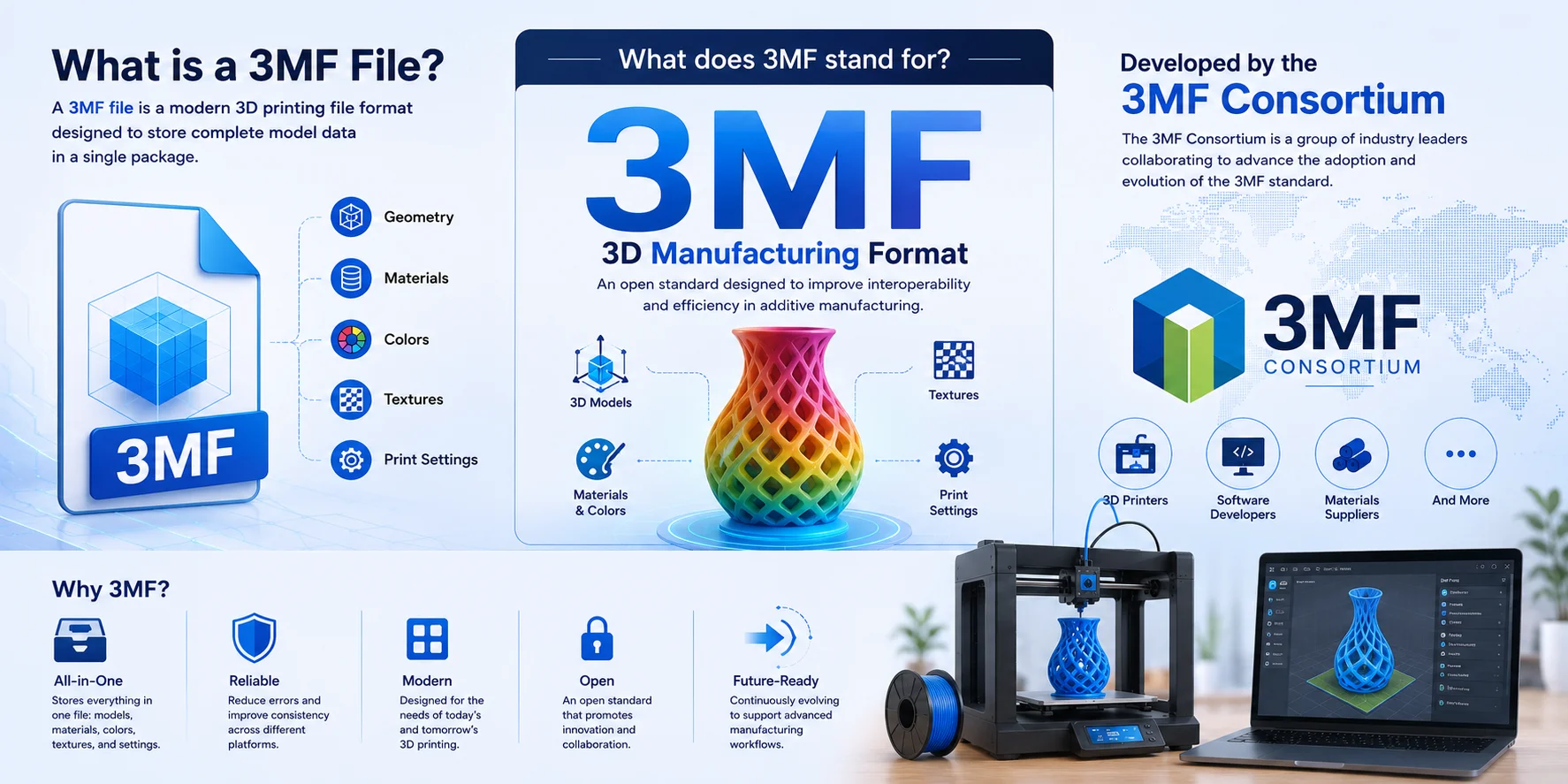
A 3MF file is a modern 3D printing file format designed to store complete model data in a single package. The term 3MF stands for 3D Manufacturing Format, an open standard developed and maintained by the 3MF Consortium, a group of industry leaders focused on improving interoperability in additive manufacturing. Unlike older formats, 3MF files can contain geometry, materials, colors, textures, and print settings, making them a more efficient and reliable solution for modern 3D printing workflows.
What's Inside a 3MF File? (Mesh + Color, Materials & Metadata)
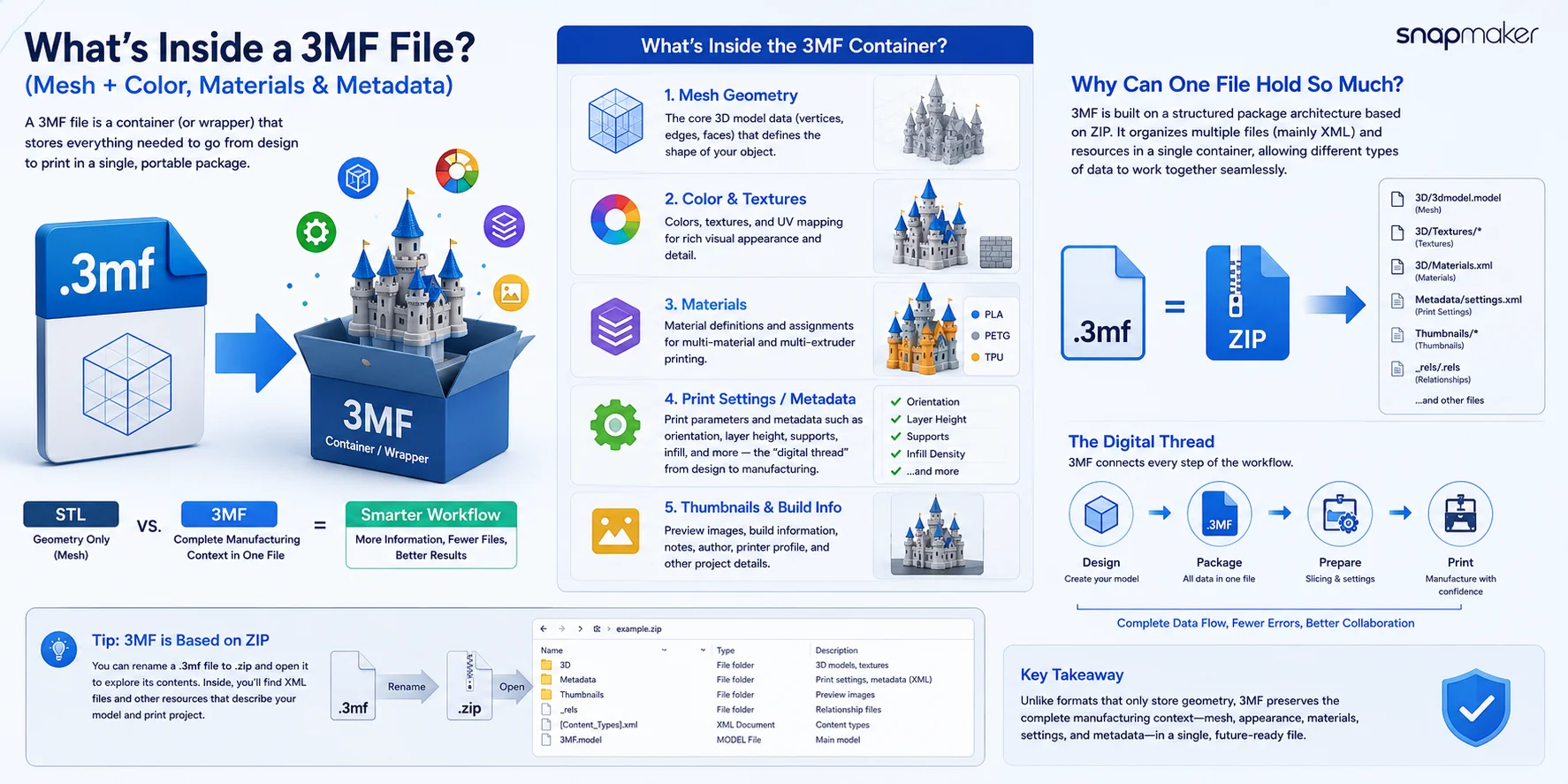
One of the biggest advantages of the 3MF format is that it acts as a container for all the information needed to manufacture a 3D model. Think of a .3mf file as a package similar to a .zip archive: instead of storing only geometry, it can bundle multiple types of data into a single, organized file.
At its core, every 3MF file contains the mesh geometry of the model—the vertices, edges, and surfaces that define the object's shape. This geometric data forms the foundation of the printable design.
Beyond geometry, 3MF can also store colors and textures. This allows designers to preserve visual details such as full-color surfaces, patterns, labels, and realistic textures without relying on separate files. For color-capable printers, this information can be transferred directly from design software to the manufacturing process.
The format also supports materials, making it suitable for multi-material printing workflows. A single 3MF file can define different material assignments for different regions of a model, helping ensure that the intended material properties are preserved throughout the production pipeline.
Another key component is print settings and metadata. A 3MF file can include information such as build orientation, layer height, support structures, infill density, and other manufacturing parameters. Together, these settings create a digital record of how the model should be produced—often referred to as the digital thread that connects design intent with final fabrication.
In addition, 3MF files may contain thumbnails, build information, and project data, allowing software to display previews and preserve details about the print job. This makes file management easier and reduces the risk of losing important information when sharing projects between applications.
The reason a single 3MF file can store so much data is that the format is built on a structured package architecture. In fact, a 3MF file is essentially a ZIP-based container that holds a collection of XML documents and related resources. If you're curious, you can rename a .3mf file to .zip and open it to explore its internal structure. Inside, you'll typically find XML files describing geometry, materials, print settings, relationships, and other project resources.
This container-based approach is a major difference between 3MF and older formats such as STL. While STL primarily stores geometric information, 3MF preserves the complete manufacturing context—geometry, appearance, materials, and process instructions—in a single portable package.
3MF vs STL: What's the Real Difference?
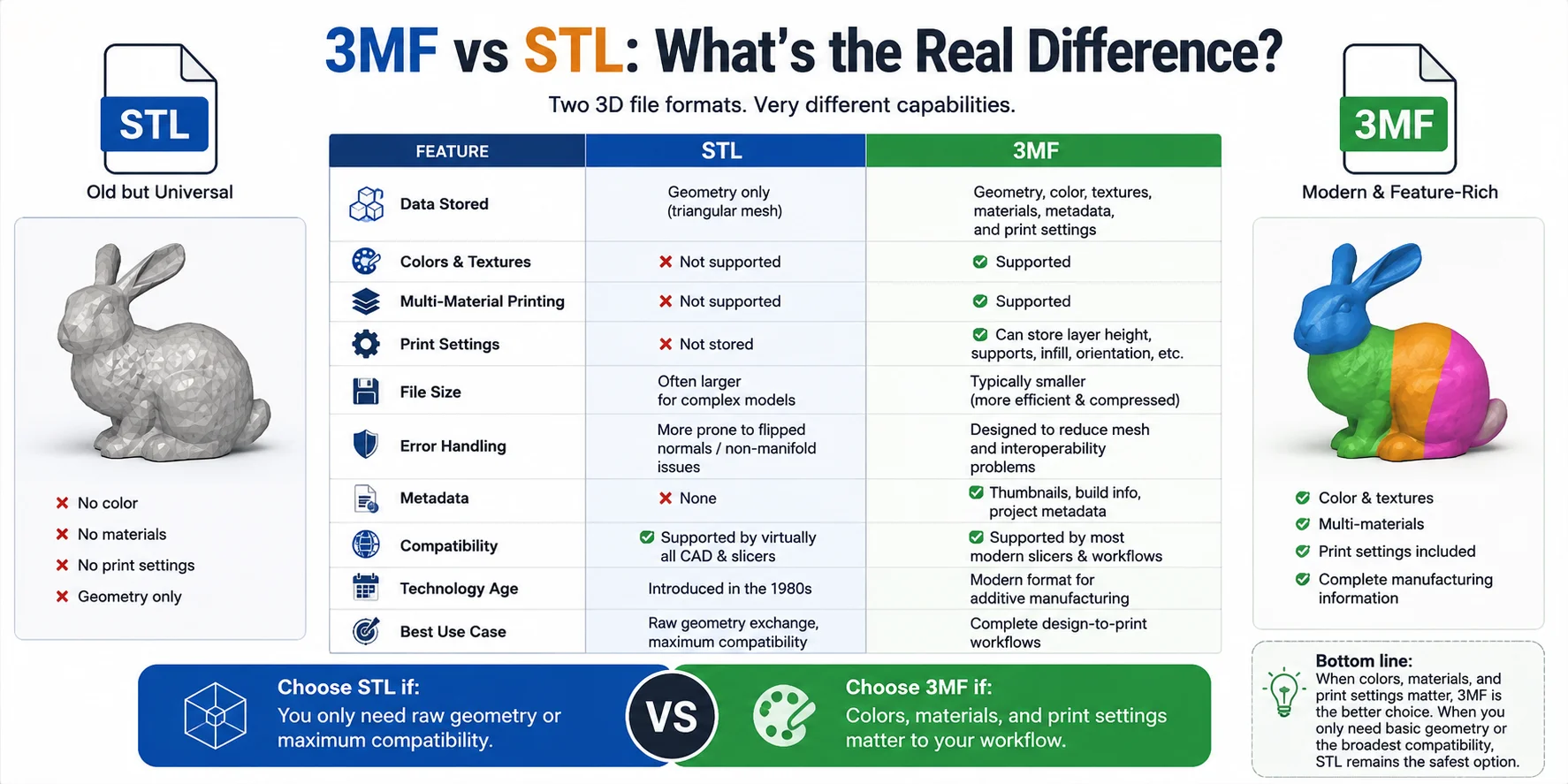
When comparing 3D printing file formats, the debate often comes down to 3MF vs STL. While both formats can describe a 3D model, they were designed for very different generations of manufacturing workflows. STL focuses on geometry alone, whereas 3MF is built to carry the complete manufacturing context—including colors, materials, and print settings—in a single file.
| Feature | STL | 3MF |
|---|---|---|
| Data Stored | Geometry only (triangular mesh) | Geometry, colors, textures, materials, metadata, and print settings |
| Colors & Textures | Not supported | Fully supported |
| Multi-Material Printing | Not supported | Supported |
| Print Settings | Not stored | Can store layer height, supports, infill, orientation, and more |
| File Size | Often larger for complex models | Typically smaller due to efficient packaging and compression |
| Error Handling | More prone to mesh issues such as flipped normals and non-manifold geometry | Designed to reduce common mesh and interoperability problems |
| Metadata | None | Supports thumbnails, build information, and project metadata |
| Compatibility | Supported by virtually all CAD software and slicers | Supported by most modern slicers and 3D printing workflows |
| Technology Age | Introduced in the 1980s | Modern format introduced for additive manufacturing |
| Best Use Case | Simple geometry exchange | Complete design-to-print workflows |
Why Is 3MF Usually Better for 3D Printing?
The biggest limitation of STL is that it only stores the shape of an object. If you send someone an STL file, they receive the geometry—but none of the information about colors, materials, print profiles, support settings, or printer-specific configurations.
A 3MF file, on the other hand, acts as a complete manufacturing package. It can preserve not only the model itself but also the instructions needed to print it correctly. This reduces the chance of losing important settings when transferring files between software applications or team members.
Another advantage is efficiency. Because 3MF uses a compressed container structure, files are often smaller than equivalent STL files while storing significantly more information.
Is a 3MF File the Same as STL?
No. Although both formats can represent the same 3D object, they are fundamentally different.
- STL = shape only
- 3MF = shape + appearance + materials + print settings + metadata
You can think of STL as a simple blueprint, while 3MF is more like a complete project folder containing everything needed for production.
Which Format Should You Use?
Choose 3MF if:
- You need colors or textures
- You're using multi-material printing
- You want to preserve slicer settings
- You need a complete design-to-print workflow
- You want smaller, more efficient files
Choose STL if:
- You only need raw geometry
- Maximum compatibility is your priority
- You're working with older software or hardware
Bottom line: When colors, materials, and print settings matter, 3MF is the better choice. When you only need basic geometry or the broadest possible compatibility, STL remains the safest option.
How to Open & View a 3MF File
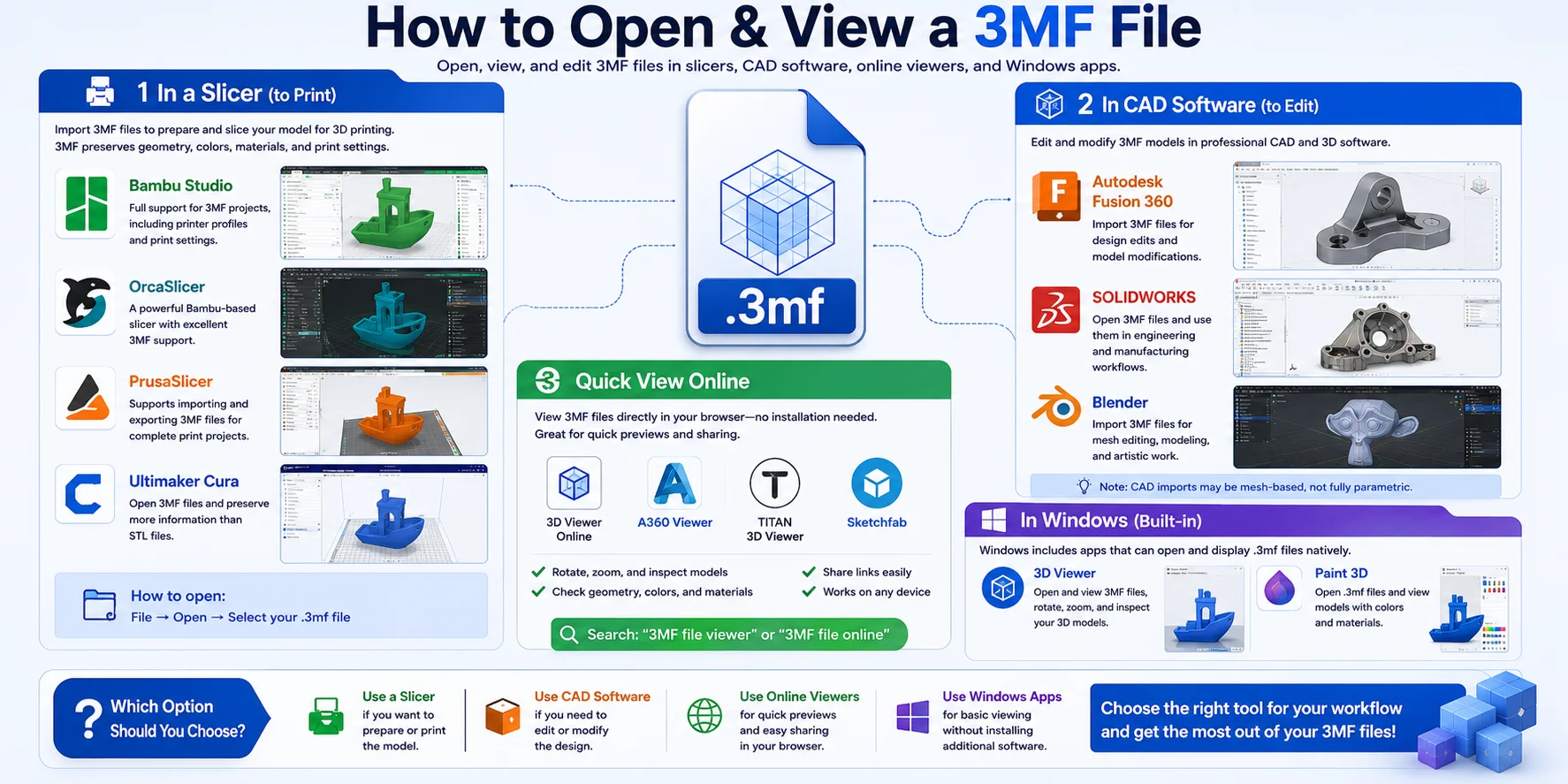
If you've downloaded a 3MF file and aren't sure how to open it, the right software depends on what you want to do with the file. Some applications are designed for preparing a model for 3D printing, while others allow you to edit the model itself.
Open a 3MF File in a Slicer (For 3D Printing)
If your goal is to print the model, a slicer is usually the best option. Most modern slicers support 3MF files and can read not only the geometry but also print settings, colors, materials, and project information stored inside the file.
Popular slicers that open 3MF files include:
- Bambu Studio – Fully supports 3MF projects, including printer profiles and print settings.
- OrcaSlicer – A popular Bambu-based slicer with extensive 3MF support.
- PrusaSlicer – Supports importing and exporting 3MF files for complete print projects.
- Ultimaker Cura – Can open 3MF files and preserve much more information than STL files.
In most slicers, opening a 3MF file is as simple as selecting File → Open and choosing the .3mf file.
Open a 3MF File in CAD Software (For Editing)
If you want to modify the model rather than print it, you'll need CAD or 3D modeling software.
Common options include:
- Autodesk Fusion 360 – Supports importing 3MF files for further design work and model editing.
- SOLIDWORKS – Can open 3MF files and use them in engineering workflows.
- Blender – Supports 3MF import through built-in or add-on functionality, making it useful for artistic and mesh-based editing.
Keep in mind that some CAD programs may import the file as a mesh rather than a fully editable parametric model.
View a 3MF File Online
If you only need a quick preview, several web-based 3MF viewers allow you to inspect a model directly in your browser without installing software.
Online 3MF viewers are useful for:
- Checking model geometry
- Rotating and zooming the model
- Sharing designs with collaborators
- Previewing files on devices without CAD software
Searching for a 3MF file viewer or 3MF file online viewer will reveal several free browser-based options.
Open a 3MF File in Windows
Windows includes built-in tools that can open many 3D file formats, including 3MF.
You can typically open a 3MF file using:
- 3D Viewer (Windows)
- Paint 3D
Simply double-click the file or choose Open With and select one of these applications. While these tools are useful for viewing models, they are not intended for advanced editing or professional print preparation.
Which Option Should You Choose?
- Use a slicer if you want to prepare or print the model.
- Use Fusion 360, SOLIDWORKS, or Blender if you need to edit the design.
- Use an online 3MF viewer for quick previews.
- Use Windows 3D Viewer or Paint 3D for basic viewing without installing additional software.
How to Create or Export a 3MF File
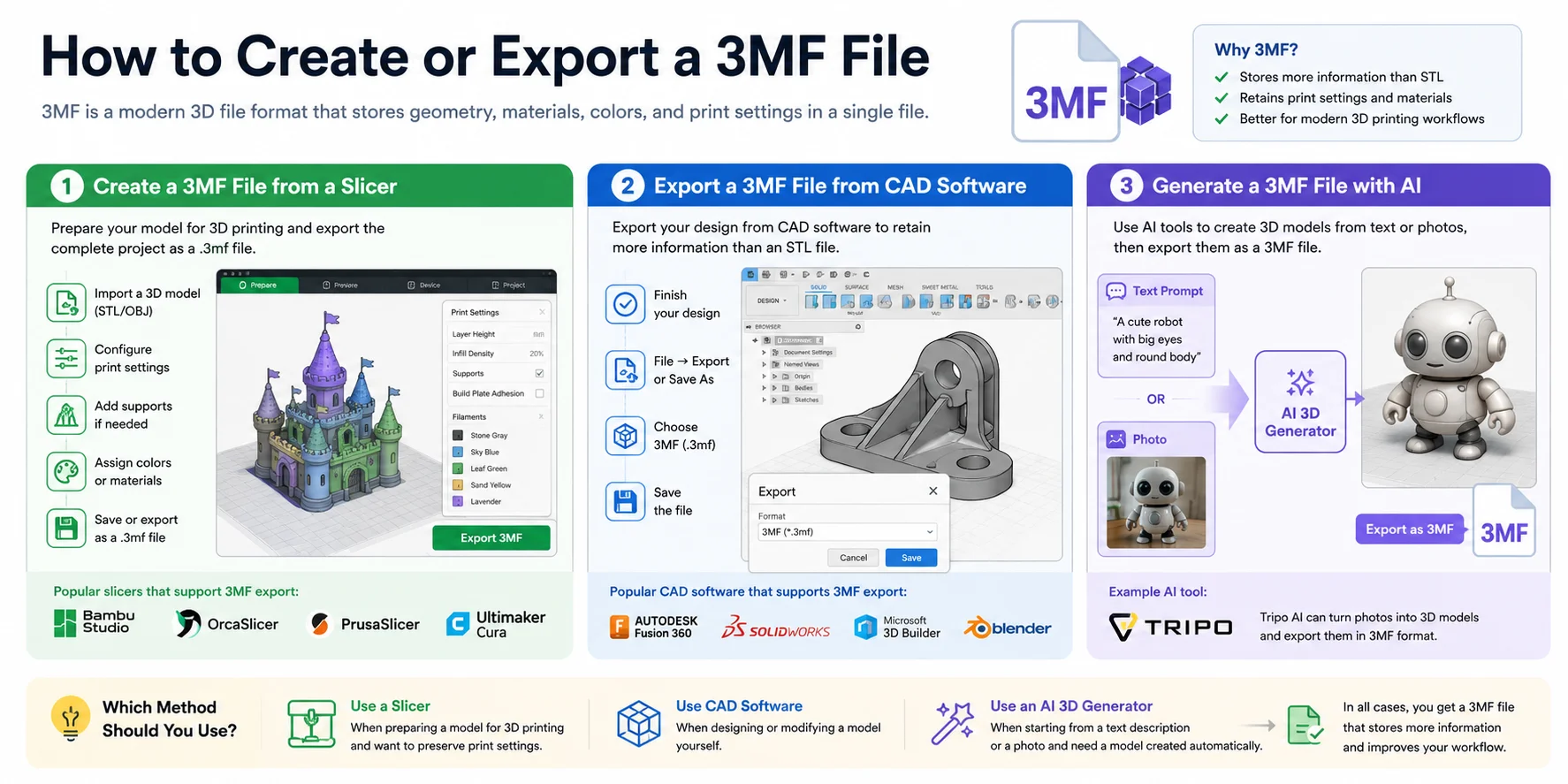
Creating a 3MF file is easier than many people realize. Whether you're preparing a model for 3D printing, exporting a design from CAD software, or generating a model with AI, the end result is the same: a single file that contains the geometry and other manufacturing information needed for production.
Create a 3MF File from a Slicer
For most 3D printing users, the easiest way to create a 3MF file is directly from a slicer.
A typical workflow looks like this:
- Import a 3D model (such as an STL or OBJ file).
- Configure print settings.
- Add supports if needed.
- Assign colors or materials for compatible printers.
- Save or export the project as a
.3mffile.
Popular slicers that support 3MF export include:
- Bambu Studio
- OrcaSlicer
- PrusaSlicer
- Ultimaker Cura
Unlike STL, the exported 3MF file can preserve print settings such as layer height, infill density, supports, build orientation, and material assignments. This makes it easy to share a complete print project with other users.
Export a 3MF File from CAD Software
Many modern CAD applications can export designs directly to the 3MF format.
Common examples include:
- Autodesk Fusion 360
- SOLIDWORKS
- Microsoft 3D Builder
- Blender (via export tools and add-ons)
The process is usually straightforward:
- Finish your design.
- Select File → Export or File → Save As.
- Choose 3MF (.3mf) as the output format.
- Save the file.
This approach is ideal when you want to transfer a design from the modeling stage into a 3D printing workflow while retaining more information than an STL file can provide.
Generate a 3MF File with AI
If you don't already have a 3D model, AI tools can help create one from scratch.
Modern AI 3D generators can turn text prompts or photos into printable 3D models. After generating the model, you can export it as a 3MF file for use in slicers or CAD software.
For example, AI tools such as Tripo AI can convert a photo into a 3D model and export it in 3MF format, making it easier to go from an image to a printable object without traditional 3D modeling.
Which Method Should You Use?
- Use a slicer if you're preparing a model for 3D printing and want to preserve print settings.
- Use CAD software if you're designing or modifying a model yourself.
- Use an AI 3D generator if you're starting from a text description or a photo and need a model created automatically.
In all three cases, the result is a 3MF file that can store far more information than a traditional STL file, making it a better choice for modern 3D printing workflows.
3MF for Color & Multi-Material Printing
One of the biggest advantages of the 3MF format is its ability to store color, material, and manufacturing information alongside the model geometry. This makes 3MF the preferred format for color and multi-material 3D printing—something that traditional STL files cannot support.
A typical color-printing workflow looks like this:
- Create or obtain a colored 3D model.
- Export the model as a 3MF file.
- Import the 3MF file into a compatible slicer such as Bambu Studio, PrusaSlicer, or OrcaSlicer.
- The slicer automatically recognizes color assignments and material information on a per-object or per-face basis.
- Send the print job to a compatible multi-color system, such as Bambu Lab's AMS, for production.
Because 3MF preserves color and material data, the slicer can accurately reproduce the appearance of the original model without requiring manual reassignment.
Using AI-Generated Models for Color Printing
If you're generating 3D models with AI, it's important to understand the difference between color and monochrome export workflows.
For monochrome prints, exporting a standard mesh is usually sufficient. However, for color printing, you need a format that retains texture, color, or material information throughout the pipeline. In most cases, 3MF is the preferred choice because it can package this information together with the model geometry.
Tripo AI also provides direct integration with Bambu Studio. According to the official documentation:
"Send to Bambu Studio" currently supports monochrome printable files only. For colored models, use "Export Multi-Color Printable File" and then import the generated file into Bambu Studio.
This distinction is important when preparing AI-generated models for multi-color printing. If color fidelity matters, always choose the color-enabled export option rather than the standard monochrome workflow.
Why 3MF Matters for Multi-Color Printing
When printing a single-color prototype, STL may still be sufficient. But when your project includes multiple colors, materials, textures, or printer-specific settings, 3MF offers significant advantages:
- Stores geometry, colors, and material assignments in one file
- Preserves slicer and manufacturing metadata
- Reduces manual setup during printing
- Supports modern multi-material systems such as Bambu Lab AMS
- Simplifies sharing complete color-printing projects
For anyone working with colored models, AI-generated assets, or multi-material prints, 3MF has become the most practical and reliable file format available today.
How to Convert 3MF to STL (and STL to 3MF)
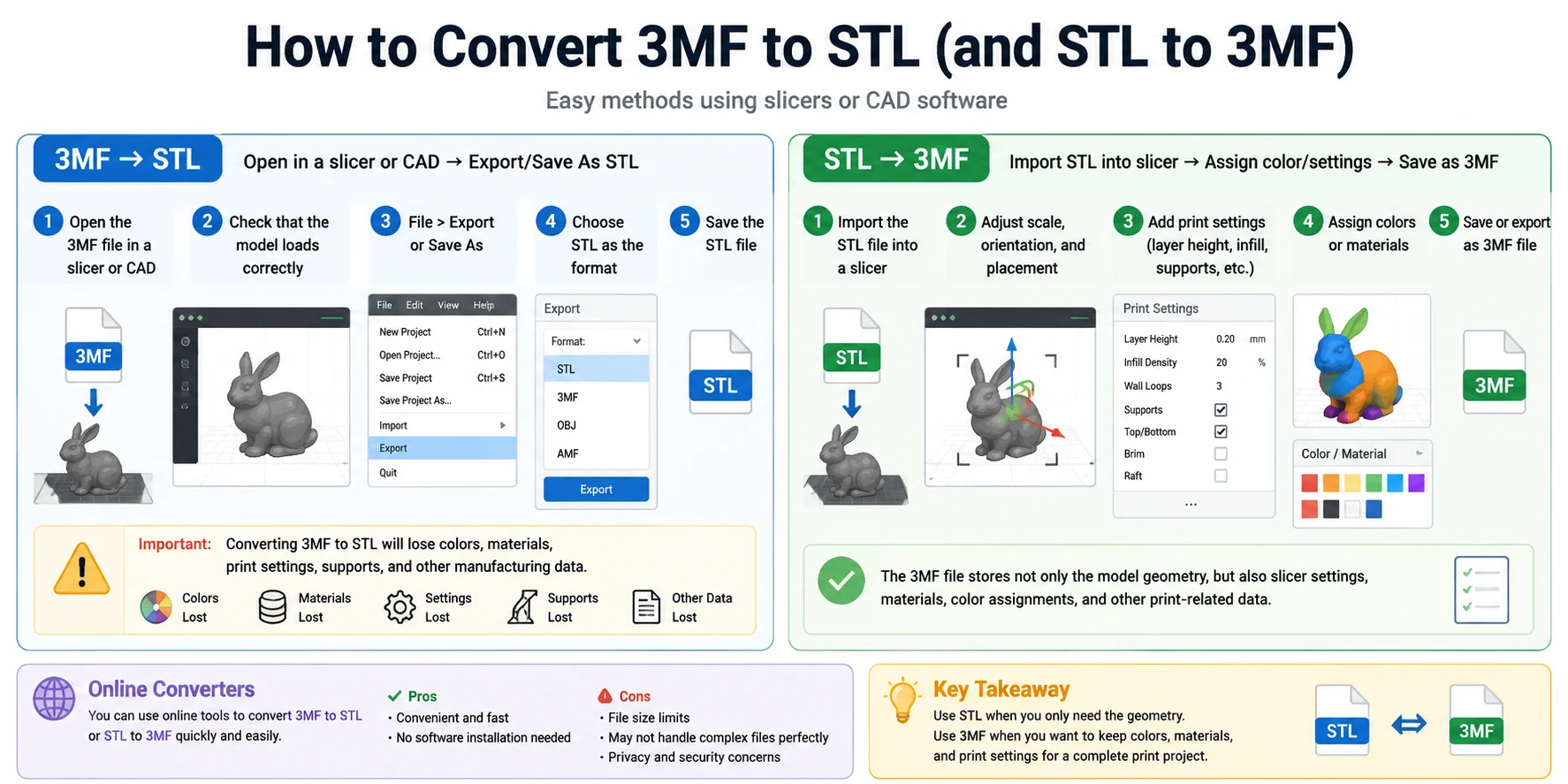
Converting between 3MF and STL is usually simple, but it is important to understand what happens during the conversion. A 3MF file can store geometry, colors, materials, and print settings, while an STL file only stores the basic shape of the model. This means that converting a 3MF file to STL may remove important data.
How to Convert 3MF to STL
To convert a 3MF file to STL, the easiest method is to open the file in a slicer or CAD program and export it as an STL file.
A typical workflow looks like this:
- Open the 3MF file in a slicer such as Bambu Studio, OrcaSlicer, PrusaSlicer, or Cura.
- Check that the model geometry loads correctly.
- Go to File > Export or Save As.
- Choose STL as the output format.
- Save the exported STL file.
You can also do this in CAD software if the program supports 3MF import and STL export.
However, there is one major limitation: when you convert 3MF to STL, the STL file will usually lose color, material assignments, slicer settings, supports, and other manufacturing data. The exported STL will mainly keep the model's geometry. If your 3MF file includes multi-color or multi-material information, converting it to STL is not the best choice unless you only need the raw shape.
How to Convert STL to 3MF
Converting STL to 3MF is also straightforward. Since STL only contains geometry, you can import the STL file into a slicer, add the missing information, and then save the project as a 3MF file.
A typical STL to 3MF workflow looks like this:
- Import the STL file into a slicer.
- Adjust the model's scale, orientation, and placement.
- Add print settings such as layer height, infill, supports, and wall thickness.
- Assign colors or materials if you are preparing a multi-color or multi-material print.
- Save or export the project as a 3MF file.
This process turns a simple geometry file into a more complete 3D printing project file. The new 3MF file can store not only the model shape, but also the slicer settings, material choices, color assignments, and other print-related data.
Key Takeaway
You can convert 3MF to STL when you only need the model geometry, but remember that STL does not preserve color, material, or print settings. If you want to keep more printing data, use 3MF instead. For a complete print project, especially one involving colors or multiple materials, 3MF is usually the better format.
When Should You Use 3MF vs STL?
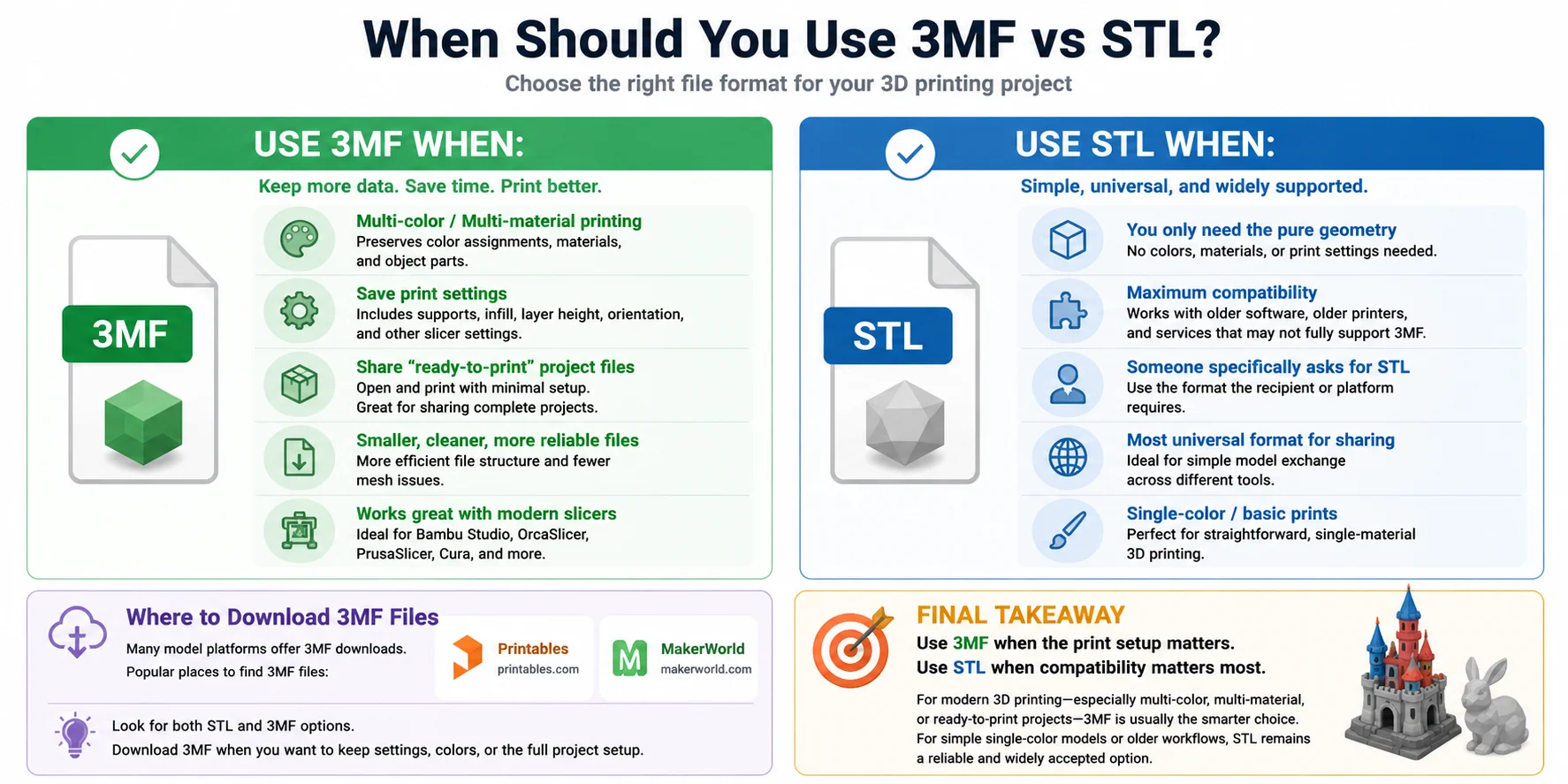
The short answer: use 3MF when color, materials, or print settings matter; use STL when you only need raw geometry or maximum compatibility with older tools.
Where Can You Download 3MF Files?
Many 3D model platforms now offer 3MF downloads, especially for printer-ready projects. Popular places to find 3MF files include:
- Printables
- MakerWorld
These platforms often provide both STL and 3MF options. If you see a 3MF file available, it is worth downloading when you want to preserve print settings, colors, or project setup. If you only need the model shape, STL may be enough.
Final Recommendation
Use 3MF when the print setup matters. Use STL when compatibility matters most.
For modern 3D printing, especially with multi-color, multi-material, or ready-to-print projects, 3MF is usually the smarter choice. For simple single-color models or older workflows, STL remains a reliable and widely accepted option.
Frequently Asked Questions
What program opens 3MF files?
3MF files can be opened with popular 3D printing software such as Bambu Studio, OrcaSlicer, PrusaSlicer, and Ultimaker Cura. They can also be opened in some CAD programs like Fusion 360 and Microsoft 3D Builder.
What is the difference between 3MF and STL?
The main difference is that STL only stores a model's geometry, while 3MF can store geometry, colors, materials, and print settings in a single file. As a result, 3MF is better for modern 3D printing workflows, while STL remains popular for its simplicity and broad compatibility.
How do I change 3MF to STL?
To convert a 3MF file to STL, open the 3MF file in a slicer or CAD program, then choose Export or Save As and select STL as the output format. Keep in mind that converting to STL will remove any colors, materials, and print settings stored in the original 3MF file.
How do I make a 3MF file?
You can create a 3MF file by opening a 3D model in a slicer such as Bambu Studio, OrcaSlicer, PrusaSlicer, or Cura, configuring your print settings, and then choosing Save Project or Export as 3MF. You can also export directly to 3MF from many CAD programs, including Fusion 360 and SOLIDWORKS.
Can I convert a 3MF to STL?
Yes. You can convert a 3MF file to STL by opening it in a slicer or CAD program and choosing Export as STL or Save As STL. Keep in mind that the STL file will only retain the model's geometry and will not preserve colors, materials, or print settings from the original 3MF file.
Conclusion
In short, STL is great for basic geometry, while 3MF is better when colors, materials, and print settings matter. As more modern slicers and printers support 3MF, it's becoming the go-to format for complete print projects. Need a model to print? Generate one from text or a photo with Tripo AI and export it as a 3MF—ready for Bambu Studio or your favorite slicer.
