How to Reduce File Size of AI 3D Models: From Bloated to Optimized in Minutes
The rise of AI 3D model generators has revolutionized content creation, but there's one challenge that keeps haunting creators: massive file sizes. You've just generated the perfect model using image to 3D technology, only to discover it's a 500MB behemoth that crashes your game engine. Sound familiar?
Here's the reality: while AI-powered platforms like Tripo AI can transform ideas into stunning 3D assets in seconds, the resulting files often need optimization for real-world use. Whether you're developing mobile games, creating AR experiences, or building web-based 3D viewers, file size matters—and it matters a lot.
This comprehensive guide will walk you through both traditional optimization methods and cutting-edge solutions like Tripo Studio's smart low-poly feature, helping you achieve up to 90% file size reduction without sacrificing visual quality.
Understanding What Makes AI 3D Models Large
ai generate 3d model generators, which can convert images to 3d model, create files differently than traditional modeling, especially when producing ai generated 3d models from image. Here's what contributes to their size:
Traditional Methods for Reducing 3D Model File Size
Manual Decimation in Blender
Decimation reduces polygon count while attempting to preserve shape. Here's the step-by-step process:
- Step 1: Import your model into Blender
- Step 2: Select the object and enter Edit Mode (Tab)
- Step 3: Add a Decimate modifier (Modifiers panel > Add Modifier > Decimate)
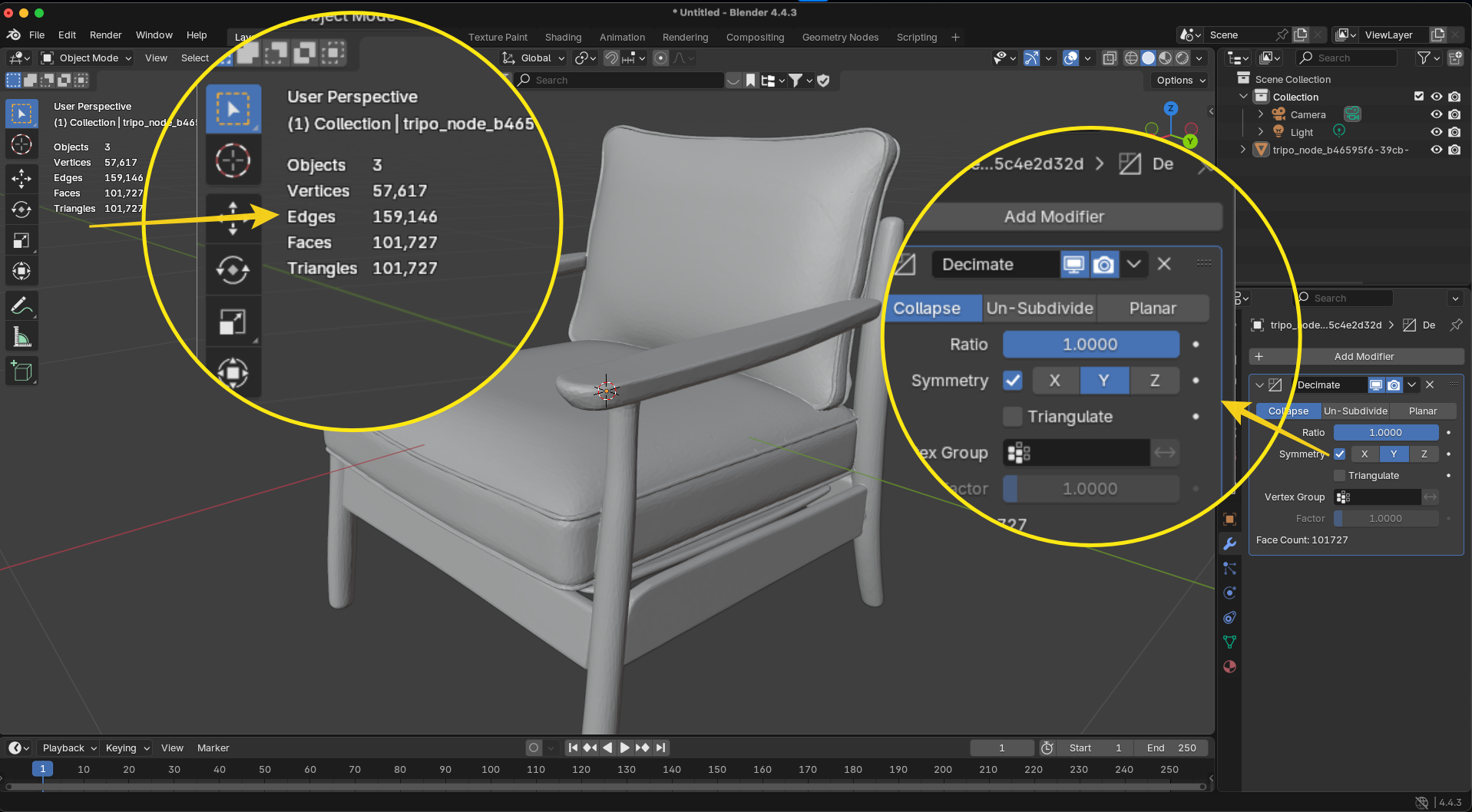
- Step 4: Adjust the ratio (0.5 = 50% reduction)
- Step 5: Apply the modifier when satisfied
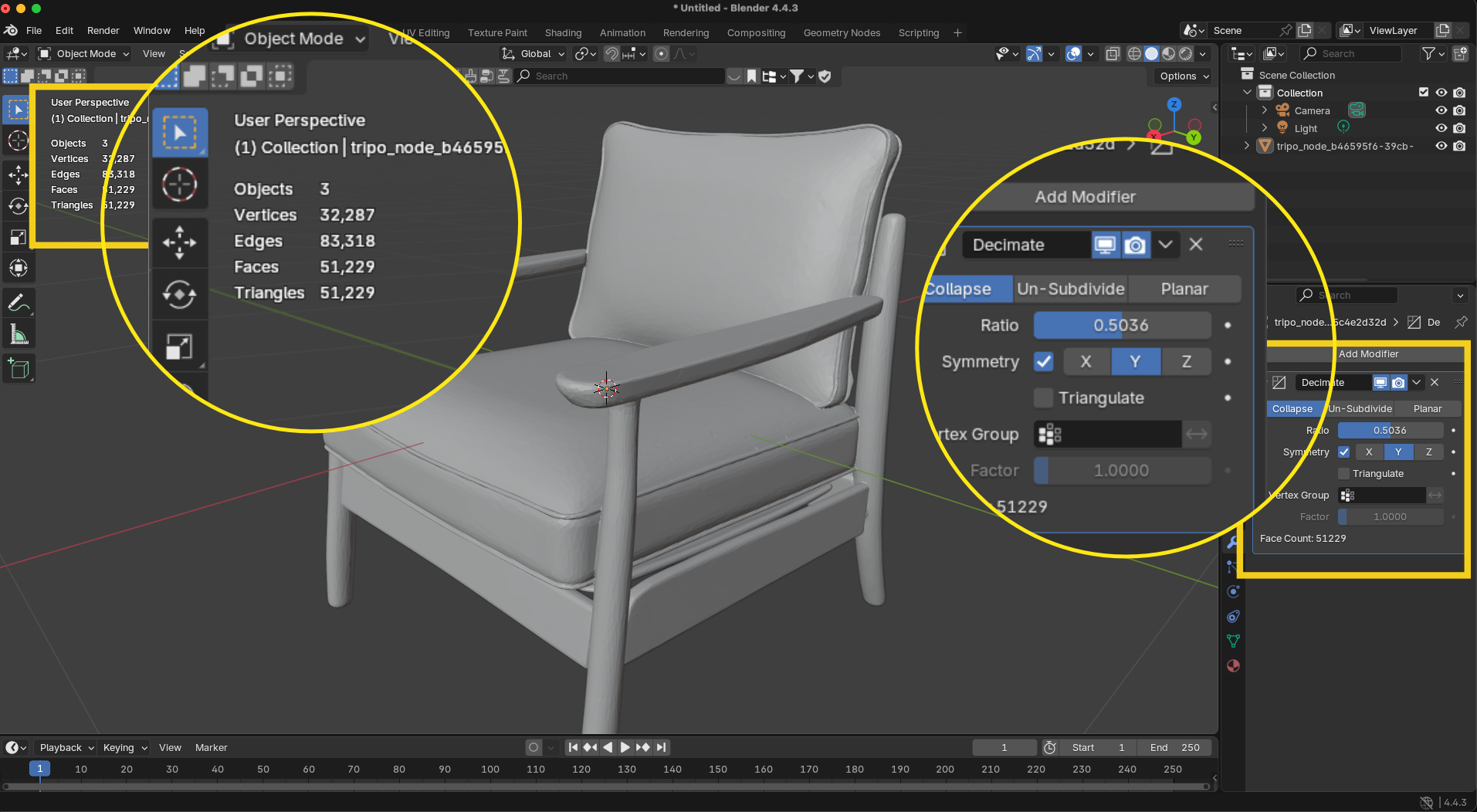
For more detailed Blender techniques, check out our comprehensive Guide to Blender: Modeling Basics and Advanced Techniques.
Pros: Free, precise control
Cons: Time-consuming, can create artifacts, requires manual cleanup
Retopology for Clean Geometry
Professional studios often rebuild models from scratch using retopology techniques:
- Step 1: Create a new, low-poly mesh over the high-poly original
- Step 2: Use tools like ZRemesher (ZBrush) or Instant Meshes
- Step 3: Bake details from high-poly to low-poly normal maps
- Step 4: Optimize UV layouts for texture efficiency
Pros: Cleanest results, animation-ready topology
Cons: Extremely time-intensive (4-8 hours per model), requires expertise
Texture Optimization Techniques
Textures often consume more space than geometry. When working with textures, understanding how to add texture in Blender is crucial for optimization:
- Reduce resolution: Convert 4K textures to 2K or 1K
- Compress formats: Use JPEG instead of PNG for diffuse maps
- Atlas packing: Combine multiple textures into single sheets
- Remove unused channels: Delete alpha channels if transparency isn't needed
For specific material optimization, our guide on creating realistic metal textures in Blender demonstrates efficient texture workflows.
LOD (Level of Detail) Generation
Creating multiple versions for different viewing distances:
LOD0: Full detail (close-up views)
LOD1: 50% polygons (medium distance)
LOD2: 25% polygons (far distance)
LOD3: 10% polygons (very far/background)
The Game-Changer: Tripo Studio's Smart Low-Poly Feature
While traditional methods work, they're painfully slow. Enter Tripo Studio—the world's first AI-native 3D workspace that revolutionizes file optimization.
What Makes Smart Low-Poly Different?
Unlike basic decimation tools that you might find in Blender's documentation, Tripo Studio's intelligent algorithm understands 3D model structure:
Preserves visual features: Maintains edges, details, and silhouettes
Intelligent reduction: Removes polygons where they matter least
One-click operation: No manual tweaking required
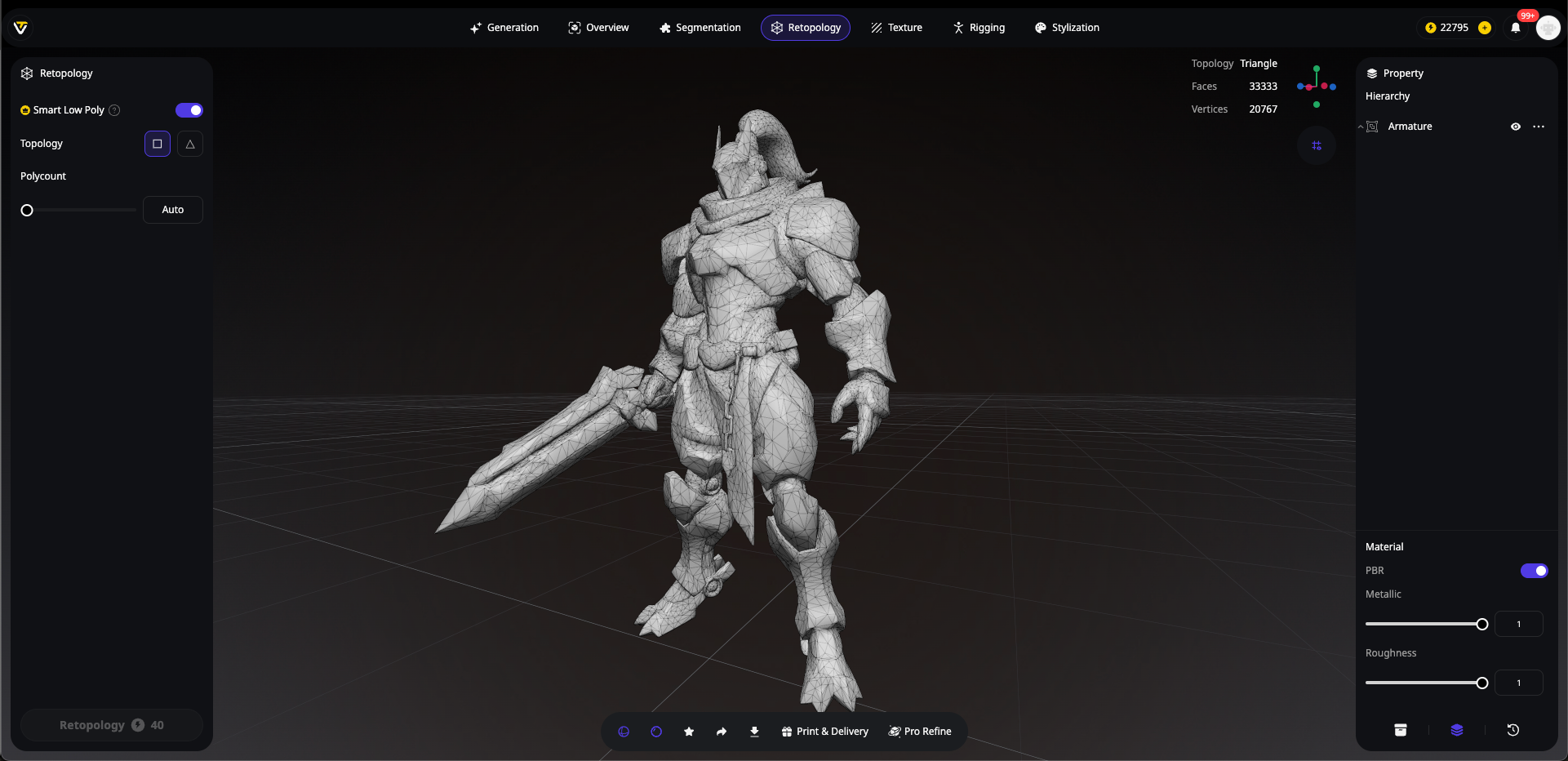
Instant results: Processes models in seconds, not hours
Real-World Performance Comparison
How to Use Tripo Studio for File Size Optimization

Step 1: Access Tripo Studio
Navigate to studio.tripo3d.ai and import your high-poly model into the AI-native workspace.
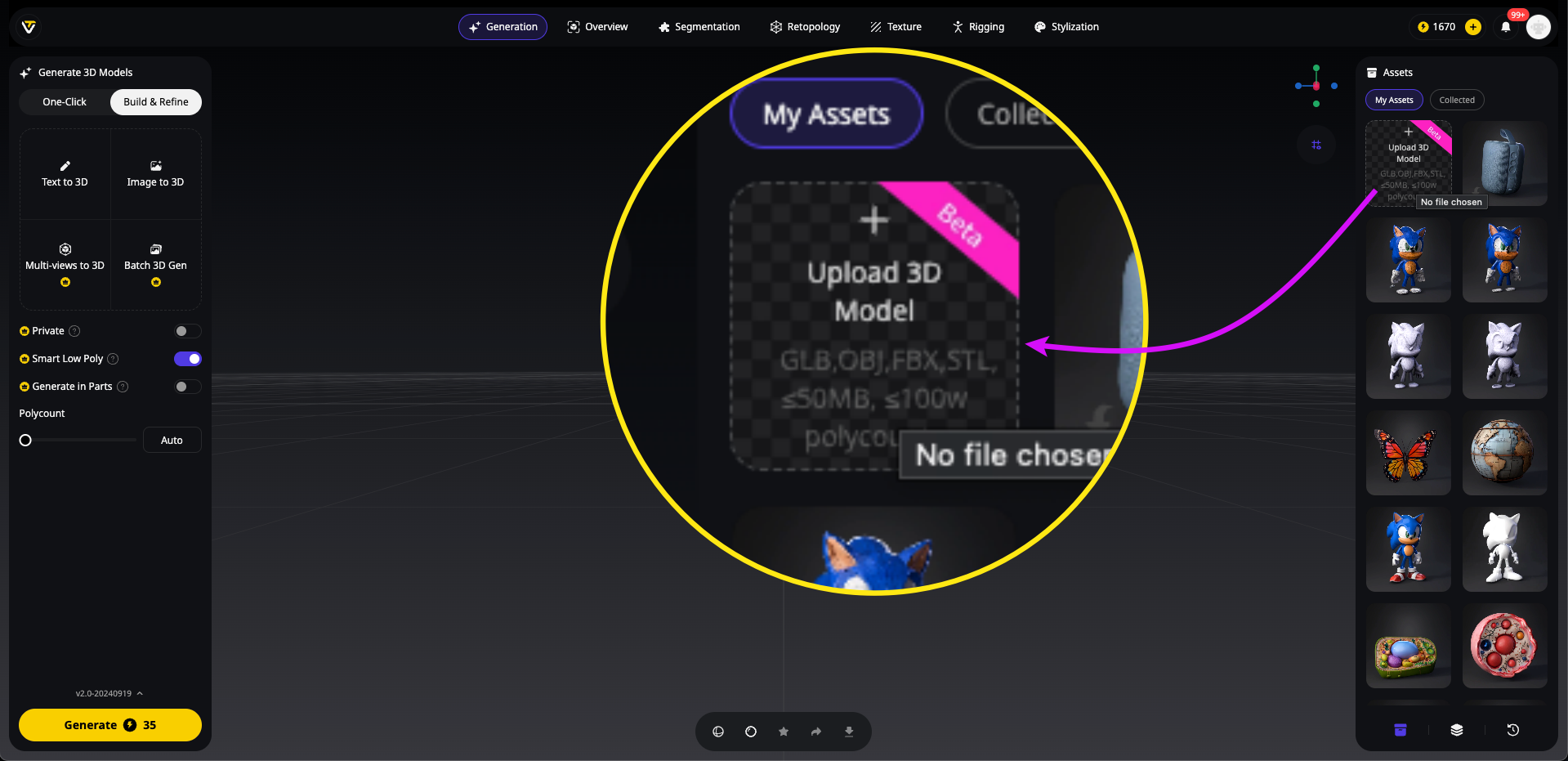
Step 2: Upload Your Existing Model
Whether you've created a model in another software, downloaded it from a marketplace, or generated it with any AI 3D model generator, simply upload it to Tripo Studio. The platform supports all major formats (FBX, OBJ, STL, GLB).
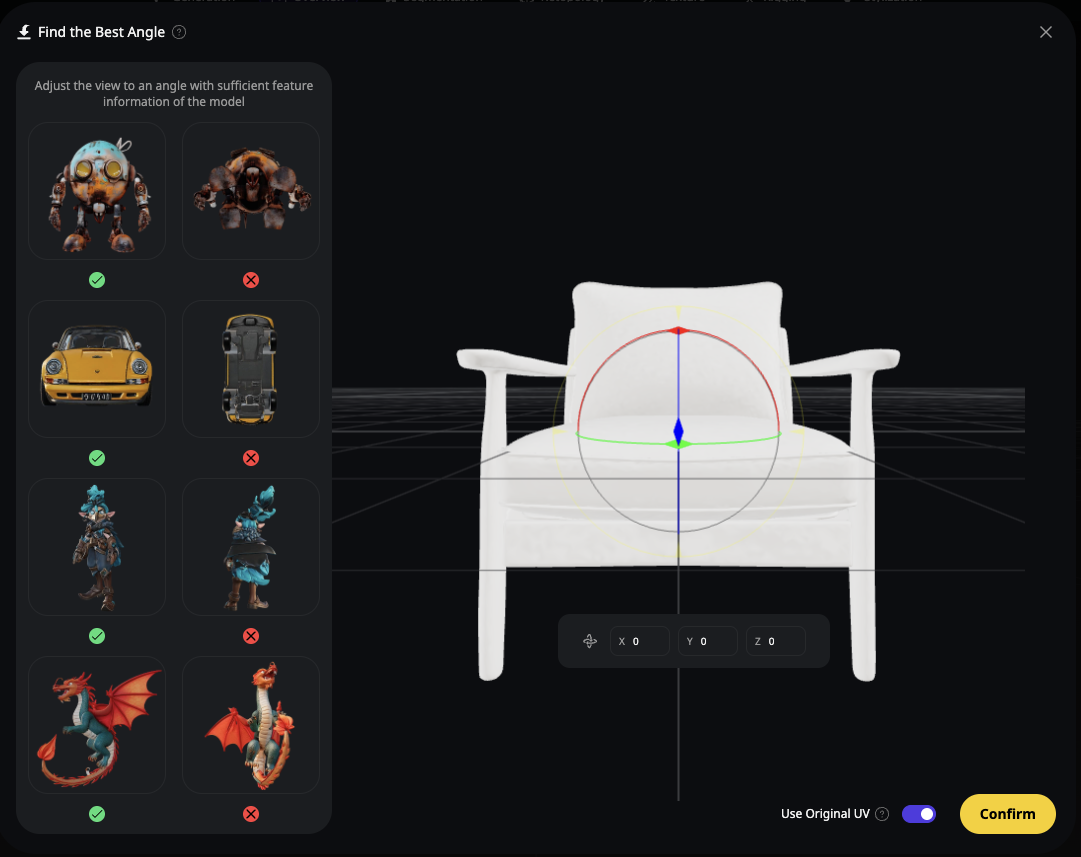
Step 3: Choose Your Optimization Method
Tripo Studio offers two powerful optimization approaches:
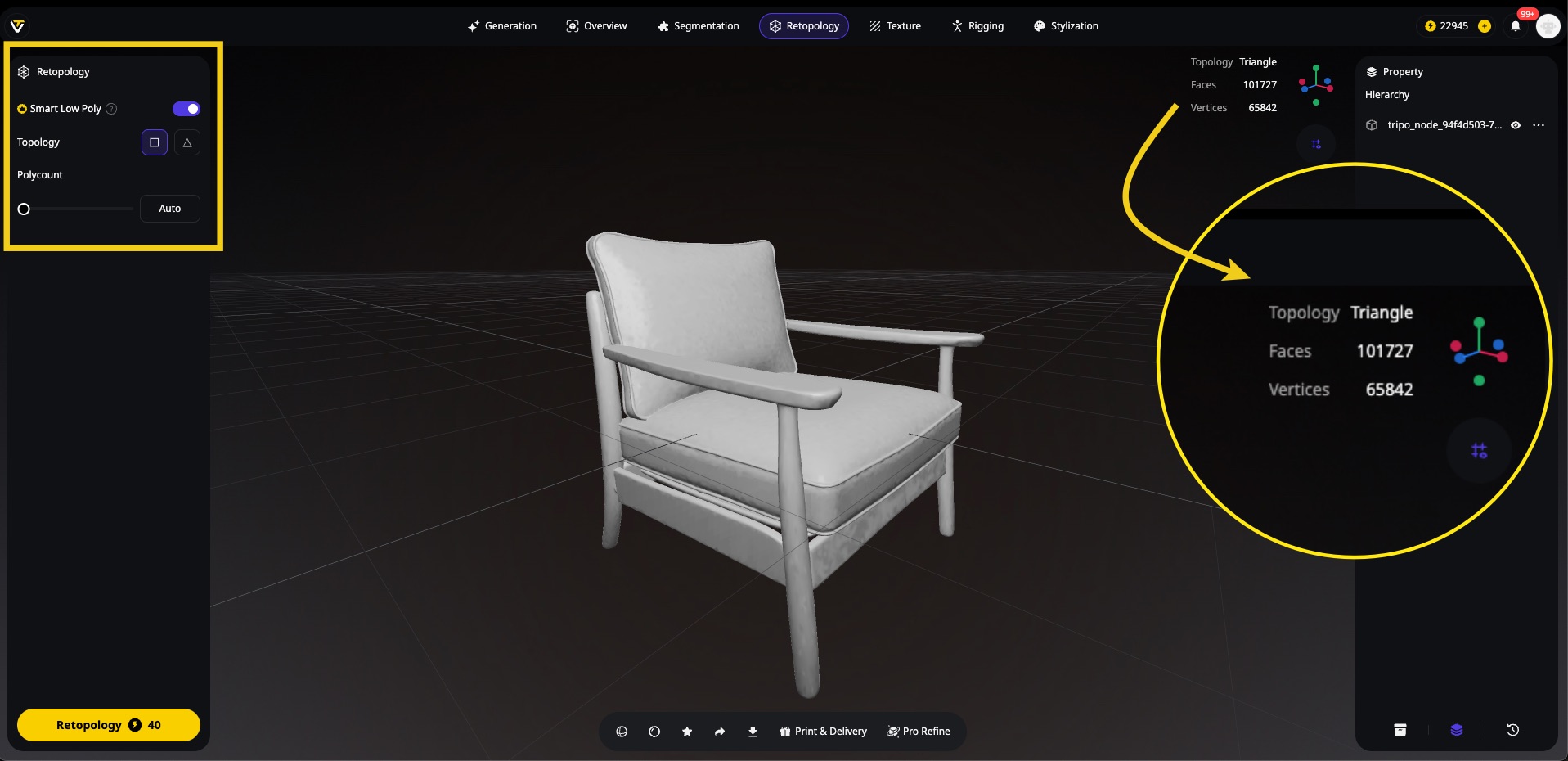
Option A: Smart Low-Poly (Automatic)
- Let the AI analyze your model and determine the optimal polygon count
- The algorithm intelligently preserves important details while maximizing reduction
- Perfect when you want the best quality-to-size ratio without manual tweaking
Option B: Custom Polygon Target
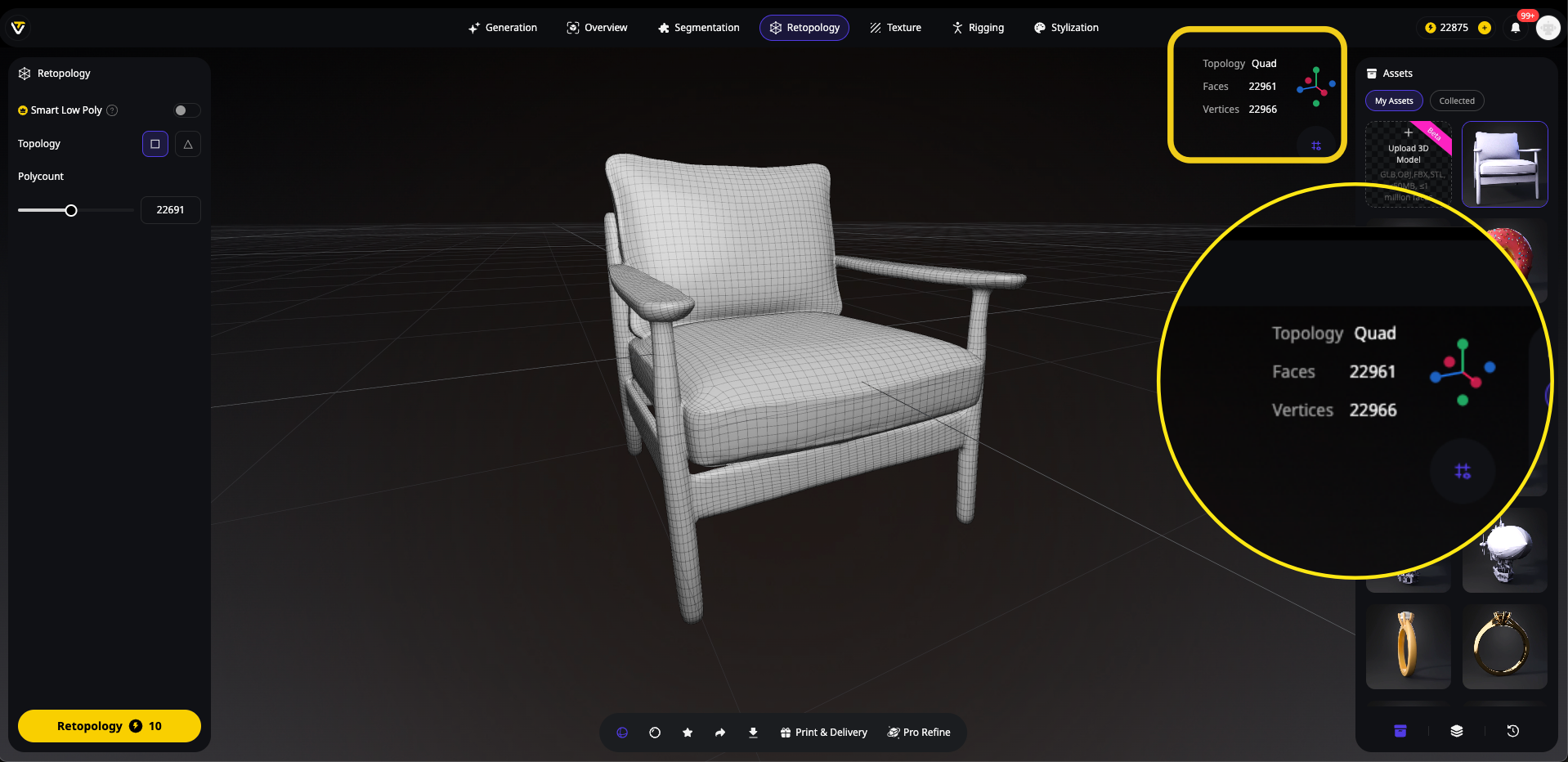
- Use the intuitive slider to set your exact polygon count
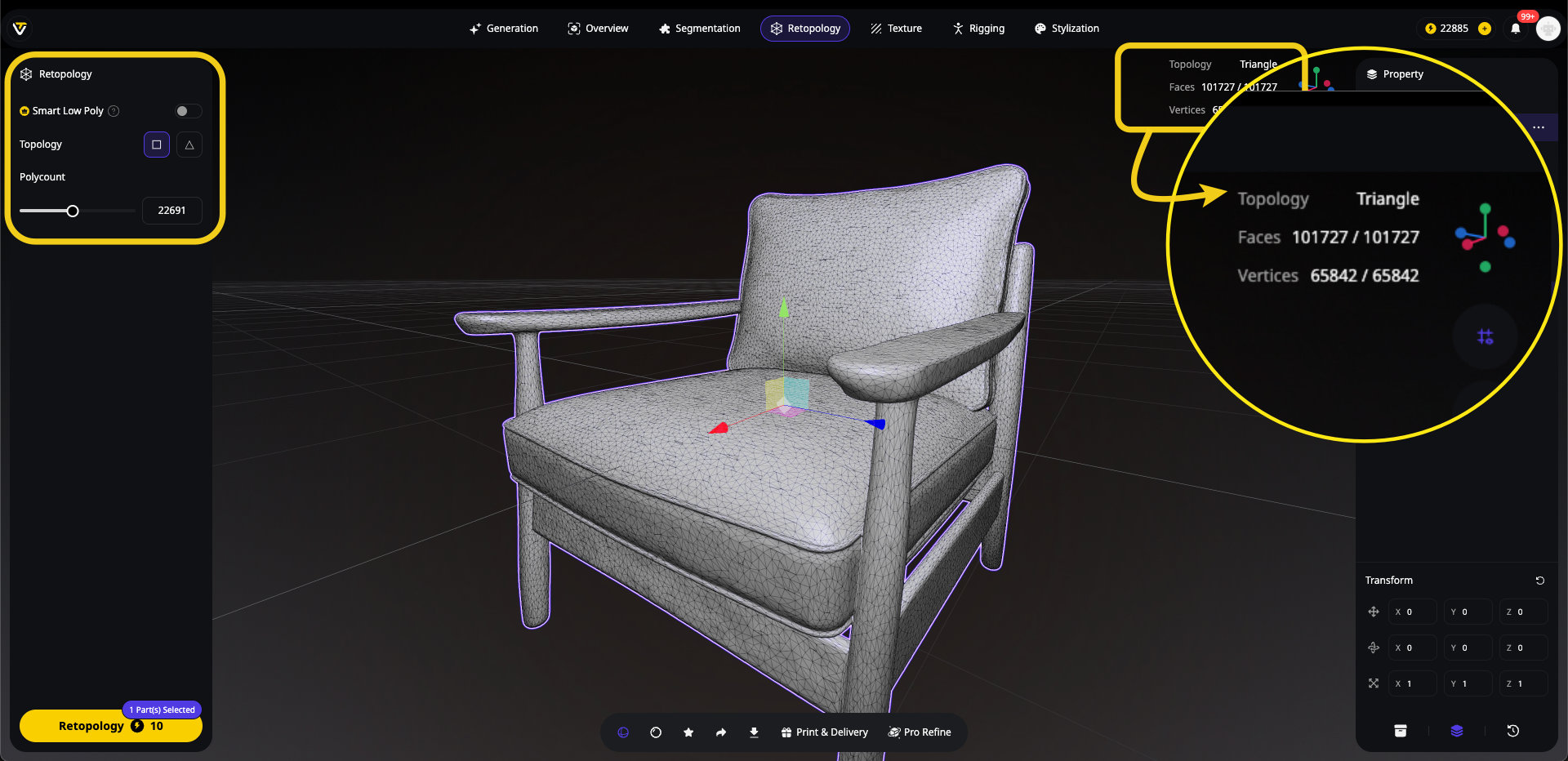
- Watch in real-time as the model updates to your specifications
- Set anywhere from 1,000 to 500,000 polygons based on your needs
- Ideal when you have specific platform requirements (e.g., "mobile game characters must be under 50,000 polygons")
Step 4: Fine-Tune with Studio Tools (Optional)
The real-time preview lets you:
- Slide between different polygon counts to find the sweet spot
- Compare before/after views instantly
- Adjust specific areas that need more or less detail
- Test different optimization levels without re-processing
Step 5: Export Your Optimized Model
Once satisfied with the polygon count and visual quality, export in your preferred format.
The Future of 3D Model Optimization
As AI 3D model generators evolve, we're seeing exciting developments presented at conferences like SIGGRAPH:
Algorithm 3.0 Advancements: Tripo AI's latest algorithm (now in beta) generates more efficient models from the start, reducing post-processing needs.
Real-Time Optimization: Future versions of Tripo Studio will optimize models during generation, not after.
Intelligent Compression: AI-powered compression that understands which details matter most to human perception.
Automatic LOD Generation: One-click creation of entire LOD chains with perfect visual consistency.
Best Practices for Sustainable 3D Workflows
- Start with the end in mind: Consider target platform before generating models
- Use appropriate generation settings: Don't create 4K textures for mobile games
- Batch process when possible: Optimize multiple models simultaneously
- Maintain originals: Always keep high-quality versions for future needs
- Test on target devices: verify performance on actual hardware
Conclusion: Work Smarter, Not Harder
The days of spending hours manually optimizing 3D models are over. With Tripo Studio's smart low-poly feature combined with traditional techniques, you can achieve professional results in minutes instead of hours.
Whether you're creating assets for mobile games, web experiences, or AR applications, the combination of Tripo AI's powerful generation capabilities and intelligent optimization tools provides the complete pipeline modern creators need.
Ready to revolutionize your 3D workflow? Join over 2 million creators who've discovered the power of AI-native 3D creation. Try Tripo Studio today and experience the difference intelligent optimization makes!
Start Creating with Tripo Studio - Transform your ideas into optimized 3D models in minutes, not hours.Truth dying
Advancing 3D generation to new heights
moving at the speed of creativity, achieving the depths of imagination.
 Text & Image to 3D models
 Free Credits Monthly
 High-Fidelity Detail Preservation