How to Create 3D Avatar from Image in Seconds Using Tripo AI (Easy Tutorial)
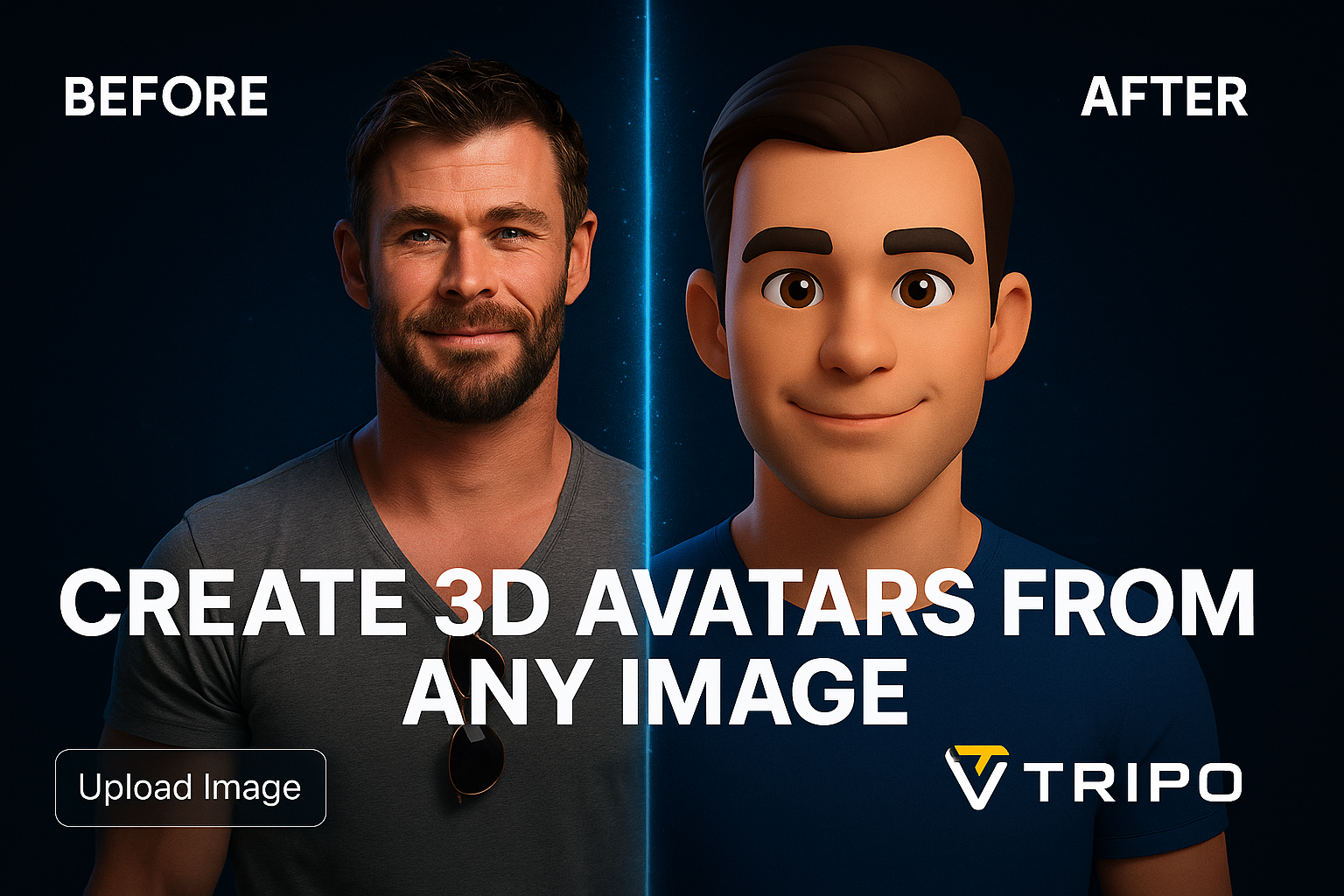
Ever wished you could create an immersive and lifelike digital version of yourself from just a simple photo? Do traditional 3D modeling processes feel overwhelming or incredibly time-consuming? You're not alone. Whether you're a gamer seeking the perfect VRchat avatar, a digital creator building your unique digital identity, or simply someone trying to express your personality online, creating a custom 3D model can feel like a frustrating task.
Fortunately, now there is an easy solution: Tripo AI. With this powerful AI 3D model generator, you can quickly and effortlessly create avatar from image inputs—with impressive results.
In this step-by-step guide, we'll show you exactly how to use Tripo AI to instantly turn your photos into a fully realized custom 3D avatar.
Why Choose Tripo AI as Your 3D Avatar Maker?
Before we dive into the tutorial, here's why Tripo is your ideal choice when you want to create an avatar easily:
- Fast Results: Tripo AI generates draft avatars from your photos within seconds.
- Easy to Use: No deep technical skills or previous 3D modeling knowledge required. Upload your image and the AI does everything else.
- AI-Powered Quality: Detailed results rival manual 3D modeling, thanks to Tripo's cutting-edge artificial intelligence.
- Versatile Applications: Use the created avatars for VRchat, animations, gaming characters, social profiles, and more.
- Export-Friendly Formats: Export your avatar in popular formats including OBJ, FBX, USDZ, and STL.
Let's get started!
Step-by-Step Tutorial: How to Create Avatar from Image with Tripo AI
Follow these straightforward steps to convert your photo into a personalized 3D avatar:
Step 1: Generate Consistent Stylized 2D Portraits Using ChatGPT 4o
To achieve a uniform, appealing style perfect for conversion into 3D avatars with Tripo AI, it's highly recommended to first generate stylized 2D portrait images using a tool like ChatGPT 4o. These serve as the ideal input, whether you're creating a set of different characters or multiple variations (like different expressions) of the same character.
Use the following prompt templates. Simply copy the template, replace the text inside [square brackets] with your specific details, and use it with ChatGPT 4o.
Method 1: Creating New Avatars & Variations from Text Prompts
Use this method to generate entirely new characters or create variations (like different expressions) for a character based purely on text descriptions.
- Template 1: Create a NEW Character from Text Description (Use this to generate the first instance of a brand-new character.)
Generate a stylized 3D avatar headshot/bust portrait ofDescribe your character clearly, e.g., 'a cheerful woman with short blue hair and freckles', 'an elderly wizard with a long white beard and glasses'. Rendered in a smooth, clean, minimalist 3D toy/claymation style with rounded forms and simplified features The character should be centered against a Choose Background: 'plain, vibrant, solid Specify Color, e.g., bright yellow background' OR 'transparent background'. se soft, even studio lighting highlighting the form. Maintain a consistent visual style suitable for a character collection.
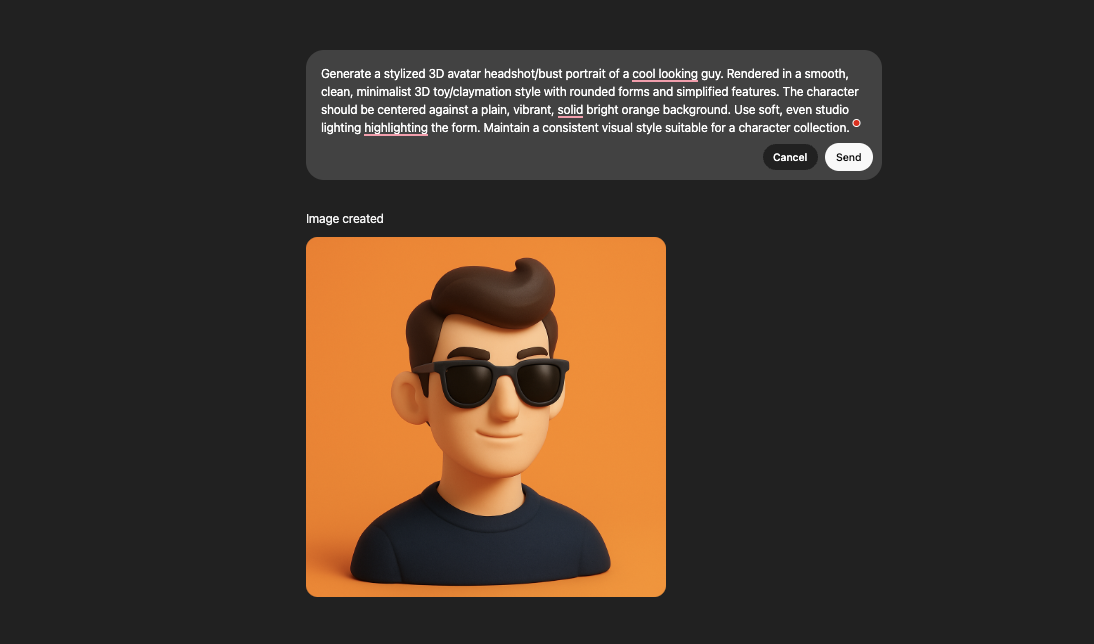
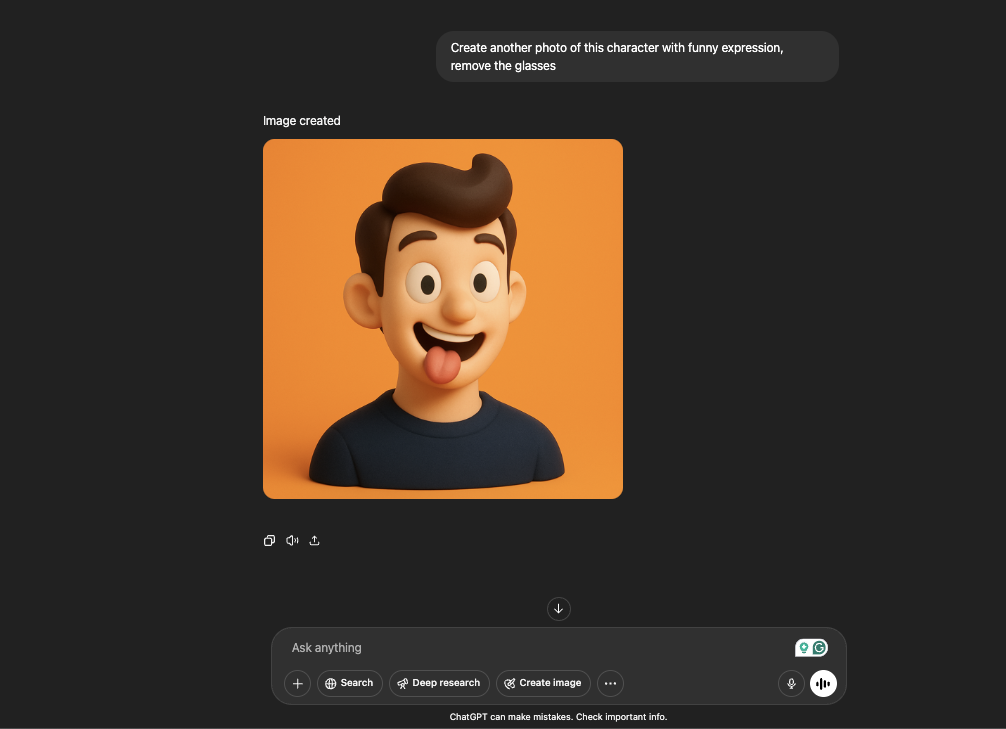
Now, if you want to create multiple consistent images, you can just simply prompt ChatGPT like this:"
Create another photo of this character with a funny expression, remove the glasses." ChatGPT 4o he really good at creating consistent images.
Method 2: Transforming Existing Photos & Generating Variations
Use this method to convert photos of real people into the stylized avatar look or attempt to generate variations based on a photo.
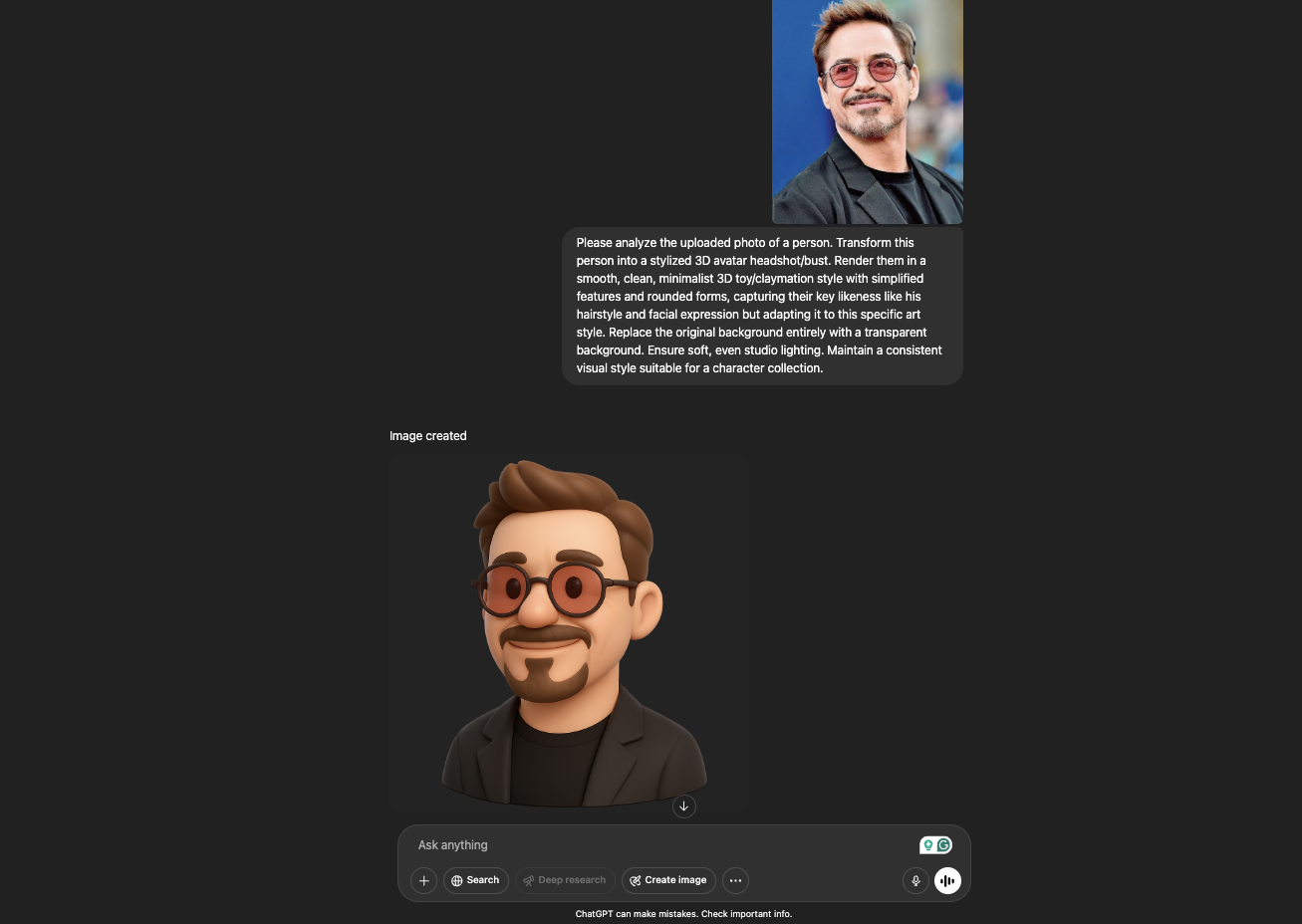
- Template 2: Convert an UPLOADED PHOTO into the Stylized Avatar (Use this after uploading a photo of a person.)
Please analyze the uploaded photo of a person. Transform this person into a stylized 3D avatar headshot/bust Render them in a **smooth, clean, minimalist 3D toy/claymation **style with simplified features and rounded forms, capturing their key likeness (like Mention key features if desired, e.g., 'their specific hairstyle and glasses') but adapting it to this specific art style. Replace the original background entirely with a **Choose Background: 'plain, vibrant, solid **Specify Color, e.g., lime green background' OR 'transparent background'****. Ensure soft, even studio lighting. Maintain a consistent visual style suitable for a character collection.
- Template 4: Create a VARIATION from an UPLOADED PHOTO (Attempting New Expression) (Use this after generating an avatar from a photo using Template 3. Works best if ChatGPT has context or if you re-upload the same photo. Generating specific expressions purely from AI interpretation of a static photo can be inconsistent; using a different photo of the same person with the desired expression often works better.)
Based on the stylized avatar generated from the uploaded photo (Briefly mention the person, e.g., 'of Robert Downey Jr.'), now generate a version showing the same character but with a **Describe the desired new expression or minor change, e.g., 'thoughtful expression', 'laughing', 'wearing headphones'**. Maintain the exact same smooth, clean, minimalist 3D toy/claymation style with simplified features and **rounded forms.Use the sameChoose Background: 'plain, vibrant, solid Specify Color' OR 'transparent background' OR 'the same background as before'**. Ensure the exact same soft, even studio lighting and consistent visual style.
Key Usage Notes for All Templates:
- Consistency is Crucial: The bolded phrases defining the style (smooth, clean, minimalist 3D toy/claymation, rounded forms, simplified features) and lighting (soft, even studio) are essential. Keep these identical across all prompts when generating images intended to be part of the same set or variations of the same character.
- Background: Choose between a
plain, vibrant, solid [Color]background or atransparent background. Be consistent if needed for your set. - Headshot/Bust Focus: These prompts are tailored for generating head-and-shoulders portraits, ideal for creating bust-style 3D avatars in Tripo AI.
- Simplify: Aim for the described simplified style, not photorealism.
Once you have generated your desired set of stylized 2D portrait images using these templates, save them. They are now perfectly prepared for the next step: uploading them to Tripo AI for conversion into actual 3D avatars.
This method simplifies your photo prep significantly, making your uploaded image clearer and stylistically pleasing, ideal for generating a detailed and engaging avatar instantly with Tripo AI’s image to 3d model tool.
Step 2: Upload Your Image to Tripo AI
To begin the image to 3d model process:
- Head to Tripo3D.ai.
- Select the "Image-to-3D" option from your dashboard.
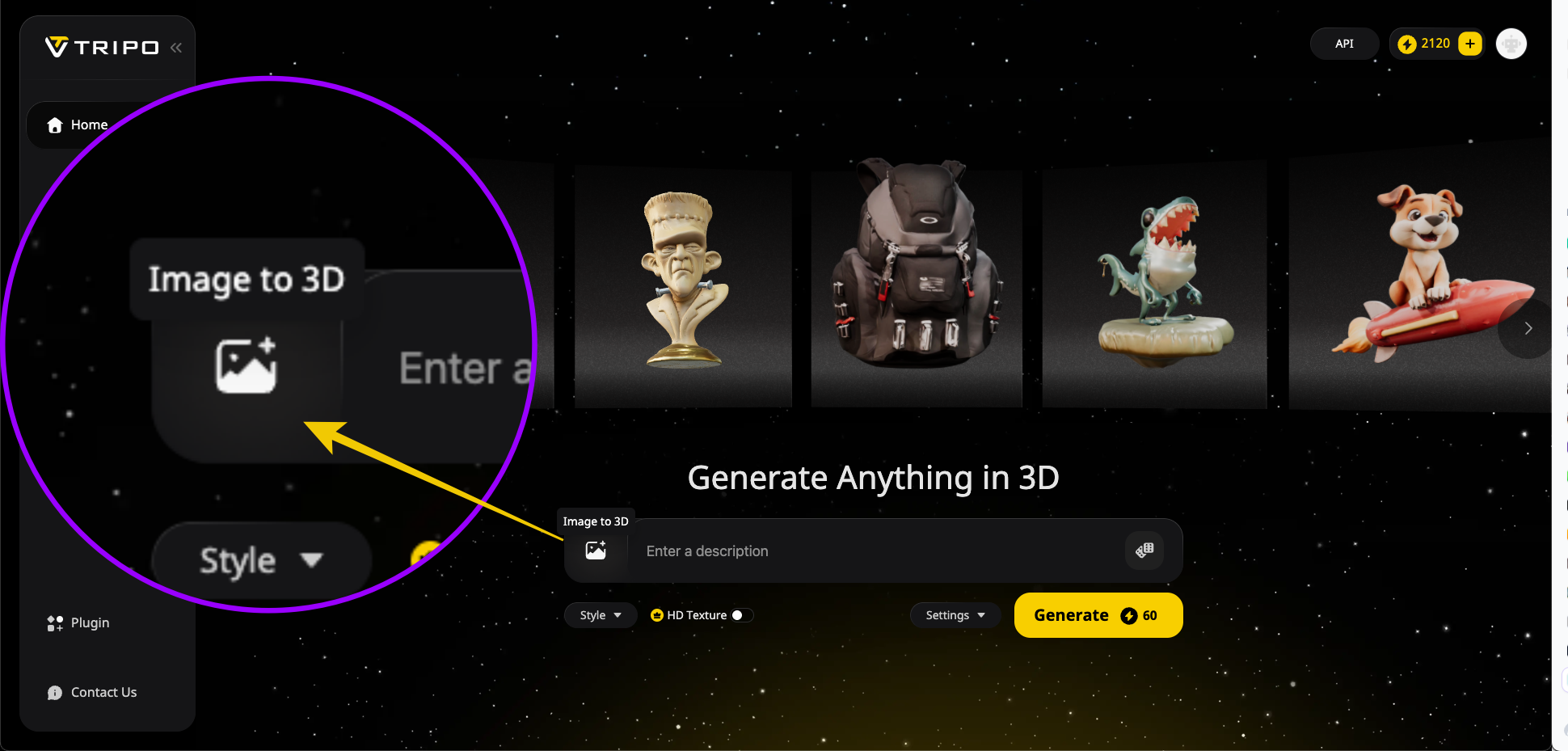
- Simply drag & drop your photo onto the page or click the upload button to choose your image.
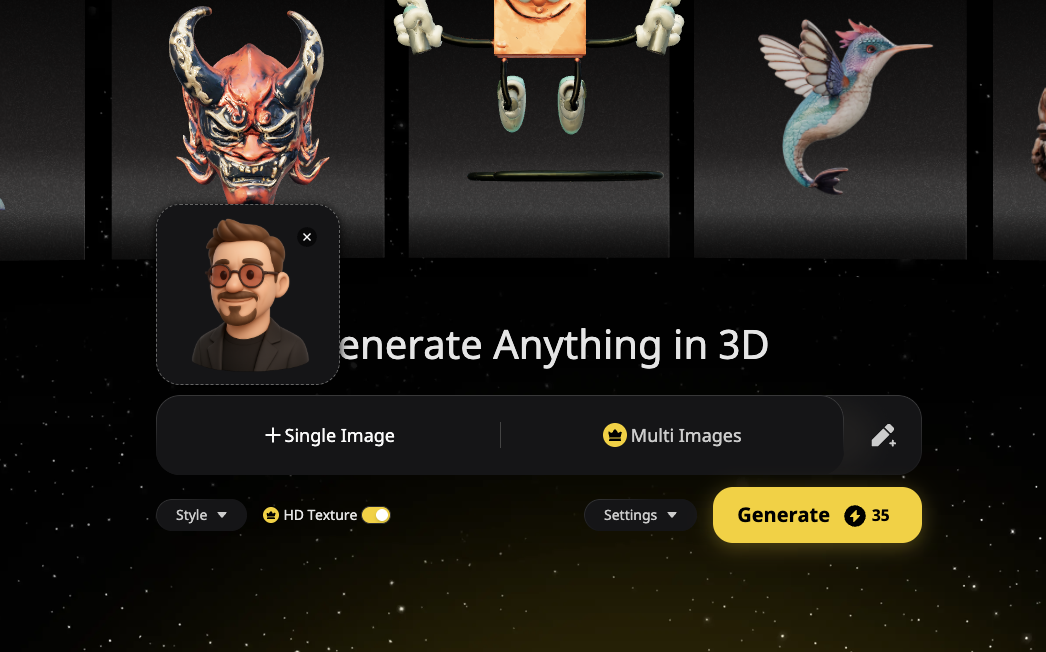
Step 3: Instantly Generate Your Avatar
After uploading, click "Generate" and let Tripo AI perform its magic. The AI quickly reads information from your photo and starts constructing the custom 3D avatar.
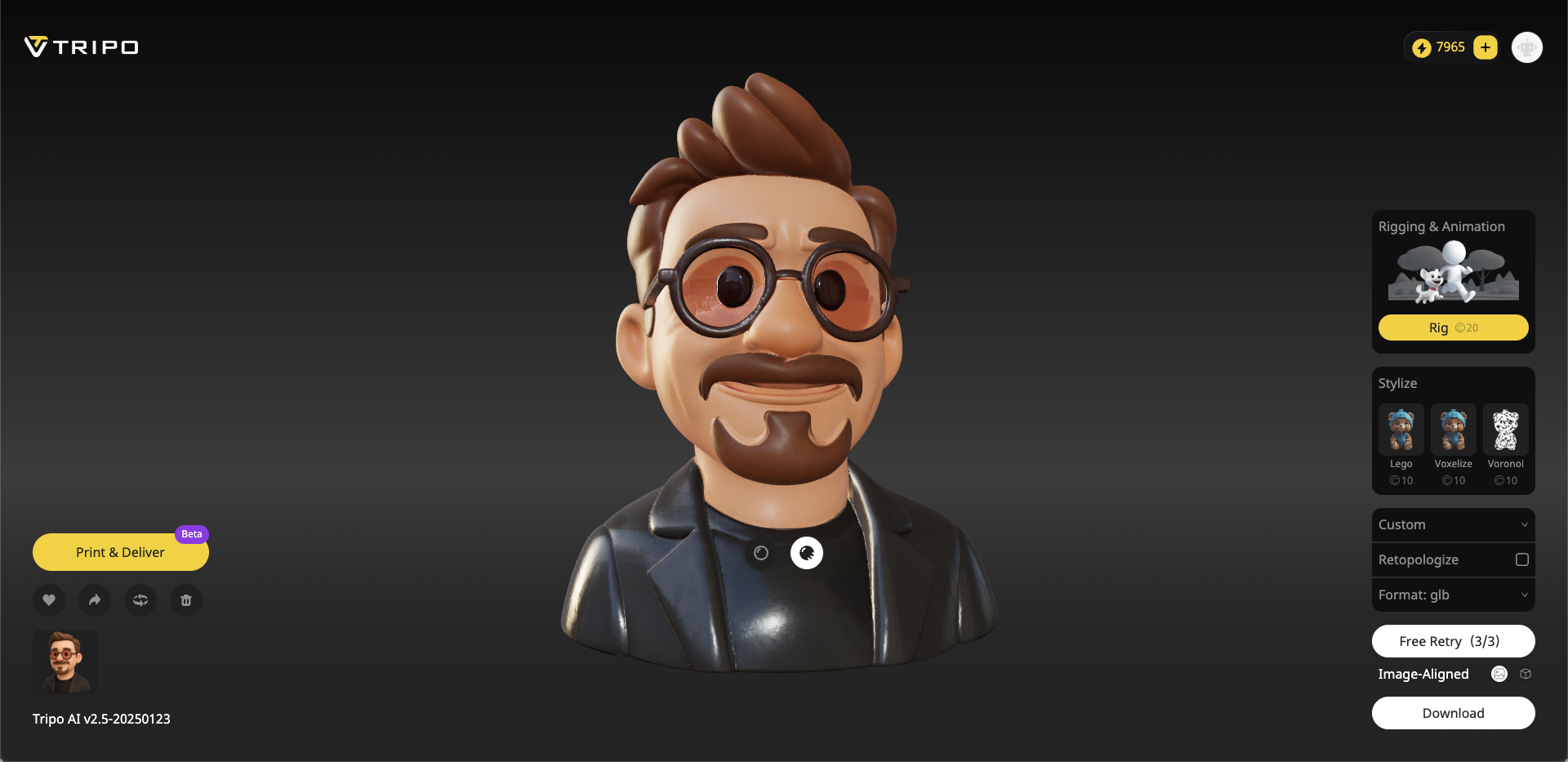
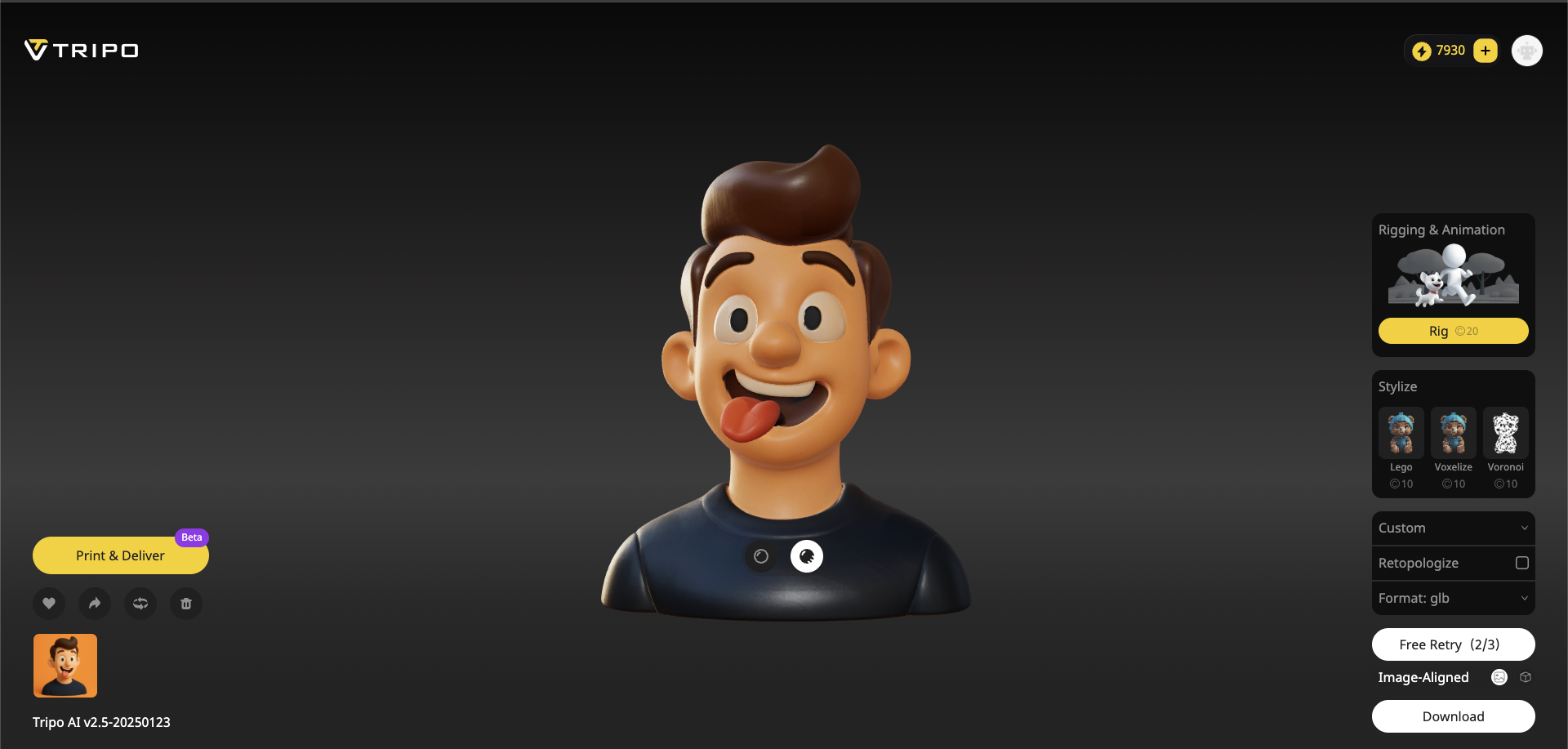
In just moments, you'll see the draft 3D model appear:
- Rotate and preview your draft model easily within the Tripo interface.
- Enjoy immediate visual feedback—no waiting around as with traditional manual modeling.
Step 4: Customize and Refine Avatar Details (Optional)
Want to further refine your created avatar? Tripo AI makes customization simple:
- Enhance details: Use built-in refinement options to increase quality or detail level.
- Easily adjust style according to your project's needs—like realistic, cartoon, clay-style, or Lego aesthetics—again, optional but highly convenient.
Step 5: Export & Use Your Avatar
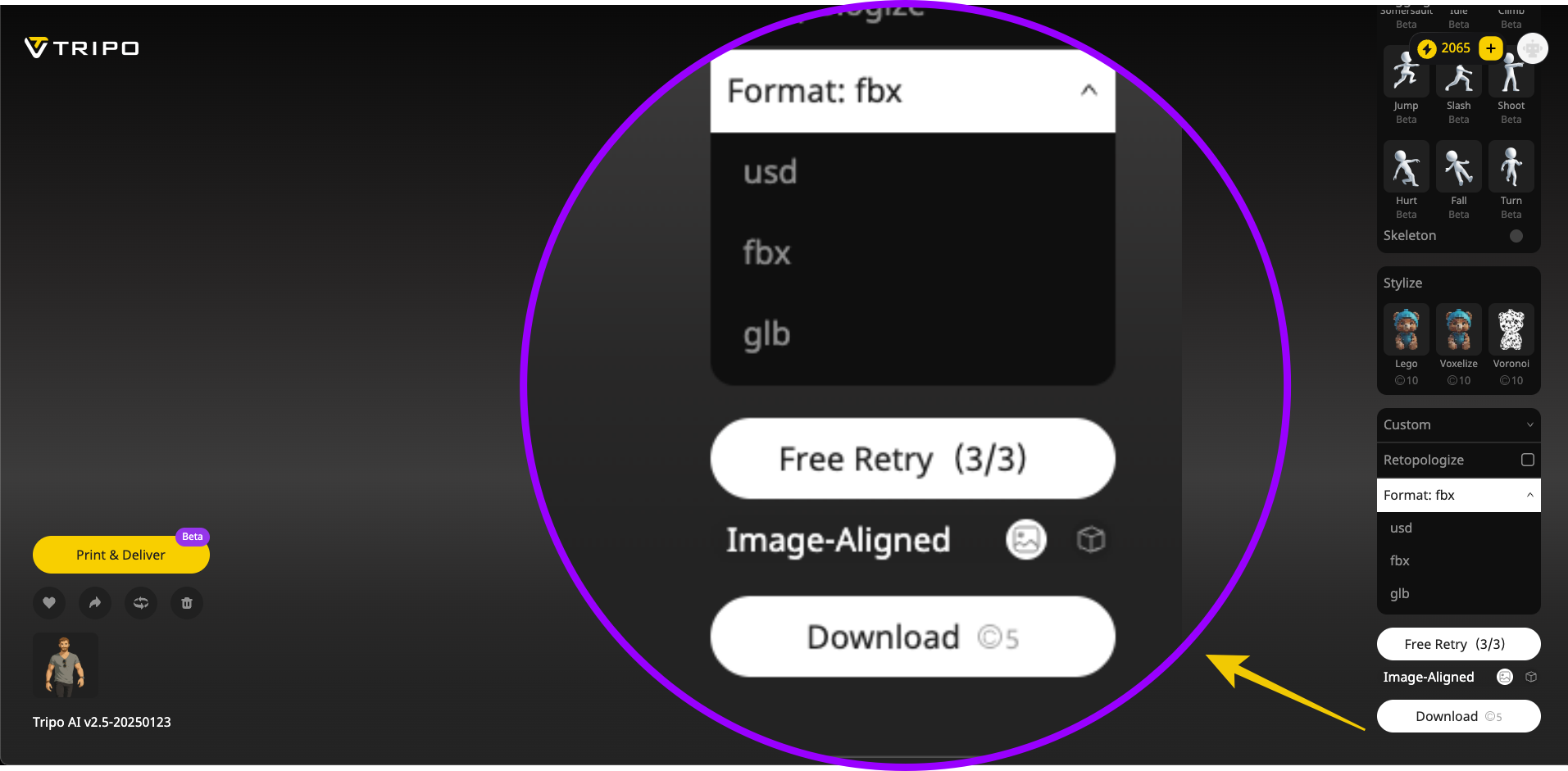
Your model is done! Now, export your finished avatar:
- Click "Export" and pick from various formats such as OBJ or FBX, perfect for common uses like Unity projects, Unreal Engine, or your personalized VRchat avatar.
- Load your fresh avatar into your selected platform—it's incredibly straightforward.
Congratulations, you've successfully learned how to efficiently create avatar from image sources, saving you time, money, and complexity by leveraging AI.
Practical Uses of Your New 3D Avatar
Wondering how else you can leverage your newly created custom 3D avatar? Here are popular applications:
- Gaming & VRChat Experiences: Insert your personalized avatar directly into VRchat or other immersive worlds and multiplayer games.
- Digital Identity and Social Media: Stand out with unique 3D profile images, virtual identities, or animated clips for platforms like TikTok, Discord, and Instagram.
- Digital Art & Animation: Use your avatar in animations or creative digital art projects for engaging storytelling visuals.
You simply aren't limited when you have powerful technology that transforms your static photo to 3d model instantly.
If you want to extend your avatar beyond a 3D model and use it in more interactive digital scenarios, AKOOL's AI avatar is another useful tool to consider. While Tripo AI helps you create a 3D avatar from an image, AKOOL focuses more on bringing digital personas into real-time communication, video content, and customer-facing experiences.

AKOOL's streaming avatar technology allows users to create realistic, interactive avatars that can respond and communicate in real time. This is especially useful for creators, marketers, educators, and businesses that want to use an avatar not only as a visual identity, but also as a digital spokesperson.
With AKOOL, your avatar workflow can expand into areas such as:
- Real-time streaming avatars: Use AI-powered avatars in live or interactive scenarios, making online communication feel more personal and engaging.
- Virtual meetings and presentations: Create a professional digital presence without always appearing on camera yourself.
- Marketing videos and brand campaigns: Turn an avatar into a consistent spokesperson for product explainers, social media videos, promotional content, and campaign materials.
- Customer engagement and support: Use lifelike avatars to guide users, answer questions, or create a more human-like support experience.
- Multilingual content creation: Reach global audiences by letting one digital persona communicate across different languages without filming separate videos each time.
- Scalable digital identity: Maintain a consistent avatar across videos, live interactions, social platforms, and branded experiences.
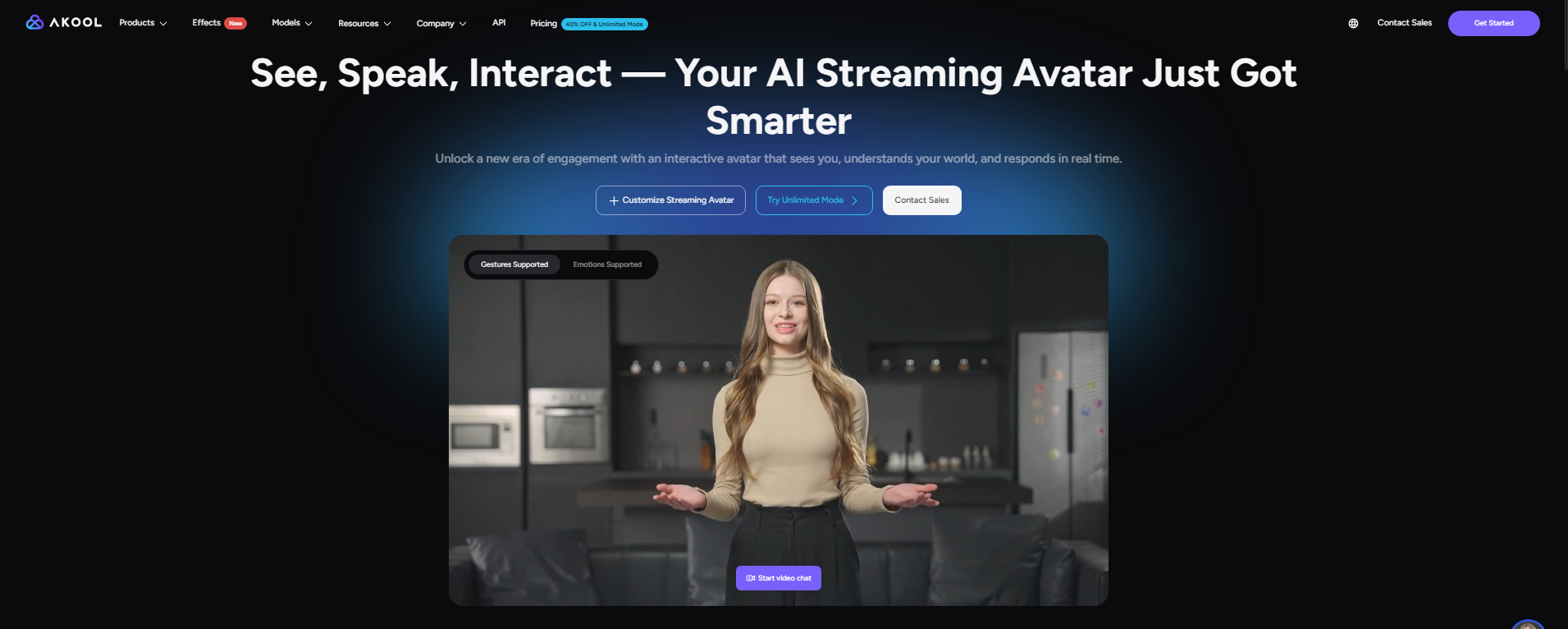
This creates a more complete avatar pipeline: you can first use Tripo AI to generate a custom 3D avatar from an image, then use AKOOL's AI avatar tools to bring that persona into videos, presentations, live communication, or customer engagement workflows. For anyone building a recognizable digital identity, this combination makes the avatar more than just a static model—it becomes a flexible, reusable character that can appear across multiple digital touchpoints.
Why Tripo AI Stands Out from Other 3D Character Creators
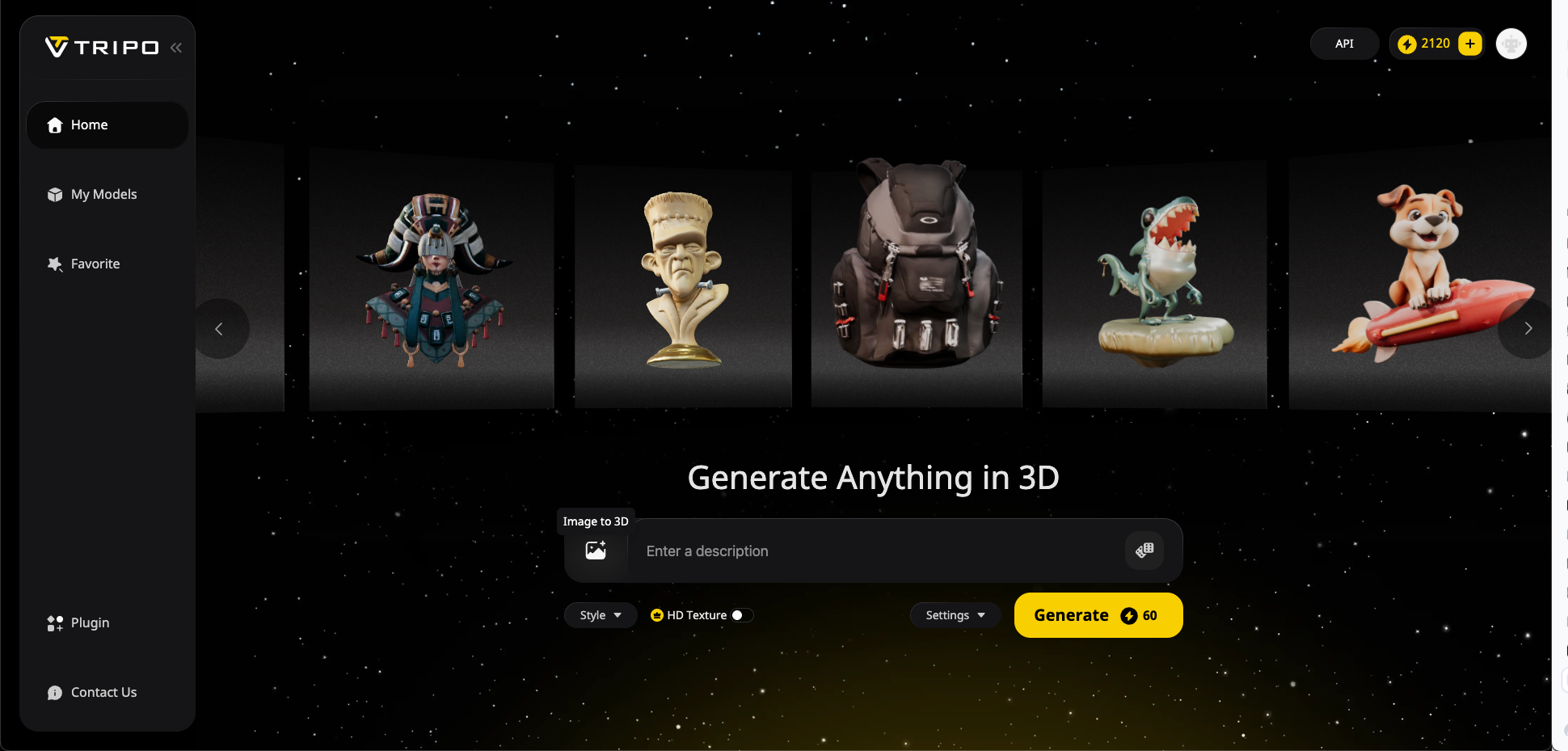
Not every 3d character creator tool provides the same level of results. Tripo AI delivers several standout advantages:
- Precision AI algorithms ensure your results strongly resemble your original photo input.
- Instant rendering speeds, making iterations and adjustments nearly frictionless.
- Multiple export formats compatible with major animation studios, game engines, and creative software.
- Especially helpful when needing to quickly create a 3d model from a picture or generate assets rapidly.
Common Questions about Creating Avatars with Tripo
Here are some quick answers about the image-to-avatar process:
- How accurate is image-to-3D generation? Tripo AI delivers impressively accurate reconstructions—best with clear, sharp, correctly angled photos.
- Do I need technical experience for this? Not at all! It’s beginner-friendly—perfect even if you're new to 3D modeling.
- Can I use my avatar commercially? Check Tripo's terms of service—most premium plans permit commercial use, making it ideal for creators, studios, and freelancers.
Ready to Create Your Avatar Now?
Imagine replacing outdated profile images or boring generic avatars online with your own unique creation. Tripo AI brings cutting-edge technology to your fingertips—quickly creating stunning avatars reflecting your personal style and personality effortlessly.
The power to create avatar from image is finally accessible, affordable, and instantaneous.
Don't wait—try Tripo AI today, and transform your digital presence!
Start Creating Your Custom Avatar with Tripo AI Now →
Tripo AI Avatar Creation FAQ
What kind of photo works best to create an avatar from image using Tripo AI?
For optimal results when creating an avatar with Tripo AI, use a clear, high-resolution, front-facing headshot with even lighting. Ensure the background is minimal or plain to help the AI focus on the subject. Avoid photos where the face is obscured (e.g., by sunglasses or hats) or poorly lit with harsh shadows.
How closely will the generated 3D avatar actually look like my photo?
Tripo AI aims to generate avatars that strongly resemble the input photo, especially when using clear, sharp images. The AI analyzes features like contours, shading, and textures to reconstruct a 3D model with accurate proportions and realistic details. The quality and accuracy of the final avatar significantly depend on the quality of the provided photo.
Do I need any 3D modeling skills to use Tripo AI for avatar creation?
No, you do not need any prior 3D modeling skills or deep technical knowledge to use Tripo AI for creating avatars. The platform features a user-friendly, intuitive interface designed for both beginners and professionals, automating most of the creation process.
Can I edit or refine the 3D avatar after Tripo AI generates it?
Yes, you can refine the avatar generated by Tripo AI. Tripo offers built-in options to enhance details and adjust the style of the draft model. Additionally, you can export the model and use external 3D software like Blender for more detailed adjustments, tweaking the mesh, refining textures, and customizing it further to meet specific requirements.
Where can I use the custom 3D avatar created with Tripo AI?
Custom 3D avatars created with Tripo AI have versatile applications. They can be used in gaming and virtual reality platforms like VRChat, as characters in animations or game projects (e.g., in Unreal Engine), for unique social media profiles or digital identities, and in digital art projects. They are compatible with various 3D software and game engines.
What file formats does Tripo AI support for exporting my avatar?
Tripo AI supports exporting avatars in several popular 3D file formats, including OBJ, FBX, STL, and USDZ. This ensures compatibility with a wide range of 3D software, game engines like Unity and Unreal Engine, and other platforms.
Is it free to create an avatar from an image with Tripo AI?
Yes, Tripo AI offers a free plan that allows you to generate a limited number of models per month. For users needing to create more models or access additional features, Tripo AI also provides paid subscription plans.