Free Grass Textures for 3D, Games & Design (Seamless PBR)
TL;DR
- Grass textures are 2D image maps applied to 3D surfaces to simulate realistic or stylized ground cover without modeling every blade
- PBR-ready grass texture packs can combine diffuse or albedo, normal, roughness, and AO maps to give Blender, Unreal Engine, and Unity more material information than a single color image.
- Seamless, tileable grass textures are widely used for large terrain and ground surfaces because they can repeat without visible seams when the texture and UV scale are set up carefully.
- Tripo AI can generate custom 3D grass assets and terrain objects directly from a text prompt or reference image, going beyond static texture downloads
A grass texture is a 2D image map that simulates the look of grass when applied to a 3D surface or flat design. Artists use them to cover terrain, backgrounds, and environmental assets—avoiding the processing cost of modeling individual blades.
Types of Grass Textures
Seamless or Tileable Grass Textures
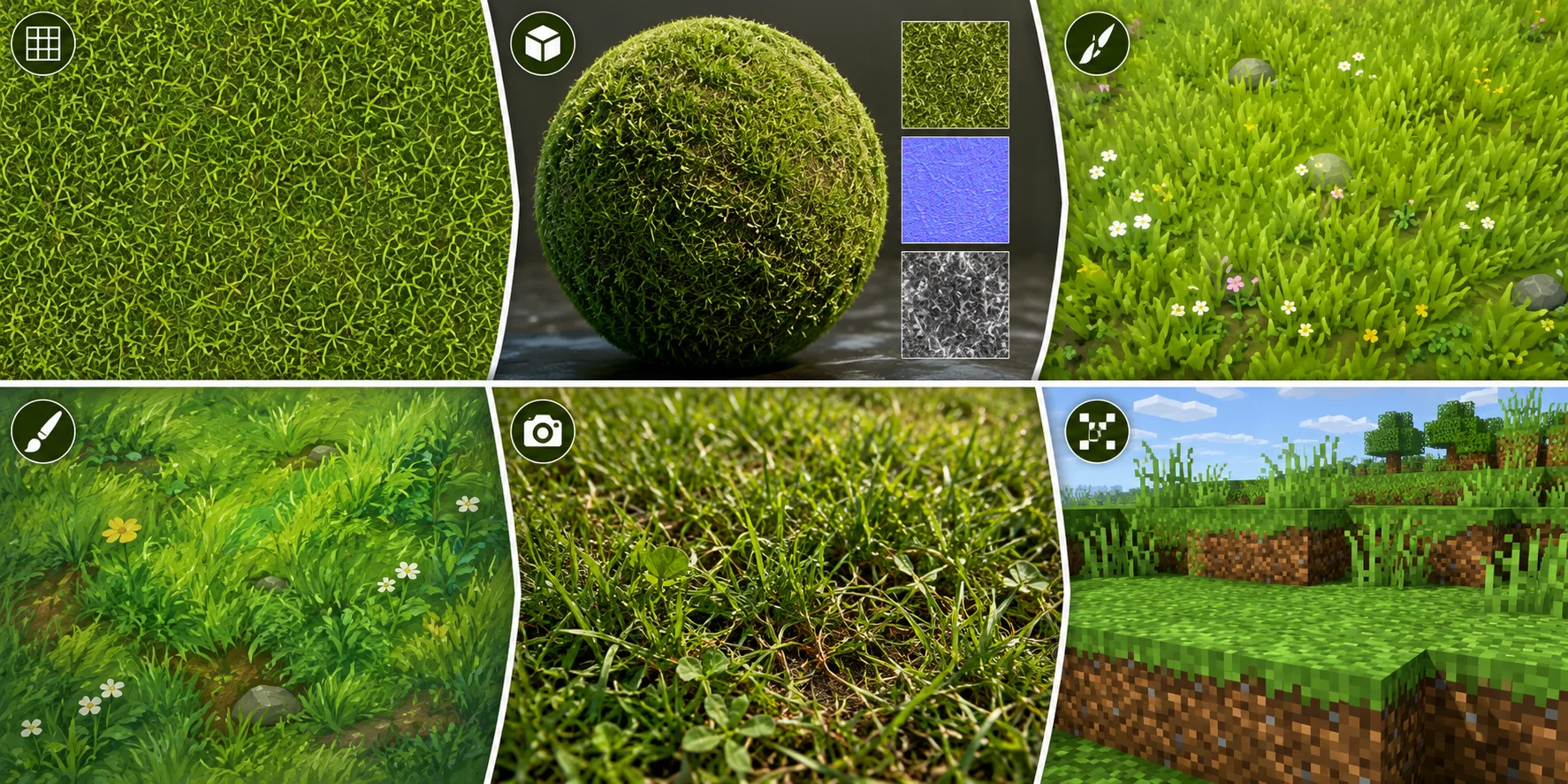
A seamless grass texture is edited so its opposite edges match. It can repeat across a large lawn, field, game map, or architectural site without obvious borders. Choose this type for broad surfaces, but mix several variations or add decals to hide repeating patterns.
PBR Grass Textures
A PBR grass texture pack contains multiple maps that describe color, surface direction, roughness, shadowing, and height. It reacts more convincingly to changing light than a single grass photograph, making it useful for realistic games, architectural visualization, animation, and virtual production.
Stylized Grass Textures
Stylized textures simplify grass into bold shapes, controlled colors, or graphic patterns. They work well in cartoon games, mobile titles, low-poly scenes, and projects where readability matters more than botanical accuracy.
Hand-Painted Grass Textures
Hand-painted grass uses intentionally drawn highlights, shadows, and blade shapes. It is common in fantasy environments and games with a strong art direction. Because some lighting is painted into the image, it should be matched carefully with the scene’s real lighting.
Photo-Realistic Grass Textures
Photo-realistic textures begin with photographs or scanned material. They are suited to close architectural views, product backgrounds, cinematic environments, and realistic outdoor scenes, especially when supplied with normal, roughness, and displacement maps.
Minecraft-Style Pixel Grass Textures
Pixel or voxel grass uses a low-resolution grid with sharp, block-like color changes. It is ideal for voxel worlds, retro games, prototypes, and deliberately simplified visuals. Use nearest-neighbor filtering to keep the pixels crisp.
What Makes a Good Grass Texture?
A good grass texture does not just look green. It tiles cleanly, supports the right rendering workflow, has enough resolution for the camera distance, and includes color variation so the surface does not look like plastic carpet.
| Quality factor | What it means | Why it matters |
|---|---|---|
| Seamless tiling | The texture repeats without visible seams. | Essential for large terrains and lawns. |
| Albedo / Diffuse | The base color map, usually without baked shadows. | Controls the visible grass color. |
| Normal map | Simulates small bumps and blade direction. | Adds depth without extra geometry. |
| Roughness map | Controls how shiny or matte the grass appears. | Prevents wet or plastic-looking grass. |
| Ambient Occlusion | Adds soft contact-shadow detail. | Helps the texture feel grounded. |
| Height / Displacement | Pushes surface detail up or down. | Useful for close-up realism. |
| Resolution | Usually 1K, 2K, 4K, or 8K. | Higher resolution helps close shots but increases file size. |
| Color variation | Mixes greens, yellows, browns, and soil tones. | Avoids flat, repetitive surfaces. |
For real-time games, 2K is often enough for broad terrain layers. For cinematic renders or close-up archviz, 4K or 8K may be worth it. The trick is not always “use the highest resolution”; it is “use the right resolution for the camera distance.”
How to Use Grass Textures in Blender
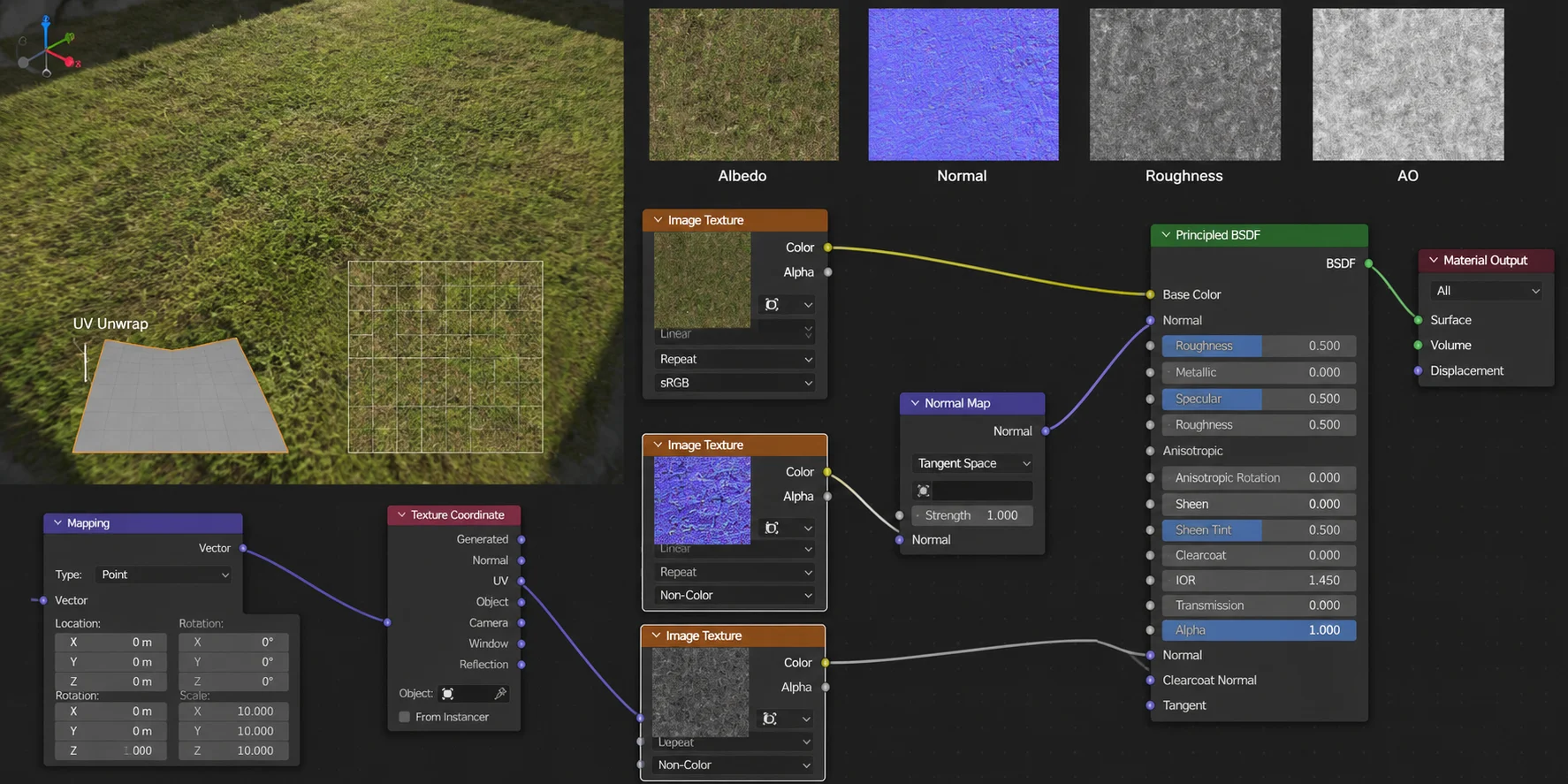
- Create or select your ground mesh, then unwrap it with a simple UV map. For a flat plane, a basic top-down UV layout usually works well.
- Open the Shader Editor and add an Image Texture node. Load the grass albedo or diffuse map, then connect it to the Base Color input of the Principled BSDF shader.
- Add the normal map. Load the normal texture into another Image Texture node, set its color space to Non-Color, connect it to a Normal Map node, then connect that node to the Normal input of the Principled BSDF.
- Add the roughness map. Load the roughness texture, set it to Non-Color, and connect it to the Roughness input.
- Adjust UV scale to control repetition. A tileable grass texture can cover a larger area by increasing the UV scale through a Mapping node or by scaling the UVs in the UV Editor.
For this section, pair the article with a screenshot of the Blender Shader Editor showing Image Texture → Principled BSDF, plus Normal Map and Roughness connections.
Grass Textures in Unreal Engine & Unity
Unreal Engine 5
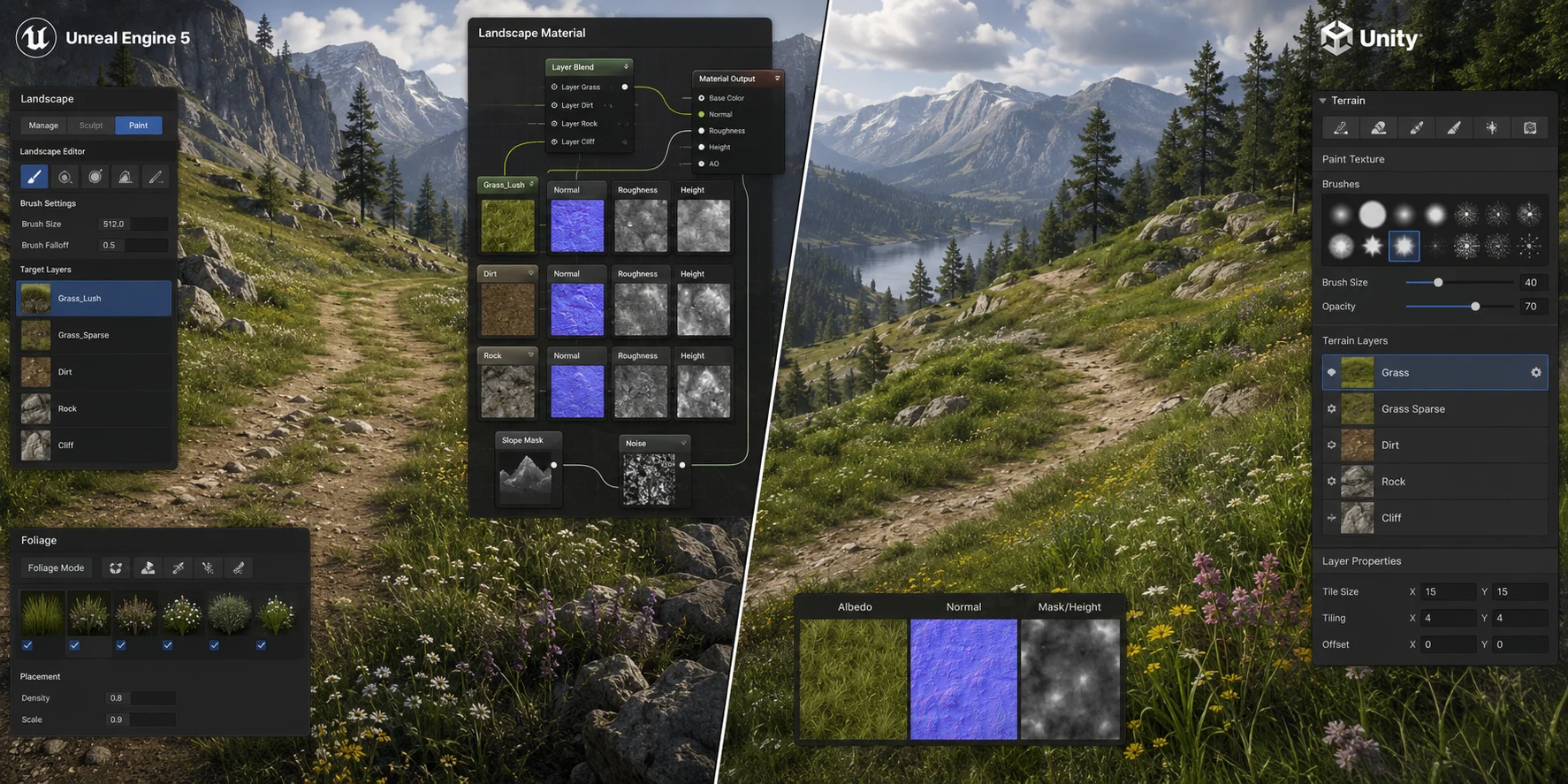
Create a Landscape Material, build grass, soil, mud, and rock layers with Landscape Layer Blend nodes, then assign and paint those layers on the Landscape. Texture splatting uses masks or painted weights to break up large areas, while height-based blending can make soil appear between grass patches more naturally. Unreal’s Landscape system supports multiple painted layers with independent texture scale and blending.
Unity
In Unity’s Terrain system, choose Paint Texture, create a Terrain Layer, and assign the grass albedo. Add its normal map—and a mask map when your render pipeline uses one—inside the Terrain Layer Inspector. Adjust tile size to match the texture’s real-world scale, then paint multiple grass and ground layers to reduce repetition.
Free vs. Paid Grass Texture Resources
| Source | What to check | Use note |
|---|---|---|
| Poly Haven | CC0 license and the asset type | Its published license states that site assets are CC0 and may be used commercially without attribution. |
| Poliigon | Current plan, asset license, and included maps | Confirm the terms on the selected asset page before downloading or using it commercially. |
| FreePBR | Included maps and license for the selected material | Check that the chosen grass material includes the maps required by your workflow. |
| SketchupTextureClub | Download terms and individual asset license | Review the selected texture page before commercial use. |
| FreeStylized | Style fit, available maps, and license | Useful to evaluate when a stylized grass look better fits the project. |
| Magnific | Current access terms and image license | Use it only after confirming that the selected image can be used for the intended project. |
Poly Haven is a practical option when a CC0 license is important: its published license says its assets can be used for commercial work without attribution. For other libraries, compare the specific asset license, free-download availability, included maps, and current plan terms before using an asset in a project.
How to Make a Grass Texture
Path 1: Photo to Seamless Texture
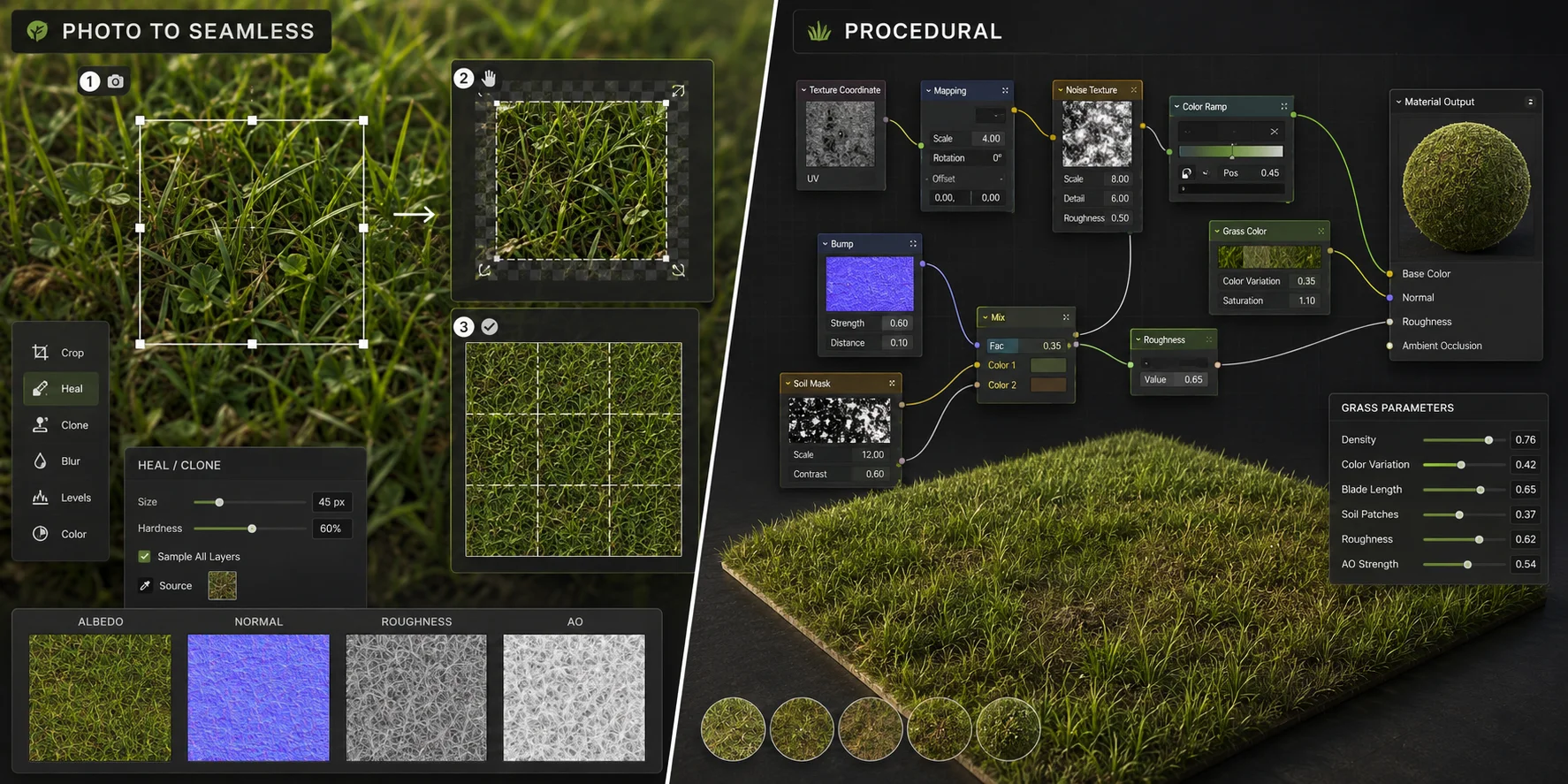
Start with a high-resolution photo of real grass taken in even lighting. Avoid harsh shadows, wet highlights, extreme perspective, or objects like leaves and stones unless you want them repeated. In Photoshop or GIMP, crop a square area, use offset tools to reveal seams, then clone, heal, or paint across the borders until the image tiles smoothly.
After the base texture is seamless, generate supporting maps. A normal map can add small surface depth, while roughness and ambient occlusion maps help the material react better to light. Tools such as xNormal, CrazyBump, Materialize, or Substance 3D tools can help create these maps from source images.
Path 2: Procedural Grass Texture
A procedural grass texture is built from noise, gradients, masks, and color variation instead of a single photo. Substance Designer is a common choice because it lets you create reusable node graphs with exposed parameters for blade density, color, soil patches, dry areas, and roughness.
You can also build procedural grass in Blender using shader nodes. Noise Texture, ColorRamp, Bump, and Mapping nodes can create a flexible grass-like material without importing image maps. This is useful when you need infinite variation, stylized control, or adjustable scale across different scenes.
Beyond Textures: Generate 3D Grass Assets with Tripo AI
Static textures provide surface detail but not foreground silhouette or volume. Tripo AI can generate 3D assets from a text prompt or reference image, which can help create grass clumps, terrain patches, and other environmental elements. Tripo publicly lists text-to-3D and image-to-3D generation, and its available export formats depend on the current Studio options and account eligibility.
This matters because a texture can cover the ground, but it cannot create silhouette, volume, or foreground depth on its own. Flat grass maps work well for distant terrain, but close-up scenes often need real shape and variation. Tripo AI helps artists move from flat surface detail to usable 3D grass assets, making it useful for game environments, architecture visualization, stylized landscapes, foreground scene dressing, and quick vegetation variation.
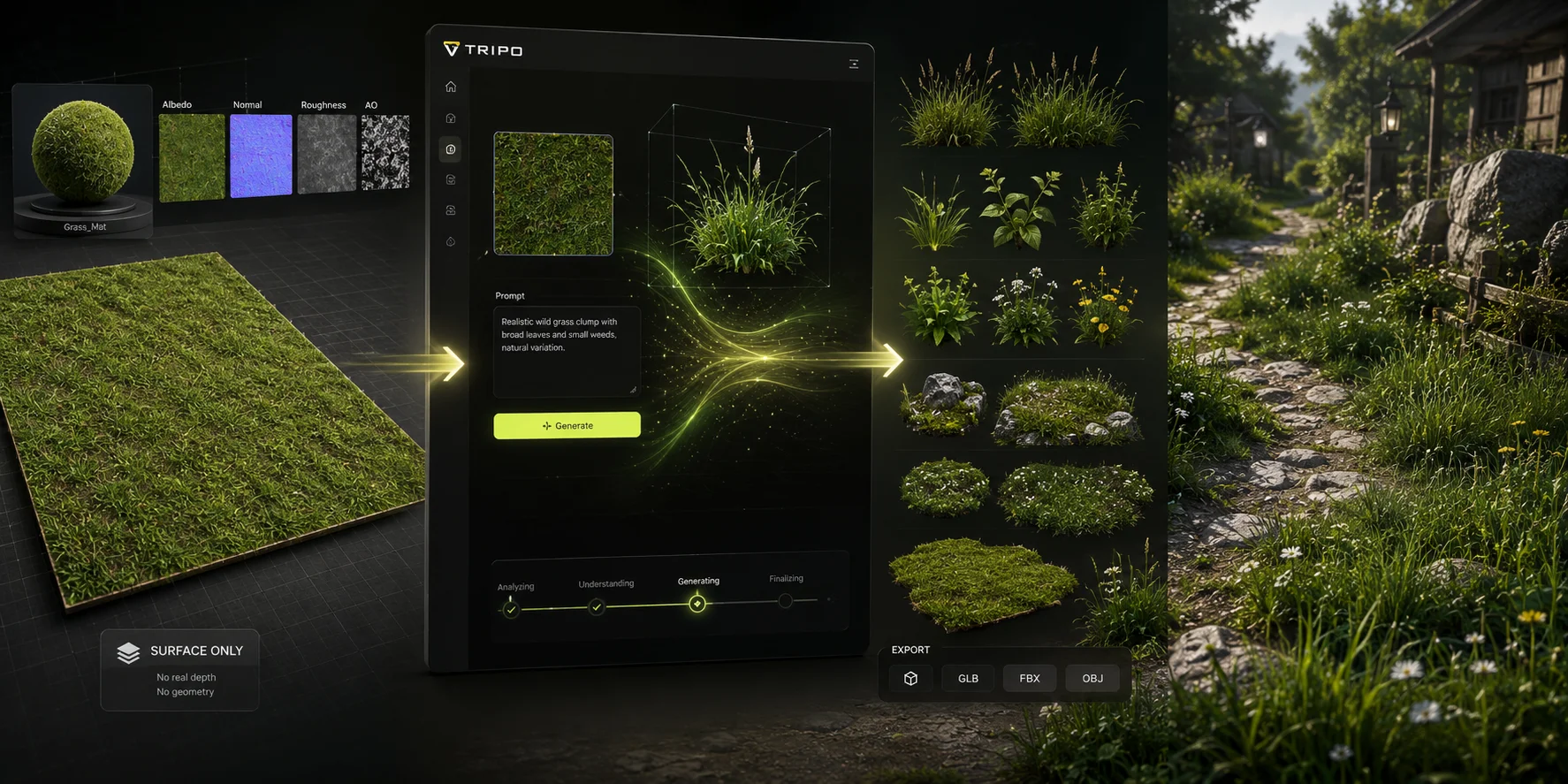
Use cases include:
- Game environment assets: generate grass clumps, weeds, terrain patches, and stylized foliage variations.
- Archviz foreground elements: add believable 3D grass near paths, patios, gardens, and camera-facing lawn edges.
- Stylized landscapes: create non-photoreal grass forms that match a fantasy, cartoon, low-poly, or cozy game art style.
- Scattering variations: generate several grass clump models, then scatter them across a terrain with Blender, Unreal Engine, Unity, or another scene tool.
A strong workflow is to use grass textures for the broad terrain base, then use Tripo AI-generated 3D grass assets for foreground detail. The result feels richer than a flat texture alone, without requiring artists to model every clump manually.
Frequently Asked Questions
What is grass texture?
A grass texture is a 2D image map that replicates the visual appearance of grass on a 3D surface or flat design. It is usually tiled seamlessly to cover large areas without obvious repeating patterns.
Where can I find free grass textures?
Poly Haven, FreePBR, and SketchupTextureClub are places to check for grass materials. Poly Haven is useful when you need CC0 licensing; for every other source, confirm the license, the included maps, and current download terms on the individual asset page before use.
How to make a grass texture?
Start with a high-resolution grass photo, remove distracting details, tile it seamlessly in Photoshop or GIMP, then generate normal and roughness maps using tools like CrazyBump, xNormal, Materialize, or Substance 3D tools. Alternatively, build a fully procedural shader in Substance Designer or Blender.
What are the different types of grass textures?
The main types are photo-realistic seamless textures, PBR multi-map packs, stylized hand-painted textures, pixel or voxel textures common in Minecraft-style games, and procedural node-based textures. The best choice depends on whether your project needs realism, performance, stylization, or fast iteration.
Conclusion
Whether you are downloading a free seamless tile or building a full terrain pipeline, the right grass texture sets the scene. Use seamless textures for broad coverage, PBR packs for realism, stylized textures for art-directed games, and procedural workflows when you need flexible variation.
For assets that go beyond flat maps, try generating 3D grass with Tripo AI — text in, model out.