Best AI Tools for 3D Printing in 2026 (Tested & Compared)
The best AI tool for 3D printing depends on your priorities—print quality, generation speed, customization, export support, and budget—not just how impressive the preview looks. Leading options in 2026 include Tripo AI, Meshy, 3D AI Studio, and Sloyd, each serving different needs, from rapid prototyping to detailed asset creation. Most platforms offer free credits or free tiers, making it easy to test workflows before committing to a subscription.
A successful 3D print requires more than simply exporting an STL file. Factors such as watertight meshes, adequate wall thickness, and proper support planning are essential for reliable printing.
There is no universal winner. The right AI tool ultimately depends on whether you value speed, print-ready output, advanced customization, or cost efficiency most.
3D printing has never been more accessible, yet turning an idea into a printable model has traditionally required real 3D modeling skill. A new wave of AI 3D model generators promises to close that gap, converting text prompts and reference images into ready-to-print meshes in seconds—no manual sculpting required.
But not every tool that produces an impressive preview can produce a model that actually prints. This guide tests and compares the leading AI 3D model generators of 2026, focusing on what truly matters for 3D printing: watertight geometry, reliable exports, and real print-readiness, not just visual polish.
What Makes an AI Tool "Good" for 3D Printing
The growing popularity of AI-powered design tools has led to a surge in searches for phrases like "best AI tools for 3D printing," "best free AI for 3D printing," "best AI 3D model generator." However, finding the right tool can be surprisingly difficult because different platforms excel in different areas.
Some AI generators produce visually impressive models but create meshes that are difficult to print. Others focus on rapid text-to-3D generation but offer limited export options or require significant manual cleanup before printing. As a result, the "best" AI tool depends not only on how creative the output looks, but also on how well it fits a real-world 3D printing workflow.
Before comparing today's leading AI 3D model generators, we first need a clear definition of what makes an AI tool genuinely useful for 3D printing. Without a shared evaluation framework, it is easy to be influenced by marketing demos while overlooking the factors that determine whether a model can actually be printed successfully.
For this reason, we will evaluate every tool using four core criteria: mesh quality, export capability, accuracy, and price. These objective metrics will also serve as the columns in the comparison table later in this article.
Watertight Mesh Quality
A printable 3D model must be a watertight mesh, meaning the geometry forms a completely closed surface with no holes, gaps, non-manifold edges, or self-intersections. This is especially important when evaluating an AI STL generator, since a model that looks correct on screen may still fail during slicing if the mesh is not properly sealed.
Many AI-generated models require repair before printing, making watertightness one of the most important indicators of real-world usability.
STL and OBJ Export Support
Generating a model is only half the process. Users must also be able to export the result into formats that integrate smoothly with common 3D printing workflows.
The two most widely supported formats are:
- STL: the standard format used by most slicing software and printers.
- OBJ: supports geometry as well as texture and material information.
Whether you're using a professional AI 3D model generator or a free experimental tool, STL and OBJ export support is essential for practical use.
Accuracy and Fidelity
One of the biggest promises of modern text-to-3D systems is the ability to transform simple prompts into printable objects. However, the quality of these results varies significantly across platforms.
Accuracy can be evaluated by asking:
- Does the generated object match the prompt?
- Are key details preserved?
- Is the model structurally suitable for printing?
- How much post-processing is required?
Higher accuracy means less time spent fixing geometry before printing.
Price and Value
Many users searching for the best free AI for 3D printing quickly discover that pricing models vary widely. Some platforms offer free generations with limited resolution, while others require subscriptions or credit-based payments.
When evaluating cost, we consider not only the price itself but also the value delivered in terms of mesh quality, accuracy, and workflow efficiency.
Our Evaluation Framework
Throughout this article, every tool will be assessed using the same four metrics:
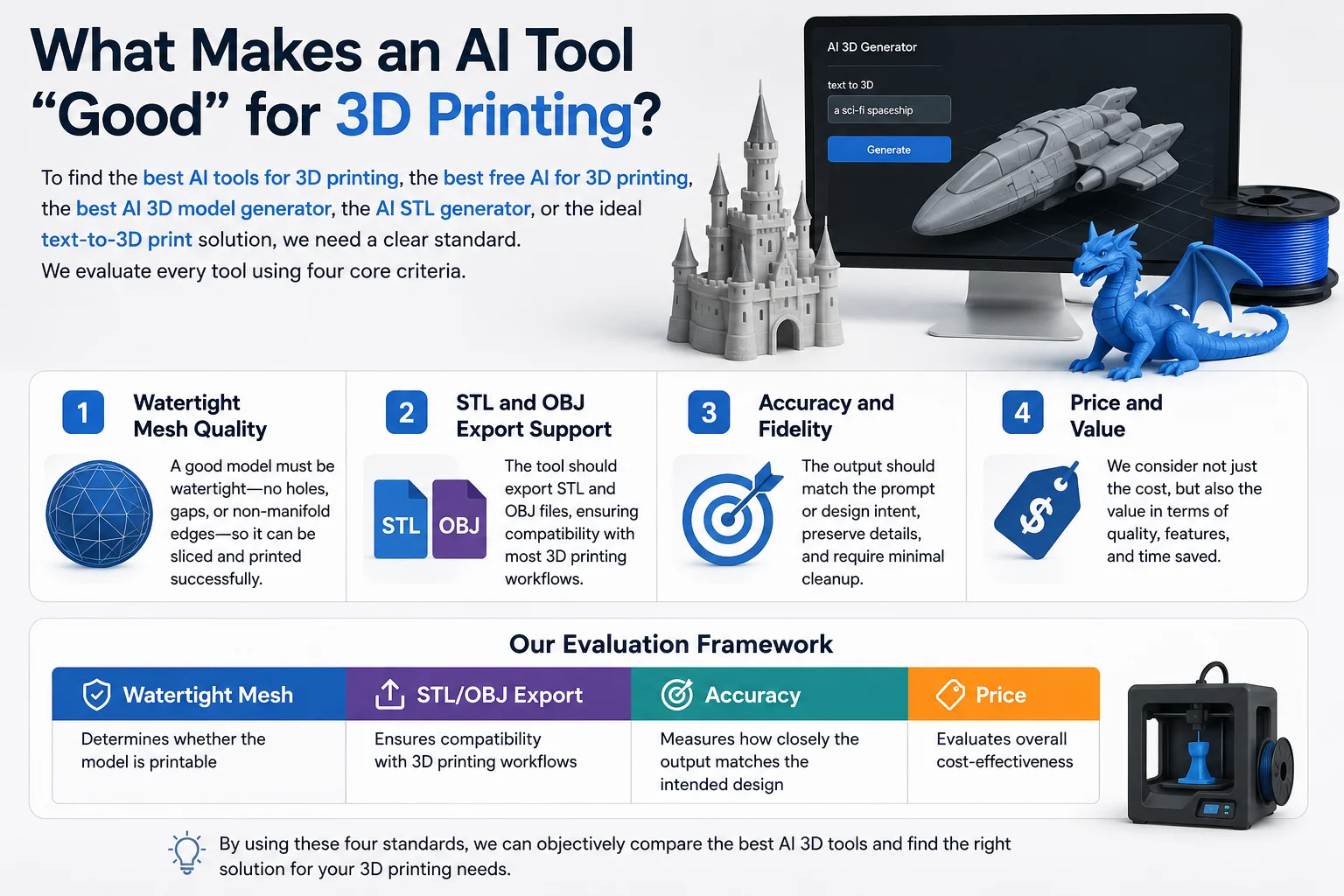
By establishing these standards first, we can objectively compare the best AI tools for 3D printing and identify which platforms deliver the most practical value for makers, hobbyists, and professionals.
The Best AI Tools for 3D Printing
With dozens of new AI-powered modeling platforms appearing every year, choosing the right tool can be overwhelming. To help narrow the field, we evaluated several of the most popular options based on the criteria established earlier: watertight mesh quality, STL/OBJ export support, accuracy, and price.
The following tools represent some of the strongest choices currently available for hobbyists, makers, and professionals looking to incorporate AI into their 3D printing workflow.
Tripo AI
Tripo AI has quickly become one of the most widely used AI 3D model generators thanks to its speed and accessibility. The platform supports both Tripo Text to 3D and Tripo Image to 3D workflows, allowing users to generate models either from written prompts or reference images.
In testing, Tripo AI generated Smart Mesh models in approximately 2 seconds and HD models in around 2 minutes—among the fastest outputs in this category. It also offers free credits for new users, lowering the barrier to experimentation. Export formats include STL (geometry only), 3MF, OBJ, GLB, FBX, and USD, with direct compatibility with slicing tools such as Bambu Studio and Cura. Note: STL export and v3.0/v3.1 model access require a paid plan; Free plan users can export v2.5 models only.
The main strength of Tripo AI is its combination of generation speed, export breadth, and attention to print-readiness. The platform explicitly focuses on watertight geometry and surface continuity in its generation pipeline. For dedicated 3D printing workflows, Tripo Studio also provides a one-click print submission feature with physical delivery—offering a direct path from AI generation to a finished physical object.
Pros:
- Fast generation speed (Smart Mesh ~2 seconds; HD models ~2 minutes)
- Supports both text-to-3D and image-to-3D creation
- Free credits available for new users
- Exports STL, 3MF, OBJ, GLB, FBX, and USD; native compatibility with Bambu Studio and Cura
Considerations:
- Complex geometry may occasionally require mesh repair
- Output quality can vary depending on prompt complexity
- Note: Tripo AI exports STL as geometry only (no texture data). Export access also depends on your plan—Free covers v2.5 models; v3.0/v3.1 require an active paid subscription.
Meshy
Meshy is one of the most established names in AI-assisted 3D generation and remains a popular choice among creators. The platform offers text-to-3D and image-to-3D capabilities while providing relatively granular control over generation settings.
Meshy's outputs are often visually detailed, making it attractive for game assets, concept design, and creative projects. The platform also supports standard export formats suitable for most 3D printing workflows.
However, visual quality does not always translate directly into print readiness. Depending on the model, some users may need to perform mesh cleanup or geometry optimization before slicing.
Pros:
- Detailed model generation
- Mature platform with a large user base
- Supports common export formats
Considerations:
- Some models require post-processing before printing
- Structured low-poly generation can take 5–8 minutes for complex models; credit consumption increases at higher quality tiers
3D AI Studio
3D AI Studio focuses on simplifying the model creation process for users with little or no 3D design experience. Its interface is approachable, and the platform aims to generate usable assets from simple prompts with minimal setup.
For 3D printing applications, the platform performs reasonably well for straightforward objects and prototypes. Export options are adequate for standard workflows, and the learning curve is relatively low compared with more advanced modeling software.
That said, highly detailed mechanical parts or precision-focused designs may exceed the platform's strengths, making it more suitable for concept generation than engineering-grade modeling.
Pros:
- Beginner-friendly workflow
- Simple prompt-based generation
- Easy to learn
Considerations:
- Less control over output compared with advanced tools
- Not optimized for highly technical models
Sloyd
Sloyd takes a hybrid approach, combining generative AI with parametric templates. While it supports full text-to-3D and image-to-3D generation like other platforms, it also provides handcrafted parametric templates that give users greater control over geometry, faster iteration, and results that are easier to refine and reuse.
This approach can be particularly useful when printability and dimensional consistency matter. Users can adjust generated assets and maintain more predictable geometry than with purely prompt-based systems.
The tradeoff is that Sloyd may feel less "automatic" than text-to-3D platforms, and it generally requires more user interaction during the creation process.
Pros:
- Strong customization capabilities
- More predictable geometry
- Useful for repeatable asset creation
Considerations:
- Less automated than pure AI generators
- Requires more user input and adjustment
Feature & Price Comparison Table
After evaluating individual tools, the next step is comparing them side by side using the metrics that matter most for 3D printing. While AI-generated previews can look impressive, printability ultimately depends on factors such as mesh quality, file export options, generation speed, and overall cost.
To keep the comparison objective, this table focuses on five practical criteria:
- Watertight Mesh — Whether the generated geometry is typically printable without repair.
- Export Formats — Availability of STL, OBJ, and other common 3D printing formats.
- Generation Speed — Time required to generate a usable model.
- Price — Entry-level cost for continued usage.
- Free Tier — Whether users can test the platform before paying.
Pricing and plan structures may change over time. Always check the official website for the latest details.
Key Takeaways
Best for Speed and Quality
If generation speed is your highest priority, Tripo AI currently stands out among the tools tested. Smart Mesh models generate in approximately 2 seconds, while HD models take around 2 minutes—significantly faster than comparable structured workflows on other platforms.
Beyond raw speed, Tripo focuses heavily on geometry quality, structure accuracy, and visual fidelity. Compared to typical AI-generated meshes, its models deliver cleaner silhouettes, sharper edges, more stable topology, and better surface continuity, with significantly higher consistency to the original concept or reference image.
Tripo is also designed to plug into existing production pipelines rather than replace them—generated assets connect smoothly to downstream tools like Blender, Maya, Unity, Unreal Engine, Bambu Studio, and Cura for further editing, rigging, animation, and printing. For dedicated 3D printing workflows, it emphasizes watertight geometry and STL/3MF export, making the entire AI-to-print process more reliable. This combination of speed, print-ready output, and pipeline integration is what makes Tripo our top overall pick for 3D printing in 2026.
Best for Detailed Creative Models
Meshy often produces visually rich outputs and is popular among creators building game assets, characters, and artistic models. However, some outputs may require mesh repair before printing.
Best for Beginners
3D AI Studio offers a straightforward workflow that is easy to learn, making it a reasonable entry point for users with little 3D modeling experience.
Best for Predictable Geometry
Sloyd combines AI generation with parameter-driven templates, giving users more control over geometry. This can result in more consistent, predictable results and tighter control over the final model.
Which Tool Is Most Print-Ready?
For users primarily interested in 3D printing rather than visualization, watertight mesh quality and STL/OBJ export support should carry more weight than visual appearance alone.
A highly detailed model is not necessarily a printable model. In practice, a slightly simpler mesh that slices correctly and requires minimal repair is often more valuable than a visually impressive model with geometry issues.
That is why print-readiness remains the most important metric in this comparison and serves as the foundation for evaluating every AI tool discussed in this guide.
Note: Pricing figures shown in the infographic above may not reflect current rates. As of 2026, entry-level paid plan pricing is: Tripo AI Pro — 20/mo (100 assets); 3D AI Studio Basic — $19/mo (100 assets). Tripo AI's Pro plan provides more assets per dollar than comparable plans. Always verify on each tool's official pricing page.
Free AI Tools for 3D Printing
One of the most common questions from makers and hobbyists is: What is the best free AI for 3D printing?
The good news is that several leading AI 3D model generators offer free tiers, trial credits, or limited-access plans that allow users to experiment before committing to a subscription. However, "free" does not always mean unrestricted. Most platforms place limits on generation quality, export options, usage volume, or processing speed.
Understanding these limitations is important when choosing a tool for real-world 3D printing projects.
Tripo AI: One of the Most Accessible Free Options
For users looking to explore AI-generated 3D printing models without an upfront cost, Tripo AI is one of the more accessible options currently available.
New users receive free credits that can be used to test both text-to-3D and image-to-3D generation workflows. This allows makers to evaluate model quality, generation speed, and export compatibility before deciding whether a paid plan is necessary.
Because the platform supports multiple export formats and generates models relatively quickly, the free tier is often sufficient for learning, experimentation, and small personal projects.
That said, users working on larger projects or generating many models will eventually encounter credit limits and may need to upgrade for continued usage.
What Can You Actually Create with Free AI Tools?
For most hobbyist use cases, free plans are capable of generating:
- Basic figurines and character concepts
- Decorative household objects
- Simple prototypes
- Toy designs
- Game assets
- Concept models for visualization
Many users can complete their first few 3D printing projects without spending any money, especially when using free credits strategically.
Where Free Plans Usually Fall Short
Although free AI tools have improved significantly, there are still several limitations to keep in mind:
Generation Limits
Most platforms restrict the number of models that can be generated each day or month.
Lower Priority Processing
Free users may experience slower queue times during periods of high demand.
Reduced Quality Options
Some advanced settings, higher-resolution outputs, or premium generation models may only be available to paid subscribers.
Commercial Restrictions
Certain platforms limit commercial usage rights on free plans.
Are Free AI Tools Good Enough for 3D Printing?
For learning, prototyping, and personal projects, the answer is often yes.
Modern free AI 3D model generators can produce surprisingly useful results, especially for simple objects and concept designs. However, users should still evaluate outputs based on the same criteria discussed earlier:
- Watertight mesh quality
- STL/OBJ export support
- Accuracy
- Cost efficiency
A free tool that generates clean, printable meshes can ultimately be more valuable than a premium platform that produces impressive visuals but requires extensive repair work before printing.
For most beginners, starting with a free tier is the best way to compare platforms and identify which workflow best fits their 3D printing needs before investing in a subscription.
Are AI-Generated Models Print-Ready?
One of the biggest misconceptions about AI-powered 3D modeling is that a generated model is automatically ready for printing.
In reality, generating a model and successfully printing it are two very different things.
Even when an AI tool exports an STL file, the model may still contain geometry issues that prevent successful slicing or printing. For this reason, experienced makers evaluate AI-generated models based on several print-readiness criteria rather than file format alone.
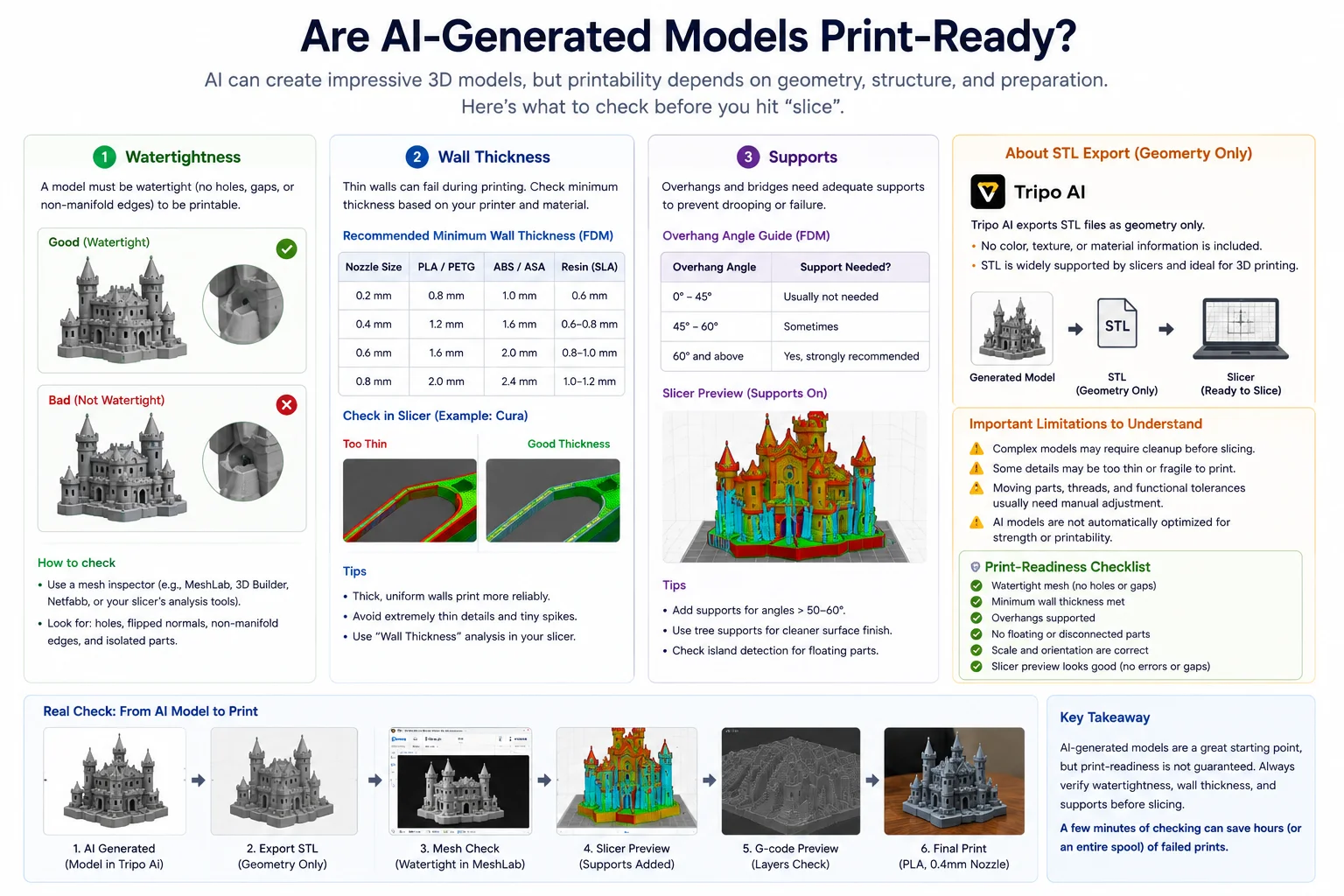
The three most important factors are watertightness, wall thickness, and support requirements.
Watertightness: Can the Model Be Sliced?
A model is considered watertight when its geometry forms a completely closed surface with no holes, gaps, non-manifold edges, or self-intersections.
This is the minimum requirement for reliable 3D printing.
Common problems found in AI-generated meshes include:
- Open surfaces
- Missing faces
- Internal geometry artifacts
- Non-manifold edges
- Self-intersecting polygons
These issues can cause slicing errors, missing layers, or failed prints.
Before printing, it is good practice to inspect every AI-generated model in a mesh repair or slicing tool to verify that the mesh is clean.
Quick Check
Ask yourself:
✅ Does the slicer recognize the model correctly?
✅ Are there any visible holes or missing surfaces?
✅ Does the model preview look complete?
If not, repair may be required before printing.
Wall Thickness: Will the Model Survive Printing?
A watertight model can still fail if important features are too thin.
Many AI generators focus on visual appearance rather than manufacturing constraints. As a result, decorative details such as swords, antennas, wings, or thin architectural elements may look correct on screen but become unprintable at real-world scale.
Common wall-thickness problems include:
- Ultra-thin surfaces
- Fragile decorative features
- Unsupported spikes or protrusions
- Tiny floating details
For FDM printing, walls generally need to be thick enough for your nozzle size and layer settings.
Supports: Can the Model Be Printed Without Failure?
Support requirements are another area where AI-generated models often struggle.
Many text-to-3D systems prioritize appearance rather than print orientation. As a result, generated objects may contain:
- Large overhangs
- Floating sections
- Hanging details
- Complex internal cavities
These features often require support structures during printing.
For example:
- A fantasy dragon may need supports under wings.
- A castle may require supports beneath balconies and bridges.
- A figurine may require supports beneath arms, weapons, or accessories.
The more supports required, the longer the print time and the greater the post-processing effort.
For this reason, experienced users often optimize orientation and geometry before slicing.
Does STL Export Mean the Model Is Print-Ready?
Not necessarily.
Many AI platforms support STL export, but STL is simply a file format that stores geometry.
An STL file can still contain:
- Holes
- Non-manifold geometry
- Excessively thin walls
- Unprintable overhangs
In other words, "exportable" does not automatically mean "printable."
For example, Tripo AI exports both STL (geometry only) and 3MF files—3MF preserves color and texture data alongside geometry, making it useful for multi-color or full-color print workflows. Either format should still be reviewed for watertightness, wall thickness, scale, and support requirements before slicing and printing.
This verification step is recommended regardless of which AI generator you use.
A Simple Print-Readiness Checklist
Before sending any AI-generated model to your printer, check the following:
✅ Model is watertight (no holes or gaps)
✅ Minimum wall thickness meets printer capabilities
✅ Model is properly scaled
✅ Support structures are planned
✅ Overhangs are within printer limits
✅ File format is compatible with slicer
✅ Model preview in slicer looks correct
If all seven boxes can be checked, the model is much more likely to print successfully.
The Bottom Line
AI-generated models are becoming increasingly printable, but they should not be treated as production-ready by default.
A model's file format is far less important than its geometry quality. The most reliable workflow is to treat every AI-generated model as a draft, verify watertightness, inspect wall thickness, evaluate support requirements, and only then move to slicing and printing.
That extra verification step typically takes just a few minutes, but it can save hours of failed prints and wasted material.
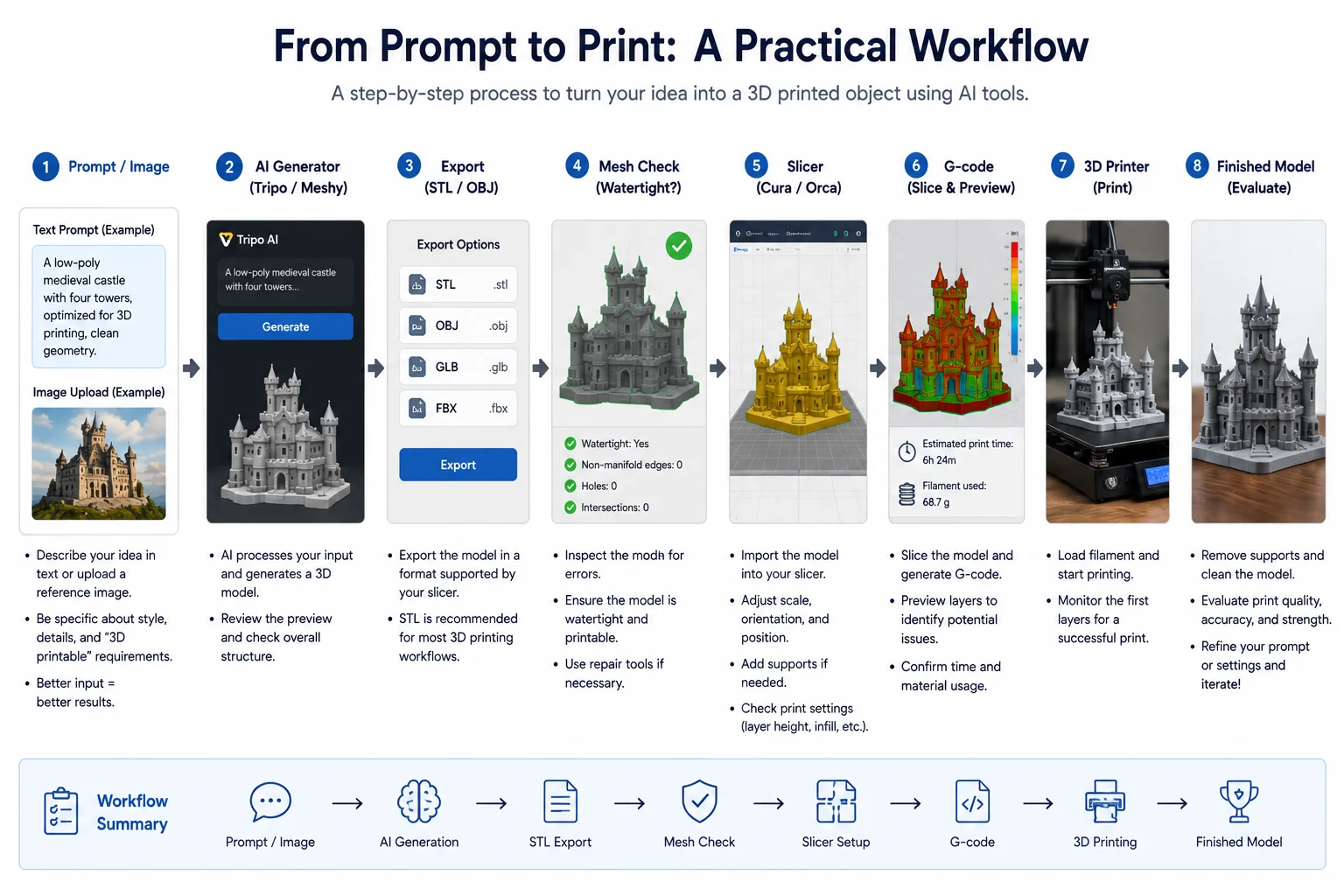
From Prompt to Print: A Practical Workflow
Choosing the right AI tool is only the first step. To turn an AI-generated model into a physical object, you still need to follow a complete workflow that takes the model from generation to the printer.
The good news is that modern AI 3D model generators have made this process much more accessible. Whether you're using Tripo AI, Meshy, 3D AI Studio, or another platform, the overall workflow remains largely the same.
Below is a practical step-by-step process that beginners can follow to go from an idea to a finished 3D print.
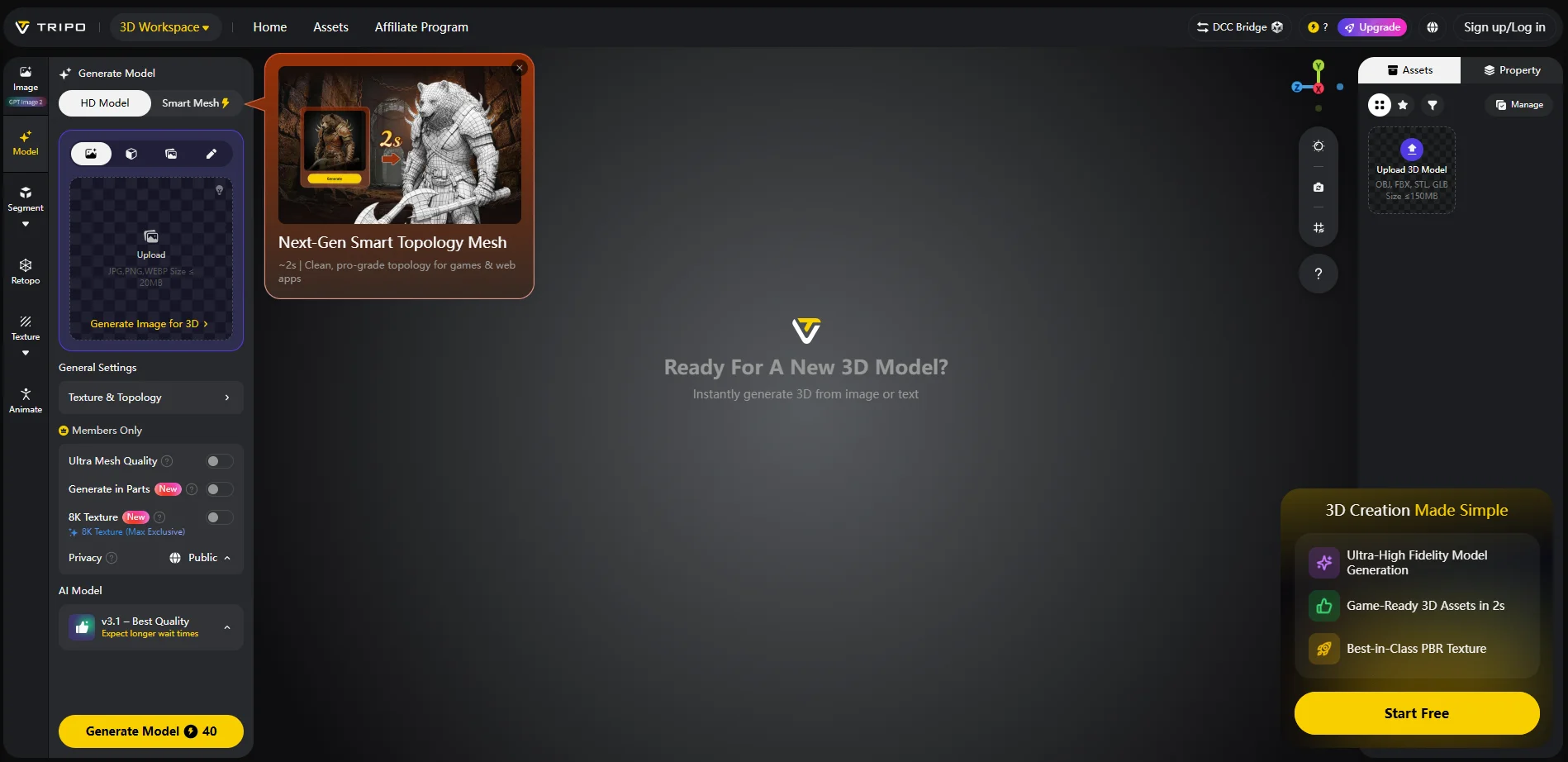
Step 1: Create a Prompt or Upload an Image
Most AI 3D generators support one or both of the following methods:
Text-to-3D
Describe the object you want to create using natural language.
Example prompt:
A low-poly medieval castle with four towers, optimized for FDM 3D printing, no floating parts, clean geometry.
The more specific the prompt, the more likely the AI will generate a model suitable for printing.
Image-to-3D
Upload a reference image and let the AI reconstruct a 3D model from it.
This approach often works well for:
- Product concepts
- Character figurines
- Decorative objects
- Existing sketches and concept art
Practical Tip: When possible, mention "3D printable," "watertight mesh," or "no floating parts" in your prompt to improve print-readiness.
Step 2: Generate the 3D Model
Once the prompt or image is submitted, the AI generates a 3D mesh.
At this stage, don't focus only on visual appearance. Instead, inspect the model for:
- Missing geometry
- Thin walls
- Floating components
- Non-manifold surfaces
- Excessively complex details
A model that looks good in a preview window may still fail during printing.
Step 3: Export the Model
After generation, export the model in a format supported by your slicing software.
Recommended formats:
- STL — Most widely supported, geometry only
- OBJ — Includes texture and material data
- 3MF — Preserves color and texture, ideal for multi-color printing
For most hobbyist printers, STL remains the safest choice.
Before moving forward, open the file in a mesh viewer or repair tool if available and verify that the model is watertight.
Step 4: Prepare the Model in a Slicer
Import the exported STL or OBJ file into slicing software such as:
- Cura
- PrusaSlicer
- OrcaSlicer
- Bambu Studio
The slicer converts the 3D model into printable toolpaths.
Before slicing, check:
- Model scale
- Orientation
- Wall thickness
- Supports
- Overhangs
- Estimated print time
This step often determines whether a print succeeds or fails.
Step 5: Slice and Preview
Generate the G-code and review the layer preview carefully.
Look for:
- Unsupported floating sections
- Missing layers
- Unexpected holes
- Extremely thin features
Many printing issues can be identified before filament is ever loaded into the printer.
Step 6: Print and Evaluate
Send the G-code to your printer and produce the first prototype.
After printing, evaluate:
- Dimensional accuracy
- Surface quality
- Structural strength
- Support removal difficulty
- Overall appearance
Don't expect the first version to be perfect. Most successful projects go through multiple iterations.
Real-World Example Workflow
A typical AI-assisted workflow might look like this:
- Write a prompt in Tripo AI.
- Generate a medieval castle model.
- Export the model as STL.
- Import the STL into Cura.
- Add supports and adjust scale.
- Slice the model and generate G-code.
- Print using PLA filament.
- Review the prototype and refine the prompt if needed.
In many cases, refining the prompt is faster than manually remodeling the object from scratch, which is one of the biggest advantages of AI-assisted 3D design.
Common Mistakes to Avoid
Ignoring Printability
A visually impressive model is not necessarily printable.
Skipping Mesh Inspection
Always verify that the model is watertight before slicing.
Printing at the Wrong Scale
Many AI-generated models are exported without real-world dimensions.
Overlooking Thin Features
Small details may disappear or break during printing.
Workflow Summary
The complete AI-to-print pipeline can be summarized in six steps:
Prompt/Image → AI Generation → STL Export → Slicer Preparation → G-code Generation → 3D Printing
While different AI tools vary in quality and speed, every successful 3D printing workflow ultimately depends on the same principle: generating a clean, printable mesh and validating it before sending it to the printer.
Frequently Asked Questions
Can I use AI for 3D printing?
Yes. AI tools can generate 3D models from text prompts or images, which can then be exported and prepared for 3D printing. However, AI-generated models are not always print-ready. Before printing, it's important to check watertightness, wall thickness, scale, and support requirements to ensure the model can be sliced successfully.
Which AI is best at 3D modeling?
The best AI for 3D modeling depends on your goals. Tripo AI is known for fast generation and multiple export formats, Meshy is popular for detailed creative assets, and Sloyd offers greater control through its hybrid AI-plus-parametric approach. For 3D printing, print-readiness and mesh quality are often more important than visual detail alone.
Can ChatGPT actually make STL files?
Not directly. ChatGPT can help generate prompts, write OpenSCAD code, create simple parametric designs, or guide a 3D modeling workflow, but it does not natively generate STL files. To create printable STL models, you'll typically need a dedicated AI 3D model generator such as Tripo AI, Meshy, or another text-to-3D platform.
Can I use AI-generated 3D models commercially?
Yes, in many cases you can use AI-generated 3D models commercially, but the rights depend on the platform and subscription plan. Some tools permit commercial use only for paid users, while others may restrict redistribution or resale of generated assets. Always check the licensing terms before selling 3D prints, STL files, or products based on AI-generated models.
Conclusion
There is no single "best" AI tool for 3D printing. The right choice depends on your priorities, including print-readiness, mesh quality, generation speed, export options, and budget. A visually impressive model is only valuable if it can be successfully prepared, sliced, and printed.
For most users, the best approach is to test a few tools, compare their outputs using the criteria discussed in this guide, and choose the workflow that fits their specific needs.
Ready to turn a text prompt or image into a 3D model? Try Tripo AI Studio and see how quickly you can generate, export, and prepare models for your 3D printing workflow.
