AI 3D Workflow for Blender Users: From Prompt to Final Asset
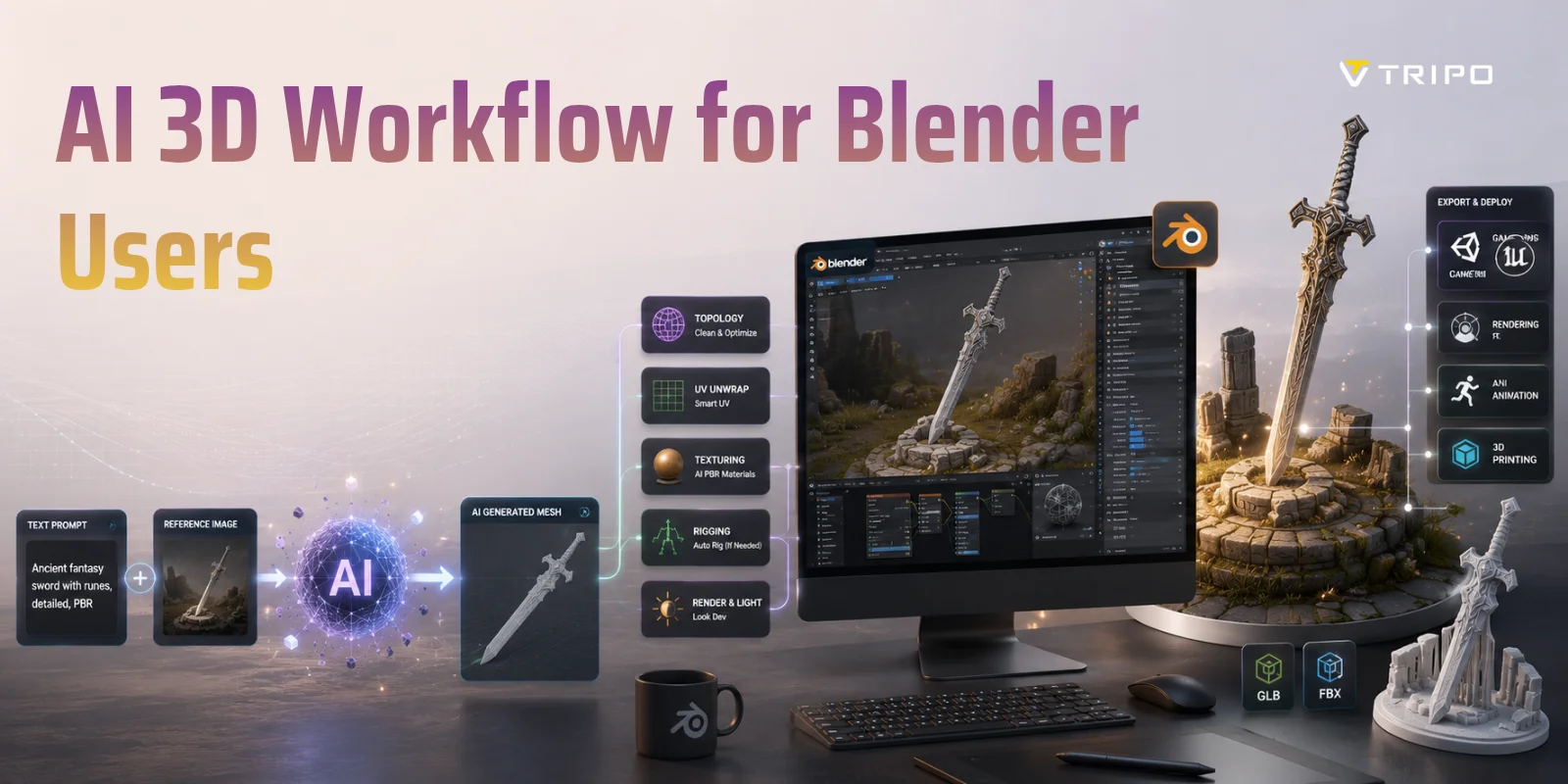
TL;DR:
- Generate faster: Create a base 3D model from a text prompt or image instead of starting from scratch.
- Choose the right tool: Compare Blender AI add-ons, MCP tools, and external generators for different workflows.
- Optimize in Blender: Clean up meshes, improve topology, and prepare assets for production.
- Add materials: Use AI-generated PBR textures, then fine-tune them in Blender's Shader Editor.
- Retopologize when needed: Pick AI remeshing, Blender Remesh, or manual retopology based on your quality requirements.
- Deploy anywhere: Export optimized assets for game engines, rendering, animation, or 3D printing.
Blender has become the go-to open-source tool for artists, game developers, and hobbyists alike, but many parts of the creative process still demand hours of repetitive work. Blocking out a model, rebuilding messy topology, unwrapping UVs, and preparing assets for animation can quickly become the slowest parts of a project. Rather than replacing Blender, today's AI tools are helping creators spend less time on repetitive production tasks and more time refining the final result. That shift is what makes an AI 3D workflow for Blender users increasingly practical, whether you are creating game assets, product visualizations, or 3D printable models.
This guide walks through a complete pipeline from the first prompt to an asset you can inspect and refine inside Blender. You will learn how AI tools can fit into text- or image-to-3D generation, export, cleanup, retopology, texturing, rigging, and final deployment. The goal is a faster workflow while keeping Blender at the center of review and finishing.
What AI Brings to the Blender Ecosystem
AI is changing how people work in Blender, but it is not replacing Blender itself. The software remains the place where artists edit geometry, refine materials, animate characters, and prepare assets for production. What AI changes is the amount of manual work required before those creative decisions begin. Instead of starting every project from an empty scene, artists can generate a usable starting point and spend more time improving quality rather than building everything from scratch.
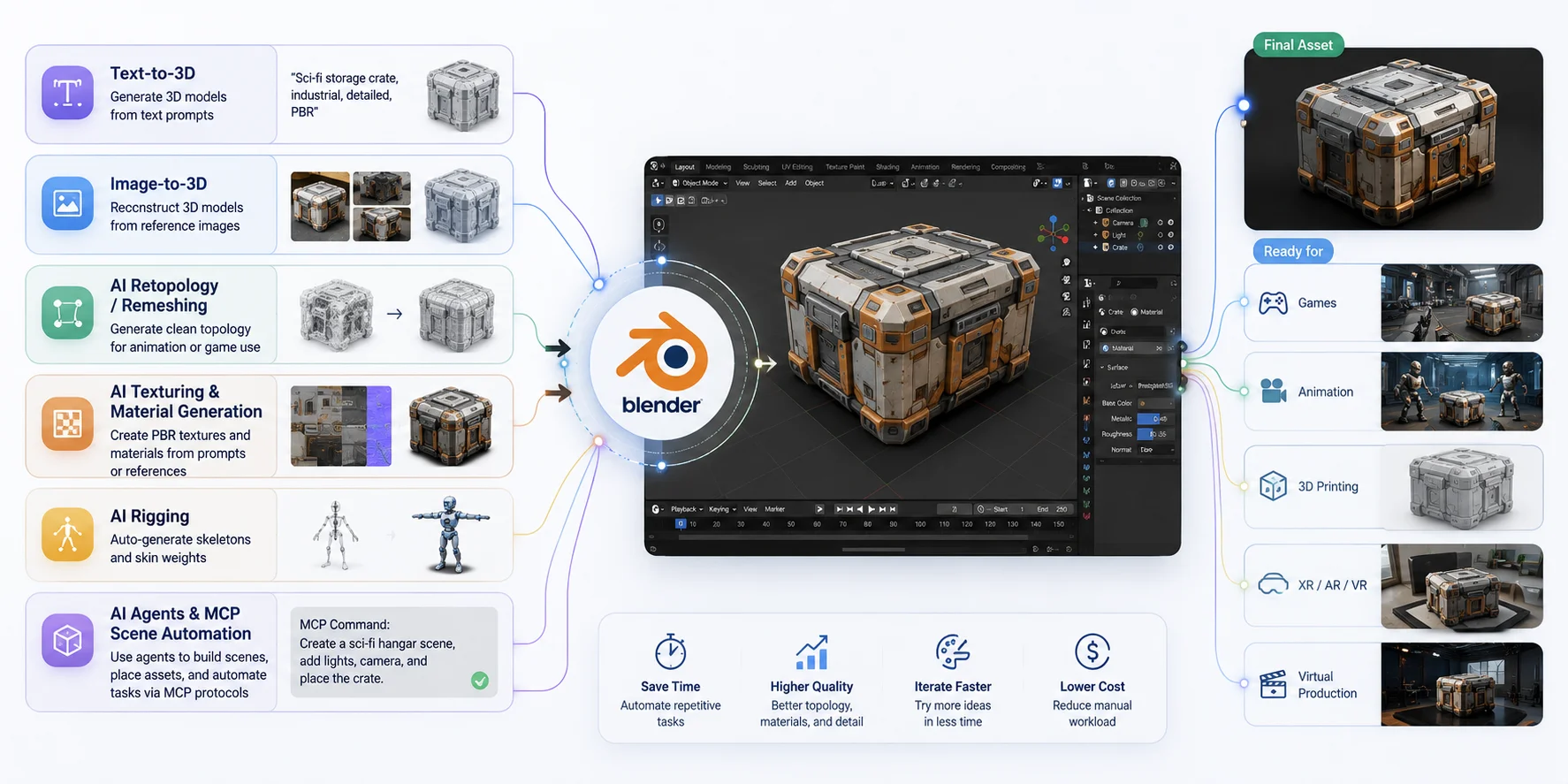
Today, the most useful AI capabilities for Blender fall into a few practical categories:
- Text-to-3D generation creates an initial mesh from a text prompt for concept art, props, characters, and product ideas.
- Image-to-3D reconstruction converts one or more reference images into textured 3D geometry that can be refined inside Blender.
- AI retopology and remeshing produce cleaner topology that is easier to edit, animate, and optimize than raw generated meshes.
- AI texturing and material generation creates PBR textures or infers materials from prompts and reference images, reducing manual painting work.
- AI rigging automatically places skeletons and skin weights on compatible characters, speeding up animation workflows.
- AI scene generation and automation uses agent-based systems and MCP integrations to execute repetitive Blender tasks, build scenes, and connect external AI models with Blender through natural-language instructions.
AI tools can shorten selected stages of a Blender workflow, especially early asset generation and repetitive setup. Results still need review for geometry, materials, topology, and the requirements of the final destination.
How AI Fits into the Blender Workflow
AI Tools and Add-Ons Overview for Blender
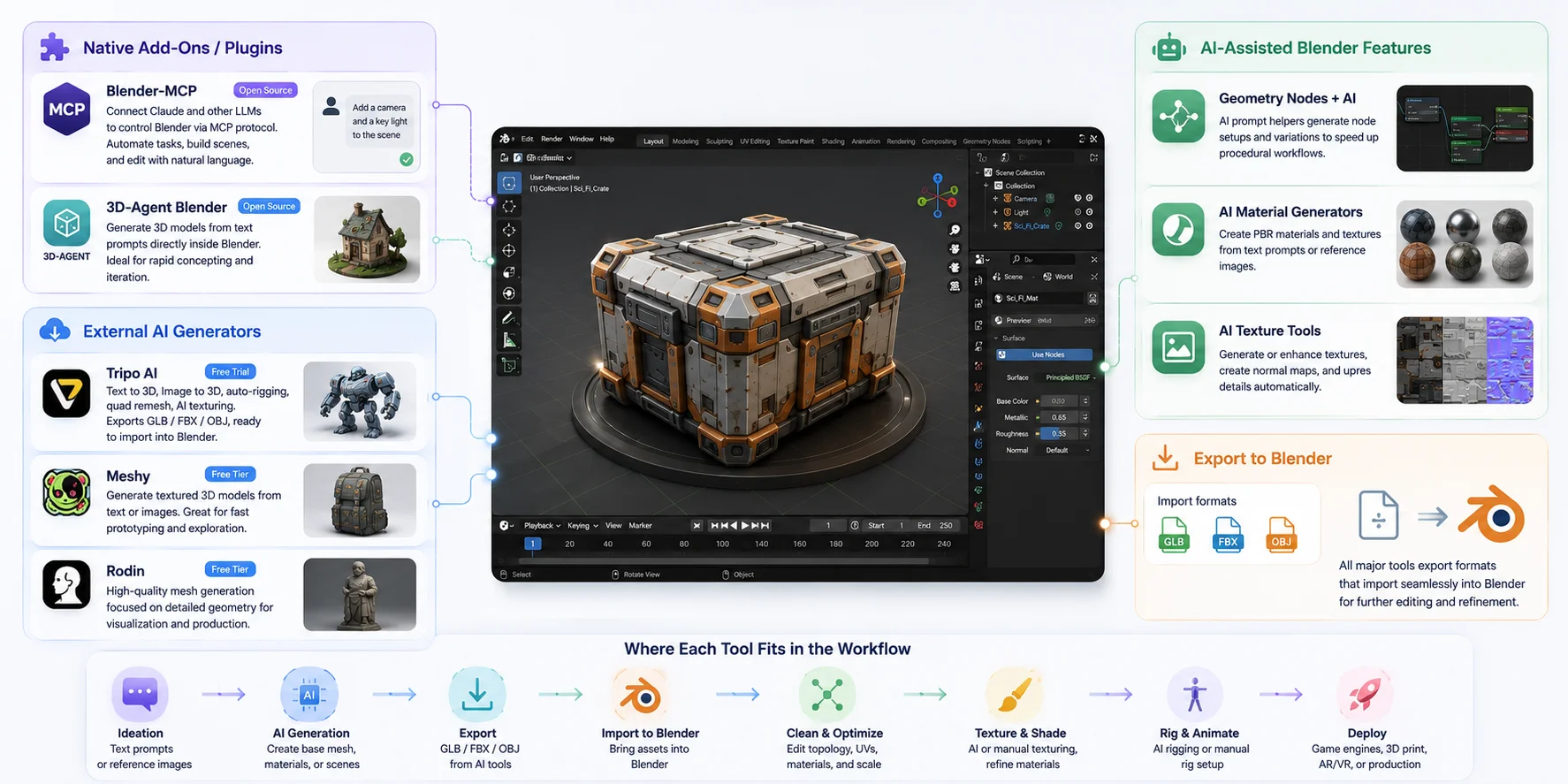
Before building a complete AI-assisted workflow, it helps to understand where different tools fit. Some run directly inside Blender, while others generate assets externally and export them for further editing. The right choice depends on whether you want to automate Blender itself, generate new models, or speed up specific production tasks.
| Tool | Best for | Workflow fit |
|---|---|---|
| Blender-MCP | Automating repetitive Blender tasks | An open-source MCP integration that lets compatible AI clients interact with Blender. Review the project's permissions and security guidance before allowing code execution. |
| 3D-Agent Blender | Prompt-based concepts inside Blender | An open-source Blender plug-in for text-prompt 3D generation and rapid iteration. |
| Tripo AI | Generating and refining assets before Blender | Supports text-to-3D, image-to-3D, texturing, retopology, rigging, and exports for downstream DCC workflows. |
Beyond dedicated AI generators, Blender's own ecosystem is also becoming more AI-aware. Geometry Nodes can now be paired with prompt-assisted node generation tools to speed up procedural workflows, while AI material generators help create PBR textures and material variations from text descriptions or reference images. These tools do not replace Blender's node system—they simply reduce the amount of repetitive setup required.
Choose tools by workflow stage rather than a universal ranking. Blender-MCP focuses on connecting compatible AI clients to Blender actions, while 3D-Agent focuses on prompt-driven generation inside Blender. External tools such as Tripo AI can generate or refine an asset before it is imported for review and finishing in Blender.
AI Tools for Blender at a Glance
Deep Dive — 3D-Agent and Blender-MCP
Among the growing number of AI tools for Blender, 3D-Agent and Blender-MCP stand out because they work inside Blender instead of simply exporting models into it. Although both are open-source projects, they solve very different problems. One focuses on generating assets, while the other focuses on automating Blender itself.
3D-Agent Blender: Generate Models Without Leaving Blender
3D-Agent is an open-source Blender plug-in project for prompt-based 3D generation. You enter a prompt in Blender, then inspect the returned mesh in the current scene before deciding whether it is useful as a concept or starting asset.
Use this kind of in-Blender generation workflow for rapid concepts and iteration, not as a substitute for asset review. Check proportions, topology, UVs, materials, and licensing requirements before moving a result into a production pipeline.
3D-Agent works best when you need a starting point rather than a finished asset. Mechanical props, stylized objects, and simple environment pieces generally produce the most consistent results. More complex characters, highly detailed creatures, or animation-ready meshes still benefit from manual cleanup, retopology, UV refinement, and material adjustments before entering production.
Because community projects change quickly, use the current project repository and installation notes rather than relying on old setup instructions.
Blender-MCP: Let an AI Control Blender
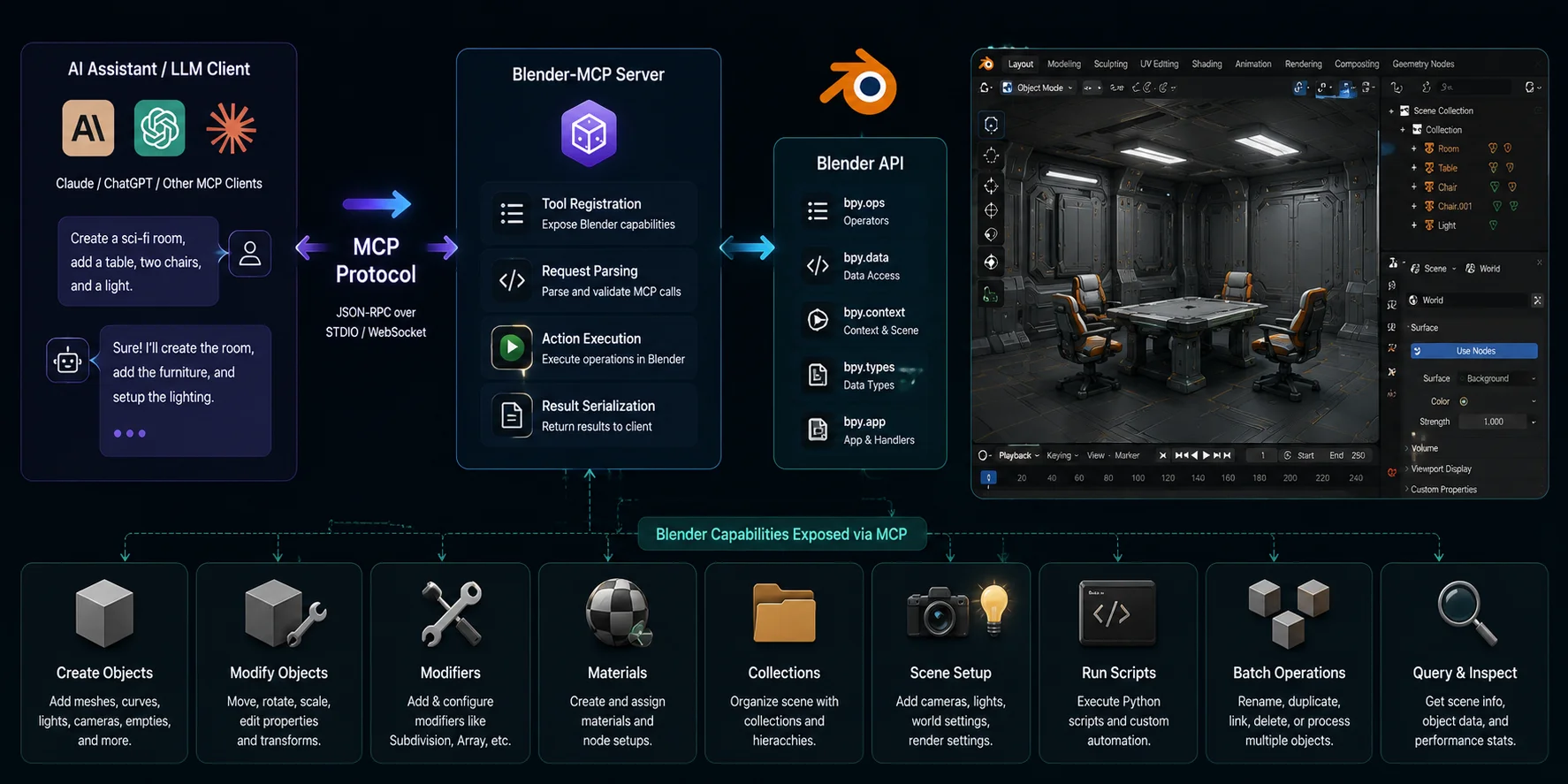
Blender-MCP takes a very different approach. Rather than generating geometry itself, it implements the Model Context Protocol (MCP), allowing Claude and other MCP-compatible language models to interact with Blender through structured tool calls.
From the user's perspective, this can feel like giving Blender natural-language instructions. A compatible AI client can request operations such as creating objects, applying modifiers, organizing collections, adjusting materials, or running scripts. Review each action before using it in an important file.
This makes Blender-MCP particularly valuable for technical artists, pipeline developers, and experienced Blender users who spend time on repetitive production work. Tasks such as scene setup, procedural object creation, batch renaming, asset organization, camera placement, or modifier configuration can often be completed much faster through AI-assisted automation than by repeating the same manual steps.
Blender-MCP is not a replacement for modeling skills. It does not automatically understand artistic intent or guarantee correct results, and its ability to execute Python makes permission review especially important. Complex modeling decisions, topology optimization, animation, and creative judgment still require human oversight.
The two approaches address different tasks: prompt-based generation can provide a starting mesh, while MCP-based automation can help with repeatable Blender operations. In either case, keep a human review step before final export.
How Blender-MCP Connects AI to Blender
Step-by-Step AI 3D Workflow for Blender
Complete AI 3D Workflow for Blender
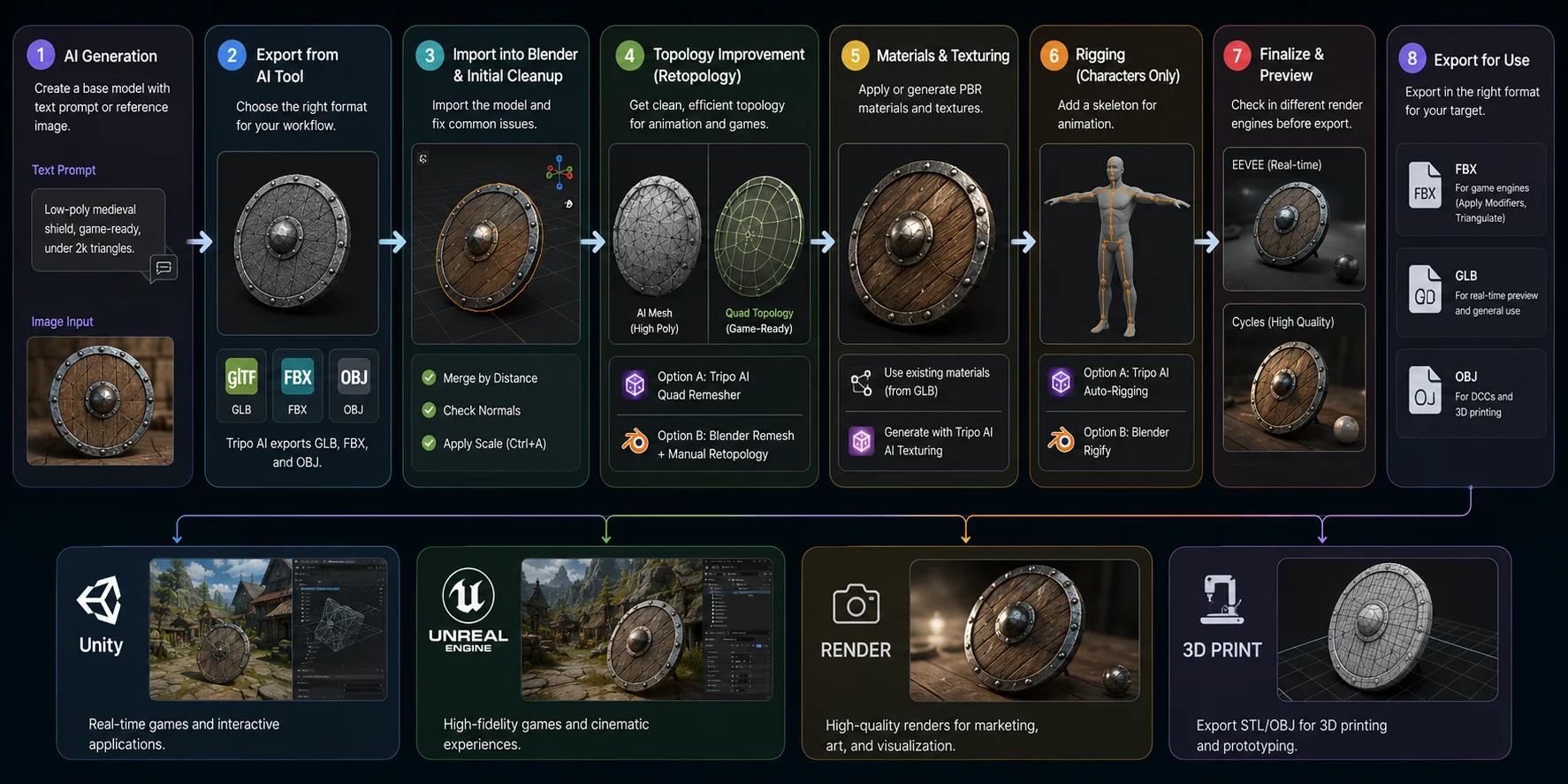
Generate Your Base Mesh
Every workflow starts with a base model. For an idea from scratch, try text-to-3D generation in Tripo AI Studio or a prompt-based add-on such as 3D-Agent. A useful prompt combines an object, style, and production goal, for example "low-poly medieval shield, game-ready, under 2k triangles". If you already have a reference image, use Tripo AI's Image to 3D workflow instead. Treat either result as a starting asset and inspect it before refinement.
Export the AI Model
Once generation is complete, choose a format that matches your Blender workflow. GLB can package geometry, materials, and textures in one file. FBX is commonly used for character and animation exchanges, while OBJ is useful when you only need geometry and plan to rebuild materials. Test the imported asset in your Blender version before continuing.
Import into Blender and Perform Initial Cleanup
Import your asset through File → Import → glTF 2.0 (.glb), FBX, or Wavefront (.obj) depending on the exported format. Before making artistic changes, spend a few minutes checking the mesh. Remove duplicate vertices with Mesh → Merge by Distance, verify surface normals using Overlay → Face Orientation, and apply object scale with Ctrl + A → Scale so modifiers and physics behave correctly. These small cleanup steps prevent many downstream issues with shading, animation, and exporting.
Optimizing an AI Model in Blender
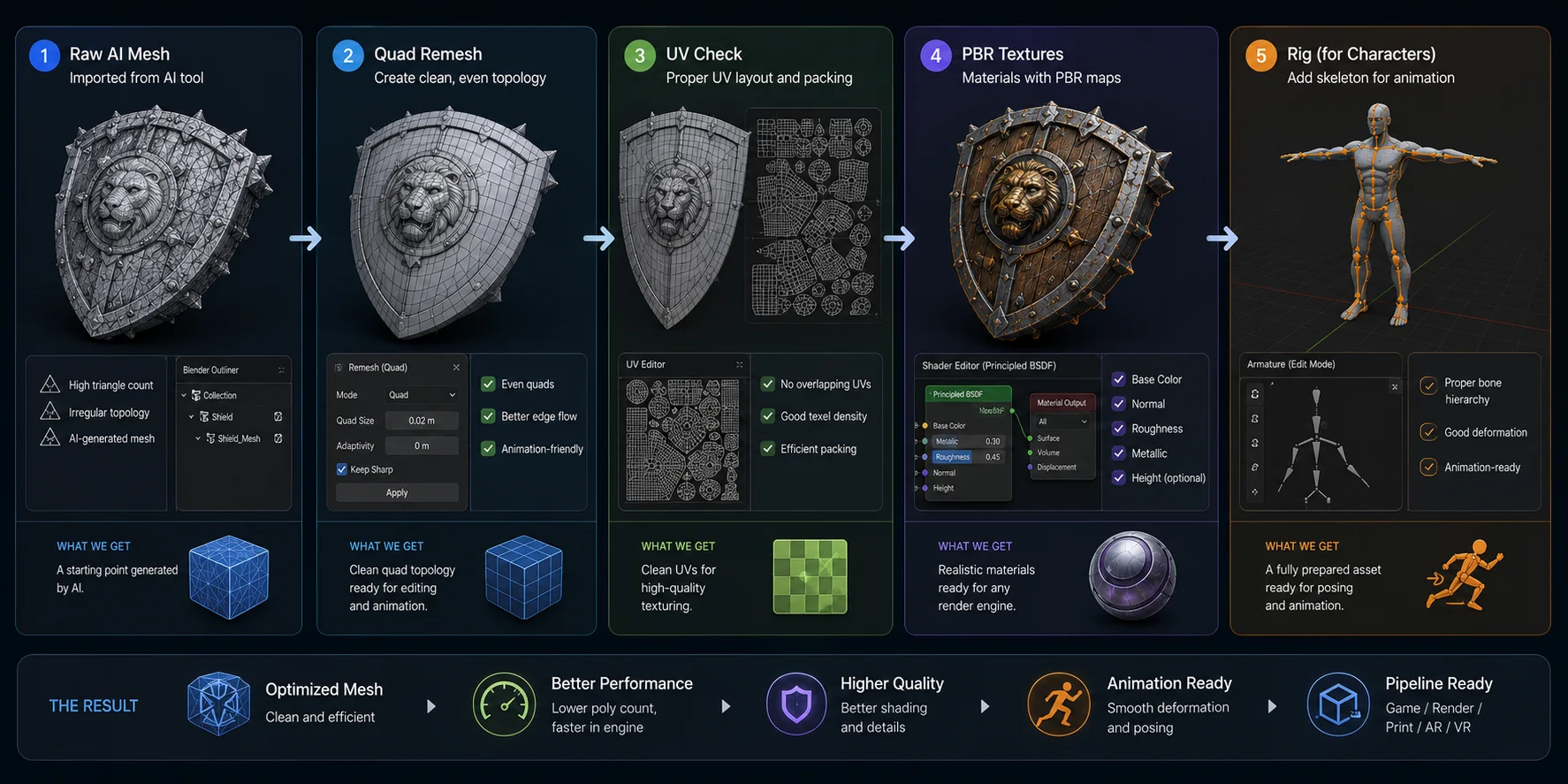
Improve the Topology
AI-generated meshes can be useful for concept work but may not have topology that is ideal for animation or further editing. If you need quad-based topology, try Tripo AI's AI Quad Remesher before export, then inspect the result in Blender. For assets that need extensive refinement, Blender's Remesh modifier and manual retopology offer more direct control.
Refine Materials and Textures
If you imported a GLB file, Blender will usually create material slots automatically. Open the Shader Editor to confirm that base color, normal, roughness, and metallic textures are connected correctly, then adjust PBR values to match your target engine or renderer. When an AI model arrives without textures—or with placeholder materials—you can generate PBR texture maps using Tripo AI's AI Texturing** **feature before importing those maps into Blender's material nodes. Even well-generated textures often benefit from small adjustments to roughness, normal strength, or color balance.
Rig Characters for Animation
Characters require an additional preparation step before animation. Tripo AI's AI Auto-Rigging can provide a starting rig before export. For custom bone hierarchies, advanced controllers, or animation production, Blender's Rigify gives you more direct control. In either case, test major joints before beginning animation.
Export the Final Asset
Once the model has clean topology, correct materials, and an optional rig, it is ready for its destination. For Unity, Unreal Engine, or other game engines, export as FBX with modifiers applied and triangulation enabled when appropriate. Use EEVEE to quickly preview materials and lighting during development, then switch to Cycles when producing high-quality renders or marketing images. By following this workflow—from AI generation through cleanup, texturing, rigging, and export—you can dramatically shorten production time while still keeping Blender at the center of your creative process.
Text-to-3D Generation in Blender Workflows
For many Blender users, text-to-3D is the fastest way to move from an idea to an editable model. Instead of starting with primitive shapes or sculpting from scratch, you describe the asset in natural language and let AI generate an initial mesh. Depending on the quality of the result, that mesh can serve as a quick blockout for further modeling or as the production base for texturing, rigging, and optimization inside Blender. In a typical AI 3D workflow for Blender users, text-to-3D replaces the blank canvas—it does not replace Blender's editing tools.
The quality of the generated model depends heavily on the prompt. Good prompts describe shape, style, and technical requirements, not just the object itself. Compare these two examples:
- Weak: "A medieval shield."
- Better: "Low-poly medieval round shield, wooden planks with iron rim, game-ready, under 2k triangles, stylized PBR."
A few practical guidelines consistently produce better results:
- Describe the shape before decorative details.
- Include style keywords such as low-poly, stylized, realistic, hard-surface, or organic.
- Mention the intended use, for example game-ready, 3D printable, or animation-ready.
- Add complexity targets when appropriate, such as polygon budgets or clean topology requirements.
- Avoid vague descriptions like cool, beautiful, or fantasy object, which leave too much room for interpretation.
When choosing a tool, the decision usually comes down to workflow rather than raw capability.
| Tool | Choose it when | What to expect |
|---|---|---|
| 3D-Agent Blender | You want to explore prompt-driven concepts without leaving Blender. | It is an open-source in-Blender workflow; inspect each result and plan for cleanup before final use. |
| Tripo AI Studio | You want a text- or image-to-3D workflow with optional texturing, retopology, rigging, and export steps. | Generate a starting asset, then inspect topology, UVs, materials, and rig behavior in Blender before delivery. |
If you want to explore ideas without leaving Blender, an open-source in-Blender project such as 3D-Agent may fit your workflow. If you want text- or image-to-3D with optional texturing, retopology, rigging, and export steps, Tripo AI Studio is another route. Choose based on the task, then inspect the imported asset in Blender before final use.
AI Material and Texture Generation
Generating a mesh is only part of the workflow. Some AI-generated models arrive without usable materials, or with textures that need adjustment across UV islands. Texturing is therefore a useful review stage before the asset moves into a real-time or rendering workflow.
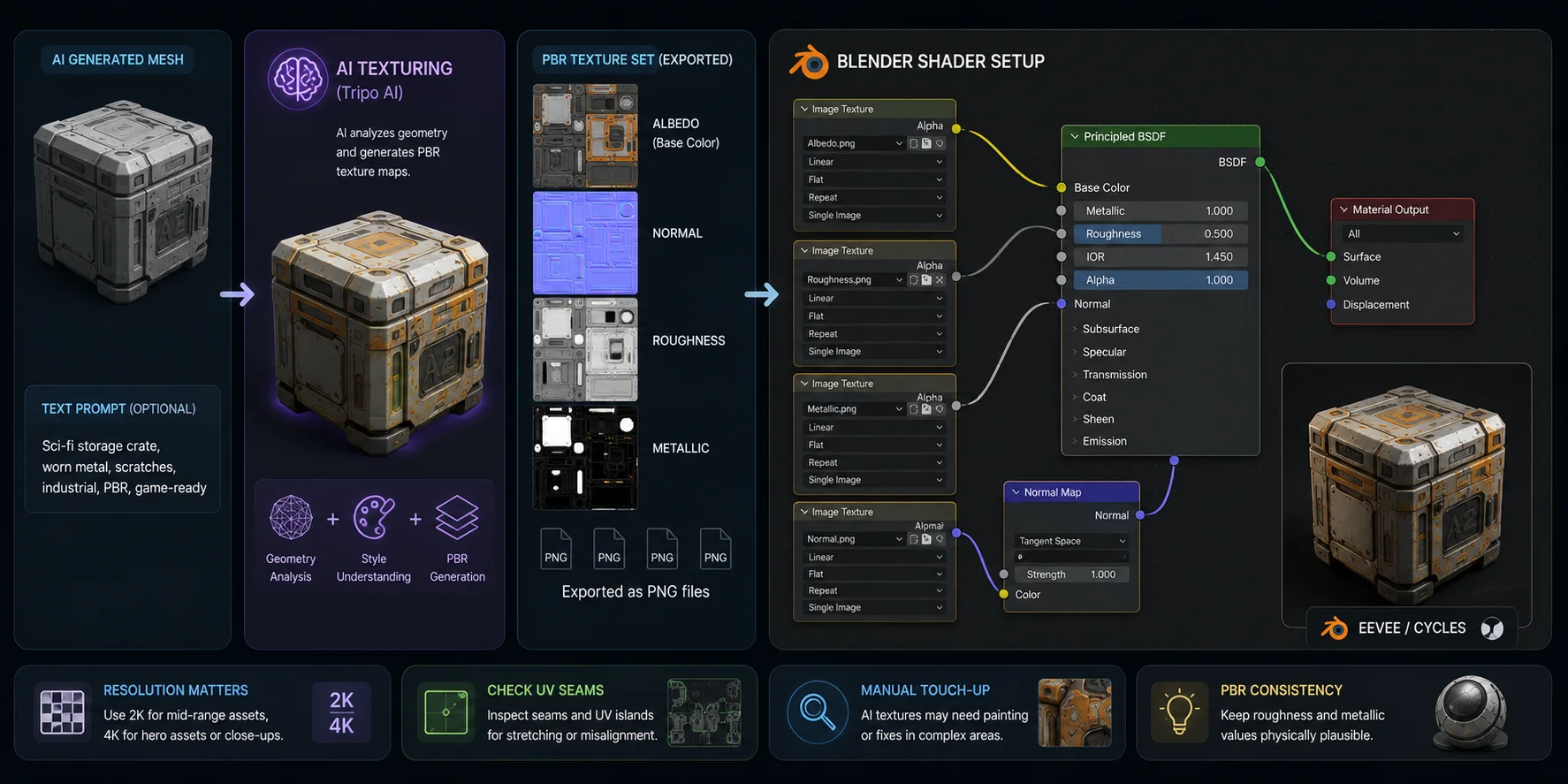
Tripo AI's AI Texturing can be used to create and edit textures and materials for a model. After export, confirm the supplied maps and their color-space settings in Blender before connecting them to your shader.
Inside Blender, the setup is straightforward. Open the Shader Editor, create an Image Texture node for each texture map, and connect them to the corresponding inputs on the Principled BSDF shader. Connect the Base Color map to Base Color, the Roughness map to Roughness, the Metallic map to Metallic, and route the Normal map through a Normal Map node before connecting it to the shader's Normal input. This node setup follows Blender's standard PBR workflow and is compatible with both EEVEE and Cycles.
Texture resolution should match the viewing distance, target platform, and memory budget. Before finalizing an asset, inspect UV seams, stretched areas, and visible texture transitions. AI-generated textures may still need manual adjustments in Blender's Texture Paint mode or an external image editor.
AI Texturing Workflow for Blender
AI Retopology and Mesh Optimization
AI-generated models are excellent starting points, but they are not always ideal for production. Many are exported with dense triangulated geometry, uneven polygon distribution, or edge flow that makes animation and editing difficult. Clean topology is important because game engines, character rigs, sculpting, and texture painting all perform better on well-organized quad meshes. Spending time on retopology early often saves far more time later in the pipeline.
There are three common approaches, each suited to a different type of project:
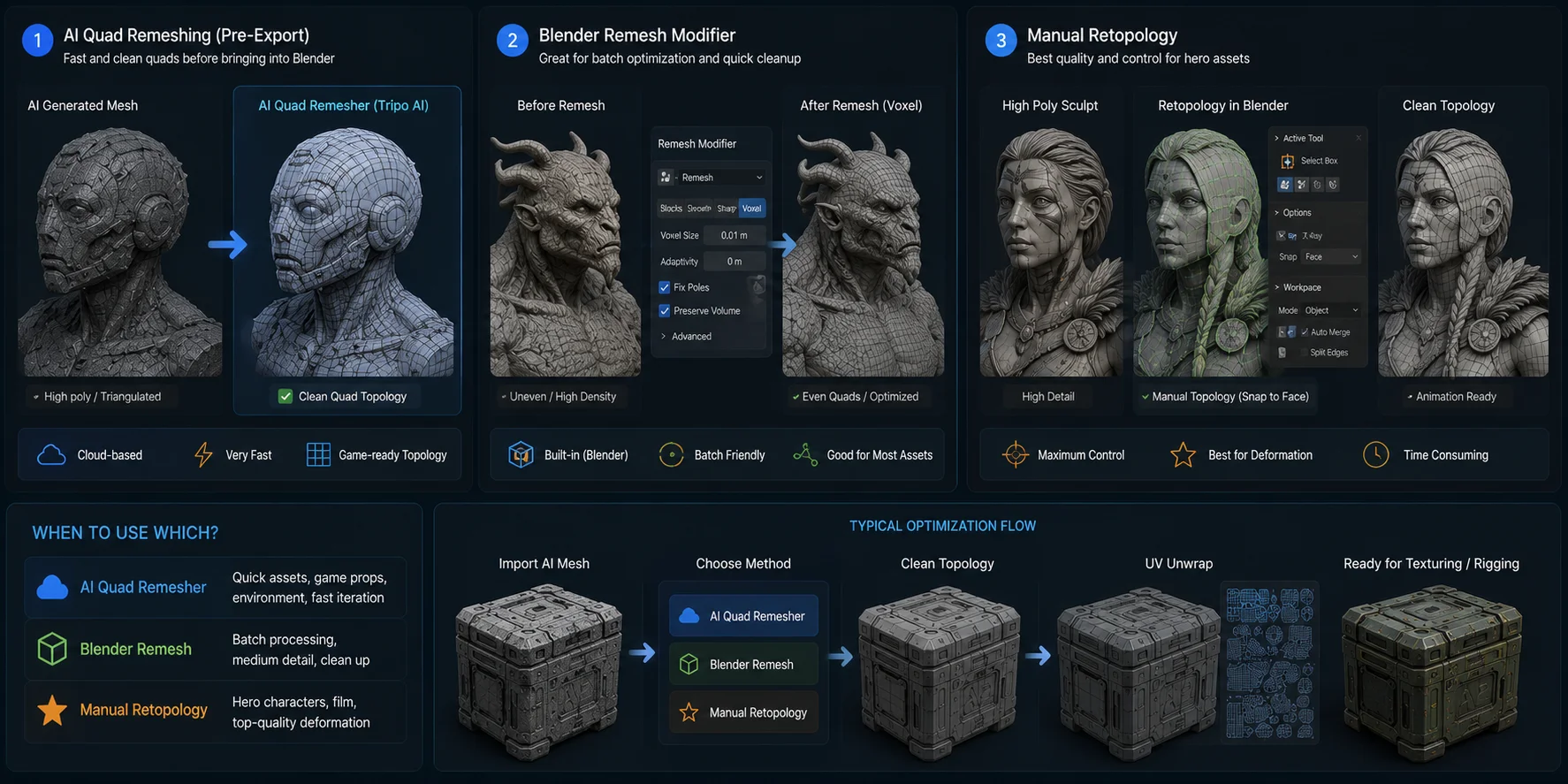
- AI Quad Remeshing - If your AI platform supports retopology before export, it can provide a starting quad mesh before the model reaches Blender. Tripo AI's AI Quad Remesher is one option; inspect edge flow and deformation areas before relying on the result.
- Blender's Remesh Modifier - Blender includes a built-in Remesh modifier. Voxel mode is useful for producing an evenly distributed mesh, while Sharp mode can preserve more hard-surface detail. Manual refinement is often still required.
- Manual Retopology - For hero characters, cinematic assets, or models with complex deformations, manual retopology gives the most direct control. Blender's Snap to Face, Poly Build, and Shrinkwrap tools let you place edge loops where they are needed for deformation, UV layout, and final mesh quality.
Choose the approach by production goal. AI-assisted remeshing may be enough for a quick prop; Blender's Remesh modifier can help standardize a batch; manual retopology is appropriate when close-up use or deformation needs demand deliberate edge flow.
Choosing the Right Retopology Workflow
Real-World Applications and Case Studies
Indie Game Development
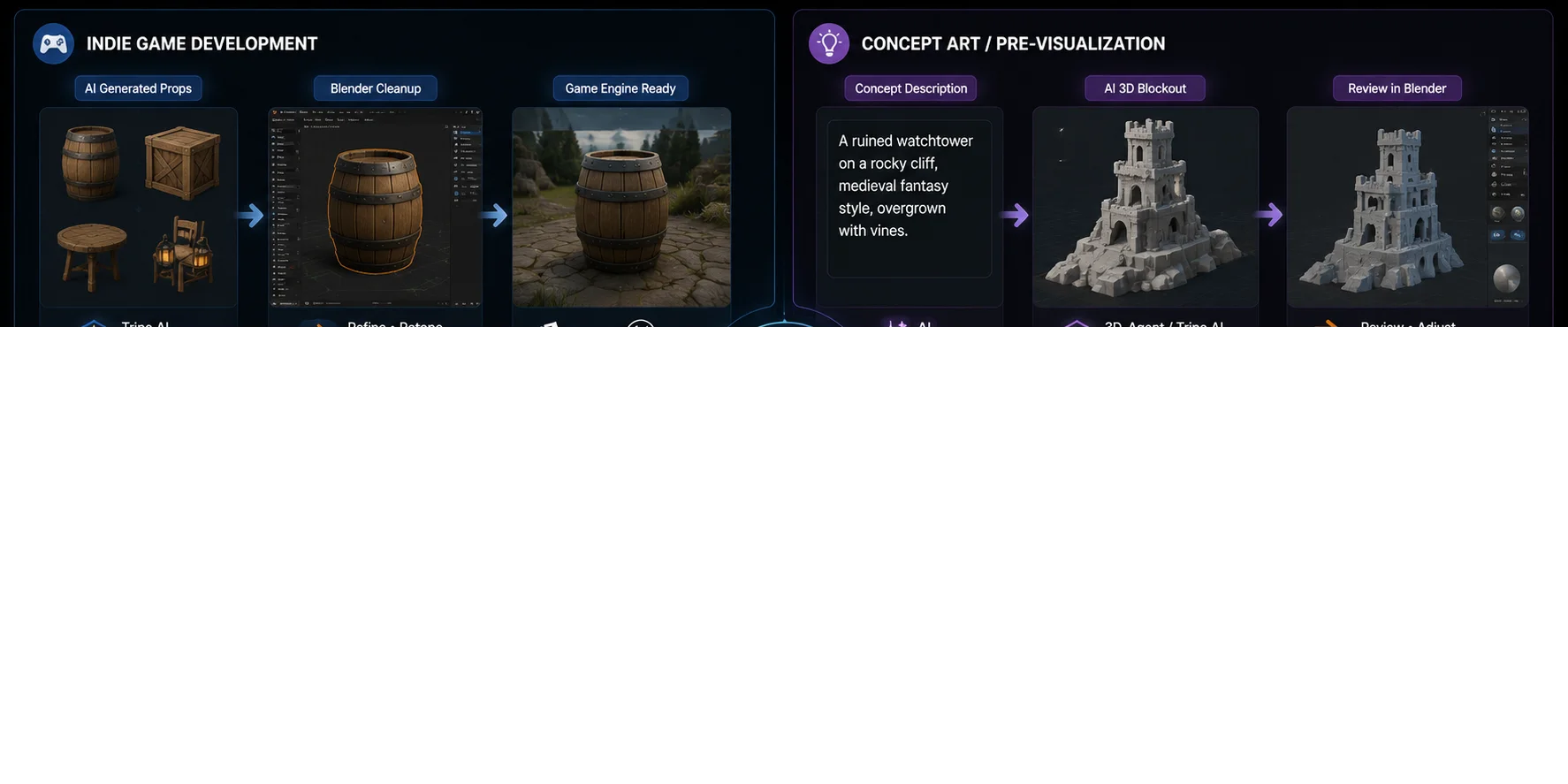
Small game teams often use AI to generate props such as crates, barrels, furniture, or rocks, then refine them in Blender before exporting to Unity or Unreal Engine. This approach reduces repetitive modeling work while keeping artists focused on gameplay-critical assets and visual polish.
Concept Art and Pre-Visualization
During early production, artists can generate a rough 3D blockout from a text prompt using 3D-Agent or Tripo AI, then review proportions and composition directly in Blender. If the design needs changes, it is often faster to revise the prompt and regenerate the model than rebuild it from scratch.
3D Printing
A reference photo can be converted into a 3D model with an image-to-3D tool, cleaned up in Blender to create a watertight mesh, and exported as an STL file for printing. This workflow is useful for cosplay props, miniatures, prototypes, and custom decorative objects.
Animation Pipelines
For character projects, an AI-generated model with automatic rigging can be imported into Blender for posing, weight-paint refinement, and animation. Animators can then customize the rig or add their own animation before exporting the finished asset to a game engine or rendering pipeline.
AI 3D Workflows Across Different Industries
Frequently Asked Questions
Is there a free AI 3D workflow for Blender users?
Yes. Some community projects are open-source, while commercial AI 3D services may offer limited free access or paid plans. Check each project's current license, pricing, and usage limits before starting a workflow.
What is Blender-MCP and how does it work?
Blender-MCP implements the Model Context Protocol (MCP), allowing AI assistants like Claude to send commands to Blender programmatically. You install the add-on from GitHub, connect it to an MCP-compatible client, and can then use natural language to drive Blender operations — creating objects, applying modifiers, running scripts.
What is 3D-Agent for Blender?
3D-Agent is a community Blender plug-in project for prompt-based 3D generation. It can be useful for rapid concept exploration, but inspect the resulting mesh and check the current repository documentation before relying on it for a production workflow.
How do I integrate AI into my existing Blender workflow without starting over?
The easiest entry point is using an external AI tool like Tripo AI to generate base meshes, then importing the GLB/FBX into your existing Blender project. You keep your full Blender workflow for cleanup, materials, rigging, and rendering — AI just handles the initial geometry generation.
What AI tools speed up Blender workflow the most?
Different tools help at different stages: use a text- or image-to-3D tool for a starting mesh, retopology tools for mesh cleanup, texturing tools for material work, and rigging tools for character preparation. For Blender automation, use an MCP integration only after reviewing its permissions and setup.
Can AI handle rigging in Blender automatically?
Yes, with limitations. Auto-rigging can provide a starting skeleton for a character, but test deformation and joint behavior in Blender. Complex characters, custom rigs, and animation-heavy projects usually need additional manual work.
What file format should I use when importing AI-generated 3D models into Blender?
GLB is a convenient option when you want geometry, materials, and textures in one file. FBX is common for character and animation exchanges, while OBJ is useful when you only need geometry. Choose the format that matches your destination and test the import in your Blender version.
Conclusion
AI speeds up the repetitive parts of 3D creation, while Blender remains the place for refinement, creativity, and final production. Together, they create a faster and more flexible workflow than either approach alone.
Start with a simple prop—such as a crate, chair, or weapon—to learn the workflow before tackling complex characters.
Ready to begin? Try Tripo AI Studio to create a first AI 3D asset, then visit Tripo AI Pricing to review current plans and generation limits.