Yapay Zeka 3D Modellerini Nasıl Oluşturuyor ve Optimize Ediyorum: İş Akışı ve Öngörüler
Yapay zeka ile yüksek kaliteli 3D modeller oluşturmak, iş akışımı dönüştürerek konsept aşamasından üretime hazır varlıklara çok daha kısa sürede geçmemi sağladı. Bu yazıda, ilk komutlardan (prompt) ağ (mesh) optimizasyonuna ve araç seçimine kadar her şeyi kapsayacak şekilde, yapay zeka 3D modelleri oluşturma, geliştirme ve optimize etmeye yönelik pratik sürecimi adım adım açıklayacağım. İster bir oyun geliştiricisi, ister bir XR içerik üreticisi, ister iş akışınızı hızlandırmak isteyen bir tasarımcı olun, burada güvenilir ve profesyonel sonuçlar elde etmek için uygulanabilir ipuçları bulacaksınız.
Önemli Çıkarımlar
- Yüksek kaliteli yapay zeka 3D model üretimi için net ve ayrıntılı komutlar ve girdiler çok önemlidir.
- Yapay zeka çıktılarını her zaman gözden geçirin ve düzenleyin; "tek seferlik" (one-shot) sonuçlara güvenmeyin.
- Retopoloji ve ağ temizliği, üretime hazır varlıklar için olmazsa olmazdır.
- Dokulandırma (texturing), iskelet kurulumu (rigging) ve animasyon hem yapay zeka hem de manuel ince ayar gerektirir.
- Araç seçimi; proje ihtiyaçlarına, çıktı kalitesine ve iş akışı entegrasyonuna göre yapılmalıdır.
- Verimli iş akışları, manuel düzeltmeleri en aza indirir ve yaratıcı zamanı en üst düzeye çıkarır.
Yapay Zeka Tarafından Üretilen 3D Modelleri Anlamak
Bir Yapay Zeka 3D Modelini Benzersiz Kılan Nedir?
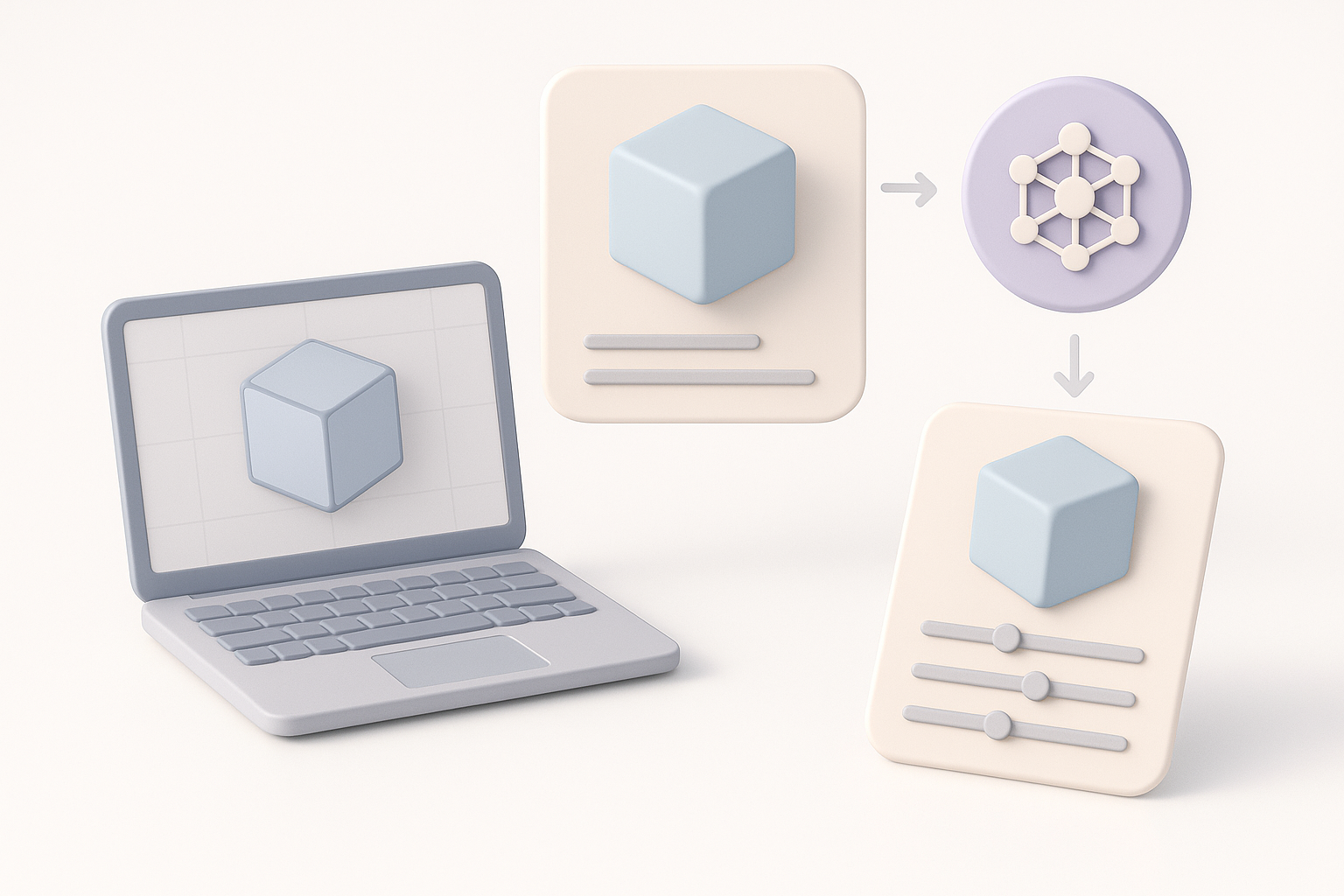
Yapay zeka tarafından üretilen 3D modeller, hızları ve erişilebilirlikleri ile öne çıkıyor. Deneyimlerime göre, metin, görsel veya eskizlerden karmaşık şekiller oluşturabilme yeteneği, hem yeni başlayanlar hem de deneyimli sanatçılar için teknik engelleri azaltıyor. Ancak bu modellerin genellikle dikkatlice gözden geçirilmesi gerekir; yapay zeka yaratıcı sıçramalar yapabilir ancak bazen ince tasarım detaylarını veya teknik gereksinimleri gözden kaçırabilir.
- Yapay zeka modelleri genellikle benzersiz topolojiye veya stilistik tuhaflıklara sahiptir.
- Fikir geliştirme sürecini hızlandırabilirler, ancak genellikle üretimde kullanılabilmeleri için temizlenmeleri gerekir.
- En iyi sonuçlar, yinelemeli komutlar (prompting) ve geri bildirimlerle elde edilir.
Yaygın Kullanım Alanları ve Uygulamalar
Yapay zeka tarafından üretilen 3D varlıkları çeşitli projelerde kullandım:
- Oyunlar ve XR deneyimleri için hızlı prototipleme
- Animasyon veya film için sahne düzenleme (set dressing) ve arka plan varlıkları
- Ürün tasarımı veya mimari için görselleştirme
Temel avantaj hızdır; yapay zeka, manuel çaba harcamadan önce fikirleri hızlı bir şekilde üretmemi, test etmemi ve yinelememi sağlıyor.
Yapay Zeka 3D Model Oluşturma İçin Adım Adım İş Akışım
Komut (Prompt) ve Girdi Hazırlama
İyi bir sonuç elde etmek, net ve spesifik komutlarla başlar. Genellikle şunları yaparım:
- Nesnenin amacını ve gereken detay seviyesini tanımlarım.
- Mümkünse referans görseller veya eskizler toplarım.
- Şekil, stil ve işleve odaklanarak açıklayıcı metin komutları yazarım.
Kontrol Listesi:
- Komutum ayrıntılı ve net mi?
- Destekleyici görsellerim veya eskizlerim var mı?
- Ölçek ve bağlamı belirttim mi?
İlk Çıktıyı Gözden Geçirme ve Düzenleme
Bir model ürettikten sonra (örneğin Tripo AI kullanarak), her zaman şunları yaparım:
- Geometriyi yapaylıklar (artifacts), delikler veya manifold olmayan (non-manifold) kenarlar açısından incelerim.
- Orantıların ve siluetin amacıma uygun olup olmadığını kontrol ederim.
- Belirgin sorunları tespit etmek için bir 3D görüntüleyicide hızlıca göz gezdiririm.
Temel ağ (base mesh) hatalıysa, komutumu veya girdilerimi ayarlar ve yeniden üretirim. Küçük sorunlar için yerleşik düzenleme araçlarını kullanırım veya manuel düzeltmeler yapmak için DCC (Dijital İçerik Oluşturma) yazılımıma aktarırım.
Üretime Hazır 3D Modeller İçin En İyi Pratikler

Retopoloji ve Ağ (Mesh) Optimizasyonu
Yapay zeka modelleri, animasyon veya gerçek zamanlı kullanım için hazır hale gelmeden önce genellikle ağ temizliğine ihtiyaç duyar. Şunları yapıyorum:
- Otomatik retopoloji özelliklerini kullanın (Tripo'nun yerleşik araçları bu konuda oldukça kullanışlıdır).
- Eklemler veya deformasyon alanları etrafındaki kenar akışını (edge flow) manuel olarak düzeltin.
- Hedef platform için poligon sayısını optimize edin (örneğin, oyun motoru limitleri).
Kaçınılması gereken hatalar:
- Oluşturmayı (rendering) yavaşlatan aşırı yoğun ağlar
- Manifold olmayan geometri veya ters çevrilmiş normaller
Dokulandırma, İskelet Kurulumu (Rigging) ve Animasyon İpuçları
Dokulandırma için otomatik UV açma (UV unwrapping) ve doku üretimine güvenirim ancak her zaman şunları yaparım:
- Özellikle organik şekillerde esneme veya dikiş izlerini (seams) kontrol ederim.
- Tutarlılık için malzeme atamalarını ayarlarım.
İskelet kurulumu (rigging) ve animasyon temiz topoloji gerektirir. Genellikle şunları yaparım:
- Sorunları erkenden yakalamak için temel deformasyonu test ederim.
- Basit karakterler için otomatik iskelet araçlarını kullanırım, ancak ağırlık boyamayı (weight painting) manuel olarak düzenlerim.
Hızlı ipuçları:
- Dokuları her zaman hedef oluşturucunuzda (renderer) önizleyin.
- Büyük iskelet değişikliklerinden önce aşamalı (incremental) sürümleri kaydedin.
Yapay Zeka 3D Model Araçlarını ve Yöntemlerini Karşılaştırma

Tripo AI'ı Diğer Araçlara Karşı Ne Zaman Kullanmalı?
Şu durumlarda Tripo AI'ı tercih ediyorum:
- Metin veya eskizlerden hızlı, yüksek kaliteli temel ağlar (base meshes) gerektiğinde
- Tek bir platformda entegre segmentasyon, retopoloji ve dokulandırma istediğimde
- Standart varlık türleri için minimum manuel temizlik hedeflediğimde
Çok özel varlıklar veya özel iş akışları için bazen diğer araçlara veya manuel modellemeye yönelirim.
Araç Seçiminde Temel Faktörler
Bir yapay zeka 3D aracı seçerken şunları değerlendiririm:
- Çıktı kalitesi ve ağ temizliği
- Desteklenen girdi türleri (metin, görsel, eskiz)
- Dışa aktarma seçenekleri ve iş akışıma entegrasyonu
- Yerleşik optimizasyon araçlarının (retopoloji, UV'ler vb.) mevcudiyeti
Tavsiyem: Yeni bir araca karar vermeden önce kendi örnek varlıklarınızla test edin.
Edinilen Dersler ve Uzman İpuçları
Sık Karşılaşılan Hatalar ve Bunlardan Nasıl Kaçınıyorum?
Yapay zeka 3D modellerinde gördüğüm bazı yinelenen sorunlar:
- Düzensiz topoloji: Her zaman bir retopoloji aşaması çalıştırın.
- Tutarsız ölçek: Dışa/içe aktarmadan önce birimleri standartlaştırın.
- Kullanılamaz UV'ler: Dokulandırmadan önce UV düzenlerini kontrol edin ve düzeltin.
Bunlardan nasıl kaçınırım:
- Her varlık için hızlı bir Kalite Güvence (QA) kontrol listesi oluşturun.
- Bağlam içi önizleme renderları kullanın (örneğin, motor içi veya sahne içi).
Verimli İş Akışları İçin Önerilerim
- Mümkün olan en net komut ve referanslarla başlayın.
- Manuel düzenlemelerden önce yerleşik optimizasyon özelliklerinden yararlanın.
- Zaman kazanmak için benzer varlıkları toplu olarak işleyin.
- Tekrar kullanım için bir temel ağ ve doku kütüphanesi bulundurun.
Yapay zeka üretimini hedeflenmiş manuel ince ayarlarla birleştirerek, minimum pürüzle sürekli olarak üretime hazır 3D modeller sunuyorum; bu da yaratıcı keşif ve yinelemeler için daha fazla zaman kazandırıyor.