How to Grow a Garden 3D Model: Expert Workflow & Tips
Creating a realistic and production-ready garden 3D model is faster and more accessible than ever—if you know the right workflow. In my experience, blending AI-powered tools with strategic manual refinement delivers the best results, especially for complex natural scenes. Whether you’re working in games, XR, or visualization, a clear plan, strong references, and efficient use of segmentation, retopology, and texturing are essential. Below, I’ll break down my expert process, highlight common pitfalls, and offer actionable tips for both newcomers and seasoned artists.
Key takeaways:
- Start with clear references and scope—don’t skip planning.
- Leverage AI tools for rapid prototyping; refine manually for control.
- Segment, retopologize, and UV map early to avoid headaches later.
- Animate plants/environment for realism, but keep it optimized.
- Export with target platforms in mind—test compatibility before finalizing.
- Learn from mistakes: iterate, don’t overcomplicate, and keep backups.
Executive Summary: Key Steps and Takeaways

What I’ve learned from garden 3D modeling projects
From commercial game assets to XR experiences, I’ve learned that garden scenes are deceptively complex. Natural variation, dense foliage, and organic terrain require a balance between automation and hands-on artistry. The best results come from rapid iteration—using AI for base generation, then refining with traditional modeling and texturing where needed.
Quick overview of recommended workflows
My recommended workflow:
- Gather strong references and define scope.
- Use an AI-powered platform (like Tripo) to generate a base mesh from text, images, or sketches.
- Segment major elements (plants, rocks, terrain).
- Retopologize and UV map for efficient texturing.
- Texture and detail with scans or hand-painting as needed.
- Rig and animate key elements for realism.
- Export and test in your target engine or platform.
Planning Your Garden 3D Model
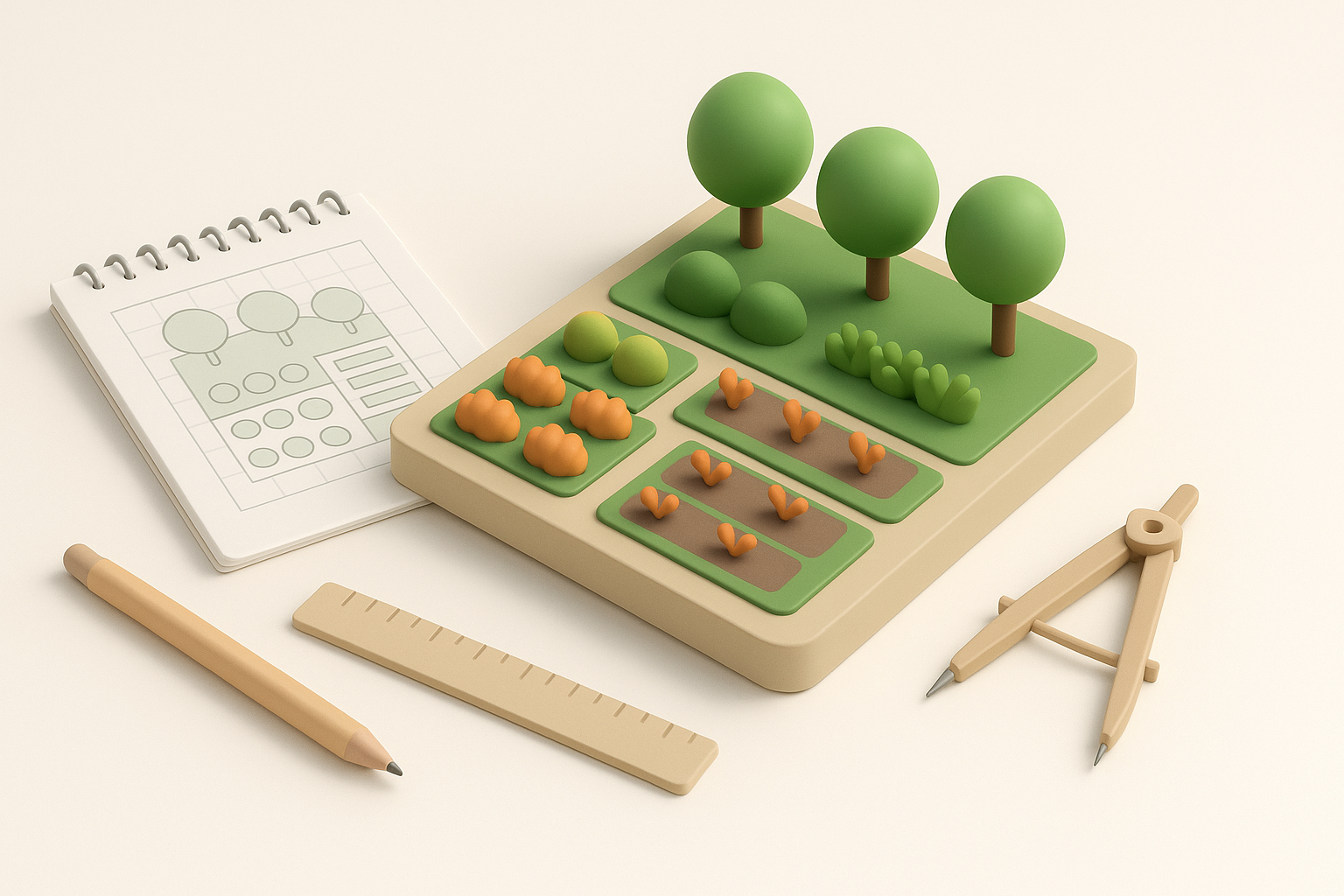
Choosing reference images and sketches
Good references are non-negotiable. I usually collect a mix of wide shots, close-ups, and botanical diagrams to capture both the overall feel and specific plant structures. Sketching a rough layout—even if it’s just blocks and lines—helps clarify composition and scale.
Checklist:
- Gather 10–20 reference images (terrain, plants, lighting).
- Make a quick layout sketch or blockout.
- Identify hero elements vs. background filler.
Defining scope and level of detail
Over-detailing is a common trap. I always define which areas need high fidelity (e.g., player path, camera focus) and where I can simplify. For games and XR, I prioritize performance over perfection.
Pitfall: Don’t try to model every leaf—use instancing or cards for dense foliage.
Generating the Base Garden Model
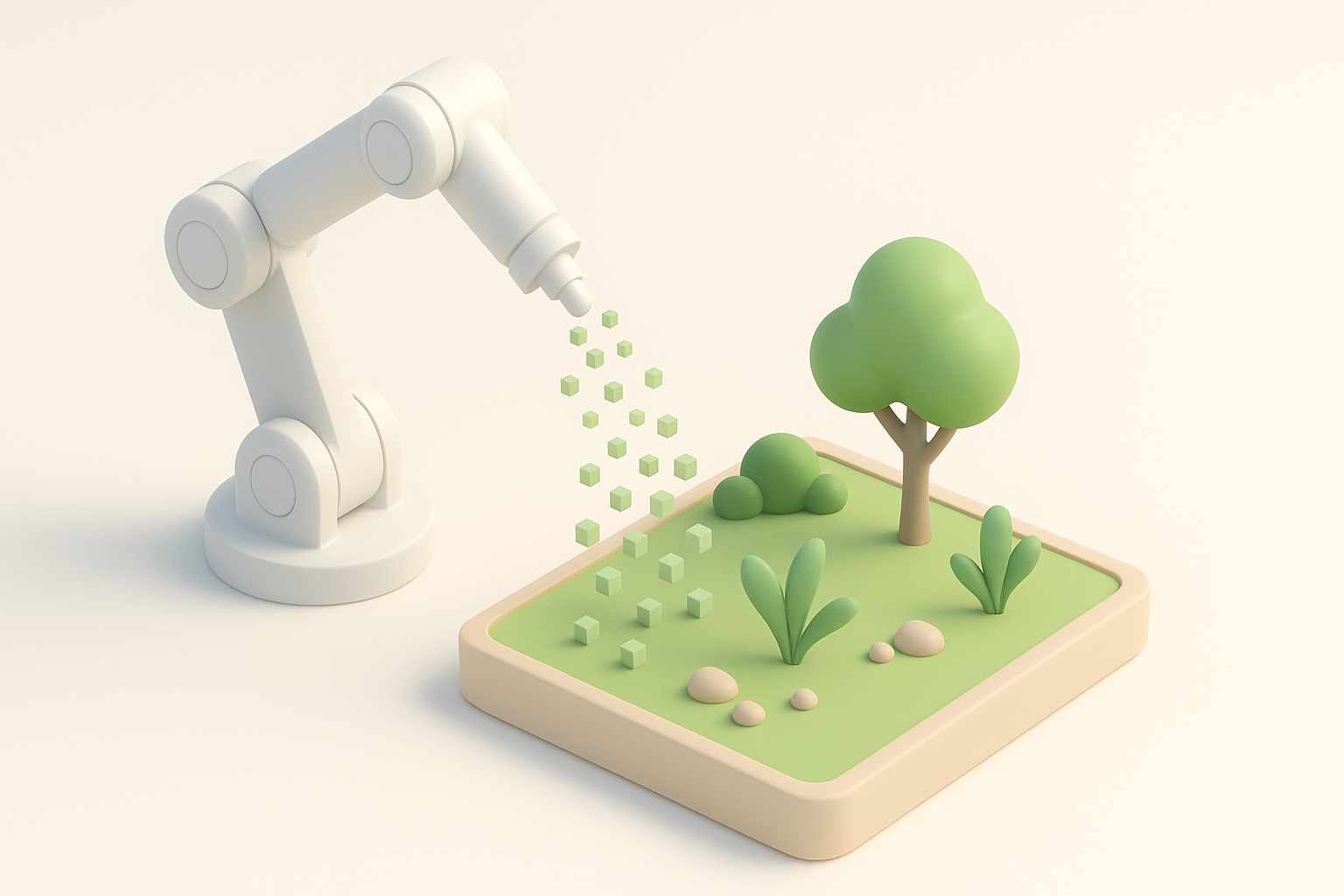
Using AI-powered platforms for rapid prototyping
Platforms like Tripo let me generate a production-ready base mesh from a text prompt, photo, or sketch in seconds. This jump-starts the process and lets me quickly test different compositions or plant arrangements.
My workflow:
- Input a clear prompt or upload a sketch.
- Review and tweak the generated base.
- Export for further refinement.
Manual vs automated modeling: What I prefer
I rely on AI for the initial mesh, but I still use manual modeling for hero assets or unique features. Automated tools are great for bulk foliage and terrain, but I hand-model signature plants or garden elements for extra control.
Tip: Use automation for speed, manual methods for polish.
Segmentation, Retopology, and Texturing Best Practices

Intelligent segmentation for plant and terrain elements
Segmenting the base mesh into logical components (e.g., grass, trees, rocks, paths) is crucial for texturing and animation. Tripo’s segmentation tools help here, but I always double-check and adjust boundaries for clean selection.
Checklist:
- Separate foliage, terrain, and props.
- Name and organize elements for easy workflow.
Retopology and UV mapping: My workflow
Efficient topology is essential for animation and texturing. I use auto-retopology for background elements, but hand-tweak important assets. Clean UVs prevent texture stretching and make painting easier.
Steps:
- Auto-retopologize bulk elements.
- Manually retopologize hero objects.
- Lay out UVs with minimal seams; pack efficiently.
Rigging and Animation for Garden Scenes
Animating plants and environmental effects
Animating subtle plant movements (wind sway, leaf flutter) adds realism. I use simple rigs or blend shapes for hero plants, and shader-based animation for background foliage.
Tip: Animate only what the camera sees—avoid wasted cycles.
Tips for realistic movement and interaction
Keep animations subtle and randomized. I often layer noise or use physics-based motion for environmental effects. Test in-engine to ensure performance and believability.
Pitfall: Over-animated foliage looks unnatural; less is more.
Exporting and Integrating Your Garden Model
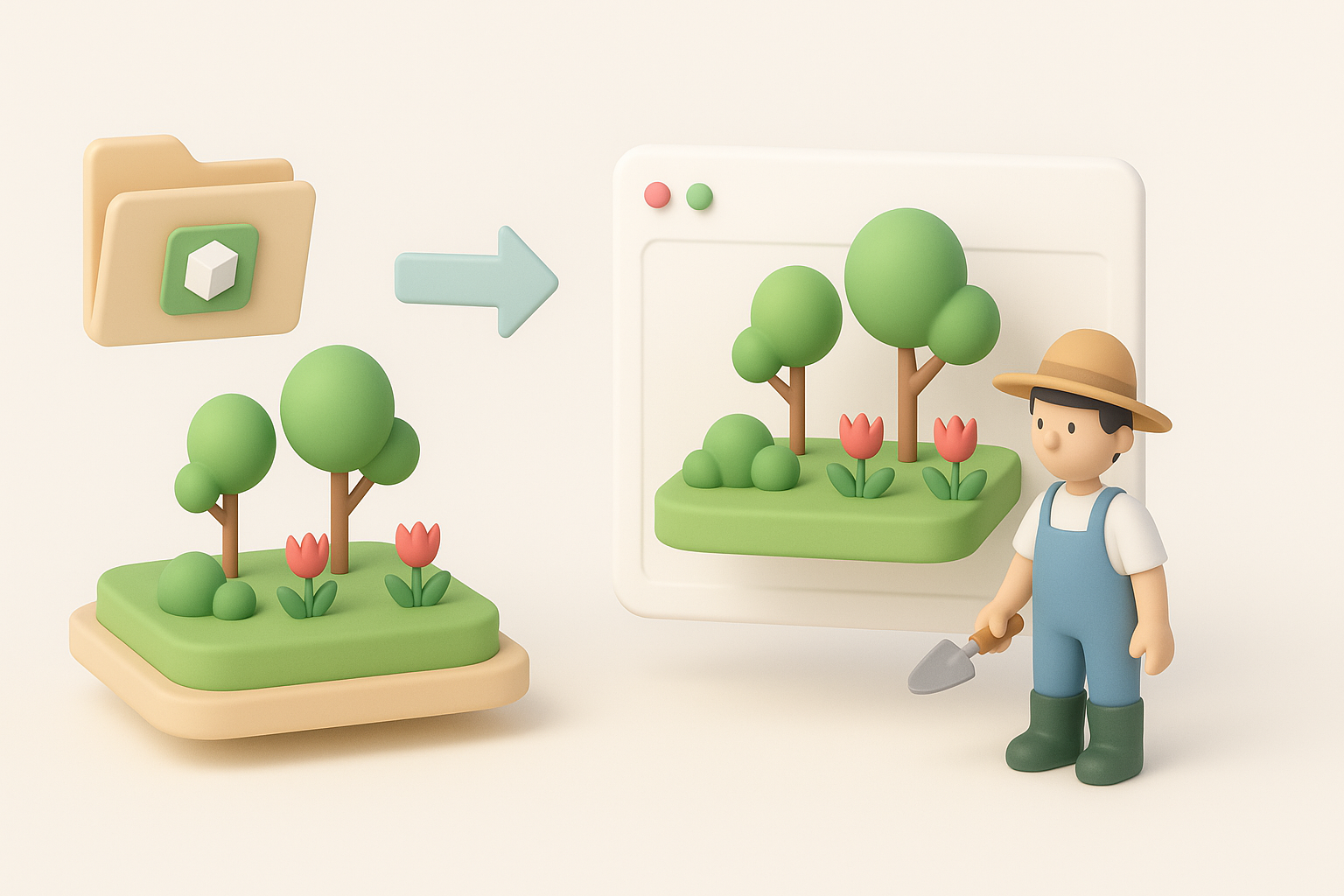
Optimizing for game engines and XR platforms
Optimization is critical—especially for real-time projects. I always check polycount, texture size, and LODs before export. Test early in the target engine to catch issues.
Checklist:
- Reduce polycount on distant/background assets.
- Bake normal and AO maps for detail.
- Test import in engine (Unity, Unreal, etc.).
File formats and compatibility advice
I primarily use FBX or GLB for compatibility. Export with embedded textures and test for material consistency across platforms.
Tip: Keep a clean folder structure and version backups.
Comparing AI Tools and Traditional Methods

Where AI tools excel in garden modeling
AI tools shine in rapid prototyping, bulk asset generation, and segmentation. They free up time for creative decisions and iteration.
When manual techniques are still valuable
Manual modeling is still best for hero assets, unique shapes, and areas where control and subtlety matter. I always hand-tune key garden features for maximum impact.
My Personal Workflow and Lessons Learned

Mistakes to avoid in garden 3D modeling
- Overcomplicating the scene—keep it modular.
- Neglecting references—leads to generic results.
- Skipping segmentation—makes texturing and animation a pain.
Favorite tips for efficient, creative results
- Iterate quickly—don’t get stuck on the first version.
- Use AI for speed, manual tweaks for quality.
- Always test in your target engine early and often.
- Save incremental versions and keep backups.
With the right blend of AI-powered tools and hands-on artistry, you can create stunning, optimized garden 3D models in a fraction of the traditional time. Focus on planning, iterate often, and don’t be afraid to mix automation with manual craftsmanship for the best results.


