How I Use GrabCAD 3D Models: Workflow, Tips, and Best Practices
Finding and using 3D models efficiently is crucial for my work in design, engineering, and visualization. GrabCAD’s vast library has become a staple in my workflow, but getting the most out of it requires knowing how to search, evaluate, and optimize models for production. I’ll walk through my practical approach—covering search strategies, quality checks, integration steps, and how I combine these assets with AI-powered tools like Tripo for faster, higher-quality results. This guide is for anyone looking to streamline their 3D workflows, from engineers to content creators.
Key takeaways:
- GrabCAD offers a huge range of user-generated 3D models, but quality varies—careful evaluation is essential.
- Effective search and filtering save time and help avoid unsuitable models.
- Importing, cleaning, and optimizing models are critical steps before production or visualization.
- Always review licensing and attribution requirements before commercial use.
- AI tools like Tripo can accelerate cleanup, retopology, and texturing of downloaded models.
- Combining GrabCAD with AI platforms leads to faster, more flexible 3D pipelines.
What Are GrabCAD 3D Models?
Overview of the GrabCAD Library
GrabCAD is a community-driven platform that hosts a massive library of free 3D models, primarily contributed by engineers, designers, and hobbyists. I use it as a go-to source for mechanical parts, assemblies, and reference models across various CAD formats. The models are organized by categories, tags, and popularity, making it relatively easy to browse.
Types of 3D Models Available
The library includes everything from simple fasteners and gears to complex machinery, vehicles, and consumer products. Most files are available in STEP, IGES, STL, and native CAD formats. In my experience, most models are geared toward engineering and prototyping, but there’s a growing number of assets for visualization and rendering as well.
How I Find and Evaluate 3D Models on GrabCAD
Search Strategies and Filtering
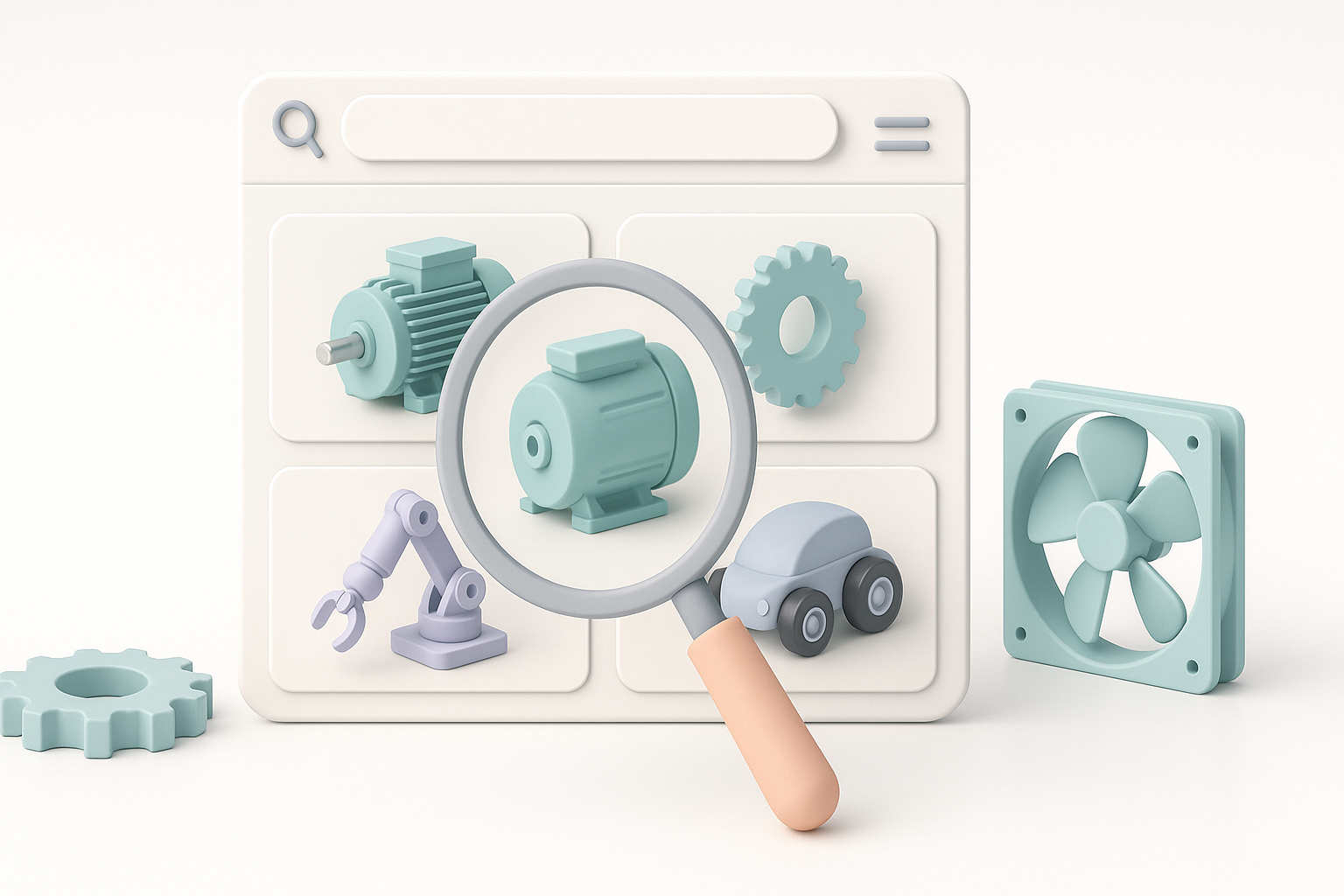
To avoid sifting through irrelevant results, I rely on precise keywords and use filters like file type, category, and popularity. I typically:
- Start with specific part names or industry terms.
- Filter by file format to match my target software (e.g., STEP for CAD, STL for 3D printing).
- Sort by “most liked” or “most downloaded” to surface reliable models.
Checklist:
- Use technical terms for higher-quality matches.
- Filter by file type before downloading.
- Check upload dates—recent uploads often have better compatibility.
Assessing Model Quality and Suitability
Before downloading, I always review the model’s preview images, description, and user comments. I look for:
- Clean geometry, logical part separation, and correct scaling.
- Evidence of real-world use or positive feedback from other users.
- Clear licensing terms (some are public domain, others require attribution).
Pitfalls:
Models may have missing components, non-manifold geometry, or unclear licensing. I avoid models with low ratings, missing previews, or vague descriptions.
Integrating GrabCAD Models Into My 3D Workflow
Importing and Preparing Models
After downloading, I import the model into my preferred 3D software. The process usually involves:
- Checking for missing parts or corrupted geometry.
- Converting units and aligning the model to my project’s coordinate system.
- Removing unnecessary details or merging redundant parts.
If the model needs to be optimized for rendering or real-time use, I’ll often pass it through an AI-powered platform like Tripo for automatic retopology and texture baking.
Optimizing for Production or Visualization
For engineering, I focus on maintaining dimensional accuracy and proper assembly structure. For visualization, I:
- Reduce polygon count for real-time applications.
- Rebuild UVs and apply new materials as needed.
- Use Tripo or similar tools for fast cleanup and texturing.
Tips:
- Always save an untouched copy of the original.
- Document any changes for future reference or attribution.
Best Practices for Using and Modifying GrabCAD 3D Models
Legal and Licensing Considerations
Not all GrabCAD models are free for commercial use. I always:
- Read the licensing information before integrating a model into a commercial project.
- Credit the original creator if attribution is required.
- Avoid redistributing modified models unless the license explicitly allows it.
Pitfall:
Assuming all models are “free to use” can result in copyright issues—double-check licenses.
Customizing and Enhancing Models
Most models need some degree of customization. My typical steps:
- Modify geometry to fit my specific requirements.
- Update materials, textures, and colors for consistency.
- Use AI tools to automate repetitive tasks like retopology or UV unwrapping.
Checklist:
- Validate geometry for your workflow (e.g., watertight for 3D printing).
- Standardize naming conventions and file organization.
Comparing GrabCAD With Other 3D Model Sources
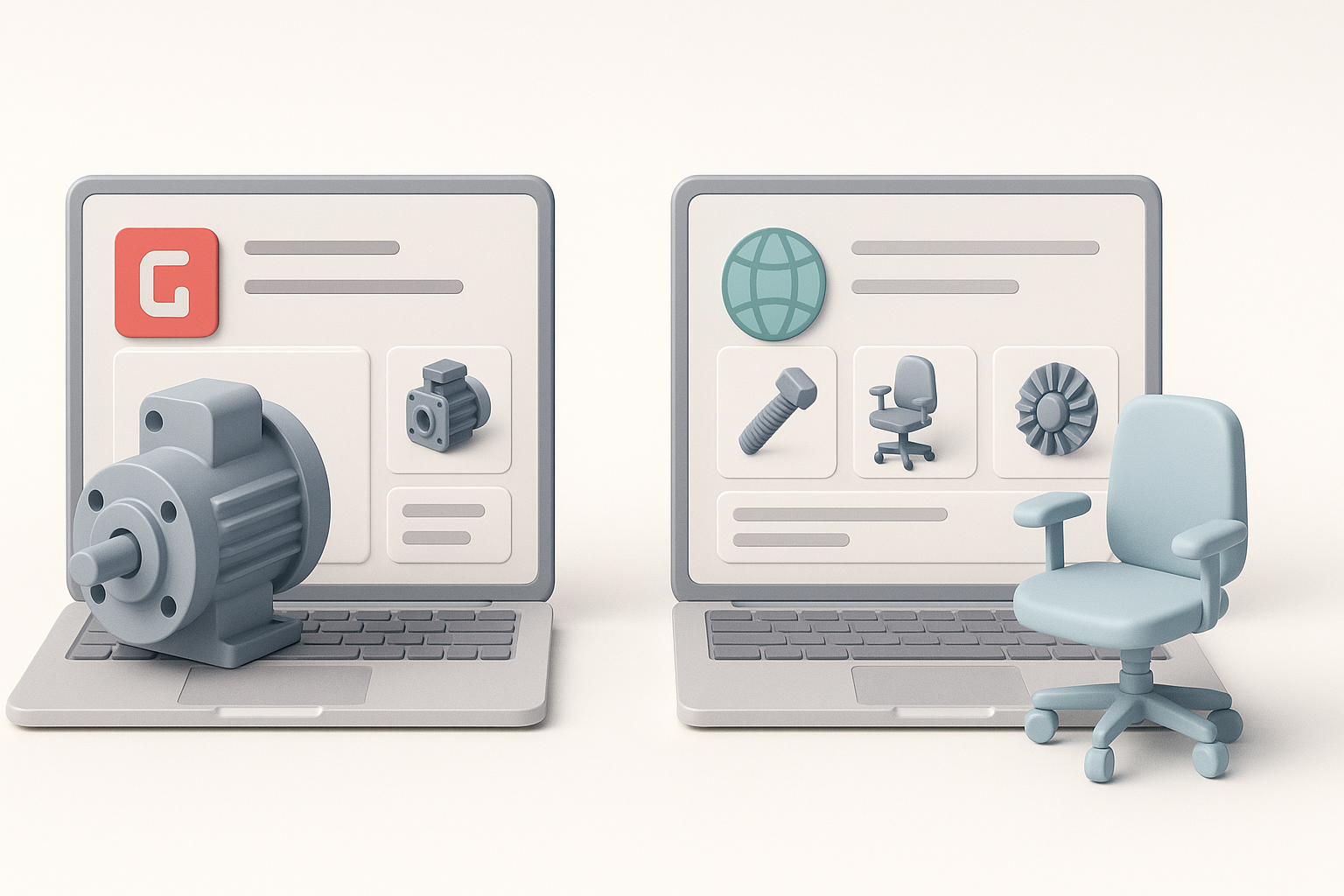
Strengths and Limitations
Strengths:
- Huge selection of engineering-focused models.
- Broad file format support.
- Active community and peer feedback.
Limitations:
- Variable model quality and documentation.
- Licensing can be inconsistent.
- Limited assets for entertainment or stylized projects.
When I Use Alternative Methods or Tools
If I need high-detail organic models, stylized assets, or guaranteed commercial licenses, I turn to other sources or create models from scratch. For repetitive cleanup or enhancement, I rely on AI-powered platforms like Tripo to save time.
Tip:
Combine GrabCAD for base engineering models with AI tools for final polish and adaptation to different use cases.
Tips for Streamlining 3D Workflows With AI Tools

How I Combine GrabCAD With AI-Powered Platforms
My workflow often looks like this:
- Download a suitable GrabCAD model.
- Import into my 3D software for initial inspection.
- Use Tripo to handle segmentation, retopology, and texturing.
- Finalize materials, lighting, and export settings for the target platform.
This approach saves hours on manual cleanup and ensures models are production-ready faster.
Personal Workflow Recommendations
- Always validate the source and integrity of downloaded models.
- Use AI tools to automate tedious steps—especially retopology and UV mapping.
- Maintain a library of cleaned, ready-to-use assets for future projects.
- Document your workflow for repeatability and compliance.
Pitfall:
Skipping the evaluation or cleanup step can lead to downstream issues—always check geometry and licensing before moving forward.
By combining GrabCAD’s extensive library with AI-powered tools and a disciplined workflow, I’m able to rapidly source, adapt, and deploy 3D assets for a wide range of projects—without sacrificing quality or compliance.
