How to Keep Scale Consistent When Generating Multiple Models with AI
Ever spent hours creating the perfect AI 3D model generator workflow, only to discover your character is the size of a skyscraper next to your carefully crafted building? You're not alone. Scale inconsistency is one of the most frustrating challenges in AI-powered 3D creation, breaking immersion faster than you can say "resize tool."
Whether you're building game assets, designing products, or creating AR/VR experiences, maintaining consistent proportions across multiple AI-generated 3D models can feel like herding digital cats. But here's the good news: with the right approach and tools like Tripo AI, you can achieve professional-level scale consistency that would make any 3D artist proud.
Why Scale Consistency Matters in 3D Modeling
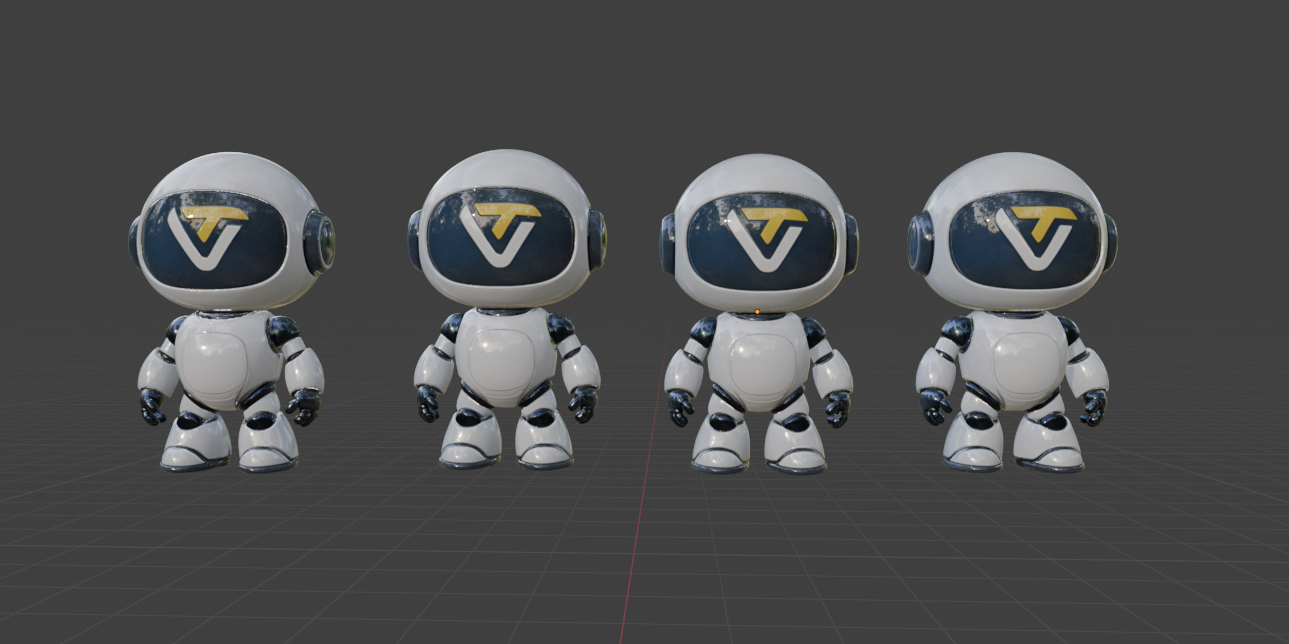
Scale consistency isn't just about making things look right—it's the foundation of believable 3D worlds. When your AI-generated 3D models maintain proper proportions, they:
-
Create immersive experiences that don't jar viewers
-
Integrate seamlessly into existing projects
-
Save countless hours of manual adjustment
-
Enable efficient batch production workflows
-
Maintain professional quality standards
The challenge? Traditional AI 3D model generators often treat each generation as an isolated event, producing models with wildly different scales. This inconsistency forces creators into tedious manual scaling—defeating the purpose of AI automation.
Understanding the Scale Challenge
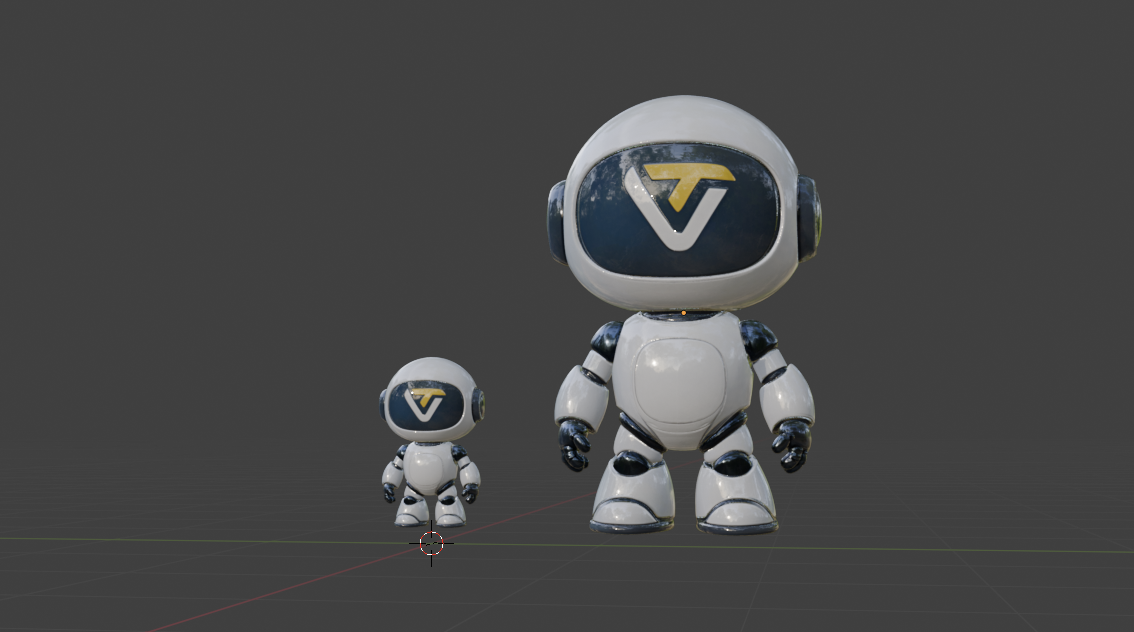
AI 3D model generators learn from vast datasets containing objects at various scales and perspectives. Without explicit scale references, they interpret size based on context clues that can vary dramatically. This becomes especially problematic when using image to 3D conversion, where perspective distortion compounds the scaling challenge.
| Scenario | Challenge | Impact |
|---|---|---|
| Character Collections | Heights vary between 4-8 feet | Breaks narrative consistency |
| Furniture Sets | Chairs tower over tables | Unusable for visualization |
| Game Assets | Props don't fit environments | Requires complete rework |
| Product Lines | Items lose relative proportions | Confuses customers |
Step-by-Step Guide: Creating Multiple Models with Consistent Scale
Step 1: Define Your Scale Framework
Before generating your first model, establish clear scale parameters:
Universal Scale Reference:
- Base Unit: 1 unit = 1 meter
- Human Reference: 1.75 units (5'9")
- Standard Door: 2.1 x 0.9 units
- Vehicle Reference: Sedan = 4.5 x 1.8 units
Save these standards in Tripo Studio as a master template for all future generations.
Step 2: Create Your Reference Model Using Tripo Studio
- Open Tripo Studio and click on the Generation tab at the top
- Choose your input method:
- Image to 3D: Upload a reference image
- Text to 3D: Enter descriptive prompts
- Multi-view: Upload multiple images (front, side, top views)
- Write your prompt with specific dimensions (e.g., "Create an office chair, 90cm tall, 50cm wide, with armrests at 65cm height")
- Edit the generated reference image using the built-in FLUX Kontext [pro] AI image editing model if needed
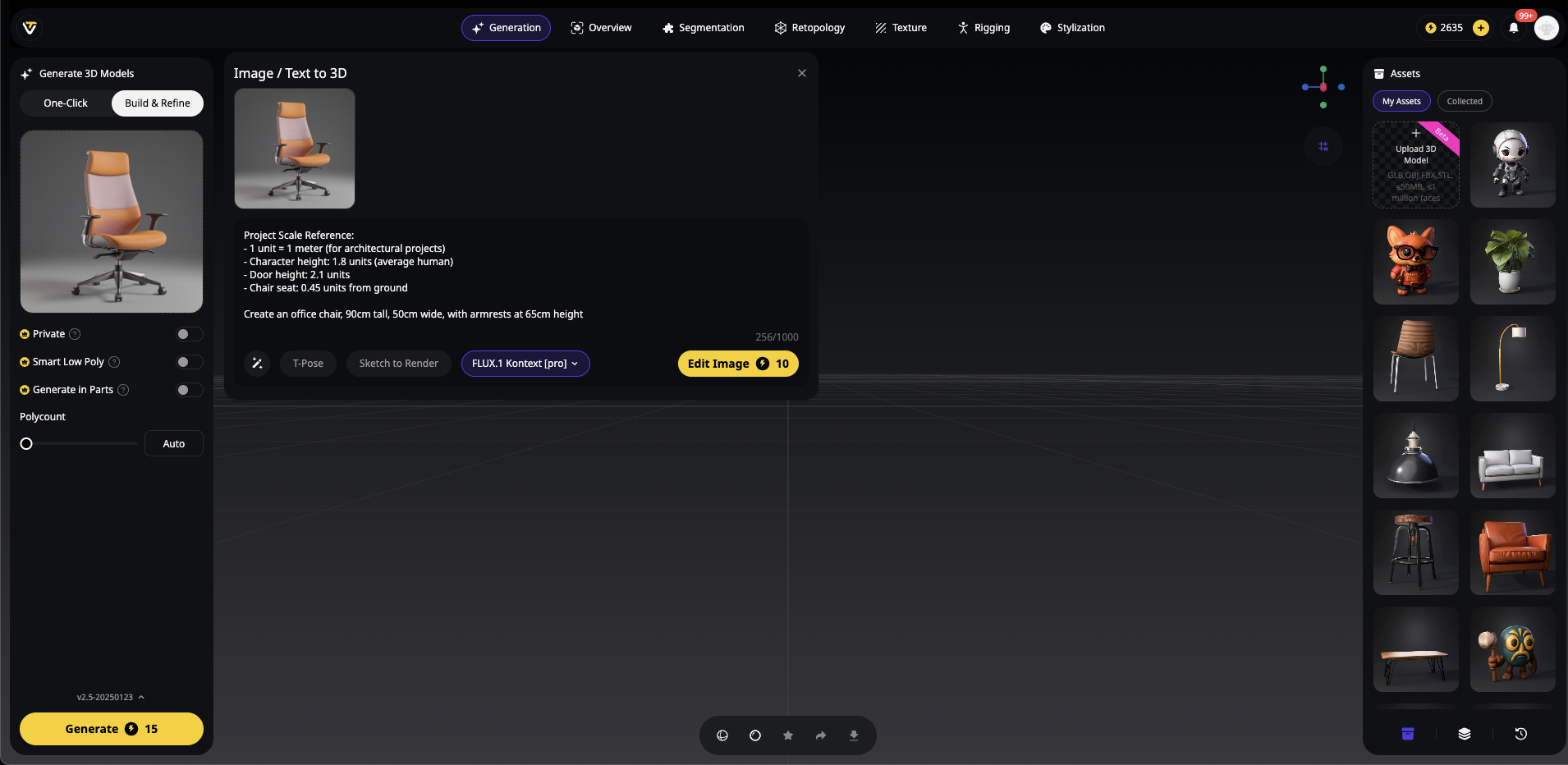
- Configure generation settings:
- Enable Private for personal projects
- Toggle Smart Low Poly for optimized models
- Select Generate in Parts to create segmented models with AI-separated components
- Click Generate to create your scale reference model
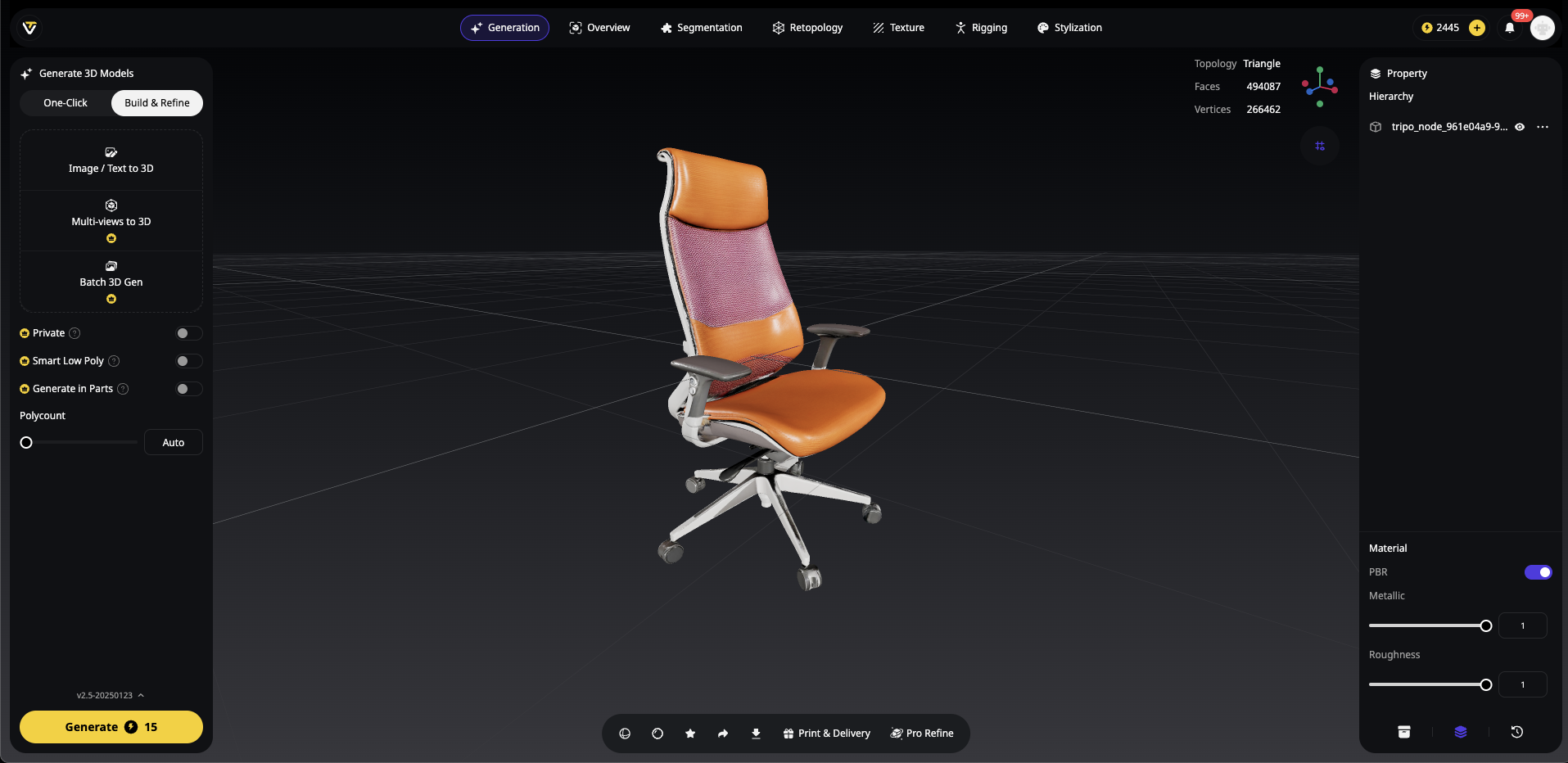
- Access the Transform panel (right-hand side) after generation
- Document the scale values from the Transform panel as your baseline
Batch Generation for Multiple Consistent Models
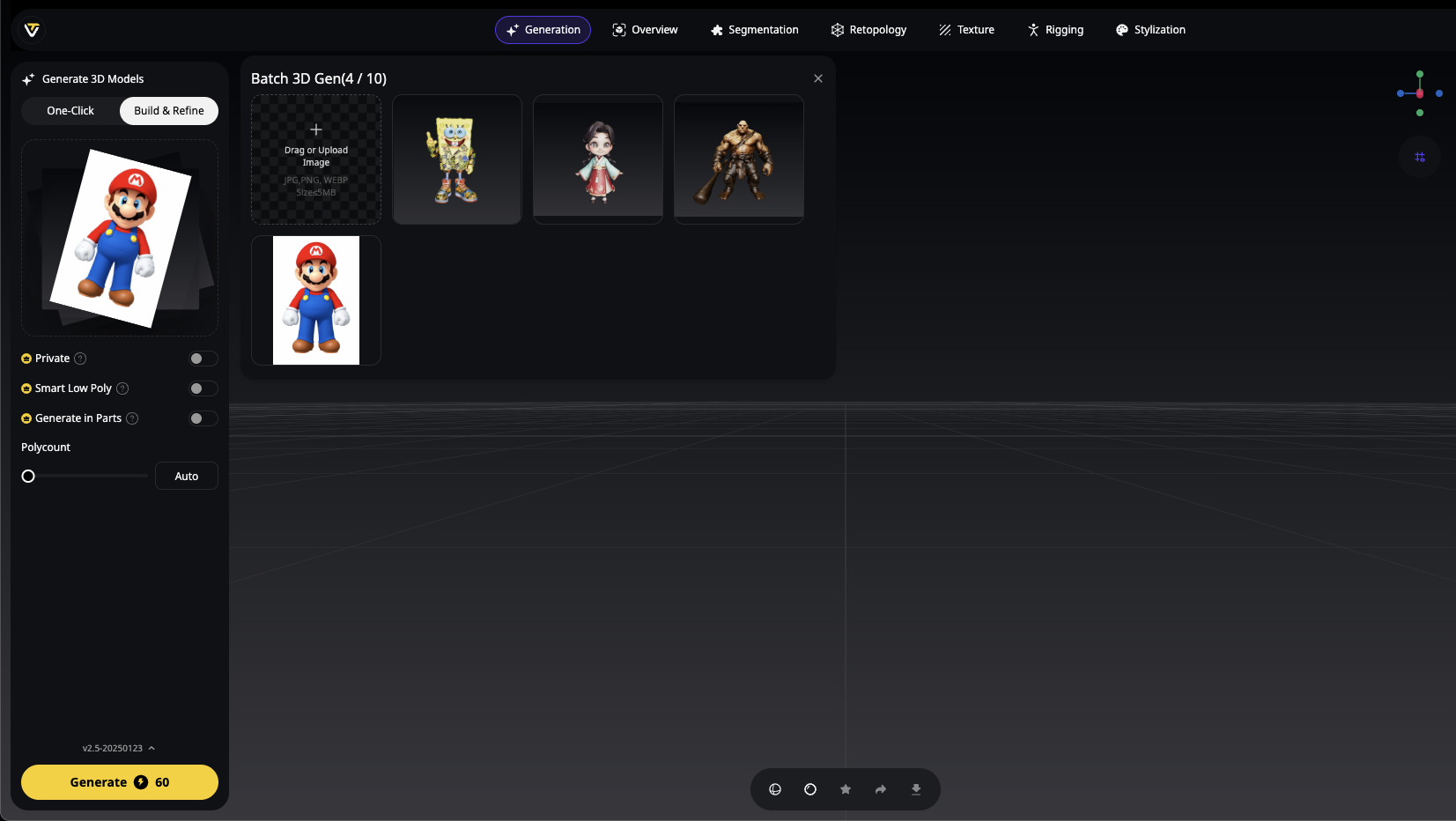
Tripo Studio's batch generation feature allows you to create up to 10 models simultaneously while maintaining scale consistency:
For Character Collections (Game Development Example):
- Prepare your reference images - gather up to 10 character reference images
- Access the Generation panel and select Multi-view or batch upload option
- Upload all reference images (up to 10 at once)
- Apply consistent prompts with dimensional specifications:
Character Batch Prompts:
- "Adult warrior, 1.8m tall, realistic proportions"
- "Teen mage, 1.65m tall, matching proportions to adult"
- "Child archer, 1.2m tall, proportional to adult scale"
-
Configure identical settings across all generations:
- Same Smart Low Poly settings
- Consistent Generate in Parts selection
- Matching style preferences
-
Generate all models simultaneously - Tripo Studio processes up to 10 models in one batch
-
Use Transform panel to fine-tune any scale discrepancies post-generation
Transform Panel Workflow for Batch Results:
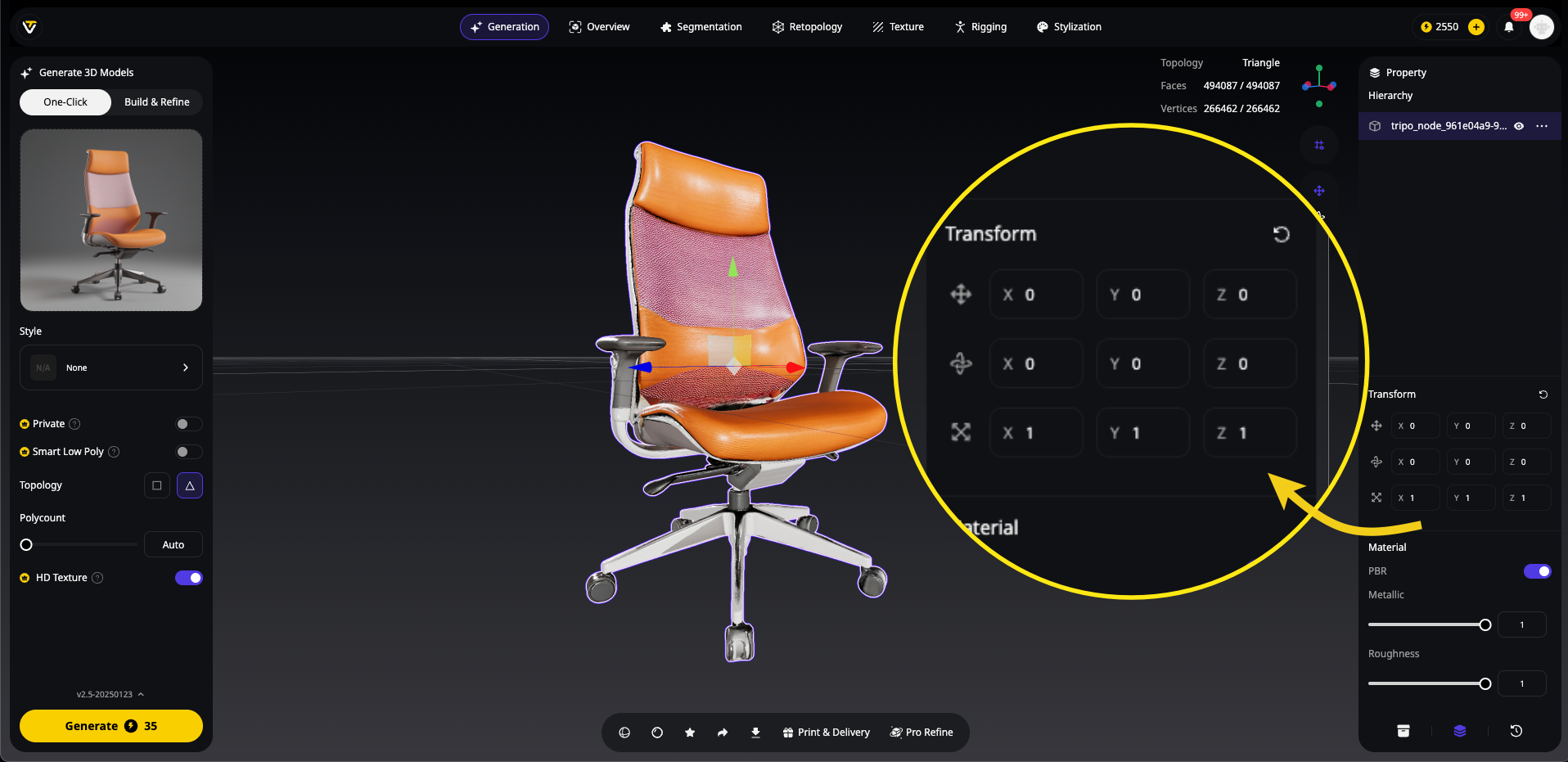
Character Collection (Generated in Single Batch):
- Adult Warrior: Transform Scale (1.0, 1.0, 1.0) - Base reference
- Teen Mage: Transform Scale (0.92, 0.92, 0.92) - 92% of adult
- Child Archer: Transform Scale (0.67, 0.67, 0.67) - 67% of adult
Step 4: Leverage Multi-View for Enhanced Scale Accuracy
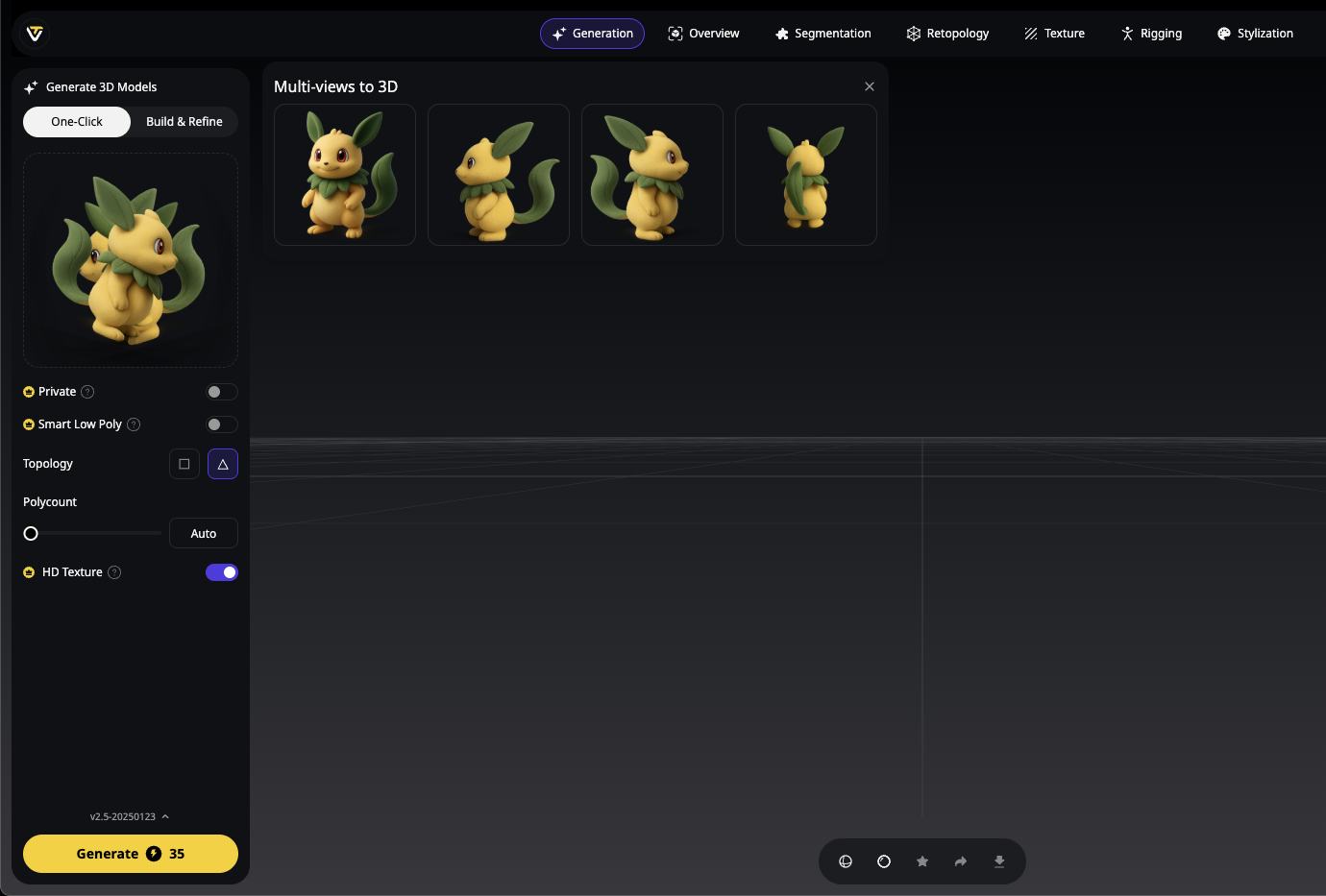
When using Tripo Studio's multi-view generation:
- Upload front, side, and top views of your reference object
- Include scale markers in your reference photos (rulers, known objects)
- Maintain consistent camera distance across all views
- Let Algorithm 2.5 triangulate true dimensions from multiple perspectives
- Apply the same multi-view approach to each model in your collection
This image to 3D multi-view approach virtually eliminates scale ambiguity by providing comprehensive spatial data to the AI, ensuring your batch-generated models maintain accurate proportional relationships.
Tripo AI's Game-Changing Scale Solutions
Algorithm 2.5: Precision Meets Consistency
Tripo AI's latest Algorithm 2.5 represents a breakthrough in scale-aware generation. Unlike traditional approaches, it incorporates spatial understanding that maintains proportional relationships across multiple generations.
Key advantages include:
- Enhanced geometric precision for consistent dimensions
- Intelligent proportion preservation across variations
- 8-10 second generation with optional 5-minute refinement
- Professional-grade outputs rivaling hand-crafted designs
Multi-View Generation: Your Scale Insurance Policy
One of Tripo AI's most powerful features for scale consistency is multi-view input support. By providing front, side, and top views, you give the AI comprehensive spatial data that virtually eliminates scale ambiguity.
This image to 3D approach works by:
- Uploading reference images from multiple angles
- Algorithm 2.5 triangulating true dimensions
- Generated models maintaining accurate proportions
- Batch processing preserving scale relationships
Tripo Studio: The Scale-Aware Workspace
Tripo Studio revolutionizes scale management with its AI-native 3D workspace. The Transform panel provides unprecedented control over model scaling with:
-
Precise numerical control for X, Y, and Z axes
-
Real-time preview of scale adjustments
-
Proportional scaling locks to maintain aspect ratios
-
Copy/paste scale values between models
Intelligent Segmentation combined with Transform controls allows you to adjust individual components while preserving overall scale relationships.
Industry-Specific Applications
Gaming and Real-Time Applications
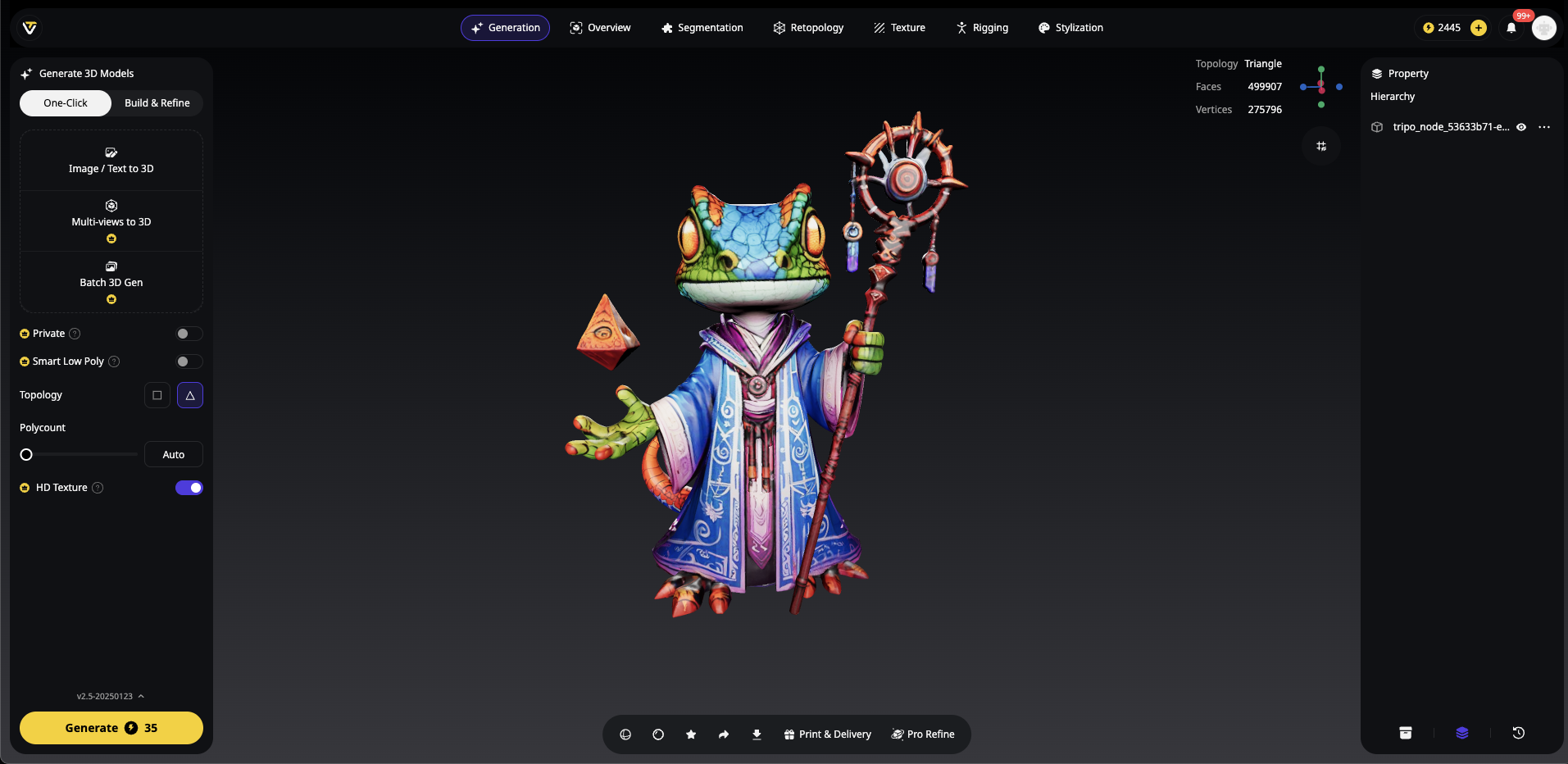
Game developers using Tripo AI benefit from:
-
Consistent character heights for balanced gameplay
-
Properly scaled props that fit level designs
-
Batch generation of themed asset collections
Case Example: A game studio used Tripo Studio's Transform panel to generate 50+ medieval props in one day, all perfectly scaled to their existing environment.
Architecture and E-commerce
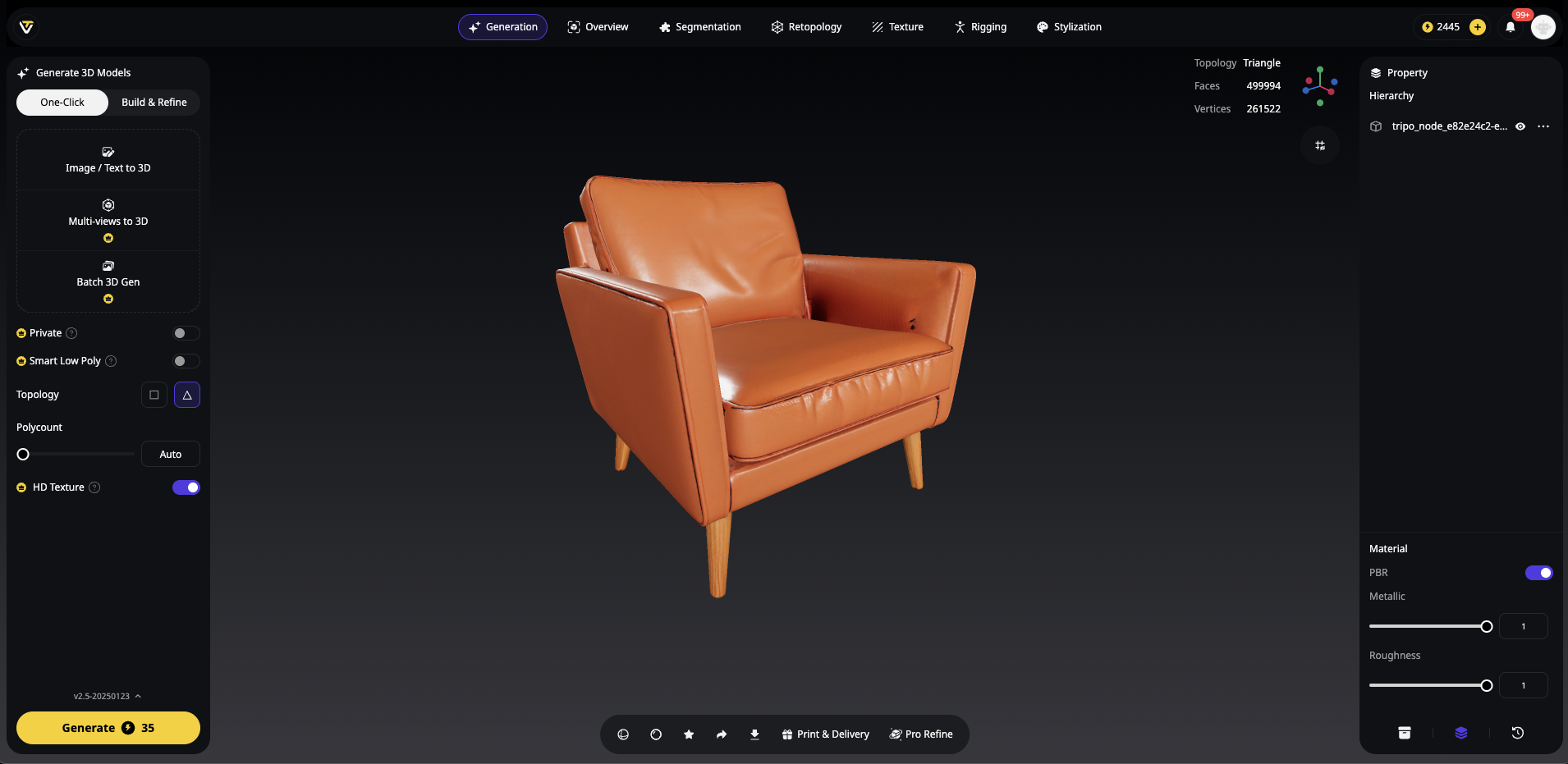
For architectural applications, Tripo AI excels at:
-
Generating furniture at real-world scales
-
Creating human figures for scale reference
-
Maintaining code-compliant dimensions
Online retailers leverage scale consistency for accurate product size comparisons and AR try-before-you-buy experiences.
Measuring Success
Track your scale consistency with these metrics:
Dimensional Accuracy**: ±5% variance acceptable
Batch Consistency: 95%+ models meeting standards
Time Savings: 80% reduction in manual scaling adjustments
Ready to Master Scale Consistency?
Stop wrestling with resize tools and start creating with confidence. Tripo AI's comprehensive scale management features—from Algorithm 2.5's precision to Tripo Studio's intelligent workspace—empower you to generate consistent, professional-quality 3D models at unprecedented speed.
Join 2+ million creators who've discovered the secret to scale-perfect AI-generated 3D models. Experience the Transform panel's precision, harness multi-view generation's accuracy, and unlock the full potential of AI 3D model generator technology.
Your perfectly proportioned 3D world awaits. Start your free trial at Tripo Studio and transform your creative workflow today!
Ready to dive deeper? Explore Tripo Studio for the ultimate scale-consistent 3D creation experience, or integrate our Text-to-CAD API for automated workflows.
Advancing 3D generation to new heights
moving at the speed of creativity, achieving the depths of imagination.
 Text & Image to 3D models
 Free Credits Monthly
 High-Fidelity Detail Preservation