How to Further Enhance Tripo Models with Nomad Sculpt
Imagine you have a 3D model idea that needs to be ready for real-world use, whether for 3D printing, games, or visual design. Achieving both speed and quality isn't easy.
With Tripo Studio, an all-in-one AI 3D model generator, you can create high-quality 3D models from text or images in seconds, giving you a professional-grade foundation.
Once you have a Tripo model, you may want to refine shapes, enhance details, or add a personal artistic touch. That's where Nomad Sculpt comes in—together, these tools balance speed and quality.
This guide will show you how to take models generated with Tripo and further enhance them in Nomad Sculpt, turning AI-generated assets into polished, production-ready results.
Tripo Studio: AI-Powered 3D Workflow
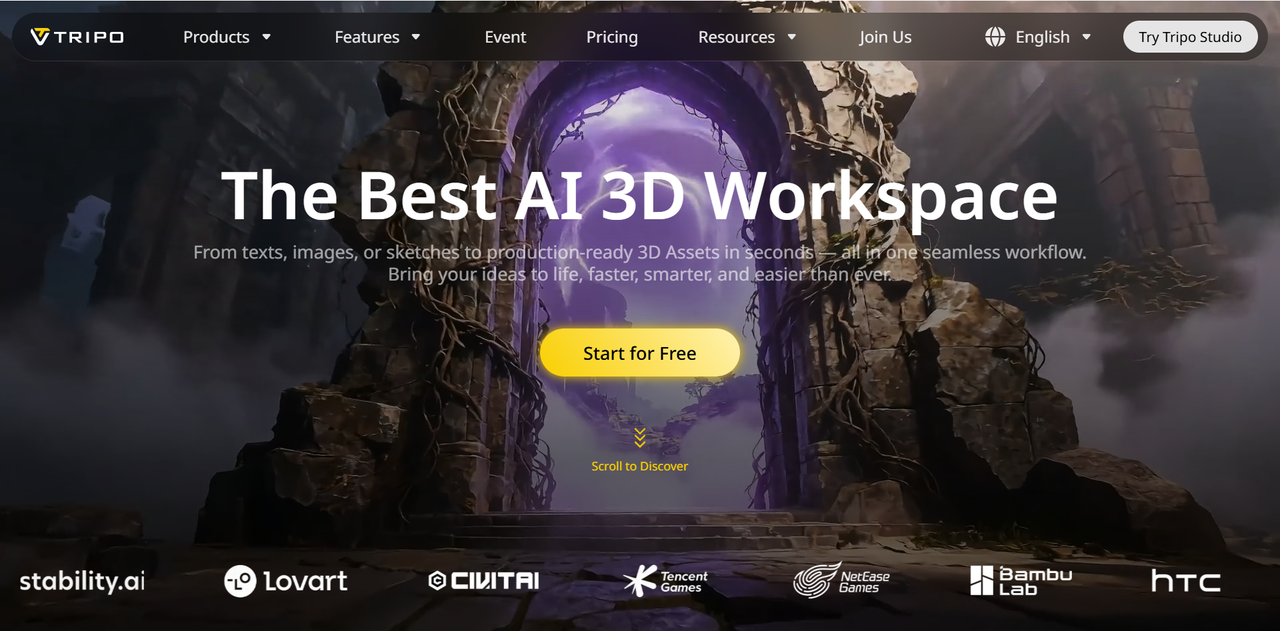
Tripo Studio is an AI-powered 3D model generator that supports both text-to-3D and image-to-3D generation, turning concepts into detailed 3D assets. Beyond geometry, it streamlines the creation pipeline with AI-assisted rigging and texturing, providing a solid foundation for any project. Ideal for prototyping, animation, game assets, or product visualization, Tripo helps creators accelerate their workflow while maintaining model quality and structural integrity.
Nomad Sculpt: Refine and Personalize Your 3D Models
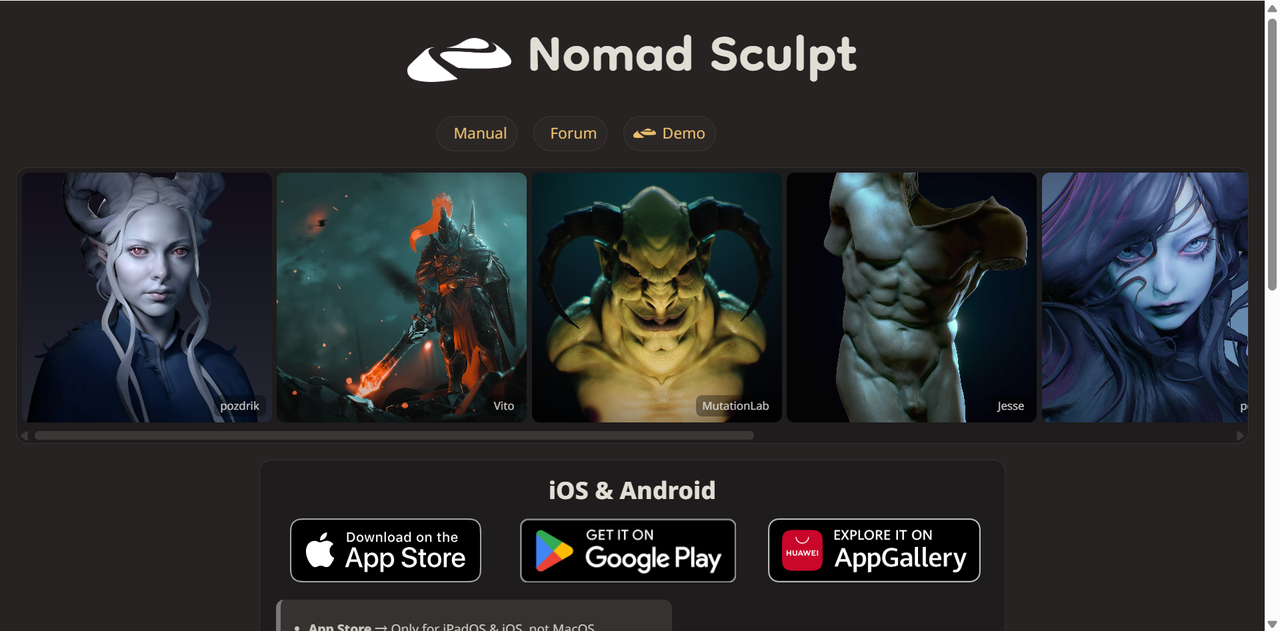
Nomad Sculpt is a professional 3D sculpting app designed for complete creative freedom, bringing the power of desktop sculpting software to mobile and tablet devices. As a dedicated sculpting and painting application, it provides a full suite of tools for creating, detailing, and texturing 3D models, giving artists complete control over refinement. Its intuitive interface and portability make it perfect for both beginners and professionals who want to enhance their work with precision anytime, anywhere.
Why Combine Tripo and Nomad?
As an advanced AI 3D model generator, Tripo can generate 3D models that are ready for many projects, from quick visualization to production-ready assets. In many cases, the AI-generated result is sufficient on its own.
However, when a project requires greater artistic control—such as precise proportions, stylized features, or sculpted surface details—Nomad Sculpt can elevate a model from good to exceptional. It gives creators full control over shapes and details. By combining Tripo's speed and foundational quality with Nomad's hands-on sculpting, you can produce polished, professional-grade 3D assets that meet higher creative or production standards.
A Step-by-Step Workflow
Before You Start
Visit Tripo Studio and register for an account. This free AI 3D model generator gives you credits to explore and create your 3D models.
Step 1: Generate Your 3D Models in Tripo Studio
Open Tripo Studio and click the "Generate Model" button to enter the 3D workspace. On the left, you'll see several generation options, with the two main methods being:
- Image to Model: Use this method for higher accuracy when you have a reference image.
- Text to Model: Use this method to generate a model from a text description, ideal when you don't have a reference image or want to quickly visualize a concept.
Upload your image or enter your text, then click "Generate Model". Within minutes, your 3D model will be ready to use or refine—no need to start from scratch.
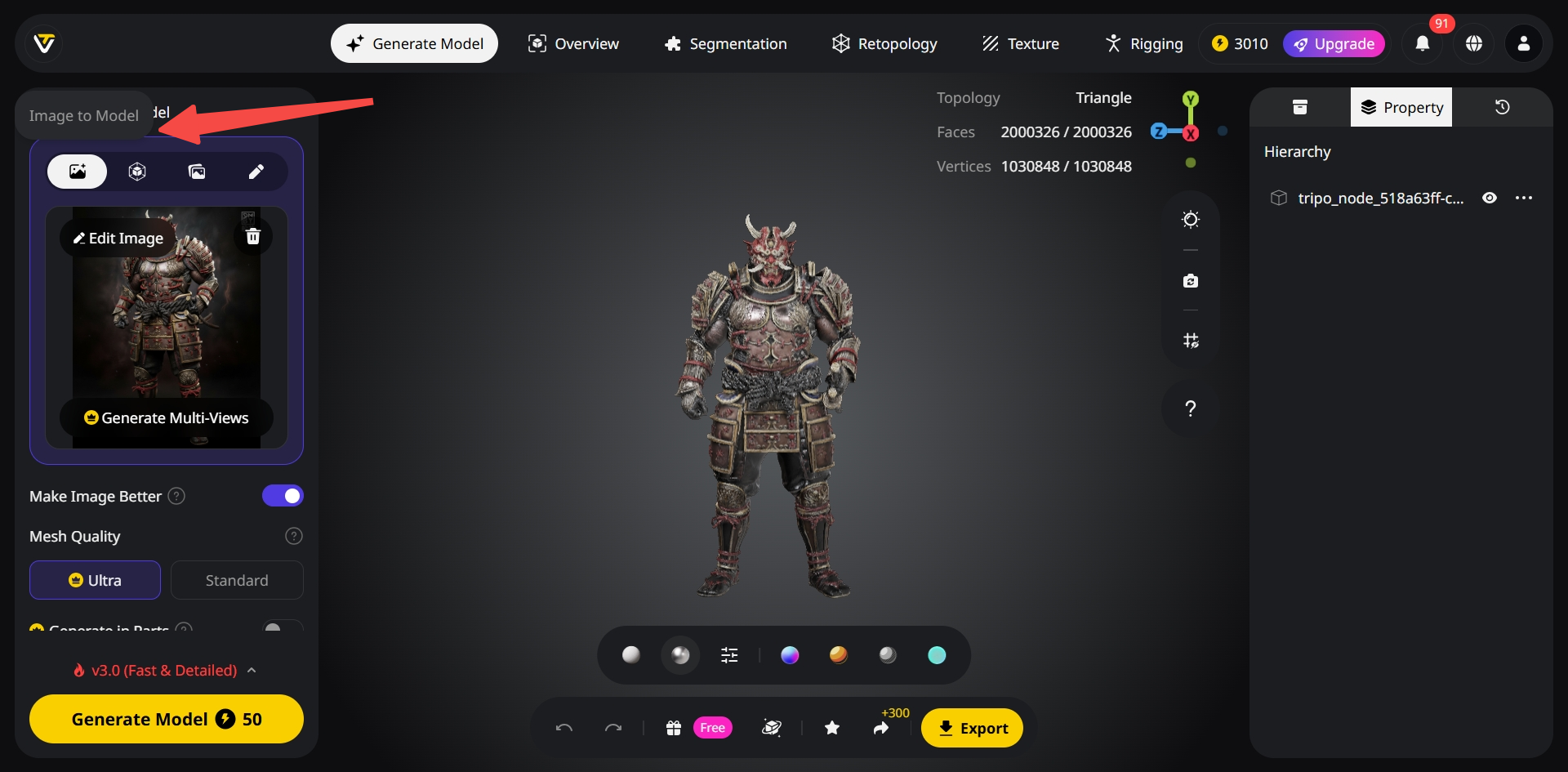
You can also adjust the texture and topology settings as needed using the buttons available in the workspace during generation.
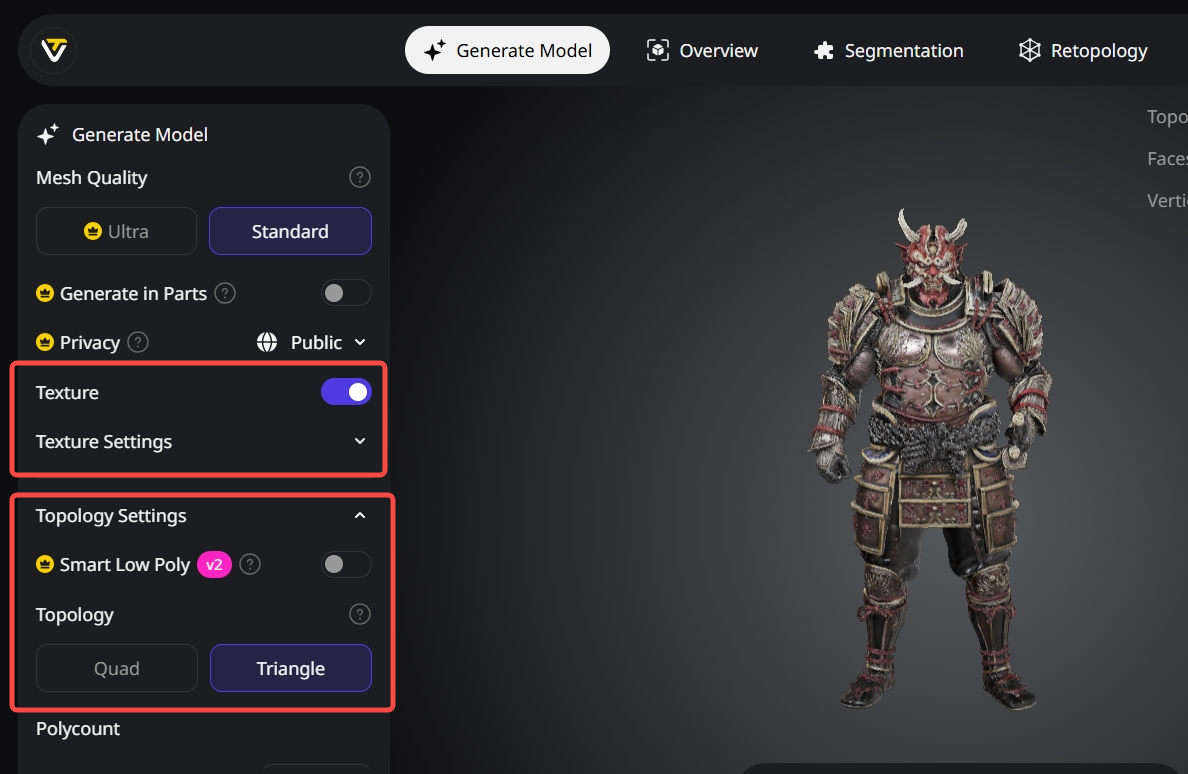
Tip: For high-detail sculpting in Nomad, choose a higher-resolution topology when generating your model in Tripo Studio.
Step 2: Export the Model and Import it into Nomad Sculpt
Tripo Studio offers multiple export formats—you just need to choose the one that fits your workflow. Common formats compatible with Nomad Sculpt include OBJ, GLB, and STL.
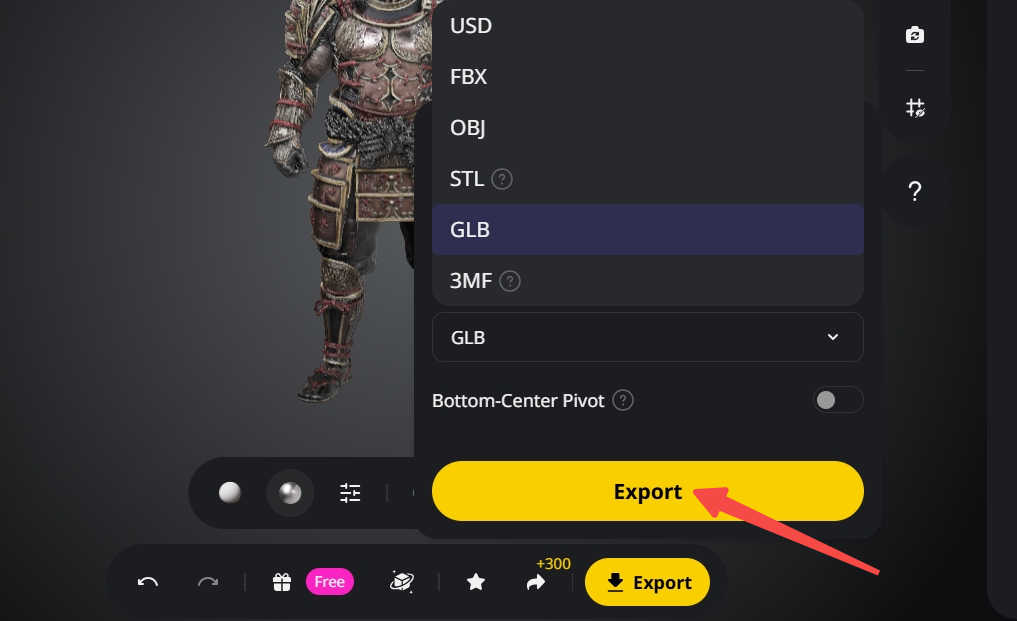
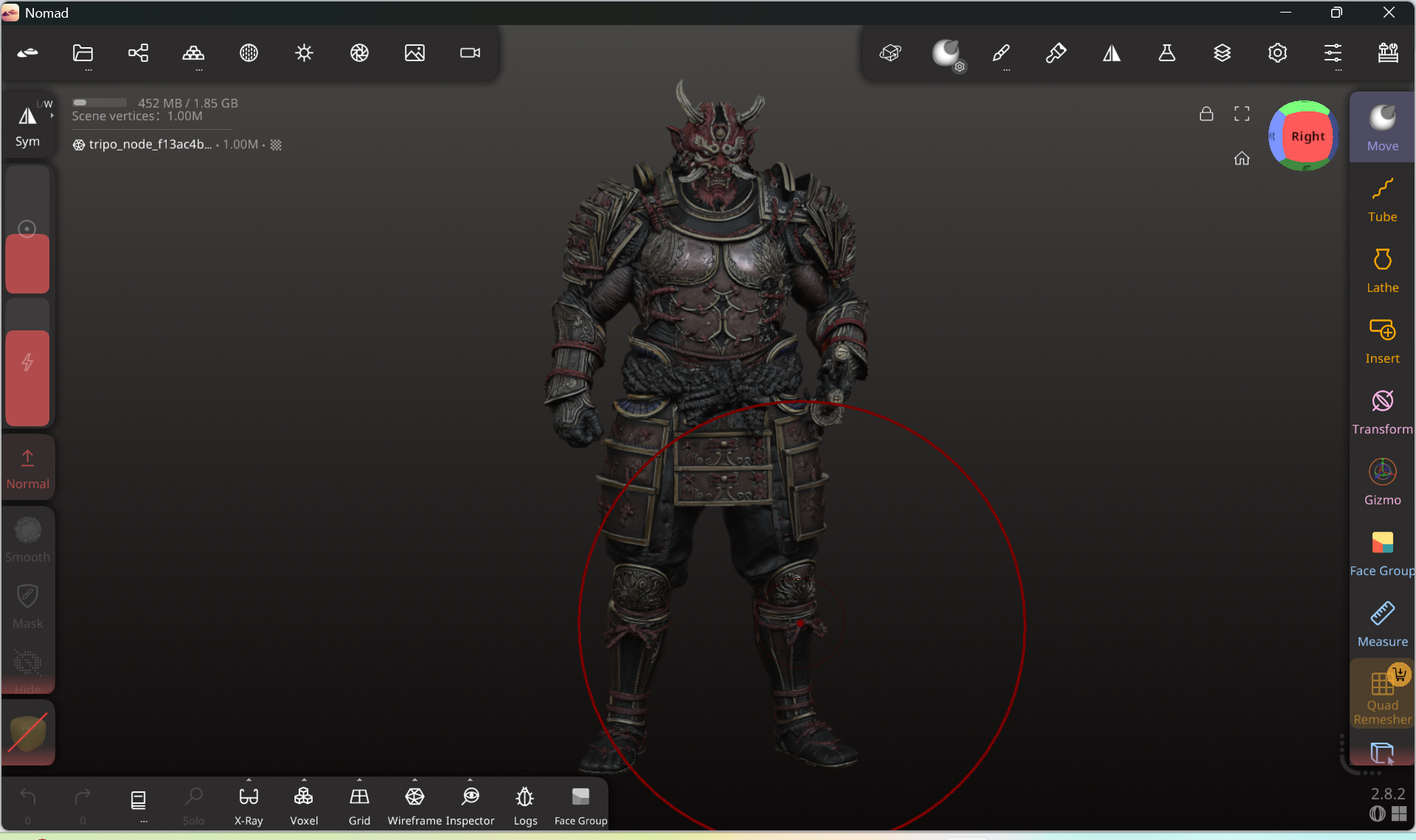
Then, open Nomad Sculpt on your device and select "Import". Locate the exported model file from Tripo Studio and import it. Your model is now ready for detailed sculpting and refinement in Nomad.
Tip: If the model appears offset or at the wrong scale, use Nomad's Move, Scale, and Rotate tools to adjust it.
Step 3: Refine Your Model in Nomad Sculpt
After importing your model, you can enhance it using Nomad's advanced tools:
- Sculpting: Add details, adjust shapes, or modify proportions. Brushes like clay, crease, and flatten help refine surfaces.
- Painting & Texturing: Apply colors and materials, or add details using alpha brushes. You can also import images to use as brush textures or material maps.
- Topology & Mesh Editing: Optimize geometry for smooth surfaces or 3D printing.
Consider saving different layers or versions during refinement to keep your workflow flexible. Once satisfied, export the finished model for use in your projects.
What About Textures?
Models generated with Tripo can include textures, which can be imported into Nomad Sculpt. Whether to use textures at this stage depends on your workflow.
For high-quality 3D assets, creators often wait until sculpting is complete before texturing. This avoids UV distortion and keeps the focus on geometry. In these cases, you can disable the "Texture" option during generation to create a white model, which is easier to refine in Nomad.
For quick visualization or concept previews, Tripo's AI texturing system can generate textures along with the model, allowing for faster results. Additionally, for optimized or game-ready assets, enabling Smart Low Poly during generation can produce lighter models that are easier to sculpt and export.
In short, texturing is optional and flexible within this workflow.
Conclusion
By combining Tripo Studio's AI-powered 3D model generation with Nomad Sculpt's precision sculpting tools, you can quickly create professional-quality 3D assets. This workflow allows you to start from reference images or text and refine geometry and details in Nomad.
Whether you're producing high-quality models, optimizing for 3D printing, or quickly visualizing concepts, this approach provides flexibility, speed, and full creative control. Try this workflow today and see how quickly your ideas can become polished, production-ready 3D models.
Advancing 3D generation to new heights
moving at the speed of creativity, achieving the depths of imagination.
 Text & Image to 3D models
 Free Credits Monthly
 High-Fidelity Detail Preservation