Mastering Onshape 3D Modeling: Expert Workflows and Tips
As a 3D practitioner, I rely on Onshape for cloud-based CAD modeling—especially when collaboration and version control are critical. This article distills my expert workflows, practical best practices, and integration strategies with AI-powered tools. Whether you're a designer, engineer, or creative technologist, you'll find actionable insights for optimizing Onshape projects, streamlining production, and leveraging modern AI platforms for advanced 3D tasks.
Key takeaways
- Onshape’s cloud-native architecture simplifies collaboration and version control.
- Parametric design and sketching are central to efficient modeling workflows.
- AI integration accelerates segmentation, retopology, and model preparation.
- Organizing documents and folders is crucial for scalable project management.
- Exporting models for cross-platform use requires attention to format and compatibility.
- Knowing Onshape’s strengths helps decide when to use it versus other solutions.
Getting Started with Onshape for 3D Modeling
Why I Choose Onshape for Cloud-Based CAD
Onshape’s real-time collaboration and browser-based accessibility are game-changers in my workflow. Unlike traditional desktop CAD, I can share projects instantly, track changes, and work from any device. This flexibility is invaluable for distributed teams and rapid iteration.
Pitfalls:
- Connectivity is essential; offline work isn’t possible.
- Some advanced features may require paid tiers.
Initial Setup and Interface Overview
Setting up Onshape is straightforward. I create an account, choose a workspace, and familiarize myself with the interface—especially the document panel, feature tree, and sketching tools. Customizing toolbars and shortcuts early on saves time later.
Checklist:
- Set up cloud folders for project organization.
- Adjust workspace preferences (units, grid, snapping).
- Review keyboard shortcuts for frequent actions.
Core Modeling Techniques in Onshape
Sketching and Parametric Design: My Approach
I start every model with a precise 2D sketch, using constraints and dimensions for parametric control. This lets me modify features later without redoing geometry. Onshape’s constraint tools (e.g., parallel, tangent) keep sketches robust and editable.
Tips:
- Use named dimensions for easier parameter updates.
- Keep sketches simple; complex shapes are easier to manage in 3D.
Building and Modifying 3D Geometry
Extrude, revolve, and sweep operations form the backbone of my 3D modeling. I rely on the feature tree to track changes and reorder steps if needed. When modifying geometry, I use direct editing and parametric updates to avoid breaking downstream features.
Steps:
- Create base sketch and extrude.
- Add fillets, chamfers, and holes as separate features.
- Use pattern and mirror tools for repetitive elements.
Best Practices for Efficient Onshape Workflows
Version Control and Collaboration Tips
Onshape’s built-in versioning lets me branch, merge, and revert changes without external plugins. I encourage teammates to comment directly within the document and use named versions for milestones.
Best practices:
- Branch for experimental features, then merge if successful.
- Use comments and tags for clear communication.
- Regularly review version history before major updates.
Organizing Projects for Scalability
I organize projects by splitting large assemblies into sub-documents and using folders for related files. Naming conventions and metadata (e.g., part numbers, revision notes) help when scaling up.
Pitfalls:
- Avoid cluttered document panels—archive old versions.
- Keep folder structures consistent across teams.
Integrating Onshape with AI-Powered 3D Tools

Streamlining Model Creation with AI Platforms
AI tools like Tripo enable rapid conversion of sketches, images, or text descriptions into production-ready 3D assets. In my workflow, I often export Onshape geometry as OBJ or STL, then use Tripo for intelligent segmentation, retopology, and texturing.
Workflow:
- Design base geometry in Onshape.
- Export mesh and upload to Tripo for automated processing.
- Refine textures and rigging as needed.
Combining Onshape Outputs with Intelligent Segmentation and Retopology
For complex models, I leverage AI segmentation to separate parts and retopology to optimize meshes for animation or real-time use. This cuts manual prep time and improves asset quality, especially for gaming or XR projects.
Tips:
- Use clean, manifold geometry for best AI results.
- Review and adjust segmentation before finalizing exports.
Exporting, Sharing, and Using Onshape Models
Export Formats and Compatibility
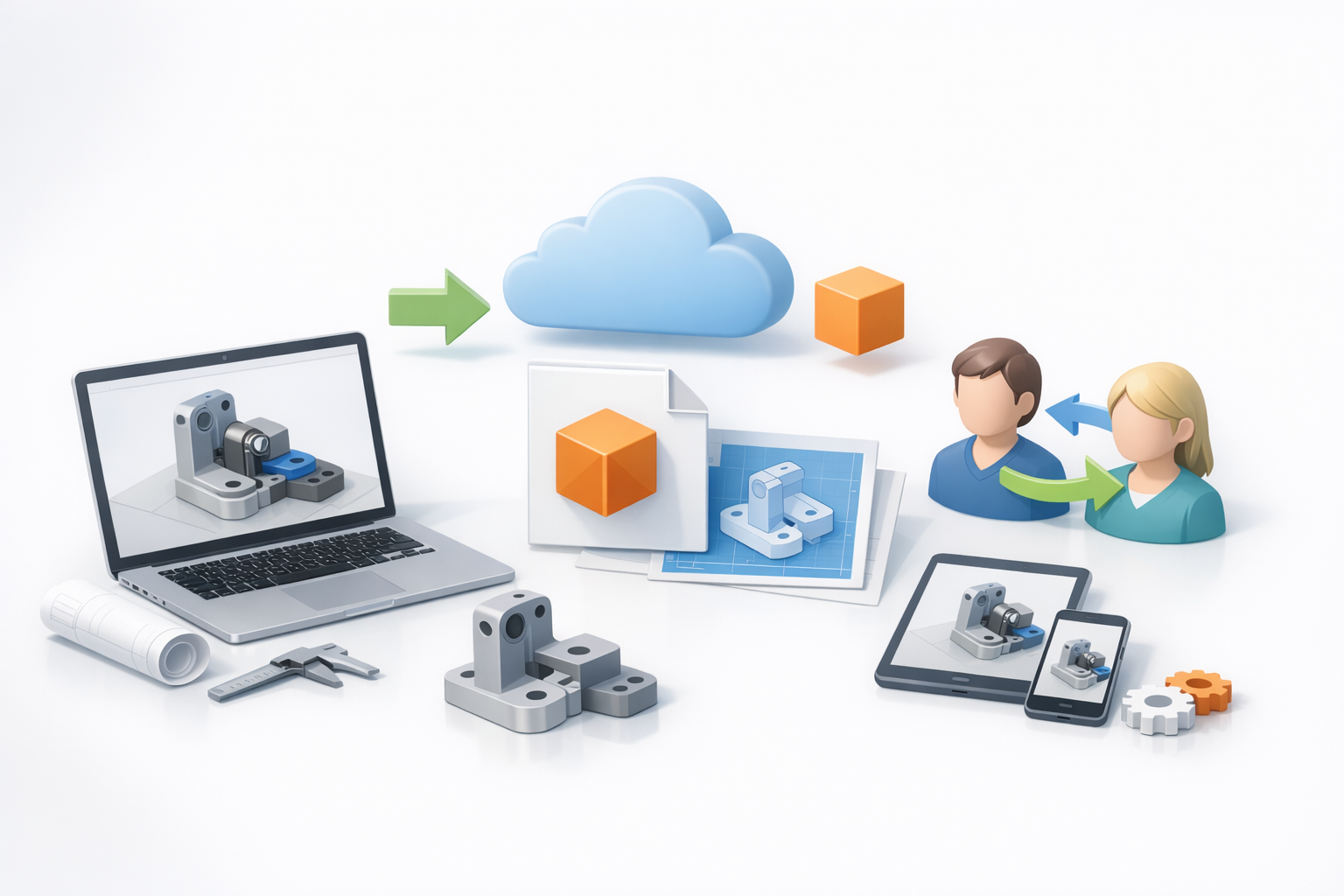
Onshape supports multiple export formats: STL, OBJ, STEP, IGES, and more. I choose formats based on target platforms—STL for 3D printing, STEP for CAD interoperability, OBJ for AI tools and rendering.
Checklist:
- Set export resolution and units correctly.
- Test imports in downstream tools before final delivery.
My Experience with Cross-Platform Workflows
I frequently move models between Onshape, AI platforms, and other 3D applications. Maintaining consistent naming and versioning prevents confusion. Cloud storage and shared folders streamline access for collaborators.
Pitfalls:
- Watch for scale mismatches between platforms.
- Double-check normals and mesh integrity after export.
Comparing Onshape to Other 3D Modeling Solutions
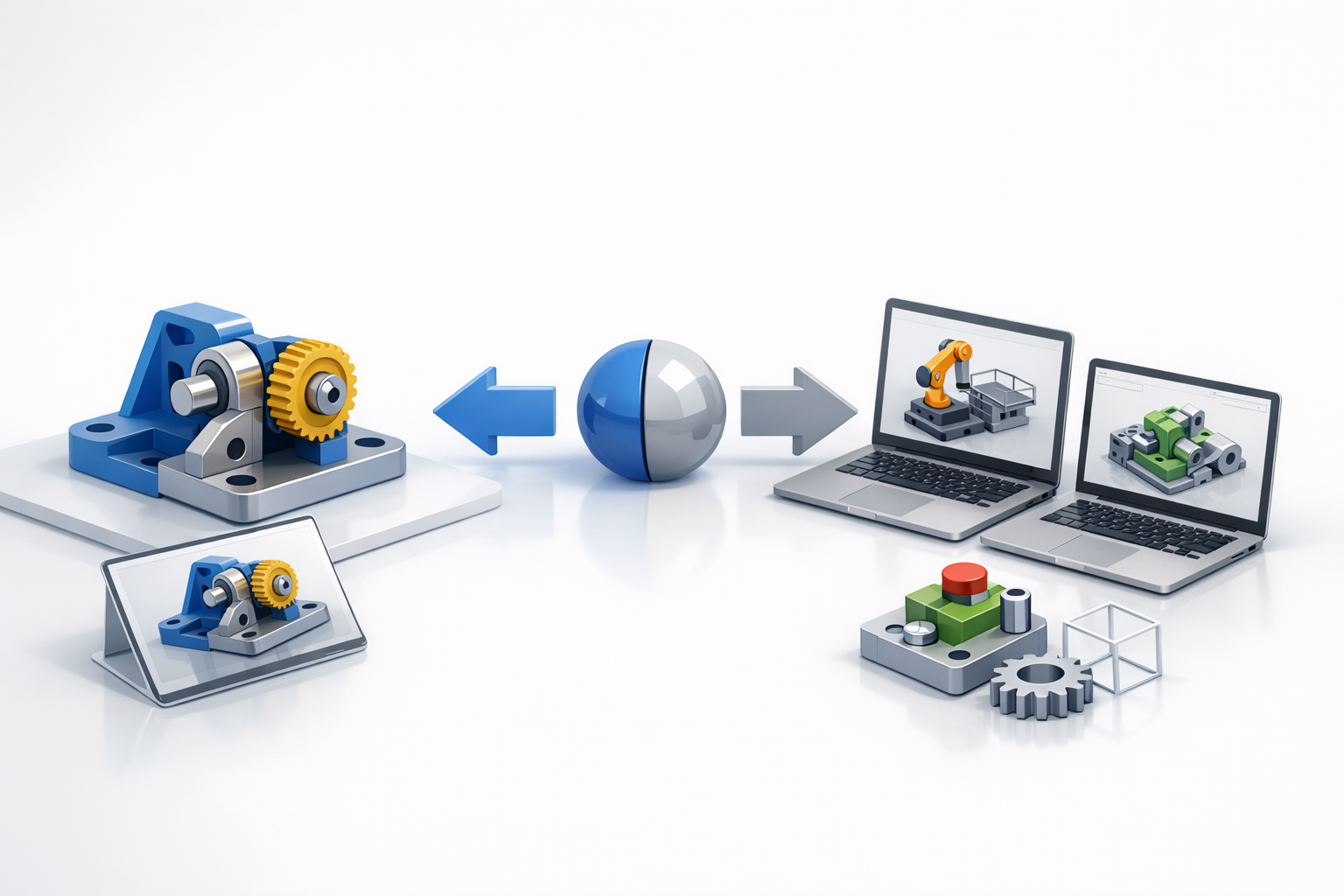
Strengths and Limitations from My Perspective
Onshape excels in real-time collaboration, cloud access, and parametric design. It’s less suited for organic sculpting or high-poly mesh editing—tasks better handled by specialized modeling tools or AI platforms.
Strengths:
- Seamless version control and team workflows.
- Robust parametric and mechanical design tools.
Limitations:
- Limited offline and freeform modeling capabilities.
- Advanced rendering and animation features require external tools.
When to Use Onshape Versus Alternative Methods
I use Onshape for mechanical, product, and engineering CAD—especially when teamwork and revision tracking are priorities. For rapid ideation, organic shapes, or asset prep for games/XR, I combine Onshape with AI-powered platforms and other 3D applications.
Decision guide:
- Use Onshape for precision, collaboration, and parametric control.
- Switch to AI tools or other platforms for organic modeling and asset optimization.
If you’re looking to master Onshape for 3D modeling, focus on workflow efficiency, leverage cloud features, and integrate AI tools for advanced asset creation. This approach keeps projects scalable, collaborative, and ready for modern production pipelines.
