Creating and Using Battlefield 2042 3D Models: Expert Workflow
As someone who regularly creates and optimizes 3D models for games, I’ve found that working with Battlefield 2042-style assets demands a balance between visual fidelity and technical efficiency. In this guide, I’ll walk through how I source, create, and refine these models—from initial concept to game-ready asset. I’ll also share my workflow, compare AI-powered and traditional methods, and offer practical tips to help others avoid common pitfalls. This article is for 3D artists, game developers, and anyone interested in efficient, production-quality asset creation for modern games.
Key takeaways:
- Understanding asset types and use cases helps guide modeling choices.
- Respect copyright and use ethical sourcing or original creation.
- AI-powered tools like Tripo AI can dramatically speed up base model generation.
- Optimizing for polygon count and engine compatibility is crucial.
- Manual refinement is still key for top-quality, production-ready assets.
- Avoiding common pitfalls can save hours of rework.
Overview of Battlefield 2042 3D Models
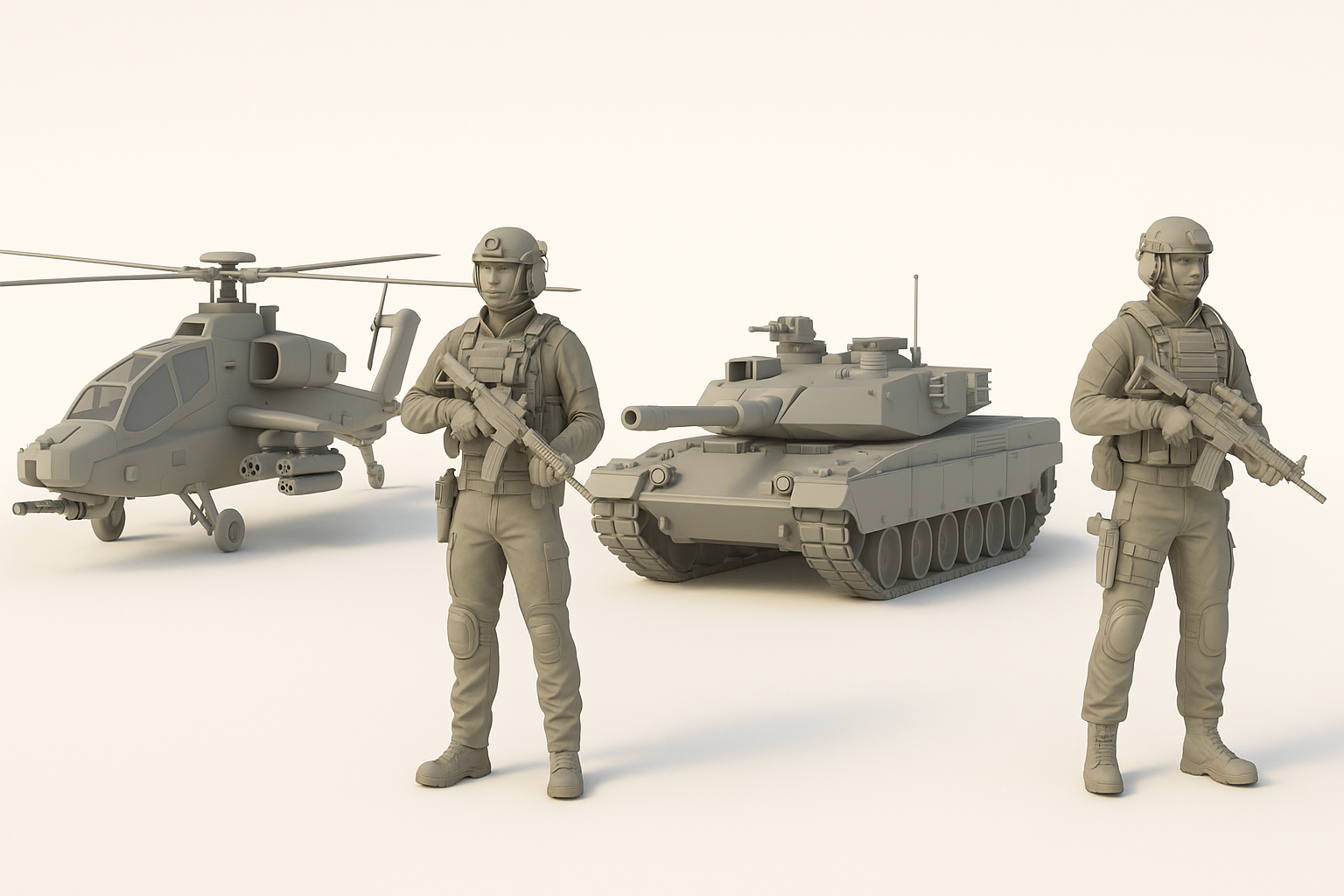
Types of 3D assets in Battlefield 2042
In my experience, Battlefield 2042 assets fall into several main categories:
- Characters: Soldiers, specialists, and NPCs with detailed armor and gear.
- Weapons and Equipment: Firearms, gadgets, and attachments with realistic detail.
- Vehicles: Tanks, helicopters, drones, and ground vehicles.
- Environment Props: Buildings, barriers, crates, and debris.
Each category has its own technical and artistic requirements. For example, vehicles demand clean hard-surface modeling, while characters require careful topology for animation.
Common use cases for these models
I’ve used Battlefield-style models in:
- Game development: Custom mods, level design, and prototyping.
- Cinematic renders: High-quality animations or marketing visuals.
- XR experiences: VR/AR demos and simulations.
- Portfolio pieces: Showcasing technical and artistic skills.
Knowing the use case determines the level of detail and optimization needed.
How I Source or Create Battlefield 2042 3D Models
Ethical considerations and copyright
Whenever I work with IP-inspired assets, I’m careful to:
- Avoid direct extraction from commercial games unless for personal, non-commercial use.
- Create original models or use assets with clear licensing.
- Credit sources and respect copyright when using community or marketplace assets.
If in doubt, I check the asset’s license or consult with the rights holder.
My preferred tools and platforms
For original Battlefield-style models, I typically use:
- Tripo AI: For rapid generation of base models from text, images, or sketches.
- Traditional DCCs: Blender or Maya for manual modeling, retopology, and rigging.
- Substance tools: For texturing and material work.
I often start with an AI-generated base in Tripo AI, then refine and finish in my DCC of choice.
Step-by-Step Workflow: From Concept to Production-Ready Model
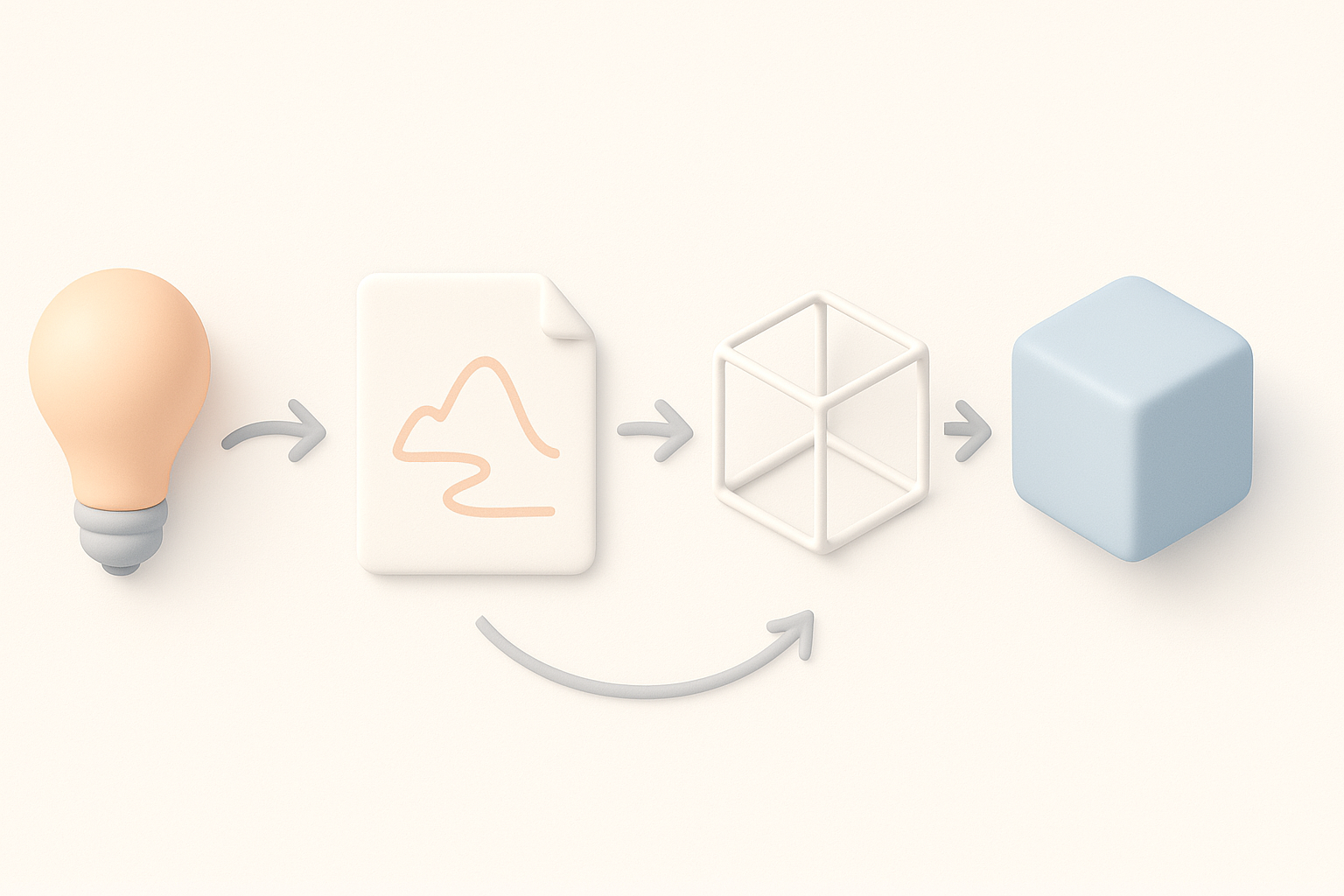
Generating base models from references or prompts
Here’s how I approach base model creation:
- Collect references: Screenshots, concept art, or real-world photos.
- Prompt AI tools: With descriptive text or sketches in Tripo AI to generate a starting mesh.
- Review and select: Choose the best base model output for further refinement.
AI tools save me hours in blocking out complex shapes, especially for vehicles and props.
Refining, retopologizing, and texturing for game-ready assets
After generating a base, my process is:
- Manual retopology: Ensures clean geometry for animation and performance.
- UV unwrapping: Lays out efficient texture maps.
- Texturing: I use Substance Painter or Designer for PBR materials.
- Rigging (if needed): For characters or vehicles, I set up skeletons and controls.
Checklist:
- Clean, quad-based topology
- Optimized UVs, no overlaps
- PBR textures (albedo, normal, roughness, metallic)
- Export in engine-compatible formats (FBX, glTF)
Best Practices for Optimizing Battlefield 2042 3D Models
Polygon count and performance tips
What I’ve found most effective:
- Target polycount based on asset size and camera distance (e.g., 20k–40k for characters, 10k–30k for vehicles).
- Use LODs: Create multiple levels of detail for performance scaling.
- Bake details: Use normal maps to capture high-res detail on low-poly meshes.
Pitfall: Over-modeling small props wastes resources; focus detail where it matters most.
Ensuring compatibility with game engines
I always:
- Test imports early in the target engine (Unreal, Unity, etc.).
- Check scale: Use real-world units for consistency.
- Verify materials: Ensure PBR maps work as intended.
- Name and organize: Use clear naming conventions for meshes, bones, and textures.
Comparing AI-Powered and Traditional 3D Modeling Methods
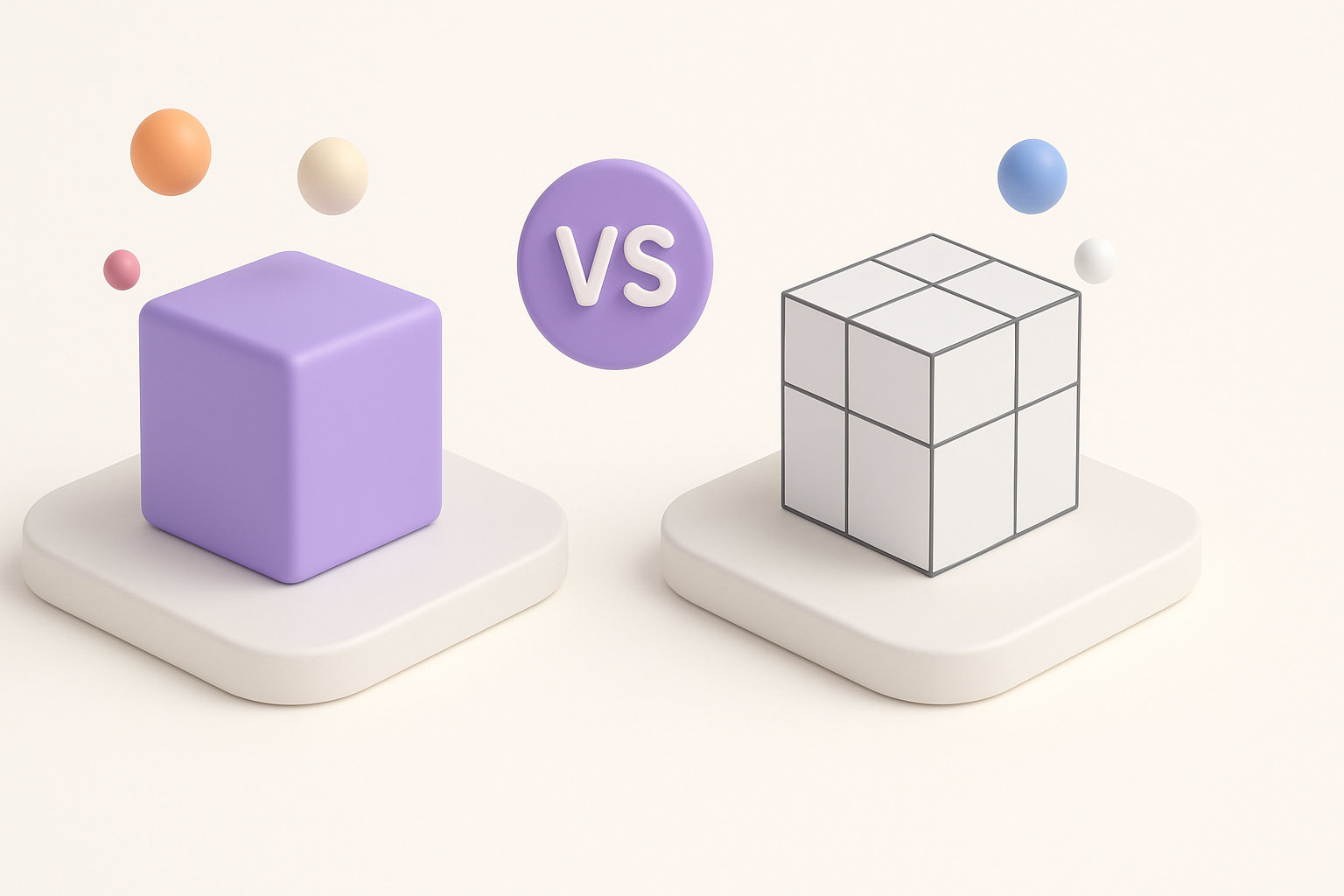
Speed and quality differences I’ve observed
- AI-powered tools: Tripo AI can generate a usable base mesh in seconds, which is a massive time-saver for ideation and blocking.
- Traditional workflows: Still necessary for fine detail, custom topology, and polish.
In practice: I blend both—AI for speed, manual tools for quality.
When to use AI tools versus manual workflows
- AI is best for: Rapid prototyping, concept exploration, and generating variations.
- Manual is best for: Final production assets, animation-ready models, and when exact control is needed.
I recommend starting with AI, then refining manually for the best balance.
My Lessons Learned and Pro Tips
Common pitfalls and how I avoid them
- Relying solely on AI: Always check and clean up geometry.
- Ignoring optimization: High-poly models can tank performance.
- Skipping UV checks: Overlapping or stretched UVs cause texturing issues.
How I avoid them:
- Inspect and retopologize every AI output.
- Use engine profiling tools to test performance.
- Always preview textures on the model before export.
Recommended resources for ongoing improvement
- Online tutorials: Focused on hard-surface and character modeling.
- Community forums: Great for feedback and troubleshooting.
- Documentation: For both AI tools and game engines—always stay updated.
Pro tip: Regularly revisit your workflow as tools evolve; AI capabilities are improving rapidly, and staying flexible gives you an edge.
If you’re looking to create Battlefield 2042-style 3D models efficiently, combining AI-powered tools like Tripo AI with traditional best practices is the most effective workflow I’ve found. With the right approach, you can produce game-ready assets faster—without sacrificing quality or compliance.


