Mastering 3D Modeling for Printing: Expert Workflows & Tips
скачать 3d модель для chicken gun
Creating 3D models for printing is more than just digital sculpting—it's about ensuring every detail is production-ready. In my experience, the difference between a successful print and a failed one often comes down to workflow discipline and understanding what makes a model printable. Whether you're a designer, engineer, or hobbyist, mastering these fundamentals saves time, reduces frustration, and improves your results. In this guide, I’ll share my proven workflow, practical tips, and lessons learned from real projects, including how AI-powered platforms like Tripo can streamline the process.
Key takeaways
- Printable models require watertight, manifold geometry and proper file formats.
- Start with a clear concept and iterate through digital sketches before finalizing geometry.
- Optimize mesh density and topology for both detail and printability.
- Use tools with intelligent segmentation and retopology to speed up prep work.
- Iterative testing and troubleshooting are essential for reliable, high-quality prints.
Understanding 3D Printing Modeling Fundamentals
What Makes a Model Printable
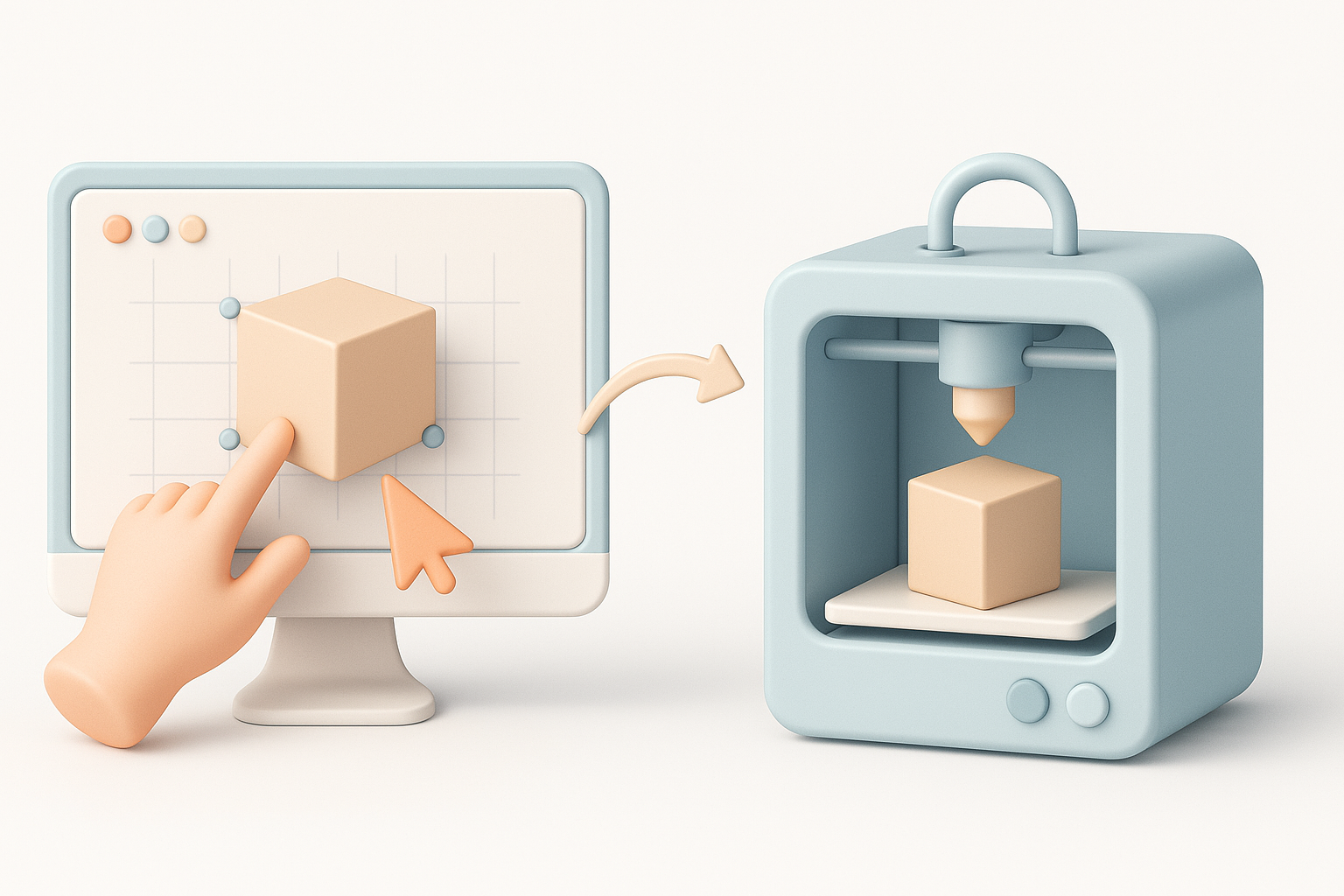
From my experience, the most common reason prints fail is non-manifold geometry or gaps in the mesh. A printable model must be "watertight"—no holes, flipped normals, or intersecting faces. Overhangs and thin walls are also problematic; I always check minimum wall thickness and avoid extreme overhangs unless supports are planned.
Checklist for printability:
- Ensure closed, watertight geometry (no holes or non-manifold edges)
- Maintain consistent wall thickness (per printer/material specs)
- Avoid intersecting faces or internal geometry
- Limit overhangs and unsupported features
Common File Formats and Their Uses
In my workflow, I primarily export models in STL or OBJ formats. STL is the industry standard for most printers, focusing on geometry only. OBJ supports more complex data, like color and texture, which is useful for multi-material or color prints. For more advanced workflows, I sometimes use 3MF for its richer metadata.
Format tips:
- Use STL for most single-material prints.
- Use OBJ if you need to preserve color or texture information.
- Check printer/software compatibility before exporting.
My Step-by-Step Workflow for Creating Print-Ready Models
Concept to Digital Sketch: Where I Start
Every project I tackle starts with a clear concept—either a rough sketch, a reference image, or a text description. For quick ideation, I sometimes use AI-powered tools like Tripo to generate a base mesh from a prompt or sketch, which I then refine manually.
My initial steps:
- Define the model’s purpose and scale.
- Gather reference images or create a simple sketch.
- Generate a base mesh using digital sculpting or AI-assisted tools.
- Block out major forms before adding detail.
Optimizing Geometry and Mesh for Printing
Once the core shape is established, I focus on mesh optimization. Excessively dense meshes can cause slicing errors and slow down print prep. I routinely use retopology tools (Tripo’s built-in features are a time-saver here) to create clean, efficient geometry. I also check for and fix any non-manifold edges.
Optimization steps:
- Decimate or retopologize to reduce unnecessary polygons.
- Check for and repair non-manifold geometry.
- Use mesh analysis tools to spot thin walls or overhangs.
Best Practices for Preparing Models for 3D Printing

Ensuring Watertightness and Manifold Geometry
Before exporting, I always run a manifold check—most slicers have this, but I prefer to fix issues upstream. In Tripo, the automated geometry analysis flags holes or inverted normals, which I address immediately. If issues persist, I use manual mesh repair tools.
Best practices:
- Inspect for holes, flipped normals, and intersecting geometry.
- Use automated repair tools, but double-check results manually.
- Always export a final, validated model for slicing.
Scaling, Orientation, and Support Considerations
Scaling is more than just resizing; I verify that all features meet the printer’s minimum tolerance. Orientation affects strength and surface quality—I orient parts to minimize supports and optimize layer adhesion. Most slicers generate supports, but I sometimes add custom supports in the modeling stage for tricky overhangs.
Checklist:
- Set scale based on printer build volume and intended use.
- Orient model to reduce supports and improve print quality.
- Add custom supports if automated ones are insufficient.
Comparing Modeling Tools and AI Platforms
Traditional Software vs. AI-Powered Solutions
Traditional 3D modeling software offers full control but can be time-consuming for repetitive tasks. I find AI-powered platforms, like Tripo, accelerate base mesh creation, segmentation, and retopology. For complex or organic forms, AI tools help me iterate faster, while I return to manual tools for fine-tuning.
My approach:
- Use AI tools for rapid prototyping and base mesh generation.
- Switch to traditional software for detailed sculpting and manual fixes.
- Combine both for best results and efficiency.
Integrating Intelligent Segmentation and Retopology
One of the biggest time-savers in my workflow is leveraging intelligent segmentation and automated retopology. Tripo’s segmentation helps split models for multi-part prints or color regions, and its retopology ensures clean, printable geometry without manual cleanup.
Tips:
- Segment models early if planning multi-part prints.
- Use auto-retopology to prepare high-density sculpts for printing.
- Always inspect and refine automated results before export.
Troubleshooting and Lessons Learned from Real Projects
Common Pitfalls and How I Avoid Them
I've learned the hard way that overlooking small geometry errors leads to failed prints. Thin walls, non-manifold edges, and excessive mesh detail are frequent culprits. I now make it a habit to run geometry checks and preview slices before committing to a print.
Pitfalls to watch for:
- Thin or unsupported features (increase wall thickness)
- Non-manifold geometry (repair before export)
- Overly dense meshes (retopologize or decimate)
Iterative Testing and Model Refinement
No matter how experienced you are, test prints are invaluable. I often print scaled-down prototypes to catch issues early. Iterative refinement—adjusting geometry, supports, or orientation—saves time and material in the long run.
My refinement process:
- Print small test sections or miniatures.
- Analyze print results for defects or weak points.
- Update the model and repeat as needed.
By following a disciplined workflow, leveraging the right tools, and learning from each print, I consistently achieve reliable, high-quality 3D prints. Whether you’re just starting out or refining your process, these expert strategies will help you create models that print right the first time.


