How to Create a 3D Printable Model: Expert Workflow & Tips
Creating 3D printable models is both an art and a science. Over the years, I’ve learned that reliable, high-quality prints come down to understanding print requirements, using the right tools, and following a disciplined workflow. Whether you’re a designer, engineer, or hobbyist, this guide distills my hands-on process—covering everything from concept to test print, with practical advice on optimizing for printability and leveraging AI-powered platforms like Tripo to streamline the journey.
Key takeaways:
- Start with the end-use and printer specifications in mind.
- Ensure your model is watertight and manifold for successful printing.
- Optimize geometry and orientation to minimize supports and print failures.
- Use AI tools for rapid prototyping, but always verify and refine manually.
- Test prints and iterative troubleshooting are essential for reliable results.
Understanding 3D Printable Models
What Makes a Model 3D Printable
A model is 3D printable if it’s both technically sound and suited to the capabilities of your printer. In my experience, the most critical factors are:
- Watertightness: The mesh must be closed, with no holes.
- Manifold geometry: Every edge should belong to exactly two faces.
- Appropriate wall thickness: Too thin, and prints will fail or break; too thick, and you’ll waste material.
I always check for non-manifold edges, reversed normals, and intersecting geometry before moving forward. Many failures stem from neglecting these basics.
Common File Formats and Requirements
Most printers and slicing software accept STL and OBJ files. Here’s what I focus on:
- STL: Most common, supports only geometry (no color/texture).
- OBJ: Supports geometry and basic color data.
- File requirements: Triangulated meshes, reasonable polycount (not too dense), and units set to millimeters.
Checklist:
- Export as STL for basic prints; OBJ if color is needed.
- Double-check units and scale before exporting.
My Step-by-Step Workflow for 3D Printable Models
Concept to Initial Design: Tools and Techniques
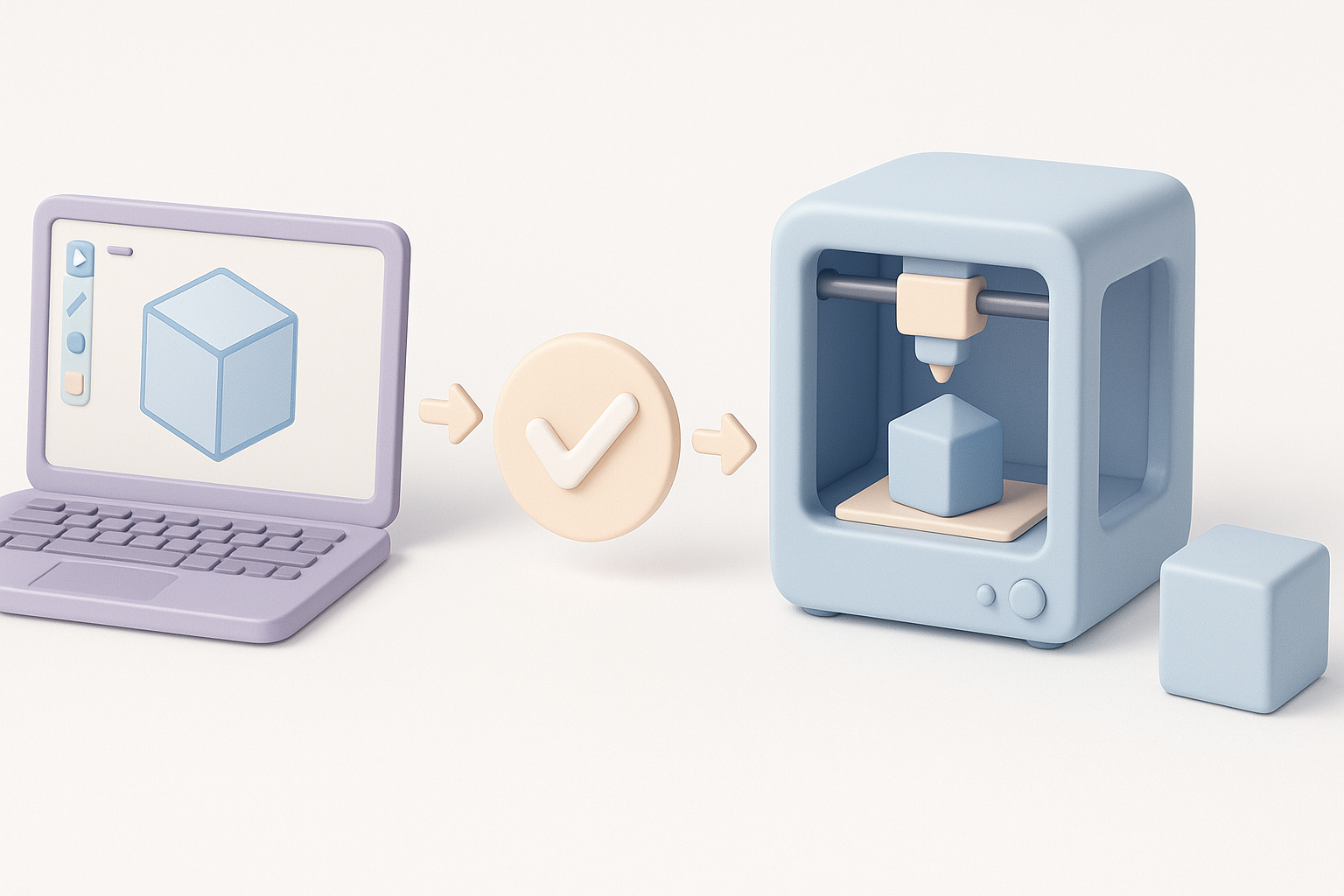
I usually start with a clear concept sketch or reference image. My typical workflow:
- Blocking out shapes: Using 3D modeling software or AI-powered tools like Tripo, I quickly generate a base mesh.
- Refining forms: I adjust proportions and features, focusing on the silhouette and functional parts.
- Rapid prototyping: AI tools can generate rough models from sketches or text prompts, which I then refine manually.
Tip: When using AI platforms, inspect the output closely—automated tools can introduce subtle errors that need cleanup.
Optimizing Geometry for Printability
Once the initial design is ready, I optimize for printability:
- Simplify geometry: Remove unnecessary details that won’t resolve at print scale.
- Solidify structure: Use modifiers or tools to ensure the model is a solid, printable object.
- Check wall thickness: I measure thin areas and reinforce them as needed.
Pitfall: Overly complex geometry can cause slicing errors or print failures—keep it simple where possible.
Best Practices for Preparing Models
Ensuring Watertight Meshes and Manifold Geometry
Before exporting, I run automated checks and manual inspections:
- Mesh analysis: Most modeling software and AI platforms have built-in mesh validation tools.
- Fixing issues: I use functions like “Fill Holes,” “Merge Vertices,” and “Remove Doubles.”
Mini-checklist:
- No holes or gaps in the mesh.
- All normals facing outward.
- No stray vertices or internal faces.
Scaling, Orientation, and Support Considerations
Proper scaling and orientation dramatically affect print quality:
- Set scale: I always confirm the model’s dimensions match my printer’s build volume.
- Orient for strength: Parts are oriented to maximize strength and minimize supports.
- Support planning: I identify overhangs and either redesign or plan for removable supports.
Tip: Use your slicer’s preview to spot problem areas before printing.
Texturing and Detailing for 3D Printing
Surface Detail vs. Print Resolution
Not all details make it into the final print. What I’ve learned:
- Limit fine detail: Only model details that are larger than your printer’s minimum resolution.
- Test with samples: I print small test patches to see which details survive the process.
Tip: For ultra-fine details, consider post-processing techniques like engraving or painting.
Applying Color and Texture Maps
Most consumer 3D printers don’t print color directly, but there are exceptions:
- Color 3D printers: Use OBJ or other color-supporting formats.
- Texture maps: For standard FDM/SLA printers, textures are typically applied post-print with paint or decals.
Checklist:
- Export color data only if your printer supports it.
- Otherwise, focus on physical detail and plan for post-print finishing.
Exporting and Testing Your Model
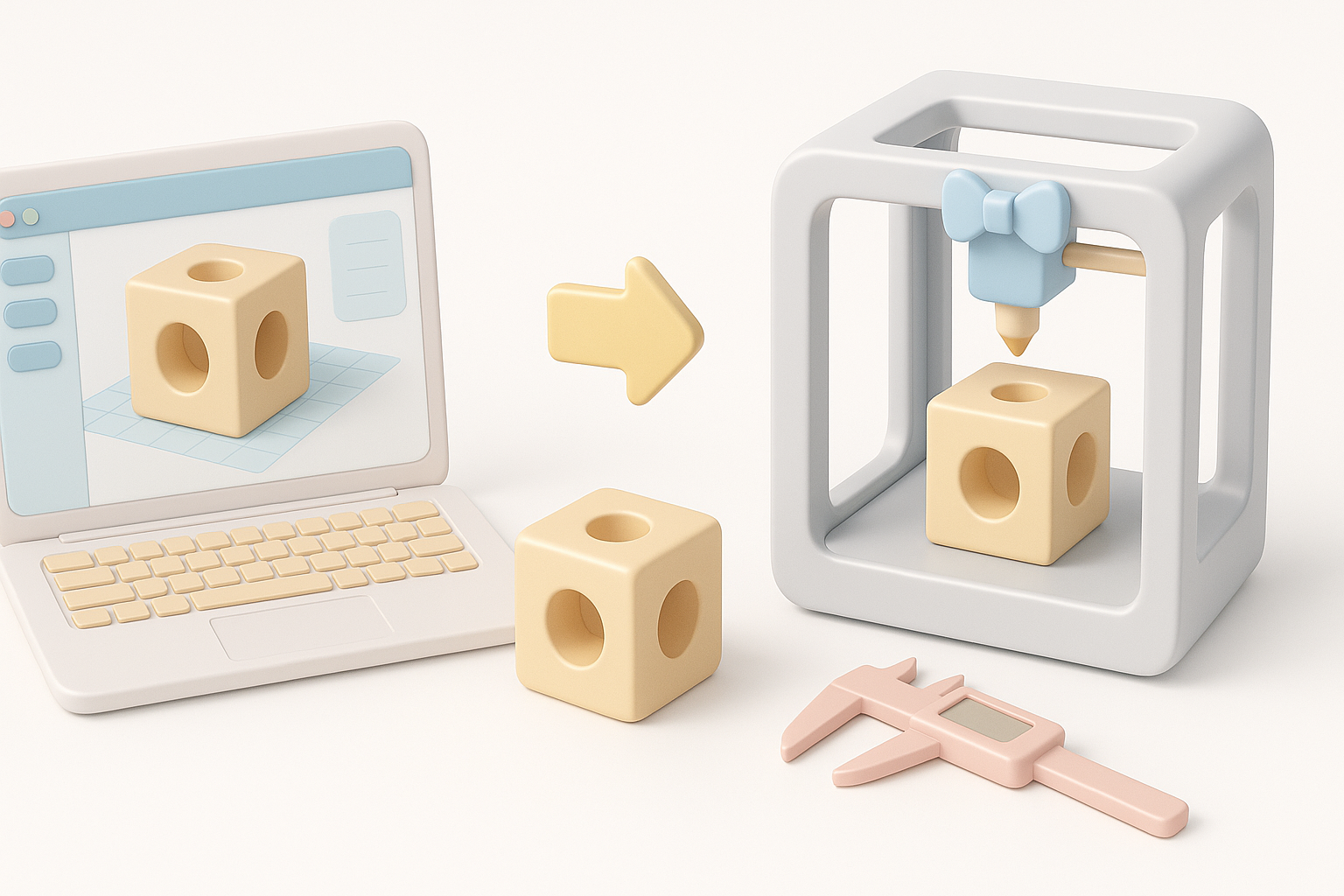
Export Settings and Slicing
When exporting, I use the following settings:
- File type: STL for most cases, OBJ for color.
- Resolution: Balance between detail and file size.
- Slicing: Import into slicer, check for errors, and preview layers.
Tip: Always inspect the slicer’s layer view for hidden issues.
Test Prints and Troubleshooting
I always run a test print before committing to a full-size or final version:
- Test critical features: Print small sections or reduced-size models.
- Iterate: Adjust model and print settings based on results.
Common troubleshooting steps:
- Re-check for non-manifold edges.
- Adjust print orientation or supports.
- Refine wall thickness and detail.
Comparing AI Tools and Traditional Methods
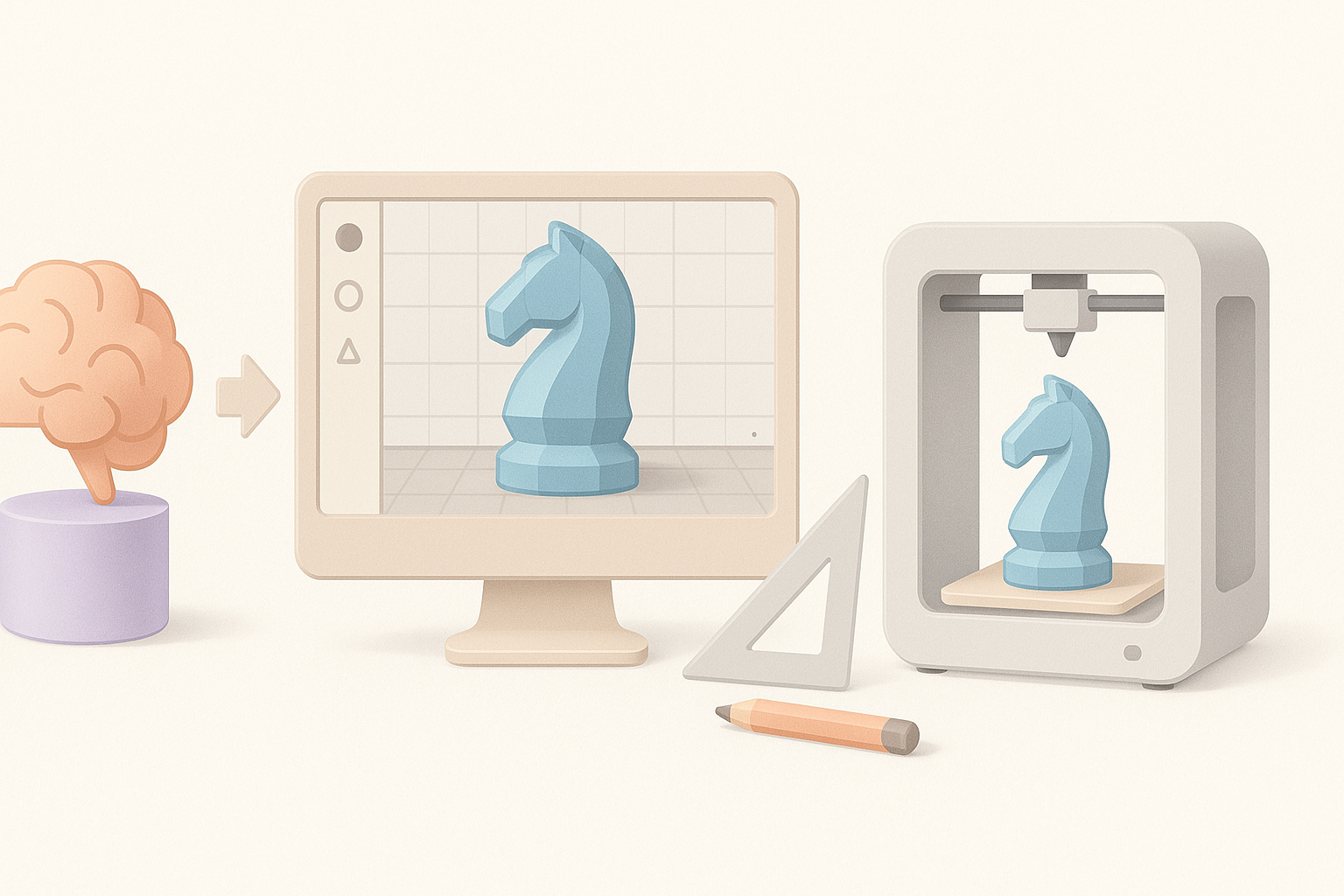
When to Use AI-Powered Platforms
AI tools like Tripo are invaluable for:
- Rapid ideation: Generating base meshes from concepts in seconds.
- Automating repetitive tasks: Retopology, segmentation, and initial cleanup.
I use AI platforms when I need quick iterations or to jumpstart the modeling process, but always review outputs carefully.
Integrating AI with Manual Workflows
AI speeds up the workflow, but manual intervention is crucial:
- Manual refinement: I always retouch AI-generated models to ensure printability.
- Hybrid approach: Combine AI for rough work, then traditional tools for precision and finishing.
Tip: Don’t rely solely on automation—final quality depends on your hands-on review and adjustments.
My Lessons Learned and Pro Tips
Common Pitfalls and How I Avoid Them
- Ignoring wall thickness: Always check and reinforce thin areas.
- Skipping mesh validation: Automated checks catch most issues, but I always do a manual pass.
- Overcomplicating geometry: Simpler models print more reliably.
Mini-checklist:
- Validate mesh before export.
- Test print before finalizing.
- Plan for supports and orientation early.
Resources for Further Learning
- Official documentation: Your printer’s manual and slicing software guides.
- Online communities: Forums and groups focused on 3D printing.
- AI platform tutorials: Step-by-step guides for tools like Tripo.
Final thought: The best results come from a blend of smart tools, careful planning, and hands-on iteration. With practice, you’ll develop a workflow that consistently delivers high-quality, printable models.


