How to Create and Optimize 3D Print Models: Expert Workflow
Creating reliable, high-quality 3D print models is both an art and a science. Over the years, I’ve honed a workflow that blends creative flexibility with technical discipline, focusing on printability, efficiency, and minimizing post-processing headaches. This guide is for designers, hobbyists, and professionals who want to streamline their 3D print pipeline—from concept to finished object. I’ll share proven techniques, common pitfalls, and tool comparisons, including where AI-powered solutions like Tripo fit best.
Key takeaways
- Print success starts with clean, watertight, and optimized geometry—don’t skip mesh cleanup.
- File format choice matters: STL is standard, but OBJ and 3MF offer more flexibility.
- AI-powered modeling tools can accelerate workflows, but traditional software still excels for precision edits.
- Always check scale, orientation, and support needs before slicing.
- Fine details are possible, but balance them with your printer’s resolution and material limits.
- Troubleshooting is inevitable; efficient debugging saves time and material.
Understanding 3D Print Model Basics
What Makes a Model 3D Printable
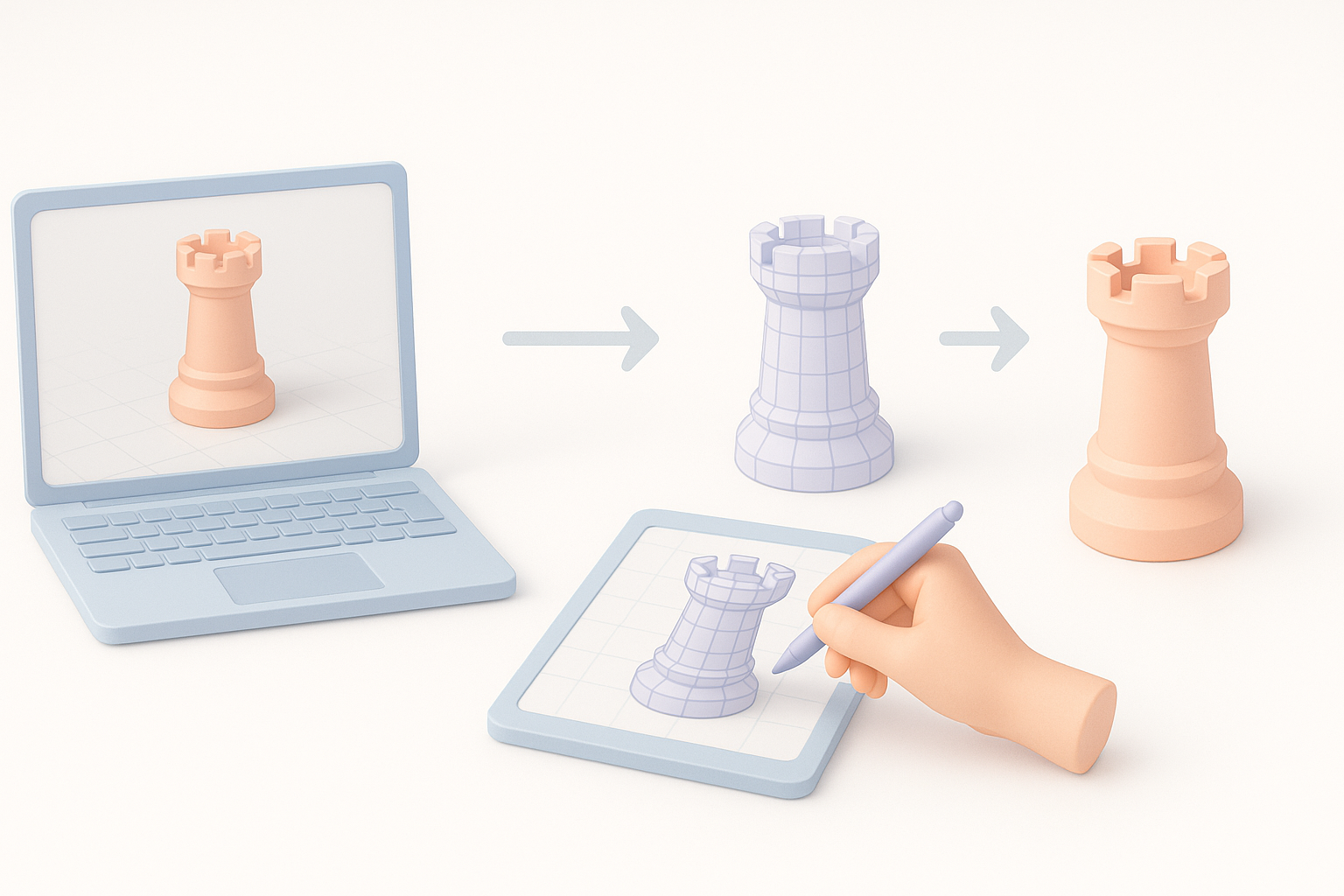
Not every 3D model is ready for printing. In my experience, the most critical requirements are:
- Watertight geometry: The mesh must be closed (no holes or gaps).
- Manifold edges: Every edge should belong to exactly two faces.
- Proper normals: Faces should point outward, not inverted.
- No self-intersections: Overlapping geometry confuses slicers and can ruin prints.
I always validate my models with mesh analysis tools before moving forward. Many AI-powered platforms, including Tripo, now highlight these issues automatically, but I still double-check in my slicer or modeling software.
Common File Formats and Their Uses
The main file types I handle for 3D printing:
- STL: The industry standard; simple, but lacks color and material data.
- OBJ: Supports color and texture; useful for multi-material or color prints.
- 3MF: Modern, with advanced metadata (units, colors, materials).
Practical tip: I use STL for most single-material prints, but switch to OBJ or 3MF when color or complex attributes are involved.
My Step-by-Step Workflow for 3D Print Model Creation
Concept to Digital Model: Tools and Techniques I Use
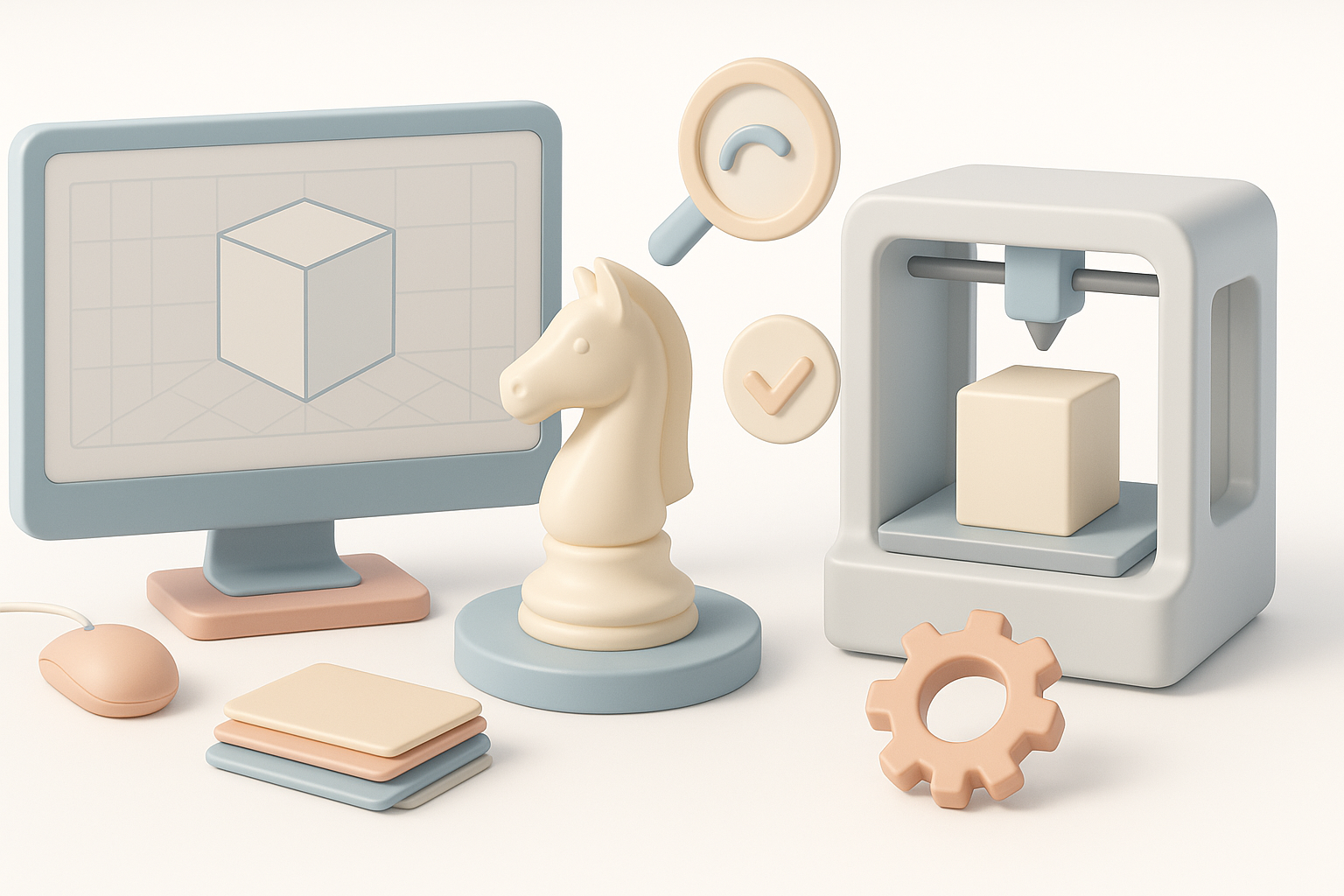
My process usually starts with a concept sketch or reference image. Here’s how I proceed:
- Block out in 3D: I use a modeling tool (sometimes Tripo for quick base meshes) to rough out the shape.
- Refine topology: I clean up geometry, ensuring edge flow supports printability.
- Check scale: I set real-world units early to avoid surprises later.
Tip: For organic shapes, AI-powered tools speed up ideation. For mechanical parts, I stick to CAD or precise modeling software.
Preparing Models for Printing: Scaling, Orientation, and Supports
Before slicing, I always:
- Scale to final size: Double-check units and fit.
- Orient for strength and minimal supports: I rotate models to minimize overhangs and maximize bed adhesion.
- Add or generate supports: I let the slicer auto-generate, but sometimes manually add custom supports for tricky features.
Checklist:
- Confirm real-world dimensions
- Optimize orientation for surface finish and strength
- Preview and adjust supports as needed
Optimizing Models for Print Success
Retopology and Mesh Cleanup Best Practices
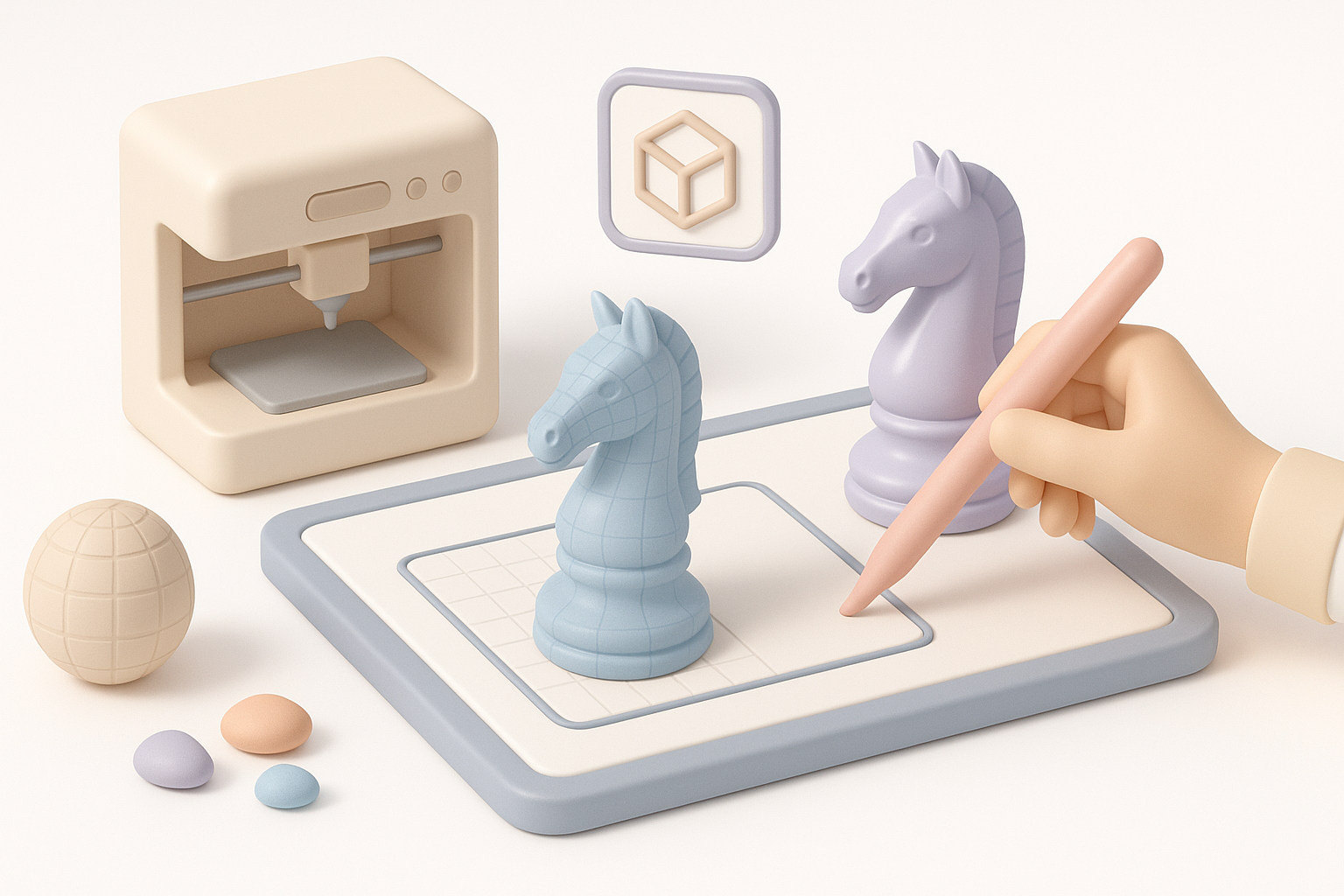
A clean mesh is non-negotiable. My routine:
- Remove unnecessary polygons: Decimate or retopologize to reduce file size and print time.
- Eliminate non-manifold edges: Use modeling tools or Tripo’s mesh analysis features.
- Merge overlapping parts: Boolean operations help create a single, unified shell.
Pitfall: Over-simplifying can lose detail; under-simplifying can cause slicing errors or slow prints.
Ensuring Watertight Geometry and Manifold Edges
I always run a final check for:
- Holes or gaps: Use “fill holes” or “close mesh” functions.
- Non-manifold geometry: Most slicers will flag these, but I prefer to fix them in the modeling stage.
- Consistent normals: Recalculate or manually flip as needed.
Quick steps:
- Run mesh analysis (in Tripo or your modeling app)
- Repair flagged issues
- Export and re-import to verify integrity
Texturing and Detailing for 3D Prints
How I Approach Texture Mapping for Physical Output
For most FDM and resin printers, textures aren’t printed—they’re for reference. But if I’m prepping for color 3D printing (like with full-color powder or resin printers):
- UV unwrap carefully: Avoid stretching, as color artifacts can show up in the print.
- Bake details into geometry: Fine textures often need to be translated into surface relief (normal/displacement maps to geometry).
Tip: Export OBJ or 3MF for color prints; STL ignores textures.
Tips for Adding Fine Details Without Compromising Printability
- Know your printer’s resolution: Don’t model details smaller than your nozzle or layer height.
- Exaggerate shallow features: Subtle engravings may not show up—make them deeper or wider.
- Test print small sections: I often print a detail sample before committing to a full model.
Checklist:
- Minimum feature size matches printer specs
- Avoid unsupported thin walls or overhangs
- Use surface relief instead of color for most desktop printers
Comparing 3D Model Creation Tools and Methods

AI-Powered Platforms vs. Traditional Modeling Software
In my workflow, I use both:
- AI-powered tools (like Tripo): Great for rapid ideation, auto-segmentation, and quick prototyping. They’re especially helpful for non-technical users or when I need a starting point fast.
- Traditional modeling software: Still my go-to for precision, mechanical parts, or when I need full control over topology and details.
Pitfall: AI tools can sometimes create hidden mesh issues—always inspect and clean up before printing.
When to Use Automated Tools in My Workflow
I reach for AI-powered solutions when:
- I need a quick base mesh to iterate on.
- The project is organic, artistic, or concept-driven.
- Time is tight and manual modeling isn’t practical.
I switch to manual tools for engineering parts, assemblies, or when tolerances are critical.
Troubleshooting and Lessons Learned
Common Issues I’ve Encountered and How I Solve Them
- Non-manifold edges or holes: I run mesh repair tools, then re-export and check in the slicer.
- Thin walls collapsing: I thicken geometry or adjust print settings.
- Supports fusing to the model: I tweak support placement and interface layers.
Tip: Keep a checklist of recurring issues and solutions for faster troubleshooting.
My Top Tips for Reliable 3D Print Results
- Always inspect and repair your mesh before slicing.
- Don’t trust auto-generated supports blindly—review and adjust.
- Print a small test piece if you’re unsure about details or tolerances.
- Keep your modeling, slicing, and printer firmware up to date.
By following a disciplined workflow—leveraging both AI-powered and traditional tools—I consistently achieve reliable, high-quality 3D prints. The key is to combine creative exploration with technical rigor, always validating at each step. With experience, troubleshooting becomes second nature, and the process gets faster and more predictable.
