3MF vs STL: Key Differences & Which to Use (2026)
TL;DR
- STL is universal and supported everywhere, but only stores geometry — no color, materials, or metadata.
- 3MF is modern and compact, packing geometry, color, materials, and print settings into one file.
- Use STL when sharing broadly or working with older tools.
- Use 3MF for multi-color prints, Bambu Lab / Prusa workflows, or when file size matters.
- Both formats can be converted to each other instantly — see the converter tools at the bottom.
If you've spent any time in a slicer recently, you've noticed most of them now default to saving as 3MF instead of STL. So what actually changed, and does it matter for your workflow?
This guide breaks down the real differences between 3MF and STL — what each format stores, where each one excels, and a clear decision framework for choosing the right format for each job.
Quick Verdict

| 3MF | STL | |
|---|---|---|
| Color & materials | ✅ Yes | ❌ No |
| Metadata & print settings | ✅ Yes | ❌ No |
| File size | ✅ Smaller | ❌ Larger |
| Universal compatibility | ⚠️ Modern tools | ✅ Everywhere |
| Multi-object / assembly | ✅ Yes | ❌ One mesh |
| Human-readable source | ✅ XML inside ZIP | ❌ Binary or ASCII |
Bottom line: 3MF is the better format for almost all modern workflows. STL is still the safe choice when you need guaranteed compatibility with older or unknown software.
Side-by-Side Comparison Table
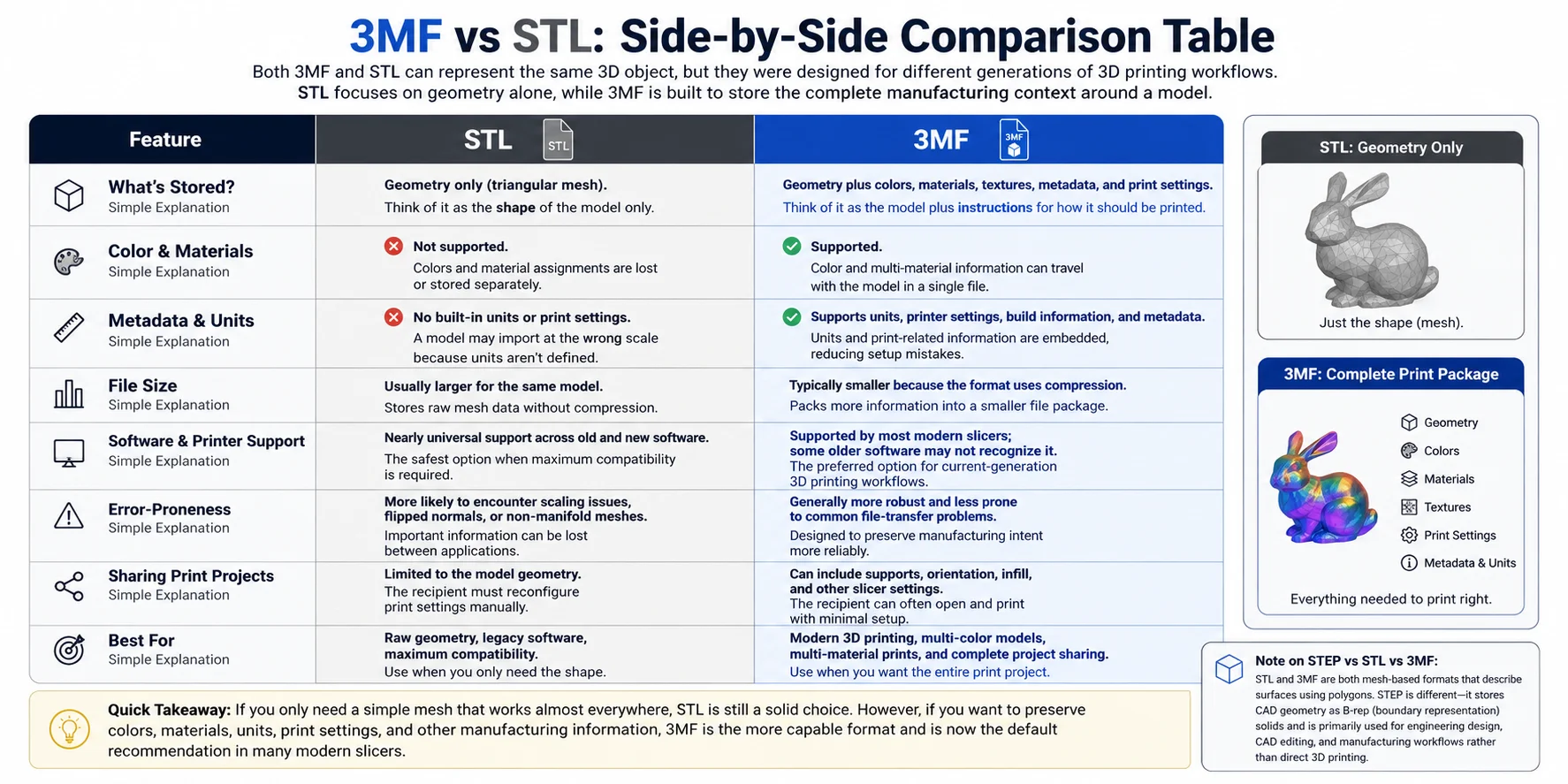
| Feature | 3MF | STL |
|---|---|---|
| File structure | XML inside ZIP archive | Plain triangles (binary or ASCII) |
| Geometry | ✅ Watertight mesh | ✅ Triangle mesh |
| Color | ✅ Per-face or per-object | ❌ |
| Materials | ✅ Material definitions | ❌ |
| Metadata | ✅ Author, title, units, thumbnail | ❌ |
| Print settings | ✅ Layer height, infill, supports | ❌ |
| Multiple objects | ✅ Assembly / components | ❌ Single mesh |
| File size | Typically 50–80% smaller | Larger |
| Introduced | 2015 (3MF Consortium) | 1987 (3D Systems) |
| Primary use | Modern slicers, Bambu, Prusa | Universal interchange |
What STL Stores
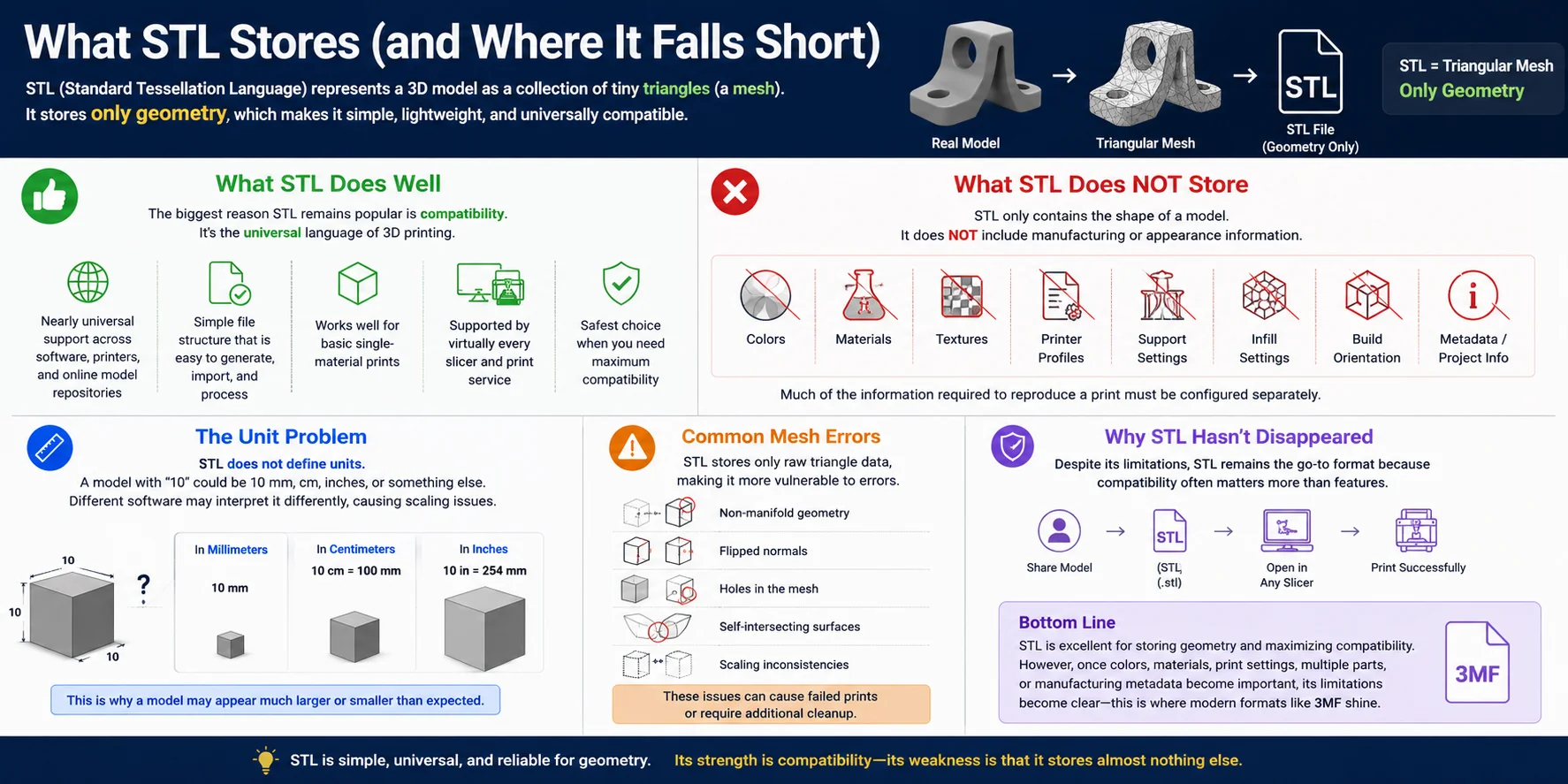
STL (Standard Tessellation Language, sometimes Stereo Lithography) was created by 3D Systems in 1987. It encodes a 3D surface as a list of triangular facets, each defined by three vertices and a normal vector.
That's it. STL knows nothing about:
- Color or appearance
- Material properties
- Scale or units (the numbers are unitless — slicers assume millimeters by convention)
- Multiple objects or assemblies
- Who made the file or when
The format comes in two flavors — binary (compact, more common) and ASCII (human-readable, much larger). Most software exports binary STL by default.
Despite its age and limitations, STL became the universal 3D printing format because it's dead simple and every single piece of software supports it.
What 3MF Stores
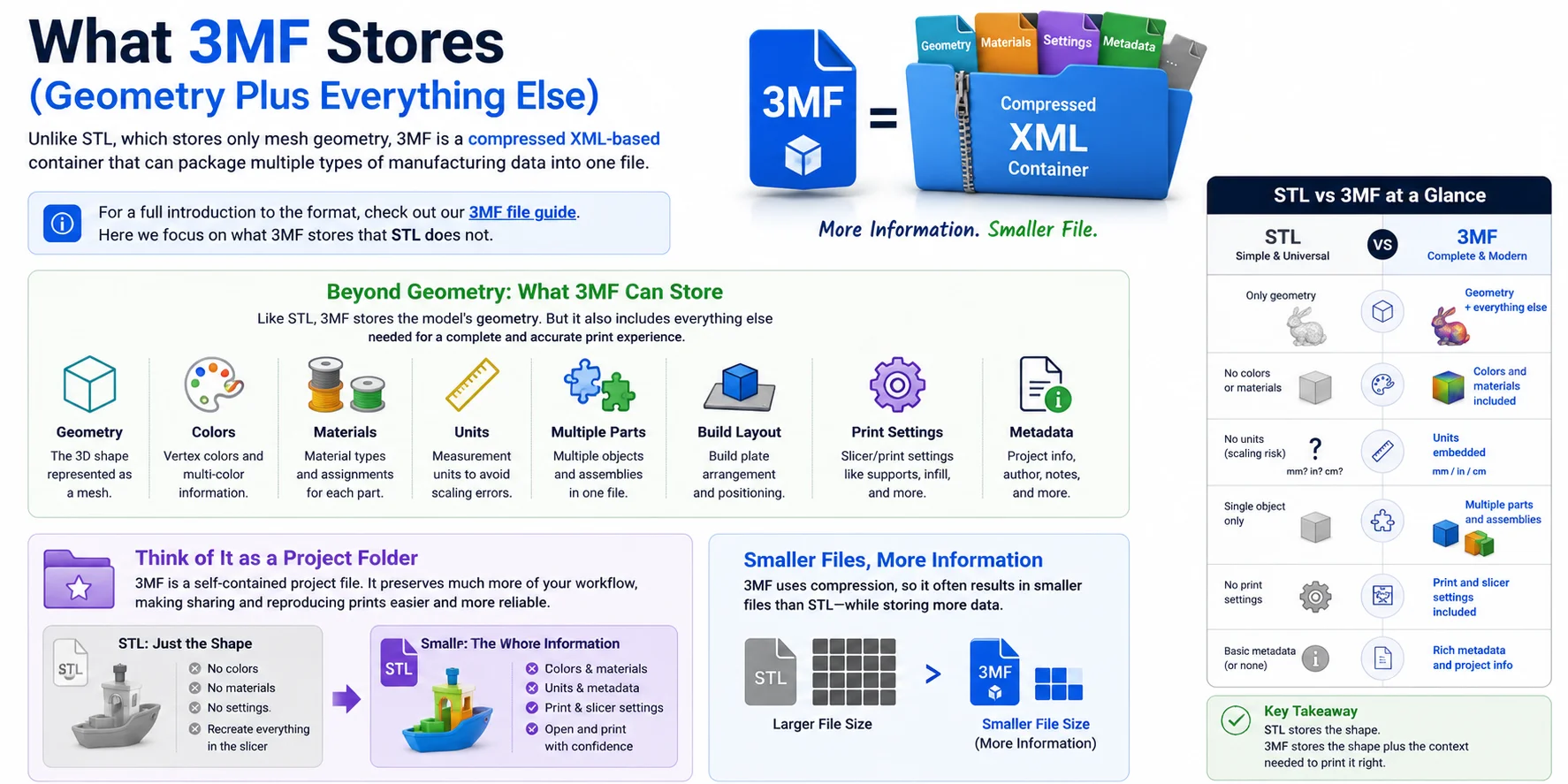
The 3MF format was developed by the 3MF Consortium (Microsoft, Autodesk, HP, Ultimaker, and others) in 2015 to fix STL's limitations. A 3MF file is actually a ZIP archive containing XML files, textures, thumbnails, and other assets.
Inside a 3MF file you can find:
- Geometry — same triangle mesh as STL, but more efficiently encoded
- Color — per-vertex, per-face, or full texture maps
- Materials — material IDs with physical properties
- Scale and units — explicitly defined in millimeters
- Multiple objects — parts, components, and assemblies in one file
- Print settings — layer height, infill, supports, and more
- Metadata — author, title, creation date, thumbnail preview
This is why Bambu Studio, PrusaSlicer, and Orca Slicer all save as 3MF by default: one file carries everything the slicer needs to reproduce the exact same print on any machine.
Color, Materials & Metadata
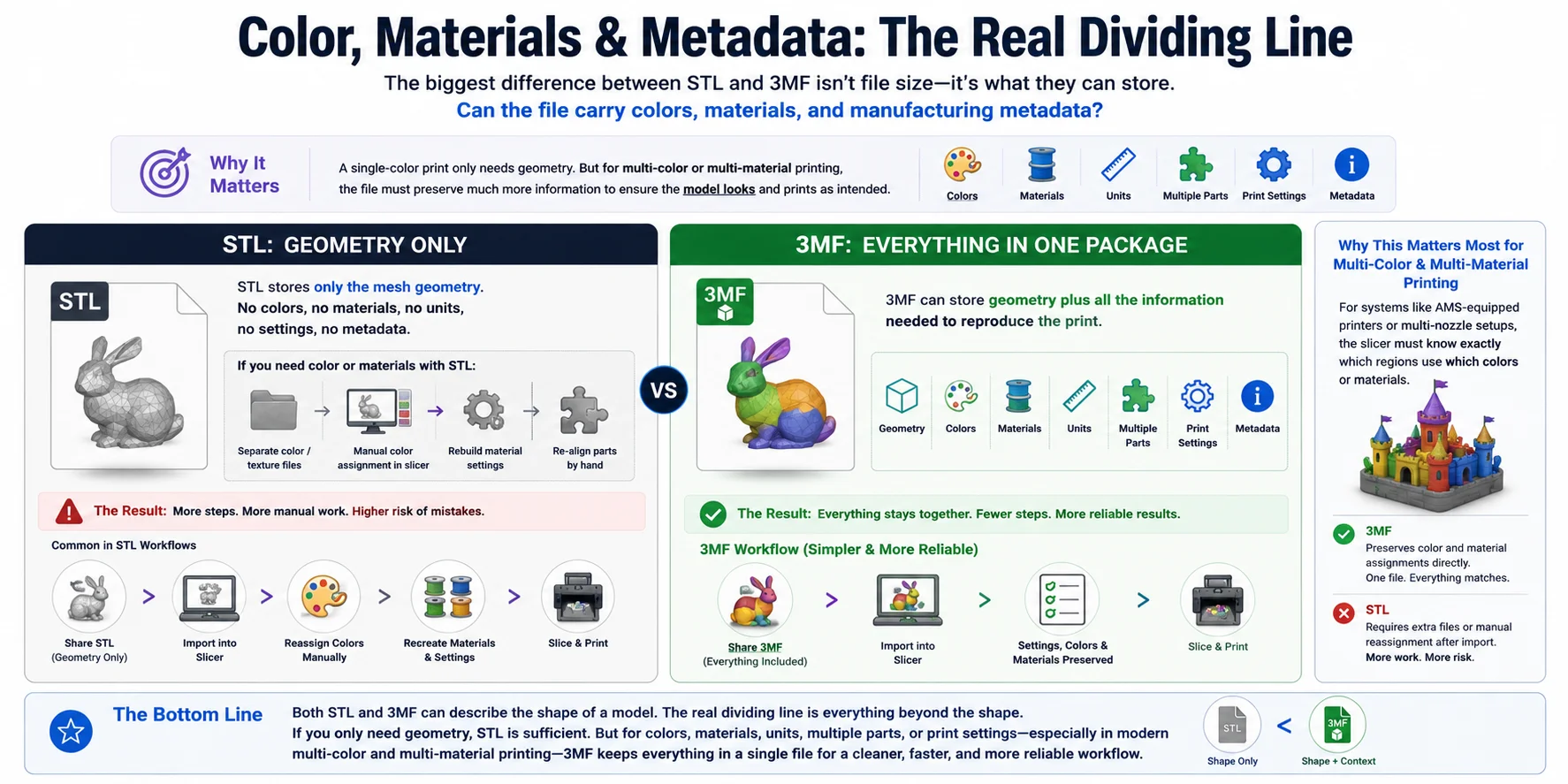
This is where the difference becomes concrete. If you're printing with an AMS (Automatic Material System) on a Bambu printer, or using multi-filament on a Prusa XL, your color assignments and filament assignments are stored inside the 3MF file.
Open that same project in any slicer that supports 3MF and the colors are still there. Try doing that with an STL — the colors don't exist in the file, so you have to reassign them every single time.
Similarly, 3MF can embed a thumbnail, so the file shows a preview in your file browser or on the printer's touchscreen before you even open it.
STL has none of this. It's purely geometry, and any additional information lives in sidecar files or in the slicer project file, which is not the STL itself.
File Size & Reliability
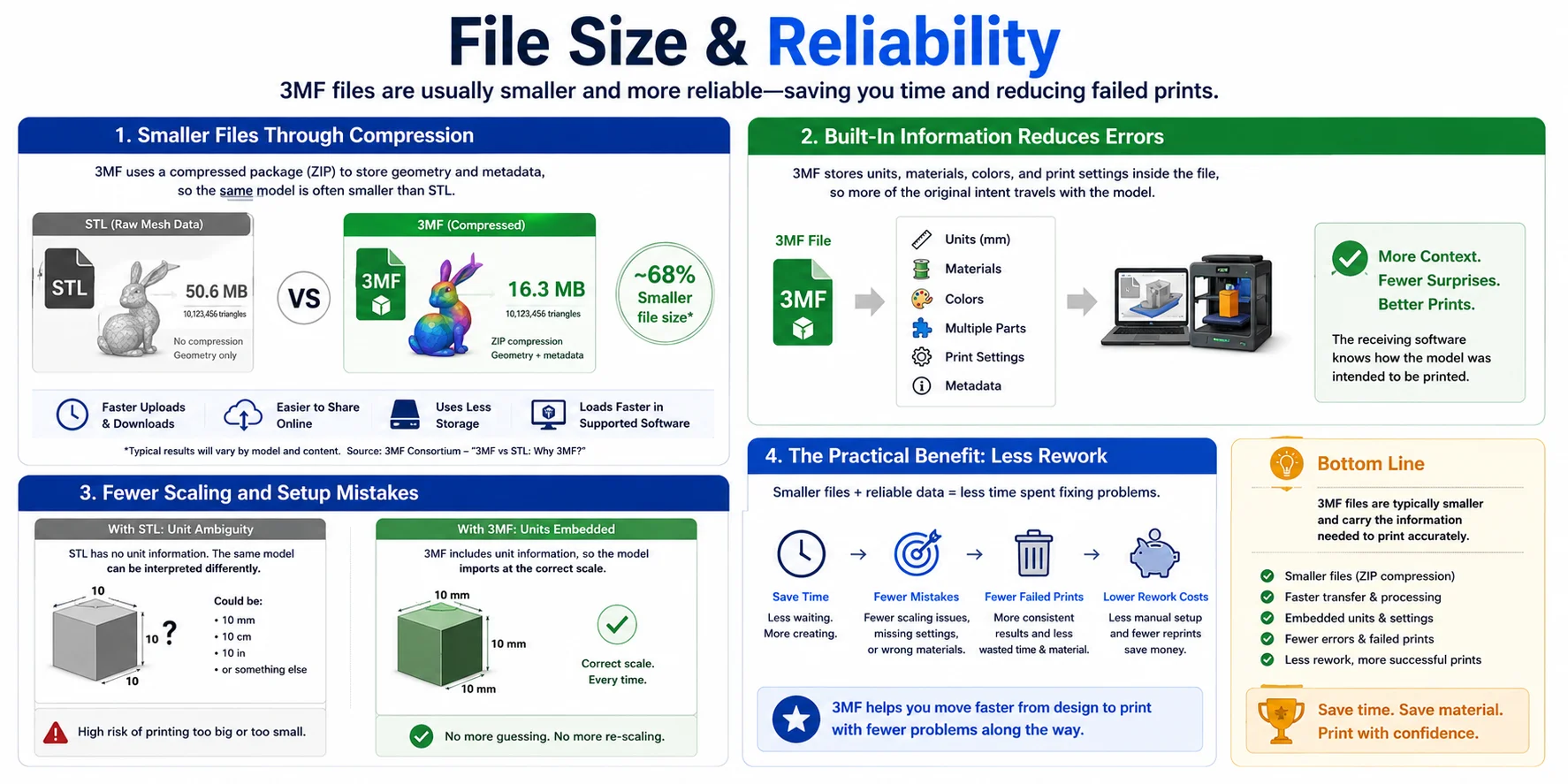
3MF files are typically 50–80% smaller than binary STL files of the same model. The reason is twofold:
- Better compression — the ZIP container applies DEFLATE compression to the XML geometry data.
- No redundant vertices — STL stores three vertices per triangle, so shared vertices between adjacent faces are stored multiple times. 3MF uses indexed vertex lists, eliminating the duplication.
For a complex model with millions of triangles, the size difference is dramatic.
Reliability is another 3MF advantage. STL has no built-in integrity check — a corrupt or truncated file may load without any error and produce a broken print. 3MF uses ZIP's CRC checksums, so corruption is detected immediately.
Software & Printer Compatibility
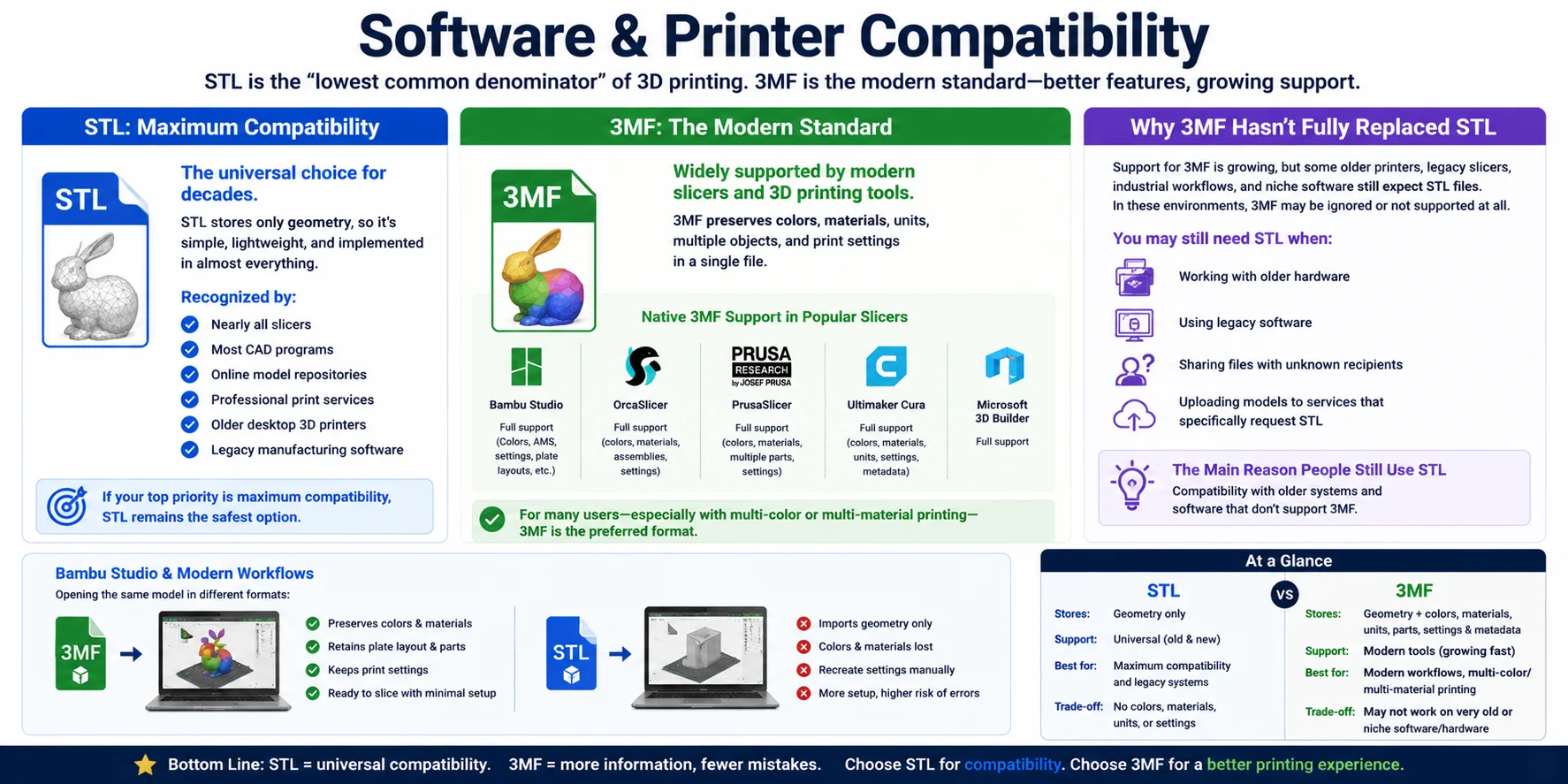
STL is supported everywhere, no exceptions. Every slicer, every CAD package, every 3D printer ever made accepts STL. If you don't know what software the recipient uses, send STL.
3MF is supported in all modern tools but may not work in older or niche software:
| Software | STL | 3MF |
|---|---|---|
| Bambu Studio | ✅ | ✅ (default) |
| PrusaSlicer / Orca Slicer | ✅ | ✅ (default) |
| Cura | ✅ | ✅ |
| Blender | ✅ | ✅ (3.x+) |
| Fusion 360 | ✅ | ✅ |
| Meshmixer | ✅ | ⚠️ Limited |
| Older CNC / legacy tools | ✅ | ❌ Often not |
If your workflow touches AI-based 3D generation tools like Tripo, both formats are supported for export, and you can always convert STL to 3MF or 3MF to STL without any loss of geometry.
Which Should You Use? (Decision Checklist)
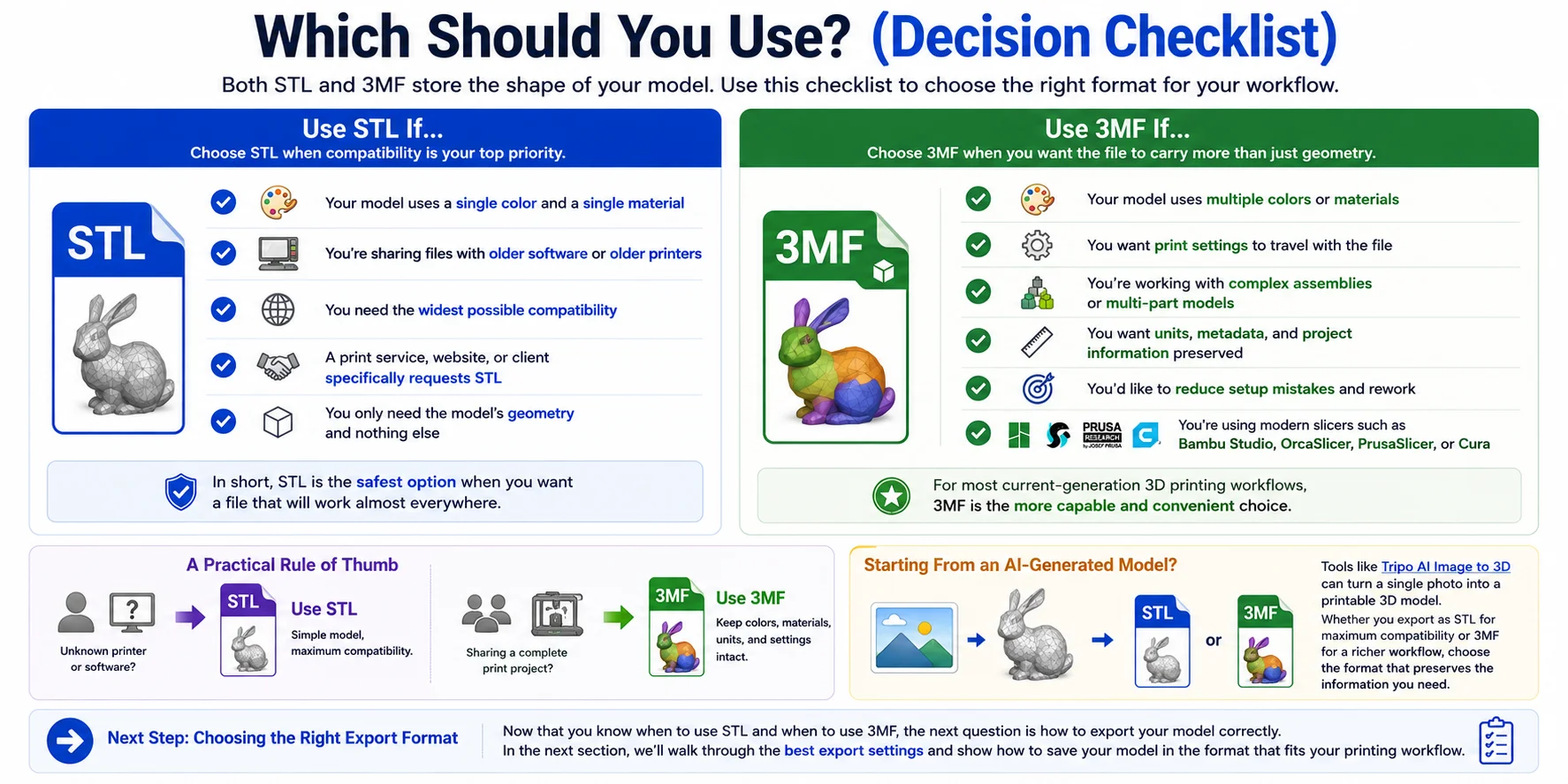
Use this checklist to pick the right format:
Use 3MF when:
- You're printing multi-color on Bambu, Prusa XL, or any AMS-capable machine
- You want to preserve slicer settings for later reprints
- You're sharing a complete print project (not just the geometry)
- File size matters (email attachment, SD card storage)
- You're using Bambu Studio, PrusaSlicer, or Orca Slicer as your primary tool
Use STL when:
- You're sharing a model and don't know what software the other person uses
- The recipient uses older CAD or slicing software
- The model is purely geometry with no color or material information
- You're submitting to a 3D printing service that specifies STL
- You need a format that's guaranteed to work with any tool, anywhere, forever
The practical answer for most people: Save and work in 3MF within your slicer ecosystem, export STL when you need to share externally with unknown recipients.
Exporting Your Model
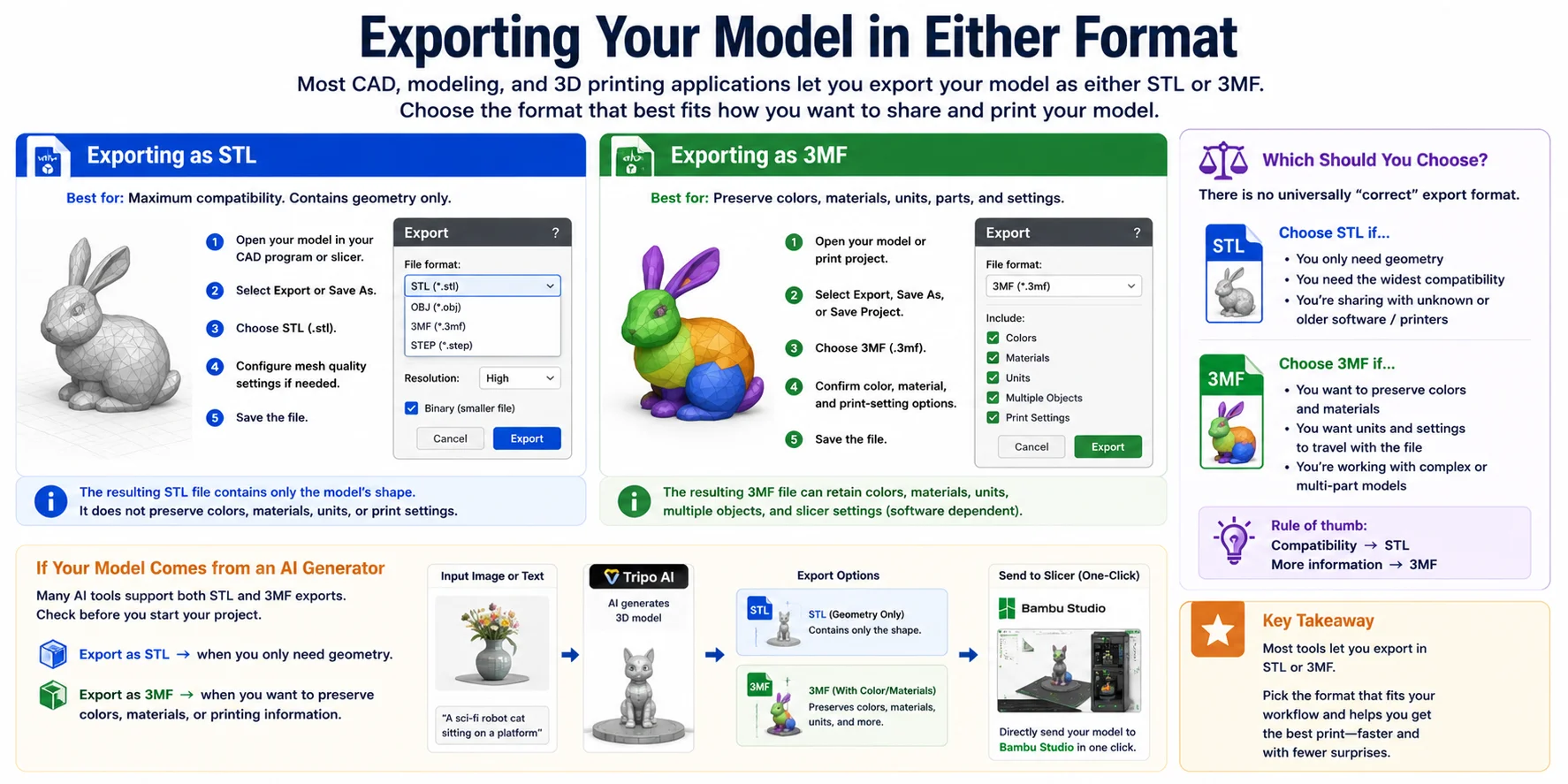
Most modern slicers export both formats from the same menu. Here's the quick path in the most common tools:
Bambu Studio: File → Export → Export Plate Sliced File (.3mf) or Export as STL
PrusaSlicer / Orca Slicer: File → Export → Export plate as 3MF or Export plate as STL
Blender: File → Export → Stl (.stl) or 3MF (requires add-on in older versions; built-in from 3.x)
Fusion 360: File → Export → select .stl or .3mf from the format dropdown
When exporting for AI 3D generation in Tripo, choose 3MF if you want to carry material data into your slicer, or STL if you're doing geometry-only downstream work.
How to Convert Between STL and 3MF
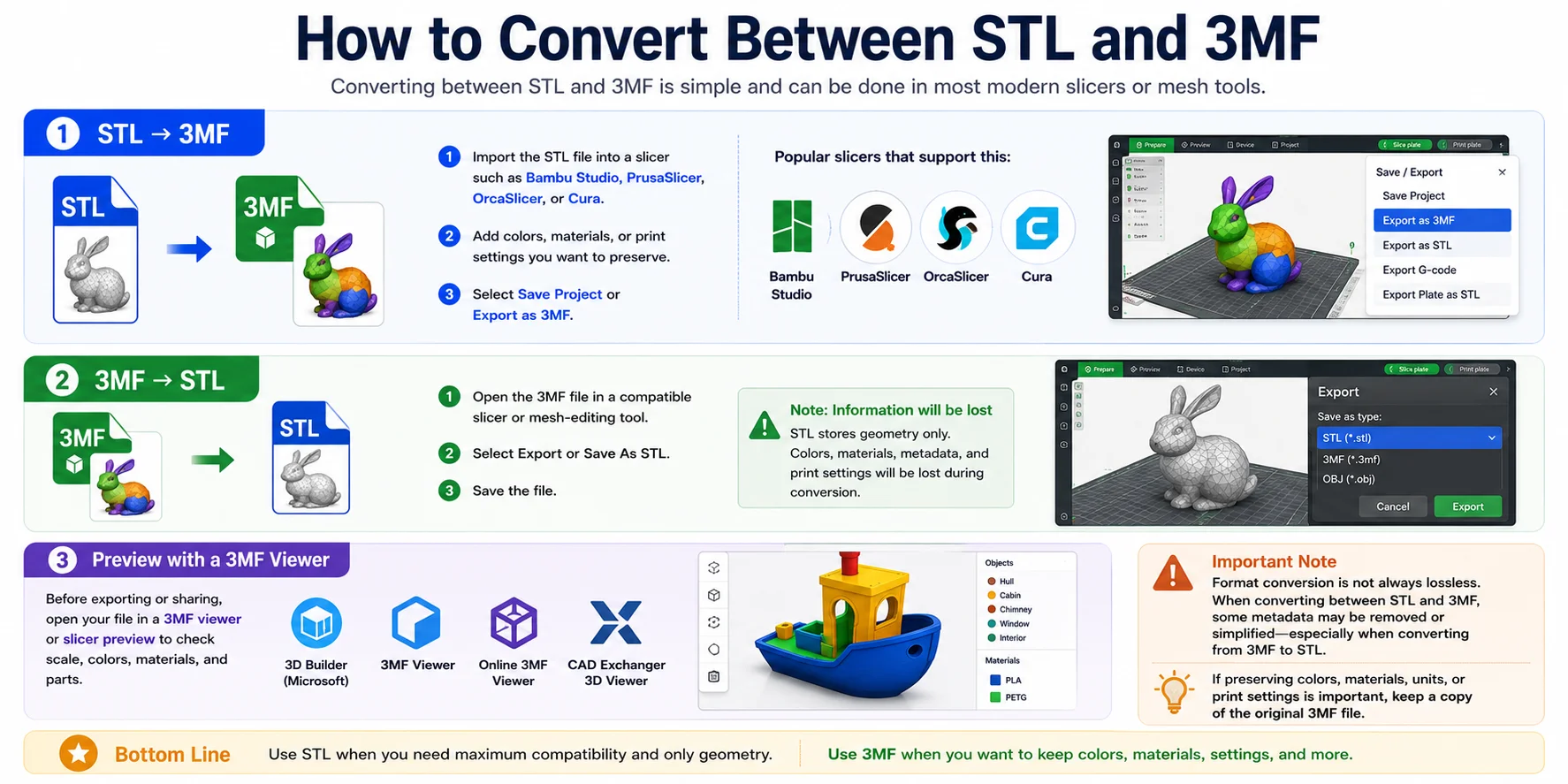
Converting between the two formats is lossless for geometry. The only thing lost when converting 3MF→STL is color, material, and metadata — the triangle mesh itself is preserved perfectly.
Quick online conversion:
In your slicer (fastest):
- Import the source file
- File → Export → choose the target format
- Done — no geometry change, no quality loss
In Blender:
- Import the STL or 3MF
- File → Export → choose the other format
Note that converting STL→3MF does not add color or materials. It just re-packages the same geometry in a more efficient container. To get color in a 3MF, you need to assign it in your slicer or design tool first.
Frequently Asked Questions
Is 3MF better than STL for 3D printing?
For most modern 3D printing workflows, yes. 3MF stores color, materials, print settings, and metadata that STL cannot, and the files are typically 50–80% smaller. The only reason to prefer STL is maximum compatibility with older or unknown software.
Does converting STL to 3MF improve print quality?
No. Converting STL to 3MF re-packages the same triangle mesh in a different container — the geometry does not change and print quality is identical. The benefit is smaller file size and the ability to add color or settings on top of the existing geometry in your slicer.
Can Bambu and Prusa machines print STL?
Yes, both Bambu Lab and Prusa machines print STL without any issues. Their slicers (Bambu Studio, PrusaSlicer, Orca Slicer) all support both formats. The reason they default to 3MF is that 3MF preserves the full project state — filament assignments, AMS colors, supports — which STL cannot.
What is 3MF vs STL vs STEP?
STL encodes only surface geometry as triangles. 3MF adds color, materials, and metadata on top of that. STEP (Standard for the Exchange of Product Data) is a different category entirely — it's a parametric CAD format that stores the mathematical model (surfaces, curves, solid bodies) rather than a mesh approximation. Use STEP when you need to edit geometry in CAD; use 3MF or STL when you're ready to slice for printing.
Conclusion
STL has earned its universal status through 35+ years of adoption, and it isn't going anywhere. But for day-to-day 3D printing work in 2026, 3MF is the smarter default: it's smaller, richer, and fully supported in every major slicer.
The practical rule of thumb: work in 3MF, export STL when you have to. If your workflow involves AI-generated models from tools like Tripo, you can work natively in either format and convert freely between them without losing your geometry.
For instant format conversion, use the Tripo tools: STL → 3MF | 3MF → STL.