Tripo DCC Bridge for 3ds Max:安装与快速入门
Tripo3D 3ds Max Bridge 是一个轻量级插件,可将 3ds Max 直接连接到 Tripo Studio 首页。
通过此桥接,您可以将从浏览器生成的模型实时发送到 3ds Max,无需手动下载或导入。它旨在简化艺术家和设计师的工作流程,让您专注于建模和场景组装,而不是文件管理。
系统要求
- 操作系统: Windows
- 3ds Max: 2024 或更高版本
- 浏览器:
- 支持 Google Chrome 116+、Edge 116+、Opera 102+
- 其他浏览器不受支持
- 默认导入设置:
- 轴心:底部中心
- 纹理分辨率:当前最大值
- 自动材质分配:启用
- 自动场景放置:启用
分步安装
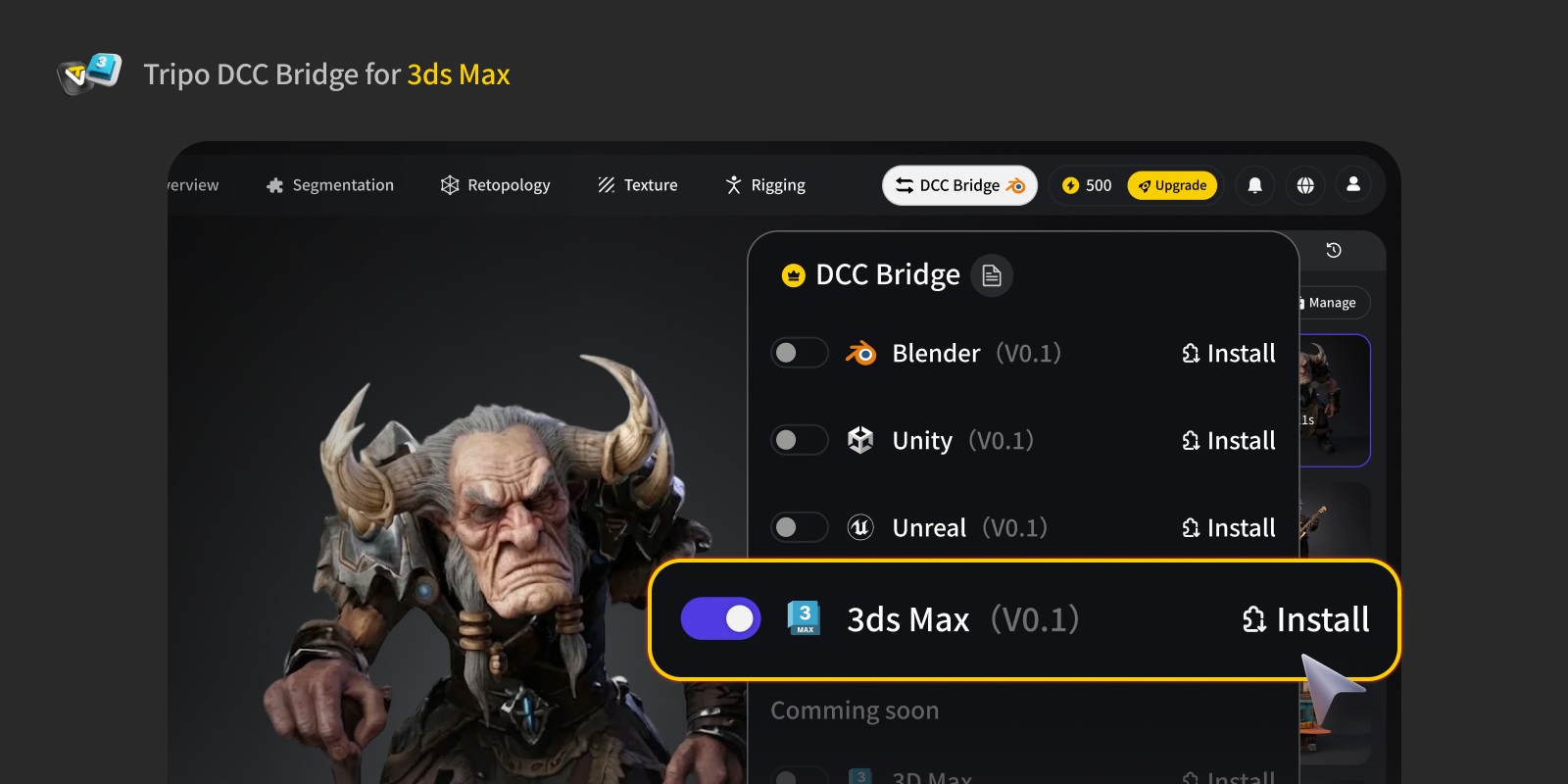
步骤 1:
步骤 2:
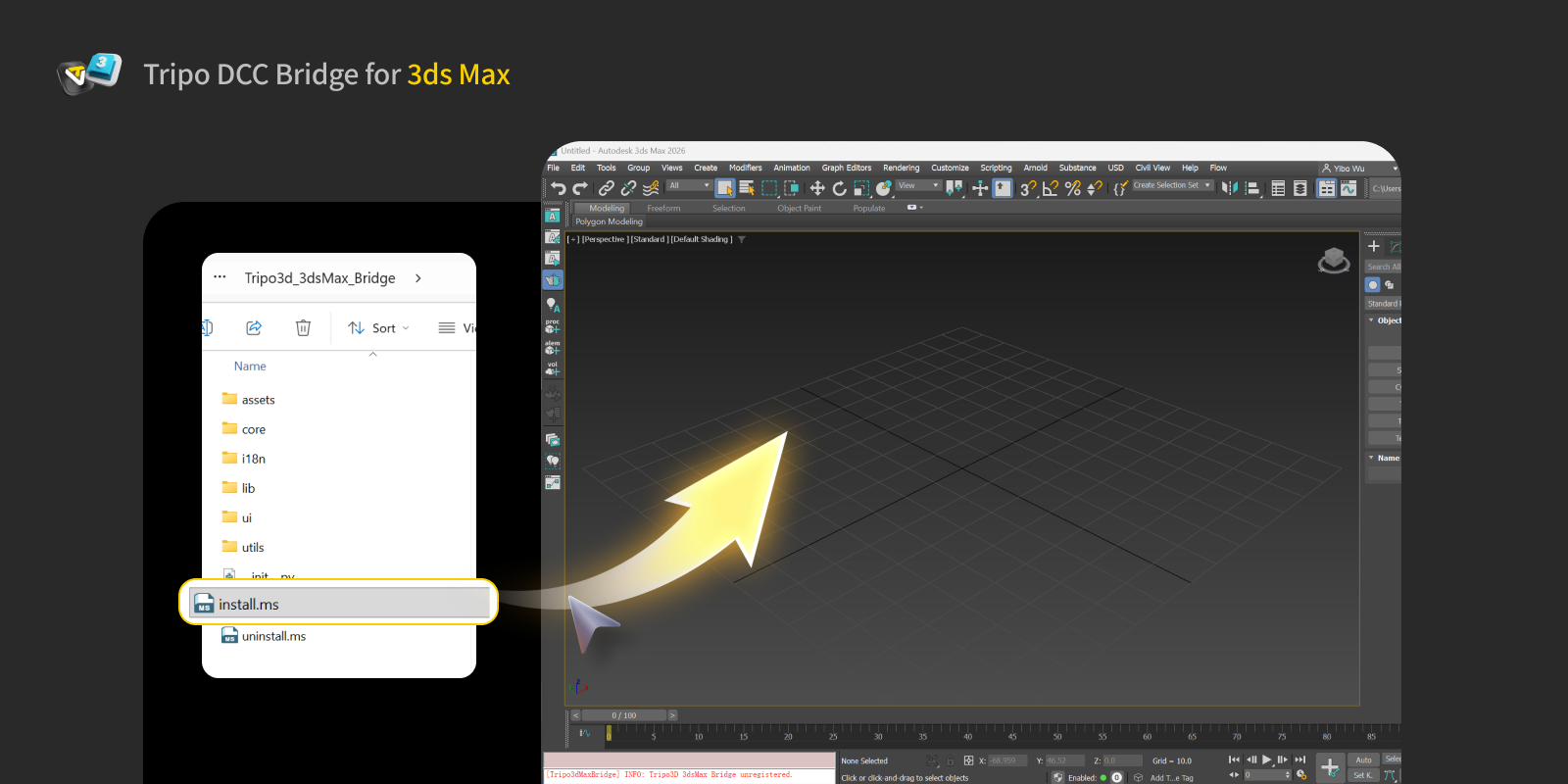
- 将
install.ms 文件直接拖入 3ds Max 视口。插件将自动安装。
步骤 3:
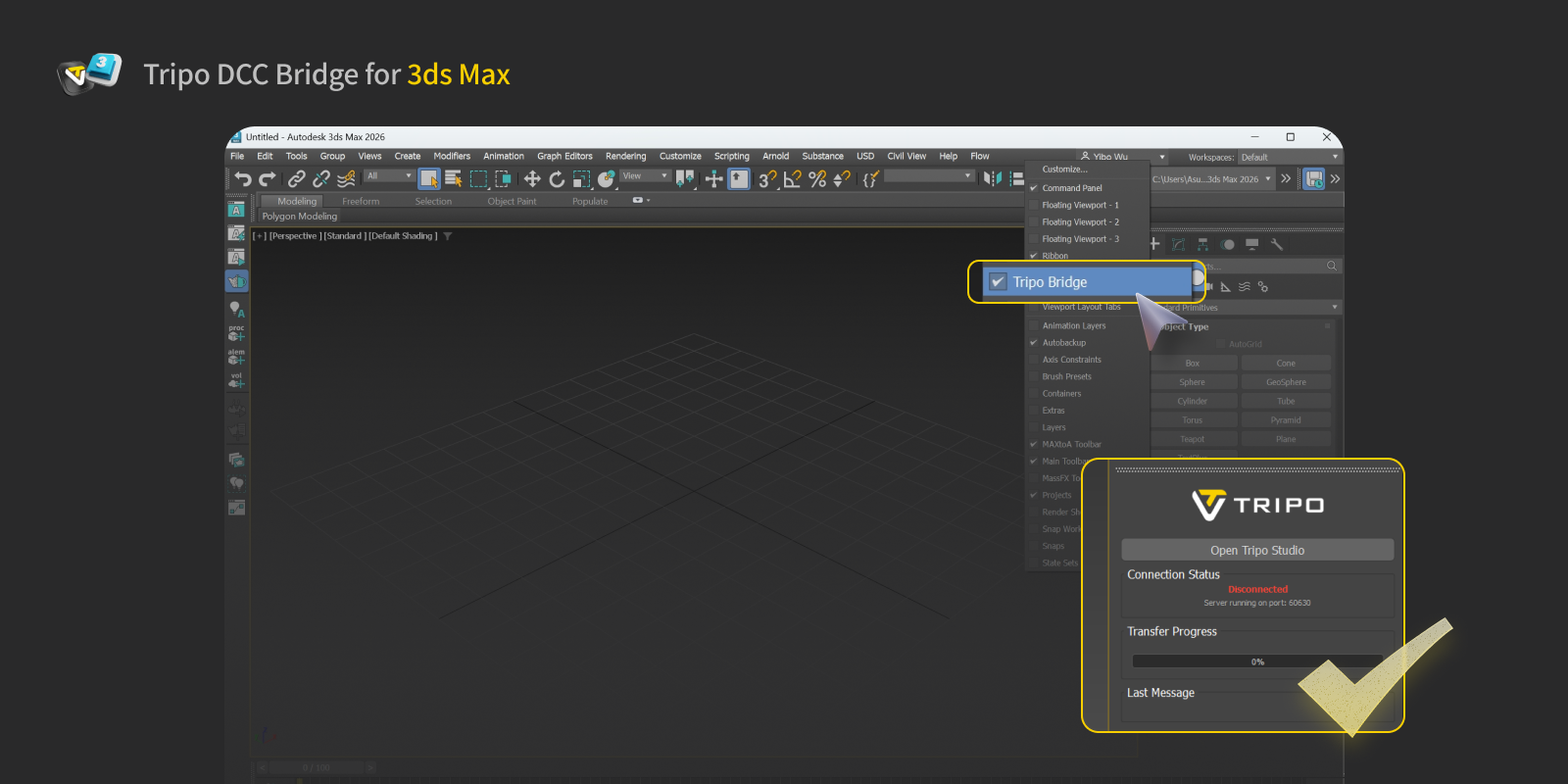
- 打开 Tripo Studio 网站,点击 DCC Bridge 按钮,并激活 Blender 插件。
- 确认连接已正确设置。
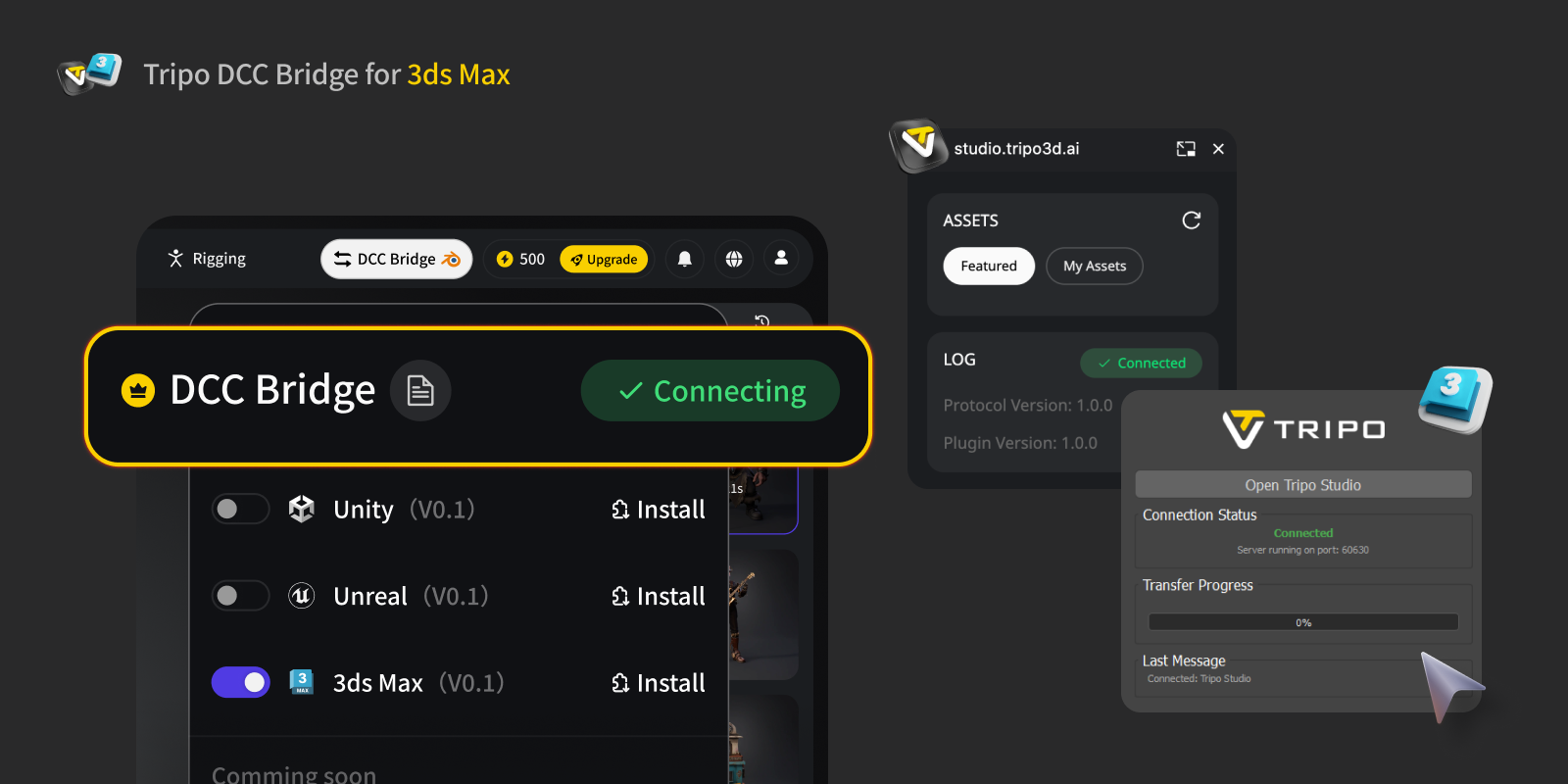
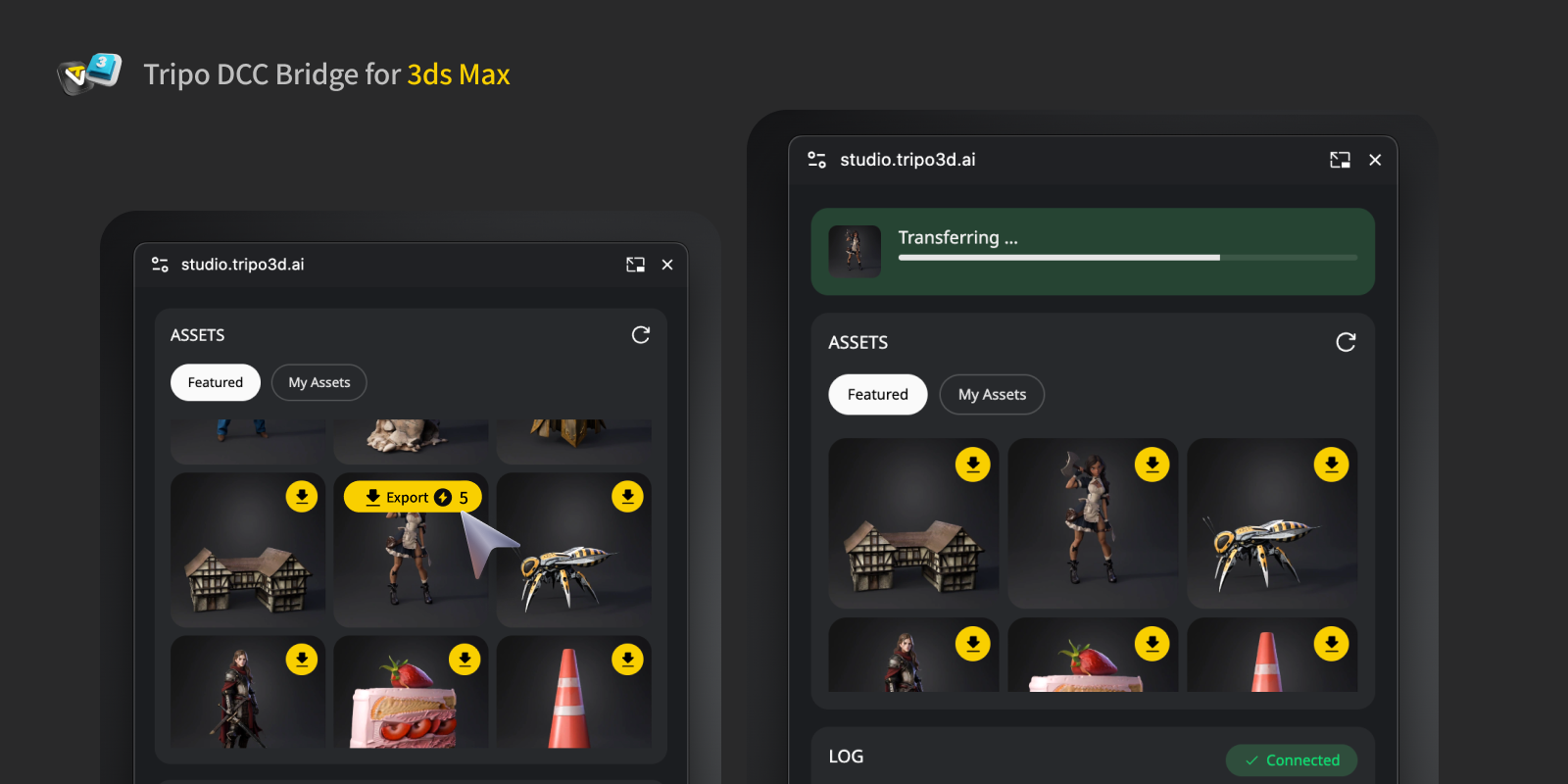
- 如果要导出动画,请在导出面板中选择要导出的动画,然后点击 Send 到指定的 DCC。
- 由于 Autodesk 3ds Max 处理动画的方式,建议每个模型只导出一个动画。
步骤 4:
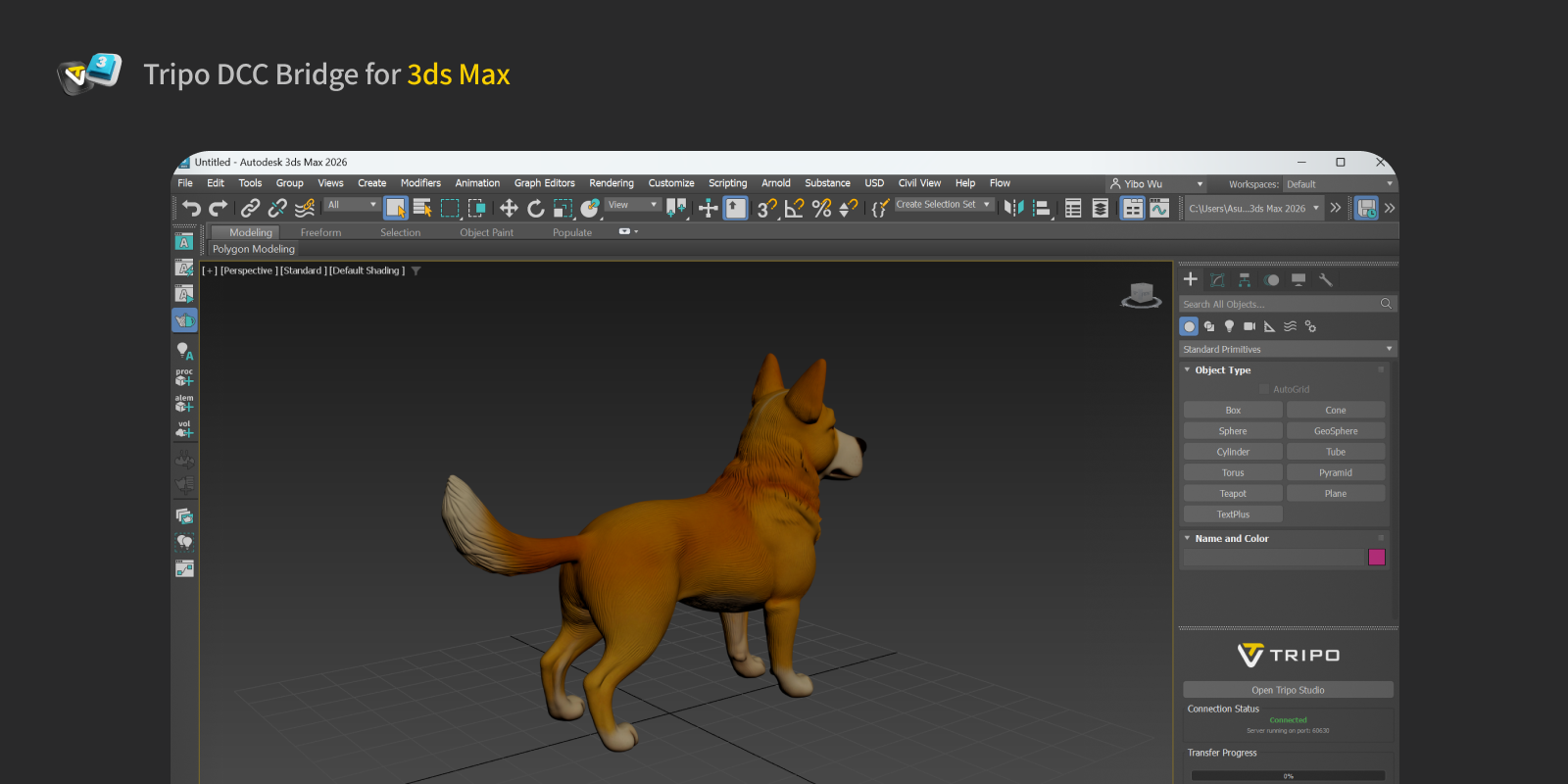
您现在可以在 Autodesk 3ds Max 中查看从网站发送过来的模型。
常见问题
问:我可以同时向多个 3ds Max 实例传输数据吗?
答: 不可以。连接只识别第一个启动的 3ds Max 实例。
问:如何卸载 3ds Max 插件?
答: 要卸载 Tripo3D 3ds Max Bridge,只需将 uninstall.ms 文件拖入 3ds Max 视口。插件将自动移除。

Advancing 3D generation to new heights
moving at the speed of creativity, achieving the depths of imagination.
Advancing 3D generation to new heights
moving at the speed of creativity, achieving the depths of imagination.
Tripo DCC Bridge for 3ds Max:安装与快速入门
Tripo3D 3ds Max Bridge 是一个轻量级插件,可将 3ds Max 直接连接到 Tripo Studio 首页。
通过此桥接,您可以将从浏览器生成的模型实时发送到 3ds Max,无需手动下载或导入。它旨在简化艺术家和设计师的工作流程,让您专注于建模和场景组装,而不是文件管理。
系统要求
- 操作系统: Windows
- 3ds Max: 2024 或更高版本
- 浏览器:
- 支持 Google Chrome 116+、Edge 116+、Opera 102+
- 其他浏览器不受支持
- 默认导入设置:
- 轴心:底部中心
- 纹理分辨率:当前最大值
- 自动材质分配:启用
- 自动场景放置:启用
分步安装
步骤 1:
步骤 2:
- 将
install.ms 文件直接拖入 3ds Max 视口。插件将自动安装。
步骤 3:
- 打开 Tripo Studio 网站,点击 DCC Bridge 按钮,并激活 Blender 插件。
- 确认连接已正确设置。
- 如果要导出动画,请在导出面板中选择要导出的动画,然后点击 Send 到指定的 DCC。
- 由于 Autodesk 3ds Max 处理动画的方式,建议每个模型只导出一个动画。
步骤 4:
您现在可以在 Autodesk 3ds Max 中查看从网站发送过来的模型。
常见问题
问:我可以同时向多个 3ds Max 实例传输数据吗?
答: 不可以。连接只识别第一个启动的 3ds Max 实例。
问:如何卸载 3ds Max 插件?
答: 要卸载 Tripo3D 3ds Max Bridge,只需将 uninstall.ms 文件拖入 3ds Max 视口。插件将自动移除。
Advancing 3D generation to new heights
moving at the speed of creativity, achieving the depths of imagination.
Advancing 3D generation to new heights
moving at the speed of creativity, achieving the depths of imagination.