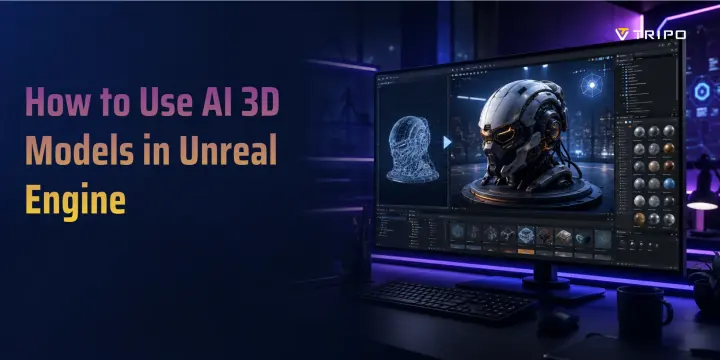
Unreal Engine에서 AI 3D 모델을 사용하는 방법
TL;DR
- 예, AI-generated 3D models는 Unreal Engine 5에서 작동할 수 있습니다. FBX는 일반적으로 캐릭터, rigged assets, 전통적인 게임 파이프라인에 가장 적합한 옵션이며, GLB는 유용한 self-contained 대안입니다.
- Tripo AI Smart Mesh는 real-time props와 확장 가능한 게임 워크플로를 위한 최적화되고 구조화된 low-poly 모델을 생성합니다.
- 핵심 워크플로는 간단합니다: generate → export FBX 또는 GLB → import into Unreal Engine 5 → materials, scale, collision, LODs 확인.
- Tripo AI의 Free plan은 워크플로 테스트에 유용하지만, export 가능 여부, model versions, credits, commercial-use rights는 현재 플랜에 따라 달라집니다. 상업용 프로덕션을 시작하기 전에 항상 현재 플랜 권한을 확인하세요.
3D 콘텐츠에 대한 수요는 게임, XR, 시각화, 인터랙티브 제품 전반에서 증가하고 있습니다. 전 세계 3D 디지털 에셋 시장은 2025년에 약 330억 달러 규모였으며 2029년에는 518억 달러에 이를 수 있고, 3D 게임 기술은 2035년까지 1,870억 달러를 넘어설 것으로 예상됩니다.
인디 개발자와 소규모 팀에게 이는 제작상의 과제를 만듭니다. 게임에는 소규모 아트 팀이 혼자 만들 수 있는 것보다 더 많은 props, environments, characters, animations가 필요합니다. AI 3D generation은 개념을 Unreal Engine 5에서 export, import, refinement할 수 있는 assets로 전환하여 이 문제를 해결하는 데 도움을 줍니다.
Unreal Engine에서 AI-Generated 3D Models를 사용할 수 있나요?
예. Unreal Engine은 AI-generated 모델과 수작업으로 만든 모델을 구분하지 않습니다. mesh, materials, textures, skeleton, scale, file structure를 읽습니다.
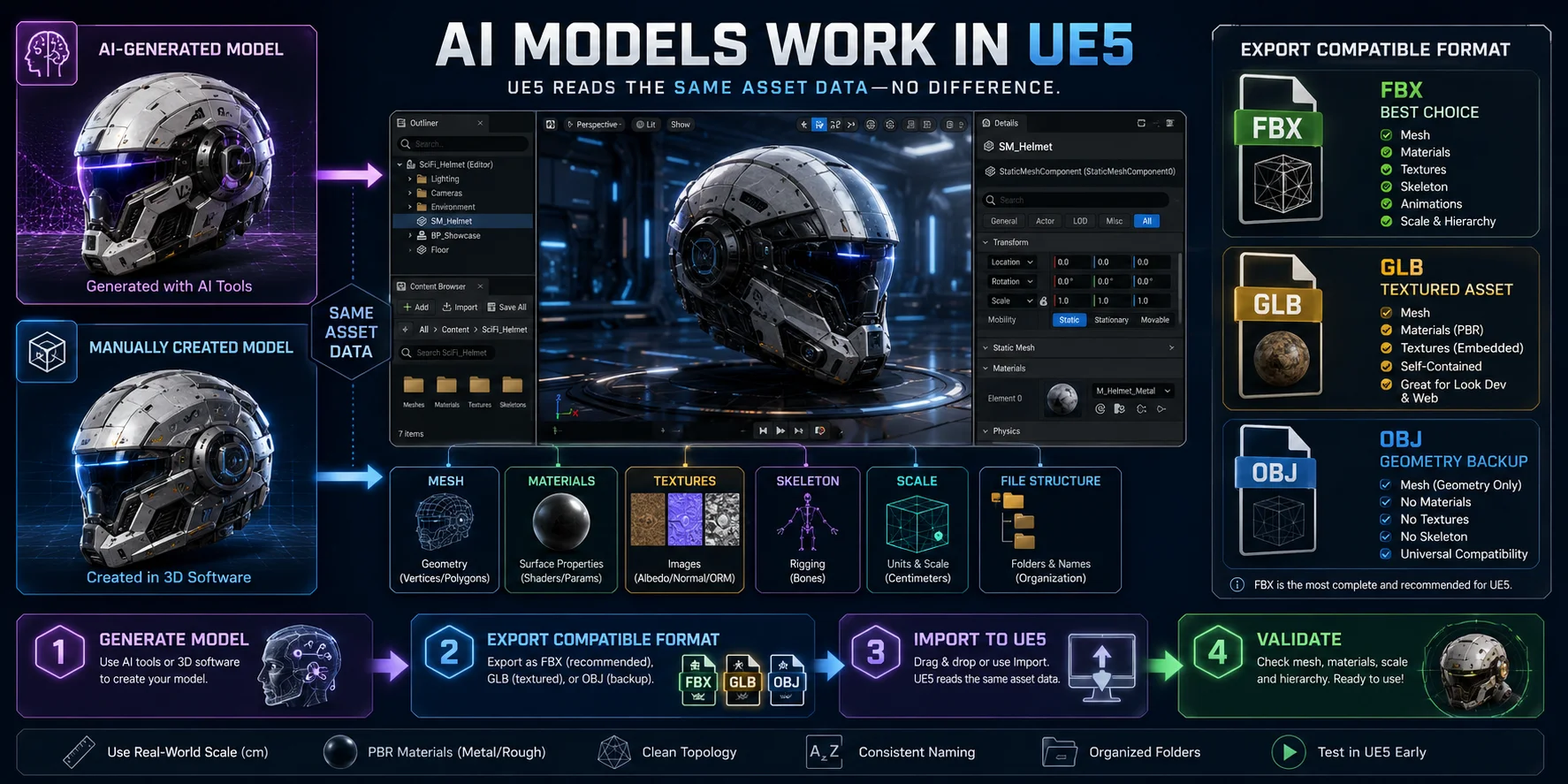
대부분의 UE5 워크플로에서는 FBX가 가장 좋은 선택입니다. meshes, materials, skeletal data, animation workflows를 지원하기 때문입니다. GLB는 self-contained textured assets에 유용하고, OBJ는 주로 geometry-only 백업으로 작동하며 rigging을 지원하지 않습니다.
실제 워크플로는 간단합니다. UE5 밖에서 모델을 생성하고, 호환되는 형식으로 export한 다음, Unreal Engine에서 import하고 검증하면 됩니다.
UE5 Assets를 위한 AI 3D Generation 작동 방식
AI 3D generation은 text-to-3D 또는 image-to-3D로 시작합니다. Text prompts는 빠른 concept exploration에 유용하며, sketches, product photos, character references 같은 이미지는 silhouette, color, proportions를 더 강하게 제어할 수 있게 해줍니다. Tripo AI는 두 워크플로를 모두 지원합니다.
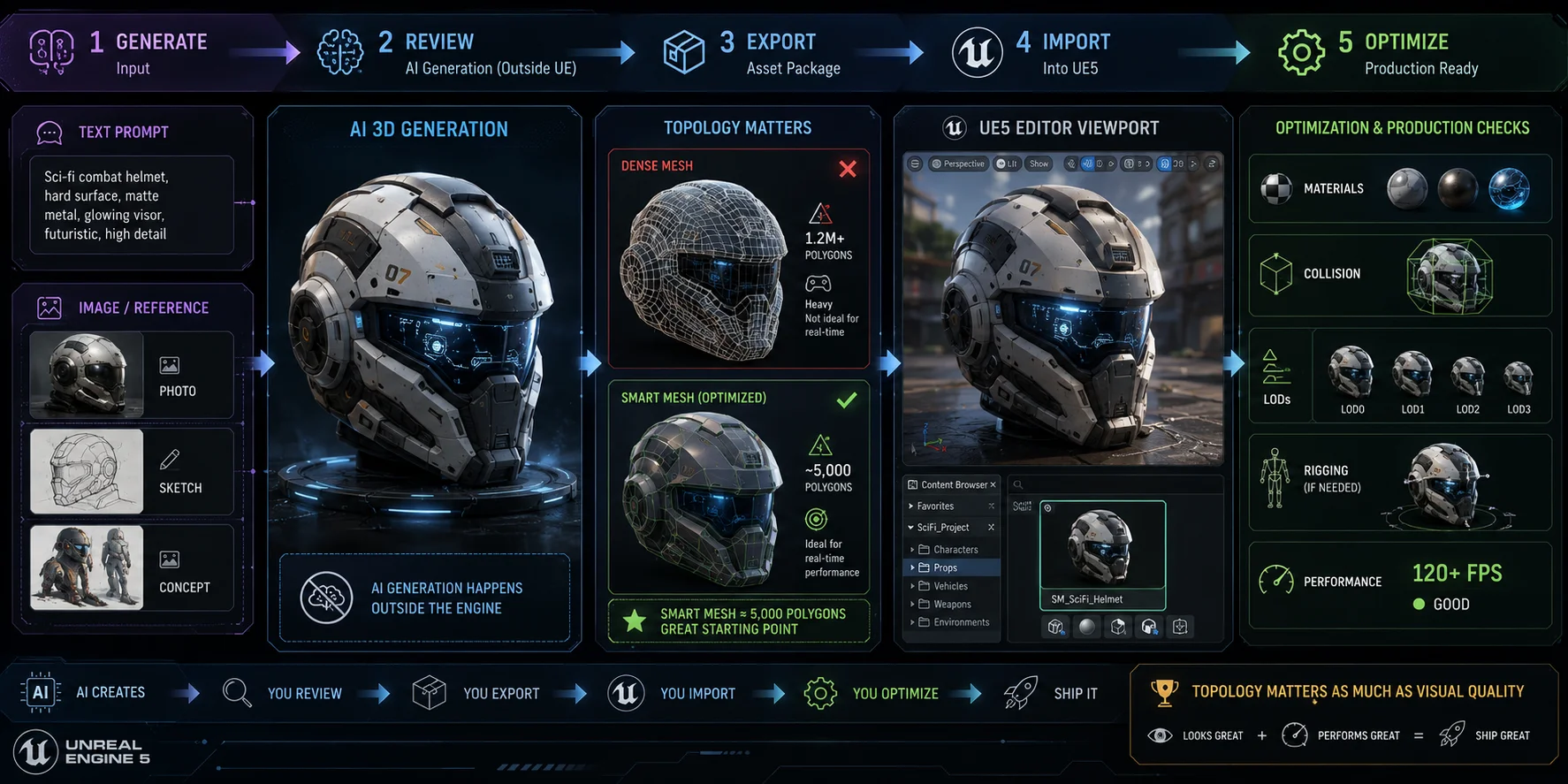
UE5에서는 시각적 품질만큼 topology도 중요합니다. Dense mesh는 뷰어에서는 인상적으로 보일 수 있지만 memory use, rendering cost, rigging complexity를 증가시킬 수 있습니다. Tripo AI Smart Mesh는 real-time props와 lightweight scene assets를 위한 구조화된 low-poly topology를 생성합니다. 적절한 polygon budget은 여전히 asset type, platform, camera distance, scene density에 따라 달라집니다.
AI generation은 Unreal Engine 내부에서 직접 이루어지지 않습니다. 워크플로는 다음과 같습니다.
Generate → review → export → import → optimize
전통적인 asset creation에는 blockout, modeling, UV work, texturing, cleanup에 수 시간이 걸릴 수 있습니다. AI는 초기 generation 단계를 가속화해 팀이 아이디어에서 usable base asset으로 훨씬 빠르게 이동할 수 있도록 돕습니다. 그러나 최종 프로덕션 시간은 여전히 UE5 내부의 mesh cleanup, material setup, rigging, collision, LODs, performance optimization에 따라 달라집니다.
단계별: Tripo AI로 3D Model 생성하기
시작하기 전에 다음을 준비하세요: Tripo AI 계정, 열려 있는 Unreal Engine 5.x 프로젝트, 그리고 준비된 text prompt 또는 reference image.
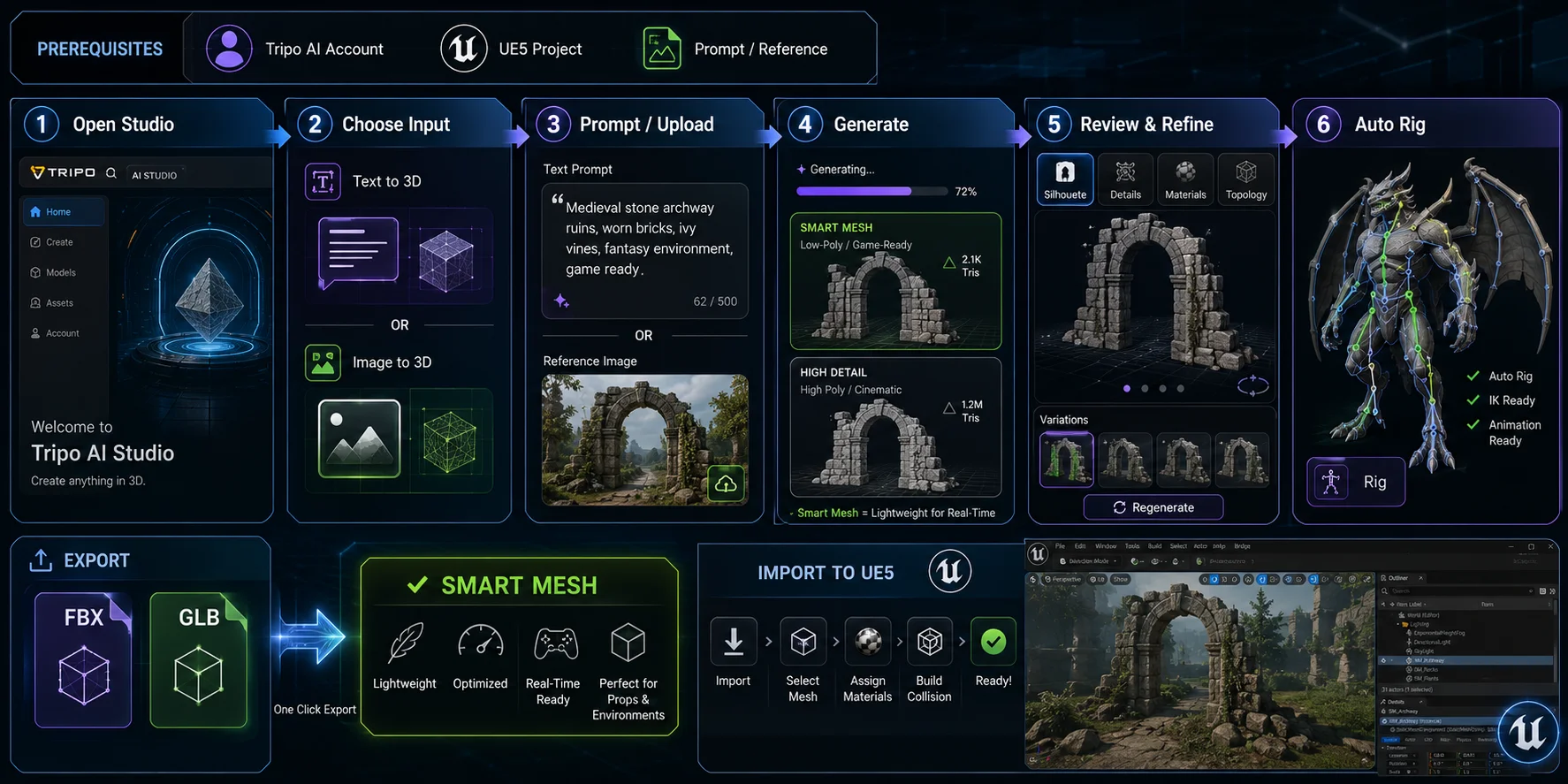
- Tripo AI Studio를 엽니다. Tripo AI Studio로 이동해 로그인합니다. Free plan은 generation을 테스트할 수 있는 방법을 제공하지만, licensing, version, export privileges는 유료 플랜보다 더 제한적입니다.
- 입력 방식을 선택합니다. asset을 처음부터 설명하고 싶다면 text-to-3D를 선택합니다. 원하는 silhouette가 있는 concept art, sketch, product image, reference photo가 있다면 Image to 3D를 선택합니다.
- 상세한 prompt를 입력하거나 깔끔한 이미지를 업로드합니다. Text generation의 경우 visible structure, material, style, intended game use를 설명합니다. 예: A medieval stone archway, moss-covered sandstone blocks, broken upper corner, low-poly game environment prop, realistic PBR material Image generation의 경우 읽기 쉬운 조명과 제한적인 배경 clutter가 있는 명확한 reference를 사용합니다.
- 모델을 생성합니다. Generate를 클릭한 다음 선택한 generation mode가 완료될 때까지 기다립니다. Smart Mesh는 빠른 low-poly output을 위해 설계되었고, high-detail modes는 denser geometry와 visual detail을 우선하기 때문에 더 오래 걸릴 수 있습니다.
- 결과를 검토하고 refine합니다. Export하기 전에 3D preview를 확인합니다. silhouette, important details, material quality, topology를 점검하세요. 모델이 너무 복잡하거나, 너무 일반적이거나, 시각적으로 일관되지 않으면 prompt를 수정하거나 reference image를 바꾸거나 다른 variation을 생성합니다. Smart Mesh는 대상이 lightweight UE5 prop 또는 real-time scene asset일 때 특히 유용합니다.
- 적절한 경우 Auto Rig를 활성화합니다. UE5에서 animation이 필요한 characters 또는 creatures의 경우 export 전에 AI Auto Rigging을 사용합니다. Auto Rig는 skeleton과 skin weights를 생성하며, rigged assets는 downstream engine workflows를 위해 FBX 또는 GLB로 export할 수 있습니다. 자동 rigging된 character를 production-final로 간주하기 전에 항상 Unreal Engine에서 deformations를 테스트하세요.
Unreal Engine용 Export: 형식과 설정
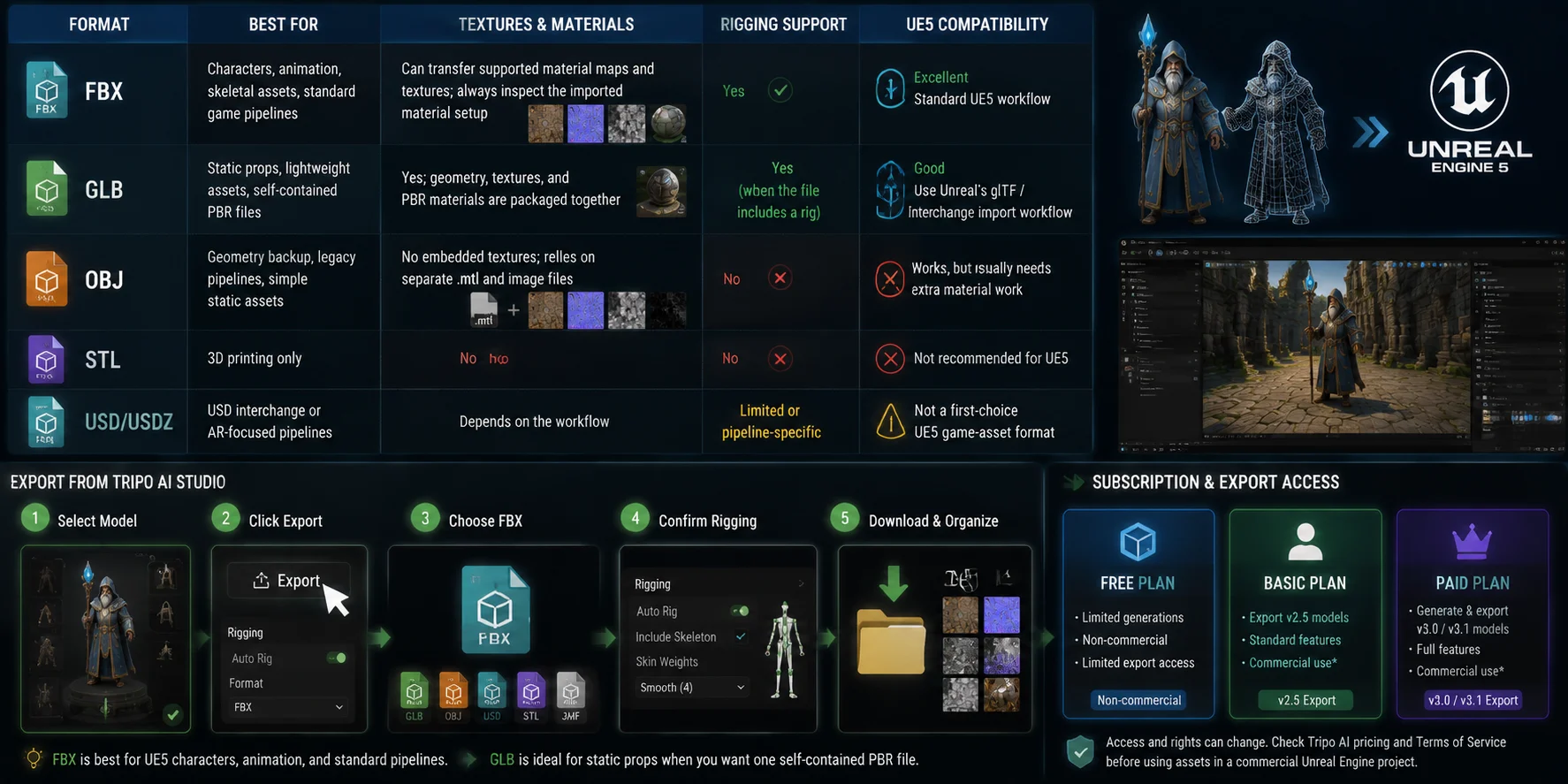
올바른 export format을 선택하면 대부분의 import 문제를 피할 수 있습니다. 이 표를 사용해 asset type에 가장 적합한 format을 맞추세요.
| Format | Best for | Textures and materials | Rigging support | UE5 compatibility |
|---|---|---|---|---|
| FBX | Characters, animation, skeletal assets, 표준 게임 파이프라인 | 지원되는 material maps와 textures를 전송할 수 있음; import된 material setup은 항상 검사해야 함 | 예 | 우수함; 표준 UE5 워크플로 |
| GLB | Static props, lightweight assets, self-contained PBR files | 예; geometry, textures, PBR materials가 함께 패키징됨 | 파일에 rig가 포함된 경우 예 | 좋음; Unreal의 glTF / Interchange import workflow 사용 |
| OBJ | Geometry backup, legacy pipelines, 단순 static assets | Embedded textures 없음; 별도의 .mtl 및 image files에 의존 | 아니요 | 작동하지만 일반적으로 추가 material work가 필요함 |
| STL | 3D printing 전용 | 아니요 | 아니요 | UE5에는 권장되지 않음 |
| USD / USDZ | USD interchange 또는 AR 중심 파이프라인 | 워크플로에 따라 다름 | 제한적이거나 pipeline-specific | UE5 game-asset format의 1순위 선택은 아님 |
Tripo AI는 현재 여섯 가지 core export formats를 나열합니다: USD, FBX, OBJ, STL, GLB, and 3MF. FBX는 skeletons, animation, hierarchy, conventional DCC editing이 필요할 수 있는 UE5 characters와 assets의 가장 강력한 기본값입니다. GLB는 asset과 PBR material data를 포함하는 하나의 compact file을 원할 때 유용합니다.
Tripo AI Studio에서는 다음 export process를 사용하세요.
- 완료된 모델을 선택합니다.
- Export를 클릭합니다.
- UE5 characters, animated assets 또는 conventional Unreal game workflows에는 FBX를 선택합니다.
- Auto Rig가 적용된 경우 rigging options를 확인합니다.
- Asset을 다운로드하고, texture files가 별도로 제공되는 경우 관련 파일을 정리된 상태로 유지합니다.
Subscription 및 export access
프로젝트를 generation plan에 커밋하기 전에 export availability, model versions, credits, commercial-use rights를 확인하세요. Tripo AI의 현재 플랜은 변경될 수 있으므로, 상업용 Unreal Engine 프로젝트에서 assets를 사용하기 전에 Tripo AI pricing과 적용 가능한 license terms를 검토하세요.
AI 3D Models를 UE5로 Import하기
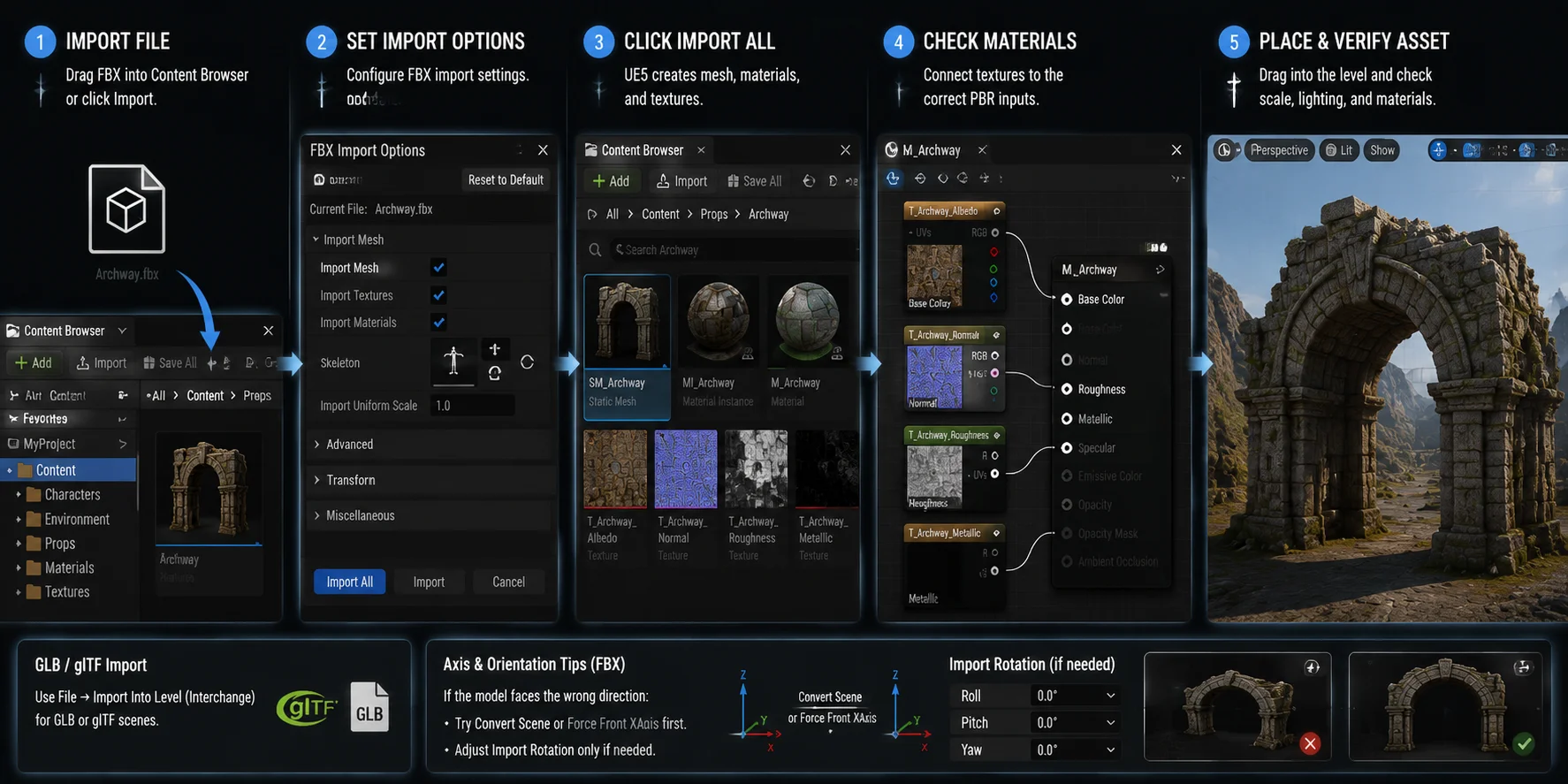
- 파일을 import합니다. FBX를 UE5 Content Browser로 드래그하거나 Import를 클릭합니다. 파일을 Content 폴더에 복사하는 것만으로는 충분하지 않습니다.
- Import options를 설정합니다. FBX Import dialog에서 다음을 사용합니다:Import Mesh: enabledImport Textures: enabledImport Materials: enabledSkeleton: rig가 일치할 때만 할당합니다. 그렇지 않으면 새 Skeleton asset을 생성합니다Import Uniform Scale: 시작점으로 1.0을 사용합니다. 알려진 크기의 UE5 reference와 asset을 비교해 검증하고 필요할 때만 조정합니다.
- Import All을 클릭합니다. UE5가 Static Mesh 또는 Skeletal Mesh와 호환되는 materials 및 textures를 생성합니다.
- Materials를 확인합니다. 모델이 회색 또는 흰색으로 보이면 Material asset을 열고 Base Color, Normal, Roughness, Metallic maps를 올바른 PBR inputs에 연결합니다.
- Asset을 배치하고 검증합니다. mesh를 Level viewport로 드래그한 다음, 다양한 lighting 아래에서 scale, orientation, textures, material response를 확인합니다.
GLB 및 axis 문제 참고: 단일 GLB 또는 glTF asset의 경우 Content Browser를 통해 import하거나 프로젝트로 드래그합니다. 전체 scene을 import할 때는 File → Import Into Level을 사용합니다. 두 경로 모두 Unreal의 Interchange workflow를 사용합니다. FBX가 잘못된 orientation으로 import되면 먼저 Convert Scene 또는 Force Front XAxis를 시도하세요. Import Rotation은 source file의 axis setup을 확인한 뒤에만 조정합니다.
Real-Time Performance를 위한 AI Models 최적화
Smart Mesh는 유용한 optimization starting point를 제공하지만, game-ready model이 자동으로 game-ready scene을 만드는 것은 아닙니다. Low-poly assets라도 level에 너무 많은 unique materials, high-resolution textures, draw calls, complex collision meshes 또는 지나치게 세밀한 background props가 포함되면 performance를 해칠 수 있습니다.
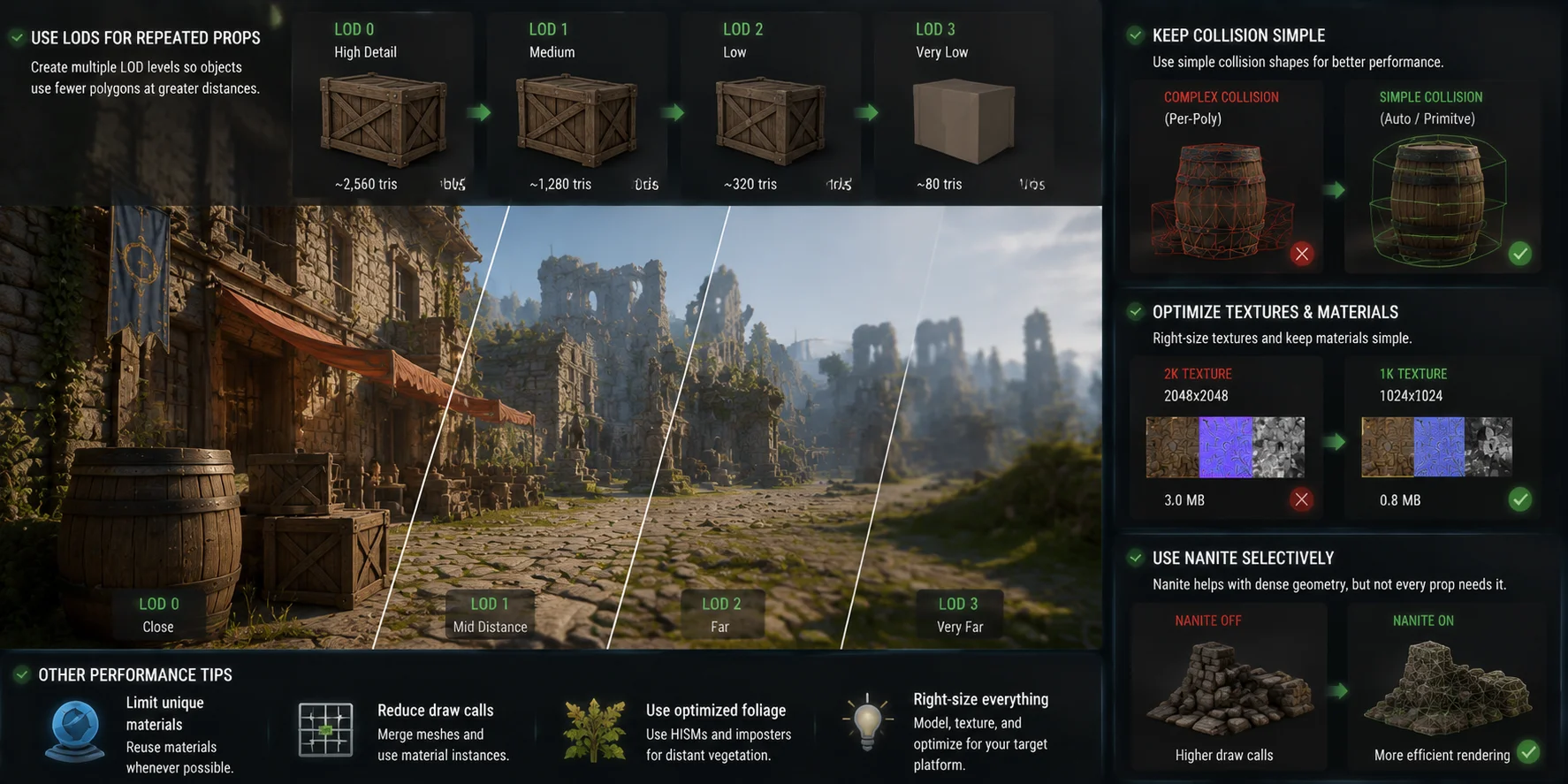
반복 Props에는 LODs 사용
Level of Detail (LOD)는 object가 camera에서 멀어질수록 더 단순한 geometry를 사용합니다. UE5에서 automatic LOD generation은 quadratic mesh simplification을 통해 Static Mesh polygon counts를 줄일 수 있습니다. 대부분의 AI-generated props는 Static Mesh asset을 열고 LOD Settings를 검토한 뒤, 모든 거리에서 highest-detail mesh를 렌더링하는 대신 여러 level을 생성하세요.
실용적인 기준으로 crates, barrels, foliage, ruins, furniture, distant architecture 같은 반복 environment assets에는 네 개의 LOD levels를 만드세요. LOD transitions는 mesh editor에서만 보지 말고 항상 실제 gameplay camera distances에서 테스트하세요.
Collision을 단순하게 유지
AI-generated models에는 gameplay collision에 필요한 것보다 더 많은 visual detail이 포함될 수 있습니다. 표준 static props에는 Auto Generate Collision을 활성화한 다음 Static Mesh Editor에서 결과를 검사하세요. Performance-sensitive objects의 경우 가능하면 complex per-triangle collision 대신 단순한 box, sphere 또는 capsule collision을 사용합니다.
Textures와 Materials 최적화
Generated models에는 distant props에 불필요하게 큰 texture maps가 포함될 수 있습니다. Gameplay에서 차이가 보이지 않는다면 2K textures를 1K 이하로 줄이세요. Background material graphs는 단순하게 유지하고, layered materials, translucency, expensive shader effects는 close-up assets에만 사용하세요.
Nanite는 선택적으로 사용
Nanite는 UE5가 dense static geometry를 효율적으로 렌더링하도록 도울 수 있지만, 좋은 asset optimization을 대체하지는 않습니다. 더 높은 geometric detail이 visual quality 또는 scene management를 개선할 때 활성화하세요. 모든 작은 low-poly prop에 Nanite를 자동으로 사용하는 것은 피하세요.
일반적인 문제와 해결 방법
| Problem | Likely cause | Fix |
|---|---|---|
| 모델이 흰색 또는 회색으로 보임 | Textures가 import되지 않았거나, material maps가 연결되지 않았거나, source paths가 누락됨 | Import Textures와 Import Materials를 enabled로 설정해 reimport합니다. UE material을 열고 필요한 곳에 Base Color, Normal, Roughness, Metallic maps를 수동으로 연결합니다. |
| 모델이 100배 너무 크거나 너무 작음 | Meter/centimeter 불일치 | 먼저 original source unit을 확인합니다. Import Uniform Scale을 1.0으로 시작하고, 알려진 크기의 UE5 reference와 asset을 비교한 뒤 mismatch가 확인될 때만 조정합니다. |
| 모델이 잘못 회전함 | Coordinate-system 또는 forward-axis 불일치 | Convert Scene을 활성화하고 Force Front XAxis를 고려합니다. Source가 어떻게 oriented되어 있는지 확인한 뒤에만 Import Rotation adjustment로 reimport합니다. |
| GLB가 import되지 않음 | Import route 또는 필요한 Interchange plugins를 사용할 수 없음 | 단일 GLB 또는 glTF asset의 경우 Content Browser를 통해 import합니다. 전체 scene에는 File → Import Into Level을 사용합니다. 프로젝트에서 필요한 Interchange plugins가 enabled인지 확인합니다. |
| Rigged model의 bones가 깨짐 | Skeleton mismatch 또는 incompatible retargeting | Import 중 새 skeleton을 생성하거나, 일치하는 compatible skeleton만 할당합니다. hierarchy와 retargeting setup을 검증하지 않았다면 AI-generated rig를 UE Mannequin skeleton에 강제로 적용하지 마세요. |
| Export에 subscription이 필요함 | 선택한 plan 또는 export feature에 restrictions가 있을 수 있음 | Export하거나 asset을 상업적으로 사용하기 전에 선택한 plan에 대한 Tripo AI pricing과 적용 가능한 license terms를 검토합니다. |
자주 묻는 질문
Unreal Engine에서 AI를 사용할 수 있나요?
예. 3D assets의 경우 Tripo AI 같은 도구로 모델을 생성하고, FBX 또는 GLB로 export한 다음, Unreal Engine의 표준 pipeline을 통해 import합니다. UE5에는 procedural generation과 machine-learning features도 포함되어 있지만, 이는 AI 3D model generation과는 별개입니다.
AI로 3D modeling을 할 수 있나요?
예. AI 3D tools는 text prompts 또는 reference images에서 meshes, PBR textures, 때로는 rigged characters를 생성할 수 있습니다. Tripo AI는 text-to-3D, image-to-3D, real-time topology를 위한 Smart Mesh, Auto Rig를 지원하지만, hero assets와 정밀한 mechanical parts에는 여전히 manual cleanup이 필요할 수 있습니다.
Unreal Engine coding에 가장 적합한 AI model은 무엇인가요?
이는 AI 3D asset generation이 아니라 C++, Blueprints, UE5 scripting을 위한 AI coding assistants를 의미합니다. GitHub Copilot, Cursor 같은 도구는 code suggestions와 explanations에 도움을 줄 수 있지만, 생성된 모든 코드는 production use 전에 검토해야 합니다. UE5 3D assets의 경우 Tripo AI는 real-time workflows를 위해 설계된 exportable FBX 및 GLB models를 제공합니다.
ChatGPT가 3D model을 만들 수 있나요?
ChatGPT는 prompts 작성, asset specifications 정의, 3D software용 scripts 생성에 도움을 줄 수 있지만, production-ready FBX, GLB 또는 OBJ files를 출력하지는 않습니다. 실제 mesh generation에는 Tripo AI 같은 전용 AI 3D tool을 사용하세요. Language models는 asset 계획을 돕고, AI 3D generators는 다운로드 가능한 geometry를 생성합니다.
결론
AI 3D models는 pipeline이 명확할 때 Unreal Engine workflow에 직접 맞출 수 있습니다. Tripo AI로 asset을 생성하고, 가장 안정적인 UE5 game workflow를 위해 FBX로 export하고, Content Browser를 통해 import한 다음, materials, scale, collision, orientation을 검증하세요.
Real-time scenes에서는 LODs 추가, collision 단순화, texture resolution 관리, 실제 이점이 있을 때만 Nanite 사용을 통해 generation 이후까지 최적화해야 합니다. AI는 모든 prop 또는 prototype에 항상 몇 주의 artist time을 투입할 수 없는 solo developers와 small teams가 초기 asset creation에 더 쉽게 접근할 수 있게 만들고 있습니다.
Prompt 또는 reference image를 UE5-ready asset으로 바꿀 준비가 되셨나요? Tripo AI Studio에서 시작하기를 통해 단일 game prop으로 워크플로를 테스트한 뒤 프로젝트 전반으로 확장해 보세요.